Vue lecture

I switched to the HyperDrive Next Thunderbolt 5 dock for a few weeks, and it could be the best accessory for productivity masters — here's why

Docking stations are an interesting section of the laptop market. There are a lot of options out there, many of them offering the latest Thunderbolt 5 connectivity with an assortment of older and varied ports.

As the market fills up, laptop docks have to set themselves apart with different sub-features. I'm talking about Thunderbolt Share. A built-in M.2 SSD slot. A standout design (as much as that's possible with a small chunk of metal).

In the case of Hyper's HyperDrive Next Thunderbolt 5 dock that I've been using for a few weeks, it's the extra features that I'm most excited about. Let me explain so you know if it's right for your desk.

This review was made possible thanks to a review sample provided by HyperDrive. It had no input nor saw the contents of this review prior to publication.

Where can I buy the HyperDrive Next Thunderbolt 5 dock?

The HyperDrive Next Thunderbolt 5 dock is available at major online retailers, including Amazon and B&H. Although it launched with a $399.99 price tag, it seems like it's now permanently available at $319.99.

For comparison's sake, the CalDigit TS5 Plus — currently my favorite Thunderbolt 5 dock on the market — costs about $500.

Wavlink's Thunderbolt 5 dock, which I favorably reviewed, costs about $299.99 before frequent discounts (often falling to less than $200), while Kensington's excellent SD7100T5 EQ Pro costs about $339.

I'd say that Hyper's HyperDrive Next dock is priced within reason compared to other Thunderbolt 5 hardware, although Wavlink continues to be the best value option out there that I've tested.

What sort of ports does the HyperLink Drive have?
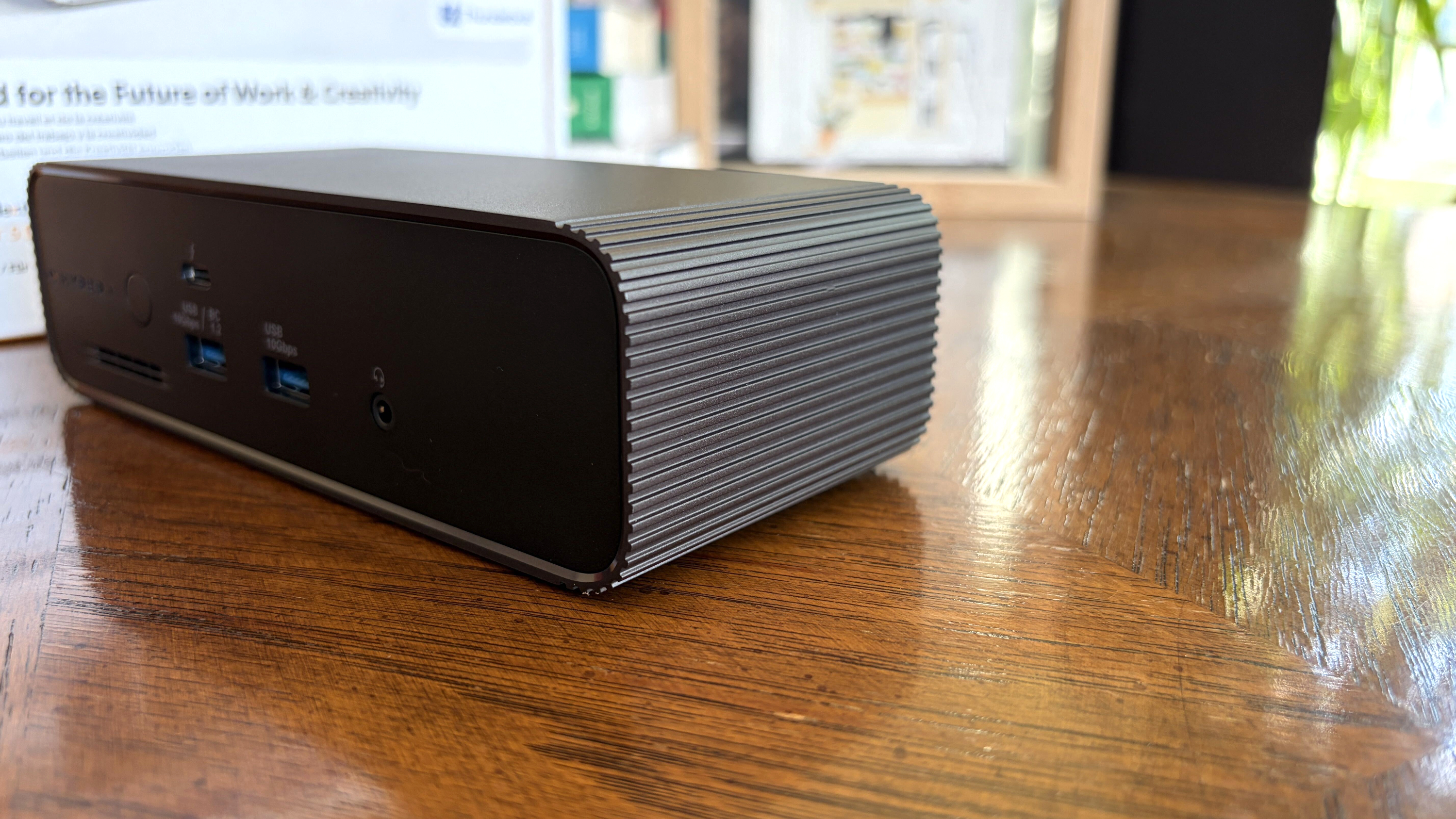
A sleek black HyperDrive Next dock with a textured ribbed edge, featuring USB and audio ports, placed on a polished wooden surface with a blurred background.

Ribbed edges give the dock's metal chassis a bit of texture and help dissipate heat. (Image credit: Future)

Dock design doesn't usually vary too much, and the HyperDrive Next plays it fairly safe with a chunky aluminum shell and plastic faceplates. I've mentioned plenty of times in other reviews that I prefer an all-metal design for added durability and less chance of scratching.

I like the ribbed corners on the aluminum shell. They add a bit of texture to an otherwise sleek exterior, and they help dissipate heat.

The dock works horizontally only, with rubber pads on the bottom to prevent it from slipping. Measuring 7.64 inches (19.4cm) wide and 3.07 inches (7.8cm) deep, it's thankfully rather compact.

There appear to be some holes drilled for mounting with a bracket, though a permanent setup like that might not be ideal due to the M.2 SSD slot's location (more on that in a moment).
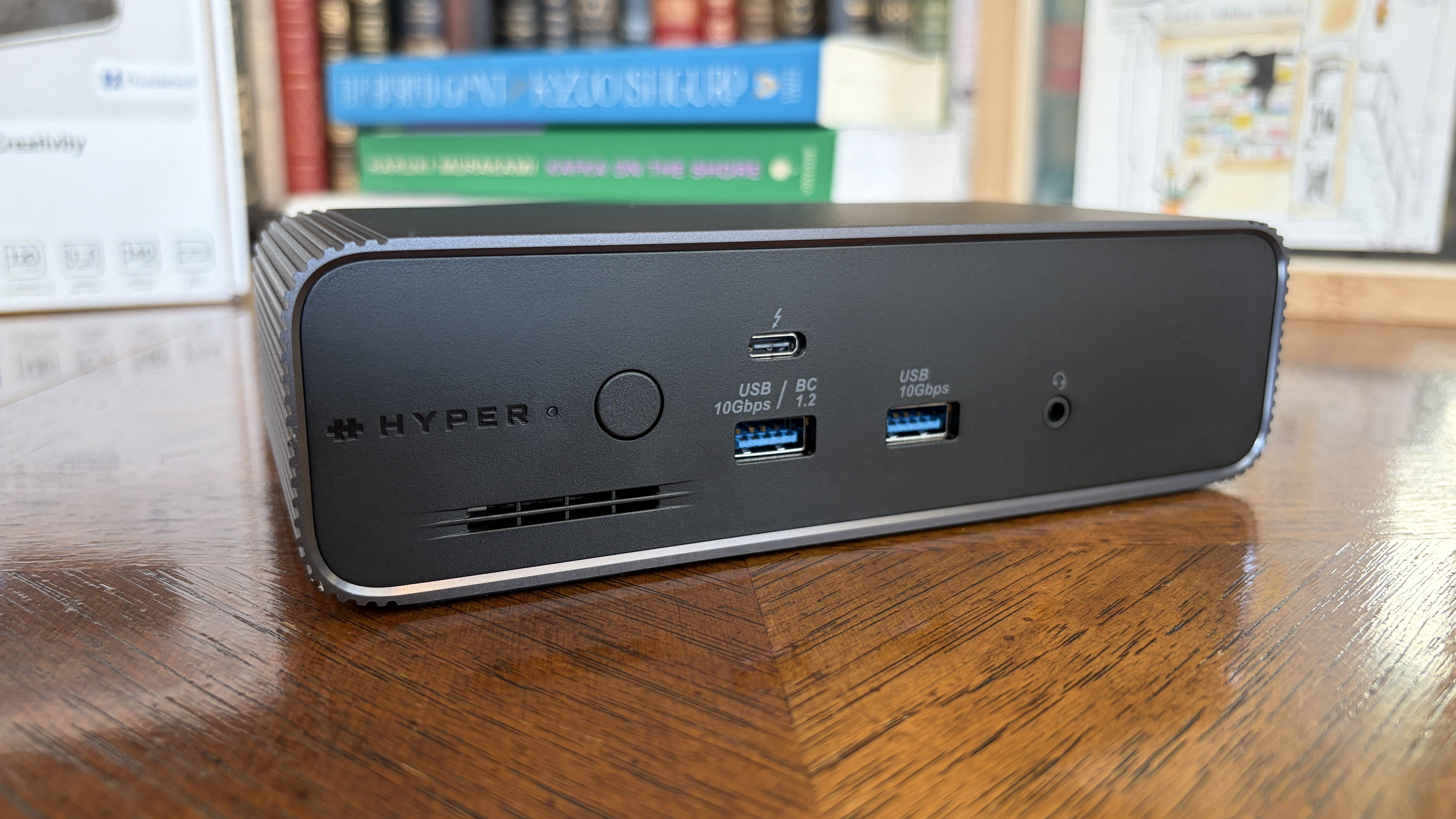
A sleek black dock with multiple ports and the brand name

The front of the dock has dual USB-A ports, downstream Thunderbolt 5, and a 3.5mm audio jack. (Image credit: Future)

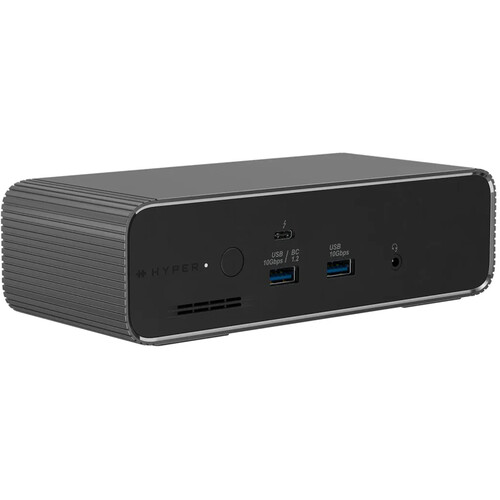
The front of the dock includes dual USB-A ports at 10Gbps each, a 3.5mm audio combo jack, and a single downstream Thunderbolt 5 port.

What you might think at first glance are SD card readers are merely vents cut out to help the built-in cooling fan. The slots sit below the power button and LED status light.
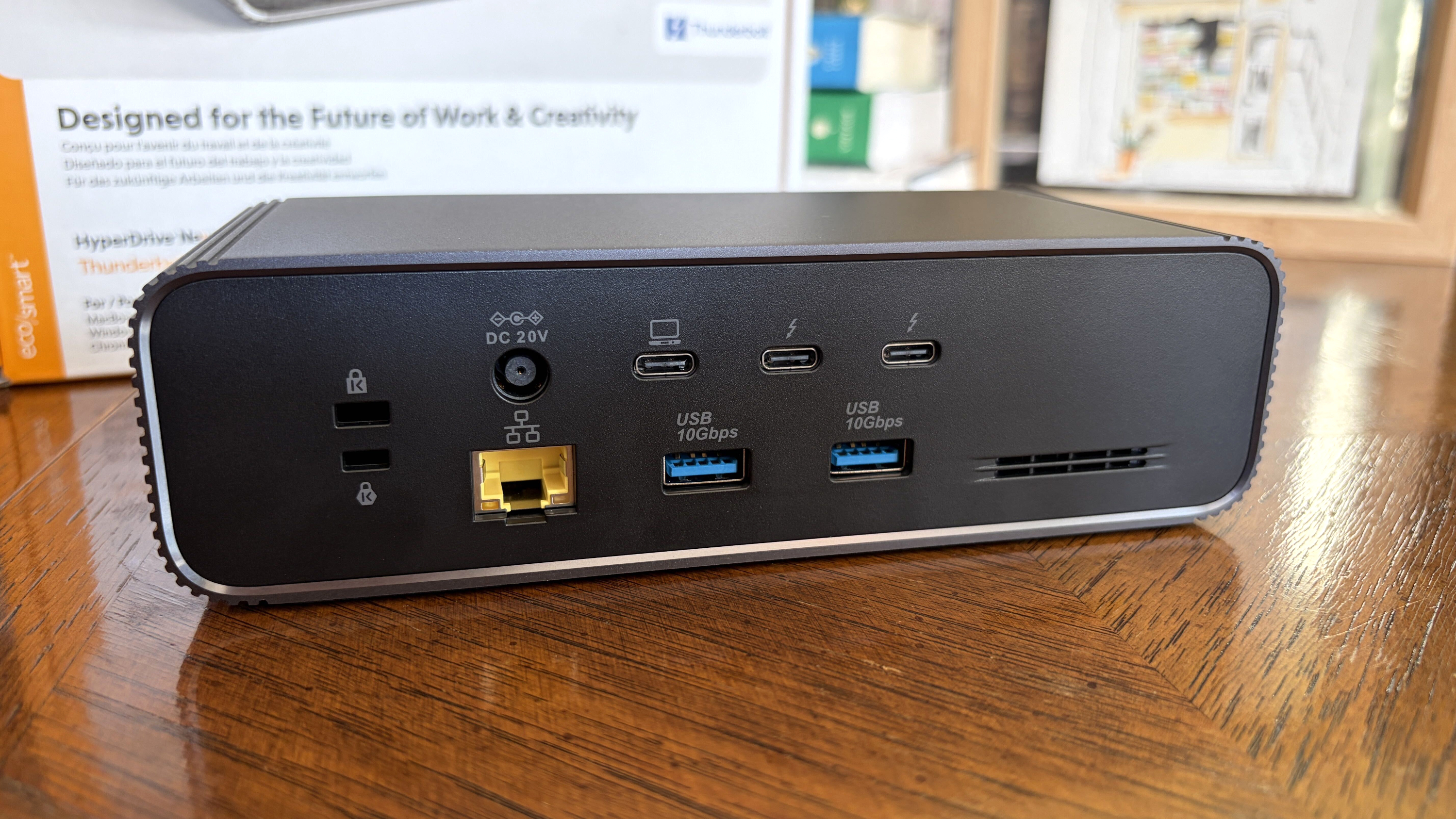
A black HyperDrive Next docking station featuring multiple ports including USB Type-C and Ethernet, placed on a wooden surface.

The back of the dock is where you'll find most ports, including downstream Thunderbolt 5, USB-A and 2.5Gb Ethernet. (Image credit: Future)

The back of the dock is where you'll find two more downstream Thunderbolt 5 ports, an upstream Thunderbolt 5 port for connecting your host laptop, two USB-A (10Gbps) ports, a 2.5Gbps Ethernet jack, dual lock slots, and a 20V power hookup.

The upstream host connection supports device charging at up to 140W, which is enough to keep most laptops without a discrete GPU topped up and ready to go.

At this point, you might be asking where the video outputs are located. Well, you're looking at them. The HyperDrive Next relies entirely on Thunderbolt 5 for external monitor support.

If you're using older monitors without USB-C connectivity, you'll need some adapters that switch the USB-C form factor used by Thunderbolt 5 to HDMI or DisplayPort.

The HyperDrive Next relies entirely on Thunderbolt 5 for external monitor support.

The good news is that Thunderbolt 5 is quite capable of handling video, and the dock allows for up to three 4K external displays, each running at a 60Hz refresh rate. If you're targeting a high resolution, it'll go as high as 8K at 144Hz.

It's worth noting that some other Thunderbolt 5 docks support up to three 4K displays each at 144Hz, so there's definitely a bit being left behind due to the other features on board.

I had no problems running one 4K screen and one ultrawide QHD+ screen off the dock, with bandwidth to add more. As mentioned, I've been using this dock on my desk, and I never noticed it get overly hot despite multiple monitors, frequent data transfers, and connected accessories.

HyperDrive Next's additional Thunderbolt 5 features
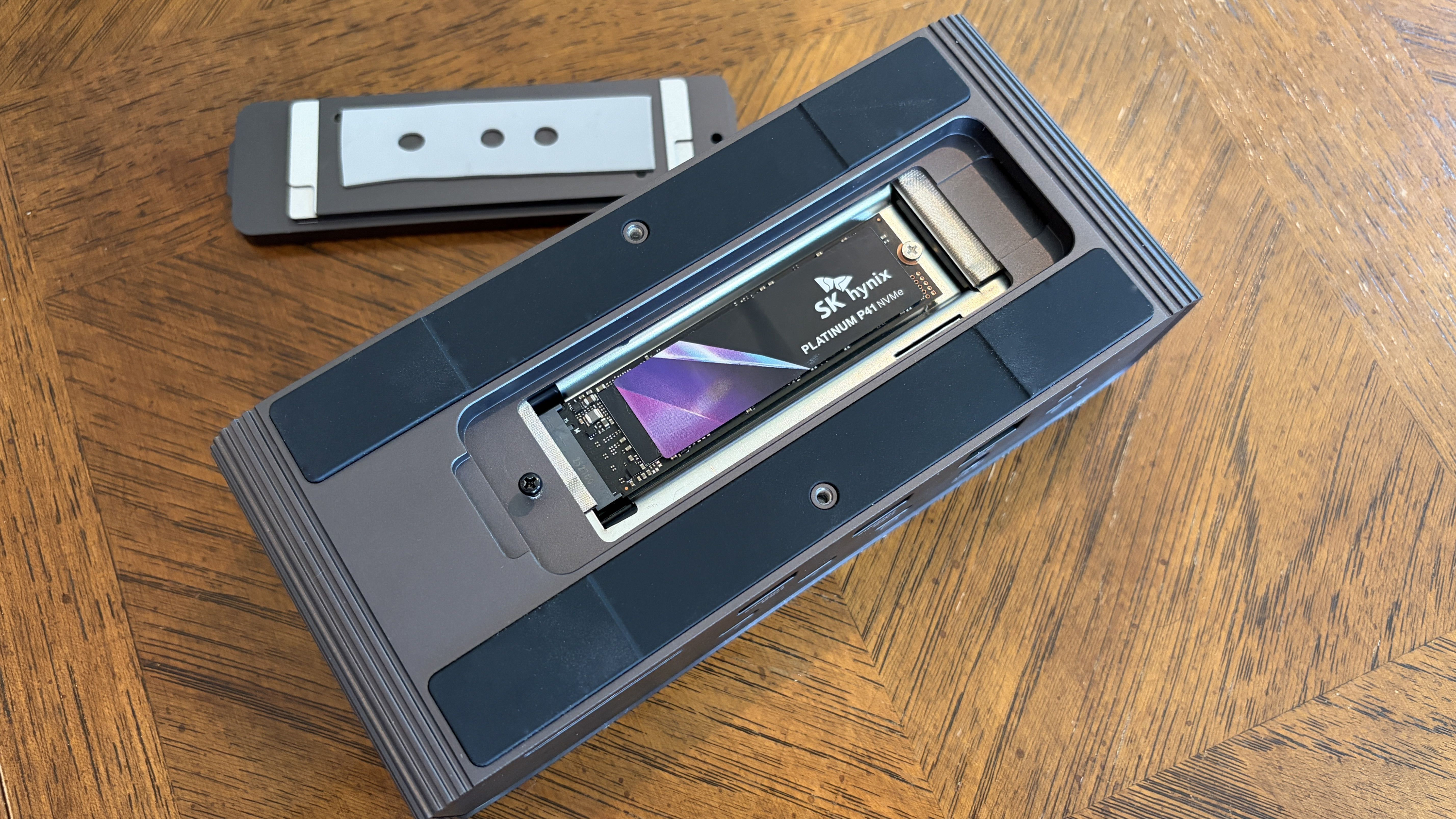
A close-up of a HyperDrive Next dock, revealing a sleek internal SSD labeled SK hynix PLATINUM P41 1TB, alongside a separate lid piece.

A look at the M.2 SSD slot with an SK hynix drive installed. (Image credit: Future)

Aside from the incredible transfer speeds you get from Thunderbolt 5, the extra bandwidth opens up some extra features that I particularly love.

Like the Razer Thunderbolt 5 Dock Chroma I tested last year, the HyperDrive Next dock comes with a built-in M.2 PCIe 4.0 NVMe SSD slot, with a hatch located on the bottom of the dock.

You need a screwdriver to get in, but it's well worth it, with support for full-size 2280 M.2 sticks all the way down to smaller 2230 drives. You should be able to use up to a 16TB drive in here (who can afford that these days?), doubling the capacity of the other docks I've tested.
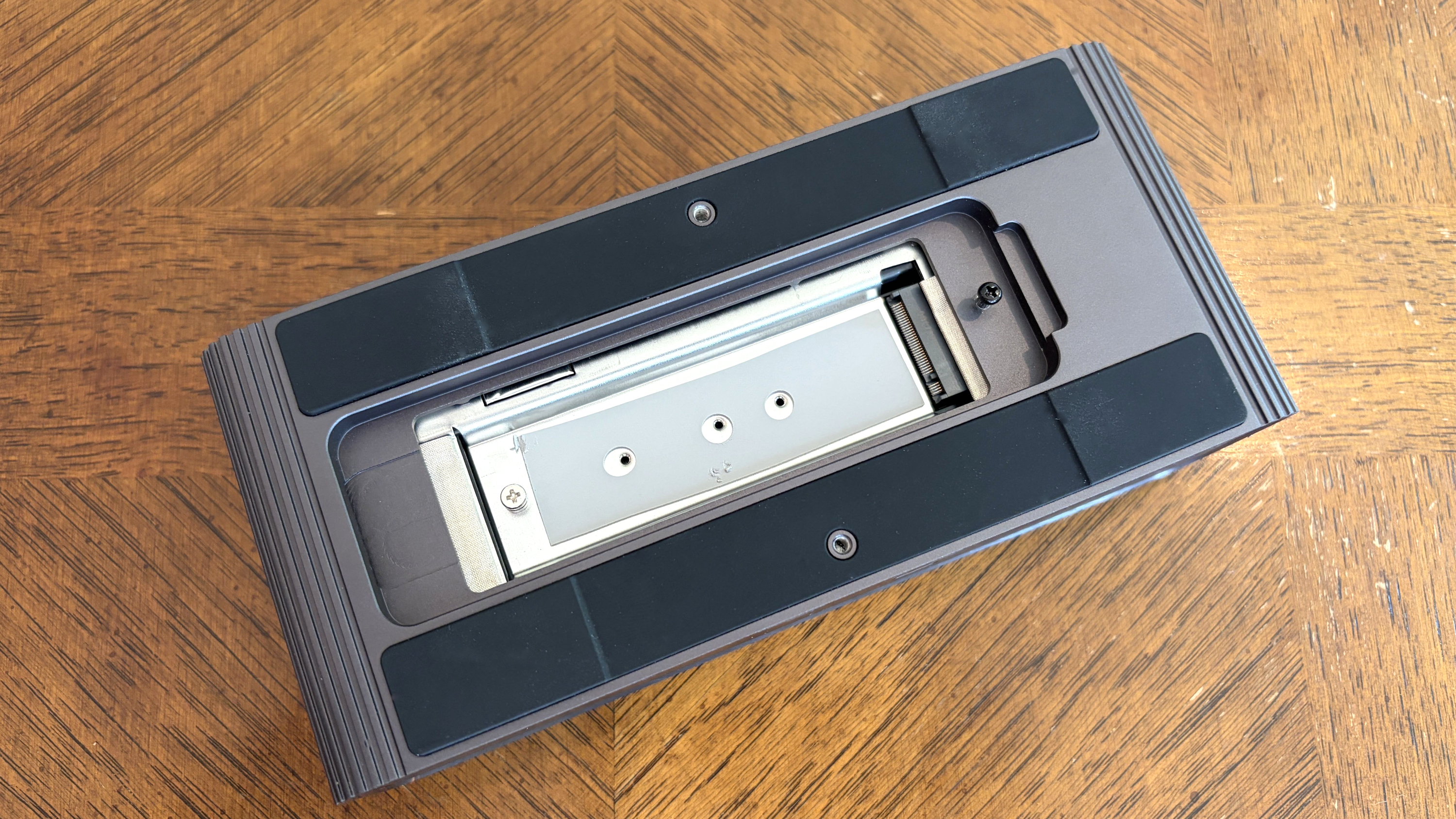
Close-up of a gray HyperDrive Next dock with a metallic sliding mechanism and black rubber pads, resting on a wooden surface with a geometric pattern.

The built-in M.2 SSD slot fits sizes from 2280 down to 2230. (Image credit: Future)

The other big feature is Intel Thunderbolt Share. It's a tool that allows Thunderbolt 4 and 5 laptops to communicate directly with each other, easing common transfers and making life with multiple laptops that much easier.

File transfers are super easy, requiring just a drag and a drop.

The catch is that at least one of the laptops in use needs to have official Intel Thunderbolt Share certification, unless you have a dock connected in between with the official badge. That's where the HyperDrive Next comes in.

You can connect two separate laptops to the dock and control both from one set of peripherals. File transfers are super easy, requiring just a drag and a drop.

What I don't like about the HyperDrive Next Thunderbolt 5 dock
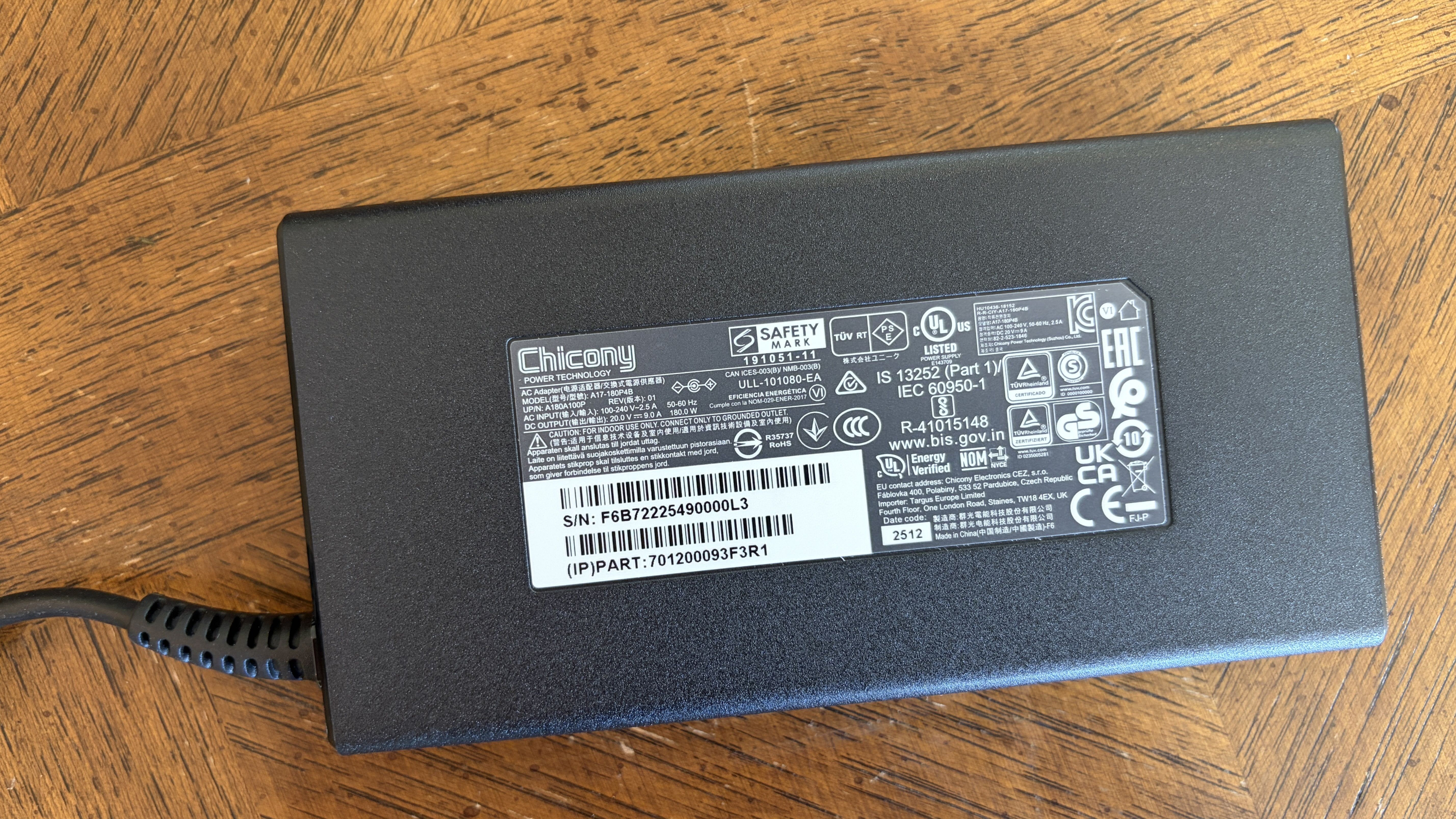
Black rectangular power adapter with a coiled cord on a wooden surface, featuring various safety certification labels.

The 180W power adapter is a tad wimpy compared to other docks, but at least it doesn't take up much space. (Image credit: Future)

Depending on how you use your dock, the lack of native video outputs might be a con. However, for others, full Thunderbolt and USB connectivity, paired with an M.2 slot and Thunderbolt Share, might be exactly what's needed.

The only major issue I experienced has to do with how the dock handles heavy workloads. While testing, I noticed drops in SSD and Ethernet speeds when used simultaneously.

I figured this had something to do with power allotment. A 180W adapter isn't that big for a dock that can charge a laptop at 140W. Indeed, this does make some of the charging abilities on ports other than the host connection fairly wimpy.

The dock is super convenient thanks to its built-in features.

The other Thunderbolt 5 ports only charge at 15W, and one USB-A port hits 7.5W. The rest sit at a rather low 4.5W.

However, after doing a bit of research, it seems that the Ethernet/SSD limitation is caused by the actual Intel Barlow Ridge chipset that's used by modern Thunderbolt 5 docks.

So, yes, the dock is super convenient thanks to its built-in features. But you probably won't get as good of performance as if you had a drive and an Ethernet cable connected separately via Thunderbolt 5 ports. It's not exactly Hyper's fault, but it's well worth noting.

Should you buy the HyperDrive Next Thunderbolt 5 dock?
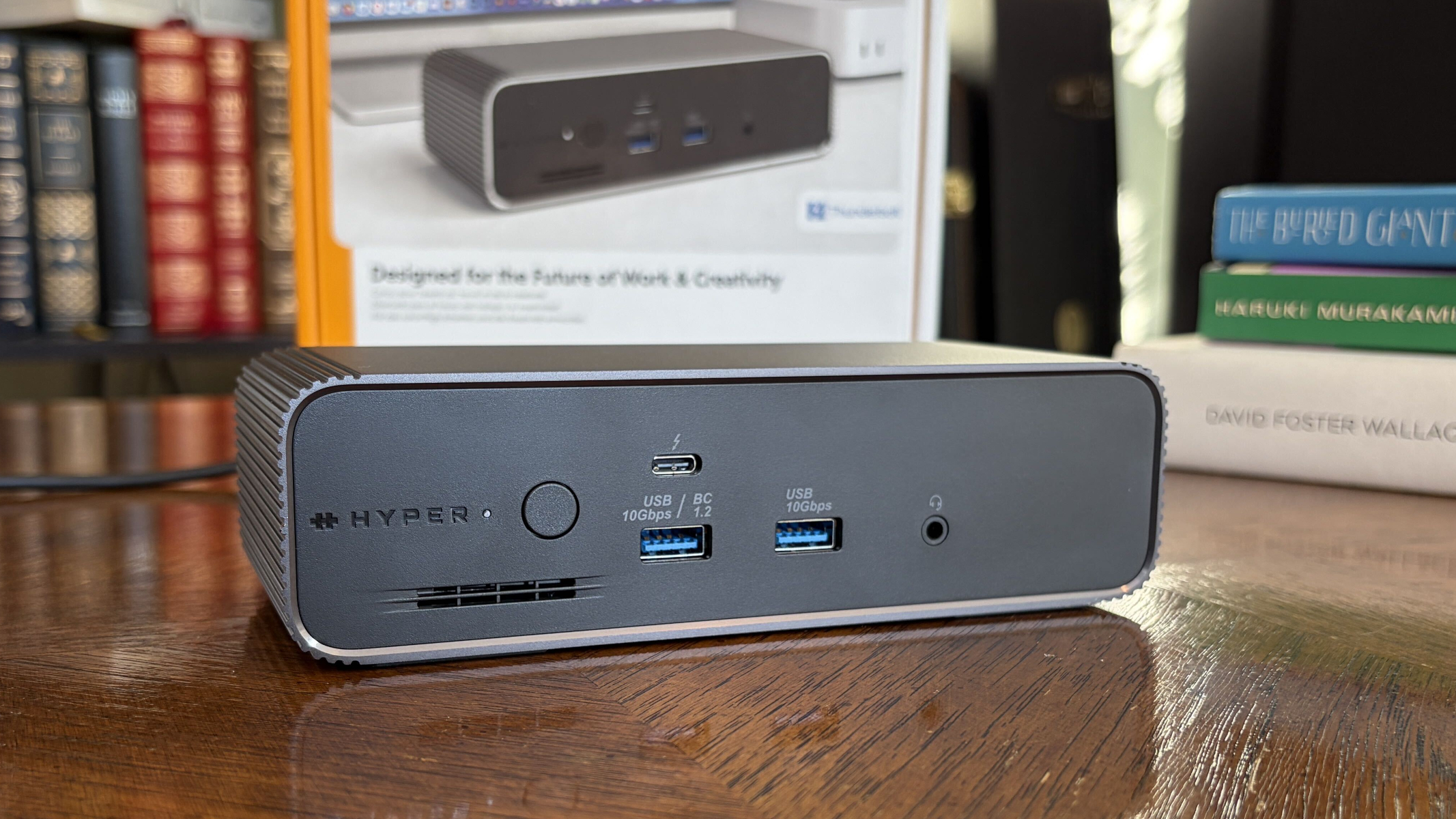
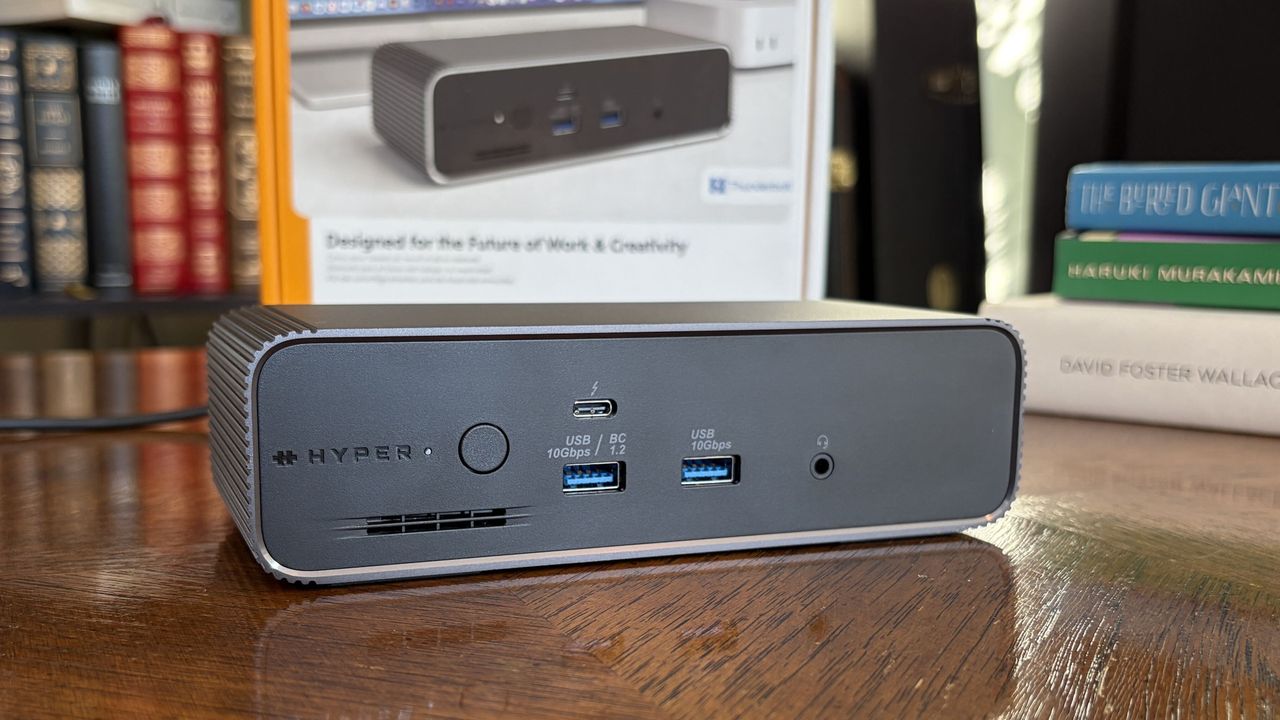
A gray HyperDrive Next docking station with multiple ports displayed on a wooden desk, surrounded by colorful books and a framed image.

The HyperDrive Next Thunderbolt 5 dock is great for those who want a built-in M.2 SSD slot and Thunderbolt Share capabilities. (Image credit: Future)

✅ You should buy this if ...

  • You want a Thunderbolt 5 dock with a built-in M.2 SSD slot and Thunderbolt Share.
  • You have a Thunderbolt 5 laptop that can take advantage of all features (or you plan on buying one soon and can make do with Thunderbolt 4 speeds for the time being).

❌ You should not buy this if ...

  • You want maximum SSD and Ethernet speeds without requiring any adapters.
  • You have three external 4K displays and want to run them all at 144Hz.

Windows Central Recommended Award

Hyper's HyperDrive Next Thunderbolt 5 dock is a high-end option that actually competes quite well with the competition in terms of pricing and performance.

For example, the Kensington SD7100T5 EQ Pro comes with a built-in M.2 SSD slot, tons of ports (including SD card readers), and 2.5Gb Ethernet. It does not have Thunderbolt Share. It costs about $340.

If you don't need Thunderbolt Share or a built-in SSD slot, the Wavlink Thunderbolt 5 Thunderlight is probably a better bet, especially at only about $220.

Sitting in between is the HyperDrive Next at about $320, and I'd recommend it to those who want the convenience of external M.2 SSD storage and the ability to quickly share content between two PCs.

Otherwise, I recommend checking out my guide to the best laptop docking stations on the market today for more great options.
A sleek HyperDrive Next dock with USB ports and a power button, featuring a brand logo.

SSD slot & Thunderbolt Share
Hyper
HyperDrive Next Thunderbolt 5 Dock

The HyperDrive Next Thunderbolt 5 Dock brings a potent combination of a built-in M.2 SSD slot and Thunderbolt Share certification, perfect for busy offices involving multiple PCs. However, its lack of native video output and so-so charging capabilities might have you looking at the competition.

Click to join us on r/WindowsCentral

Join us on Reddit at r/WindowsCentral to share your insights and discuss our latest news, reviews, and more.

A gray HyperDrive Next docking station with multiple ports displayed on a wooden desk, surrounded by colorful books and a framed image.
A gray HyperDrive Next docking station with multiple ports displayed on a wooden desk, surrounded by colorful books and a framed image.

  •  

Microsoft Surface and other Windows on Arm PCs can't use Outlook or Teams right now

A Windows 11 update appears to break Microsoft Teams and Outlook on Windows on Arm PCs. Issues started popping up after the rollout of KB5121003, which began shipping this month on Patch Tuesday.

Brian Stringfellow shared details about the problem through a Microsoft Learn report. Several people in that thread have similar issues.

PCs affected by the issue, including Stringfellow's Surface Laptop 7, see Microsoft Teams and Outlook close almost immediately after being opened. Specifically, the new Outlook is affected. Classic Outlook still works on PCs affected by the bug.

The problem seems to affect a variety of Windows on Arm devices. Julius Heng shared their experience:

"I have the exact same issue on Omnibook 3 running snapdragon. After the initial setup, Ms Teams works, but next day it doesnt work. It will have a white screen on teams and it will close right after it open. I tried various method, including reinstall webview 2 etc. None of it works. I tried to roll back all the update and it doesnt work. After did a factory reset Ms Teams works again. But to my dismay, the windows update itself and it breaks Teams again. right now, i'm back to square. Really hope that there's some way to rectify this."

It's not clear at this time why the issue is occuring or why the problem is limited to Windows on Arm PCs.

User Alex-L, who is listed as a moderator and Microsoft External Staff on Microsoft Learn, reported that similar issues are occurring on a variety of Windows on Arm systems:

"At this point, very similar symptoms on different Snapdragon/ARM64 systems. While these reports suggest a possible common factor, no one in this public forum can confirm Microsoft's internal investigations, determine the root cause, or verify whether this is a known issue affecting all ARM64 devices. Microsoft does not currently list a known issue for KB5121003 in the official release notes."

While we wait for official confirmation from Microsoft and a fix for the issue, users with Windows on Arm PCs may have to fall back to other versions of Outlook and Teams that are unaffected by the bug.

Click to join us on r/WindowsCentral

Join us on Reddit at r/WindowsCentral to share your insights and discuss our latest news, reviews, and more.

Microsoft's Surface Pro 12-inch 1st Edition (2025) powered by Qualcomm Snapdragon X Plus processor.

Microsoft's Surface Pro 12-inch 1st Edition (2025) powered by Qualcomm Snapdragon X Plus processor.

  •  

Apple's leaked AirPods Ultra already have competition — Razer's Motoko is a PC gaming headset with built-in cameras, and it's no longer just a concept

The next evolution of Apple's AirPods is out in the wild after a leaked video was posted online. Known as AirPods Ultra, the new wireless earbuds look basically the same as regular AirPods, albeit with a thicker stem.

Hiding inside the new AirPods Ultra are discrete cameras that enable something called "Visual Intelligence." According to Tom's Guide, these cameras aren't intended to record live video or snap photos, setting AirPods Ultra apart from the likes of Meta's AI Glasses, which are raising some very serious privacy concerns.

What I wasn't expecting next was an announcement from Razer's Min-Liang Tan explaining that the company's Project Motoko, unveiled as a concept at CES 2026, is actually a real product that's "coming soon."

At CES we unveiled Project Motoko: an AI native headset with dual cameras in the earcups. It sees what you see, hears what you hear. No display needed.Started as a concept. Not staying one. Coming soon.What's the first killer use case for wearable AI? pic.twitter.com/MCmrcnUdZMAugust 19, 2026

Razer's tackling of this idea involves a full wireless gaming headset with cameras built into the earcups. They're certainly not as hidden as the cameras on Apple's leaked implementation, but I don't think they're aimed at the same end goal.

In the leaked Apple video, a person picks up a book and looks at the cover. Siri (or some other assistant) then says that "your world becomes savable" — all you have to do is whisper into your own ear that you'd like to save what you're looking at.

The new AirPods Ultra are expected to show up at Apple's next special event in September, but already there is a lot of backlash regarding privacy. Glasses (or really any tech) that record everything around you are already being banned due to privacy concerns, and I hope that Apple indeed uses some method that captures info without saving actual photos.

Razer's Project Motoko is not like the rest

Razer is taking a different approach to a video-infused audio device. Rather than hiding the cameras in tiny earbuds, it's slapping them onto what appears to be a rather high-end wireless gaming headset.

Each earcup has an FPV camera designed to sit at eye level, allowing it to better quantify what you're actually looking at. Razer says its cameras offer a wider field of view than is humanly possible, and that they can pick up "symbols, text, and details."

Motoko can use a bunch of different AI models (Grok, OpenAI, and Gemini are mentioned), and Razer says it can be a "powerful data collection tool" to train language models. The headset runs on a Snapdragon chip.

A demo video on the Razer website explains that Motoko "hears, interprets, and answers in the moment." The accompanying video certainly seems to show that the headset's cameras are recording the entire time, much like AI glasses.

Razer pegs it as a "personal full-time AI assistant" that "stays keyed into your schedule, preferences, and habits, while adapting effortlessly to anything else you might ask." I'm reminded immediately of Lenovo's Qira AI assistant.

Privacy concerns aside, who's going to wear a gaming headset all day?

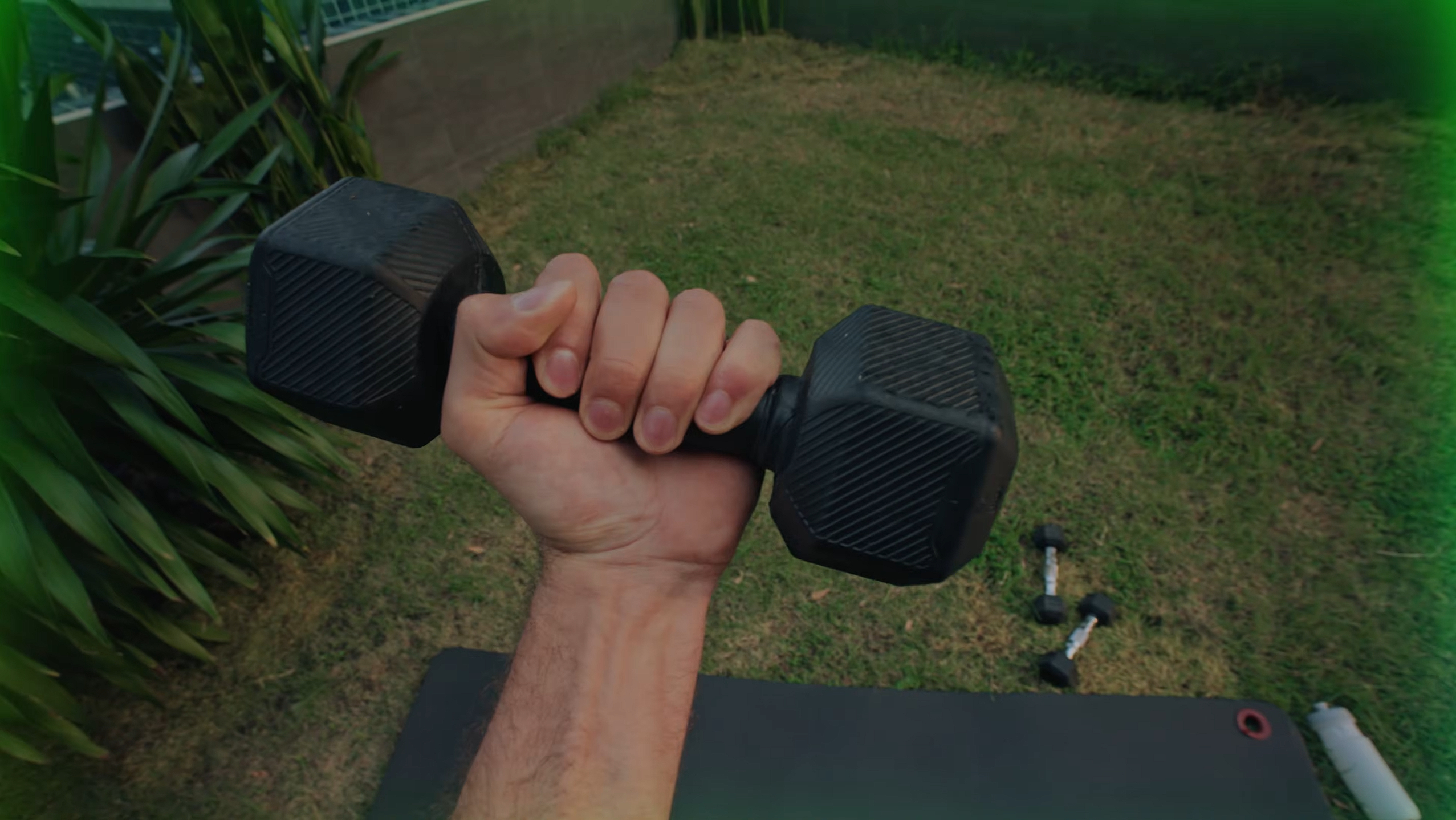
A close-up of a hand gripping a black hexagonal dumbbell against a grassy background and a dark yoga mat.

Who the hell wears a gaming headset while they work out? (Image credit: Razer)

Razer makes a lot of concept devices, and not all of them make it into the hands of consumers. The fact that Razer is going ahead with Motoko hot on the heels of the AirPods Ultra leak means the company must truly believe there's something there worth pursuing.

But my first thought was, "Who wants to wear a gaming headset all day?" Never mind the privacy concerns; gaming headsets are great for a few hours at a time, and usually best if you're not active.

Razer's vision for Motoko seems to go against that. A small FAQ section on the official website explains the potential everyday uses for Motoko:

The possibilities are endless. Whether you’re cooking and need step-by-step guidance, traveling and want real-time translations, working and managing tasks hands-free, repairing something with instant audio instructions, or gaming with immersive AI-driven guidance—Motoko adapts to every scenario. Its AI-powered vision and audio awareness make it more than a headset; it’s your always-on companion for smarter living, wherever life takes you.

Razer

Is everyone suddenly going to be wearing a bulky gaming headset everywhere they go? Not likely, especially during any tasks that require a bit of sweat. When Motoko actually launches, it had better be the most comfortable headset ever made if Razer wants it to be successful.

Windows Central's take on Razer Motoko

A top-down view of a person slicing cherry tomatoes on a wooden cutting board, surrounded by bowls of pine nuts, garlic cloves, crumbled cheese, and basil leaves.

A screengrab from the Motoko video showing a livestream running from the gaming headset. (Image credit: Razer)

Razer's Motoko headset probably has the best chance of succeeding amongst PC gamers. It is, after all, a gaming headset. But, speaking from a bit of experience, I can say that a lot of PC gamers couldn't care less about letting AI help with video games. Whether or not Motoko's appeal actually goes mainstream remains to be seen.

I want to know if you'd buy something like Razer's Motoko when it launches. Would you use it for gaming? For something else? Are you concerned about eroding privacy due to the prevalence of these video capture devices? Let me know in the comments section below!

Click to join us on r/WindowsCentral

Join us on Reddit at r/WindowsCentral to share your insights and discuss our latest news, reviews, and more.

A person holds a pair of black Razer Project Motoko wireless headphones, showcasing their design, with a green box visible in the background on a wooden surface.

A person holds a pair of black Razer Project Motoko wireless headphones, showcasing their design, with a green box visible in the background on a wooden surface.

  •  

Everything you need to head back to school with a new Dell PC is here — fast Windows laptops with essential accessories on sale

It's about time for a new semester, and upgrading your PC can make the process much easier. You don't need anything excessive to access most of the Windows software and cloud apps you'll need in school or college, and Dell's official store has already reduced prices on some of its best hardware.

Back to school deals up to $900 off PCs and more at Dell

Some of Dell's deals go into the weeds (who knew they sold robot vacuums?), so I've handpicked a collection for practically anyone who needs portable tech for studies or even works from home. We've tested hundreds of processors found in its laptops, and traveled the world with devices just like this.

New XPS 13 (Core 5 320, 8GB RAM, 512GB SSD): was $699.99 now $599.99 at Dell.com (with Student pricing)

Dell returns to its iconic branding with the "thinnest & lightest XPS laptop ever," and its choice of Intel processor delivers up to 17 hours of battery life.

👉 Standard pricing: $699.99 at Dell.comView Deal

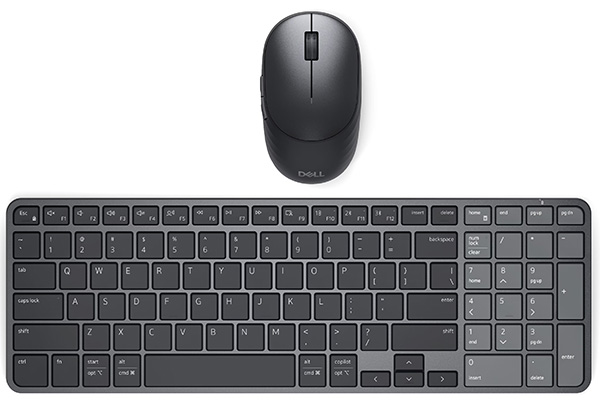
Pro 7 Rechargeable Compact Keyboard and Mouse: was $94.99 now $89.99

An external mouse and keyboard are much more comfortable for extended sessions, and this pairing is compact enough for travel.View Deal

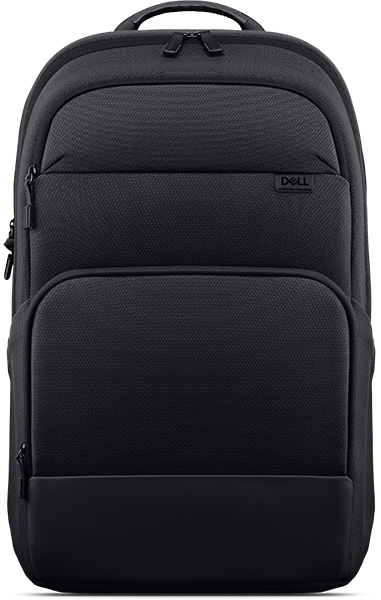
Pro 14-16 Plus EcoLoop Backpack: was $54.99 now $49.99

Technically designed for 14-inch laptops and above, this affordable backpack just offers extra space for your laptop's AC adapter and more study materials.View Deal

Is the new Dell XPS 13 a good laptop?

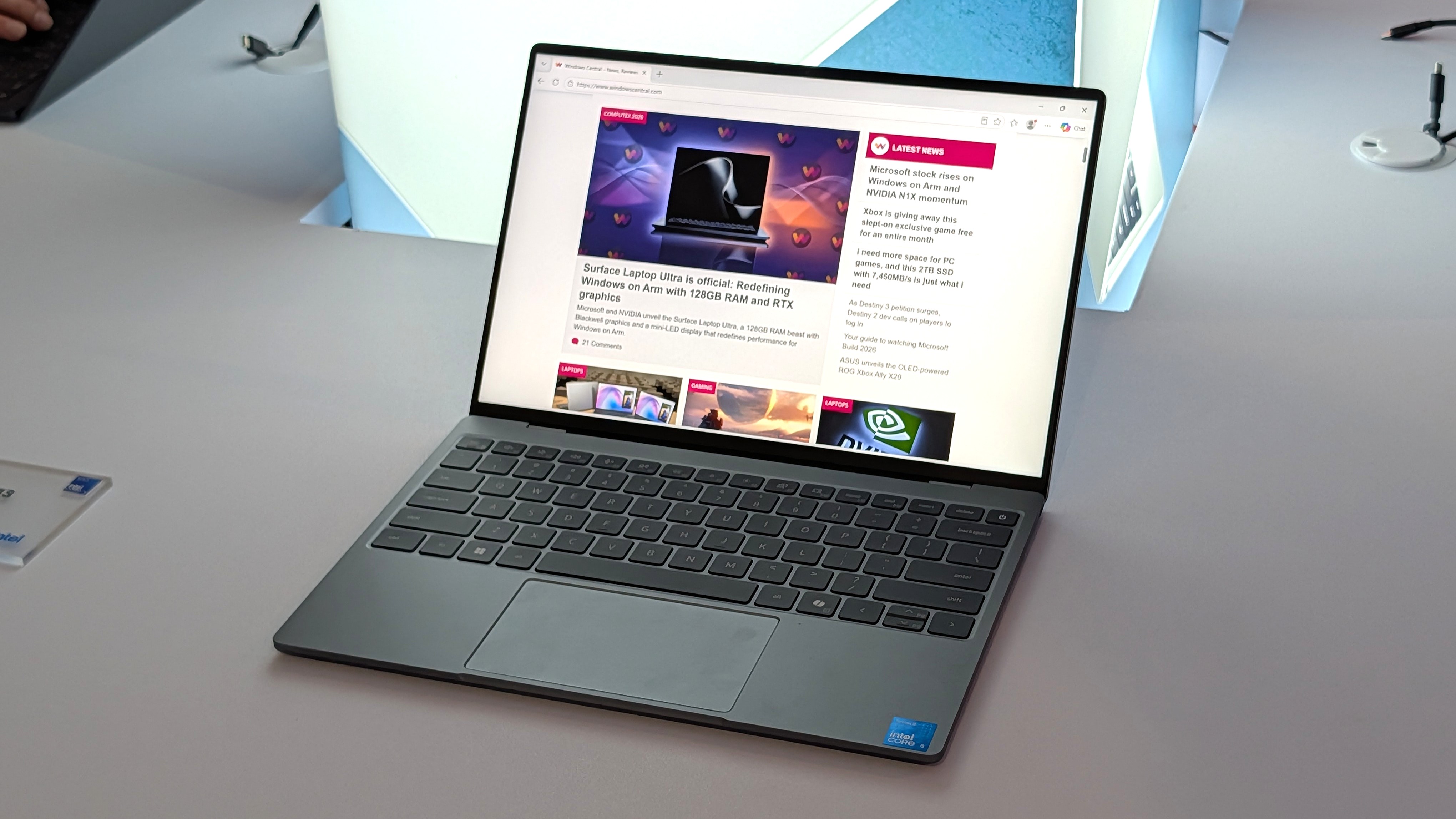
Dell XPS 13

Dell's new XPS 13 impressed us. (Image credit: Zac Bowden / Windows Central)

We saw the revival of Dell's XPS 13 laptop appear at Computex earlier this year, and went hands-on while we attended Taiwan's popular technology convention. There's no denying it's the Windows-centric alternative to Apple's MacBook Neo, but as Dell explained to us in person, it was in development before the Neo ever launched. In that, it stands as more of an affordable flagship than a compromise.

After spending some time with the XPS 13, Senior Editor Zac Bowden said it "still feels every bit as premium and nice to use as the $1,000 XPS 13 before it", which tracks, because this used to be placed as a much more expensive laptop. If you pick one up, you'll get a 120Hz display for a smooth refresh rate on a bright, 2.5K touchscreen, in the thinnest and lightest XPS yet.

I don't think there's another laptop on the market right now that is as good a deal as this new Dell XPS 13 is at $699. It's so much better than the MacBook Neo that it's not even really a contest.

Zac Bowden, Senior Editor

As the name suggests, the XPS 13 offers a 13.4-inch screen in a 2.2-lb chassis, powered by a relatively standard 65W USB-C AC adapter rather than a proprietary cable-and-brick setup. Yes, it's smaller than the EcoLoop backpack was designed for, but the extra inch leaves space for extras like the Pro 7 mouse and keyboard combo.

However, Zac did make it clear that the XPS 13 has "an amazing keyboard and excellent trackpad", so you'll still be able to rely on it in any situations where an external set of peripherals isn't as viable, and they stay in your backpack instead. Plus, the built-in webcam supports Windows Hello face unlock for faster logins, and its powered USB-C 3.2 Gen 2 ports support external displays.

You'll need to verify your education status with Dell to be eligible for the XPS 13's $599.99 student pricing, but $699.99 is still a great price if you're looking for a work companion instead. Otherwise, for students heading back to school for a new semester, this portable PC combo for under $740 is a steal.

Click to join us on r/WindowsCentral

Join us on Reddit at r/WindowsCentral to share your insights and discuss our latest news, reviews, and more.

Dell XPS 13

Back‑to‑school Dell deals are offering the bargain new XPS 13 laptop, along with essential accessories, and standout value for students.

  •  
❌