Vue lecture

This app's massive update supercharges power management on Windows 11

I love tiny utilities. If I find a useful flyout, widget, or Taskbar tweak, I'm likely to install it right away. A recent update to Battery Flyout brings power management and tracking to the Taskbar, and it even supports a new widget!

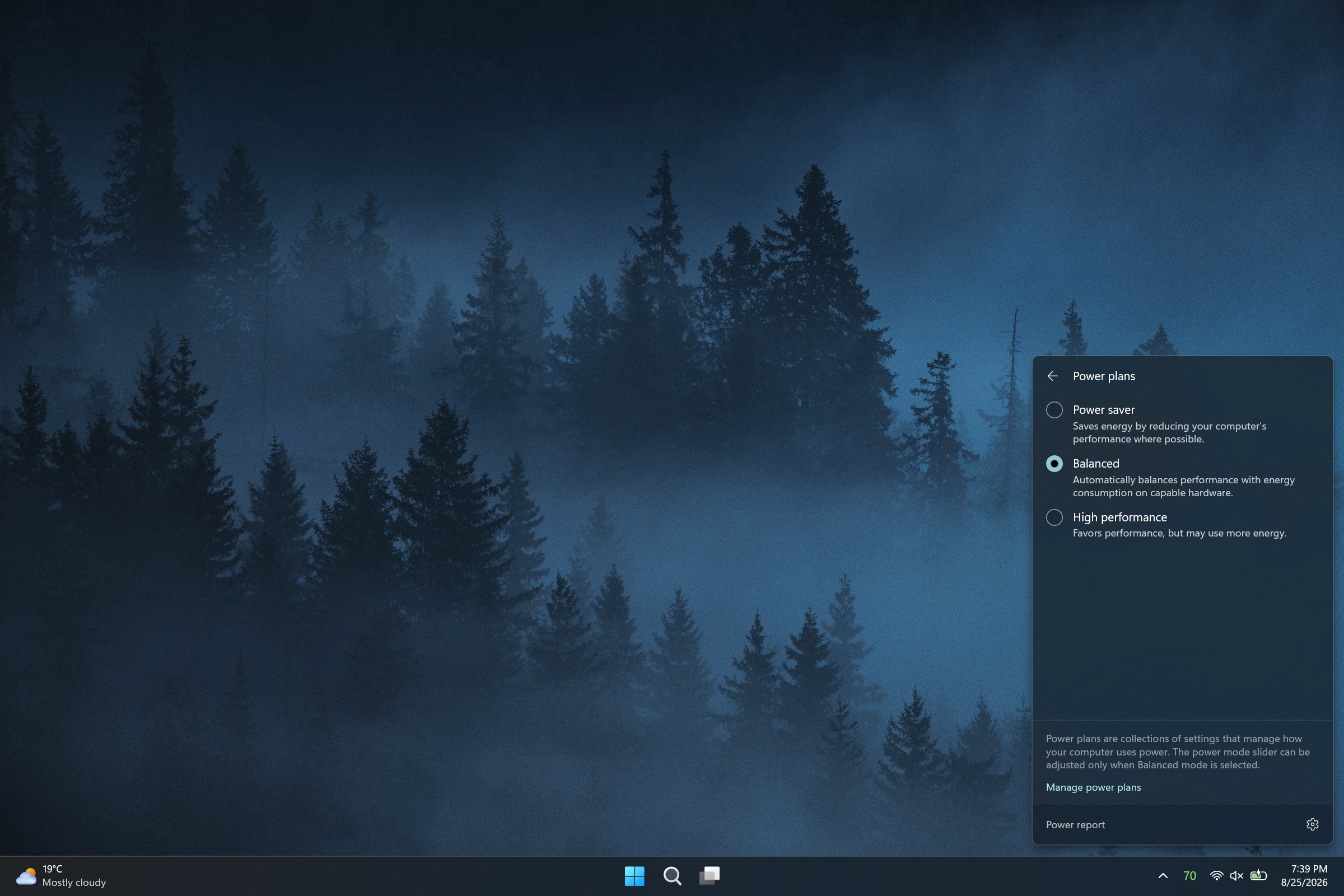
Battery Flyout is a third-party app made by Michał Łeptuch. It lets you switch power modes easily and provides charts about your PC's battery usage.

Some of the features in Battery Flyout are already in Windows 11, but they are spread out across the Settings app and other areas. Battery Flyout brings those options together and makes information and shortcuts easily accessible.
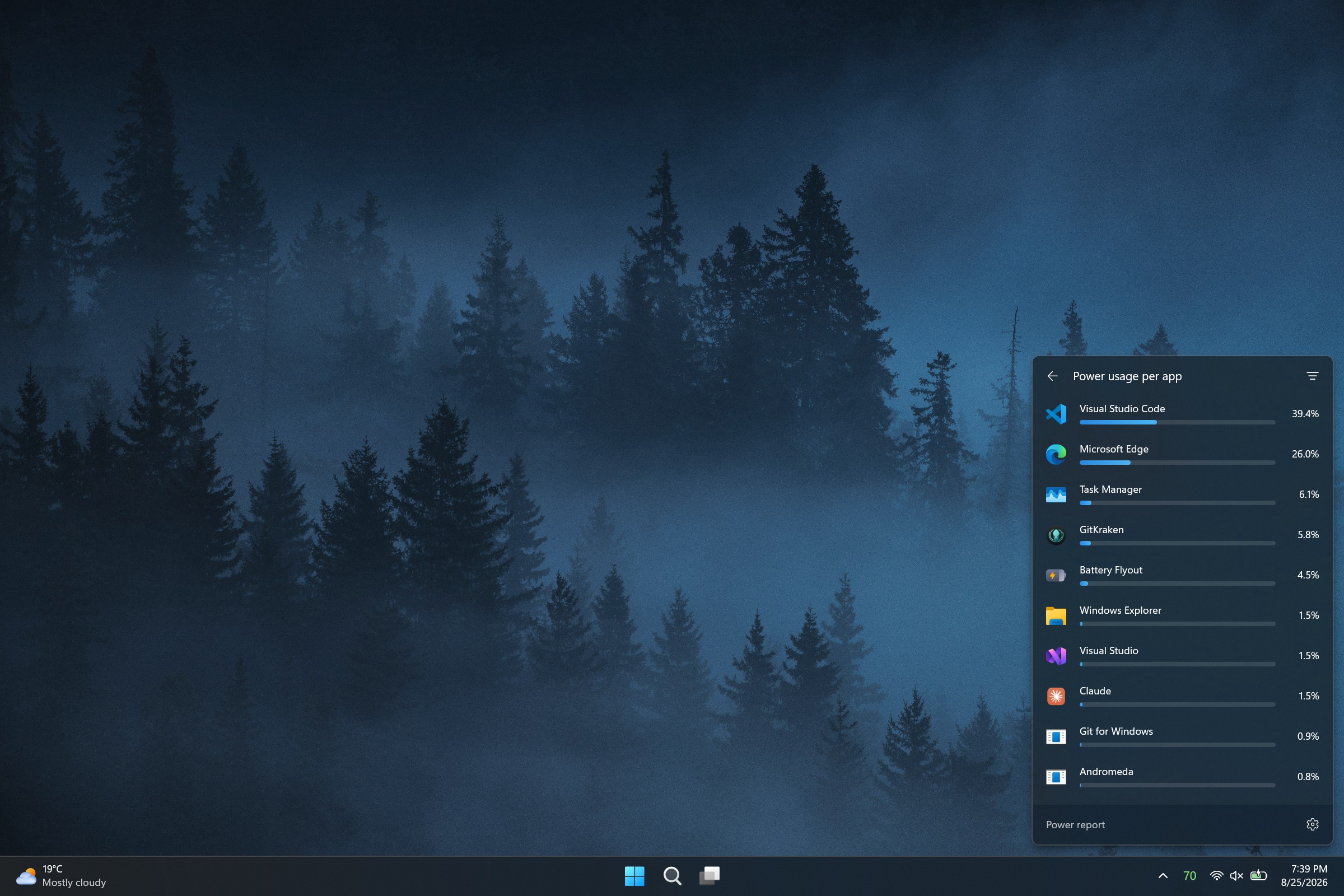
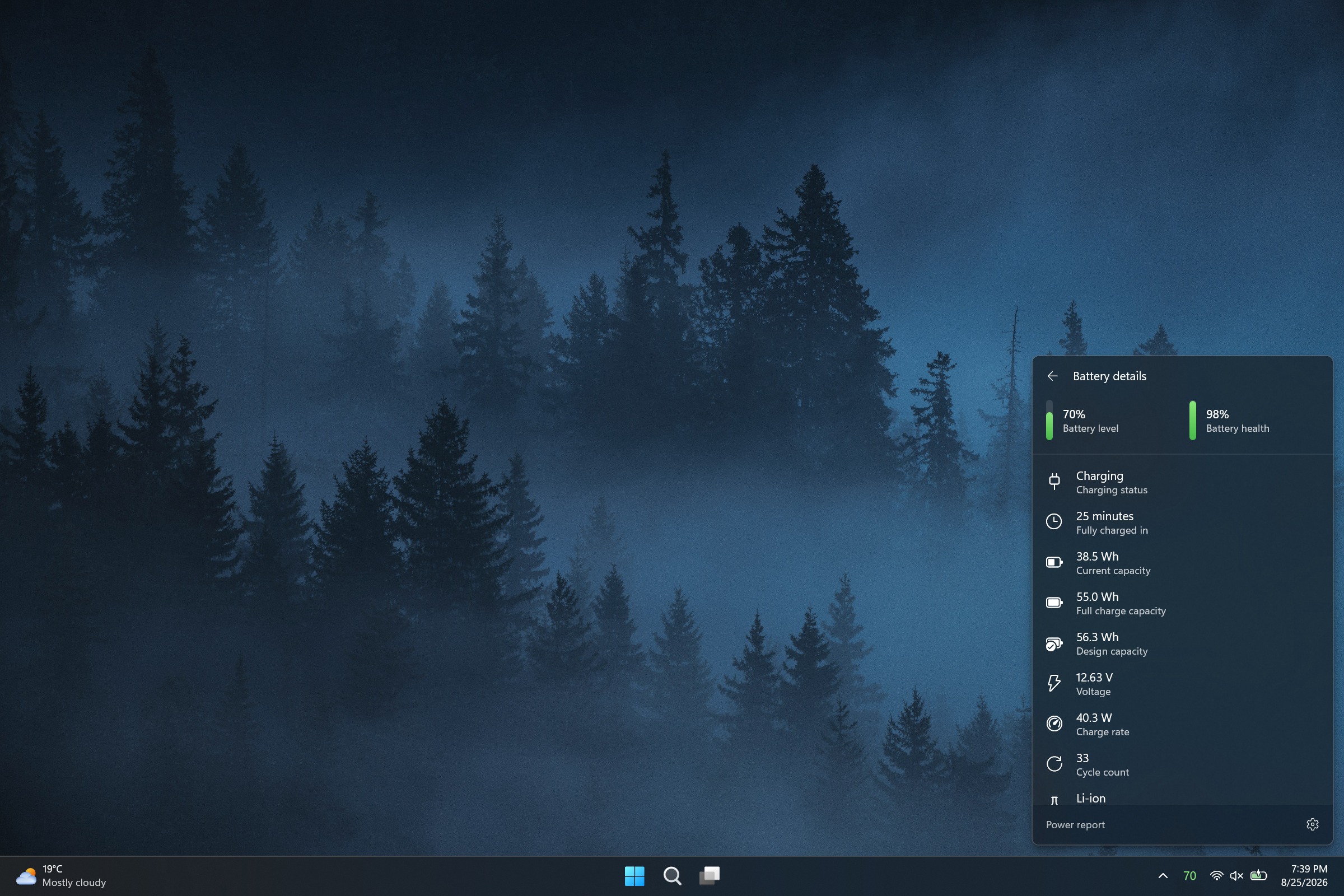
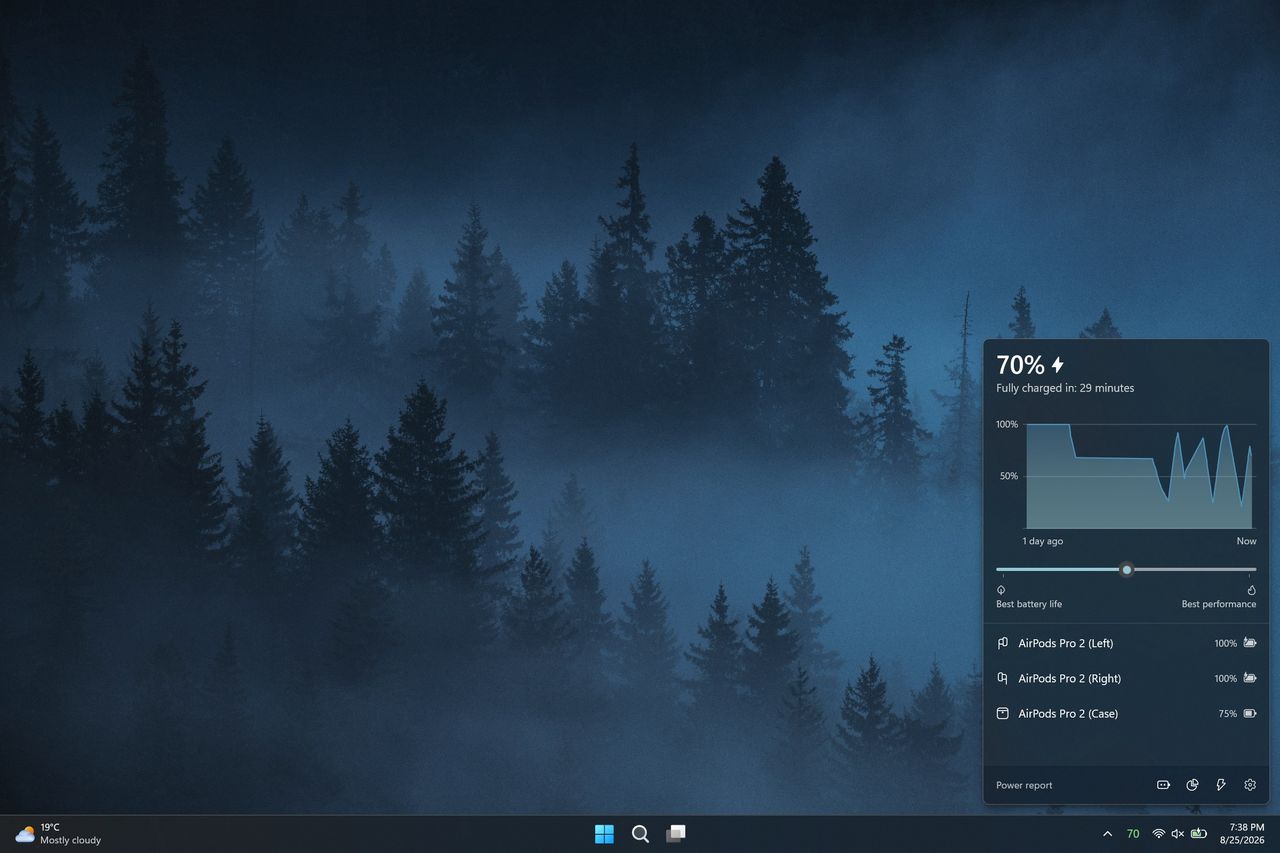
A screenshot of the Battery Flyout application on Windows 11 showing battery metrics, power settings, and usage statistics.
Michał Łeptuch
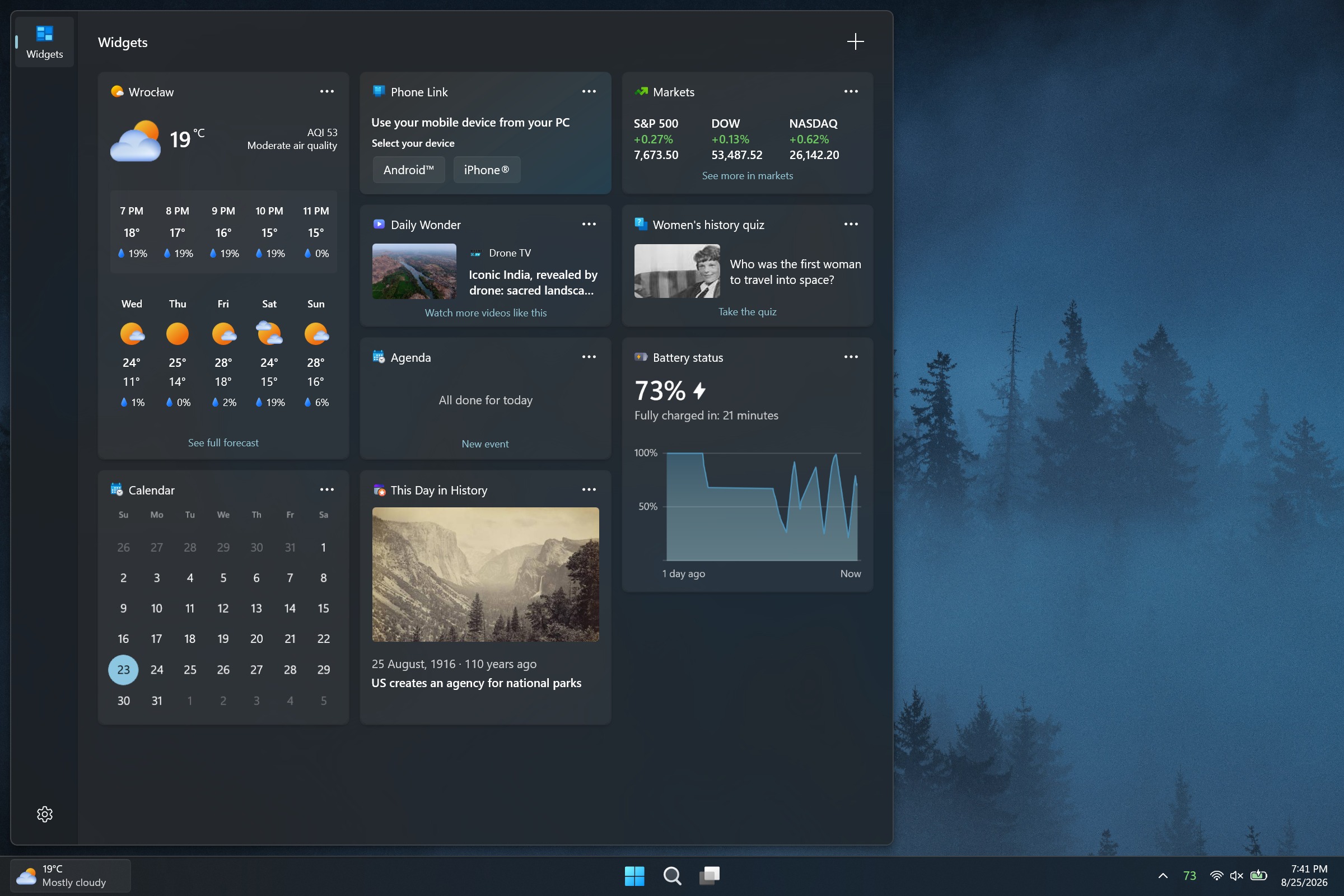
A screenshot of the Battery Flyout application on Windows 11 showing battery metrics, power settings, and usage statistics.
Michał Łeptuch
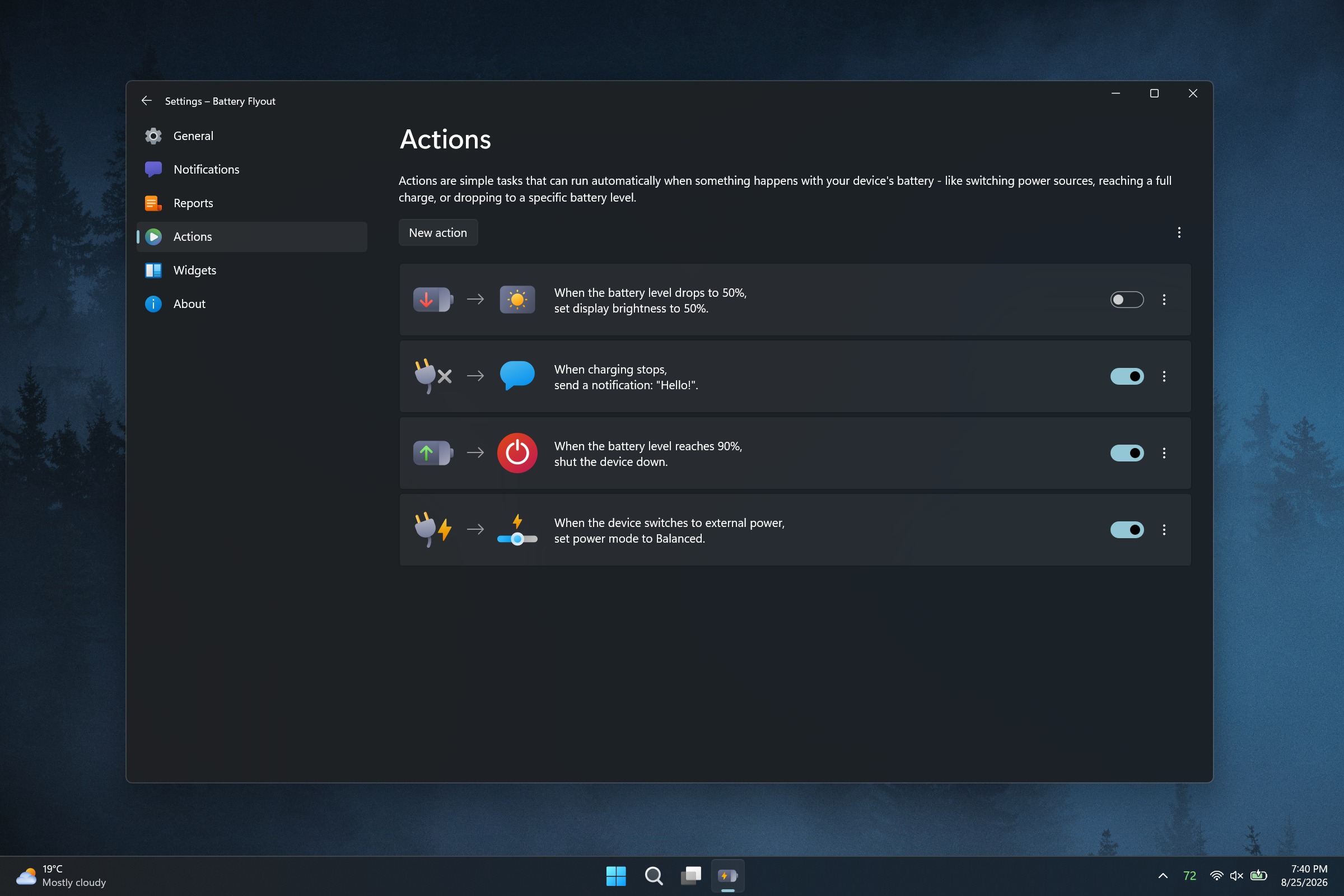
A screenshot of the Battery Flyout application on Windows 11 showing battery metrics, power settings, and usage statistics.
Michał Łeptuch
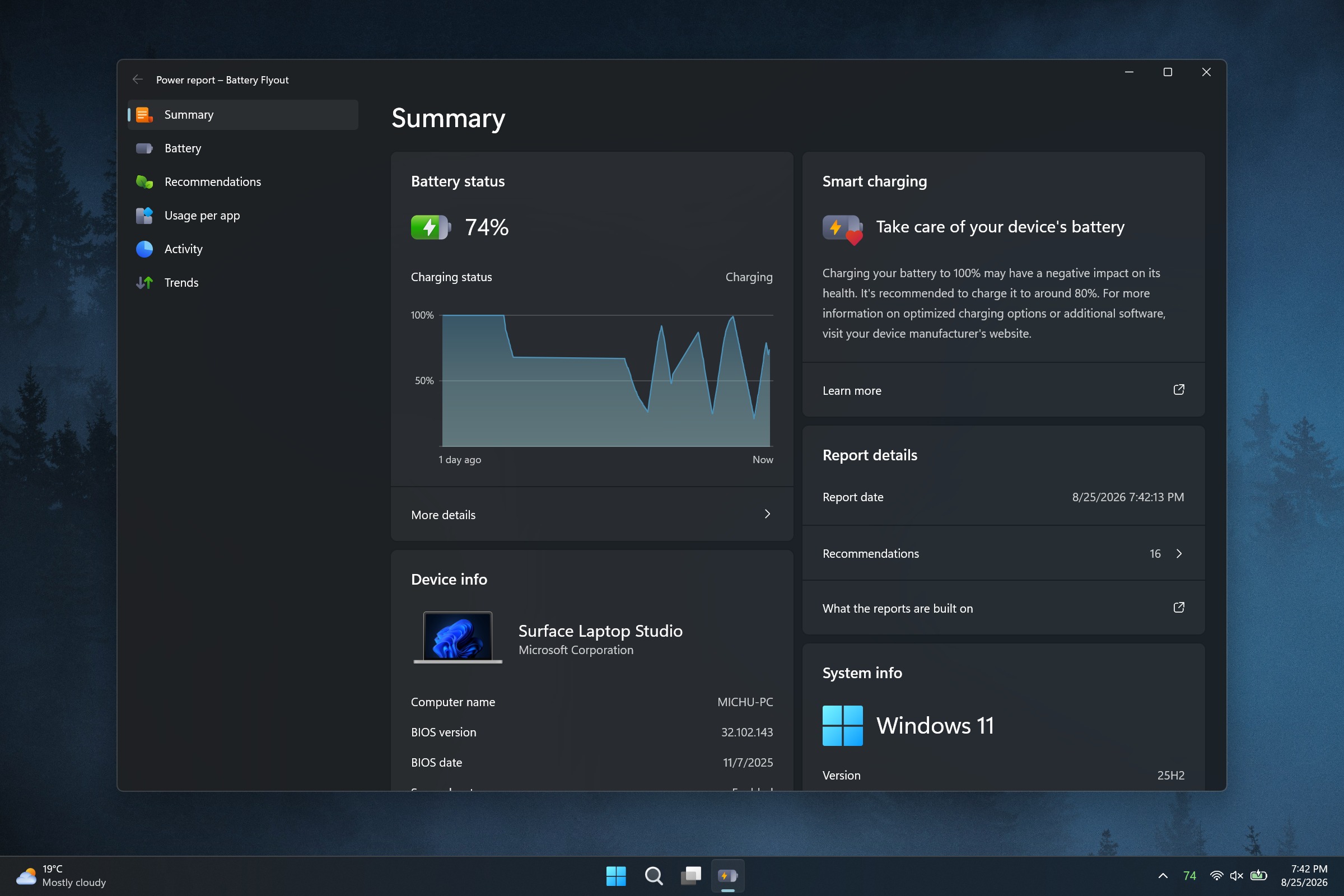
A screenshot of the Battery Flyout application on Windows 11 showing battery metrics, power settings, and usage statistics.
Michał Łeptuch
A screenshot of the Battery Flyout application on Windows 11 showing battery metrics, power settings, and usage statistics.
Michał Łeptuch
A screenshot of the Battery Flyout application on Windows 11 showing battery metrics, power settings, and usage statistics.
Michał Łeptuch

Łeptuch develops several apps that improve the overall Windows 11 experience, including Calendar Flyout. I spoke with him about the major update to Battery Flyout ahead of its release. Here's the full change log:

  • Migrated the app from UWP to Windows App SDK (WinUI 3) on .NET 10 with Native AOT
  • Added a full native ARM64 build
  • Switched the app to run in Efficiency mode by default
  • Removed third-party dependencies in favor of a custom-built system for handling power and battery events
  • Added support for multiple batteries
  • Added a more detailed chart style for battery levels
  • Added the ability to switch chart colors between the default theme and your system accent color
  • Added detailed technical information for each installed battery to the flyout
  • Added a view of the apps consuming the most power to the flyout
  • Replaced the old battery report with the new Power report, covering battery and system summary, per-battery details, app trends, recommendations, and resource usage
  • Added the option to choose the units used in reports, including energy and temperature
  • Added a new Actions module to automate tasks triggered by specific battery or power events
  • Added a widget for the Windows Widgets board showing battery level and charging status
  • Expanded support for Apple and Samsung devices, with more of them now reporting battery status
  • Added the option to hide the device list when it's empty
  • Updated the Bluetooth device icons shown in the flyout's device list
  • Added the option to completely disable Bluetooth device scanning
  • Added a keyboard shortcut to open the flyout
  • Added the ability to change where the flyout appears on your desktop
  • Added automatic flyout and context menu positioning for the taskbar layout options introduced in the Windows 11 August 2026 update
  • Added the ability to set notifications for any battery level, for both the device and connected Bluetooth devices
  • Added the option to set how long notifications stay on screen
  • Added support for the Polish language
  • Made various minor visual refinements
  • Updated the tray icon font and improved its rendering
  • Made general stability and performance improvements

Blank Pixel

A significant change that will affect all Battery Flyout users is that the app has been migrated from UWP to WinUI 3. That change brings better performance and taps into improvements Microsoft is making to WinUI 3 on Windows 11.

Battery Flyout should also use less battery than before since it now runs in Efficiency mode by default.

Similar to iOS and Android, Battery Flyout now has a dedicated page for viewing which apps are consuming the most power.

Some of the improvements will only affect a subset of users but are welcome additions. Battery Flyout now supports multiple batteries, which is useful for the small group of devices with multiple batteries.

The update also brings some under-the-hood improvements, such as switching away from third-party dependencies.

Perhaps the change aimed at the smallest niche is the addition of a Battery Flyout widget for the Windows 11 Widgets panel. That panel, which is built into every single Windows 11 PC, infamously features far fewer than 100 widgets. Battery Flyout will fit nicely between the barely functional Spotify widget and the Tic-Tac-Toe widget.
A recent update to this app improves performance, adds native ARM64 support, and shows more information about the power usage of your PC and apps.

Click to join us on r/WindowsCentral

Join us on Reddit at r/WindowsCentral to share your insights and discuss our latest news, reviews, and more.
  •  

Microsoft Edge update adds Apple sign-in and scam protection, but officially ends Edge Drop and real-time video translation

Microsoft gives and Microsoft takes away. The latest update to Microsoft Edge adds the ability to sign in to the browser using an Apple account. It also adds a feature that automatically unsubscribes you from notifications related to scams.

But the same update also marks the official end of several Microsoft Edge features, including Edge Drop and real-time video translation.

Here are all the new features and changes that ship with the latest version of Edge, as detailed by Microsoft:

  • Automatically unsubscribe users from notifications sent by scam and malicious sites. Microsoft Edge now helps further protect users from malicious web notifications. When a notification leads users to a site that Microsoft Defender SmartScreen blocks as a scam, phishing, or malware page, Edge automatically stops that source from sending users further notifications. Edge lets users know when this happens. Users can review and restore any of these sites anytime under edge://settings/privacy/sitePermissions/allPermissions/notificationsNote: This is a controlled feature rollout. If you don't see this change, check back as we continue the rollout.
  • Sign in to Edge with an Apple account. Users can now sign in to Microsoft Edge using an Apple account in addition to the Microsoft account from the profile menu and Edge sign-in screen. Available for Windows and macOS devices. Admins can control availability to this feature using the NonMicrosoftAccountSignInEnabled policy. Note: This is a controlled feature rollout. If you don't see this change, check back as we continue the rollout.
  • Real-time video translation retirement. Real-time video translation is being retired through a gradual rollout. Availability may vary across environments during the rollout. The LiveVideoTranslationEnabled policy will be deprecated in a future update.
  • Enhanced Key Icon with Credential Details, Copy Actions, and Notes. The key icon in Edge's address bar now lets users click into any saved credential to view a detailed panel. From there, users can copy a username, reveal and copy a password, and add personal notes to each login. Keep track of security questions, account purpose, or recovery details right alongside credentials, without opening Settings or the full password manager. Note: This is a controlled feature rollout. If you don't see this change, check back as we continue the rollout.
  • Drop is retired. We're simplifying Microsoft Edge. Drop is retired in Microsoft Edge version 152.
  • New Copilot Cowork policy. Copilot Cowork may perform tasks such as creating tabs, taking screenshots, and interacting with web pages. Admins can now control availability of this feature using the CopilotCoworkToolActionsEnabled policy, which corresponds to the Allow Cowork to take actions on your behalf setting in edge://settings/ai. This policy applies only when Cowork Browsing is enabled at the tenant level in the M365 admin center.
  • Clarification of WebView2 DowngradeVersion policy. The DowngradeVersion policy allows admins to temporarily roll back specific applications to a previous WebView2 Evergreen Runtime version (N-1 or N-2). The policy requires an exact 4-part numeric WebView2 Runtime version, for example 151.0.2178.0. Admins can find the exact 4-part version number in the Microsoft Edge release notes for Stable Channel. Major-version-only values are not supported. If no exact matching folder is found, the policy has no effect and the runtime defaults to the BrowserExecutableFolder policy or the Evergreen runtime, which is the default auto-updating runtime.
  • Update for LocalNetworkAccessRestrictionsTemporaryOptOut policy. The planned removal of the LocalNetworkAccessRestrictionsTemporaryOptOut policy has been updated. The policy is now scheduled for removal after Microsoft Edge version 156; previously it was version 152.
  • Updated Copilot policy. Admins can now control availability of the video transcription feature using the EdgeEntraCopilotPageContext policy, which corresponds to the Allow Copilot to transcribe your video setting in edge://settings/ai.

I was always a fan of Edge Drop and will be sad to see it go. The feature let you send messages, files, and photos to yourself. All of the content you sent through Edge Drop lived in a single thread. The feature was powered by OneDrive, making it easy to find backups of the content.

But Edge Drop lived in the Sidebar of Edge, meaning it competed with Copilot for space within the browser. Microsoft never officially confirmed Copilot was a factor in the retirement of Edge Drop, but I suspect the AI tool was at least a small factor.

Click to join us on r/WindowsCentral

Join us on Reddit at r/WindowsCentral to share your insights and discuss our latest news, reviews, and more.

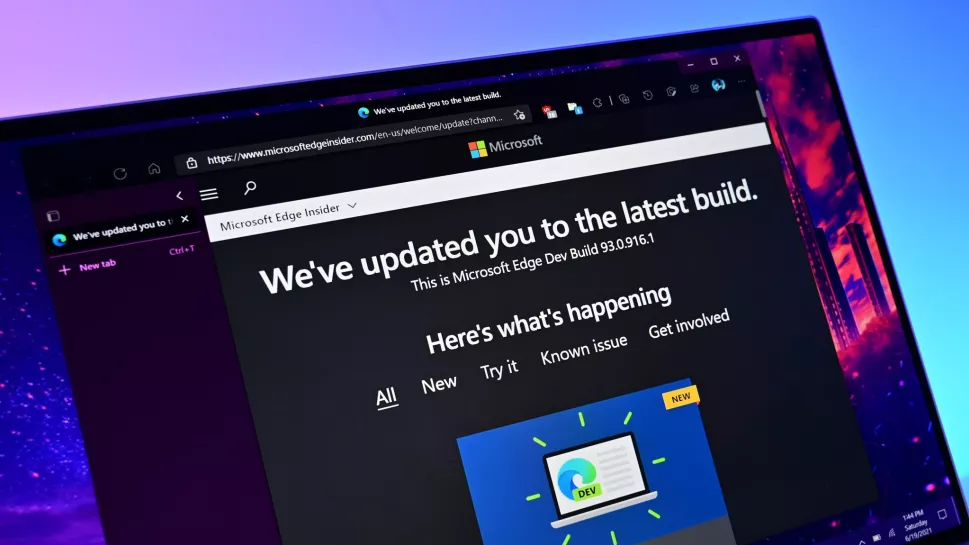
A laptop screen displaying a Microsoft Edge Insider page with text "We've updated you to the latest build" and update details. The background is a gradient of blue and purple tones.

A laptop screen displaying a Microsoft Edge Insider page with text "We've updated you to the latest build" and update details. The background is a gradient of blue and purple tones.

  •  

You now have a bit more time before Microsoft takes away your Whiteboard

Microsoft Whiteboard is a popular tool for collaboration and jotting notes. Soon, some users will lose access to the app, but the exact cutoff date has shifted.

This week, Microsoft sent a message outlining the new timeline for the retirement of legacy whiteboards:

"Microsoft Whiteboard is retiring legacy whiteboards and the standalone app. Migration to OneDrive-backed whiteboards must be completed by September 25, 2026. Legacy whiteboards will be deleted October 16, 2026, and the standalone app deprecated November 30, 2026. Users must migrate or export content before these dates."

Microsoft is moving storage for Microsoft Whiteboard to OneDrive for Business. Because of that migration, those using personal accounts will lose access to any saved content. Microsoft gave people a short period to upgrade to Microsoft 365 for Business, migrate to other tools, or back up content, but personal users now have a bit more time to make a decision and act.

Blank Pixel

The new key dates were emphasized by Microsoft:

  • September 25, 2026
    • Migration tooling for legacy enterprise whiteboards is retired.
    • Users with personal Microsoft accounts can no longer create or edit whiteboards.
  • October 16, 2026 - Legacy whiteboards are permanently deleted.
  • November 30, 2026 - The standalone Microsoft Whiteboard app is deprecated.

Retirement of personal accounts and the migration of business accounts were originally set for August 22, 2026. Viewing and exporting was going to be supported until September 5, 2026. Microsoft has pushed back the deadlines significantly.

Early voting in our poll about whiteboard apps suggests that Microsoft Whiteboard is quite popular. Currently, 54 percent of participants list Microsoft Whiteboard as their preferred whiteboard app.

With Microsoft forcing out personal users of the app, many will have to look elsewhere. If you need a whiteboard app that focuses on offline use, I recommend Markerpad. Miro is a better alternative for those who need to collaborate.

Click to join us on r/WindowsCentral

Join us on Reddit at r/WindowsCentral to share your insights and discuss our latest news, reviews, and more.

Microsoft Whiteboard

Microsoft Whiteboard

  •  

PowerToys Window Hopper is a must-have feature for Windows 11, especially if you live within your browser

Stop me if you've heard this before: The latest PowerToys update adds a utility that should be baked into Windows 11. It's one of those features that feels like a natural extension of your PC. Using it is so seamless, in fact, that after a while you may forget that the utility is part of PowerToys rather than just part of Windows 11.

The above situation happens a lot with PowerToys. Tools like Color Picker, CursorWrap, and PowerDisplay integrate perfectly with Windows 11 and offer features millions of people would benefit from. The latest addition to PowerToys, Window Hopper, falls into the same category.

PowerToys just received an update that adds a new utility and improves what was already one of the best apps on Windows 11. PowerToys v0.101.2362.0 adds Window Hopper, a feature that's basically Alt + Tab but for switching between instances of a specific app.

You can activate Window Hopper by pressing Alt + backtick (that's the ` in the upper-left corner of your keyboard). Holding Alt and pressing backtick again cycles you through any open windows of the same app you're already in.

You can also customize the shortcut for Window Hopper through the settings page in PowerToys.

For example, if you live in your browser and keep a bunch of windows open, you can swap between them without having to Alt + Tab across all of your other apps. Window Hopper works with any app that can have multiple windows open, including File Explorer.

I use separate browser windows for research, writing, Airtable, and Slack. I often have to snap these side-by-side or group them together. But being able to cycle between just the browser windows through a keyboard shortcut changes my workflow.

As is usually the case, the full change log for the latest PowerToys update is massive. It details Window Hopper, the improvements to the update experience, the compact version of Command Palette, and much more.

Rather than rehash that all here, I'll point you to the official GitHub page for PowerToys. I wanted to specifically highlight Window Hopper because it's one of those utilities that I used once and immediately knew would be a part of my workflow.

PowerToys | Free at GitHub | Free at Microsoft Store

This collection of utilities includes a large library of features to enhance the Windows experience. PowerToys is designed with power users in mind, but it has handy features for people who just use their PC for everyday computing too.

Click to join us on r/WindowsCentral

Join us on Reddit at r/WindowsCentral to share your insights and discuss our latest news, reviews, and more.
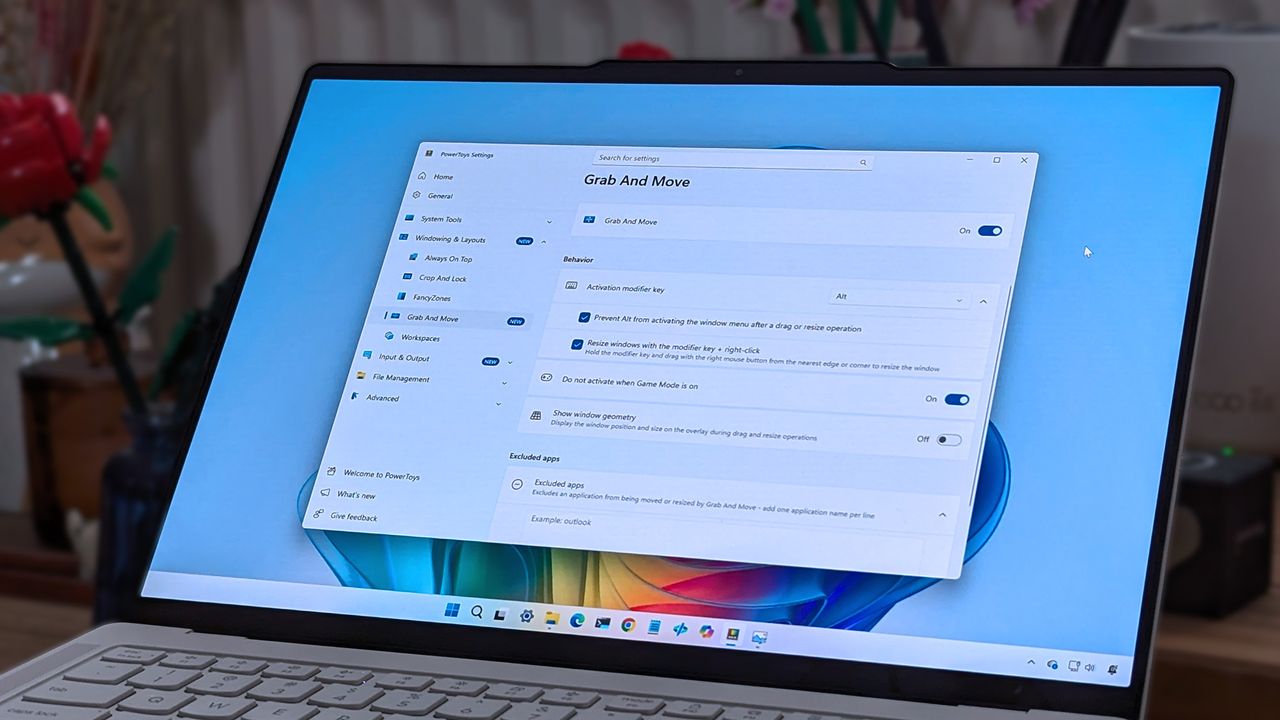
A laptop screen displaying Windows 11, featuring the "Grab And Move" settings window of PowerToys. The desktop background is colorful and vibrant.

A laptop screen displaying Windows 11, featuring the "Grab And Move" settings window of PowerToys. The desktop background is colorful and vibrant.

  •  
❌