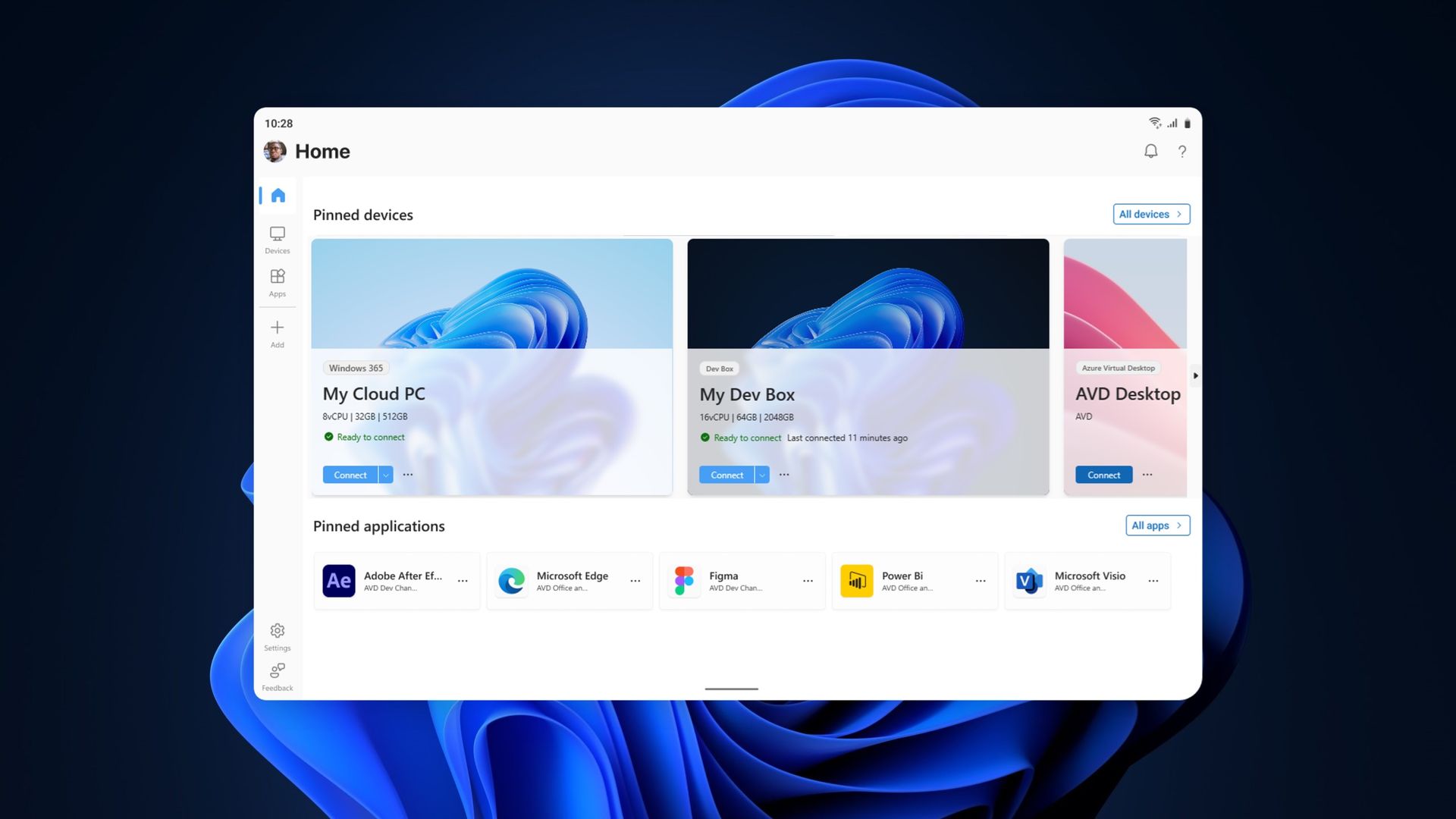
❌

Vue lecture

You can now test Microsoft's new Windows Search experience

At its Windows 11 and Surface event, Microsoft showed off its improved Search experience. The new Search is faster, more efficient, and has a streamlined design that should be easier to scan.

The streamlined Windows Search is about more than finding files or apps, though it can do that. Search can perform tasks, such as switching your PC to dark mode or changing the volume of your computer.

Whether you're more interested in the performance improvements or the new features, there's reason to install the latest builds of Windows 11 that shipped to the Experimental channel and the Experimental channel (26H1). Insiders in those channels can now test the refreshed Search experience with limited support for inline actions.

Microsoft's engineers must have been excited about Windows after its big event, because five Insider builds were released yesterday. Two of them include the refreshed Windows Search. Here's everything that's new across all of the builds.

Windows Search (Experimental, Experimental (26H1))

  • New Windows Search experience with inline actions: We're beginning to roll out a new Windows Search experience built on WinUI 3 that is faster, more efficient, and features a streamlined design that makes results easier to scan. We're also introducing inline actions, allowing you to quickly complete tasks directly. Turn on dark mode or Bluetooth, adjust your screen brightness, mute your device, or arrange windows from Windows Search.
  • We're improving how Windows Search understands what you're looking for, including better matching for typos and synonyms. We'll continue fine-tuning these improvements over the coming weeks. For more information detailing the new changes, check out the Windows Insider Blog.
  • English is the only supported language for this initial release.
  • After upgrading to this build, restart your device before the New Windows Search Experience feature flag is visible.

Battery status widget (Experimental)

  • As part of our continued commitment to making Widgets more useful for everyday moments, we're introducing the Battery Status widget for Insiders on newer builds. This widget provides a unified view of battery levels for your PC and peripheral devices, helping you quickly assess power status without hunting through multiple UI locations. Add it by going to Widgets board > Add widgets > Battery Status.

Narrator (Experimental (26H1))

  • Read and explore math equations with Narrator (see full description in release notes)

Kerberos enhancements (Experimental)

  • IAKerb is now enabled by default for Windows client. IAKerb is a Kerberos extension that allows Windows authentication to succeed in scenarios where traditional Kerberos can't be used because a direct connection to a domain controller is unavailable. This extension helps reduce reliance on NTLM while improving compatibility for modern authentication scenarios. For additional background, implementation details, and early preview information, see Reducing NTLM Dependency: IAKerb and LocalKDC in Windows Insider Preview.

Task Manager (Experimental)

  • Task Manager is expanding process grouping to allow apps to combine otherwise separate background processes into a single unified category rather than relying solely on traditional parent-child trees. This makes an app's resource usage easier to understand. Microsoft Defender is the first app to use this capability.

Windows Update (Experimental)

  • Fixed the issue causing some Insiders with Windows Sandbox enabled to get error 0x80073712 when attempting to install the latest updates.

Security (Experimental)

  • We've updated the security key PIN entry experience, removing the "other user" icon for a clearer sign-in experience.

Taskbar (Experimental)

  • Fixed an issue impacting some Insiders recently, which was causing the taskbar app window previews to become slower and noticeably lag over time.

Taskbar (Experimental (26H1))

  • Improved underlying state persistence of taskbar settings related to multiple monitors across monitor connections and disconnections.

Settings (Experimental)

  • Removed the backplate from the Settings icon when UAC is invoked from within Settings.

File Explorer (Experimental)

  • Added support for font preview and installation in the File Explorer and desktop context menus.

Other (Experimental)

  • Fixed an issue with msmpeg2ac3dec.dll which was leading to some apps and games crashing recently.

General (Experimental (Future Platforms))

  • Symbols were missing for our previous flight. They should be available for this one.

Widgets (Beta)

  • As part of our continued commitment to making Windows calmer and higher quality, we’re updating the default lock screen widget experience for Insiders on newer builds. With this change, Weather will be the primary widget shown on the lock screen, reducing recommended widget content and making the experience feel more focused. We're also giving users more control of personalizing the widgets on lock, curating the ones they find most useful for them. Users can access these settings by going to Settings > Personalization > Lock screen.

The new Search experience is the biggest change, but I'm also excited about the Battery Status widget that's now available to more Insiders. Microsoft has largely ignored widgets on Windows 11, so it's nice to see a useful one on its way.

Click to join us on r/WindowsCentral

Join us on Reddit at r/WindowsCentral to share your insights and discuss our latest news, reviews, and more.
  •  

Windows 11's new native Search can control your PC

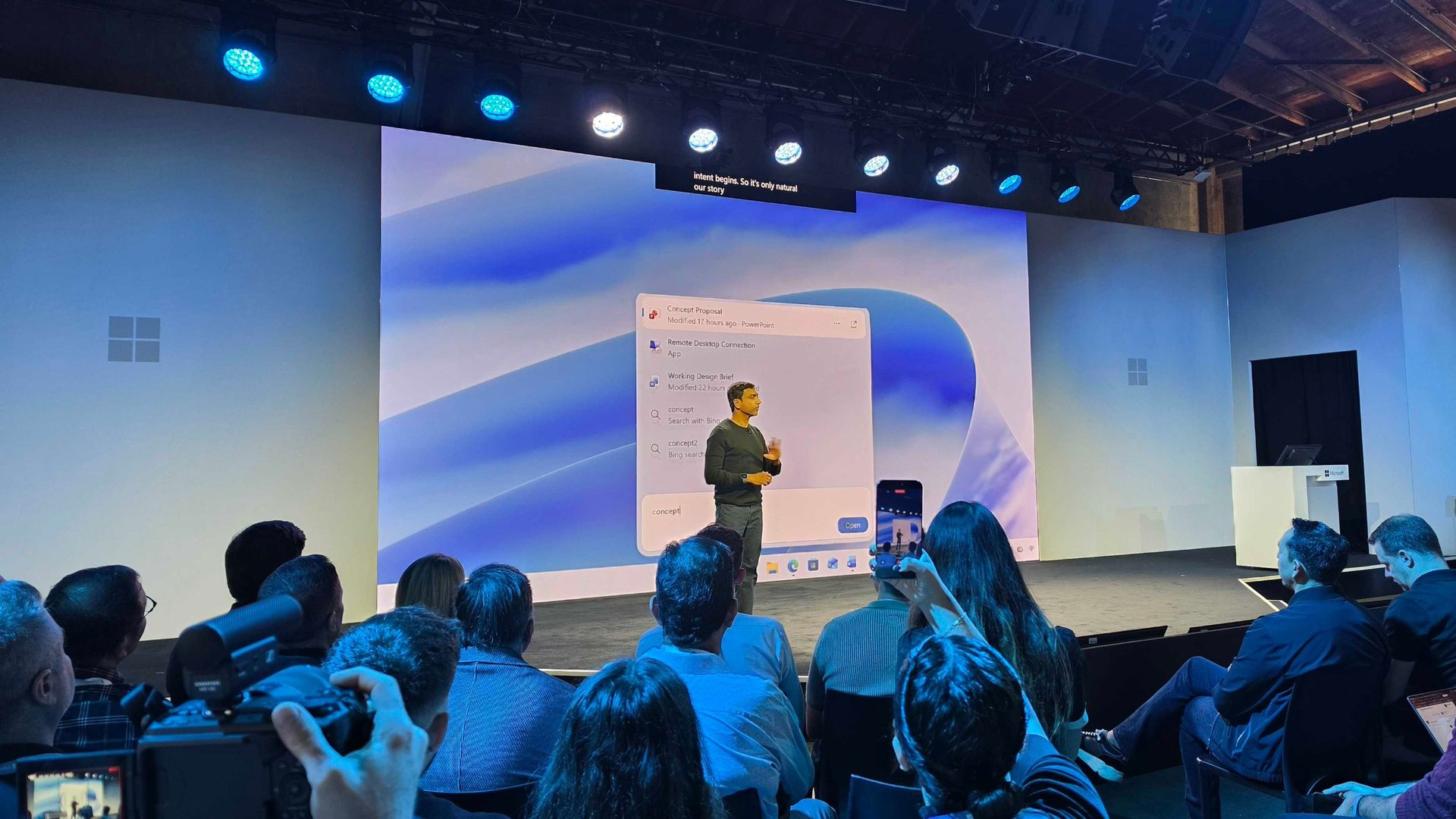
Microsoft just unveiled the new Windows Search experience at its Windows and Surface event. The new Search is more than just a search feature; it's a system composer. That means it can be used to control your PC. Microsoft's Windows lead Pavan Davuluri discussed the new Search experience on stage.

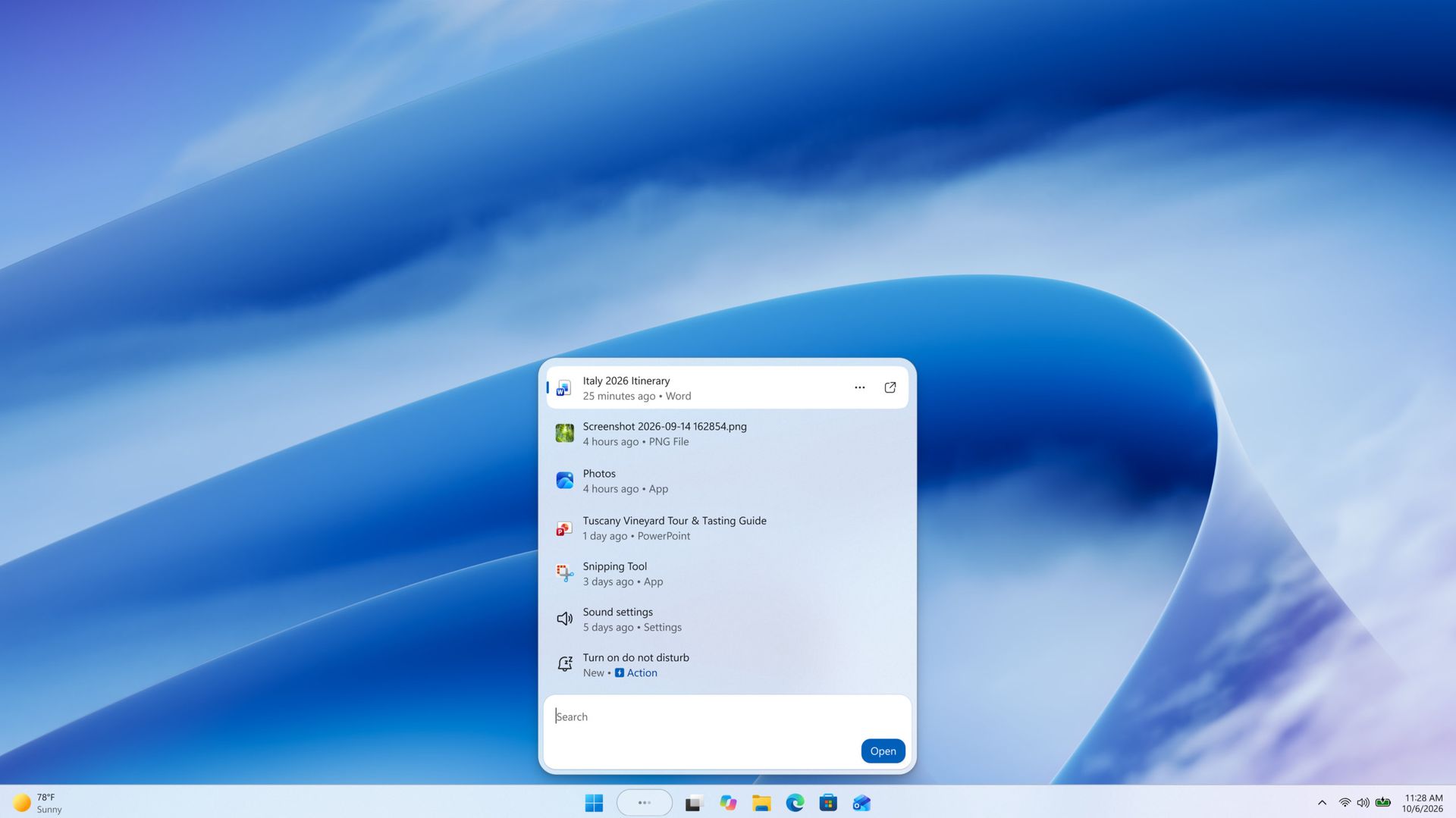
Starting this fall on Windows 11 PCs, users can take thousands of quick actions directly from Search in the Taskbar. For example, you could enable dark mode or switch your PC to Do Not Disturb. You can also adjust your microphone slider through the new Search experience.

You can even use the new Search experience to send a text message through Phone Link.

Microsoft detailed the new Search in a blog post. It also shared some examples of actions you can perform:

  • Turn something on or off. Try phrases such as “switch to dark mode”, “turn on night light,” or “turn on Bluetooth.”
  • Make a quick adjustment. Try “dim my screen” or “mute.”
  • Manage your workspace. Try “minimize all my windows,” or “arrange windows on screen.”

Copilot can be summoned through the new Search as well, showing responses directly within the user interface. You won't have to jump into a separate app to interact with Copilot. If you do want to jump to the full Copilot app, there's a shortcut to do so.

As you'd expect, the new Search experience can also be used to search for things on Windows 11. "At its core, the new Windows search experience is quicker, more efficient, so you can find your files, settings, and apps faster," said Davuluri.

The new Windows Search experience is faster and more efficient with resources because it is built on WinUI 3

Windows 11 desktop showing Microsoft's new Search experience with recent files, apps, settings controls, and quick actions available from a Taskbar search panel.

(Image credit: Microsoft)

Windows Search will better understand what you're searching for. For example, it will still be able to find items even if your input has a typo.

Microsoft will start testing the new Search experience with Windows Insiders today, October 7, 2026. It will appear first through the Experimental channel.

This piece was written during the live stream of the Windows and Surface event. Microsoft is expected to share more details about the new Search experience and other items discussed at the event. We will update this piece with more information as it becomes available.

  •  

Windows 11's October update adds more useful features than you might expect

The October 2026 Security Update for Windows 11 is expected to begin rolling out as an automatic install on October 13, 2026, with a new wave of features, improvements, and fixes. This release is notable because it also rolls out for version 26H2. In addition, this release marks the last quality update for version 24H2, as this version also reaches the end of support.

In this quality update, Microsoft introduces a new feature that allows you to decide whether your apps always open maximized. File Explorer receives some useful improvements, and the Magnifier gets a small refresh.

In Settings, you can now adjust touchpad controls and reassign the Copilot key to open Right Ctrl or the Context Menu.

Finally, the software giant is adding a new Tips widget, and the Windows Recovery Environment (WinRE) can now reuse your previously configured Wi-Fi credentials.

In this guide, I'll highlight the most significant changes in the October 2026 Security Update for Windows 11 versions 26H2, 25H2, and 24H2, since they are identical.

Windows 11's new features arriving in October

As usual, the company uses Controlled Feature Rollout (CFR) to roll out new improvements gradually, so it may take some time before you see them.

File Explorer changes

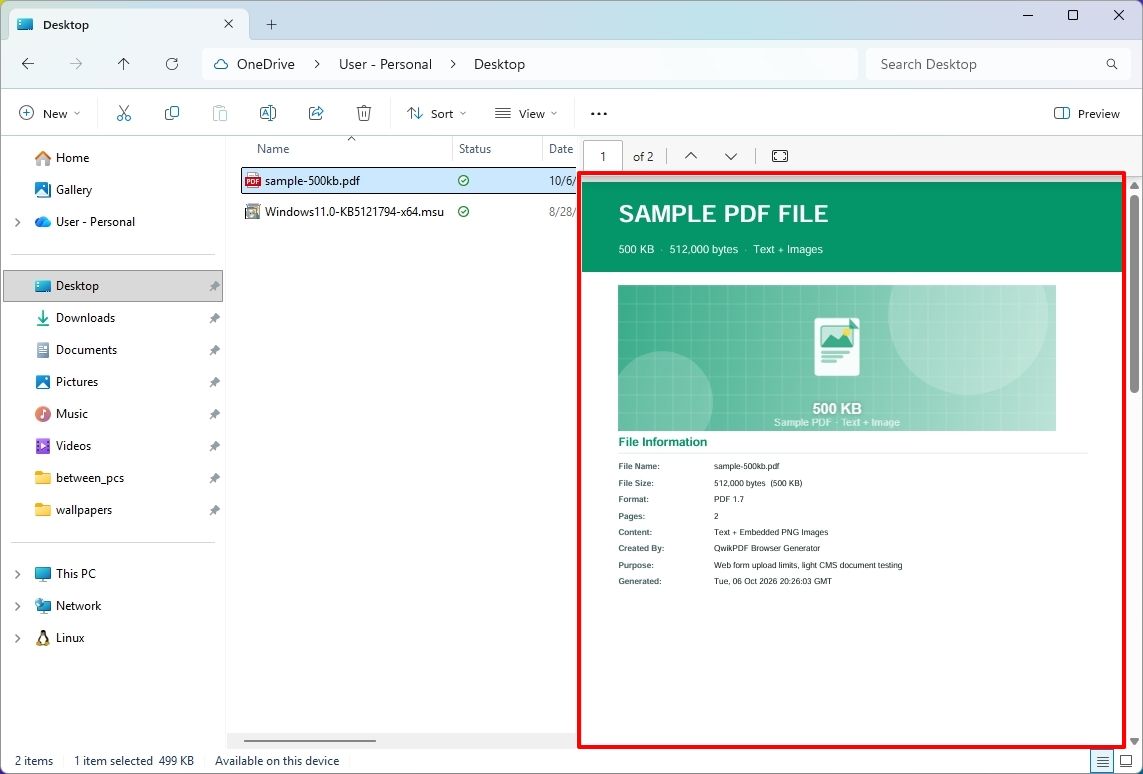
The updated version of File Explorer improves some areas of the experience. For example, the "Preview" pane now lets you preview downloaded HTML files after confirming the internet warning, while PDF files now show a preview automatically.

File Explorer with PDF file selected and showing preview.

(Image credit: Mauro Huculak)

The Home page is also getting an update that lets File Explorer remember which sections you expanded or collapsed, so the next time you're on the page, you don't have to reconfigure the layout.

In the "Details" pane, the development team is improving thumbnail reliability for cloud files and reorganizing file properties for easier viewing.

Open apps maximized feature

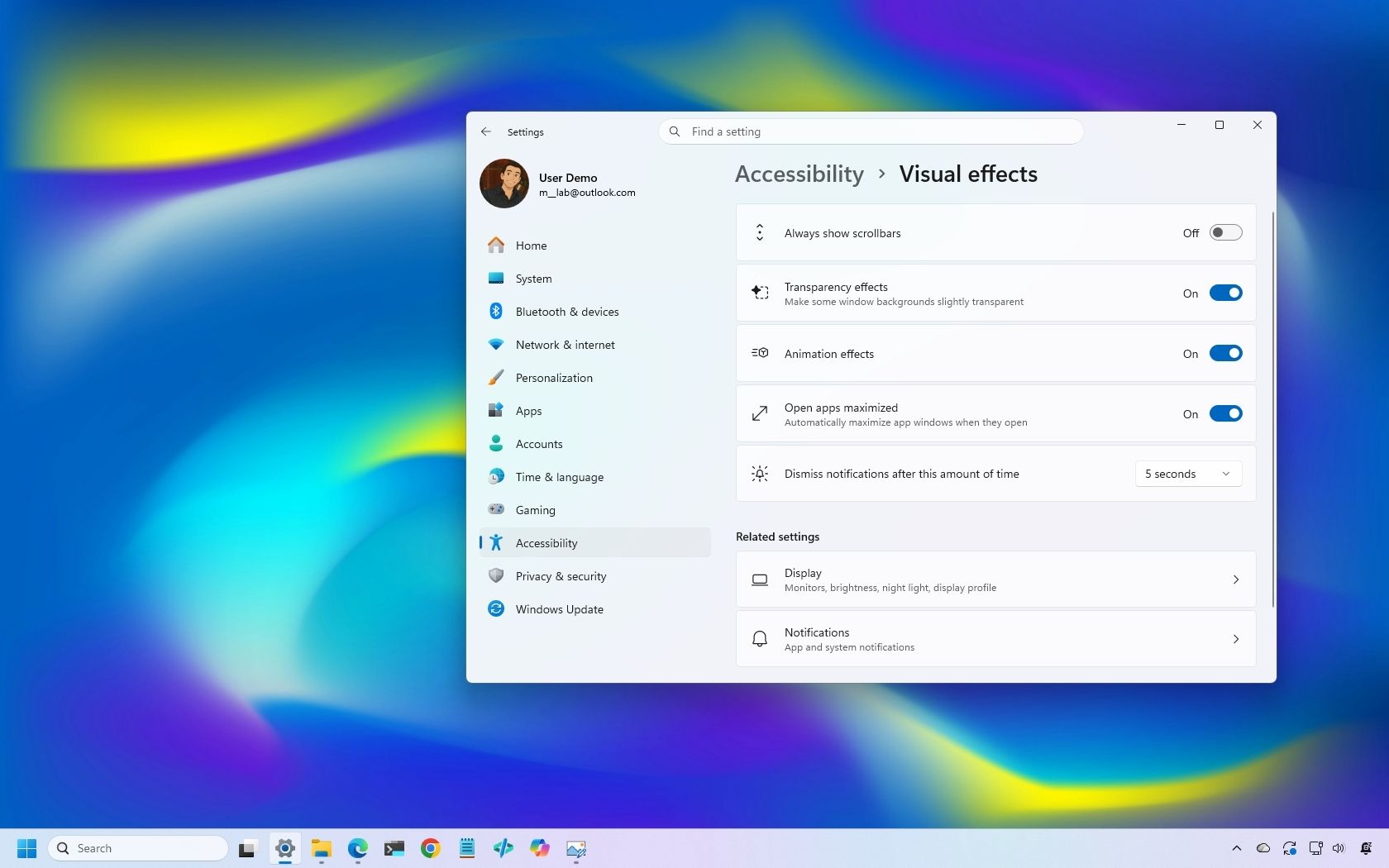
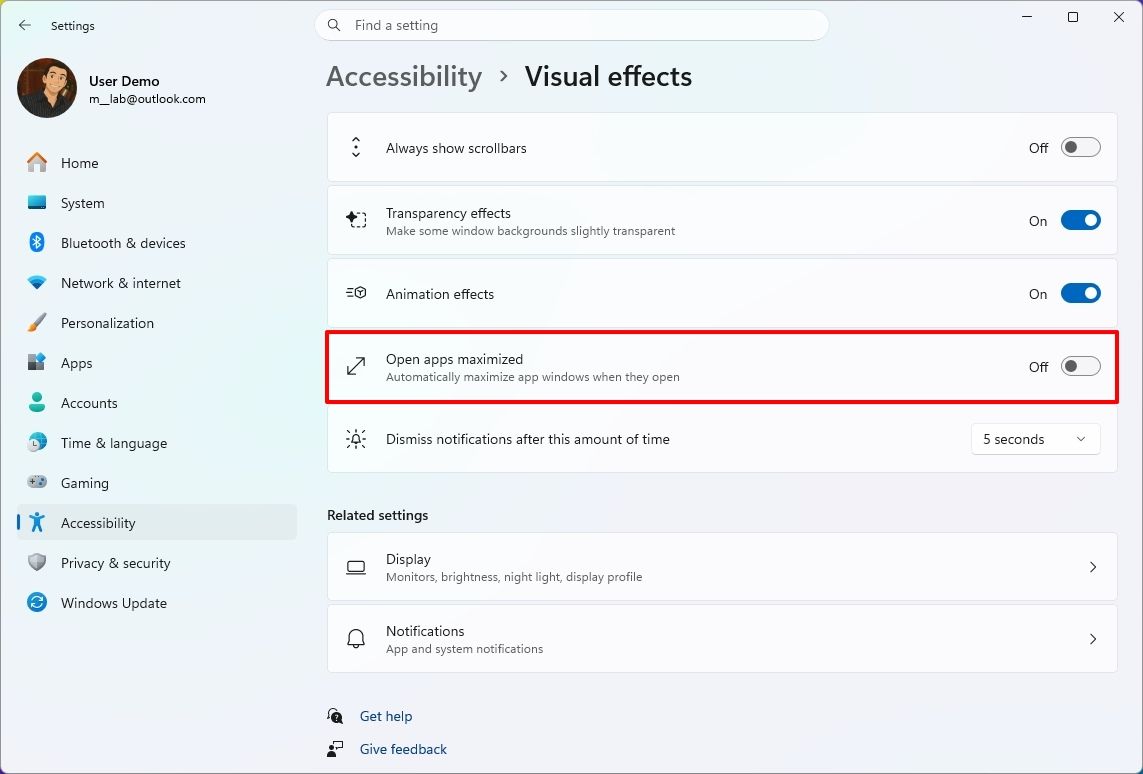
Microsoft is also rolling out a new feature known as "Open apps maximized," an accessibility feature that lets users choose whether apps should always launch maximized.

Settings app showing the Open apps maximized option.

(Image credit: Mauro Huculak)

The "Open apps maximized" feature is available under Settings > Accessibility > Visual Effects. When you turn it on, the operating system automatically launches apps in maximized mode (not full-screen mode).

Magnifier refresh

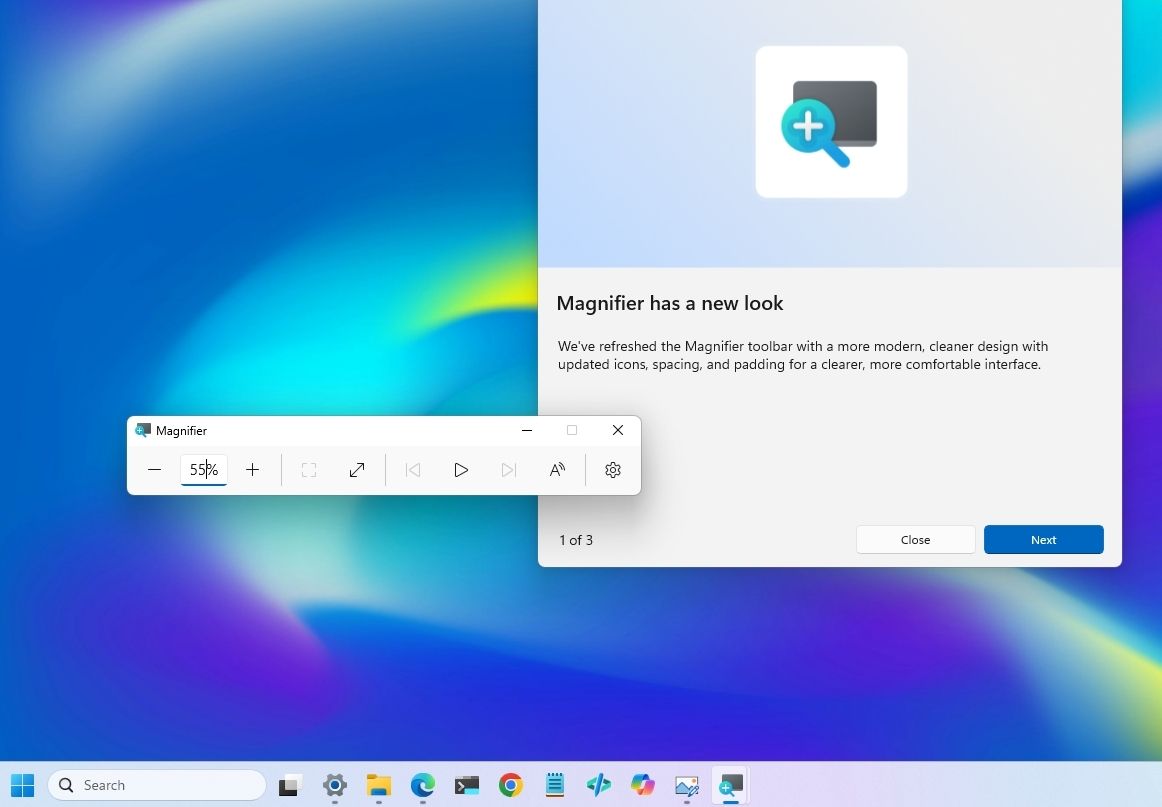
The October update also brings a new version of the Magnifier with visual changes. For example, the toolbar icons now align with the Windows 11 design language.

Magnifier toolbar new interface update.

(Image credit: Mauro Huculak)

In addition, the company is redoing the interface padding to give the experience more spacing across the toolbar for a more consistent layout.

Touchpad controls

In this quality update, if you have a precision touchpad, you'll be gaining two new options.

On Settings > Bluetooth & devices > Touchpad, you can configure the experience to scroll vertically with one finger from the left or right side of the touchpad, or keep scrolling by gesturing your finger upwards without lifting.

Copilot key remap new options

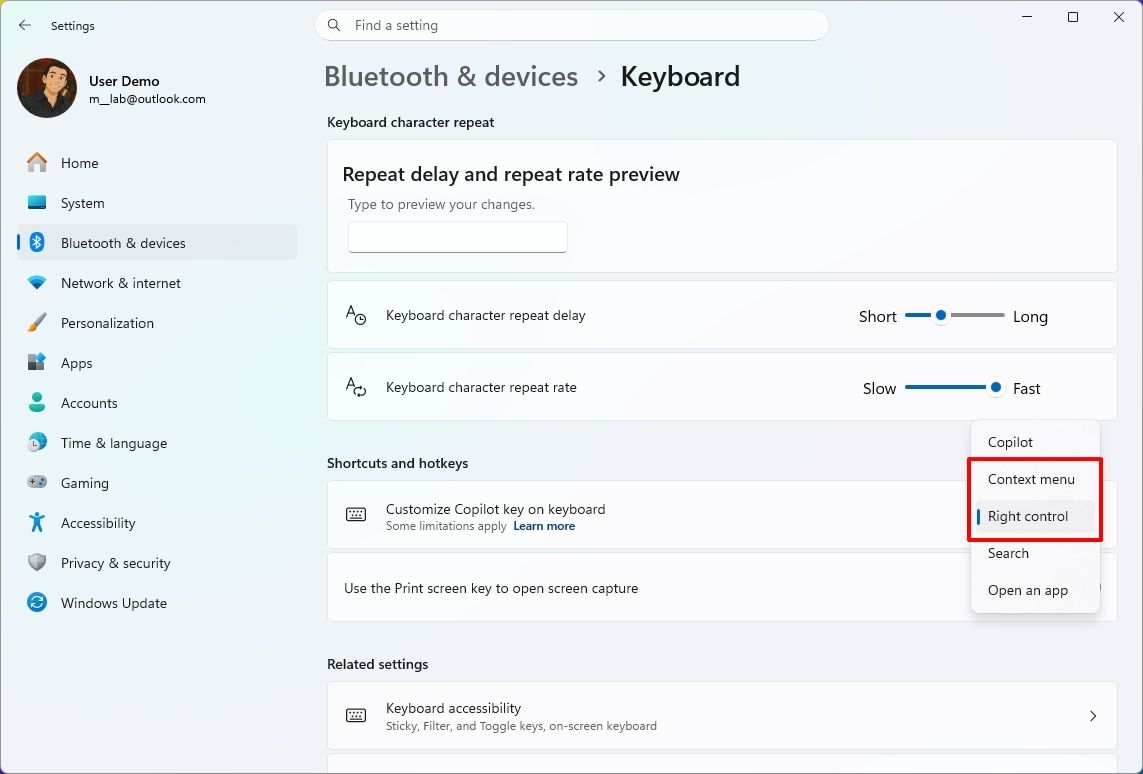
Although you can remap the Copilot key to different actions, this release adds the ability to remap it to "Right control" or the "Context menu" key, bringing Copilot devices to a more familiar keyboard experience.

Settings app on the Keyboard page showing the new Copilot key options.

(Image credit: Mauro Huculak)

You'll find the new "Right control" and "Context menu" options in the "Customize Copilot key on keyboard" setting on Settings > Bluetooth & devices > Keyboard.

Widgets with new Tips widget

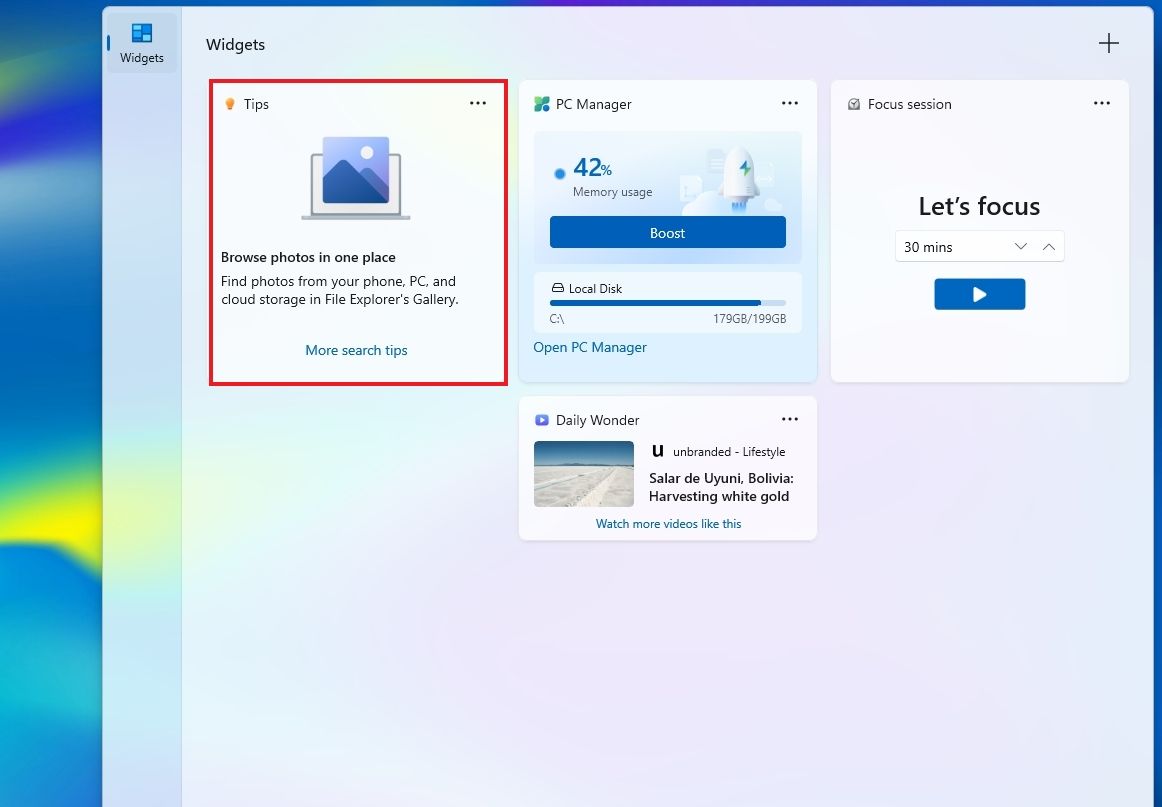
In the Widgets feature, the company is adding a new "Tips" widget that offers short tips about the operating system.

Widgets board showing the new Tips widget.

(Image credit: Mauro Huculak)

In the dashboard, you can add the widget from the "Add widgets" option. You can always place it on the Lock screen using the widget settings in Settings > Personalization > Lock screen.

WinRE with Wi-Fi support

As part of this release, Microsoft is also updating the Windows Recovery Environment (WinRE) to reuse Wi-Fi profiles already saved in the operating system.

Before this change, WinRE supported network connectivity only via an Ethernet connection or separately pre-configured Wi-Fi networks.

The change is now enabled by default, allowing the recovery environment to quickly connect to the internet using profiles already configured in the operating system, making it easier to access features like Quick Machine Recovery.

In addition, the company is adding a remote recovery management plugin to WinRE, extending its management features to MDM providers.

Other changes

Alongside the biggest improvements, the October 2026 Security Update includes other smaller changes that are also welcome additions.

For example, in the Personalization experience, Microsoft is improving the background experience with better transitions for changing wallpapers, and the preview now supports higher resolution.

The feature now also supports DIB images.

The slideshow option improves transitions and works across multiple desktops.

As part of the Bluetooth changes, the operating system now improves how the system handles connections, audio, microphones, and settings.

In the Settings app, more specifically on the Home or Accounts page, you'll find a new "Camera Roll Backup" option to protect your photos with OneDrive.

The Ebrima font now supports the Garay and Beria Erfe scripts, and Emoji 17.0 is now available on Windows 11.

In Kiosk mode, the system now blocks additional shortcuts, such as the "Windows key + Tab," "Windows key + A," and "Windows key + C."

Finally, the company is removing the PC-to-PC Migration feature that lets users transfer files and settings directly from an old PC when setting up a new PC.

Windows Central's Take

I see this as a solid update because many changes make the operating system easier to use rather than adding another major feature people have to learn. The ability to open apps maximized and the new options to remap the Copilot key are small additions, but they give users more control over how their devices work.

The ability to reuse Wi-Fi connections with WinRE is probably even more useful when something goes wrong. I rarely think about recovery tools when everything is working, but when I need them, having the system connect to an already saved connection without extra setup can save time and make things easier.

I also appreciate the company continuing to make these smaller usability improvements. After years of system updates, the changes I appreciate most are usually the ones that remove a small annoyance rather than add more complexity.

More resources

Explore more in-depth how-to guides, troubleshooting advice, and essential tips to get the most out of Windows 11 and 10. Start browsing here:

Click to join us on r/WindowsCentral

Join us on Reddit at r/WindowsCentral to share your insights and discuss our latest news, reviews, and more.
  •  

I ignored the Windows app until Microsoft closed this major feature gap

The Windows App on Windows now has a new way to connect to a Windows PC. Remote PC connections are now supported in the app, creating a unified experience for a broad range of connections.

The Windows App already supported Windows 365, Azure Virtual Desktop, and Microsoft Dev Box. Now, it also allows you to connect to a PC remotely.

The ability to connect to a PC remotely arrives in Windows App following the retirement of the Remote Desktop app. The expanded feature set of the Windows App entered testing in March and now remote PC connections are generally available.

This week's news is that remote PC connections are supported in the Windows App on Windows, but it's worth noting that the Windows App is also available on macOS, iPadOS, Android, and web browsers.

Microsoft outlines how to started with remote PC connections in the Windows App:

  1. Make sure Remote Desktop is enabled on the PC you want to connect to.
  2. Install or update Windows App from the Microsoft Store.
  3. Open Windows App and select Add a Remote PC or select the Add button.
  4. Add your remote PC using its PC name or IP address.
  5. Select Add or Add and Connect.

When I covered the migration to Windows App earlier this year, our readers listed Remote Desktop Connection (the classic mstsc.exe tool) as their preferred way to connect to a PC remotely. That method is still supported, as Microsoft retired the Remote Desktop app from the Microsoft Store rather than the built-in Remote Desktop Connection client. It will be interesting to see whether people transition to the unified Windows App.

If you used another method of connecting to a PC remotely and have switched to the Windows App, please share your experience in the comments.

Click to join us on r/WindowsCentral

Join us on Reddit at r/WindowsCentral to share your insights and discuss our latest news, reviews, and more.
  •  
❌