Pour ceux qui l'avait raté, le concept c'était que sur l'écran qui vous réclame un compte Microsoft, le petit lien "Learn more" présent dans le paragraphe sous les "Sign-in options" pouvait nous envoyer direct sur la création d'un compte local. Comme ça pas de base de registre à bidouiller, ni de Wi-Fi à suspendre...
Comme quoi, une simple erreur peut engendrer beaucoup de bonheur !
Alors, c'est finito pour de bon ?
Parce qu'un correctif côté serveur, ça ne s'évite pas, hein surtout que comme le rappelle
Windows Latest
, l'installation repose sur des composants web, ce qui veut dire que même garder une vieille ISO sous le coude ça ne servira à rien.
Maintenant pour continuer à vous créer un compte local, c'est possible avec le célèbre
Rufus
, où il y a juste une case à cocher et comme ça votre clé USB ne réclamera plus aucun compte.
Bref, si vous avez une installation prévue aujourd'hui, tentez quand même le lien pour voir et me dire car pour le moment, seul Bob Pony a confirmé cette régression.
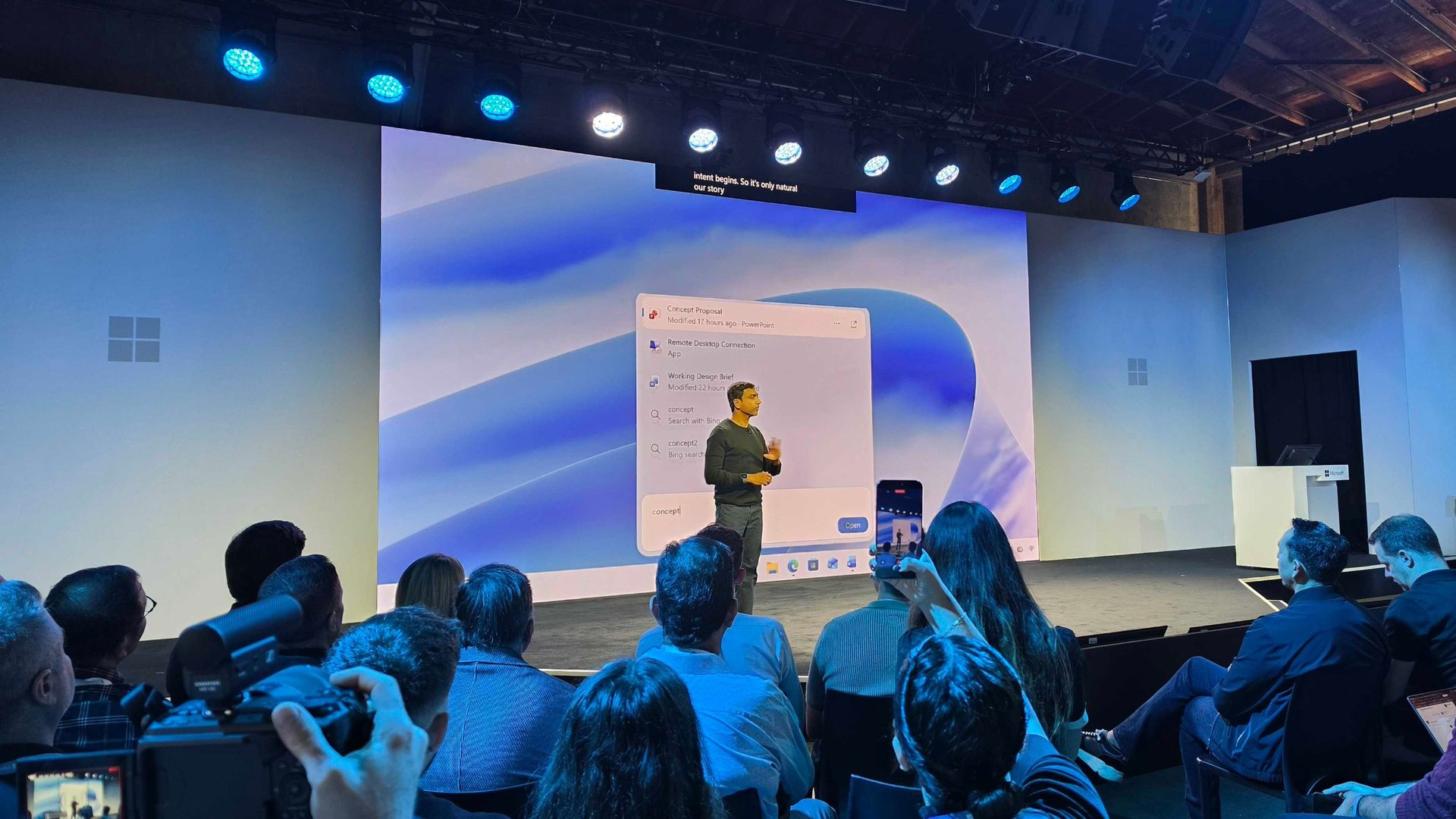
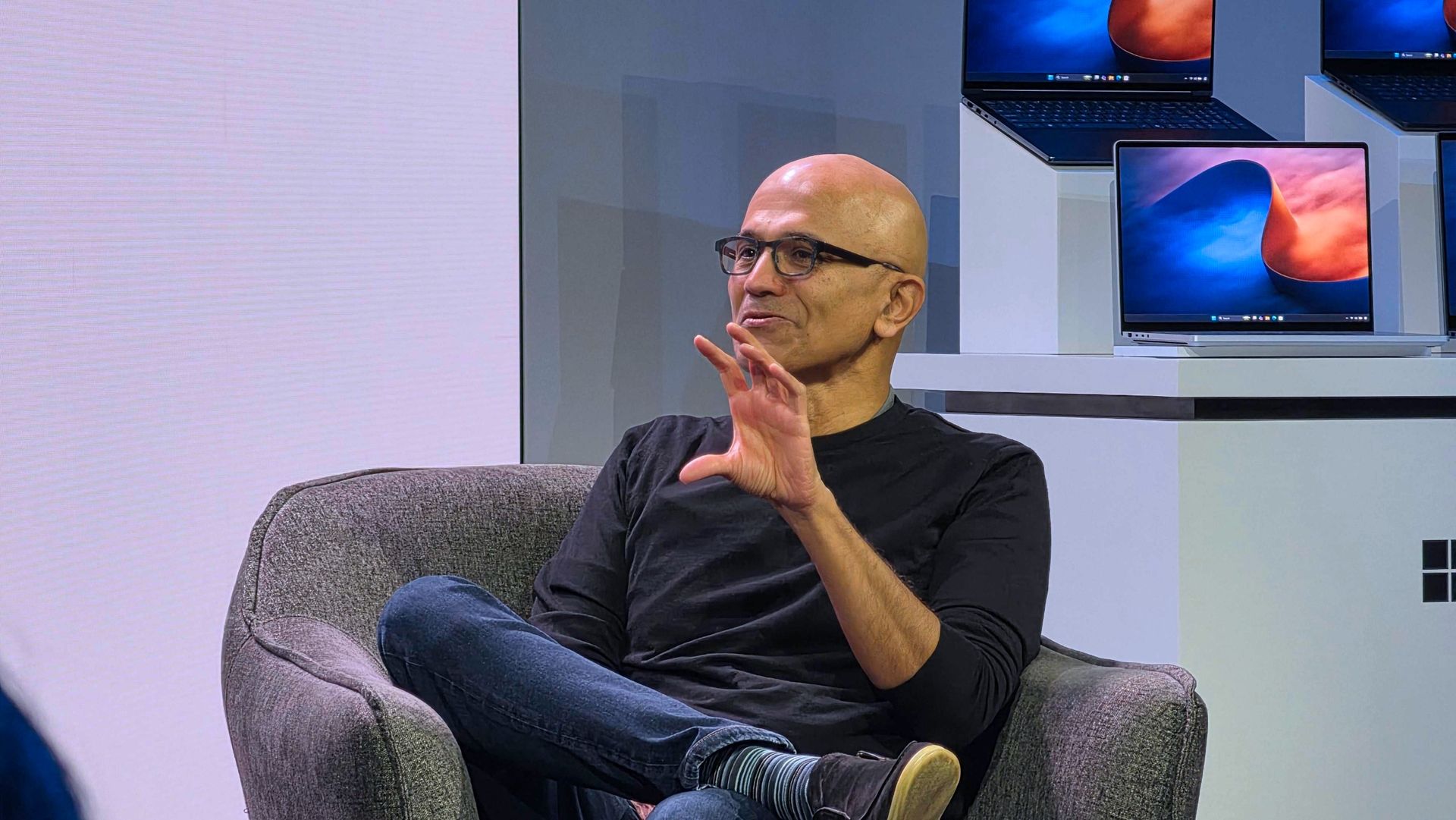
Windows 11 users and Surface enthusiasts had a busy week. Microsoft held an event to showcase the Surface Laptop Ultra, a new Search experience, and a bunch of AI features and integrations across Microsoft services.
Like the original Surface Pro, this week’s Windows and Surface event tried to be a 2-in-1. Unfortunately, just like the first-gen Surface Pro, the event failed to thrive in either of its two categories.
The first 20 minutes of the event felt like a Build session. That’s not a bad thing. Build is an important event for developers. But it’s not aimed at general audiences and is full of technical jargon.
Biggest News of the Week
Anyone who tuned in to the Windows and Surface event hoping for a closer look at the Surface Laptop Ultra would have glazed over at talks of Llama.cpp and Microsoft Execution Containers.
After watching several speakers focus on the technical aspects of AI and development, I assumed the entire event would be like that. Which made the rest of the event confusing.
After filling our eyes and ears with jargon and likely convincing many to stop watching, Microsoft switched gears and showed off a truly useful feature for Windows 11.
The improved Search experience is a consumer-facing feature that is a breath of fresh air to Windows 11. It looks good, is more functional than what it replaces, and according to Microsoft is more efficient while also performing better.
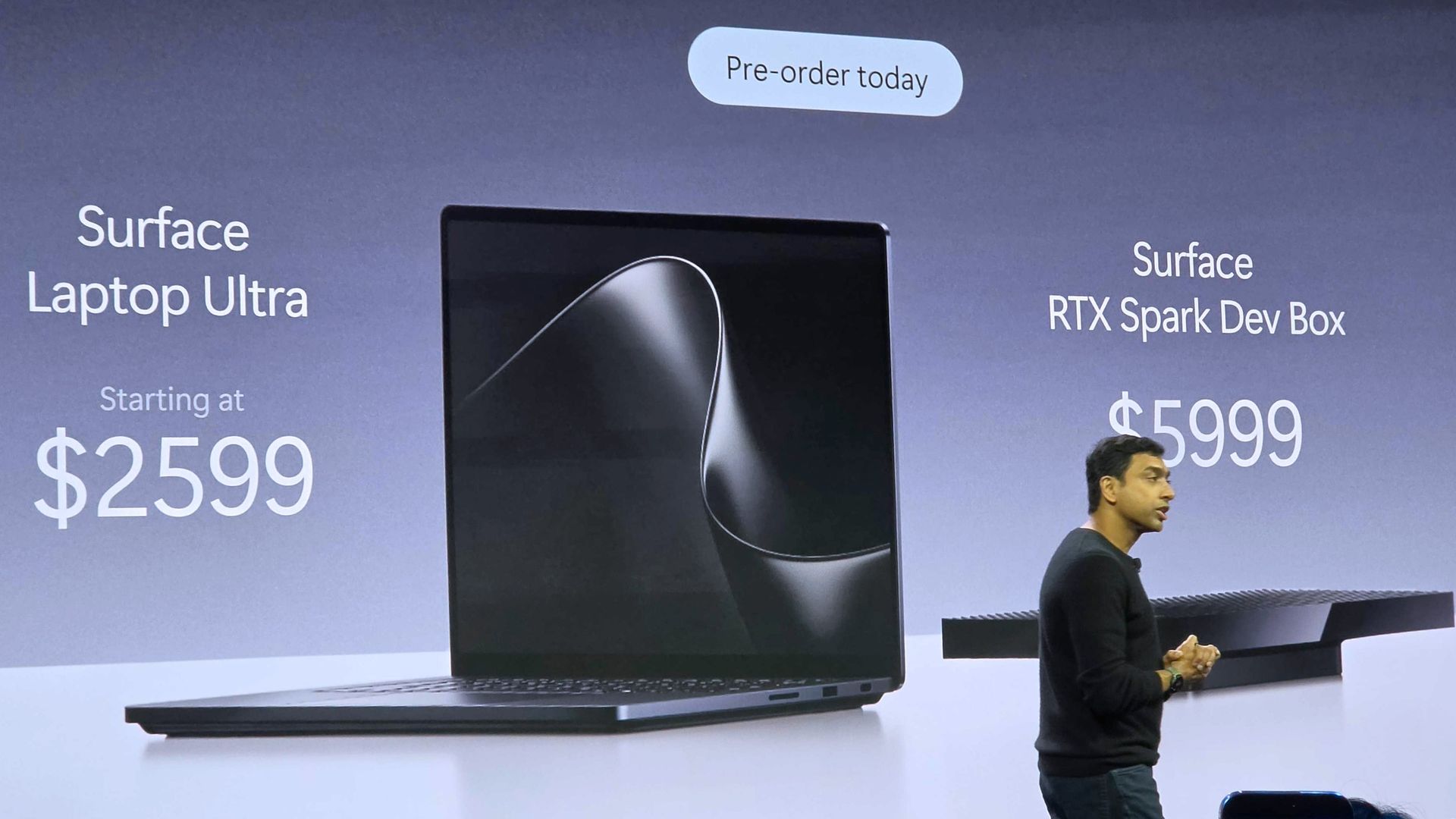
Shortly after unveiling the new Search, Microsoft shared details about the Surface Laptop Ultra. That PC is designed and priced for developers and power users, but it is intriguing to enthusiasts. On top of being the most powerful Surface ever, it has cool features like its magnetic USB-C port.
Microsoft appears confident in the Surface Laptop Ultra. The company’s website now features a banner telling people “break up with your MacBook.”
But the event wasn’t structured in a way that showed the same confidence. The event felt like someone pasted PowerPoint slides from different presentations into a single document.
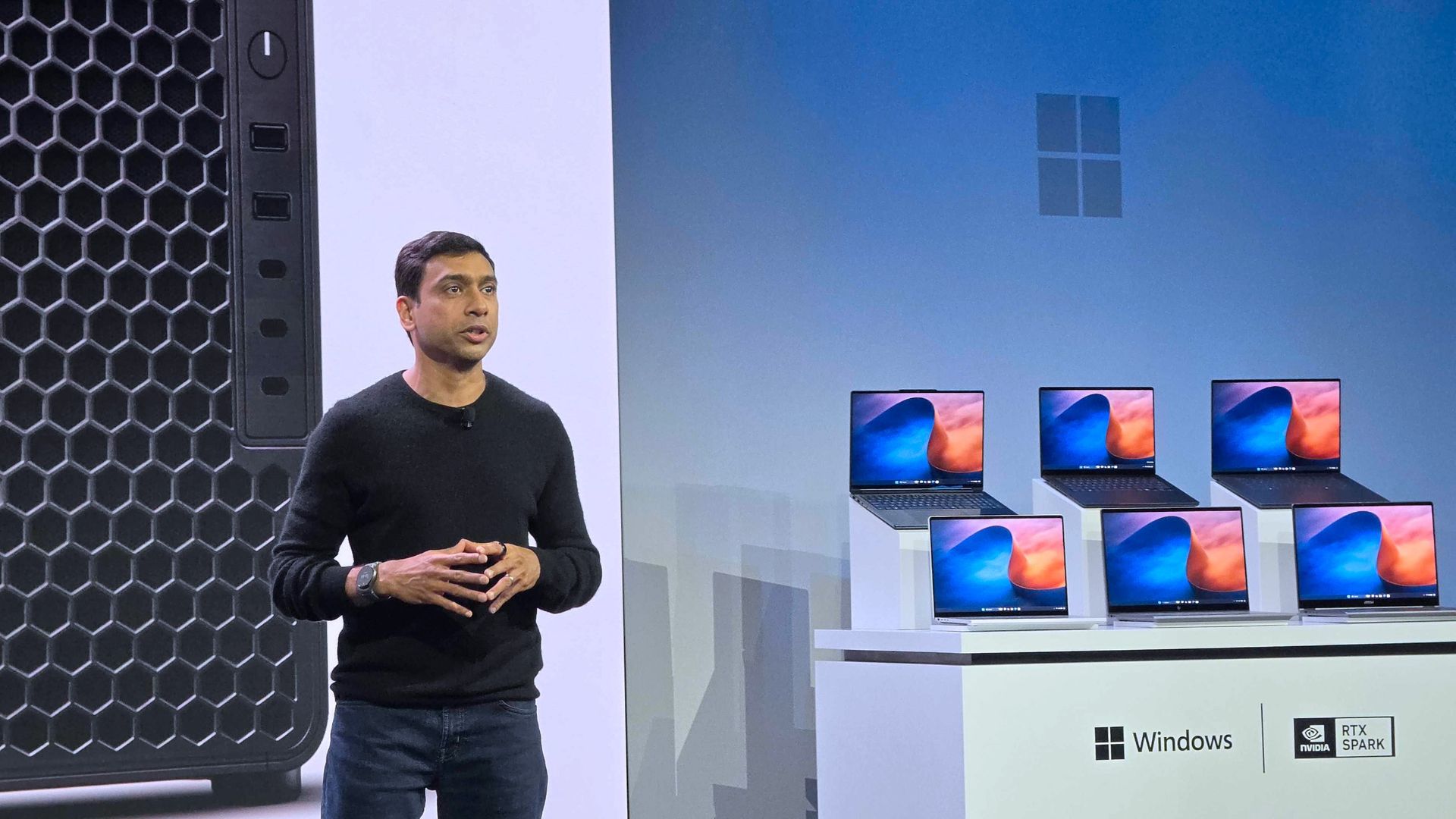
While I am frustrated, it’s for an entirely different reason than I expected. Microsoft announced interesting things for Windows and Surface. I think the event lived up to its description on YouTube that promised to show "RTX Spark and new experiences designed to unlock more possibilities for developers and builders."
But I don’t think that was shown off in a way that appeals to the masses. The features and devices shown on stage may create buzz, but the event itself did not.
Shopping with Sean
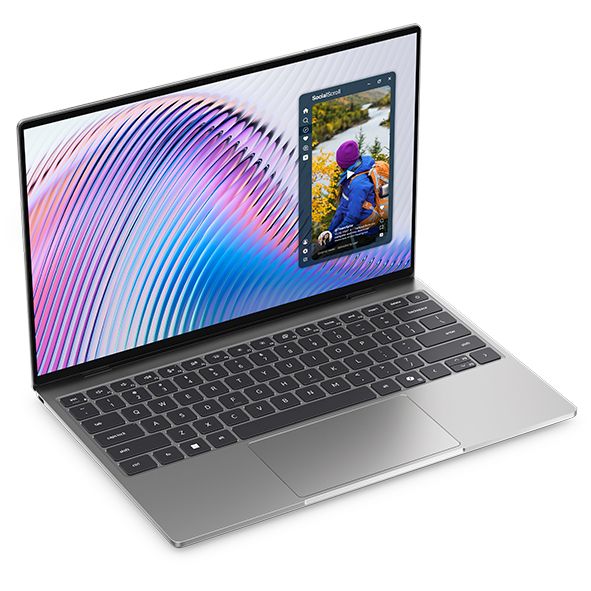
Amazon Prime Big Deal Days came and went, but some of the best tech deals are still live. My top pick is a small discount on the XPS 13 that drops the laptop to $799.99.
"Dell's new XPS 13 is the new best deal in laptops, surpassing the MacBook Neo with a better display, ports, build quality, and performance for the same price." — Zac Bowden, Senior Editor, Windows CentralView Deal
Join us on Reddit at r/WindowsCentral to share your insights and discuss our latest news, reviews, and more.
Microsoft is gradually rolling out the Windows 11 2026 Update (version 26H2) to compatible devices. However, it's an optional install, and if you want to install it early, you'll have to switch manually.
Windows 11 version 26H2 is a small update that doesn't require a full reinstall if your device is already running version 25H2 or 24H2. However, if your hardware is still running version 23H2 (or an older version), you'll need to perform an in-place upgrade with a full reinstallation.
Also, if you plan to upgrade from Windows 10, the computer will go through the full upgrade process as well. In addition, this new version will roll out in phases, starting with devices known to have a good upgrade experience, so not every device will receive the update in the early days.
If you don't want to wait, you can manually trigger the upgrade in at least four ways, including Windows Update, the Installation Assistant, the Media Creation Tool, and an ISO file.
In this how-to guide, I'll outline the steps to upgrade from any previous version to the Windows 11 2026 Update.
Important: Although this is a non-destructive process, something can still go wrong during and after the upgrade. Consider creating a temporary backup before proceeding. You've been warned.
How to install Windows 11 2026 Update from Settings
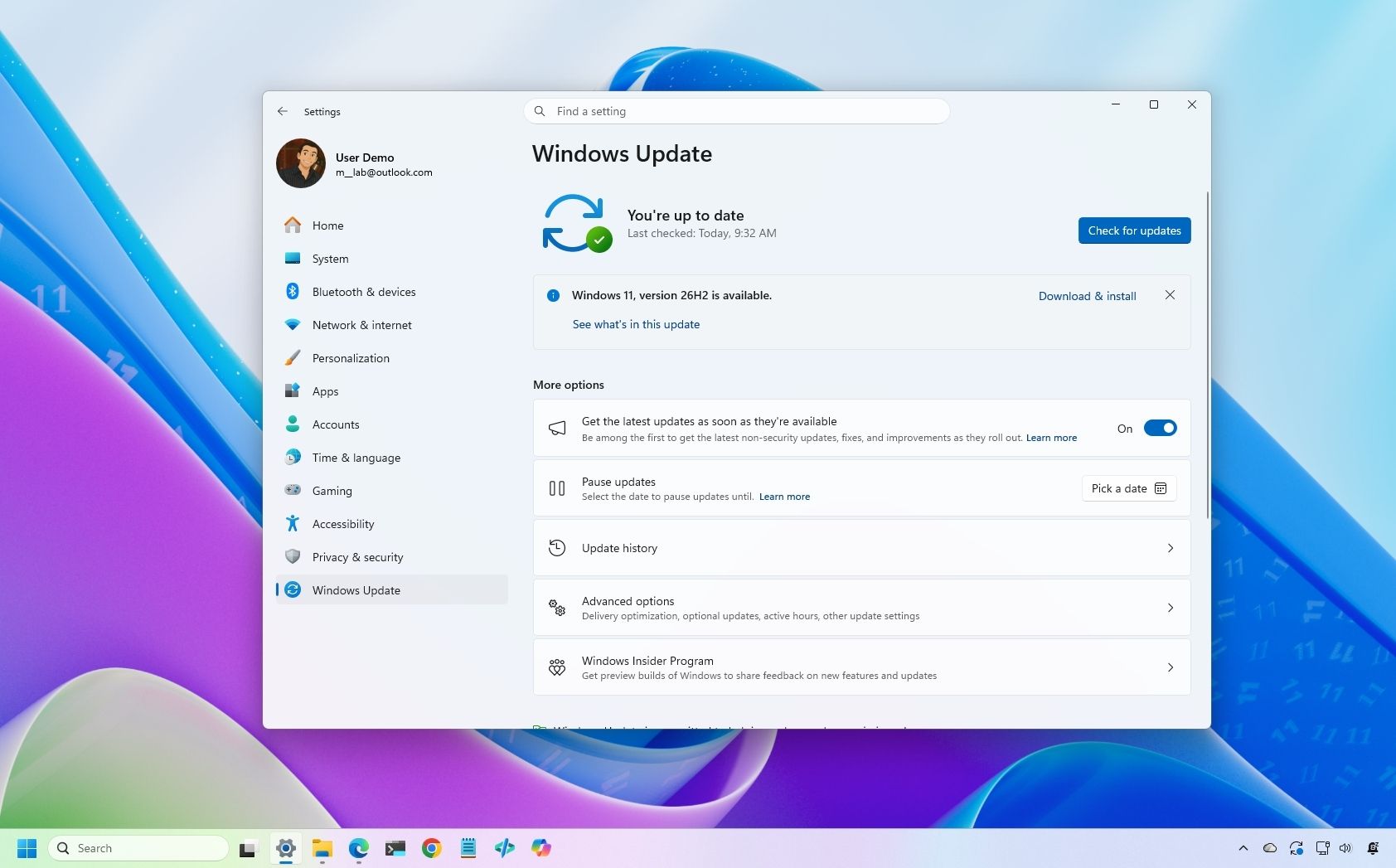
To install the new version of Windows 11 through the Windows Update settings, use these steps:
Open Settings.
Click on Windows Update.
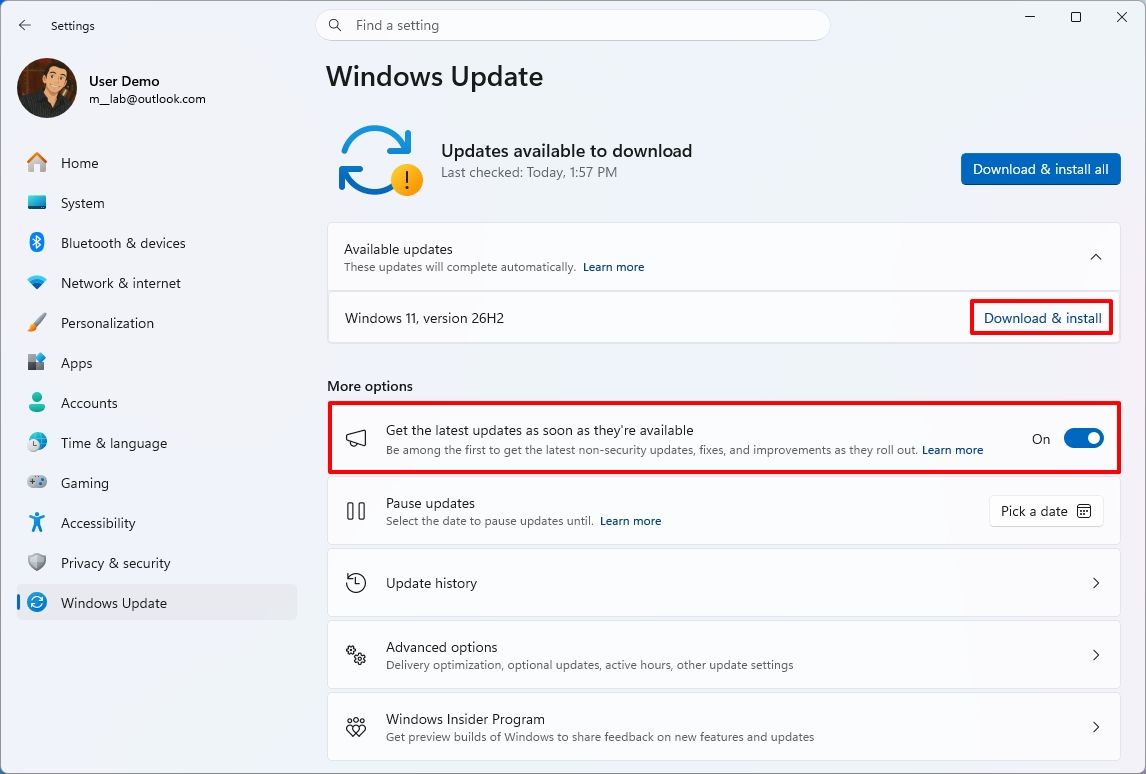
Turn on the "Get the latest updates as soon as they're available" toggle switch.
Click the "Check for updates" button.
Click the "Download and install now" button.
(Image credit: Mauro Huculak)
Click the Restart now button.
After you complete these steps, the installation process will apply the update to the device without requiring a full operating system reinstall.
If the upgrade option isn't available, the update likely isn't ready for your system configuration.
Also, I don't recommend using a different upgrade method, as it may cause issues and require an unnecessary reinstallation.
How to install Windows 11 2026 Update from Installation Assistant
This method should only be used to upgrade a device running version 23H2 or Windows 10. If you use this tool on version 25H2 or 24H2, you'll trigger an unnecessary in-place upgrade.
To upgrade the system to the Windows 11 2026 Update with the Installation Assistant tool, use these steps:
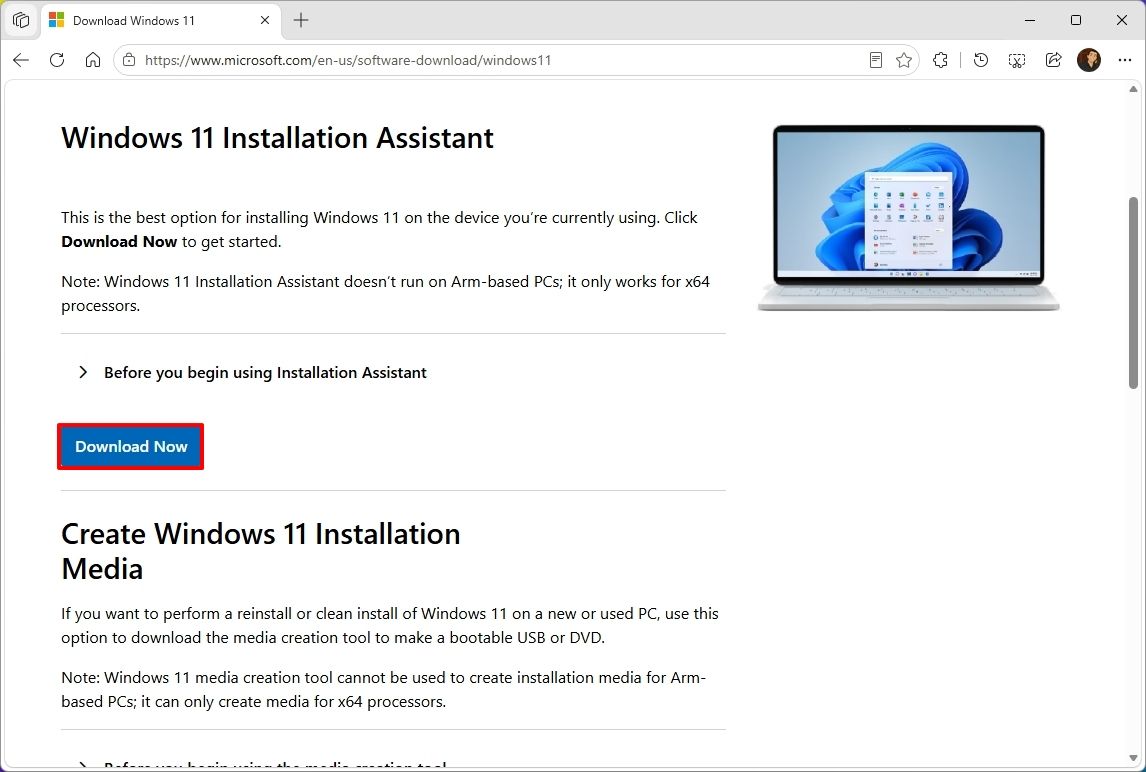
Click the Download Now button under the "Windows 11 Installation Assistant" section.
(Image credit: Mauro Huculak)
Quick tip: If you get a message that the latest version of the operating system is already installed, you likely downloaded an older version of the tool. If so, try downloading the Installation Assistant from this page.
Double-click the Windows11InstallationAssistant.exe file to launch the tool.
Click the "Get PC Health Check app" option to download the tool on the device (if applicable).
Install the Get PC Health app following the easy on-screen directions.
Open the Get PC Health app and click the "Check Now" button.
Click the Refresh button on the Installation Assistant tool.
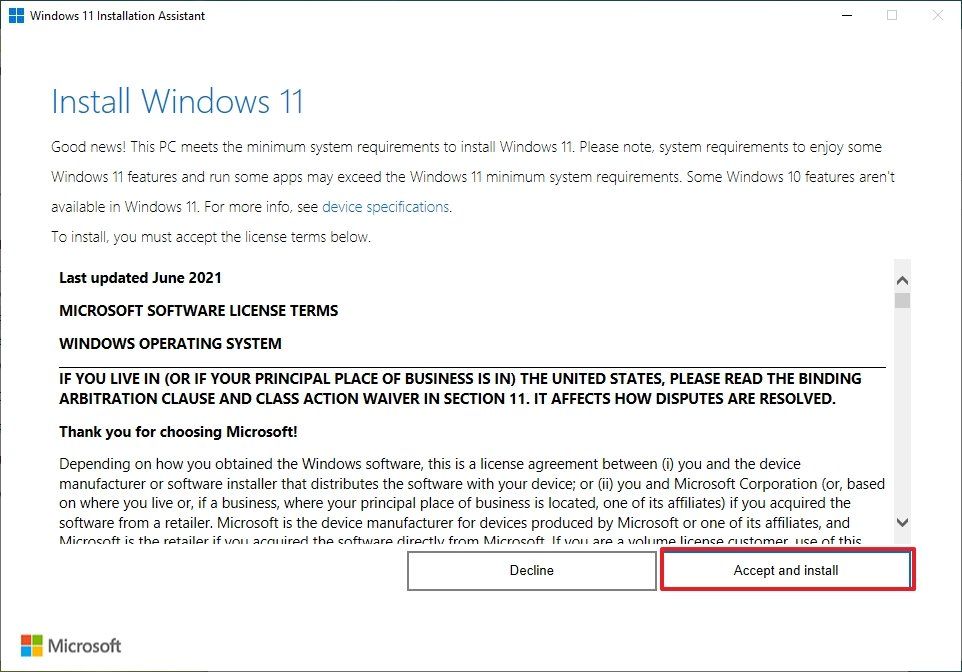
Click the "Accept and install" button.
(Image credit: Mauro Huculak)
Click the "Proceed with installation" button to begin installation.
Click the Restart button.
Once you complete the steps, the tool will download the necessary files and install the new version of Windows 11, preserving your files, settings, and apps.
How to install Windows 11 2026 Update from Media Creation Tool
You should only use this tool when upgrading from an older version, such as 23H2, or Windows 10.
Although you can no longer use the Media Creation Tool to perform an in-place upgrade, you can use it to create bootable USB media to install the new version of the operating system.
This method will perform a complete reinstallation. If you're upgrading from version 25H2 or 24H2, you don't need this method. Instead, upgrade using Windows Update settings.
To use the Media Creation Tool to create a USB drive to upgrade a device, use these steps:
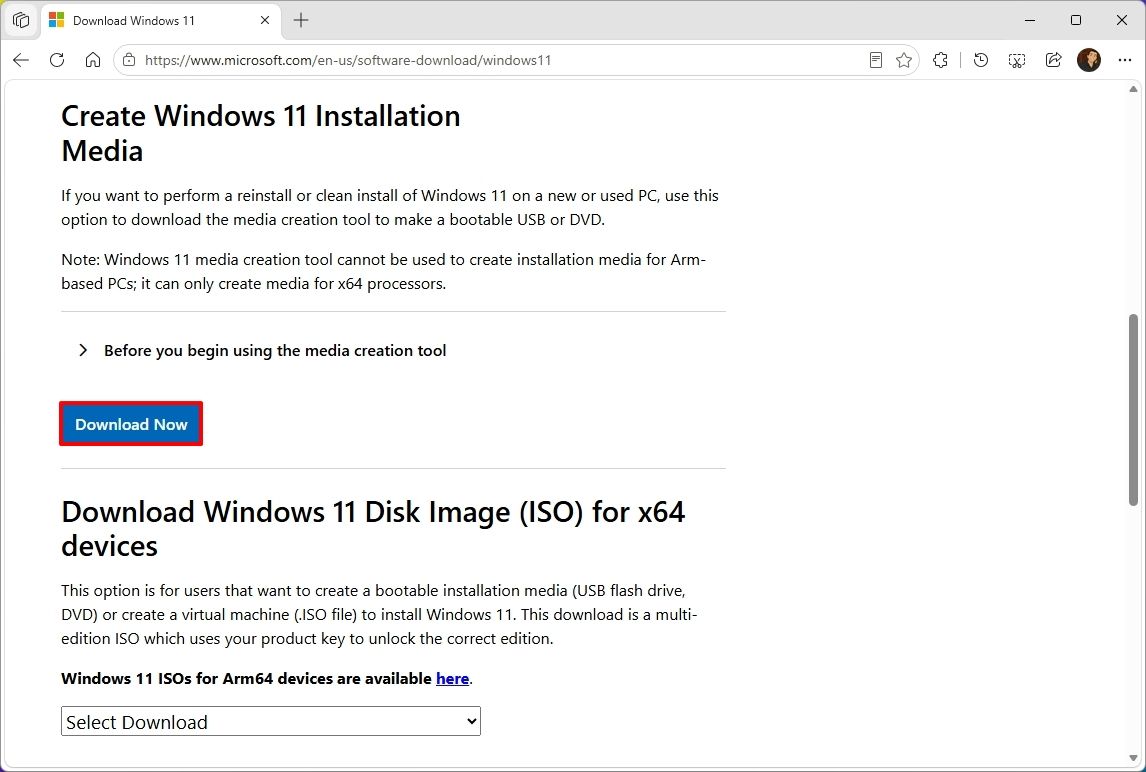
Click the Download Now button under the "Create Windows 11 installation media" section.
(Image credit: Mauro Huculak)
Double-click the MediaCrationTool.exe file to launch the utility.
Click the Accept button.
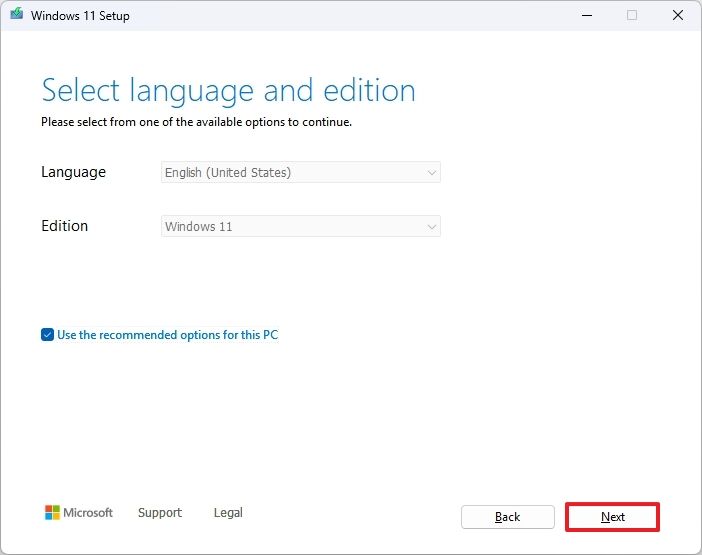
Click the Next button.
(Image credit: Mauro Huculak)
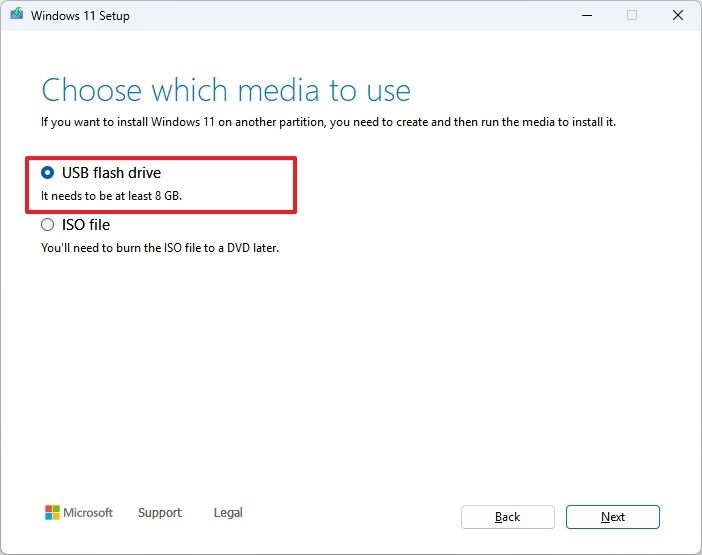
Select the USB flash drive option.
(Image credit: Mauro Huculak)
Quick note: You will need a USB flash drive with at least 8GB of storage. This process will erase the drive, so back up any important information first.
Click the Next button.
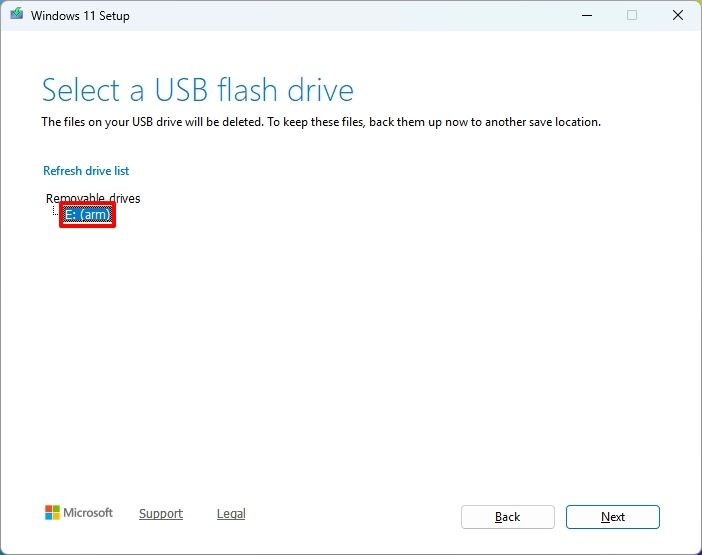
Select the USB flash drive from the list.
(Image credit: Mauro Huculak)
Click the Next button.
Click the Finish button.
Open File Explorer.
Click on This PC in the left navigation pane.
Open the USB drive with the Windows 11 2026 Update installation files.
Double-click the setup.exe file.
Click the Next button.
Click the Accept button to agree to the terms.
(Image credit: Mauro Huculak)
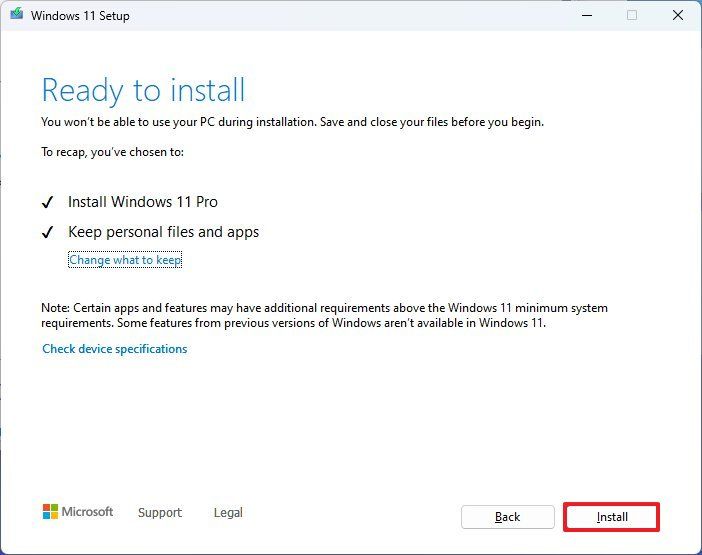
Click the Install button.
After you complete these steps, Windows Setup will proceed with the in-place upgrade to version 26H2 on your device.
How to install Windows 11 2026 Update from ISO file
Finally, you can also download the Windows 11 version 26H2 ISO file to upgrade your system.
To upgrade to Windows 11 2026 Update using the official ISO file, use these steps:
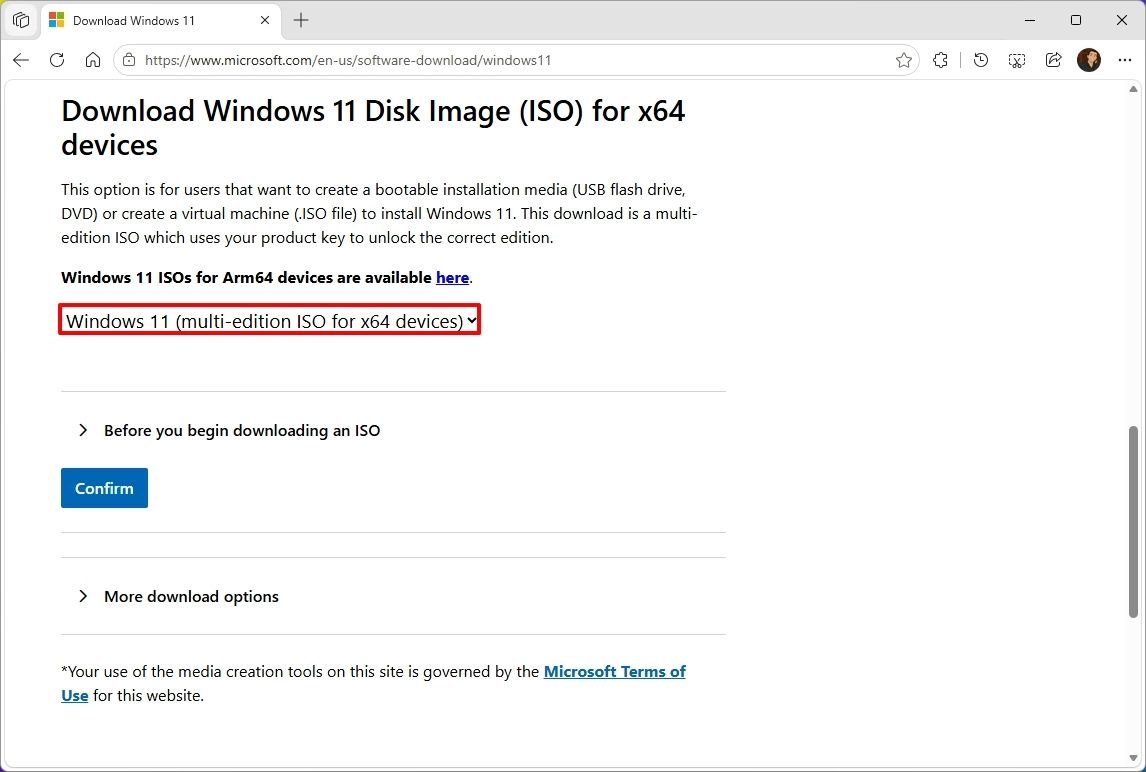
Select the Windows 11 option under the "Download Windows 11 Disk Image (ISO)" section.
Click the Confirm button.
(Image credit: Mauro Huculak)
Select the installation language.
Click the Confirm button.
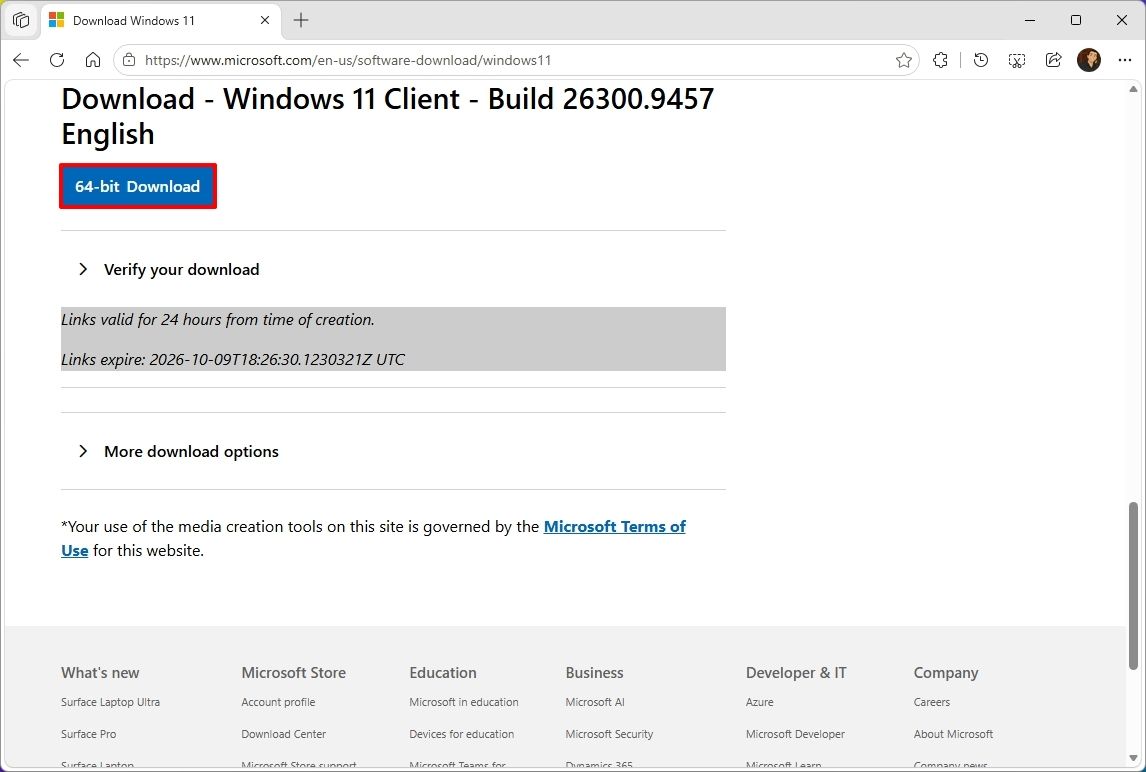
Click the "64-bit Download" button to save the ISO file to the computer.
(Image credit: Mauro Huculak)
Right-click the image file and select the Mount option.
Quick tip: If you don't see the option, another tool is likely managing the ".iso" files.
Select the virtual drive from the left navigation pane (if applicable).
Double-click the setup.exe file to manually launch the setup.
Click the Next button.
Click the Accept button to agree to the terms.
Click the Install button.
(Image credit: Mauro Huculak)
Once you complete the steps, the computer will upgrade to the 2026 Update, preserving your files, settings, and apps.
FAQs about installing Windows 11 2026 Update
These are common questions regarding the installation of version 25H2.
Do I need to reinstall Windows 11 to get version 26H2?
If your computer is already running Windows 11 version 25H2 or 24H2, the 26H2 update will install as a cumulative update without requiring reinstallation. If you're on version 23H2 or older, you'll need to upgrade to version 25H2 first, which does require a complete reinstall.
What are the safest ways to install the latest update?
Microsoft recommends waiting for "Windows Update" to offer the upgrade automatically. If you don't want to wait, you can use the Installation Assistant, the Media Creation Tool, or download the official ISO file.
Will the upgrade process delete my files or apps?
No, if you upgrade using Windows Update, Installation Assistant, or the ISO setup, your files, apps, and settings should remain on the computer. However, it’s always recommended to back up your data before starting the upgrade.
If you perform a clean installation, the process will delete everything on your device.
More resources
Explore more in-depth how-to guides, troubleshooting advice, and essential tips to get the most out of Windows 11 and 10. Start browsing here:
I love a good wallpaper for my PC, and so do many members of the Windows Central community. When our Editor-in-Chief Daniel Rubino shares a review of a laptop, it's normal to see comments asking how to download his wallpaper.
Microsoft has a similar enthusiasm for wallpapers. Windows Spotlight provides an ongoing stream of excellent images that rotate regularly. The tech giant also creates or commissions wallpapers to go along with major product announcements. Windows 10, Windows 11, and Copilot+ PCs all have their own official wallpapers.
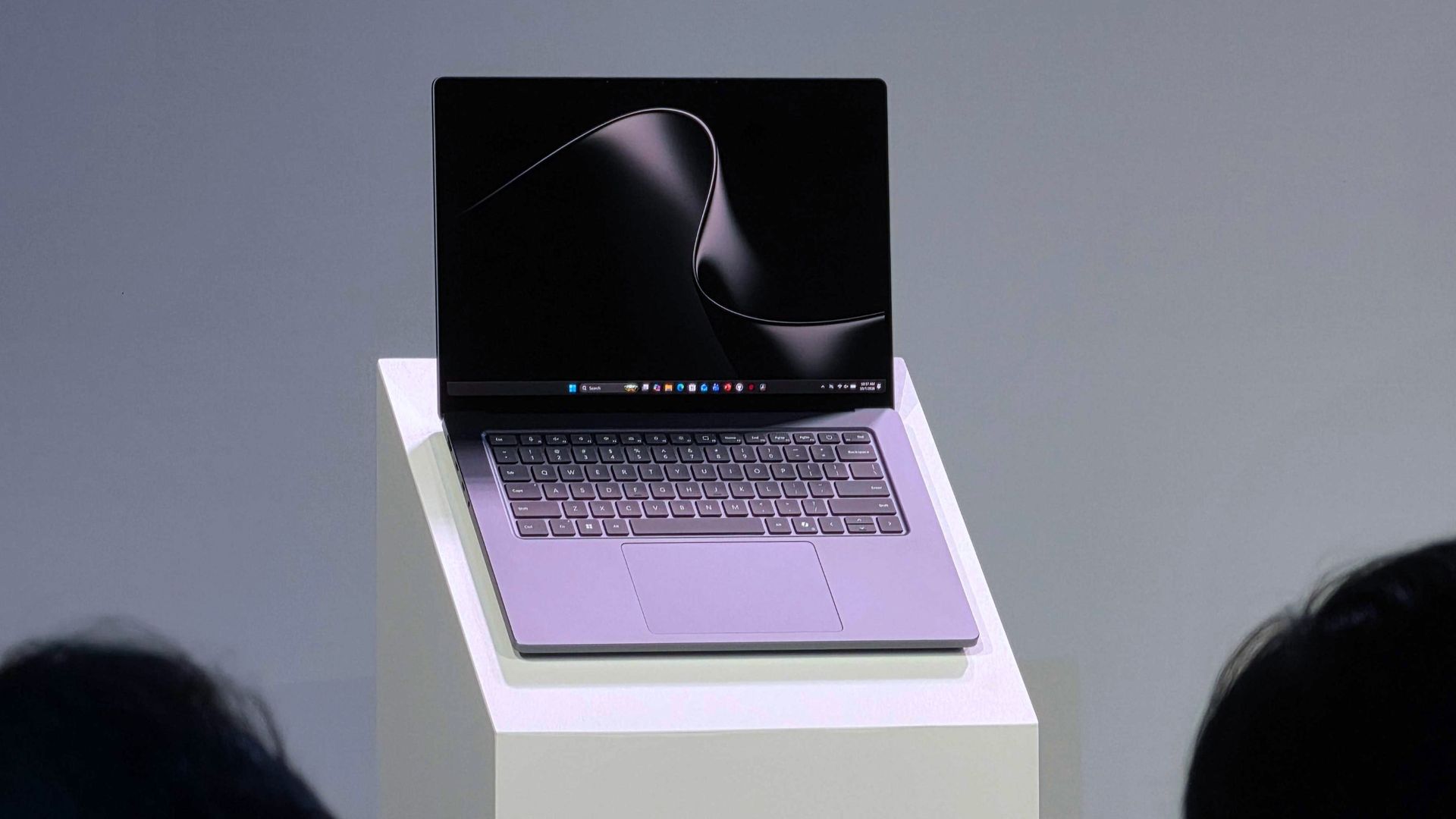
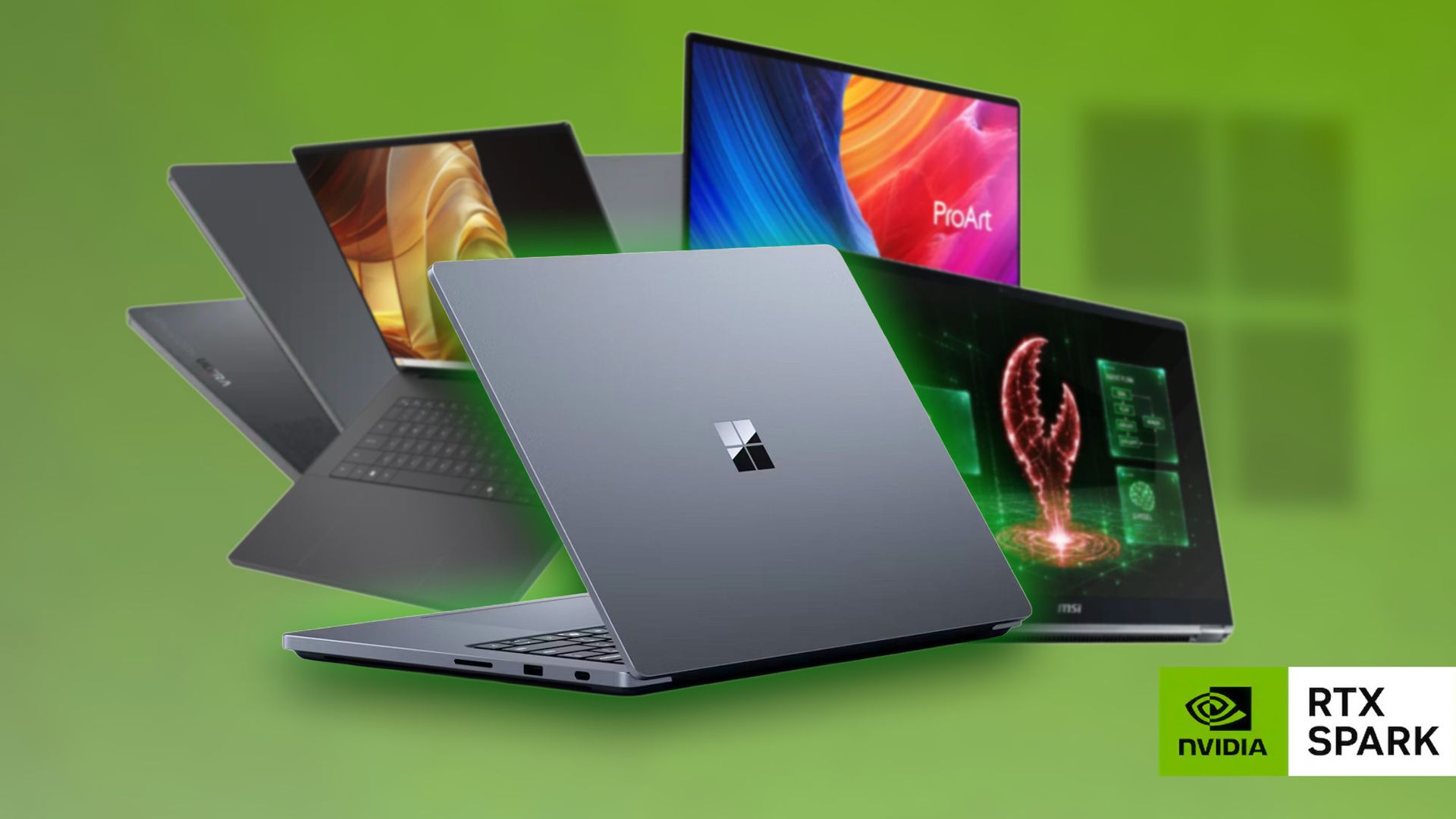
Eagle-eyed viewers of this week's Windows and Surface event spotted what appears to be a new wallpaper from Microsoft. Our Senior Editor was at the event and snapped a shot of the wallpaper displayed across several new RTX Spark laptops.
That recreation seems to do a fair job of replicating Microsoft's image, though I'm sure there are differences that will become clearer once we get hands on the official wallpaper.
We've seen AI used to create or recreate iconic wallpapers before. Our Senior Editor Ben Wilson used Adobe Photoshop's generative AI to expand a collection of Windows wallpapers.
Until Microsoft shares the new wallpaper, we may have to settle for AI recreations. The first wave of RTX Spark laptops are already available for preorder and will start shipping on October 16, 2026, so we may see the files escape into the wild sooner rather than later.
Join us on Reddit at r/WindowsCentral to share your insights and discuss our latest news, reviews, and more.
Microsoft's redesigned Windows 11 Search lets Insiders adjust settings and organize windows without opening Settings. Here's what works and how to try it.
Microsoft is rolling out several useful improvements to Windows 11 Insiders, focusing on clearer system resource monitoring, more reliable Windows updates, and a cleaner security sign-in experience. Included in Windows 11 Insider Experimental Preview Build 26340.9616, released on October 7, 2026, these changes address everyday usability issues rather than introducing a major visual redesign. Microsoft […]
Microsoft is making Windows 11’s Widgets board more useful with a new Battery Status widget that lets users check the battery levels of their PC and connected peripheral devices from one place. The feature is rolling out to Windows Insiders running newer builds, giving users a convenient way to monitor power levels without navigating through […]
For decades, the standard Windows experience has occasionally been disrupted by sudden Blue Screens of Death (BSOD), unexpected thermal throttling, or battery drain. While users often point fingers directly at the operating system, Microsoft has officially acknowledged a reality long understood behind closed doors: a single faulty, low-quality driver running in kernel space can bring […]

 Connexion