❌

Vue lecture

Microsoft walks away from flagship UK AI data center project

Microsoft will no longer be part of a multibillion-dollar data center in Loughton, Essex, England, according to a report by The Telegraph. The planned data center is set to have thousands of NVIDIA processors and was originally planned to start operating next year. Now, major questions surround the project's future.

The data center, which is being planned by Nscale, will be part of a wave of data centers opening in the UK, assuming plans come to fruition.

Microsoft's recent decision could affect the future of the data center, but the power grid is another pressing concern. Nscale has been told by grid operators that the required power supply for the data center will not be available until 2030.

The problems could be connected. The Guardian reports that Microsoft withdrew from the project because of the power grid concerns.

Microsoft was the only company that had publicly committed to plans to use the data center. It's unclear if other tech giants will step in to fill the void.

Despite Microsoft's reported cancellation of plans to be involved with the Essex data center, Microsoft and Nscale continue to have a professional relationship. The Telegraph reports that over 40 percent of Nscale's $103 billion in contracted revenue comes from Microsoft. The Essex data center was only believed to be a small part of that even before Microsoft changed its plans.

"We remain committed to both the Loughton project and the UK and we are exploring alternative power sources for the site, in addition to other expansion sites in the UK," said Nscale. The company added,
"Our relationship with Microsoft remains strong and long-term."

Microsoft is at the center of data centers

As demand for processing power increases, Microsoft finds itself increasingly at the center of data center headlines. Just in the UK, there are three ongoing stories about Microsoft and data centers.

Almost 45,000 people have signed a petition to prevent the construction of a data center in Leeds, England. Over in Slough, England, politicians and residents have debated the construction of a different data center.

Now, Microsoft has withdrawn its planned involvement in what could become the UK's largest data center.

Windows Central take

It seems inevitable that data centers will pop up around the world. There's a good chance that a site only a few miles from my house will have a data center in the near future. I live in Nottingham, England. A former coal plant that has been shut down is expected to house a data center.

Despite several tech giants calling for AI development to be slowed down or paused, demand for data processing is accelerating. I suppose the data centers have to be built somewhere, but I confess I'm not thrilled at the prospect of one being so close to my house.

Data centers can pollute the local environment and emit noise pollution into the surrounding area. They can also raise energy prices nearby and put stress on the local grid.

Click to join us on r/WindowsCentral

Join us on Reddit at r/WindowsCentral to share your insights and discuss our latest news, reviews, and more.

  •  

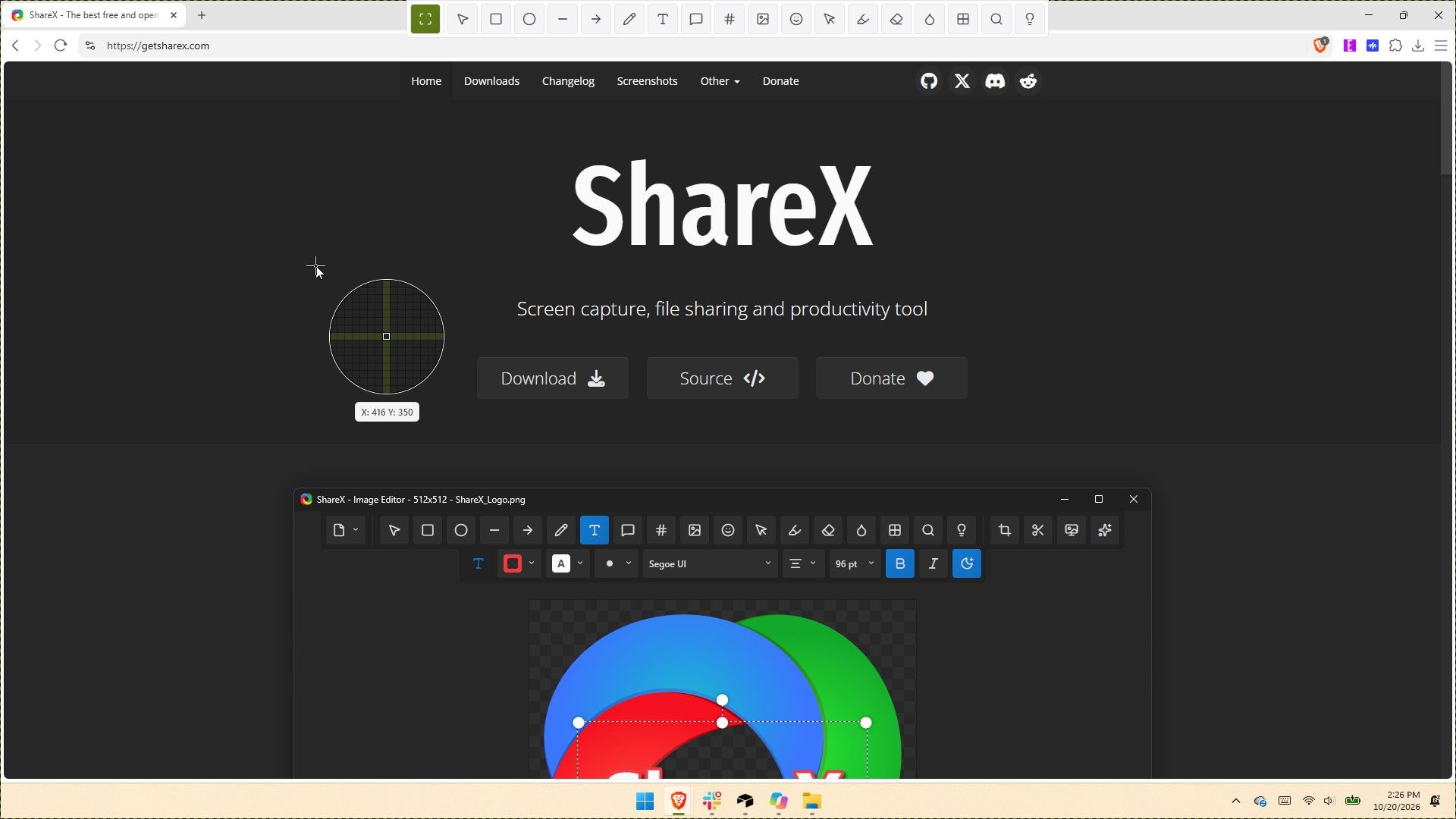
ShareX gets its biggest update ever with native screen recording, 120 FPS capture, and dozens of new tools

ShareX has been around for almost two decades, but in its 19 years as a screen capture app, it has never received an update as large as the one that just shipped to testers. ShareX version 22.0.0 brings a massive number of changes to a completely overhauled app.

The update adds native screen recording, a new screen recorder bar, and support for recording content at 120 FPS. It also brings a number of quality-of-life changes, such as a restart button for screen recordings and the option to show or hide the screen recorder timer and recording button labels.

Screenshot functionality has also expanded. Several preexisting tools have been redesigned, and new tools have been added as well.

Since the update changes so much, it is expected to be less stable than other releases. But if you'd like to give it a try, you can download the preview of ShareX version 22.0.0.

Here's the entire change log from ShareX:

  • Screen recording changes:
    • Added native screen recording support without relying on FFmpeg, enabled by default. ShareX
      • Added support for recording system audio.
      • Added support for recording microphone audio.
      • Added support for recording camera overlays. ShareX
    • Added a screen recorder bar that allows users to configure recording options before starting a recording: ShareX
      • Start delay.
      • System audio.
      • Microphone.
      • Camera.
      • Cursor.
      • Mouse highlighter.
    • Increased the screen recording FPS limit to 120.
    • Added an "Automatically start mouse highlighter" option for screen recording.
    • Added a "Restart" button to the screen recorder bar and system tray menu.
    • Added an option to show or hide the screen recording timer.
    • Added an option to show or hide screen recording button labels.
    • Recorder devices are no longer bundled.
  • Added HDR screenshot color corrector option (Task settings -> Capture).
  • ShareX installer and assemblies are now code-signed using a certificate provided by Ember Swan. Xenthys
  • Added a warning before running unsigned installers.
  • Added a wide range of new tools and redesigned all existing tools from scratch:
    • Screen & color:
      • Color picker
      • Mouse highlighter ShareX
      • Pin to screen
      • Ruler ShareX
      • Screen color picker
    • Images:
      • Background remover
      • Icon converter
      • Image beautifier
      • Image combiner
      • Image comparer
      • Image converter
      • Image editor
      • Image effects
      • Image resizer ShareX
      • Image splitter
      • Image thumbnailer
      • Image viewer
      • Image watermark
    • Video:
      • Animated GIF maker
      • Animated GIF trimmer ShareX
      • Video converter
      • Video player
      • Video thumbnailer
      • Video trimmer ShareX
    • Data & text:
      • Analyze image
      • Hash checker
      • Index folder
      • Metadata
      • OCR
      • QR code
      • Remote storage browser (supports Amazon S3, SFTP, FTPS, and FTP) ShareX
    • System:
      • Borderless window
      • Clipboard viewer
      • Inspect window
      • Monitor test
      • Network monitor ShareX
    • Added categorized grid layout for tools menu.
    • Added edit button to tools menu to be able to hide or show tools. ShareX
    • Include video files in image history window.
    • Added "Trim video" context menu option to main window and history windows.
    • Added "Trim animated GIF" context menu option to main window and history windows.
    • Added drag-and-drop upload overlay to main window.
    • Added customizable task buttons to bottom of notifications.
    • Added notification button size option.
    • Added search support to setting windows.
    • Upgraded project to .NET 10.
    • Update FFmpeg to 9.0.
    • Added Czech language support.
    • Added Swedish language support.
    • Added Hindi language support.
    • Added Thai language support.
    • Added Danish language support.
    • Translated all newly redesigned ShareX windows into 28 languages from scratch.
    • Improve smart eraser with edge-matching fills.
    • Added easter egg to about window.
    • Added easter egg to image editor. ShareX
    • Added support for Amazon S3 multi-part uploads.
    • Added an option to upload Amazon S3 parts concurrently. CubityFirst
    • Support remote deletion of Amazon S3 uploads.
    • Added img.fish file uploader.
    • Added Immich file uploader.
    • Added MEGA file uploader.
    • Migrate uPaste uploader to API v2.
    • Removed Vault.ooo file uploader.
    • Show start screen on first application run.
    • Added an always on top toggle to the main window title bar.
    • Added a theme toggle to the main window title bar. ShareX
    • Added cursor centered zoom support to image viewer with Ctrl + Mouse wheel.
    • Reset image viewer zoom with Middle click.
    • Added PNG compression level option.
    • Added PNG filter option.
    • Added JPEG chroma subsampling option.
    • Added adaptive quantizer GIF quality option.
    • Added BMP bit depth option.

If you've only used the Snipping Tool on Windows 11, you may be a bit overwhelmed by all of the options within ShareX. But the defaults in ShareX make it easy to start using the app. I've been using CTRL+Print Screen all morning to grab screenshots.

The revamped ShareX is impressive, but the main reason I love the app is that it lets you save screenshots as a JPEG. That's a small feature that's been around for ages, but it still remains unavailable in Snipping Tool.

I've only had ShareX version 22.0.0 for a few hours, but in that time the app has performed quickly. It's so snappy that it feels native to Windows 11. If you take a few minutes to customize ShareX's settings and shortcuts, it can become a powerful tool that justifies running at startup.

ShareX is a free Windows app for screenshots, screen recording, and image editing. It packs dozens of tools for capturing, annotating, organizing, and sharing content from your PC.View Deal

Click to join us on r/WindowsCentral

Join us on Reddit at r/WindowsCentral to share your insights and discuss our latest news, reviews, and more.
  •  

Breaking down the Surface Laptop Ultra support schedule for drivers and firmware

The Surface Laptop Ultra just started shipping, so Microsoft is busy updating its support documents to make sure buyers have all the information they need about the PC. Microsoft's support document about Surface driver and firmware lifecycles was just updated to include the Surface Laptop Ultra.

That document outlines how long each Surface device will receive driver and firmware updates.

The support window for the Surface Laptop Ultra is not surprising. In fact, it's perfectly in line with other Surface devices. Microsoft splits its driver and firmware lifecycle into two different categories: devices released before January 1, 2021 and devices released on or after January 1, 2021.

Devices that shipped before 2021 receive at least four years of driver and firmware updates. All Surface PCs in that category have already reached the end of the driver and firmware lifecycle.

The Surface Laptop Ultra will continue to receive driver and firmware updates until October 16, 2032. Microsoft is quite specific about its lifecycles. For context, the newly launched Surface Pro 12-inch and Surface Laptop 13-inch will only receive driver and firmware updates until October 13, 2032.

Surface Laptop Ultra owners will need to make sure their PC is running a version of Windows 11 from the prior 30 months to continue to receive driver and firmware updates.

Even when a device reaches the end of its driver and firmware lifecycle, it will continue to receive Windows 11 updates.

Firmware is low-level software built into hardware components, while drivers allow Windows to communicate with those parts. Driver and firmware updates keep everything running smoothly. They can fix hardware bugs, battery drain, and security flaws behind the scenes.

Six years is a fair time for a PC to receive driver and firmware updates. Generally, the biggest bugs and issues should be sorted by the end of the Surface Laptop Ultra's driver and firmware lifecycle.


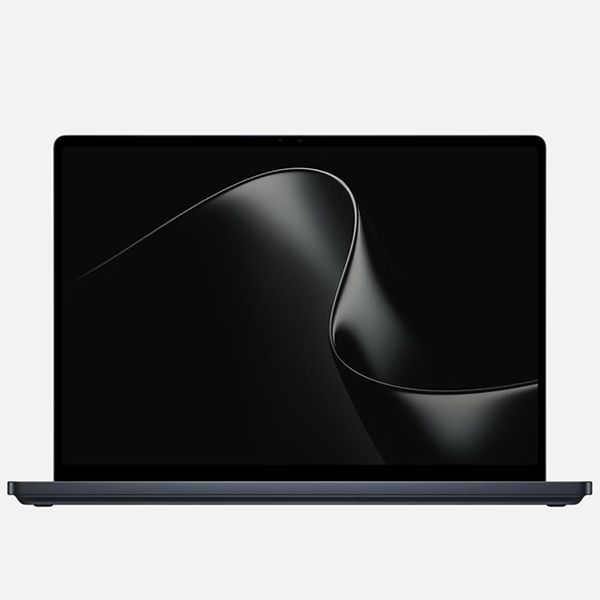
Built around the NVIDIA RTX Spark platform with an N1X CPU, RTX GPU, and up to 128GB of unified memory, the Surface Laptop Ultra hits new performance heights for power users. It's all contained in a gorgeous chassis with a mini-LED display and tons of ports.

Click to join us on r/WindowsCentral

Join us on Reddit at r/WindowsCentral to share your insights and discuss our latest news, reviews, and more.
  •  

I wasn't prepared for how fast Microsoft's new Photos app performs

Microsoft's Photos app is about to get a major upgrade. Microsoft recently highlighted how the app is faster, more efficient, and full of new features. The upgraded Photos app will feature a new Gallery, Editor, and Viewer.

Details about the new Photos app were shared in a Microsoft blog post, but images and videos have since shown off the level of improvement we can expect.

Based on early impressions of the app, the new Photos experience could be a go-to way to view and edit images on Windows 11 rather than an app you scroll past after right-clicking and selecting "Open with."

New features

The three main additions to the Photos app are the new Gallery, Editor, and Viewer. Those experiences are designed to, "help you rediscover and organize your collection, give you more capable tools for your favorite shots, and make the everyday experience faster," according to Microsoft.

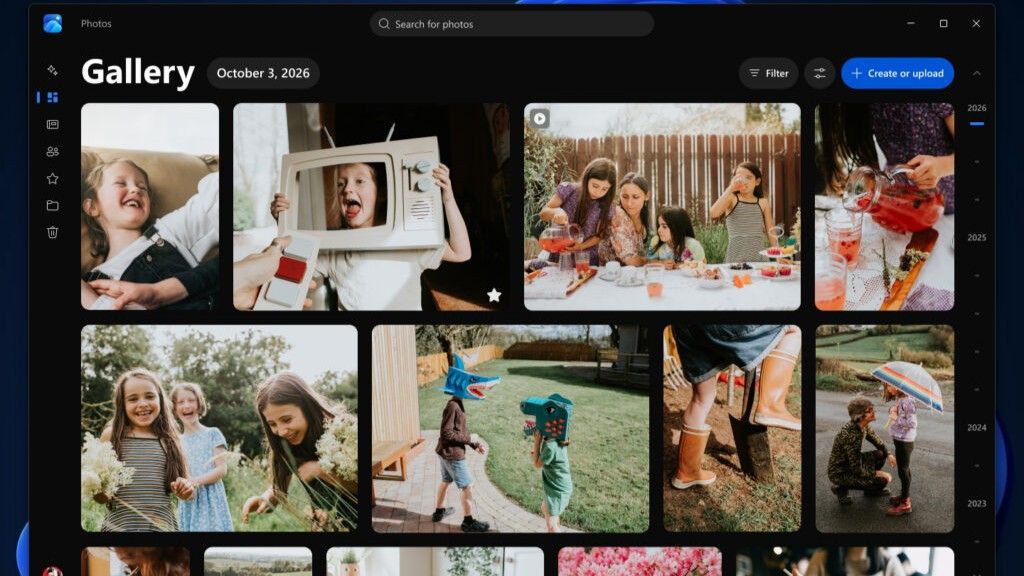
The new Gallery gathers together photos from your PC, OneDrive, and iCloud into a single space. You can then search for images using text, filter photos to see specific people, or browse Moments created by the app or albums you've organized.

You can use natural language to find images in your gallery, such as searching "sunset at the beach." That saves you the hassle of searching for specific file names.

The new Editor loads 25 percent faster, according to Microsoft. It includes tools to crop, enhance, repair, and stylize photos.

Super excited to ship the new Photo Viewer and Editor! Faster launch times, nearly 50% less RAM used by the Editor, and tons of new features!One detail worth showing off: Photo Viewer is now edge-to-edge. Zoom into a photo and watch it take over the entire window! https://t.co/5mKMO87PVlOctober 15, 2026

Microsoft rebuilt the new Editor from the ground up with WinUI 3, which is the modern framework used to create apps. Notably, only certain parts of the new Photos app are built with WinUI 3.

On top of the normal features you'd expect from an editor, such as cropping an image, the new Photos app has some advanced features like Relight. With that tool, you can add up to three light sources to an image and dynamically adjust lighting in the photo.

Microsoft added support for editing and saving HEIC and WebP images as well as the ability to preserve the color and contrast of HDR photos throughout the editing process.

The new Viewer in the Photos app is also called "native" by Microsoft, though the blog post does not specify that it is built with WinUI 3. It now has better support for HDR viewing and supports more file types, including SVG files.

Speed improvements

I'm excited to try the new features in the Photos app, but the speed of the app is what has stood out to me the most. Diego Baca, Microsoft's Vice President of Design for Windows, shared a video showing the new gallery.

Baca scrolls within the Photos gallery and hundreds of photo previews load instantly. Even when pausing the video, there is only one instance of stuttering or the app having to take a moment to load images.

Photos gallery super fast 👀 🖼️ https://t.co/g4k9W9yhG6October 16, 2026

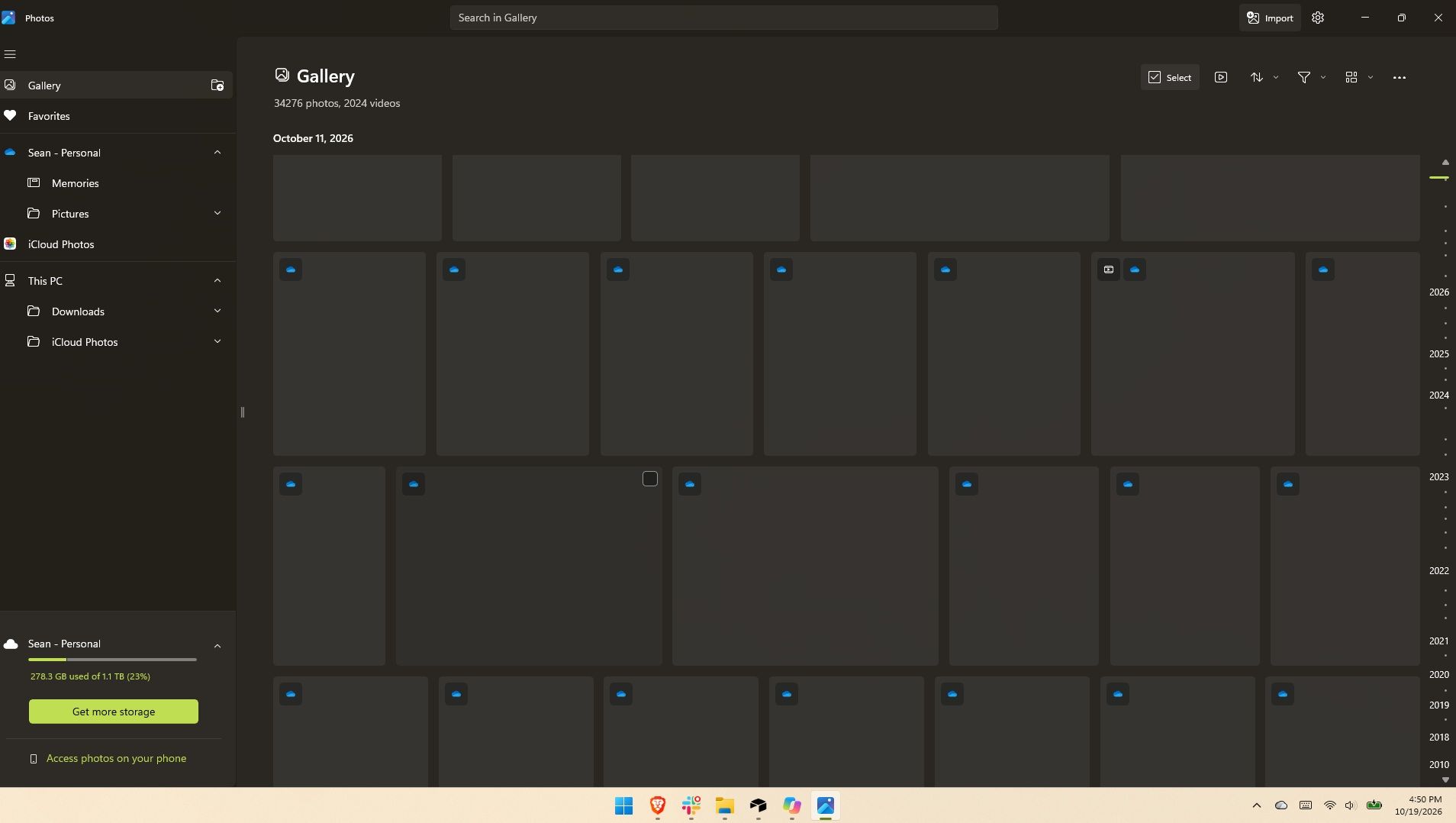
I thought for a moment I may have been judging the old Photos gallery too harshly, but a quick test put that concern to rest. Scrolling through my gallery on my main PC, which does not have the improved Photos app yet, I can watch thumbnails load one at a time. It's like switching from dial-up internet to broadband.

Microsoft Photos displaying a Gallery view filled with blank thumbnail placeholders as images fail to load quickly.

If I scroll through the old Photos app quickly, I can get an entire page of unloaded thumbnails. (Image credit: Future)

Several parts of the app have been sped up, such as Viewer launching 15 percent faster on average and up to 30 percent faster for HEIC images.

Earlier this year, we covered Microsoft's Rudy Huyn assembling a team to work on Windows apps. We've seen some of the fruits of that team already, but the new Photos app is by far the biggest improvement connected to them.

Click to join us on r/WindowsCentral

Join us on Reddit at r/WindowsCentral to share your insights and discuss our latest news, reviews, and more.
  •  

Microsoft's Windows Insider wallpapers were made on a Mac

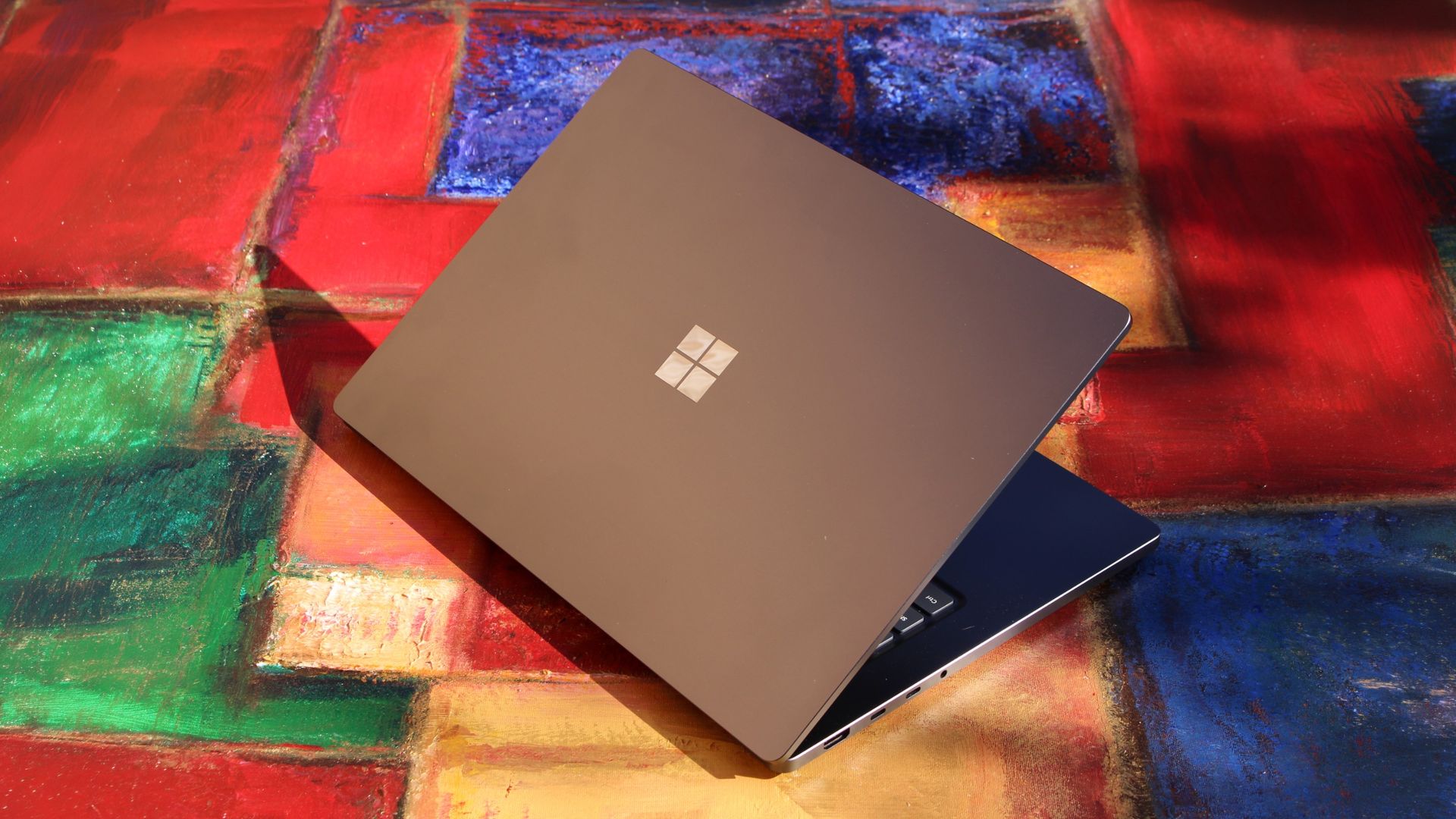
Microsoft just celebrated 12 years of the Windows Insider Program by sharing a collection of wallpapers. But the origin of those wallpapers has drawn a bit of criticism. It turns out that they were not made on a Surface Laptop Ultra or, in fact, any Windows 11 device. Instead, they were created using a Mac.

Rafael Rivera checked the properties of the wallpapers and noticed that they were created using the Mac version of Adobe Photoshop.

New Windows Insider email: "we created new backgrounds for all Insiders inspired by 12 years of the Windows Insider Program and the latest Surface design aesthetic"https://t.co/4gzu6wPcWOCreated on a Mac. https://t.co/0d8HgHlvh0October 15, 2026

Rivera noted in a follow-up post on X that the images were made by Microsoft's in-house design team. If accurate, that precludes the possibility of a contracted company happening to use Macs in their normal workflow and being commissioned to make the images.

Even if the images were made by a contracted company, Microsoft would have a little bit of egg on its face because that would indicate that even a creator that works with Microsoft prefers to use an Apple product.

Windows Central take

I don't think this is a big deal, but the situation has emerged at an awkward time. Microsoft is in the middle of refreshing Windows 11. The tech giant just shared a massive blog post positioning Windows 11 as a selling point to buy a new PC.

Having Windows Insider wallpapers created on a Mac opens the door to jokes like "even Microsoft staff prefer Mac."

It's perfectly reasonable for Microsoft to use tools created by another company. It's not as if Microsoft should force its design team to use the new Photos app instead of Photoshop. Creators, and any worker, need to use tools that can get the job done.

But considering Adobe Photoshop is available on Windows 11, it's a bit strange that Microsoft couldn't send a few Windows 11 PCs over to its design team.

Alternatively, Microsoft could call up ASUS and make a deal to get some ProArt P16 laptops to the design team. Our friends at Tom's Guide said "The ASUS ProArt P16 is an outstanding laptop for creativity."

The best news for whoever made the Windows Insider Program anniversary images is that Adobe Photoshop works on Windows on Arm, so it should run smoothly on any of the new RTX Spark laptops.

Click to join us on r/WindowsCentral

Join us on Reddit at r/WindowsCentral to share your insights and discuss our latest news, reviews, and more.
  •  

Microsoft celebrates 12 years of Windows Insiders with free wallpapers

Microsoft just celebrated 12 years of the Windows Insider Program by sharing special wallpapers with Insiders. The images are all reminiscent of the Windows Bloom wallpaper that ships with Windows 11 and that has been remixed several times by Microsoft and enthusiasts.

I'm partial toward the blue version, likely because I learned how to use a PC on Windows 95. There are also white, green, orange, and purple variants as well as several dark-theme wallpapers.

This direct download link should get you all of the wallpapers, but you should also see them in an email from Microsoft if you're a Windows Insider.

Microsoft shared the following message alongside the wallpapers:

"Thank you for 12 incredible years, Windows Insiders!

From exciting program changes to meetups that brought us together in the past year, you're at the heart of it all. As a thank-you, we created new backgrounds for all Insiders inspired by 12 years of the Windows Insider Program and the latest Surface design aesthetic."

The Windows Insider Program has been around for 12 years, but it has shifted in structure in that time. I've been an Insider since the beginning, as have many members of our team at Windows Central. In that time, we've seen everything from major Windows features not being tested with Windows Insiders to feedback directly shaping the future of Windows.

Microsoft refocused on the Windows Insider Program by refreshing it earlier this year. Since that refresh, we've seen more Insider builds per week and significant upgrades being tested in those builds.

Windows Insider meetups also returned this year, giving the community a chance to meet in person and interact with the Windows product team directly. The first Windows Insider meetup was in Seattle, Washington. Later, events took place in New York City (USA), Hyderabad (India), Taipei (Taiwan), San Francisco (USA), and London (UK).

I'm happy to see the Windows Insider Program on the right track. Microsoft is engaging with the community and shaping Windows 11 based on feedback.

Microsoft has shown the positive impact of listening to feedback through its recent changes to Xbox. Sometimes grabbing low-hanging fruit and addressing the top community concerns is exactly what's needed.

The wallpapers shared by Microsoft are a small gesture thanking Windows Insiders, but such gestures can go a long way. Ignored Insiders become Insiders who disengage from the Windows Insider Program, and that hurts all Windows users in the long run.

Click to join us on r/WindowsCentral

Join us on Reddit at r/WindowsCentral to share your insights and discuss our latest news, reviews, and more.
  •  

Windows Wrap: The best PC Microsoft has ever made — and the OS that might be holding it back

Windows Central

Microsoft fully unveiled its Surface Laptop Ultra this week. While we've known about the PC for months, we lacked key details and were not able to review the Surface Laptop Ultra until recently.

That all changed when Microsoft CEO Satya Nadella, Microsoft Windows lead Pavan Davuluri, and NVIDIA CEO Jensen Huang took the stage to showcase the first wave of RTX Spark laptops.

Microsoft and other PC makers like HP and Lenovo launched the first laptops powered by NVIDIA's new superchip, and initial impressions are quite promising.

With hardware from OEMs impressing reviewers and NVIDIA's chip delivering on many of its promises, attention shifts toward the operating system running on those laptops.

Biggest News of the Week

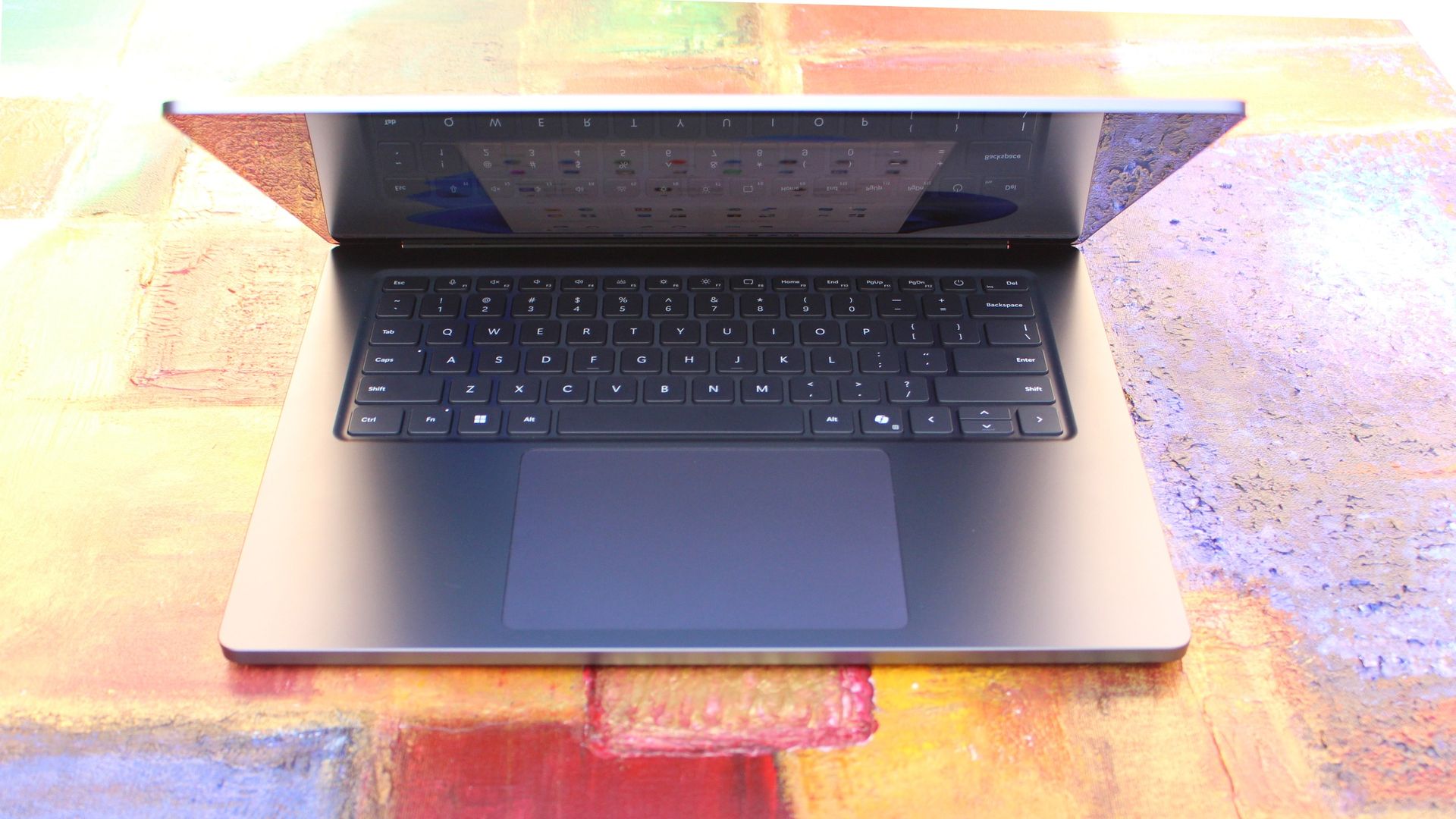
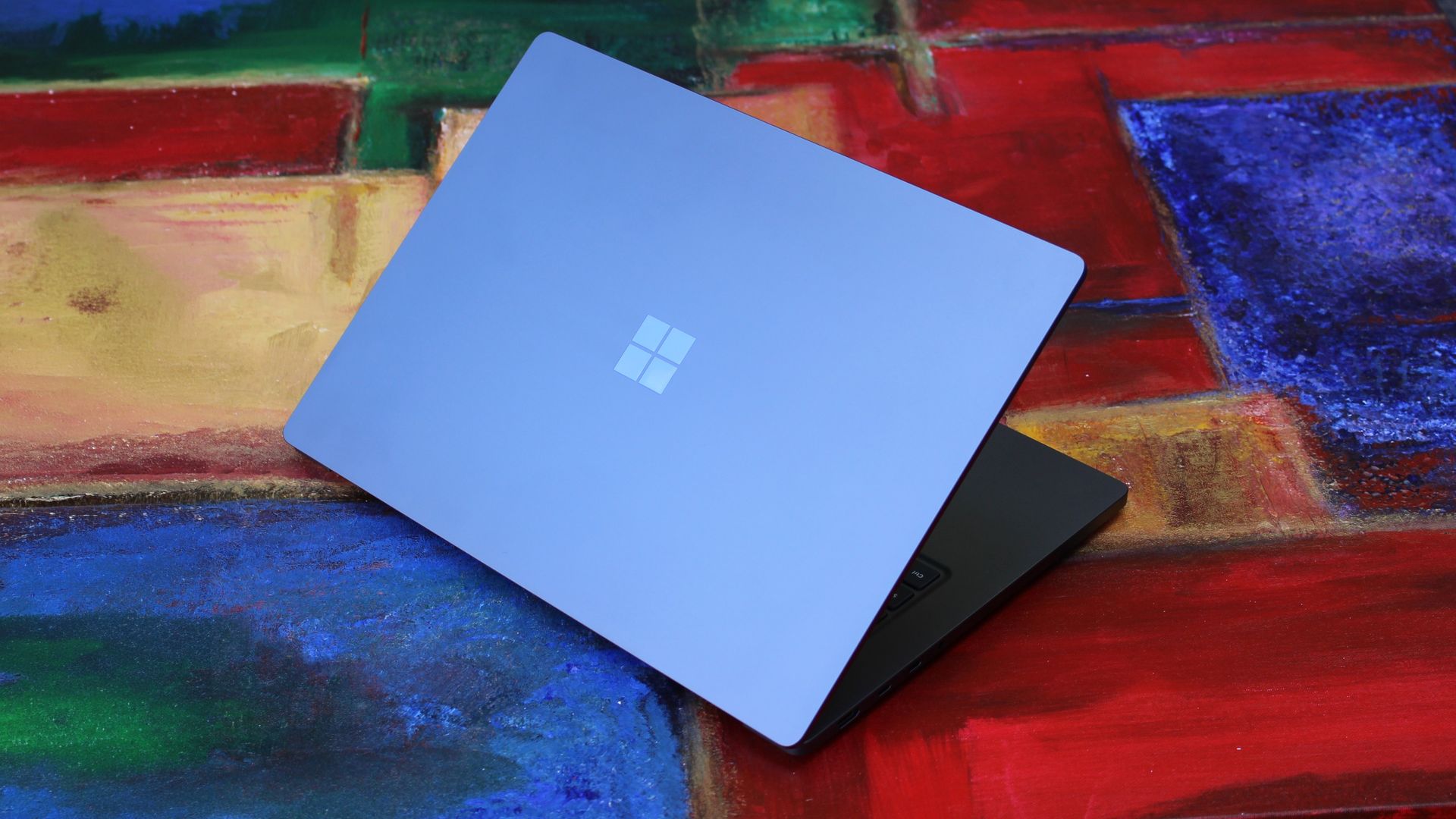
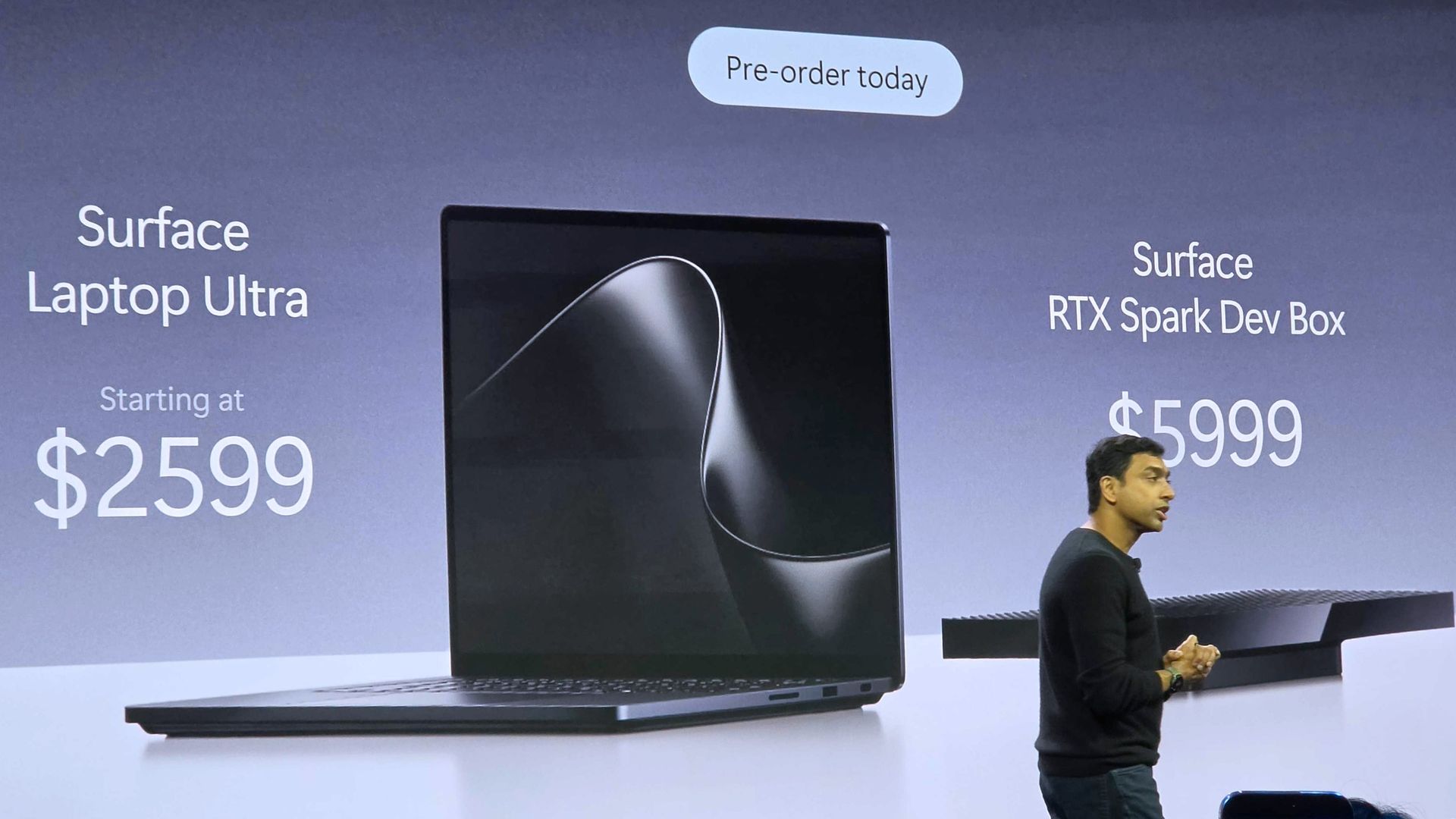
Surface Laptop Ultra
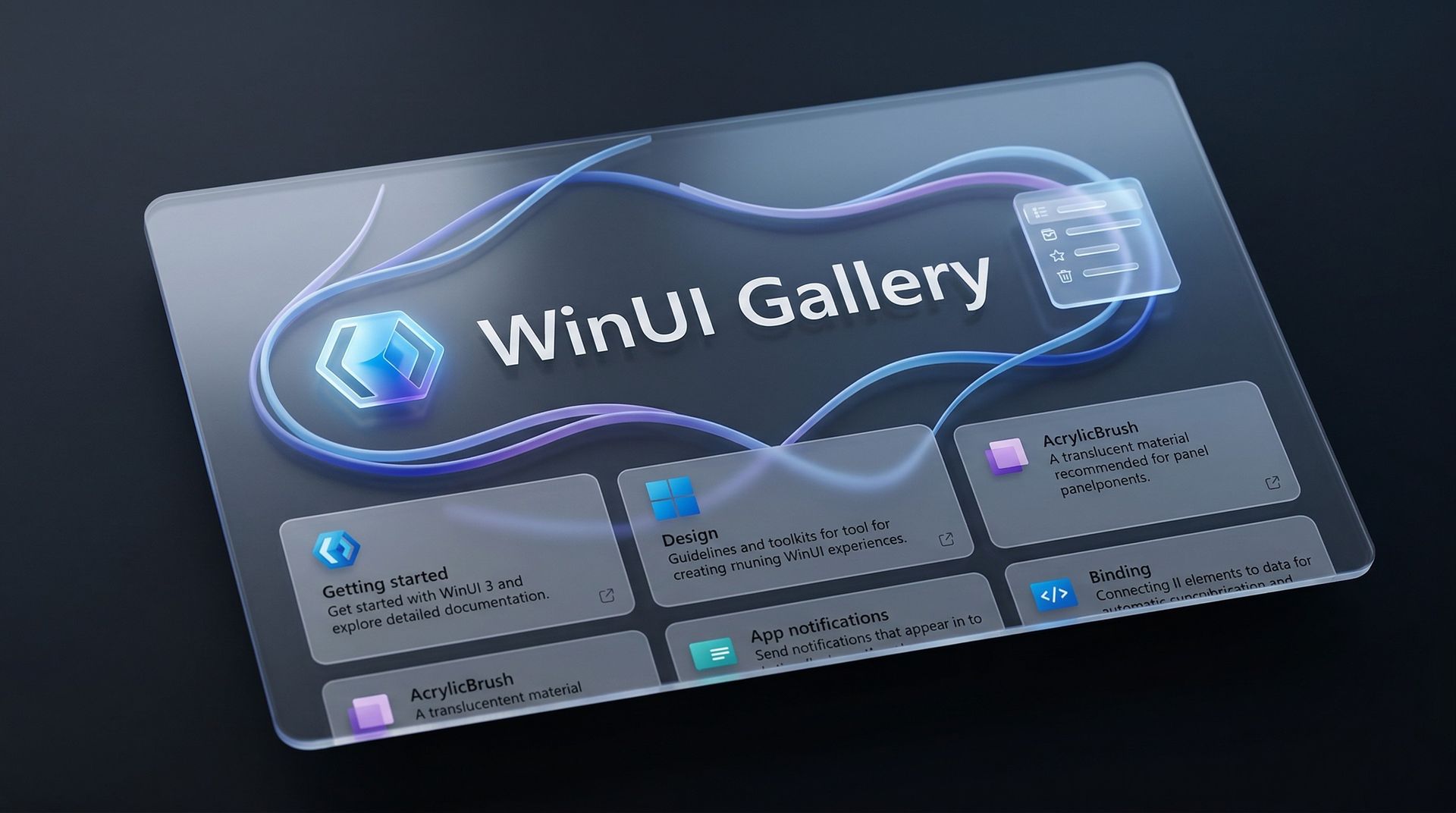
WinUI Gallery graphic
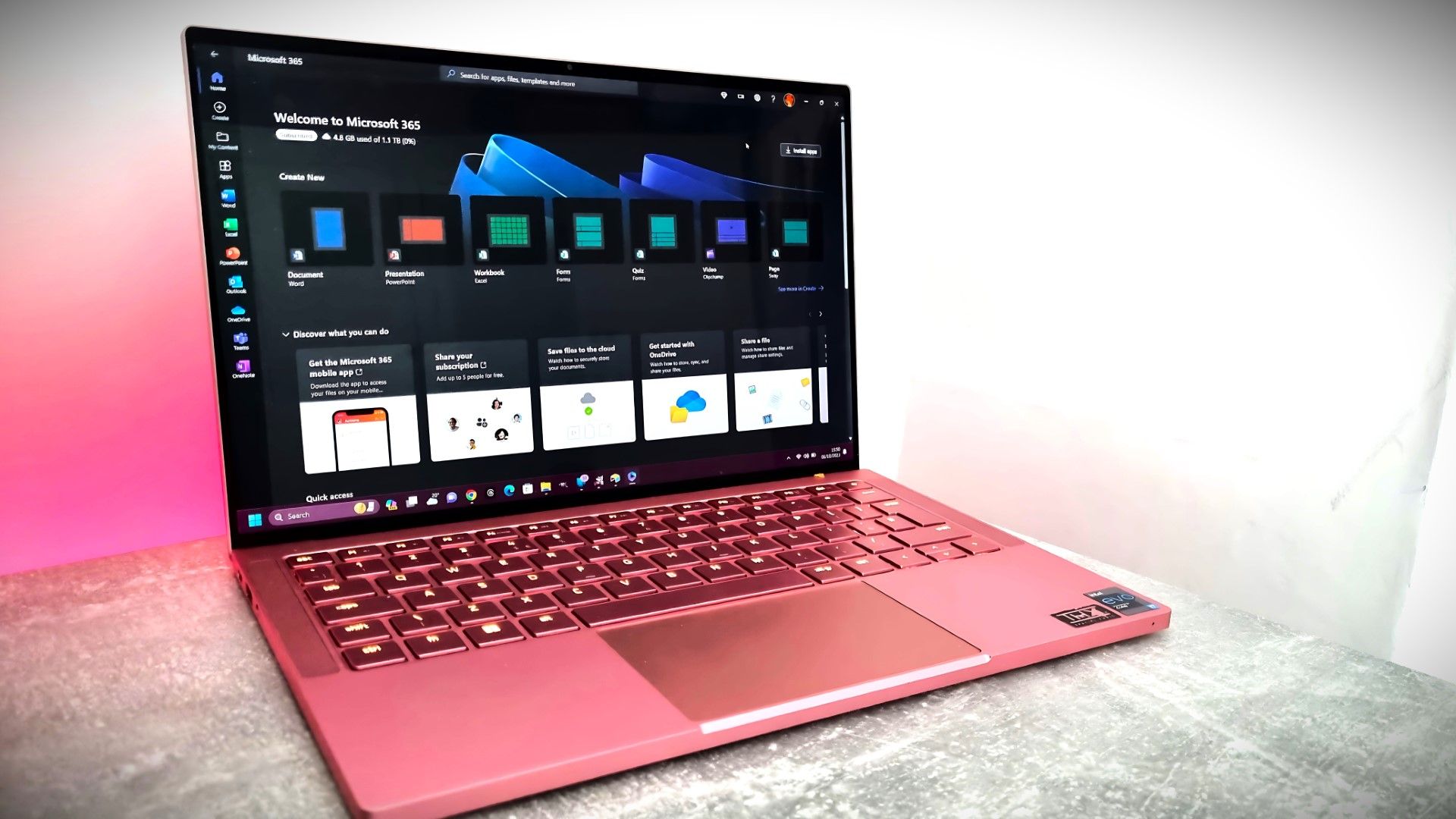
Microsoft 365 home page on a Razer laptop
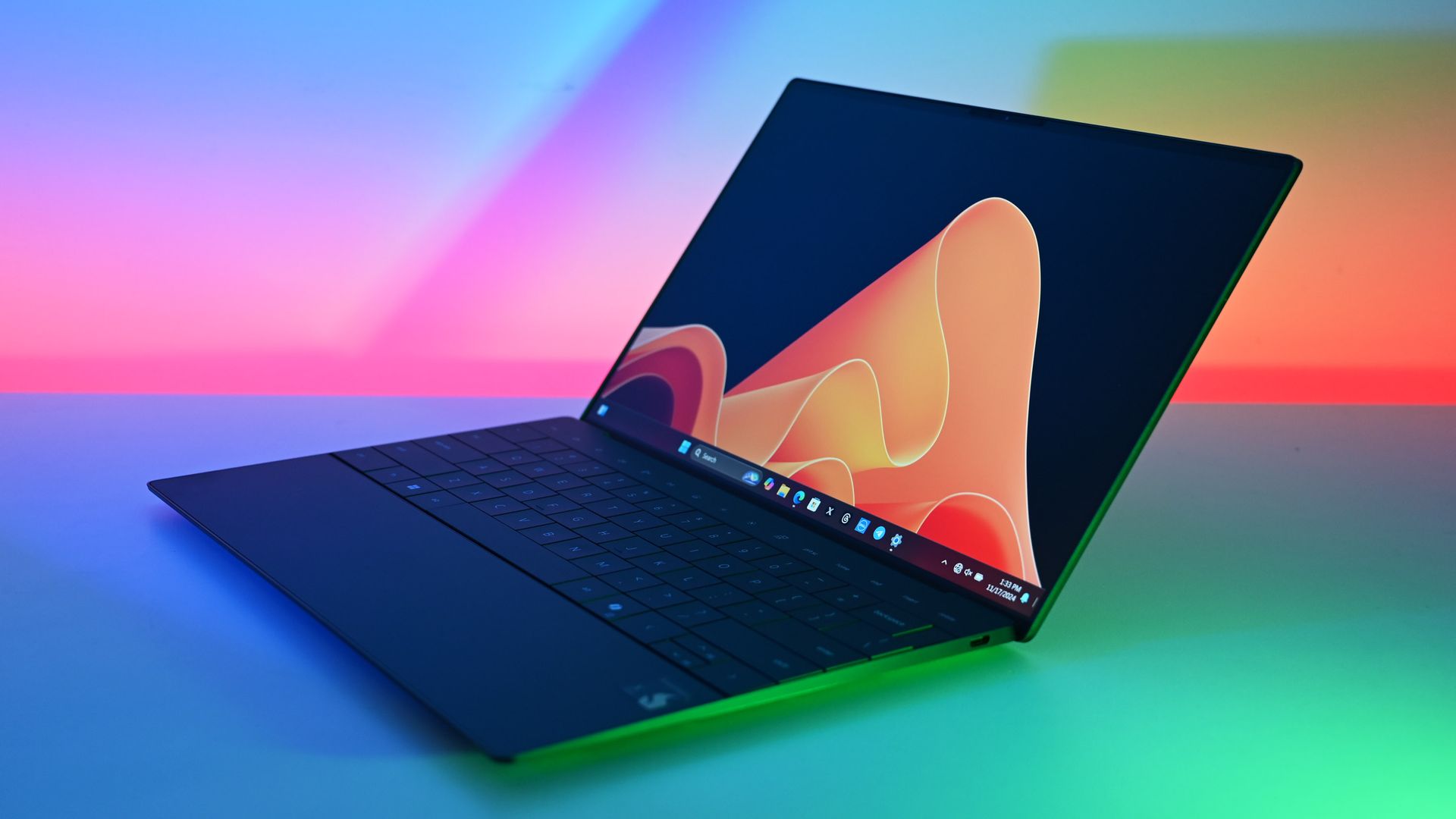
Dell XPS 13 with Snapdragon
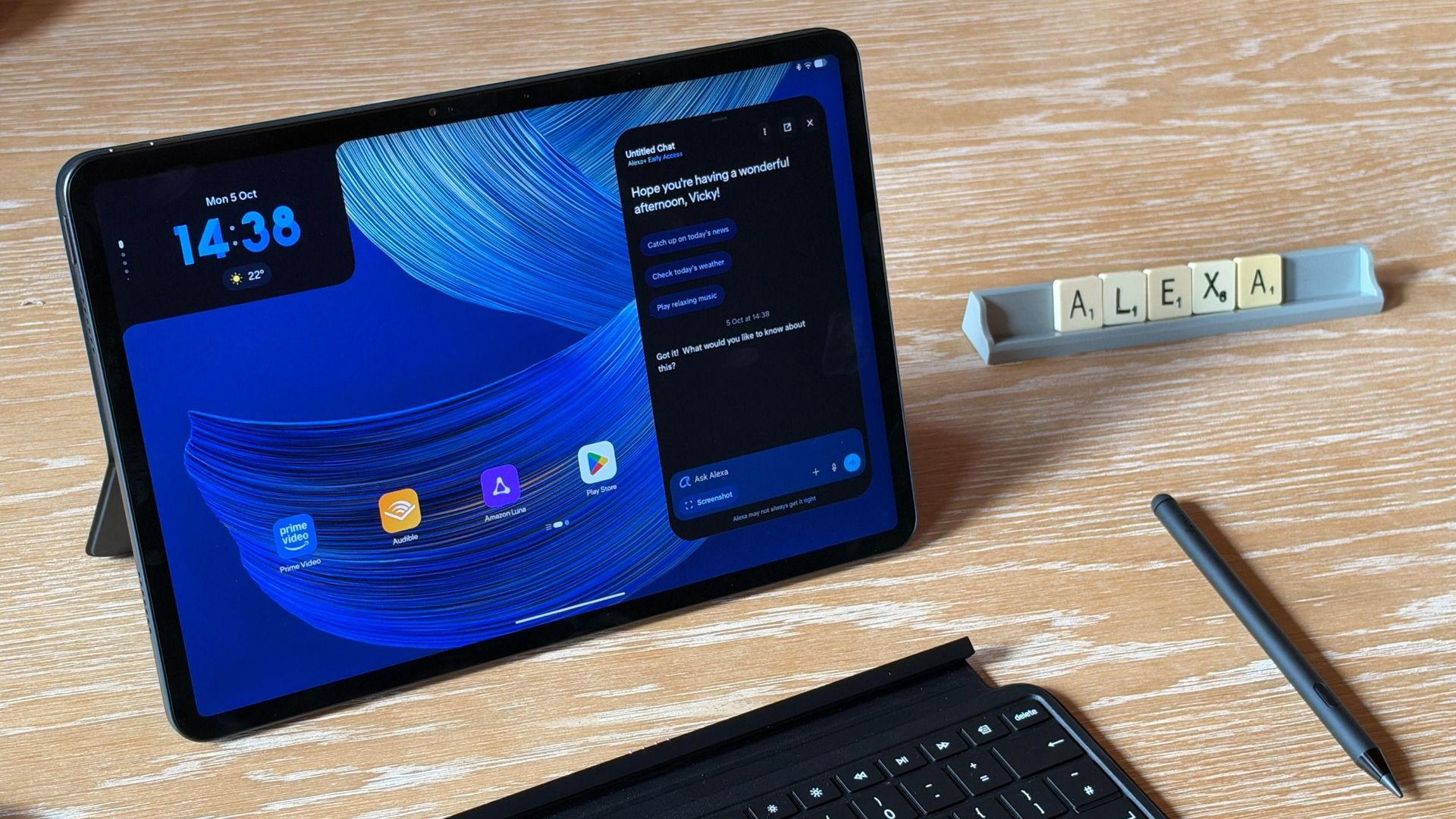
An Amazon tablet on a wooden desk with a chat window open on the display. A keyboard accessory, stylus, and letter tiles spelling

Microsoft published a massive blog post this week highlighting improvements to Windows 11.

While there are genuinely nice additions to Windows 11, the focus of Microsoft’s blog post took a specific angle that made me ask a question: “Is Windows 11 a selling point?”

After breaking down the new Search experience, sped up File Explorer, expanded customization options, and other features, Microsoft took the opportunity to promote PC sales.

Microsoft said:

"A new PC is a meaningful purchase, and the value should show up in more than a spec sheet. A modern Windows 11 PC brings together responsive everyday performance with more intuitive, connected and personal experiences, all supported by hardware designed for how you interact, create and play, from touch, pen and tactile feedback to immersive gaming experiences. The reason to upgrade is not just one feature; it is how all these experiences work together to make more of your day feel effortless."

Using Windows 11 as a sales tool indicates that Microsoft thinks the operating system is a selling point.

The vast majority of changes and upgrades will also ship to pre-existing PCs, so the entire premise is a bit odd. But that’s probably a post for another day. My main focus is that Microsoft heard feedback, made changes, and is now using those changes to sell PCs.

When rounding up reviews of the Surface Laptop Ultra, I noticed that several experts compared the laptop to a MacBook Pro. As much as it may pain some Windows enthusiasts to admit, the MacBook Pro is the gold standard for laptops in the eyes of many.

With Microsoft copying and competing with the MacBook Pro on the hardware side of things, the remaining question is if Windows 11 compares favorably to macOS.

A significant number of developers use Macs, and Microsoft wants to compete in that space. The Surface Laptop Ultra has the design and AI power to get devs to take a closer look. The question is whether Windows 11 will keep those devs around or drive them away.

Shopping with Sean

You knew my shopping suggestion of the week would be the Surface Laptop Ultra. This is the most powerful Surface in years, and arguably the most exciting in just as long.

Just make sure that you're the target audience for the Surface Laptop Ultra before spending thousands of dollars. Our Senior Editor does a great job breaking down the strengths and weaknesses of the PC in his Surface Laptop Ultra review. There, he also makes it clear who the laptop is for and who should just admire the device from afar.

Microsoft - Surface Laptop Ultra - 15

Microsoft
Surface Laptop Ultra

Surface Laptop Ultra is Microsoft's flagship and most powerful Windows PC. It can be configured with up to 128GB RAM, and ships with NVIDIA's new RTX Spark SoC. It's great for creative workflows and software development, and those who want to run local AI and LLMs directly on their device.

Pros

  • Premium build quality
  • High-resolution screen
  • Excellent keyboard
  • Haptic trackpad is amazing
  • Good sound quality
  • Useful ports selection

Cons

  • Mini LED not best-in-class
  • No presence sensing features
  • Okay battery life
  • Currently missing all Copilot+ features

Click to join us on r/WindowsCentral

Join us on Reddit at r/WindowsCentral to share your insights and discuss our latest news, reviews, and more.

  •  

Reviewers say RTX Spark laptops deliver the AI power creators want

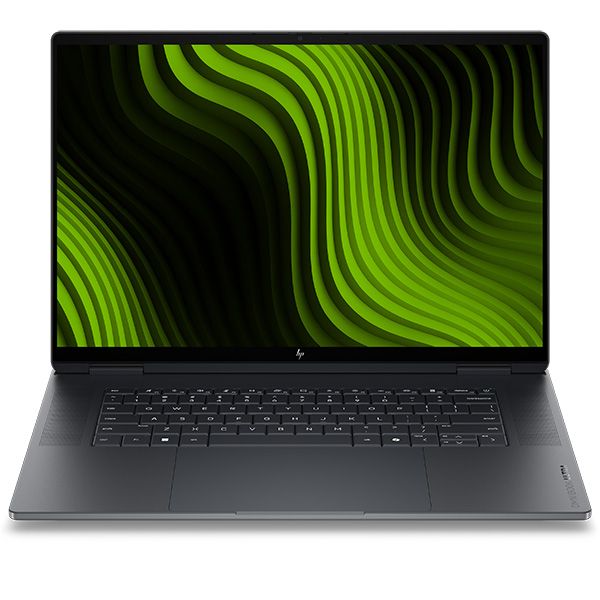
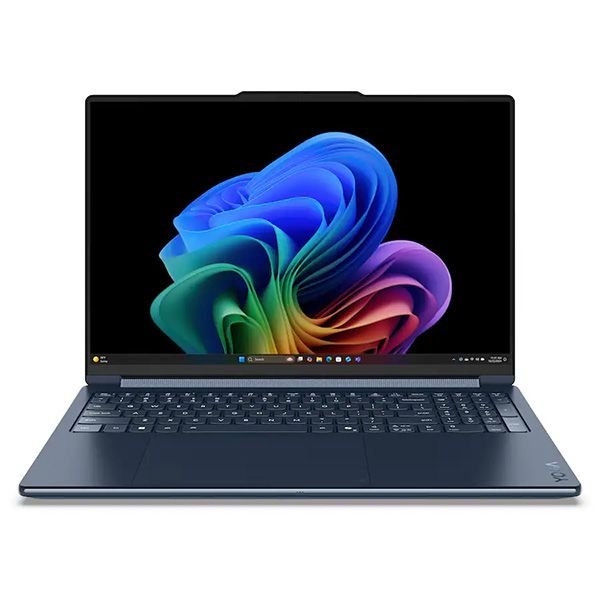
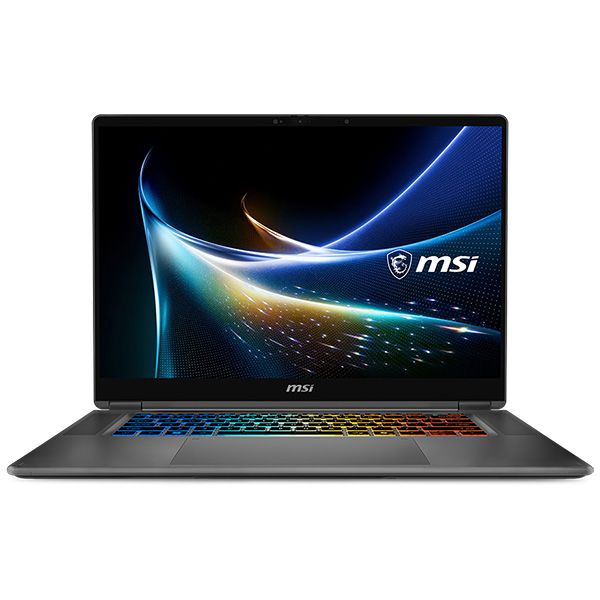
The first wave of RTX Spark laptops just started shipping and hit store shelves. Microsoft's Surface Laptop Ultra likely turned the most heads, but there are actually seven different laptops powered by NVIDIA's new superchip (more if you count different sizes of similar laptops as separate devices).

ASUS, Dell, HP, Lenovo, Microsoft, and MSI all have new laptops with the RTX Spark inside, and reviews for many of those PCs just went live. We're still waiting for reviews of several RTX Spark laptops, but first impressions are in.

Reviews for these devices rolled out a bit differently than other product launches. Experts and reviewers were allowed to share their thoughts about the RTX Spark a day before publishing any reviews of laptops with the RTX Spark inside.

So, if you want to see what people have to say about the processor, check out our RTX Spark review roundup. Below is a collection of opinions about the first wave of RTX Spark laptops.

Note that these reviews were made possible thanks to review samples provided by NVIDIA or laptop makers.

Surface Laptop Ultra: Reviews

  • Windows Central (4/5): "It's a laptop for those who know they need it, and it's mainly for AI developers and high-end content creators. If you find yourself leaning on local agents to complete tasks for you, or enjoy generating images and videos using AI models, this is the laptop for you."
  • Tom's Hardware (3.5/5): "If you want the nicest Surface Laptop Microsoft has ever released, the Surface Laptop Ultra is for you. The system definitely copies the MacBook Pro in some areas, but is a luxury machine with a solid build, exceptionally bright display, a clever charging connector, and powerful components. It's the most exciting Surface hardware in years, and I hope it’s a signal that Microsoft is looking at the brand for more reinvention."
  • The Verge (6/10): "Microsoft has come closer than ever to building a Windows alternative to the MacBook Pro. The hardware looks and feels great, and Nvidia’s GPU brings CUDA support and decent gaming capabilities to a high-end laptop design. But the Surface Laptop Ultra’s biggest selling point is also its biggest question mark: local AI. It all feels like a work in progress."
  • Wired (7/10):"The Surface Laptop Ultra is a true MacBook Pro competitor for Windows—if only it weren't for the lack of battery life."
  • Gizmodo: "It’s not the most performant laptop available today. It’s not the cleanest PC experience, either. It is, however, a laptop that can finally close the gap between performance and battery life. With all the wrinkles ironed out, the Surface Laptop Ultra is the laptop I wish I could carry with me for work, pleasure, or whatever the AI overlords think to do with my degrading body next."

Asus ProArt P16: Reviews

  • Tom's Guide (4/5): "The Asus ProArt P16 is an outstanding laptop for creativity, with its legacy continuing with the might of Nvidia's RTX Spark N1X. With an even slimmer design that's light enough to bring with you anywhere, a knockout OLED touchscreen with amazing brightness and colors, the right ports and battery life that can (finally) get you past a workday and still have juice left, Asus has done its creator laptop justice."
  • Trusted Reviews (4.5/5): "The Asus ProArt P16 (2026, RTX Spark) is a slim, stunning creator laptop that shows what RTX Spark can do, with standout integrated graphics, capable performance and nearly 14 hours of battery life. Gaming is a little behind a discrete RTX 5070 and the screen is slightly dim next to other ProArts, but it’s an impressive debut for Nvidia’s Windows chip."
  • Notebookcheck (9/10): "The new ProArt P16 is a stunning laptop and even after using it for more than a week, we are still baffled how thin and light this 16-inch laptop really is without compromising in terms of stability, build quality or features. "
  • Wccftech: "The ASUS ProArt P16 with NVIDIA RTX Spark N1X feels like a genuine first-class Windows PC rather than a compromised “Windows on Arm” experiment."

HP OmniBook Ultra 16: Reviews

  • Tom's Guide (4/5): "The HP OmniBook Ultra 16 isn’t a laptop for general customers, but it’s great at what it was designed for. If you want a portable device for on-device AI work or creative projects, you won’t go wrong here. The fact that the laptop is a beautiful piece of work only sweetens the deal."

RTX Spark laptops reviews

Overall, reviews of the first RTX Spark laptops are positive. Unsurprisingly, they focus largely on the RTX Spark itself. That makes sense considering many of these laptops have sibling devices with chips from other companies.

Many called the RTX Spark laptops "MacBook Pro competitors," which is praise when coming from just about any laptop reviewer. Being mentioned alongside the MacBook Pro remains one of the highest compliments a laptop can receive.

Like the RTX Spark itself, these laptops should be viewed in the context of their target audience. They're primarily designed for creators and developers, though different models lean more heavily toward one group or the other.

Surface Laptop Ultra

RTX Spark laptops like the Surface Laptop Ultra earned praise from reviewers for GPU performance. (Image credit: Zac Bowden / Windows Central)

While they're capable of playing games, gaming is not the primary focus of these devices. None of them are gaming laptops at this point, even though they're capable of playing many games.

But with so many devices launching today, we're still waiting for hands-on experience with quite a few RTX Spark laptops. Publications have taken different approaches to covering these laptops since so many RTX Spark devices launched at once. Some got their hands on as many as possible and are working to review each one separately. Others focused on the Surface Laptop Ultra, presumably due to availability and the fact that it's made by Microsoft.

As we wait for more first-hand experience with the RTX Spark laptops in everyday use, you can check out gaming comparisons of the PCs. Our friends at Tom's Guide tested six RTX Spark laptops for gaming.

The first wave of RTX Spark laptops are hitting shelves now. Our Cale Hunt rounded up all the RTX Spark laptops you can buy.


Built around the NVIDIA RTX Spark platform with an N1X CPU, RTX GPU, and up to 128GB of unified memory, the Surface Laptop Ultra hits new performance heights for power users. It's all contained in a gorgeous chassis with a mini-LED display and tons of ports. Prices start at $2,599.99, and units will begin shipping on October 16, 2026.

👉 Preorder at BestBuy.com

👉 Preorder at Microsoft.com

ProArt P14/P16:

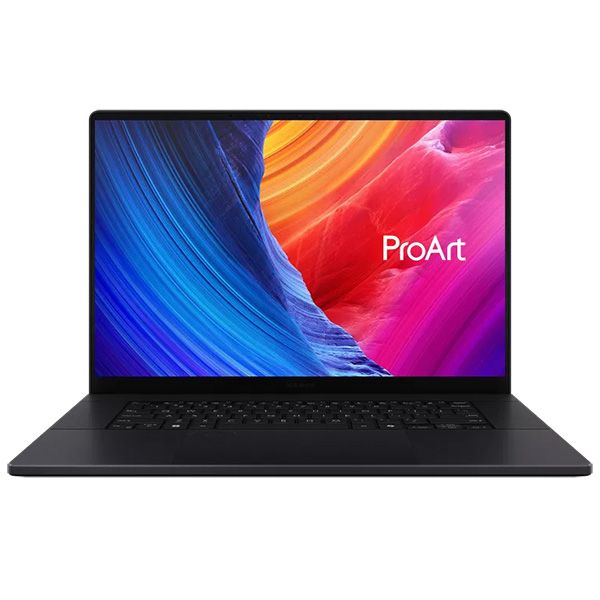
The new ASUS ProArt P14 and P16 duo gives users more size options while retaining the same great RTX Spark performance. The P14 is the lightest ProArt laptop ever, while the P16 is the way to go for a larger OLED display. Prices start at $2,599.99 for the P14 and $2,799.99 for the P16. They're expected to begin shipping on October 16, 2026.

👉 Preorder ProArt P14 at BestBuy.com

👉 Preorder ProArt P16 at BestBuy.com


Dell's new XPS 16 with RTX Spark features a 3.2K OLED display, lattice-free keyboard, and the usual premium XPS styling. Prices start at $3,799.99 and units are expected to begin shipping on October 16, 2026.

👉 Preorder Dell XPS 16 at BestBuy.com


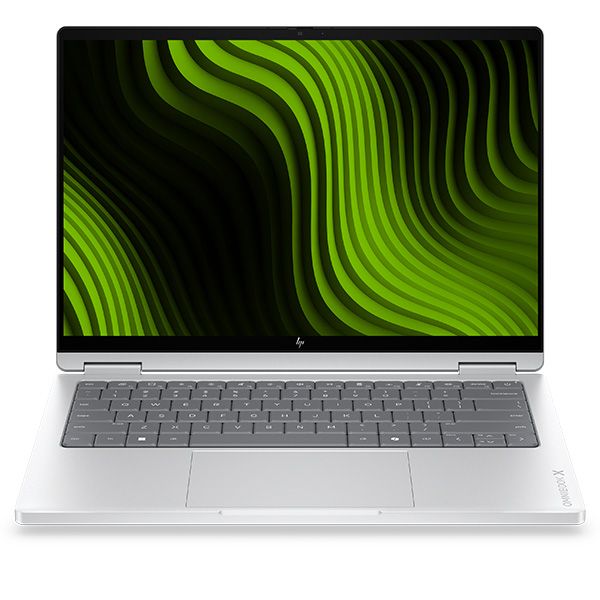
The OmniBook X 14 is the smaller of the two new PCs, but it features the same RTX Spark options for maximum performance. Models start at $2,999.99 and are expected to ship beginning November 4, 2026.

👉 Preorder HP OmniBook X 14 at HP.com

OmniBook Ultra 16":

The larger of the two new HP RTX Spark laptops delivers a gorgeous 16-inch OLED display with 3K resolution and, of course, your choice of RTX Spark chips. Prices start at $3,199.99, and shipments are expected to begin on November 4, 2026.

👉 Preorder HP OmniBook Ultra 16 at HP.com


Lenovo's Yoga 9n should be the right choice for those who value a versatile convertible design and premium build quality. Prices start at $3,099.99, and models are expected to begin shipping on October 16, 2026.

👉 Preorder Lenovo Yoga 9n at BestBuy.com


MSI's Prestige N16 Flip AI+ is another versatile convertible featuring the RTX Spark platform and a Tandem OLED display. It appears that preorders might kick off on October 8 for this laptop, with prices starting at $3,299.99.

👉 Preorder MSI Prestige N16 Flip AI+ at MSI.com

Click to join us on r/WindowsCentral

Join us on Reddit at r/WindowsCentral to share your insights and discuss our latest news, reviews, and more.

  •  

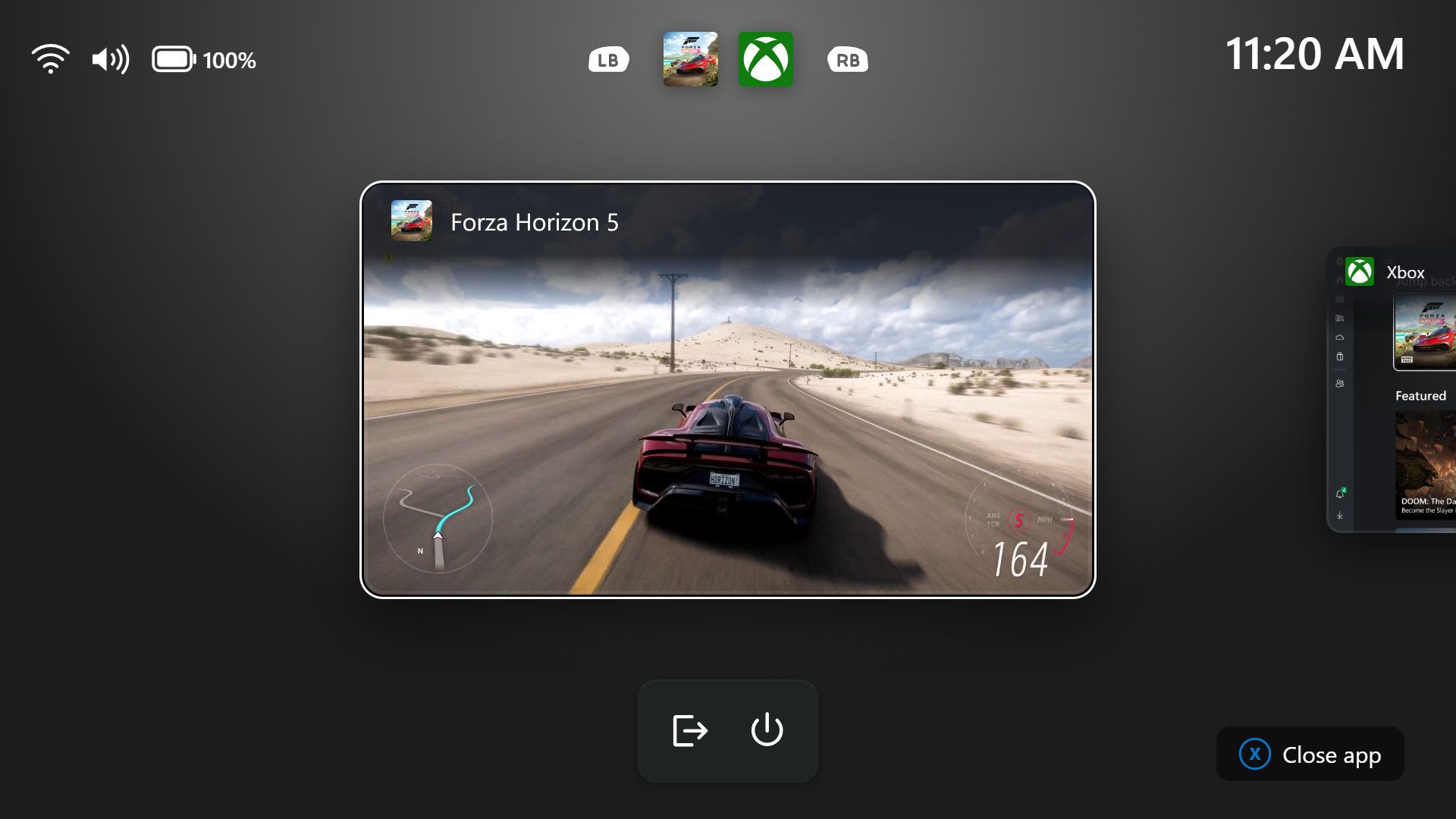
Microsoft gives XBOX mode a more handheld-friendly Gaming Task View

Windows 11 has a new Gaming Task View for XBOX mode that helps users hop back to the desktop or adjust power options for a device. That feature is now in testing among Windows Insiders.

Microsoft released builds in every Windows Insider channel to wrap up the week. I've listed all the changes below except those exclusive to the Release Preview channel since those features have largely been in testing before today.

While the update to XBOX mode is the headline feature of these builds, there are several other welcome changes. For example, Windows Hello can now temporarily brighten your screen to help you sign in when in a dark room.

Gaming (Beta, Experimental)

The gaming task view in XBOX mode on Windows 11 displays Forza Horizon 5 in the foreground, recent apps across the top, system status indicators, and controls for closing the current app.

Gaming Task View has a new navigation bar that makes it easier to exit to desktop and edit power options. (Image credit: Microsoft)
  • We're introducing a refreshed Gaming Task View experience in XBOX mode, featuring a new navigation bar that provides quick access to Exit to Desktop and Power Options. This update makes key system actions easier to access while gaming.

Magnifier (Beta)

Magnifier now understands each of your displays

  • More and more of the work people do happens across more than one screen. You draft on one display and keep source material open on another. You fill in a form while a reference document sits beside it. Those extra displays can be more helpful when each one can do its own job, and now Magnifier supports exactly that.
  • To use this update, set your monitors to Extend in System > Display, not Duplicate, so Windows treats each screen as its own space.
  • Every screen keeps its own view at its own zoom. In earlier versions of Magnifier, zooming in stretched a single magnified view across all of your displays, so one screen's zoom followed you everywhere and screen edges blurred together. With this update, each monitor's boundary is respected, and each monitor can have its own zoom percentage. Your writing screen can be at 300% while your reference screen stays at 150%, and the magnified view no longer spills from one display into the next. This behavior matters because different tasks and screen resolutions often require different levels of magnification to remain comfortable to read.

Setting the zoom on each screen is easy. Choose whichever method feels natural:

  • Move your mouse pointer onto the screen you want to adjust, then press Windows key + Plus (+) or Windows key + Minus (-), or hold Ctrl + Alt and rotate your mouse wheel.
  • Set the percentages directly in Accessibility > Magnifier.
  • Drag the Magnifier toolbar onto a specific screen to adjust that screen from its on-screen controls.
  • Per-monitor zoom is turned on by default. If you prefer the classic behavior where a single zoom spans all of your displays, you can turn per-monitor zoom off at any time from either the Magnifier toolbar or Accessibility > Magnifier. You can turn it back on whenever you like.

Keep the view that matters, right where you need it

  • As you move your mouse from screen to screen, the magnified view naturally follows your pointer. Sometimes this might cause you to lose sight of the content that you're actively working on.
  • Viewport locking keeps that view in place. For example, you might be drafting an email based on a section of a document open on another display. Position that display so the paragraph you need is in view, press Ctrl + Windows key + K, and the screen holds its view steady while you move your cursor over to write. The locked screen stays fully live and interactive, so you can glance back, click, or copy from it whenever you need to, and its view stays put until you release it.
  • A message appears on the screen when it's locked, so you always know what's being held. To lock or unlock a screen, point your mouse at that screen and press Ctrl + Windows key + K again. To release everything at once, press Windows key + Esc to dismiss all locks. You can change the lock shortcut to Ctrl + Alt + P in Accessibility > Magnifier.

Settings - Home (Beta)

  • We're beginning to expand the new Device Info Card experience for Settings Home to additional markets globally. Available for Windows Insiders signed in with their Microsoft account, the Device Info Card provides a quick snapshot of your PC's key specifications and usage. From the card, you can go directly to Settings > System > About to see more detailed information about your PC.

Settings - Privacy & security (Experimental (26H1))

  • The improved Privacy & security page in Windows Settings helps you find the Camera, Microphone, and Location privacy controls more easily. It groups similar controls across the page and brings usage information from deeper linked pages onto this page.

File Explorer (Beta)

  • Key file information, such as name, location, and date, now appears in a consistent layout on the File Explorer search results page, making search results easier to scan.

File Explorer (Experimental)

  • Improved responsiveness of folder views so they update and sort correctly when files and folders are added or renamed.

Family Safety (Beta, Beta (26H1), Experimental (26H1))

  • Improved family safety messaging when applications are blocked because of age-restricted parental controls.

Other (Beta, Experimental)

  • Improved shutdown reliability, reducing the chance of a hang on shutdown in certain cases.
  • The dialog for certain system messages, like low battery and permissions, should use the expected modern design again.

Other (Beta (26H1), Experimental (26H1))

  • Fixed an issue with msmpeg2ac3dec.dll which was leading to some apps and games crashing recently.

Web sign-in (Experimental)

  • Web sign-in now works on Microsoft Entra hybrid joined devices. Before this update, it was only available on Microsoft Entra joined devices. You can sign in to Windows at the lock screen with a passwordless credential: a FIDO2 security key, a passkey on your phone, or a Temporary Access Pass (TAP). You don't need a password. Once you're signed in, Windows gets a Kerberos ticket, so on-premises file shares and internal sites keep working. For more information, see Use web sign-in to enable passwordless sign-in in Windows.

Windows Hello (Experimental)

  • Windows Hello facial recognition can temporarily brighten your screen to help you sign in when you're in a dark or dimly lit room.
  • To turn on this feature, go to Settings > Accounts > Sign-in options > Facial recognition (Windows Hello) and turn on Automatically adjust screen brightness during face recognition.

Windows Search (Experimental)

  • Addressed underlying issues that could cause search to appear missing or stop working after the previous update, including if you rapidly clicked the search icon repeatedly.

Search (Experimental (26H1))

  • Search home has been simplified to reduce visual clutter and make it easier to get back to recent searches quickly.
  • Search does a better job showing where a result comes from, whether it's an app, setting, file, web result, or Store suggestion, so it's easier to tell what you're looking at and where you'll go before you click.
  • A new setting in Settings > Privacy & security > Search lets you choose whether web and Microsoft Store suggestions appear alongside local results.

Run (Experimental)

  • Improved the window position when using an Arabic or Hebrew display language.
  • Improved performance of the Run dialog when navigating to very large folders.
  • Fixed an issue where your text might unexpectedly disappear if you started typing too quickly after opening Run.
  • Made a few other small visual fixes and refinements.

Pointer Indicator (Experimental (26H1))

  • We're introducing the Pointer Indicator accessibility setting. This feature enables Windows users with low vision to easily locate and use their cursor to increase productivity and efficiency when using a Windows device.
  • To enable this experience, go to Settings > Accessibility > Mouse pointer and touch, and enable the Pointer indicator setting. You can also search for the setting by name. When the setting is enabled, you can toggle it on or off with the keyboard shortcut, Windows logo key + Ctrl + Shift + X.

Live Captions (Experimental (26H1))

  • We're improving Live Captions with a new Include Screen Reader audio setting, which is off by default. With the setting off, Live Captions won't transcribe audio from screen readers such as Narrator, JAWS, and NVDA, keeping captions focused on microphone and system audio.

Taskbar

  • New! This update improves animations of app window previews when you move the mouse across app icons in the taskbar.
  • This update improves the underlying state persistence of taskbar settings related to multiple monitors across monitor connections and disconnections.

Since revamping the Windows Insider Program earlier this year, Microsoft has sped up its release schedule for builds. As a result, we often end the week with a batch of five or six new builds to check out.

Click to join us on r/WindowsCentral

Join us on Reddit at r/WindowsCentral to share your insights and discuss our latest news, reviews, and more.
  •  
❌