Microsoft just announced an overhauled Photos app for Windows 11, but that's for viewing images and videos. If you're interested in capturing content, you'll want to catch up on everything new in the Camera app.
A wave of changes to the Camera app recently shipped to Windows Insiders. They include several small improvements as well as some quality-of-life changes.
The Camera app can now zoom digitally when hardware zoom is unavailable. Microsoft has focused on the zoom experience in several updates this year. In June, the company started testing expanded support for more cameras.
Microsoft lists all the changes that are available for Windows Insiders:
Improved the camera zoom experience and added support for software zoom when hardware zoom is unavailable. Software zoom isn't available for Living Images, scanning, panorama, spherical preview, or other specialized modes.
Improved support for copying to your clipboard with Ctrl+C after capture.
Added a new Copy path action after capturing a photo or video, allowing you to easily copy the file path.
Delayed capture now shows the remaining seconds inside the timer ring.
Recorded video playback now shows the remaining time beside the seek bar.
Camera is more responsive and accurate when starting video.
Fixed an issue where a white flash would sometimes appear when opening the app with Windows in light theme.
While changes to software zoom are the headline additions, some users may appreciate the new Copy path option and improved clipboard support more. Both features make it easier to move captured images and videos into apps and documents.
Those improvements first entered testing for Insiders in the Experimental, Experimental (26H1), and Experimental (Future Platforms) channels on October 2. They have since shipped to Beta and Release Preview Insiders as well.
With the feature progressing through Windows Insider channels, it should make its way to general users in the near future.
The Camera app improvements arrive for Windows Insiders shortly after Microsoft announced a major redesign of the Photos app. Together, the updates show Microsoft's commitment to improving Windows 11's built-in apps.
Join us on Reddit at r/WindowsCentral to share your insights and discuss our latest news, reviews, and more.
PowerToys just added several new utilities and added new features for existing tools.
Two of the new utilities improve mouse use. Mouse Button Lock allows you to press and hold your mouse button down for a moment and then have your PC treat the input as if you've kept that button down. The tool improves accessibility for those who struggle to hold a mouse button down as they drag an item across the screen.
CursorHide is a smaller utility that hides the mouse pointer on your screen after a brief period of inactivity.
The quick-access shelf in Command Palette is an optional feature that shows pins below the search box.
This collection of utilities includes a large library of features to enhance the Windows experience. PowerToys is designed with power users in mind, but it has handy features for people who just use their PC for everyday computing too.
Here are the highlights from the latest build of PowerToys, as shared by Microsoft:
Mouse Button Lock and CursorHide
Holding a mouse button down during a long drag or selection can be tiring. With Mouse Button Lock, press and hold a button for a moment, then let go. Windows keeps treating it as held, so you can continue dragging or selecting until you click any button. This is especially useful for gaming, working in professional applications that require extensive dragging and selection, and improving accessibility for users who find it difficult to hold down a mouse button for extended periods.
CursorHide is the second new mouse utility. It hides the mouse pointer while you type, after a period of inactivity, or both, and shows it again as soon as you move the mouse.
Command Palette gets a quick-access shelf
Compact mode in 0.101 kept Command Palette out of the way until you needed results. Now your favorite commands can be one keystroke away too. Turn on the quick-access shelf in Settings > Appearance > Compact mode to show your pins below the search box while the palette is collapsed. Press Alt+1 through Alt+9 to launch them, or Alt+Shift+number to select one without running it. Drag to reorder, right-click for more actions, and optionally show recent commands and apps next to your pins.
The shelf is just one part of a big Command Palette update:
Settings search: Fuzzy search finds options, extensions, commands, aliases, and assigned shortcuts, then takes you straight to them.
Keyboard-first Dock: Press Win+Alt+J to focus the dock and move between its items from the keyboard.
Copilot key support: Choose Command Palette as the Copilot key app in Windows Settings, and press the key again to toggle the palette.
Multiple clocks: Pin several dock clocks, each with its own time zone and format.
Language and links: Pick an app language for Command Palette, and copy links that open a page, run a command, or jump to a specific setting.
Polish: Sharper app icons, faster grid and gallery browsing, results that keep loading at the end of a list, and clearer nested menus.
ZoomIt adds snip dictation
ZoomIt can now capture what you say along with what you snip. Turn on Snip with dictation in the ZoomIt settings, then press Space while you drag out a snip and describe what you're capturing. ZoomIt transcribes your speech on your device, and a single paste delivers both the screenshot and your text. Dictation uses the microphone selected under Record.
ZoomIt also gets smooth zoom transitions, better audio pacing in recordings, and a fix for silent recordings on multichannel and spatial-audio devices.
New command-line tools
More of PowerToys can now be scripted from the terminal:
Advanced Paste: Run built-in and custom actions without opening the UI, using files, stdin/stdout, or the clipboard. AI actions use your configured providers and policies.
Light Switch: Check status, set or toggle the theme, and manage schedules, with JSON output.
Settings: See which utilities are enabled, and turn them on or off even while PowerToys isn't running.
Peek: Preview multiple files and folders from the command line.
PowerDisplay: JSON Lines output makes results and errors easy to consume from scripts.
On your PATH: FancyZones, Image Resizer, File Locksmith, and PowerDisplay commands now work from any terminal folder.
Keyboard Manager adds tap-alone remaps and easier editing
Keyboard Manager now supports tap-alone remaps. Tap a key by itself to trigger a different action, while the key keeps working normally in shortcuts and mouse combinations. Large remapping lists are easier to manage too, with search, modifier and app filters, and bulk deletion.
The new editor also gets a searchable key picker, so you can select any key, including media keys or keys your keyboard doesn't have, and build a full shortcut with just the mouse. Recording now only listens while the editor is in focus, and Tab moves you out of the recording field. IT admins can also deploy and export remapping profiles with DSC v3.
Other notable changes
Color Picker and Text Extractor: Both move to WinUI 3, with a new overlay, editor, and magnifier for Color Picker. Your existing shortcuts and settings carry over.
FancyZones: Scroll the mouse wheel while dragging a window to switch layouts, with an optional indicator showing the selected layout's name.
Peek: Added read-only SQLite previews, file and subfolder counts with scanning progress for folders, a plain-text fallback, and Alt+Left/Alt+Right navigation between files.
Screen Ruler: Measure in device-independent pixels to account for each monitor's scaling, with improved edge detection.
Environment Variables: A new Remove duplicates action cleans up PATH while keeping the original order.
Quick Accent: A searchable character reference in Settings lets you browse language sets and copy characters directly.
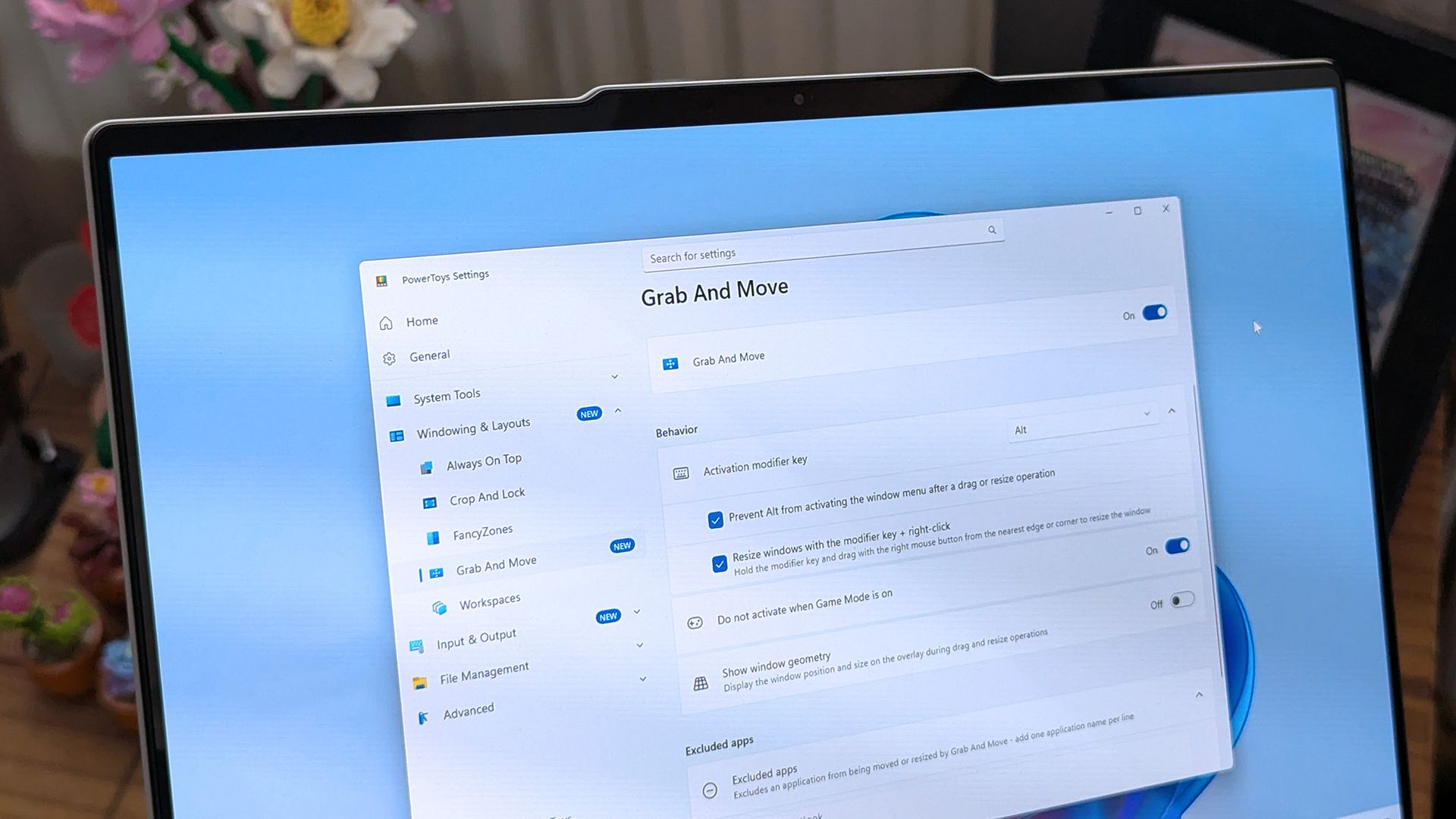
Grab and Move: Exclude specific apps so they keep their normal modifier-key behavior.
Shortcut Guide: Added shortcuts for Claude Desktop and Ableton Live, and made indexing more resilient to malformed manifests.
Workspaces: Now asks for confirmation before launching an unverified app configured to run as administrator.
Awake: Windows can now turn off the display while the PC is locked, without ending your keep-awake session.
New+: Fixed a File Explorer memory leak and improved long-path handling.
Settings: Added an interactive animated welcome scene, fixed a memory leak when switching pages, and kept module on/off preferences when a utility fails to load.
PowerToys has been one of my favorite Windows apps for a long time, and it is also a favorite of several members of our team at Windows Central. The app has a massive library of utilities that can be enabled or disabled, making it a great choice for casual PC users and power users.
PowerToys is also interesting to follow because it inspires the development of Windows 11. The newly announced Search experience for Windows 11 clearly takes some cues from PowerToys run and Command Palette.
Join us on Reddit at r/WindowsCentral to share your insights and discuss our latest news, reviews, and more.
During its OneDrive and Copilot event, Microsoft announced a massive number of changes to its cloud storage platform. Many of the improvements center around using Copilot to find items and generate new content, but there is also a feature for sharing OneDrive links.
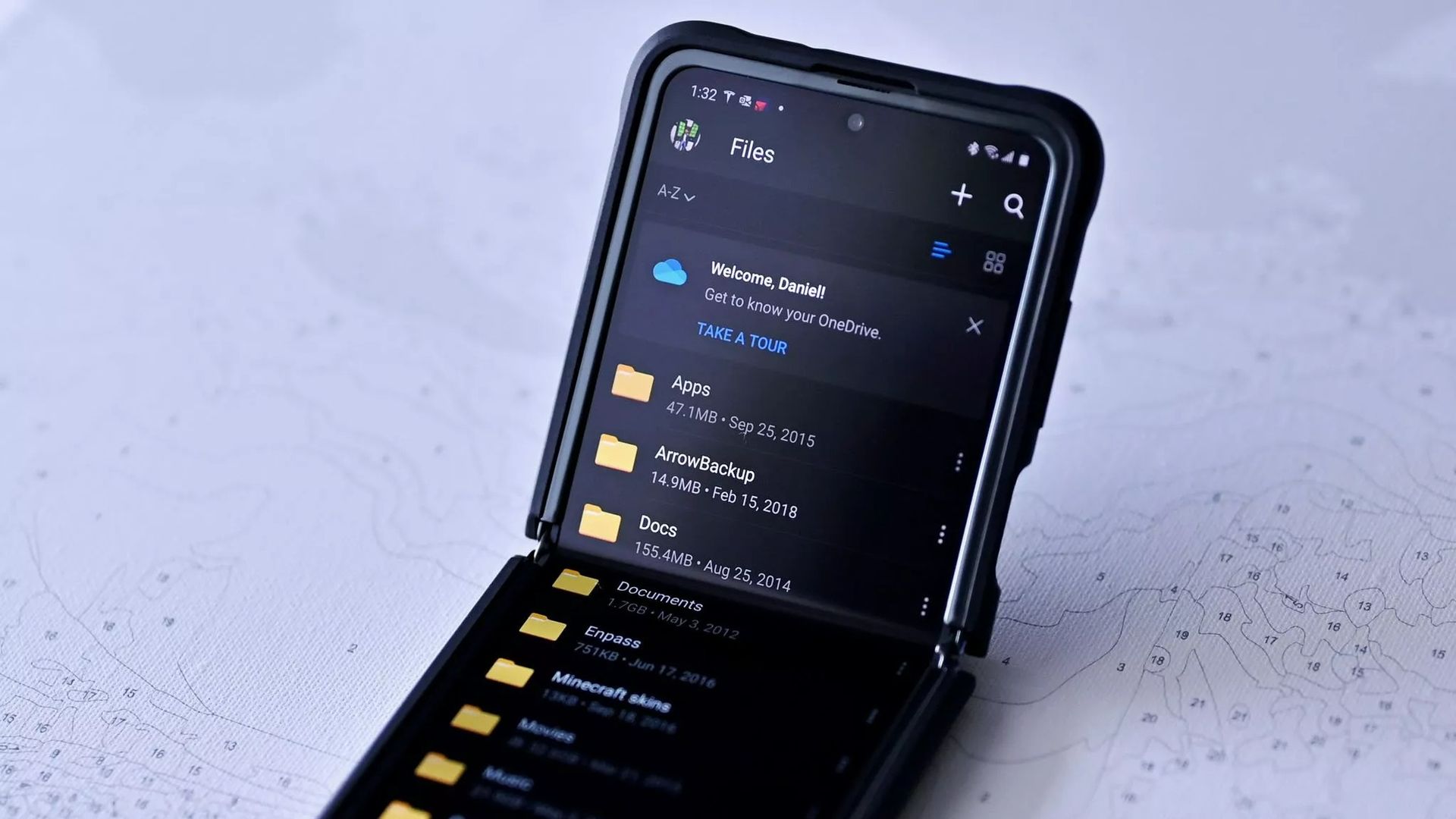
Now, when you share a file in OneDrive, you can continue to use the same link even after you change access or permissions to that file. Previously, you'd need to create a new link after changing those settings. Old links would continue to work, but over time you'd accumulate a bunch of different links to the same file.
With so many different links to the same file, it would be easy to accidentally share one with the wrong permissions. The new method of sharing, which relies on "hero links," can update access and permission settings while retaining the same link.
Support for hero links is rolling out now. In the future, Microsoft will add support for expiring hero links. With those, you can set an organization's hero links to expire automatically on a schedule.
Copilot and OneDrive
It may not have received the fanfare of the Windows and Surface event held earlier this month, Microsoft just held a OneDrive and Copilot event. The event highlighted several new capabilities to Copilot, such as analyzing files, organizing projects, and turning files into interactive HTML reports.
Custom skills in Copilot let you capture a process and save that process as a Markdown file, which helps ensure Copilot runs the same way every time when performing that process.
Copilot also makes it possible to use natural language to find a photo in OneDrive.
Microsoft also highlighted its refreshed Photos app for Windows. That app shocked me due to its responsiveness and quick loading times. It also has several new features, such as Map View that lets you browse photos based on their geographic location.
Microsoft's blog post about Copilot and OneDrive is almost 3,500 words, so I won't rehash all of it here. The change that I'm most excited about is the addition of hero links. I share a lot of files through OneDrive and send links across several group chats. Reducing that clutter will reduce my stress immensely when it comes to sorting access and permissions.
Join us on Reddit at r/WindowsCentral to share your insights and discuss our latest news, reviews, and more.

 Connexion