Apple launched the iPhone Duo just over two months ago. Initially, several big-name apps were poorly optimized for the large folding display of the phone. That situation has improved since September, though things are far from perfect. But a new project focuses on running an entirely different operating system on the iPhone Duo rather than optimizing apps.
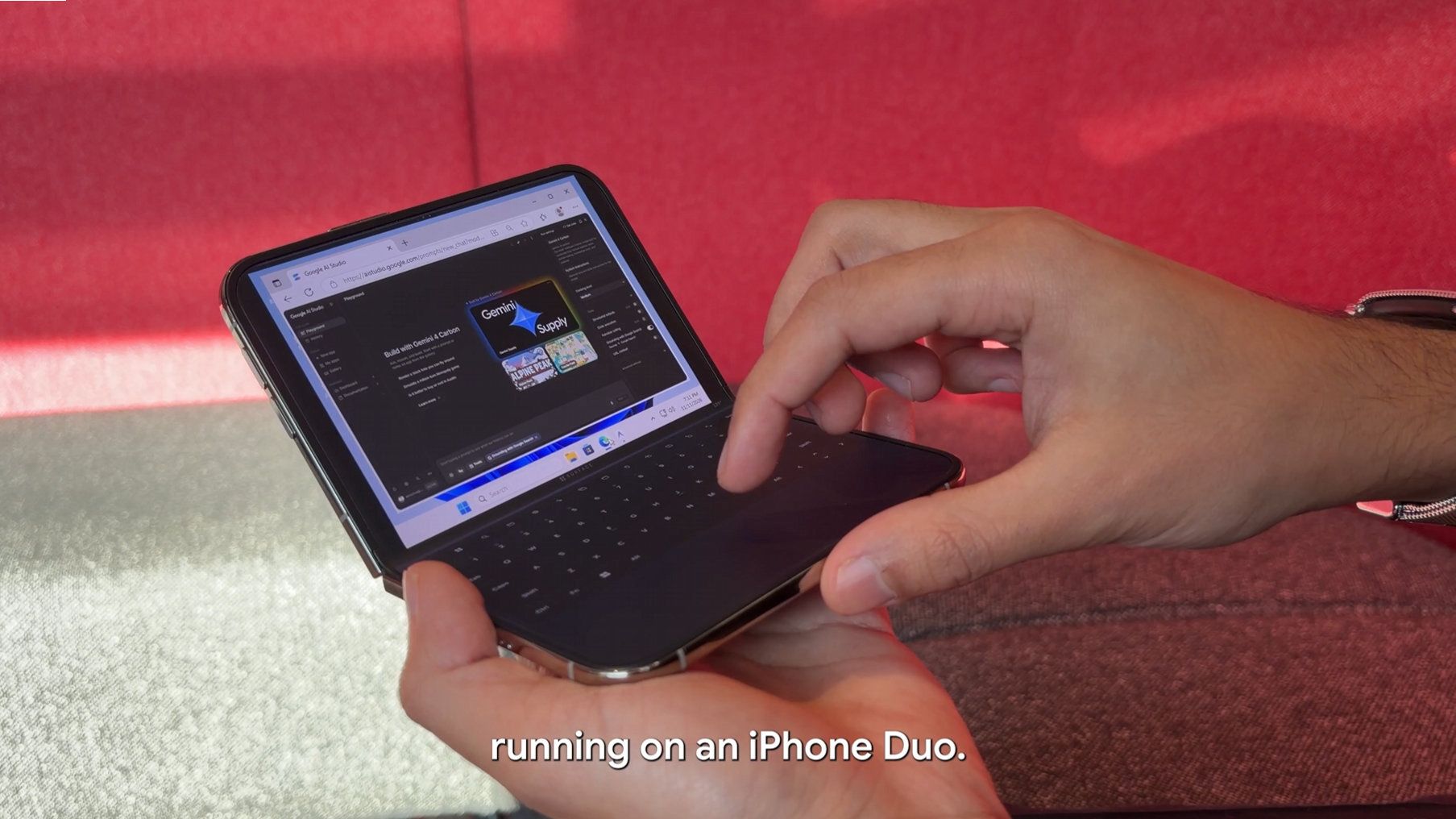
Ammaar Reshi, lead of product and design at Google AI Studios, shared the results of his efforts to get Windows 11 to run on an iPhone Duo. The "WindowsiOS" project has full Windows 11 running at "near-native" speed on an iPhone Duo.
Reshi's efforts appear to focus more on creating a mini laptop rather than a multitasking mobile phone. His demo video shows the Windows 11 desktop on one half of the iPhone Duo's screen and a digital keyboard on the bottom.
All of the photos on the WindowsiOS GitHub page are from a device in the same orientation.
The iPhone Duo's screen is too small for the setup to be optimal, but Windows 11 scales to the form factor. That's likely because the OS was made to fit on foldable PCs like the Lenovo ThinkPad X1 Fold. The digital keyboard on the iPhone Duo running Windows 11 is too small to type on like a laptop keyboard, but you could potentially type on it with two thumbs.
I used Gemini 4 Carbon to get Windows 11 running on my iPhone Duo! 💻Unfold the screen and it's a pocket PC, including Antigravity running coding agents on my phone.This is the actual desktop ARM OS running locally with touch controls. Demo + repo below! https://t.co/LVdeqvvOU1November 11, 2026
The initial release of WindowsiOS and an update to a separate project give us a unique opportunity to compare how Windows 11 runs on two different types of foldables.
Recently, Gustave Monce released an update to his project that runs Windows 11 on the Surface Duo. Monce has worked on this for years, and we have a video from the early days of the "DuoWOA." But last week he rolled out support for audio, USB-C, video out, and display calibration.
Monce's project takes a different approach to Reshi's, at least based on videos shared on X. Rather than create a mini laptop, Monce has forced Windows 11 to adapt to the various postures of the Surface Duo.
"You have no idea how many hours and code iterations (and how insane the code is) to support all postures on surface duo properly so screens are the right orientation all the time," said Monce.
Are two screens better than one?
While I see the value in having separate displays, the Surface Duo's form factor creates extra work for developers.
It takes effort to optimize operating systems and apps for the iPhone Duo, of course, but Apple's foldable does not have a large hinge to work around.
Whether you're optimizing an operating system or apps for a foldable screen, having a split-screen design adds a roadblock.
Join us on Reddit at r/WindowsCentral to share your insights and discuss our latest news, reviews, and more.
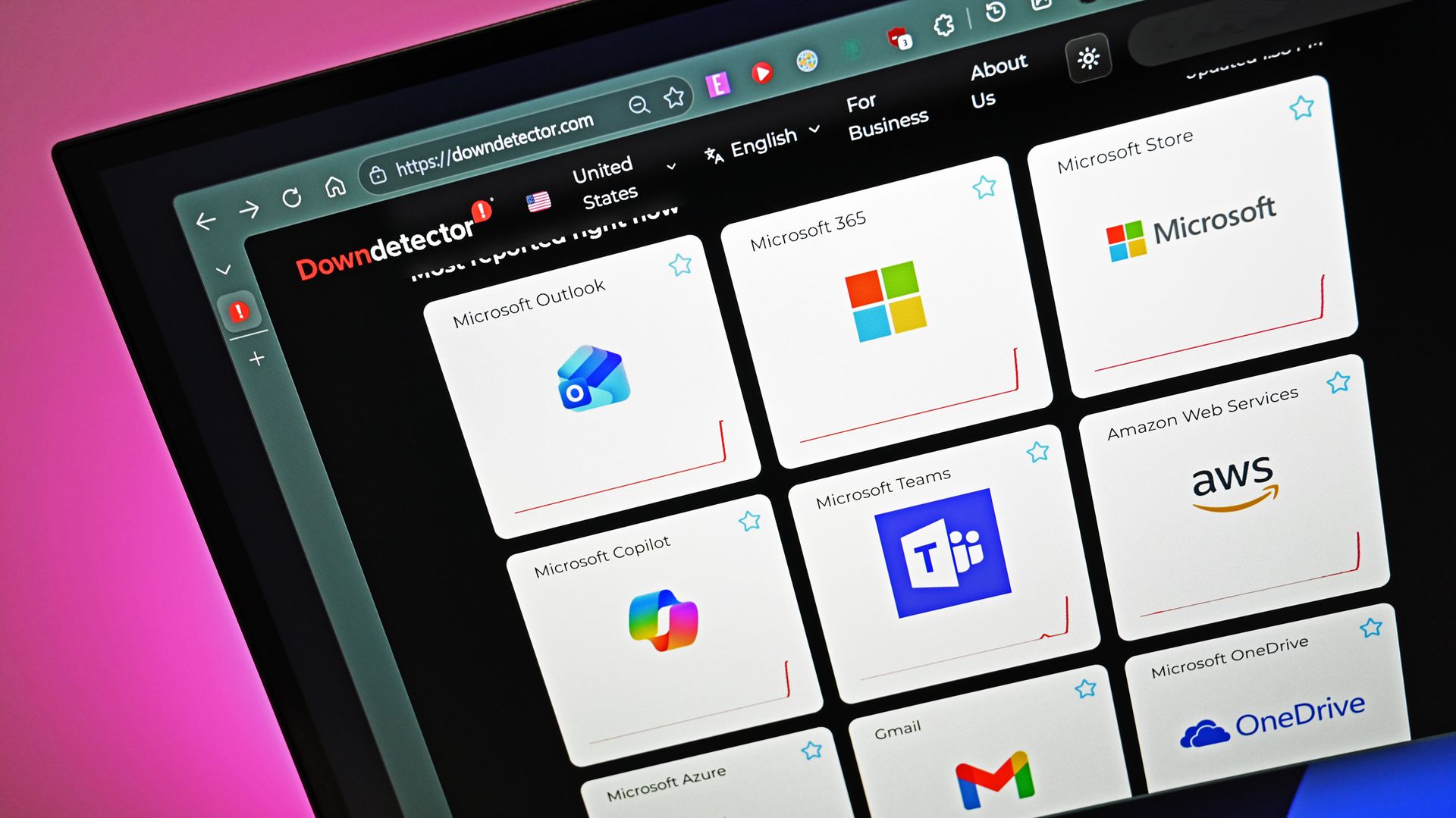
"Have you heard about Microsoft?" is not a question I get asked often in my everyday life. It's rare for anyone to ask me about Outlook, Teams, or OneDrive. But this week was an exception because of the major outage that affected Microsoft services.
With Outlook, Teams, Azure, OneDrive, and Microsoft 365 experiencing outages, I fielded quite a few questions about what's going on. I can't imagine what IT admins are going through right now.
By the time you read this, Microsoft will have likely fixed the issues that temporarily broke its services, but as I write this piece, the outage has been going on for nearly 24 hours. With an entire day of outages, many have joked online that the service should be renamed "Microsoft 364."
Beneath all the jokes about "Microsoft 364" was a reminder of just how much of the modern workplace runs on Microsoft's services. Most people don't spend much time thinking about Outlook, Teams, OneDrive, or Microsoft 365 when everything is working. They're just tools people expect to be there. But when those services go down, work doesn't just become inconvenient. In some cases, it grinds to a halt.
Biggest News of the Week
Hopefully Microsoft uses this outage as an opportunity to strengthen its systems. The company is spending billions on AI, datacenters, and cloud infrastructure. That's hard to appreciate when people can't access their email, files, or meetings.
It's a shame that the Microsoft outage happened this week rather than next week. If Microsoft is going to have all of its major services fail and hurt the productivity of millions of people, the least the company could do is time the outage with the release of GTA VI. Logitech gave its employees a day off to enjoy GTA VI, but the rest of us have to use a vacation day or get sick at the right time.
Microsoft wants people talking about AI. This week, people were talking about Outlook and outages. That's probably not how the company hoped to end the week.
Shopping with Sean
Luckily for anyone shopping ahead of Black Friday, Windows Central and Future rely on Gmail, not Outlook. That means that all the emails about deals that were sent to our team this week arrived on time.
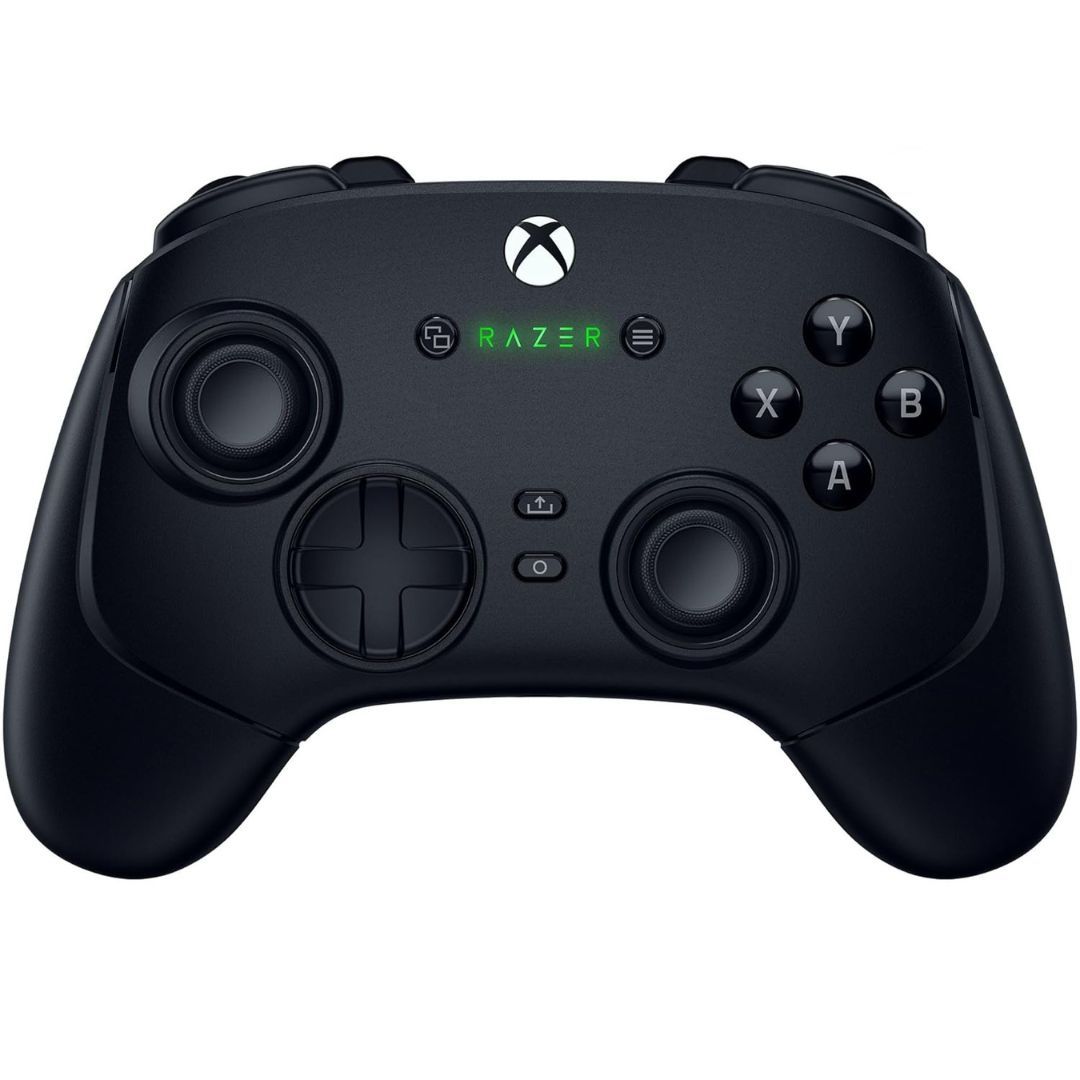
Razer finally made a wireless controller for the Xbox, and overall it's absolutely brilliant with its Hall Effect sticks, 1000Hz Polling on PC, and additional shoulder bumper, paddle, and trigger buttons.
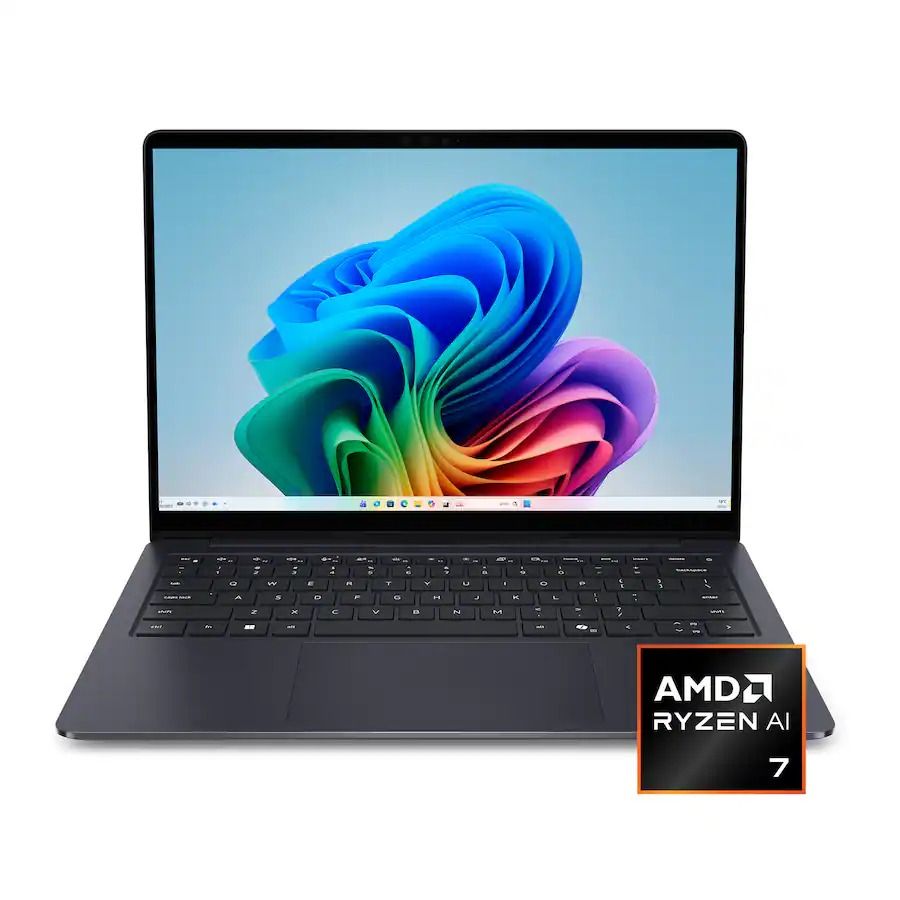
"The Dell 14S is a compelling choice for a variety of users thanks to its long-lasting battery life, OLED touchscreen, solid performance, and relatively affordable price." — Sean Riley, Freelancer Writer, Tom's Guide
Windows 11 includes many different background services, recommendations, apps, and settings that not everyone wants or needs. TBOK Windows Performance Optimizer tries to debloat that experience by applying dozens of system-wide and per-user changes intended to improve responsiveness, privacy, and gaming performance.
TBOK Windows Performance Optimizer is a free project for Windows 10 and Windows 11 that offers a standalone batch script for home users and separate deployment files for administrators using Microsoft Intune. The script's hardware-aware configuration engine detects the computer's hardware and uses that information to select settings for memory management, storage, services, and gaming.
I like the work behind projects like this, but I wouldn't recommend running a debloating script on your primary computer without testing it first.
What is TBOK Windows Performance Optimizer?
TBOK Windows Performance Optimizer is a Windows configuration and cleanup project developed by The Beard of Knowledge. It combines Registry tweaks, service configurations, scheduled task changes, and app debloating to optimize operating system performance.
The project offers two versions:
Standalone batch script: The TBOKwinOptimizer.bat file is for personal computers, technicians, and anyone who wants to keep the utility on a USB flash drive.
Intune deployment files: A separate collection of files is available for IT administrators managing multiple computers.
The script can apply selected preferences across compatible existing user profiles, including currently loaded profiles, offline profiles, and the "Default" profile.
It also provides summaries showing which changes succeeded, were skipped, or failed. This makes the feature particularly useful for shared computers, custom builders, and administrators managing different workstations.
How TBOK Windows Performance Optimizer works
TBOK uses a hardware-aware configuration engine to determine which settings to apply to Windows 11 or Windows 10. The script detects installed memory, storage type, and chassis type. It then uses this information to select configuration targets for services, memory management, Prefetch, virtual memory, hibernation, and gaming power settings.
For example, the Windows Prefetch configuration depends on the specific hardware. The script uses boot-only Prefetch on SSD or low-memory configurations, while higher-memory systems with HDD storage receive boot and app Prefetch settings.
The optimizer also configures SysMain and Memory Manager Agent (MMAgent), adjusts selected service startup behaviors, and determines appropriate page-file settings based on the hardware profile.
The gaming configuration covers Hardware-Accelerated GPU Scheduling (HAGS) when supported, Multimedia Class Scheduler settings, processor boost modes, and selected desktop power-throttling settings. It can also manage the Ultimate Performance power plan on desktop computers.
Administrators can also run the script remotely or without user interaction using options such as /REMOTE and /REMOTELIST. Other capabilities include combining multiple operations into one run, retrieving logs remotely, managing restart behavior, and removing temporary deployment files.
The script's diagnostics include startup audits, memory snapshots, resolved hardware policies, and consolidated service and scheduled-task summaries.
What else does the optimizer change?
In addition to hardware-aware configuration, the script includes tweaks intended to remove unwanted system features, reduce recommendations, and customize the user interface.
As part of the services and system settings, the script adjusts selected service startup behaviors, virtual memory settings, network configuration, Fast Startup, and Registry preferences. It also turns off selected telemetry settings, changes Microsoft Edge background startup behavior, and enables long file paths.
In the debloating department, it targets the standard Copilot app (not the Microsoft 365 Copilot experience), Bing Search, Widgets in the Taskbar, and WebExperienceHost. It also turns off selected scheduled tasks and tries to prevent certain components from being automatically reinstalled or re-enabled.
The script also covers user preferences and privacy. It can restore the classic right-click context menu, set This PC as the default File Explorer view, enable the End Task option for the Taskbar, turn off selected Start menu recommendations, and reduce ads and suggestions. It also preserves existing File Explorer folder views by default.
Finally, for Office and maintenance, the script disables selected Microsoft Office logging, telemetry, and feedback tasks. It also includes the Windows Package Manager (winget) for automatic software updating and the developer's BeardSweeper disk-cleanup script.
The BeardSweeper script is an interactive cleanup tool that can close apps before clearing caches. Unattended runs, on the other hand, preserve running apps and system rollback files.
It's important to note that not every tweak is a performance improvement. For example, disabling advertisements, restoring the classic context menu, and changing File Explorer preferences are primarily customization options.
You can find more details on what the tool does on its GitHub page.
What I noticed when testing the optimizer
(Image credit: Future)
If you plan to use the script, a few things are worth knowing before you run it.
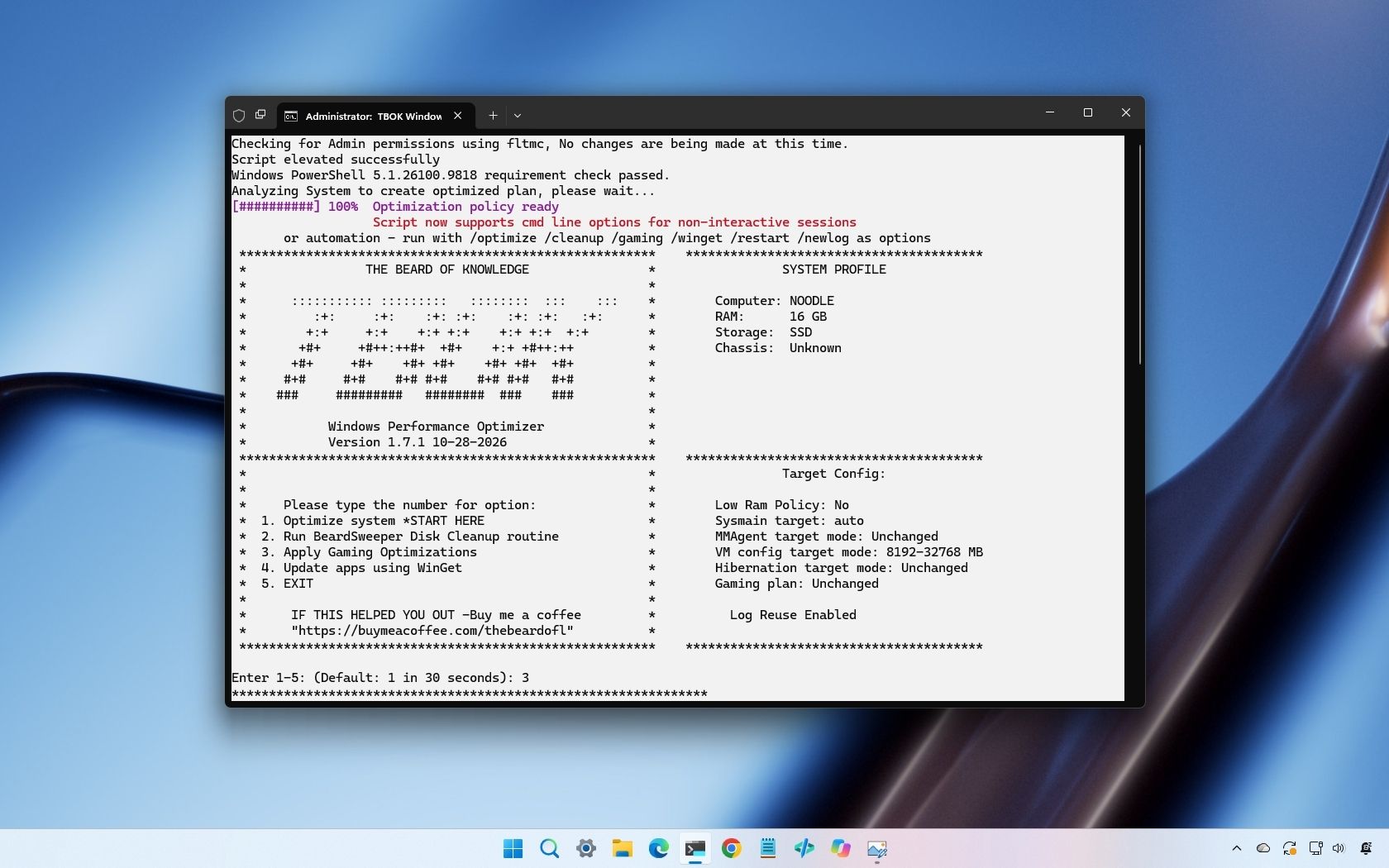
First, during my testing, I noticed that the utility starts its default optimization automatically after a 30-second countdown if you don't make another selection. As a result, make sure you actually want to apply the default configuration before proceeding.
Second, pay attention to the execution log. The log is saved in the same folder as the batch script.
The log contains information about successful changes, skipped modifications, and failures. For example, during my testing, the page-file optimization failed and was skipped.
In addition, if you run the script after the November 2026 Security Update, the tweak to restore the classic context menu won't work. However, this isn't something wrong with the script. It's a change in the operating system, as this update marks the rollout of the new context menu experience.
This is a good example of why you shouldn't assume every optimization was applied successfully just because the script finished running.
Why I'd be careful with Windows 11 debloating scripts
I have seen and tested many different debloating tools, and I appreciate the work developers put into creating optimization utilities. They can simplify configuration tasks and make it easier to remove unwanted features. However, turning off more features doesn't automatically speed up your computer.
Windows 11 relies on services, scheduled tasks, and background processes to keep features working as intended. Some support features might not be immediately obvious, while others are required by apps, hardware, or management tools.
Changing these settings increases the chance of unexpected behavior and problems. Removing a package could affect a Windows 11 feature you want to use later, while turning off a service could interfere with an app or connected device.
The same applies to gaming optimizations. A setting that helps one computer might have little effect or even introduce problems on another. A case in point is the new Xbox mode, which is a feature that cuts back on non-essential background processes and services to free up system resources and extend battery life. However, the system recommends turning off the feature to restore the background processes and services for regular computing tasks.
The script includes recovery safeguards. It attempts to use System Restore where available and falls back to machine-wide and per-user Registry backups if restore-point creation fails.
However, Registry backups aren't complete system backups, and a restore point doesn't guarantee it'll always work as intended.
My recommendation is to test the tool on a spare computer or virtual machine before running on your main setup. Also, review the script, understand how it works, and confirm your apps, hardware, and regular workflows continue to work as expected.
Finally, but perhaps more importantly, create a full backup before making system-level changes.
How to download and use TBOK Windows Performance Optimizer
If you want to experiment with the utility, you can download it from the official TBOK Windows Performance Optimizer GitHub page.
For this guide, I'll focus on the standalone version intended for personal use:
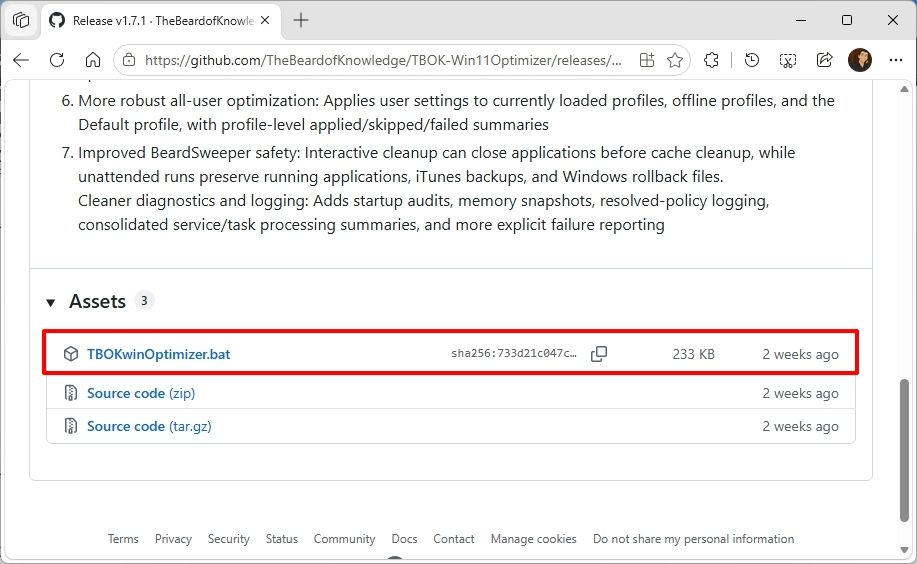
Click the TBOKwinOptimizer.bat link under the "Assets" section.
Save the file to your computer.
(Image credit: Mauro Huculak)
Save the file to your computer.
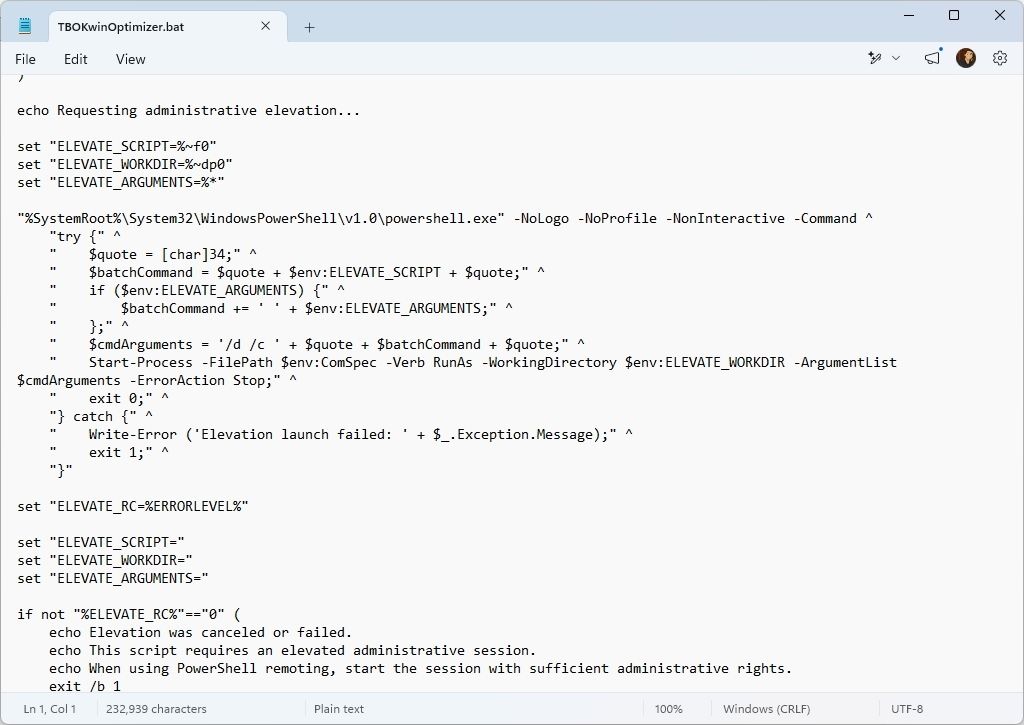
Open and review the batch file before running it using a text editor (such as Notepad), paying close attention to Registry changes, service changes, and apps to be removed.
(Image credit: Mauro Huculak)
Right-click the batch file and select the Run as administrator option.
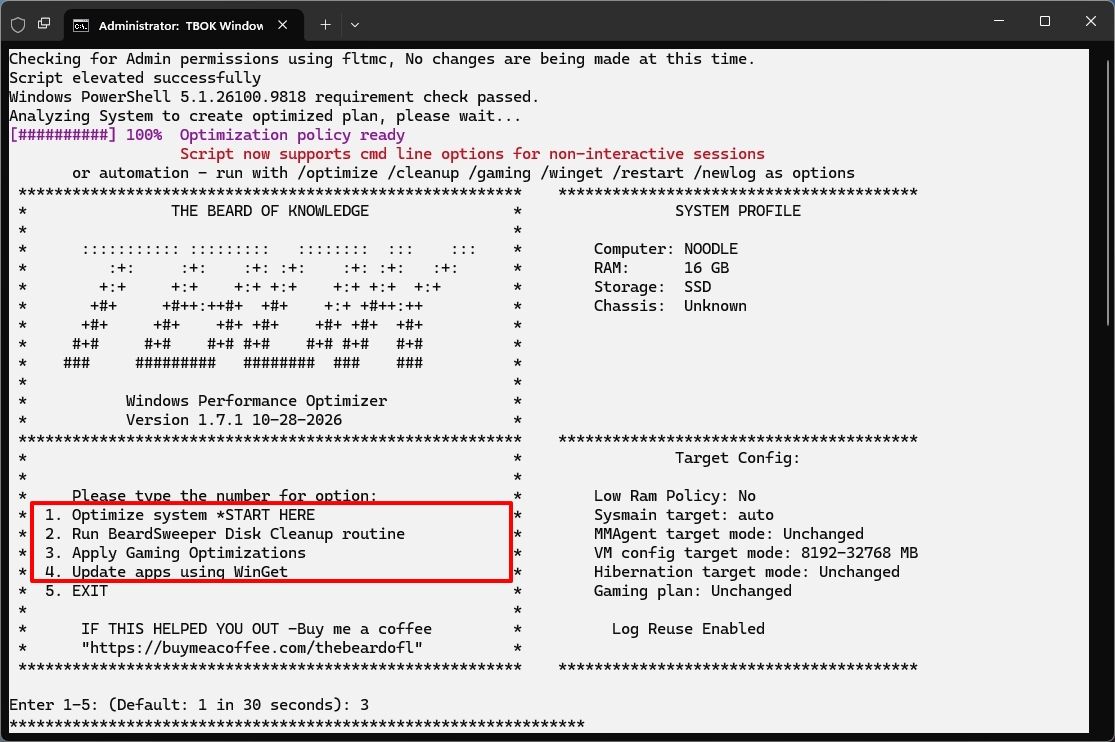
Confirm the option you want to run to optimize your computer, and watch the startup countdown.
(Image credit: Mauro Huculak)
Review the execution log after the script finishes and investigate any skipped or failed operations.
Restart the computer (if applicable).
Usually, I recommend trying the first option, then moving on to the second option to free up storage space. Use the third option (after running the first and second options) only if you want to optimize your device for gaming.
You can also use the fourth option to allow the script to update your apps using the Windows Package Manager (winget). However, this Windows tool can't update every app installed on your computer.
Should you use TBOK Windows Performance Optimizer?
TBOK Windows Performance Optimizer is an interesting project, particularly because it applies selected settings across multiple user profiles and adjusts configurations based on hardware.
I also like its diagnostic capabilities, safeguards, and remote deployment options. However, the number of changes is also a bit of a concern. The optimizer changes services, Registry settings, scheduled tasks, installed apps, privacy preferences, and gaming configurations. Some changes are useful, but others are personal preferences or adjustments that might not suit everyone.
My recommendation is to treat this tool as a way to customize the operating system rather than expecting it to make your computer faster. Before using it on your main device, try it on a spare computer, review the changes, check the logs, and create a full backup so you can recover if something goes wrong.
Personally, I prefer making individual changes that I understand rather than applying dozens of tweaks at once. However, many users may appreciate the convenience and level of customization this script offers.
What are your thoughts on this script for Windows 11 devices? Let me know in the comments.
More resources
Explore more in-depth how-to guides, troubleshooting advice, and essential tips to get the most out of Windows 11 and 10. Start browsing here:
Managing hardware security in a corporate or shared environment has always presented a frustrating administrative hurdle when dealing with standard, non-administrator user accounts. Previously, if an employee lacked local admin privileges, configuring a TPM+PIN BitLocker preboot protector required IT intervention, often leaving corporate laptops vulnerable or compliance scripts failing. Microsoft is finally bridging that gap. […]
Setting up a Windows 11 PIN has long felt like an exercise in guesswork, especially when you are just trying to unlock your own personal laptop at home. At the same time, IT administrators have often been forced into an all-or-nothing choice when a company laptop goes missing: leave it vulnerable or wipe the entire […]

 Connexion