Considering GTA VI is set in a fictional version of Miami, Florida, the Miami Heat embracing the game is less surprising than NPR publishing a GTA VI review. To celebrate the launch of the game, the Miami Heat will transform into "Vice City" for one night.
On the eve of the launch of GTA VI, the Miami Heat will host "A Night in Vice City" at its home arena, the Kaseya Center. Cars inspired by GTA VI will appear at the gates before the game against the Milwaukee Bucks, and there will be a giant VI for fans to take photos with.
For the evening, Burger Shot and Cluckin' Bell from GTA VI will replace some of the normal fast food restaurants in Kaseya Center.
The night's game will be played on a special GTA VI-themed court and the Heat will play in uniforms inspired by the game as well.
If you love Grand Theft Auto but aren't an NBA fan, I'd still suggest checking out the Vice City apparel collection. The Vice City bomber jacket is my favorite, but there are a variety of shirts and hats to check out.
Unfortunately, you'd have to attend the game in person to purchase a Vice City jersey and some other limited-edition clothes.
The promotion may sound excessive, but so do most things surrounding GTA VI's launch. Between companies giving employees time off to play, mainstream publications reviewing the game, and an NBA franchise turning itself into Vice City for a night, Rockstar's latest release continues to blur the line between a game launch and a cultural event.
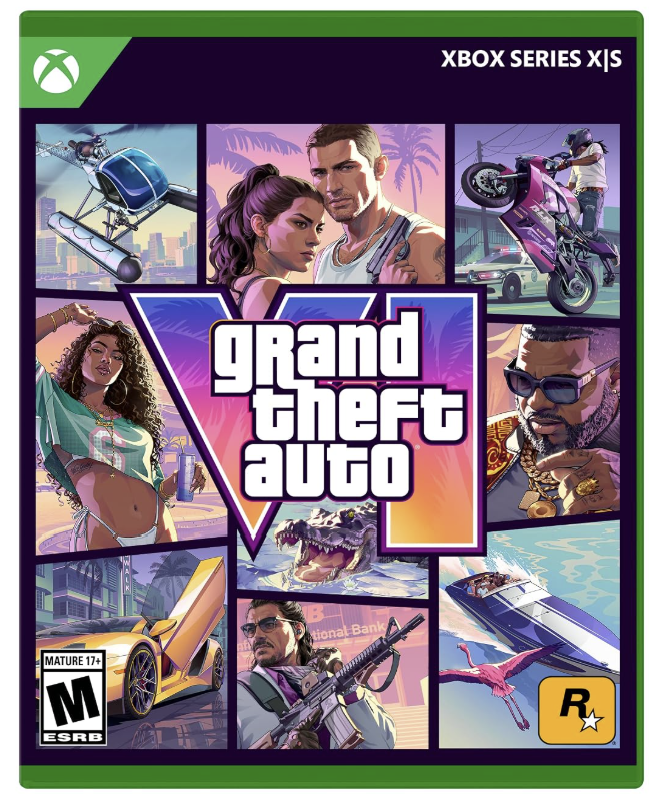
Grand Theft Auto 6: $79.99 Grand Theft Auto resumes its generation-defining role after over a decade on hiatus. GTA 6 is monstrously ambitious, expertly executed, and simply sublime. Don't read reviews. Just go buy it.
GTA VI is finally here, and I have never seen such effusive praise for a game. GTA VI earned a 99 on Metacritic, matching the highest-ever rating for a game (original Legend of Zelda: Ocarina of Time). Perfect score after perfect score has flooded the web, praising Rockstar for GTA VI.
"GTA 6 proves once again that Rockstar is simply light-years ahead of the pack with one of the most immersive simulation sandbox games ever realized," said our Managing Editor Jez Corden in our GTA VI review.
GTA VI is one of the most anticipated games of all time. Years of rumors and delays led to memes about everything we got before GTA VI, but based on the reviews of the game, the wait was worth it.
You could make countless posters and advertisements of purely 5-star reviews for GTA VI without any shortage of source material.
As you'd expect, the biggest gaming outlets reviewed GTA VI. But the game's launch is such a cultural event that NPR, Bloomberg, and other publications that aren't primarily known for gaming coverage weighed in as well.
GTA VI reviews
Our review (5/5): "A game so good I asked our tech team if I could somehow give it 11/10."
IGN (10/10): "After three weeks and over 120 hours playing it, I’m still hopelessly hooked, absorbing the world at walking speed like a tourist in a new town."
GamesRadar+ (5/5): "GTA 6 is the highest-fidelity sandbox of its generation. Rockstar has built an open world of truly astonishing scale, scope, and quality."
EuroGamer (5/5): "A game of opposites and awe, minute detail and impossible scale, Rockstar pushes back the horizon of video games once again with GTA 6."
GameSpot (10/10): "GTA 6 is an astonishing open-world action game that I’d wager won’t be outdone until Grand Theft Auto 7."
The Guardian (5/5): "With realism that defies belief, this vast game easily accommodates its trademark foulmouthed, OTT chaos – as well as new empathy for the fugitive couple at its centre"
Bloomberg: "It turns out that the secret ingredients to a great game are a lot of money, time and talented people."
NPR: "There is a gloss on it that feels like love."
I don't want to spoil anything in GTA VI, so I've selected excerpts from reviews without sharing specifics about the plot. From what I've seen, reviewers have avoided sharing major spoilers for the game, but it's always good to be cautious about what you read if you want to go into GTA VI blind.
GTA VI's score on Metacritic is impressive, but what stands out is how universally praised the game is from top to bottom. I've seen games earn praise for graphics, storytelling, or specific standout aspects, but each review of GTA VI adds a layer of perfection to the game.
The overwhelming praise for GTA VI makes me expect a wave of counter-reviews and hot takes in the coming days. Whenever a game, movie, or TV show receives this level of hype, there are always people eager to push back against the consensus. I suggest ignoring the clickbait.
But considering GTA VI faced nearly impossible expectations to begin with, players probably have little to worry about.
Grand Theft Auto 6: $79.99 Grand Theft Auto resumes its generation-defining role after over a decade on hiatus. GTA 6 is monstrously ambitious, expertly executed, and simply sublime. Don't read reviews. Just go buy it.
Have you ever plugged in your laptop only to see "plugged in, not charging" appear on your screen? If so, there's a good chance your charger or cable wasn't delivering enough power for your laptop.
It's easy to grab the wrong charger for your laptop over Black Friday, especially when so many USB-C chargers are available. But with a few tips and tricks, you can charge your laptop and never have to worry about wattage again.
If you're not sure where to start, a 65W USB-C charger is enough for most everyday laptops. If you have a workstation or gaming laptop, check the wattage of the charger that came with your PC and use that as a starting point.
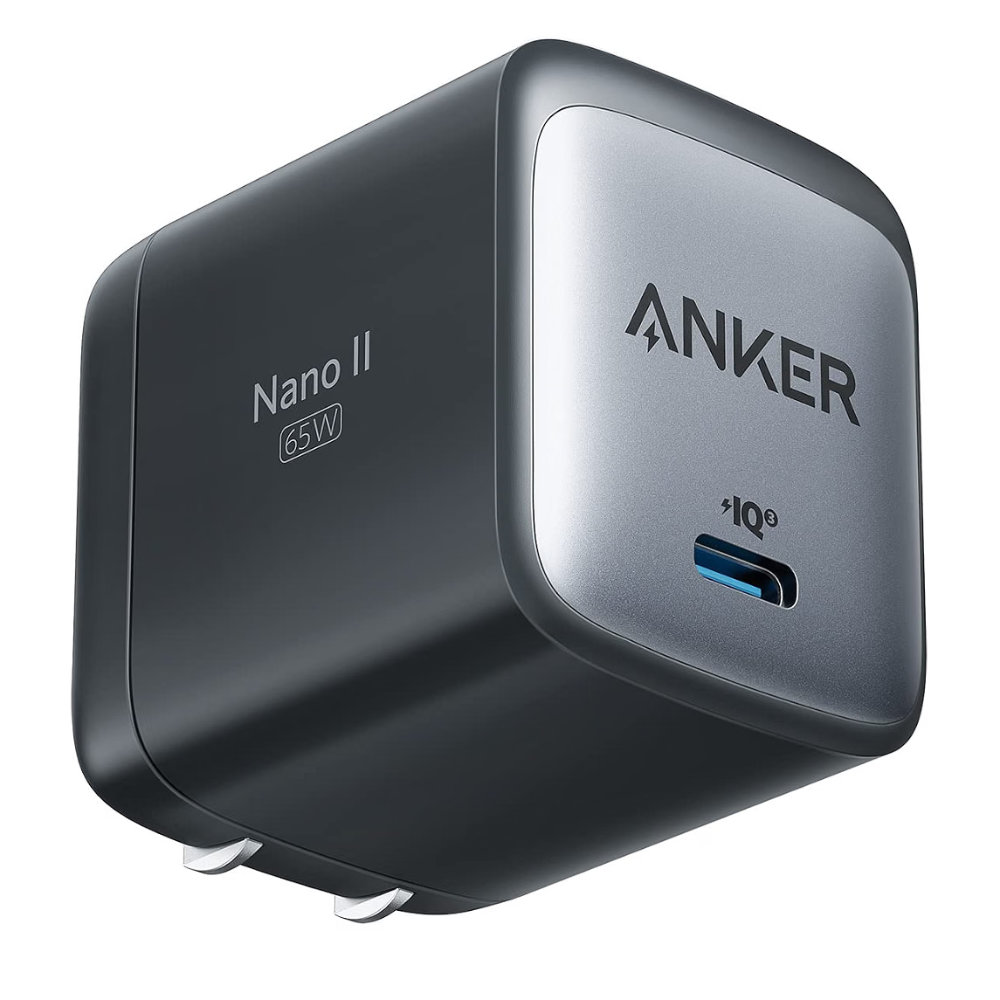
This compact 65W charger is small enough to toss in a backpack and powerful enough to charge most Surface devices, ThinkPads, XPS 13s, Zenbooks, and similar laptops at full speed.
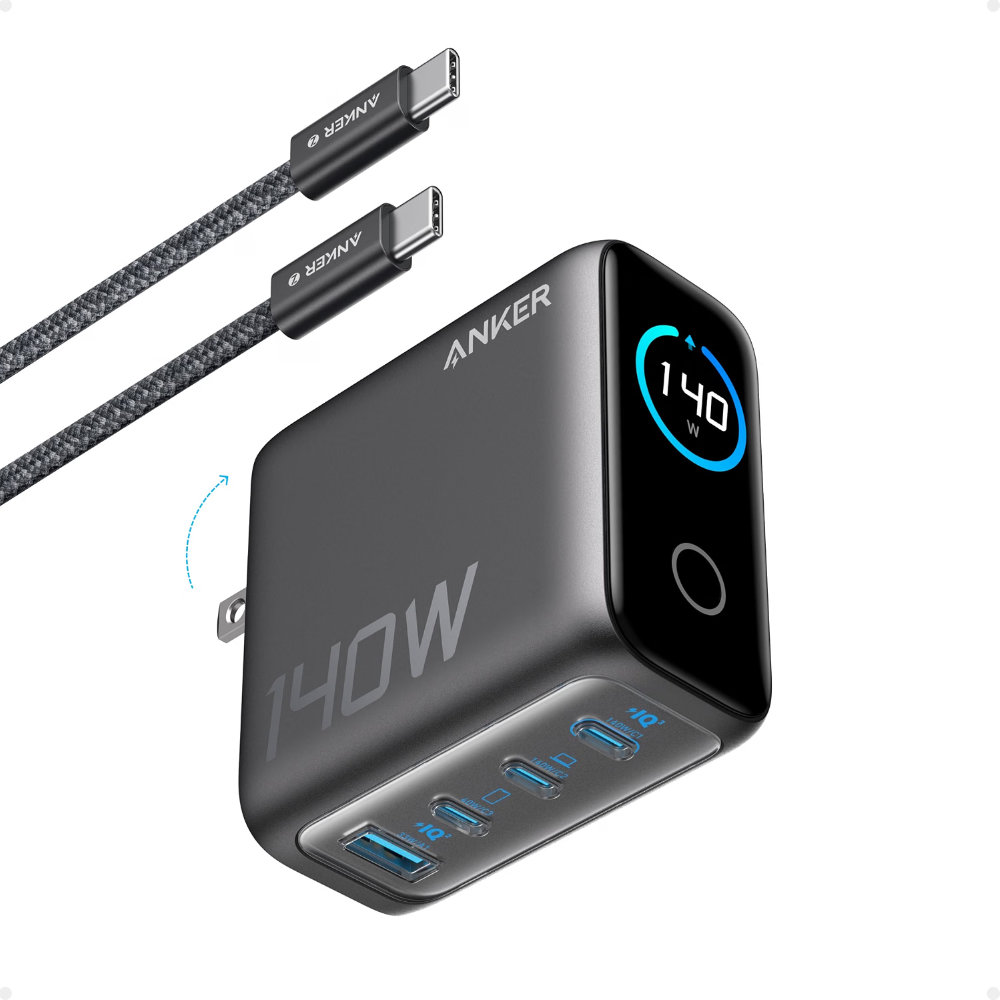
This 140W charger can power demanding laptops and multiple devices simultaneously. The built-in display also makes it easy to check how much power is being delivered in real time.
Why buying a laptop charger is complicated
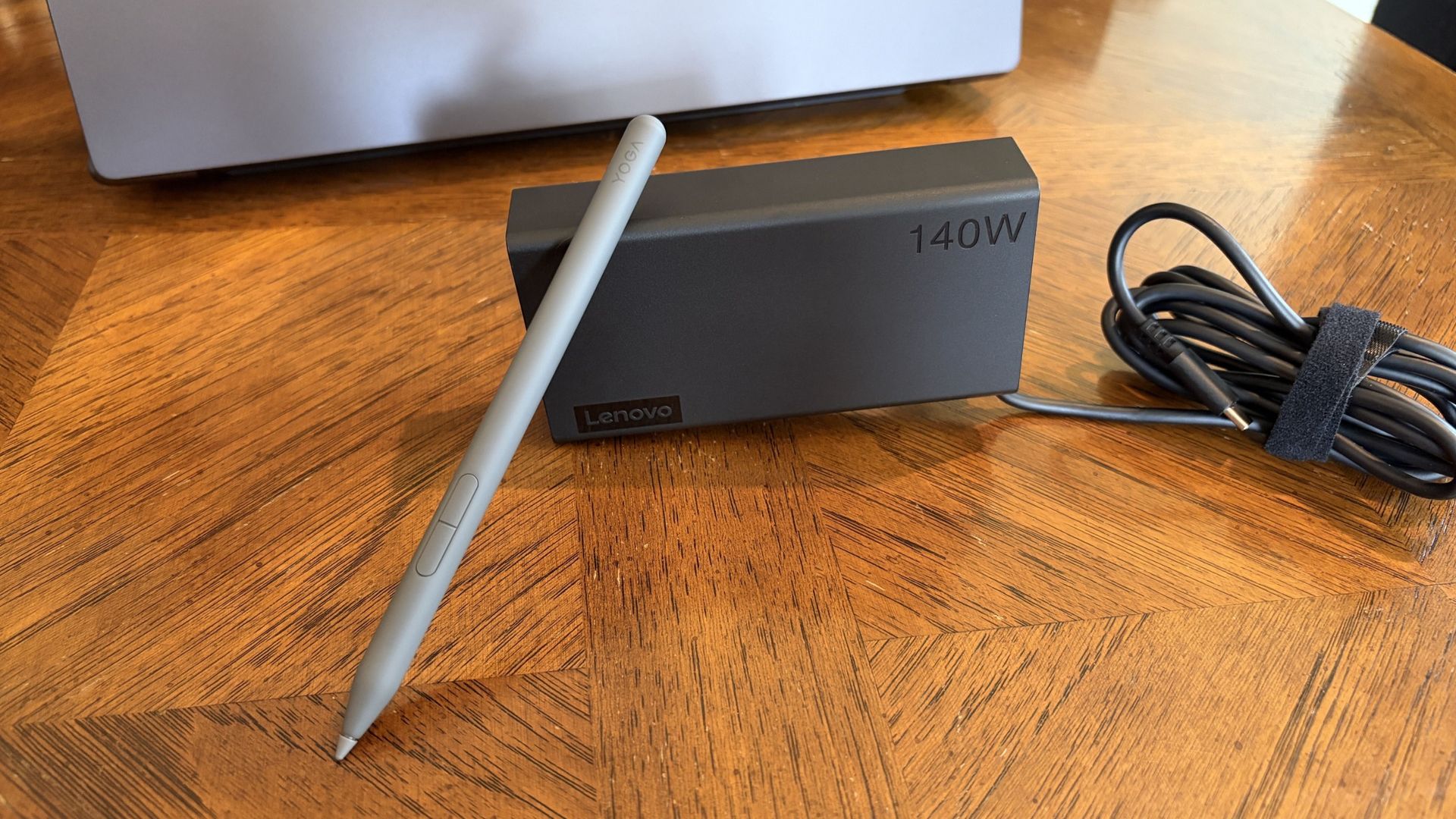
The charger that shipped with your laptop is often the easiest way to determine how much power your PC needs. This Lenovo power adapter is clearly labeled as a 140W charger. (Image credit: Future)
The "U" in USB-C stands for universal, but that doesn't mean all USB-C chargers are the same. All USB-C chargers use the same connector, but they can differ in wattage and what standards they meet.
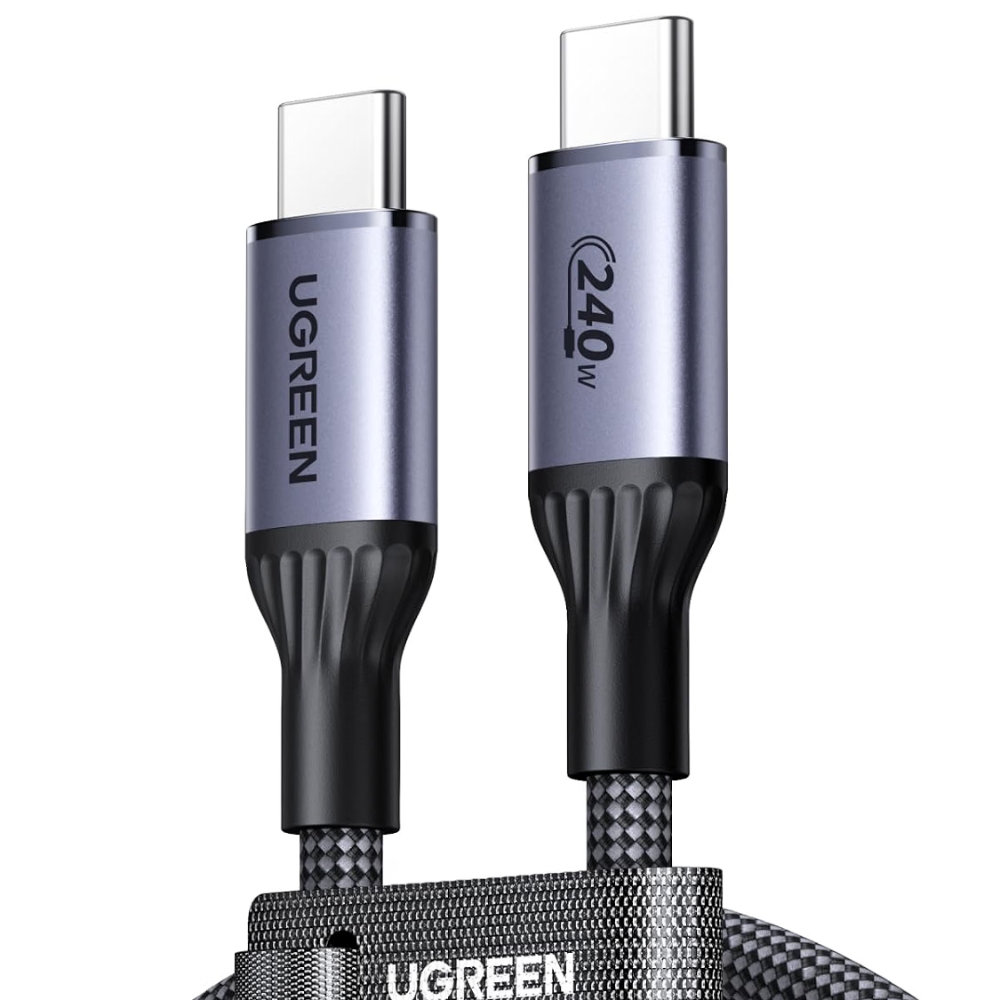
USB-C cables can be just as confusing. Two cables may look identical while supporting vastly different charging speeds. One might support 60W charging while another supports 240W.
The labeling of USB-C chargers can create more confusion. For example, a charger being labeled as "100W" could refer to either a single port delivering up to 100W at once or the total wattage of multiple ports in that same charger.
That's why it's worth checking the specifications of each port rather than relying solely on the headline wattage.
Shopping for a charger has led many to ask, why aren't all USB-C chargers the same? I get the frustration and dislike having to dig through spec sheets to ensure a charger will work for a specific device.
The reality is that there are plenty of times that a tiny USB-C charger without Power Delivery or fast charging is fine. You shouldn't have to buy an expensive device to charge your toothbrush or other small accessories.
But manufacturers could absolutely do more to make shopping easier.
What wattage charger does my laptop need?
The easiest way to check what type of charger your laptop needs is to look at the charger it came with. My workstation laptop shipped with a giant 135W charging brick. The label on that brick says 135W right at the top. Thanks, HP!
You may not be so lucky. If you're shopping for a laptop charger because you lost your original one, you can't just look at a label. Or maybe the text wore off your original charger or isn't easy to find. Whatever the case, you can still figure out what type of charger you need.
The manufacturer of your laptop should list its charging requirements online.
Device Type
Typical Wattage
Chromebook
30W-45W
Thin-and-light Windows laptop
45W-65W
Business laptop
65W-100W
Creator laptop
100W-140W
Gaming laptop
140W-330W+
The table above is a rough guide. As a reminder, you can usually get a charger with higher wattage than what your laptop needs. Most laptops will only take the power they need.
Laptop charger FAQ
Does USB-C mean any USB-C charger will work with my laptop?
No. While USB-C has become the standard connector for many devices, chargers vary in wattage and supported charging standards. A USB-C charger designed for a phone may not provide enough power for a laptop.
What is USB Power Delivery (USB PD)?
USB Power Delivery (USB PD) is a USB-C charging standard that allows devices and chargers to negotiate the amount of power delivered. It enables everything from phones to laptops to charge safely from compatible USB-C chargers and often eliminates the need for device-specific chargers.
What is a GaN charger?
A GaN charger uses gallium nitride instead of traditional silicon components, allowing it to deliver more power in a smaller and more efficient design.
Why does my laptop say "plugged in, not charging"?
A common reason your laptop says, "plugged in, not charging" is that your charger or cable does not support the required wattage for your laptop.
Can I use a higher wattage charger with my laptop?
It is generally safe to use a higher-wattage charger with your laptop. Most modern laptops only take the power they need, but always check your device's manual first.
Can I use a lower wattage charger with my laptop?
It is not advised to use a lower-wattage charger with your laptop. A charger that cannot provide enough power may charge your laptop slowly or fail to keep up when the device is under load.
Can a phone charger charge a laptop?
Some phone chargers can charge laptops, but many do not provide enough power for larger devices. Check that the charger supports USB Power Delivery and can deliver sufficient wattage for your laptop.
Join us on Reddit at r/WindowsCentral to share your insights and discuss our latest news, reviews, and more.
Microsoft Ignite just kicked off, and viewers are in for a treat if they love AI-aided development and cutting-edge tools for creating apps and experiences. While those are exciting topics for many people, I assume everyday computer users are more interested in Windows 11 features. Luckily for them, Microsoft showcased new features that are on the way to the operating system.
Microsoft is turning Copilot into a troubleshooting assistant that can inspect your PC, identify problems, explain what's wrong, and potentially save you from manually digging through Windows settings (or finding an IT admin to help you).
Microsoft shared an example in a recent blog post in which a user asked "The audio isn't coming out of my bluetooth headphones. Can you diagnose the issue for me?" Copilot then asked for permission to access files and read system information. After that permission was granted, Copilot determined the cause of the issue.
In the example, Copilot determined that the headphones were connected, but that Windows 11 was likely sending audio to a different device. The AI assistant then broke down how to fix the problem.
With its new capabilities, Copilot should be able to lighten the load of IT support by answering frequently asked questions.
These PC diagnostic features fall under the same umbrella as other local capabilities. Rather than rely solely on the cloud, Copilot runs locally to perform a read-only scan of a system. It then uses the results to find the root causes of issues.
We've known for a while that Copilot would gain these features. As far as I can tell, the video Microsoft shared is the first time we've seen PC diagnostics running in Copilot.
Microsoft surprised us with a pair of mid-week builds of Windows 11 rather than waiting until the end of the week. Windows Insiders in the Beta channel and Experimental channel can grab an update.
The Experimental build is much larger in terms of new features. It adds the ability to see passkeys stored on a FIDO2 security key, lock compromised Windows devices through Microsoft Intune without wiping the device, and adds a preview of Microsoft Pluton Cryptographic Provider.
The taskbar also has a new option in that build. Starting with Build 26340.10013, you can set Windows 11 to show a list view for taskbar previews rather than a thumbnail.
While the changelog of the Build 26340.10013 is larger, arguably the biggest change comes with Build 26320.10003, which is available through the Beta channel. In that update, searching from "This PC" in File Explorer is now indexer-based. That should result in searches that are much faster and more consistent.
Load full changelog ↴
Experimental Preview Build 26340.10013
Advanced security key management
You can now see the passkeys stored on a FIDO2 (Fast Identity Online 2) security key and remove them one at a time, instead of resetting the entire key. Admins can also configure enterprise settings such as minimum PIN length, always-required user verification, and enterprise attestation.
Remote Lock
Remote Lock lets IT lock a lost, stolen or compromised Windows device from Microsoft Intune without wiping it. Windows signs out every active session, hides all sign-in options and shows a Device Locked screen. Nothing is erased: the device stays enrolled and managed; BitLocker stays on, and user data stays in place. Only an admin can lift it remotely, so the user picks up where they left off. Learn more: https://aka.ms/remotelock
Microsoft Pluton
We’re introducing a preview of the Microsoft Pluton Cryptographic Provider, enabling developers on supported devices to use the Pluton security processor for hardware-protected cryptographic key storage and operations through standard Windows CNG APIs. Learn more here.
Taskbar
When you hover over an app on the taskbar, Windows shows previews of its open windows to help you tell them apart and quickly see what’s in each one.
Now, you can choose to use the list view anytime. When list view is on, hovering over an app on the taskbar shows all its open windows by title in a list instead of as previews.
To turn on list view, go to Settings > Personalization > Taskbar.
BitLocker
Standard users can now set a BitLocker preboot PIN. Before this change, users without admin rights couldn't add the TPM+PIN protector. Now, standard users on managed devices can add the PIN themselves.
How it works: When the policies below apply to a device that doesn't have a PIN yet, you get a notification asking you to add one. Selecting the notification opens a window where you can set the preboot PIN.
Magnifier
Magnifier already works with your keyboard, mouse, and scroll wheel. Now it also supports touchpad and touch gestures, so you can zoom and move around in whatever way feels most natural to you.
Before you start: Make sure Magnifier is running. Press Windows key + Plus (+) to turn it on. The gestures below work while Magnifier is on.
On a touchpad
Zoom in or out: Swipe up with three fingers to zoom in or swipe down to zoom out.
Pan around the screen: Move one finger as you normally would, and the magnified view follows your pointer.
Toggle between 100% and your previous zoom level: Tap with three fingers.
On a touchscreen
Pan around the screen: Drag with three fingers.
Zoom in or out: With three fingers, tap once, then tap again and keep your fingers down. Without lifting your fingers, drag up to zoom in or down to zoom out.
Toggle between 100% and your previous zoom level: Double-tap with three fingers.
Both gesture sets are on by default. To turn either one off, go to Settings > Accessibility > Magnifier and turn off Control Magnifier with touchpad gestures or Control Magnifier with touch gestures.
Secure switch from MSA to Local account
Users who switch from MSA to local account from settings would be always prompted to back up their BitLocker recovery key with updated instructions in order to prevent any data loss.
Removal of Offline Maps
Following the April 2025 announcement of the upcoming deprecation of the Windows UWP Map control and Windows Maps platform APIs, we are removing the Offline Maps feature and related UX from Windows Settings. With the upcoming removal of the Maps control and APIs, the offline maps feature will no longer be functional. The removal includes these features in Windows Settings:
Offline Maps – located under Settings > Apps > Offline Maps
Maps storage – located under Settings > Storage > Local Disk
For resources related to the upcoming removal of the Maps control and platform APIs, see this documentation.
Remote desktop
Fixed an issue where Remote Desktop Protocol (RDP) connections might fail on the client due to a certificate mismatch after the latest flights.
Windows Spotlight
Fixed a recent issue where the Explore Background option in the context menu for Windows Spotlight for your desktop background wasn’t working.
Input
Fixed an underlying issue which was causing the mouse cursor to be unexpectedly invisible in a few different scenarios in recent flights.
Improved reliability of configuring voice typing settings.
Beta Preview Build 26320.10003
File Explorer
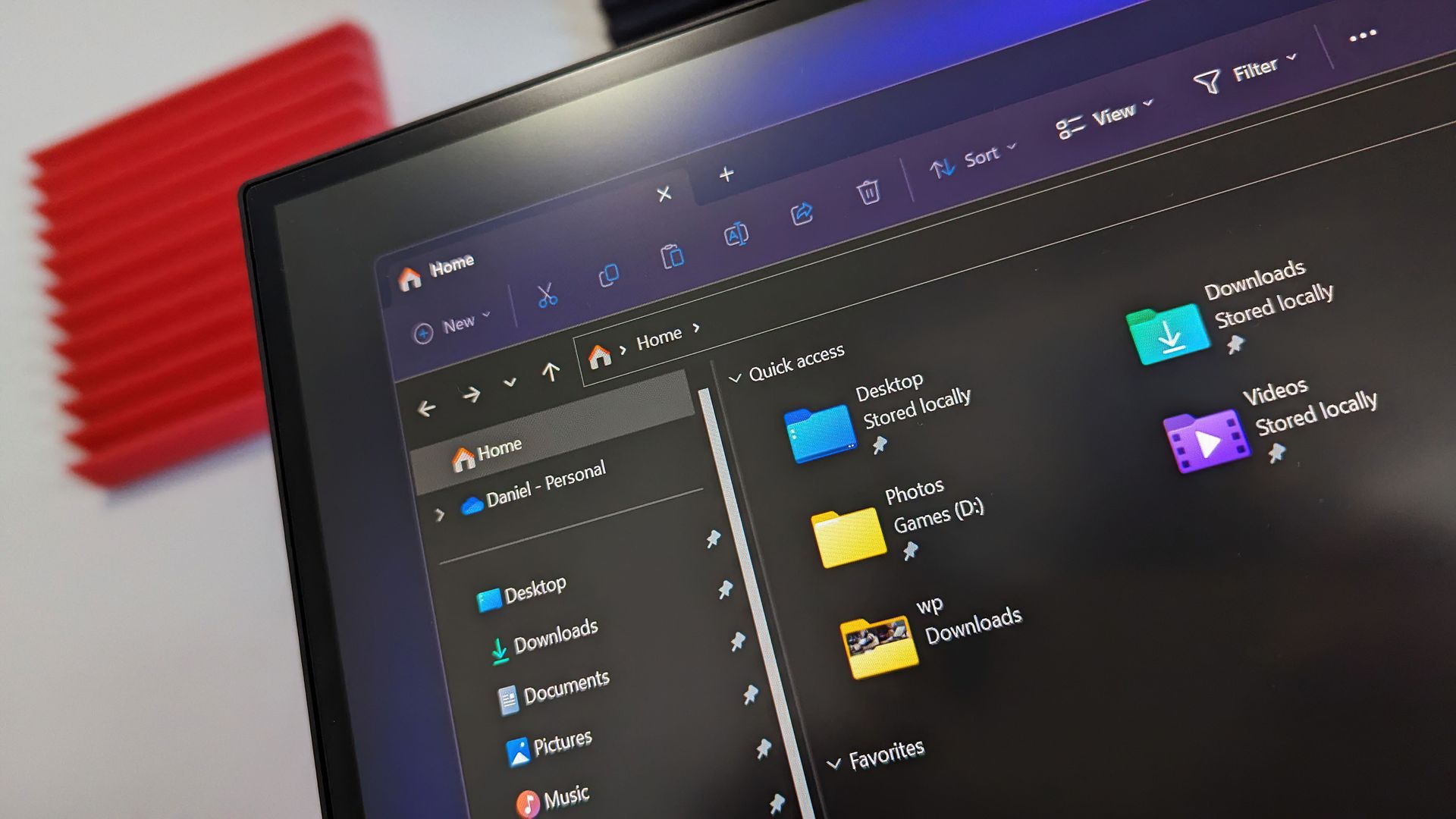
Search from This PC in File Explorer is now indexer-based, making it much faster and consistent with search from File Explorer Home.
Improved progress indication when navigating to locations that take longer to load, such as network drives, makes it easier to see that loading is underway.
BitLocker
Standard users can now set a BitLocker preboot PIN. Before this change, users without admin rights couldn't add the TPM+PIN protector. Now, standard users on managed devices can add the PIN themselves.
How it works: When the policies below apply to a device that doesn't have a PIN yet, you get a notification asking you to add one. Selecting the notification opens a window where you can set the preboot PIN.
There are plenty of other changes to play around with in these builds. For example, Magnifier now works with a touchscreen or a touchpad. Previously, it was limited to a keyboard, mouse, or scroll wheel.
The Experimental build also marks the end of Offline Maps. Microsoft plans to deprecate the Windows UWP Map control and Windows Maps platform APIs, so the related features need to be removed from Windows 11's settings.
Join us on Reddit at r/WindowsCentral to share your insights and discuss our latest news, reviews, and more.
Juggling the brightness of your monitors can be a hassle on Windows 11. Luckily, a free utility in PowerToys streamlines the process.
Microsoft started testing PowerDisplay about a year ago. The feature has since rolled out to everyone, and it alone is enough of a reason to download PowerToys.
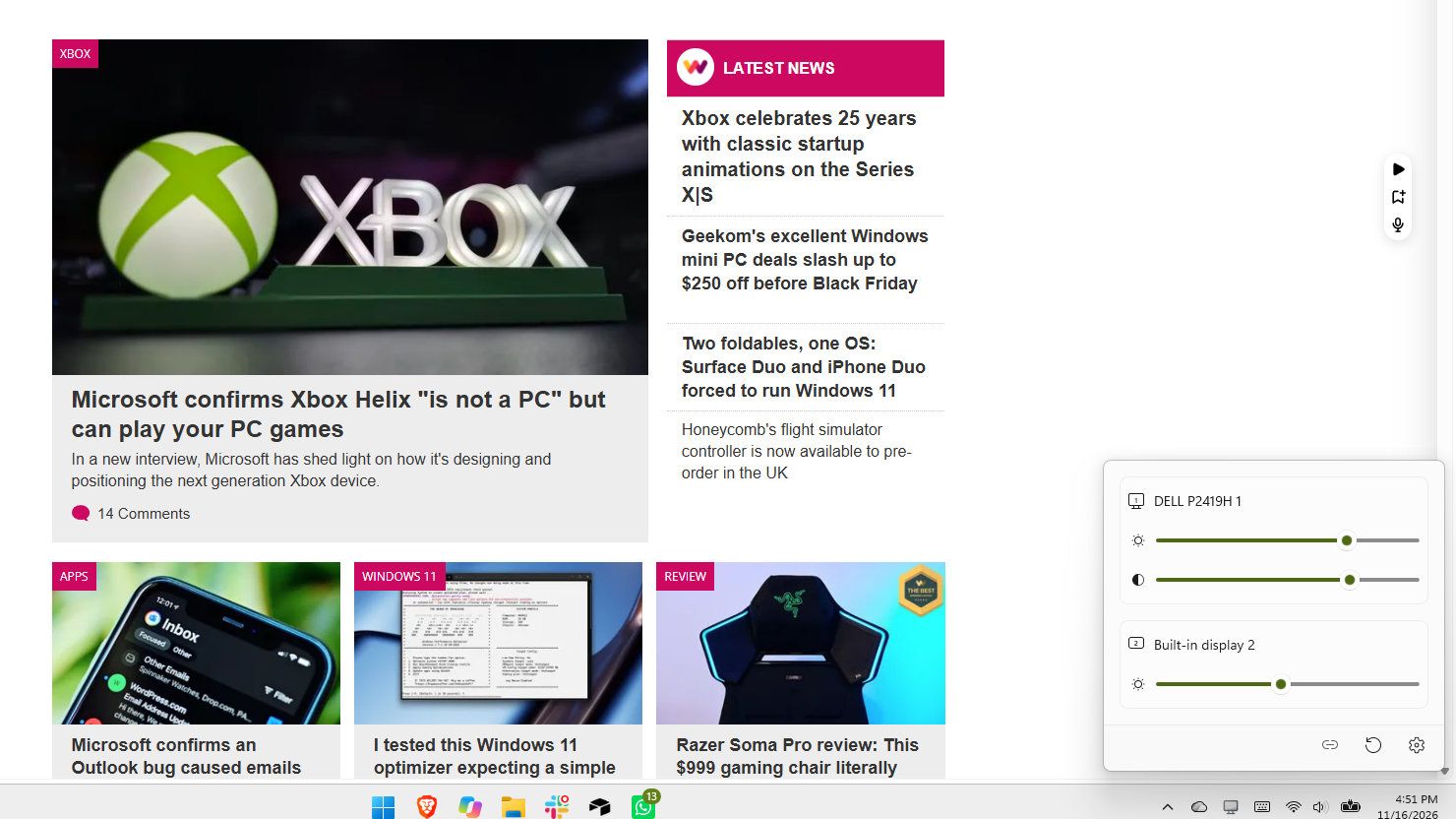
With it, you can control the brightness, contrast, and color temperature of an external monitor from a flyout that feels native to Windows 11. Instead of reaching for the physical buttons on each monitor, you can adjust settings directly through Windows.
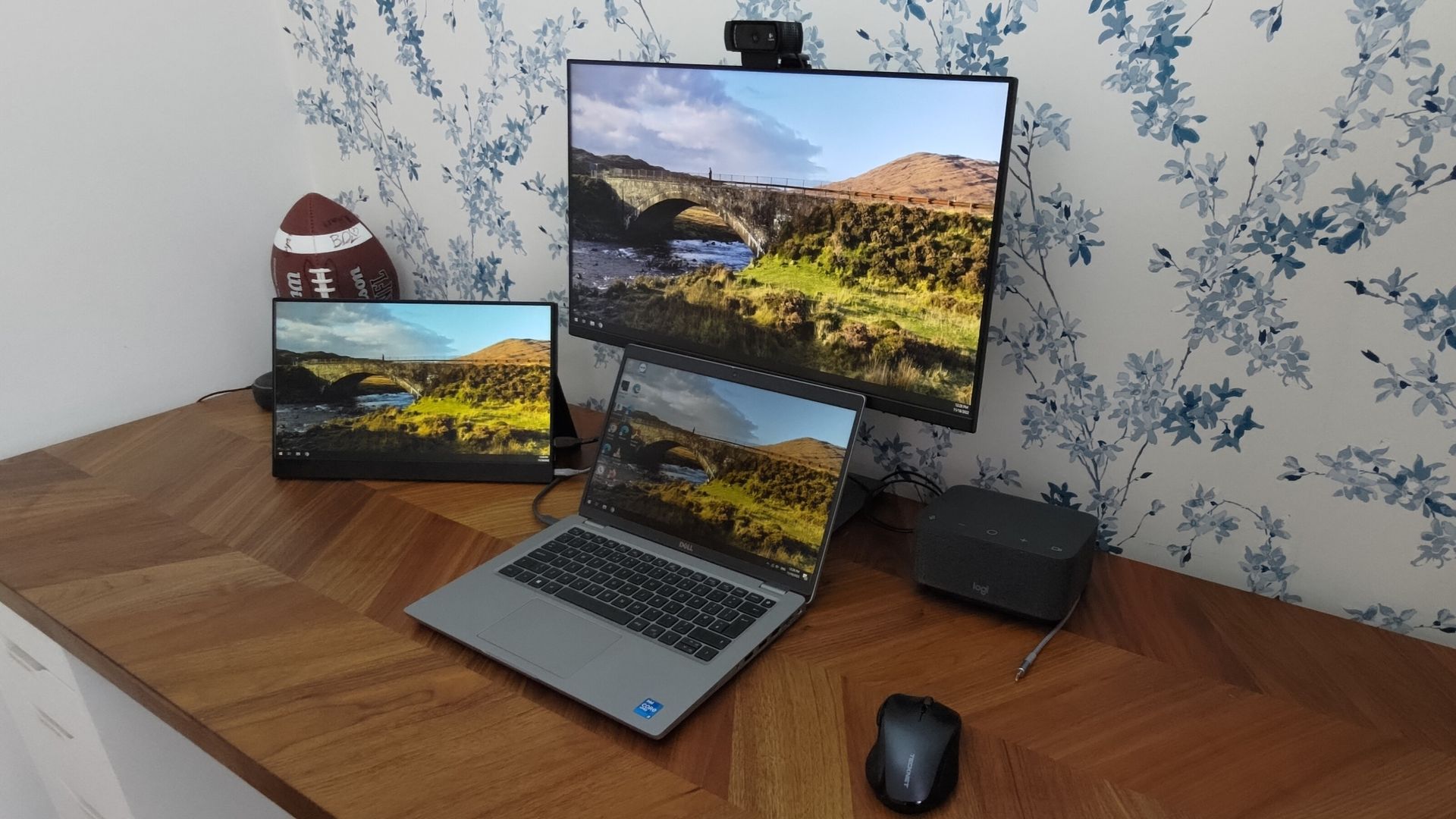
It works seamlessly with multi-monitor setups, which is excellent for those frustrating moments your screens fail to match each other.
Support depends on your monitor, but many modern displays work with PowerDisplay through DDC/CI controls.
Windows 11's limited options for controlling multiple monitors frustrated me and many other people for years. There are third-party apps that enhance controls, such as DisplayBuddy and Twinkle Tray, but I already have PowerToys installed for some of its other utilities, so PowerDisplay was easy to add to my PC.
(Image credit: Future)
Since I live in England but cover Microsoft for my job, I often start work when the sun is up and continue working past sunset. That's especially true during autumn and winter as the days get short.
If I leave my desk during the day and return at night, my monitor is usually too bright. Windows 11 has a setting that automatically changes brightness when lighting changes, but it doesn't work for my setup since it doesn't seem to work with some of my external monitors.
Rather than blind myself when I sit down to cover a late-night Windows Insider build, I use PowerDisplay to adjust the brightness and contrast of my screen.
When working at night and next to a window, I often find that adjusting the contrast of my display improves my view more than tweaking the brightness of my screen. During the day, I usually maximize my monitor's brightness since I like working next to a large window.
PowerDisplay lets you adjust the brightness, contrast, and color temperature of compatible external monitors directly from Windows. After installing or updating PowerToys, open the app, enable PowerDisplay, and then launch the display controls from the Windows system tray to adjust your screens without using your monitor's built-in buttons.View Deal
Join us on Reddit at r/WindowsCentral to share your insights and discuss our latest news, reviews, and more.

 Connexion