❌

Vue normale

STUDY: Qualcomm’s 18‑core Snapdragon X2 outperforms Intel on CPU, AI, battery, and price

Last month, Windows Central exclusively covered a Signal65 report that showed Qualcomm's flagship Snapdragon X2 Elite Extreme outperforming Intel and AMD in a premium laptop showdown.

Now, a new follow-up study by Signal65 just published suggests the more important story may involve the version most people are likely to buy (Qualcomm’s Extreme chip is basically in one laptop, albeit an awesome one).

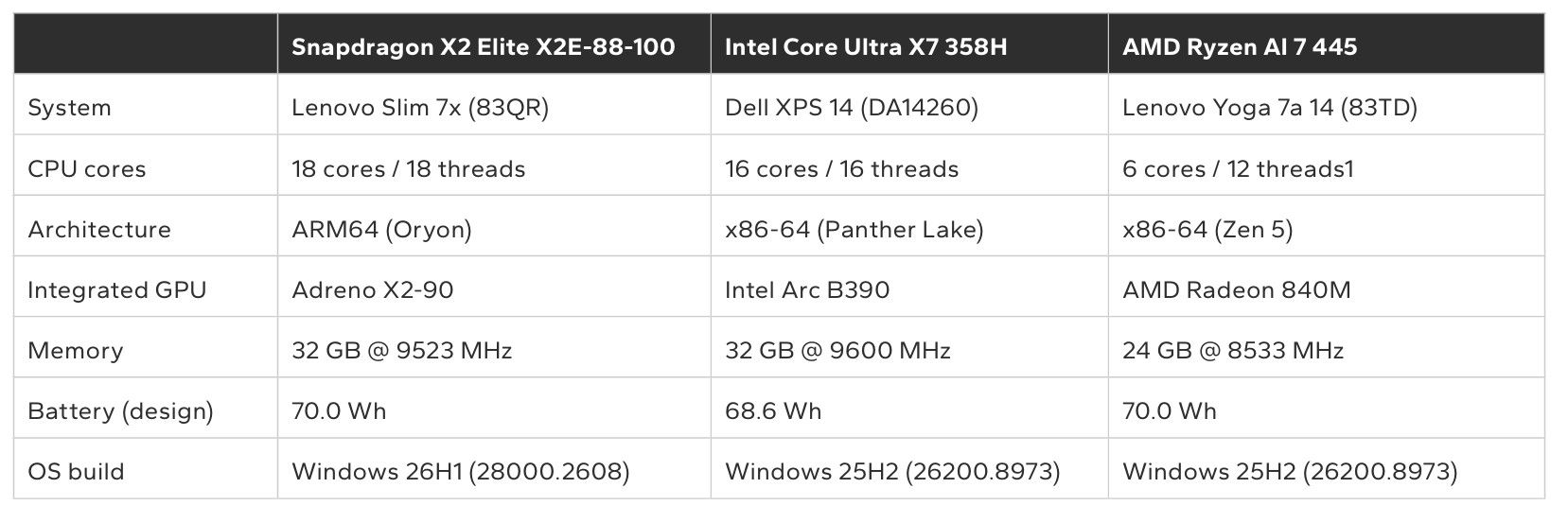
The independent testing firm's latest research examined the standard 18-core Snapdragon X2 Elite X2E-88-100 in Lenovo's Slim 7x, comparing it against Intel's Core Ultra X7 358H inside Dell's banger XPS 14 and AMD's Ryzen AI 7 445 in Lenovo's Yoga 7a 14.

This time, the focus shifted from large 16-inch flagship laptops to the increasingly important premium 14-inch category, where thermal constraints, battery life, and efficiency matter just as much as peak performance.

The most consistent finding in the data is that the Snapdragon system does not need to be set to a higher power profile to reach its top-tier performance, while the x86 systems do.

Signal65 Report

Luckily for Qualcomm, which commissioned the study, the results largely mirror the earlier Extreme-chip study. Qualcomm's platform led in CPU performance, AI workloads, productivity, and most battery-focused tests while also coming in significantly below the price of the Intel system evaluated.

Table comparing specifications of Lenovo Slim 7x, Dell XPS 14, and Lenovo Yoga 7a 14 laptops powered by Snapdragon, Intel Core Ultra, and AMD Ryzen processors.

Comparing specifications of Lenovo Slim 7x, Dell XPS 14, and Lenovo Yoga 7a 14 laptops powered by Snapdragon, Intel Core Ultra, and AMD Ryzen processors. (Image credit: Signal65)

However, that does not mean Qualcomm won everything. Intel continues to hold meaningful advantages in graphics performance (exemplified to perfection in MSI’s latest handheld gaming PC), and the XPS 14 remains one of the most premium Windows laptops available today. Still, the latest findings strengthen the argument that Snapdragon's lead is no longer limited to a halo product, nor a quirk of its Extreme chip.

Let's dive into the numbers, and then break down what it really means, as there is some nuance here.

Strong CPU results, even without the flagship chip

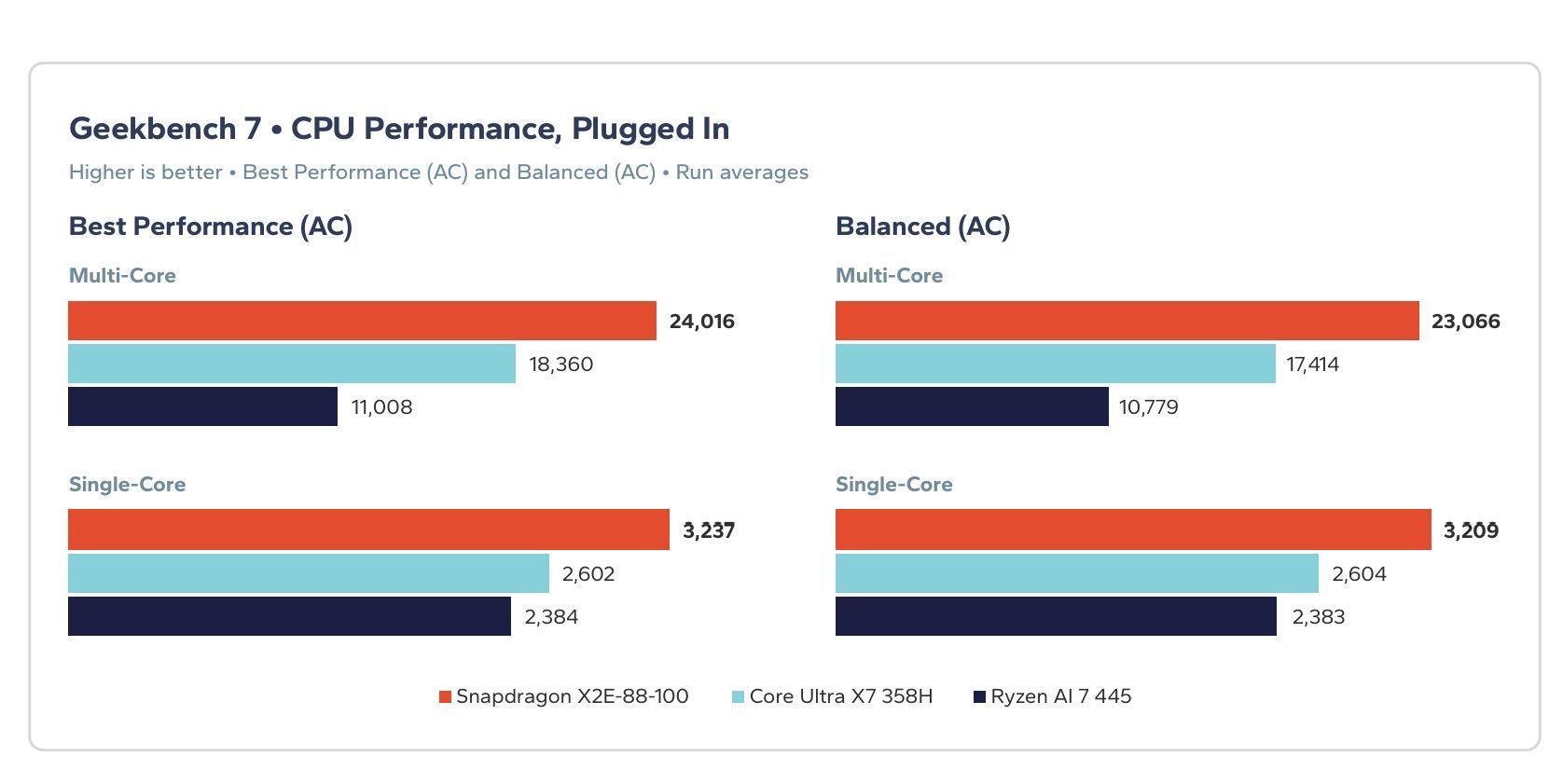
Bar chart comparing plugged-in Geekbench 7 single-core and multi-core CPU scores for Snapdragon X2E-88-100, Core Ultra X7 358H, and Ryzen AI 7 445.

Bar chart comparing plugged-in Geekbench 7 single-core and multi-core CPU scores for Snapdragon X2E-88-100, Core Ultra X7 358H, and Ryzen AI 7 445. (Image credit: Signal65)

In Geekbench 7, the Snapdragon-powered Lenovo Slim 7x posted a multi-core score of 24,016, compared to 18,360 for the Intel-powered XPS 14. Single-core performance also favored Qualcomm, with a score of 3,237 against Intel's 2,602.

According to Signal65, that translates into leads of 31% and 24%, respectively, favoring Qualcomm.

Those numbers are especially notable because they are not solely the result of having more CPU cores. While Qualcomm's 18-core design certainly helps in heavily threaded workloads, the single-core advantage points to meaningful architectural gains from the second-generation Oryon design as well.

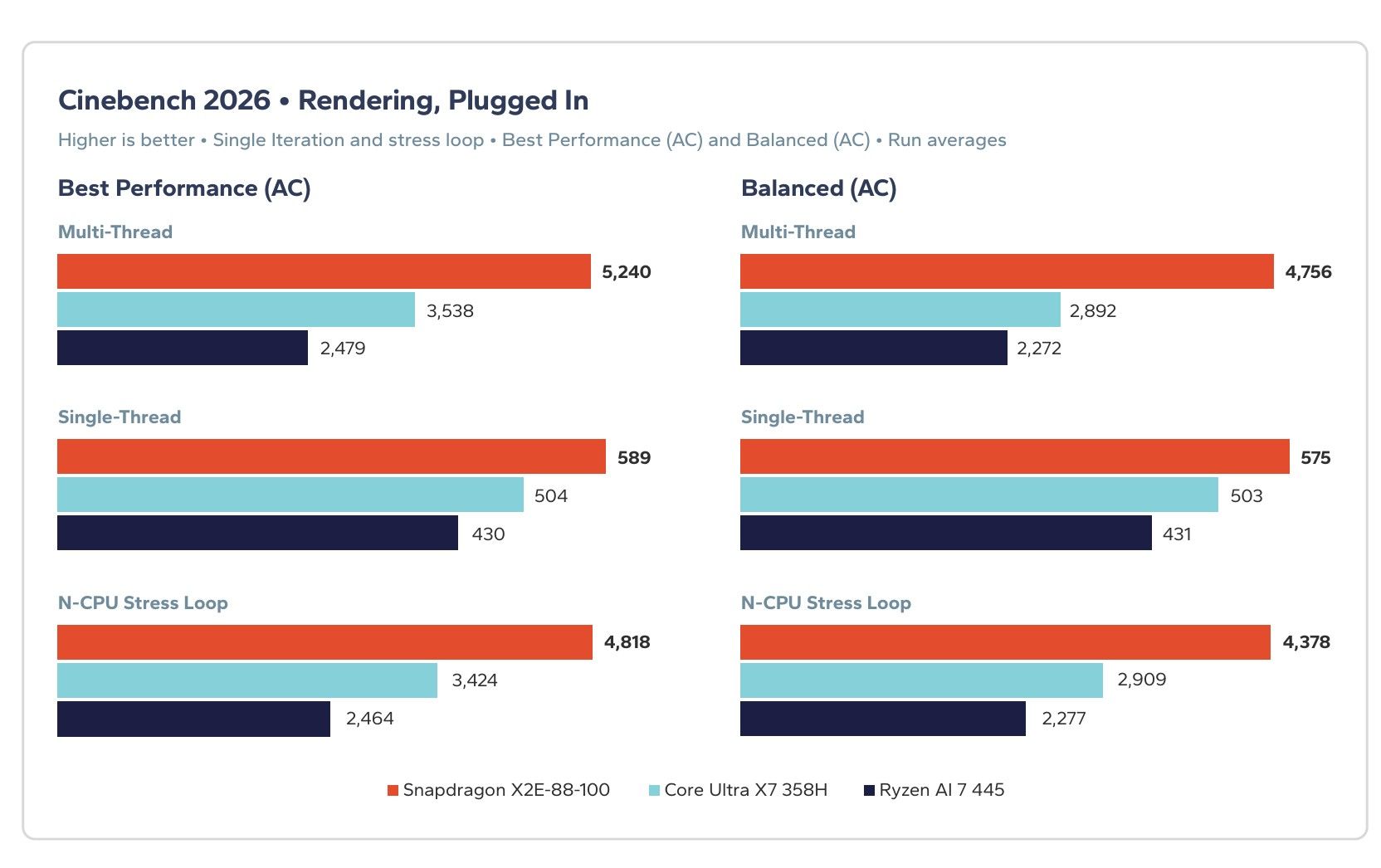
Bar chart comparing plugged-in Cinebench 2026 rendering scores for Snapdragon X2E-88-100, Core Ultra X7 358H, and Ryzen AI 7 445 across multi and single-thread tests.

Cinebench 2026 rendering scores for Snapdragon X2E-88-100, Core Ultra X7 358H, and Ryzen AI 7 445 across multi and single-thread tests. (Image credit: Signal65)

The company also maintained substantial leads in Cinebench 2026 rendering tests and across Microsoft's Office applications as measured by UL Procyon. In the productivity benchmark, Snapdragon led Intel by 10% in Best Performance mode and retained a smaller advantage in the default Balanced profile.

For buyers who spend most of their day in Word, Outlook, PowerPoint, Edge, and Teams, those productivity-oriented results may matter more than synthetic benchmark scores.

Qualcomm's AI advantage continues

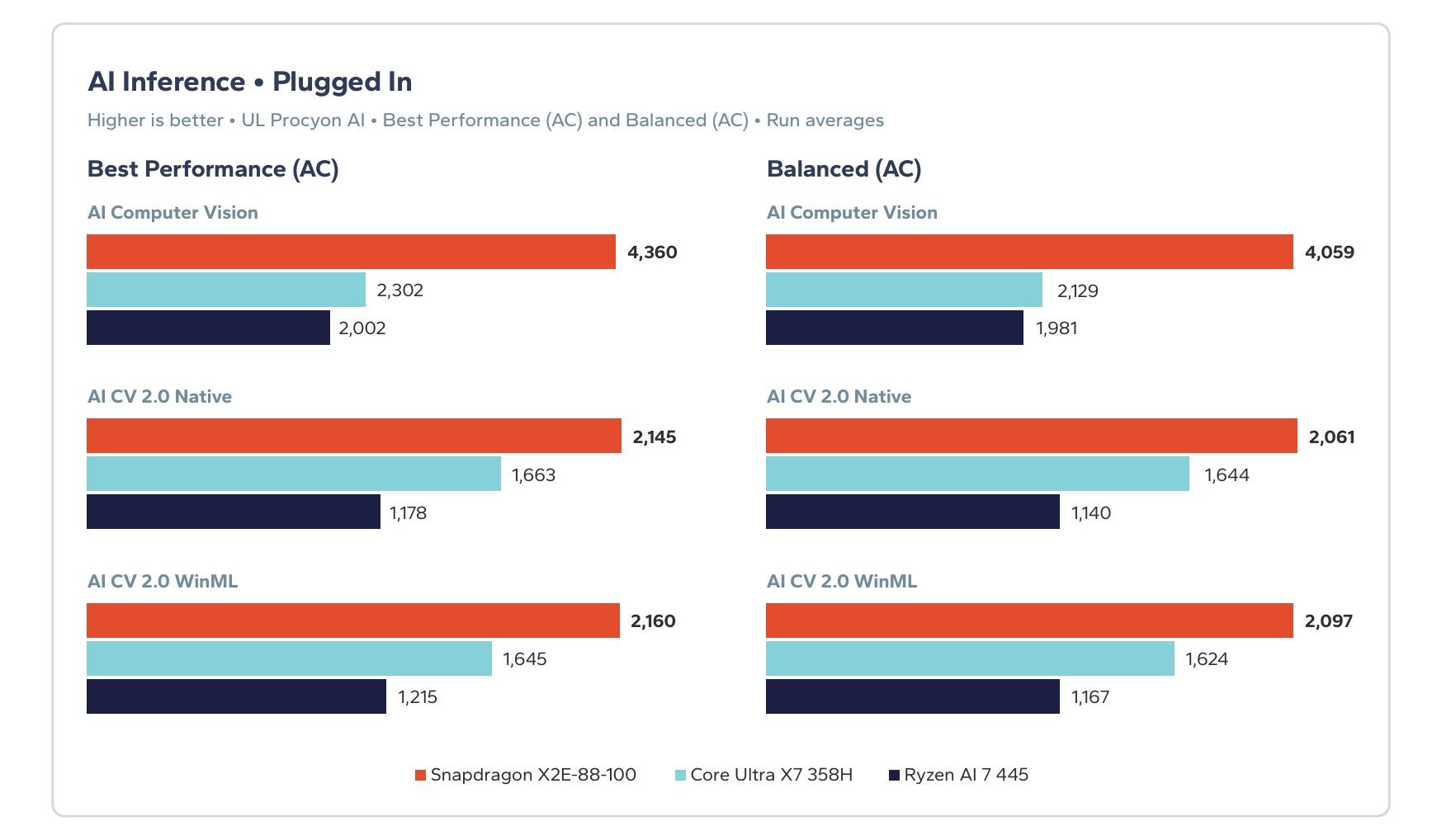
Bar chart comparing plugged-in AI inference scores for Snapdragon X2E-88-100, Core Ultra X7 358H, and Ryzen AI 7 445 under Best Performance and Balanced modes.

Comparing plugged-in AI inference scores for Snapdragon X2E-88-100, Core Ultra X7 358H, and Ryzen AI 7 445 under Best Performance and Balanced modes. (Image credit: Signal65)

AI remains one of Qualcomm's strongest categories.

In UL Procyon AI Computer Vision, the Snapdragon system scored 4,360 compared to Intel's 2,302. Even in the newer AI CV 2.0 WinML benchmark, which routes through Microsoft's Windows ML framework rather than a vendor-specific path, Qualcomm maintained a lead of roughly 31% over Intel.

That distinction is important because it better reflects the way many Windows AI experiences are expected to work going forward. Basically, a benchmark that favors proprietary software optimizations is useful, but a benchmark that preserves the advantage through a common Windows layer is arguably more relevant.

Battery performance remains a major story

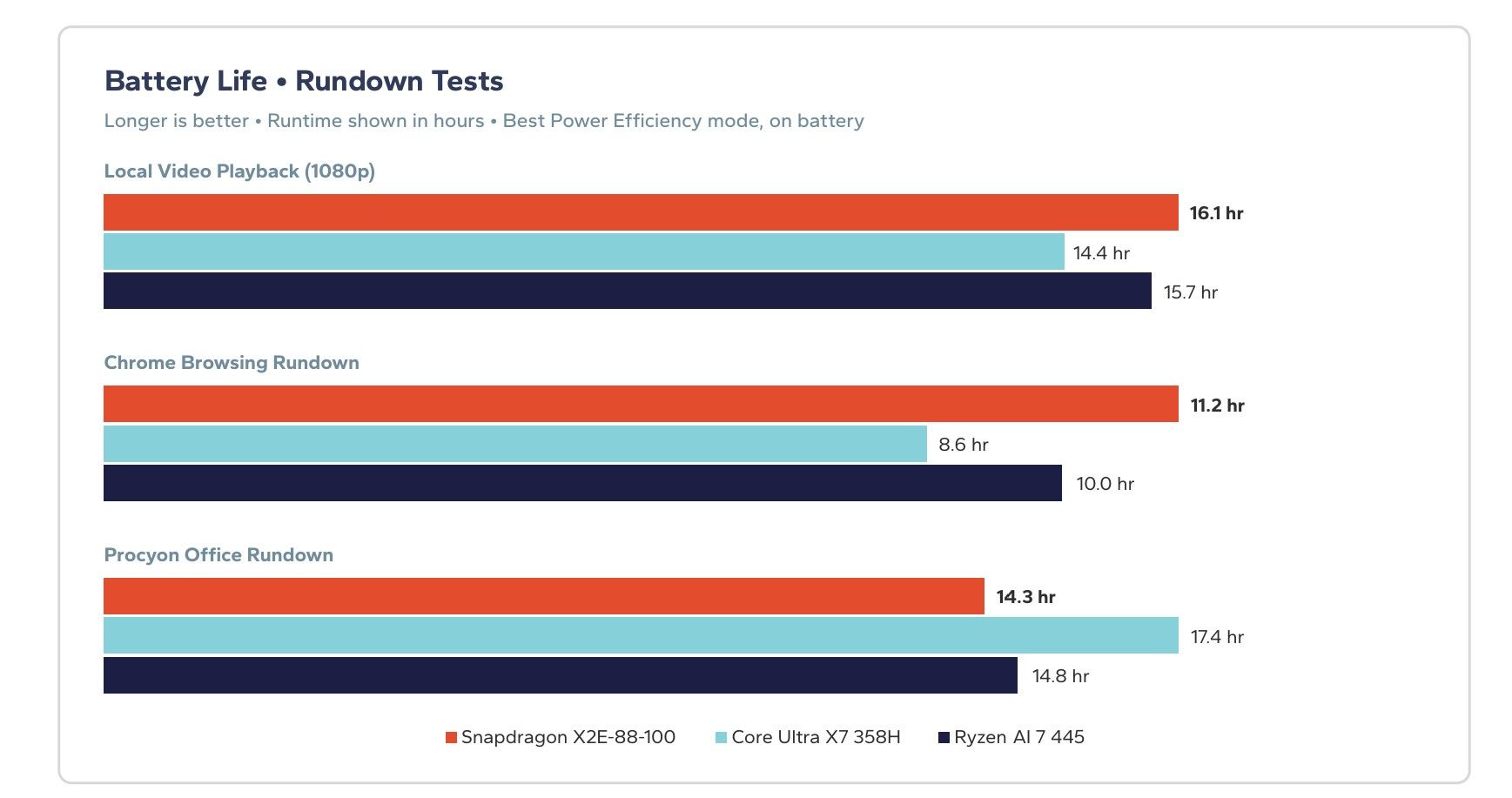
Bar chart comparing battery runtime in hours for Snapdragon X2E-88-100, Core Ultra X7 358H, and Ryzen AI 7 445 in video playback, web browsing, and office tasks.

Battery runtime in hours for Snapdragon X2E-88-100, Core Ultra X7 358H, and Ryzen AI 7 445 in video playback, web browsing, and office tasks. (Image credit: Signal65)

One of the headline findings from the earlier Snapdragon X2 Elite Extreme study was that Qualcomm gave up remarkably little performance when running unplugged. Qualcomm has been touting this advantage since the first gen of Snapdragon X.

The trend continues here.

Across six benchmarks, the Snapdragon system retained an average of 97% of its plugged-in Balanced-mode performance. Intel retained 95%, while the AMD system retained 74%. According to Signal65, the Snapdragon-powered laptop led every CPU, productivity, and AI benchmark tested on battery.

Critically, we must remember that OEMs, especially on Intel and AMD systems, have leverage on AC/DC performance choices, meaning a company like Lenovo could have its AMD system perform worse on battery ... in order to get better battery life. Companies do this to find what they think is a balance for their intended customer, even if the explanation is opaque.

I wrote about this AMD-throttling issue back in 2021, because I found it frustrating, deceptive, and disappointing. Not much has changed in 2026, apparently.

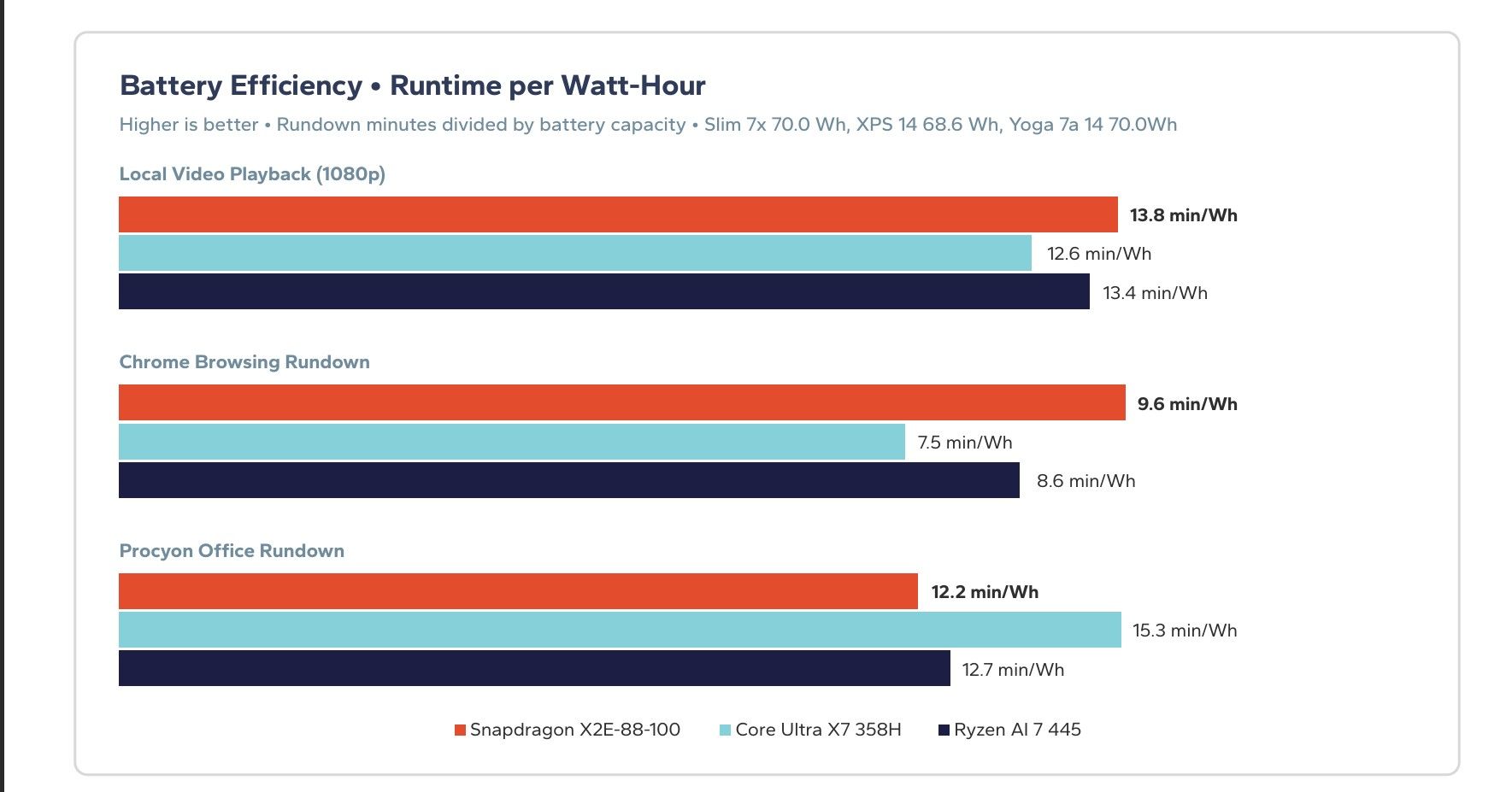
Bar chart showing battery efficiency in min/Wh for Snapdragon X2E-88-100, Core Ultra X7 358H, and Ryzen AI 7 445 across video, Chrome, and Office tests.

Battery efficiency in min/Wh for Snapdragon X2E-88-100, Core Ultra X7 358H, and Ryzen AI 7 445 across video, Chrome, and Office tests. (Image credit: Signal65)

The battery life data was also favorable for Qualcomm, particularly because the three laptops used nearly identical battery capacities.

The Slim 7x (Qualcomm) lasted 16.1 hours in local video playback compared to 14.4 hours for the XPS 14 (Intel). In a Chrome browsing rundown, the Snapdragon laptop reached 11.2 hours versus 8.6 hours for Intel's machine.

There was one significant exception. Intel won the sustained Procyon Office battery test, posting 17.4 hours compared to Qualcomm's 14.3 hours. Signal65 argues that Snapdragon completed more work during that test, making the outcome more nuanced than a simple battery-life loss, but the result remains one of Intel's clearest victories in the report.

The XPS 14 deserves context

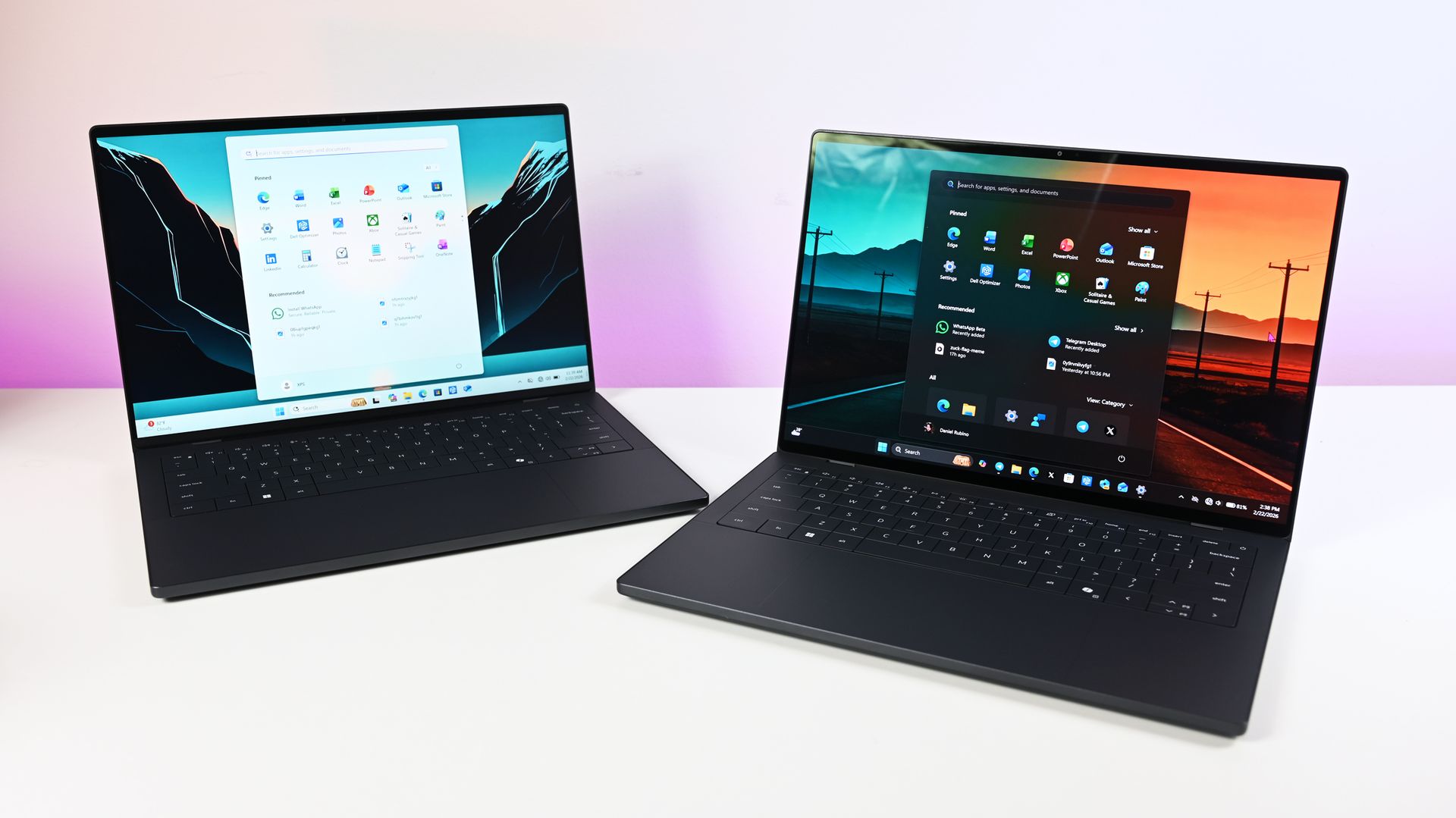
Two dark gray Dell XPS 14 laptops placed side by side on a white desk, one set to light mode and the other displaying a dark mode interface.

Dell's famed premium XPS 14 (2026) models. (Image credit: Daniel Rubino)

This is where I think the conversation becomes more interesting than benchmark charts.

The Snapdragon machine tested was a $1,999 Lenovo Slim 7x. The Intel competitor was a $2,749 Dell XPS 14. That $750 difference looms over nearly every chart in the report.

At the same time, it is difficult to discuss the XPS 14 purely as a processor comparison.

Dell's laptop is widely regarded as one of the most premium Windows notebooks on the market, with exceptional build quality, materials, industrial design, and one of the best displays available in the category. The Signal65 report acknowledges that these are comparisons of complete retail systems rather than isolated silicon measurements.

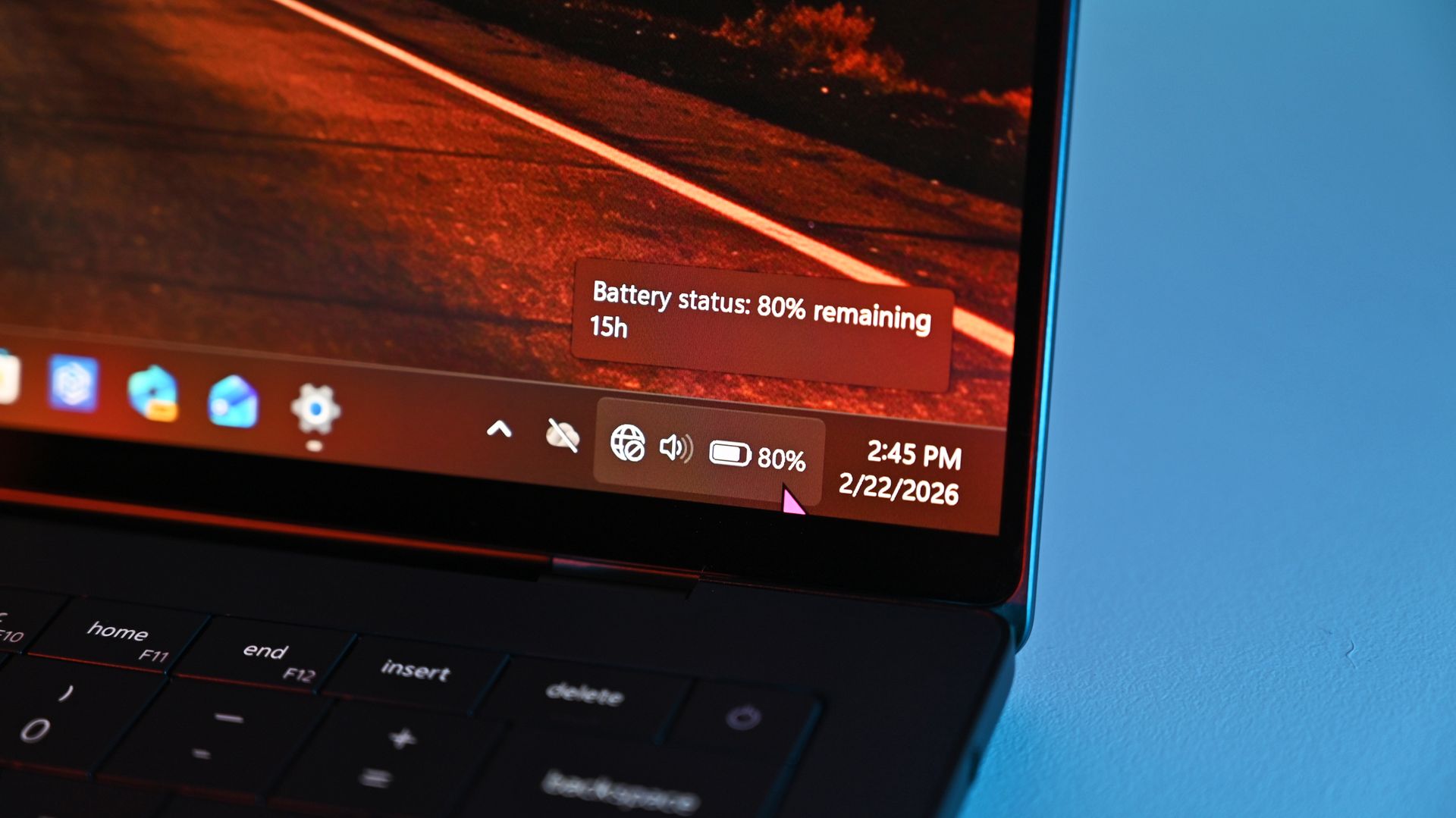
Close-up of a Windows taskbar on a Dell XPS 14 screen displaying a battery status pop-up showing 80% remaining with an estimated 15 hours of battery life.

Dell XPS 14 screen displaying a battery status pop-up showing 80% remaining with an estimated 15 hours of battery life. (Image credit: Daniel Rubino)

That matters because buyers are not choosing between just processors. They are choosing between laptops, aka the full package.

The display difference is particularly worth mentioning. Signal65 did not evaluate screen quality, but Dell's OLED-equipped XPS 14 has generally been considered one of the standout displays in the Windows ecosystem. Some buyers may reasonably decide that premium construction, display quality, and graphics performance justify paying more.

Others may look at a $750 premium and conclude that Intel's advantages are simply not large enough, which is fair, too. After all, we reviewed the Yoga Slim 7x back in May and gave it very high marks.

It's also worth pointing out that Dell's display is a VRR 120Hz at 2880 x 1800, while the Slim 7x is just 1920 x 1200 at 60Hz (both are OLED). Anyone worth their salt in comparing laptops and battery life knows the display is, by far, the number one draw on power, so while I do believe Qualcomm's chip here is better, a pinch of salt is needed for battery life results.

Intel still has a meaningful win: GPU

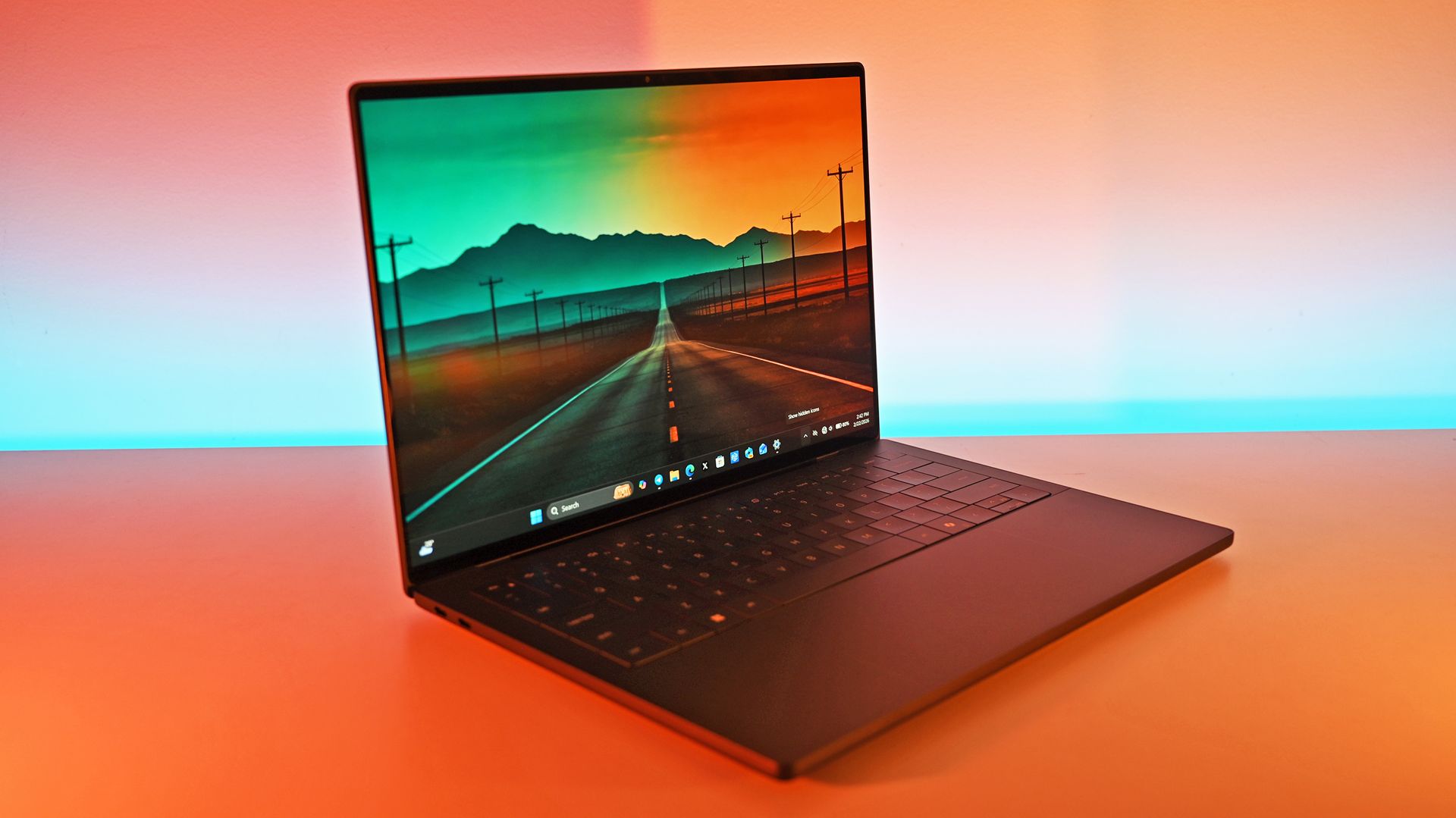
A dark gray Dell XPS 14 laptop open on a table showing a wallpaper of an open road stretching toward mountains, illuminated by ambient warm light.

Dell's XPS 14 with Intel has a powerful Arc B390. (Image credit: Daniel Rubino)

The strongest argument for Intel remains graphics, something the company has been working very hard at in recent years.

In 3DMark Steel Nomad Light, Intel's Arc B390 outperformed Qualcomm's Adreno X2-90 GPU by roughly 23% in both DirectX 12 and Vulkan testing. That's the same GPU powering the beastly MSI Claw 8 EX AI+ gaming handheld, which crushes AMD in the same space.

The practical consequence is that the Intel system's wins require the user to be plugged in and to have selected the right mode, while the Snapdragon system's wins do not.

Signal65 Report

For users who prioritize integrated graphics performance, gaming, or creative workloads that benefit from stronger GPU hardware, Intel still has a compelling case.

That advantage becomes harder to defend when price enters the discussion, which is why Signal65 ultimately concludes that Snapdragon delivers better performance per dollar across the tested systems. According to the study, Qualcomm's laptop delivered roughly 2.15 times Intel's value when normalized across selected CPU, rendering, and AI benchmarks.

Final thoughts

Image of the Lenovo Yoga Slim 7x (Gen 9).

Lenovo Yoga Slim 7x (Gen 9) with Qualcomm Snapdragon X2 Elite processor. (Image credit: Windows Central | Zachary Boddy)

As with the previous report, this study was commissioned by Qualcomm, a fact readers should keep in mind. Signal65 remains an independent testing organization, but commissioned research naturally benefits from additional scrutiny.

Even with that caveat, the broader pattern is becoming difficult to ignore. I also trust the results.

The earlier Snapdragon X2 Elite Extreme report established that Qualcomm's flagship laptop chip could outperform competing Intel and AMD systems. This latest study suggests those advantages extend well beyond the top, hard-to-find SKU.

That may be the more consequential finding.

Flagship products are important for headlines, but the laptops that shape a market tend to be the mainstream premium systems people actually purchase. If Qualcomm can deliver strong CPU performance, class-leading AI results, competitive battery life, and lower pricing with a standard 18-core Snapdragon X2 Elite, the company has moved beyond proving a point and started building a sustainable competitive position in the Windows laptop market.

Lenovo Slim 7x

Lenovo's Slim 7x with Qualcomm Snapdragon X2 Elite. (Image credit: Lenovo)

From my experience with both systems, I prefer Qualcomm since they usually run cooler and quieter, and my overall Windows 11 experience feels faster and smoother. That said, I have to admit Intel’s Core Ultra 3 series has really closed the gap — they’re genuinely impressive chips.

If anything, the bigger subtext with this story is just how far AMD has fallen out of this space. We recently covered how no modern Surface PCs opt for AMD, and it's not because of "not enough product" as Microsoft claims. It's because Microsoft knows they're not as good as what Intel and Qualcomm offer, full stop.

The bigger takeaway from these results is not that Qualcomm won another benchmark comparison. It's that Qualcomm appears to have successfully scaled its advantages beyond a halo product. Intel now faces a more difficult reality: competing not only against Snapdragon's fastest chip, but against the one that is likely to ship in far more laptops.

Click to join us on r/WindowsCentral

Join us on Reddit at r/WindowsCentral to share your insights and discuss our latest news, reviews, and more.
Hands-on: Panasonic’s TOUGHBOOKs are becoming the AI nerve center for frontline operations

Panasonic's TOUGHBOOK lineup turns 30 this year (see my earlier coverage of the new TOUGHBOOK 55), and after attending the company's product briefing in a very rainy New York City, I'm convinced the future of rugged computing isn't just about surviving drops, rain, and extreme temperatures.

It's about becoming the intelligent edge computer that sits at the center of everything.

That might sound like marketing fluff until you see the demos. One station showed a military drone feeding reconnaissance data back to a TOUGHBOOK for local analysis. Another demonstrated how police fleets can connect vehicle diagnostics directly into a TOUGHBOOK-based management system, allowing departments to track everything from VINs and odometer readings to fuel levels, fault codes, and maintenance schedules.

In other words, Panasonic's new TOUGHBOOK 34 and TOUGHBOOK G3 are increasingly becoming mission-critical data hubs for the people who protect, rescue, repair, and support the rest of us.

And yes, they're still absurdly rugged.

Thirty years later, the mission remains the same

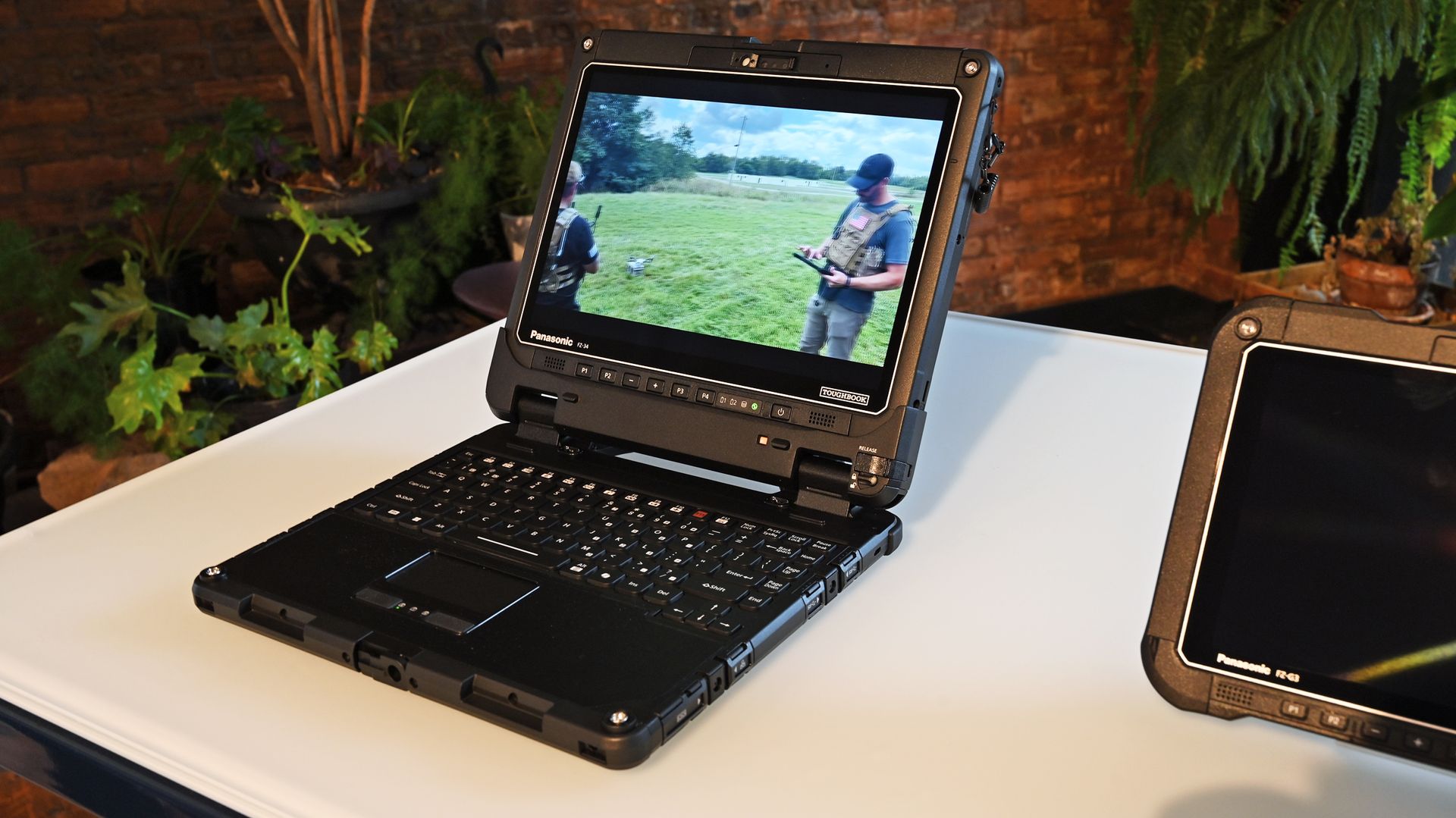
Open Panasonic TOUGHBOOK 34 laptop on a table playing video footage of drone operators outdoors.

Panasonic TOUGHBOOK 34 laptop on a table playing video footage of drone operators. (Image credit: Daniel Rubino)

One theme came up repeatedly throughout Panasonic's presentation: purpose-built computing.

As Panasonic executives noted, their customers aren't buying laptops to answer email from a coffee shop. These systems are deployed in police cruisers, ambulances, utility trucks, military vehicles, warehouses, disaster zones, and industrial sites where failure is not an option.

As Panasonic put it during the briefing, "our devices are purpose-built," adding that workers are often operating in "extreme heat, extreme cold, vibration, water, dust" and environments where "lives are on the line."

A soldier in tactical gear and gloves is holding the back of a rugged Panasonic TOUGHBOOK 34 tablet outdoors.

A soldier in tactical gear and gloves holding the back of the Panasonic TOUGHBOOK 34 tablet. (Image credit: Panasonic TOUGHBOOK)

That philosophy has helped TOUGHBOOK carve out a niche that practically nobody else occupies.

While consumer laptops compete over OLED displays and thinness, Panasonic spends its time figuring out how to keep a device communicating over private 5G networks during storm response operations.

Meet the TOUGHBOOK 34 and TOUGHBOOK G3

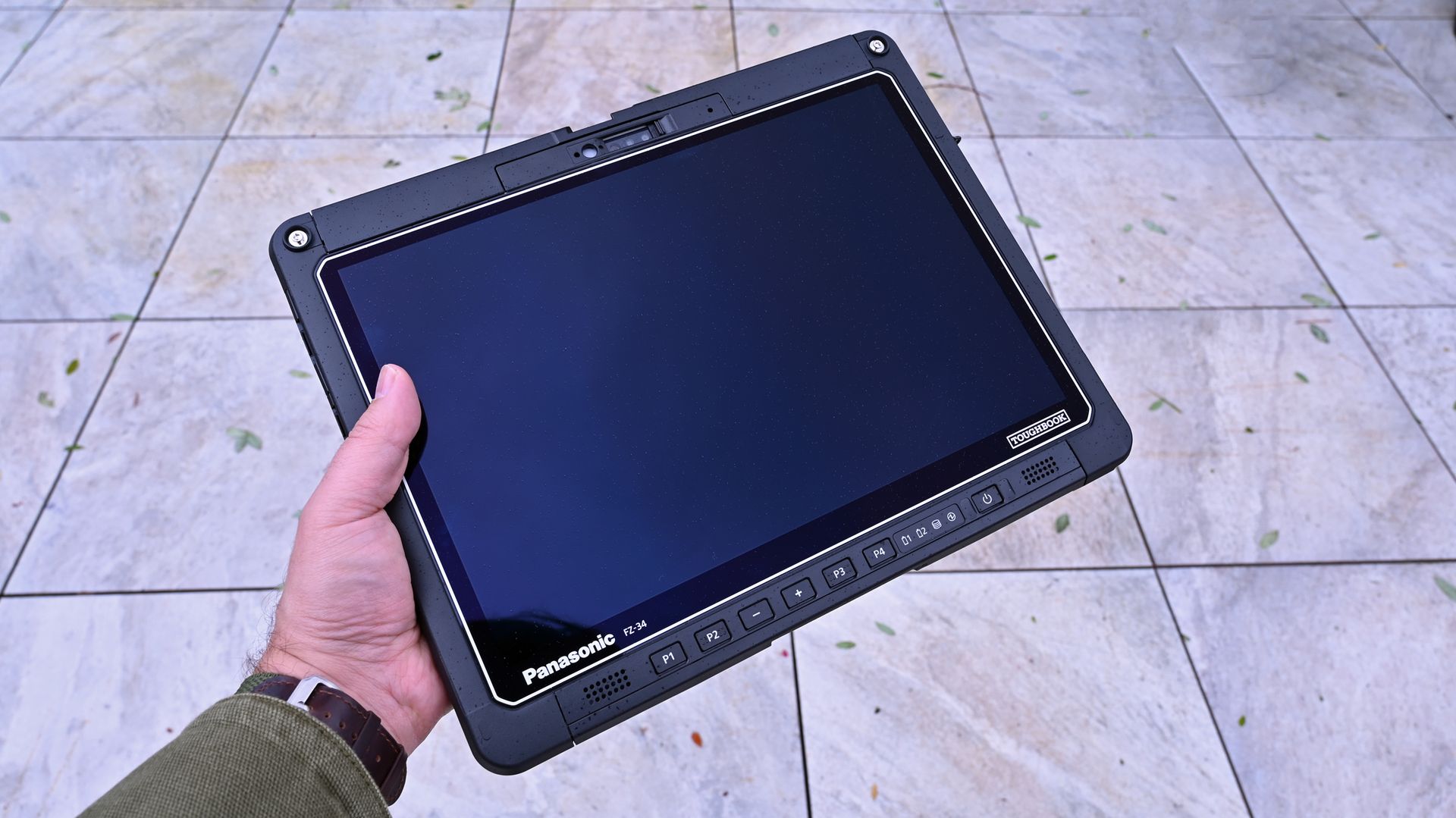
A hand holding a Panasonic TOUGHBOOK FZ-34 tablet outdoors, showing its black screen and front control buttons.

Panasonic TOUGHBOOK FZ-34 Windows 11 tablet, showing its black screen and front control buttons. (Image credit: Daniel Rubino)

This launch introduces two new fully rugged 2-in-1 systems.

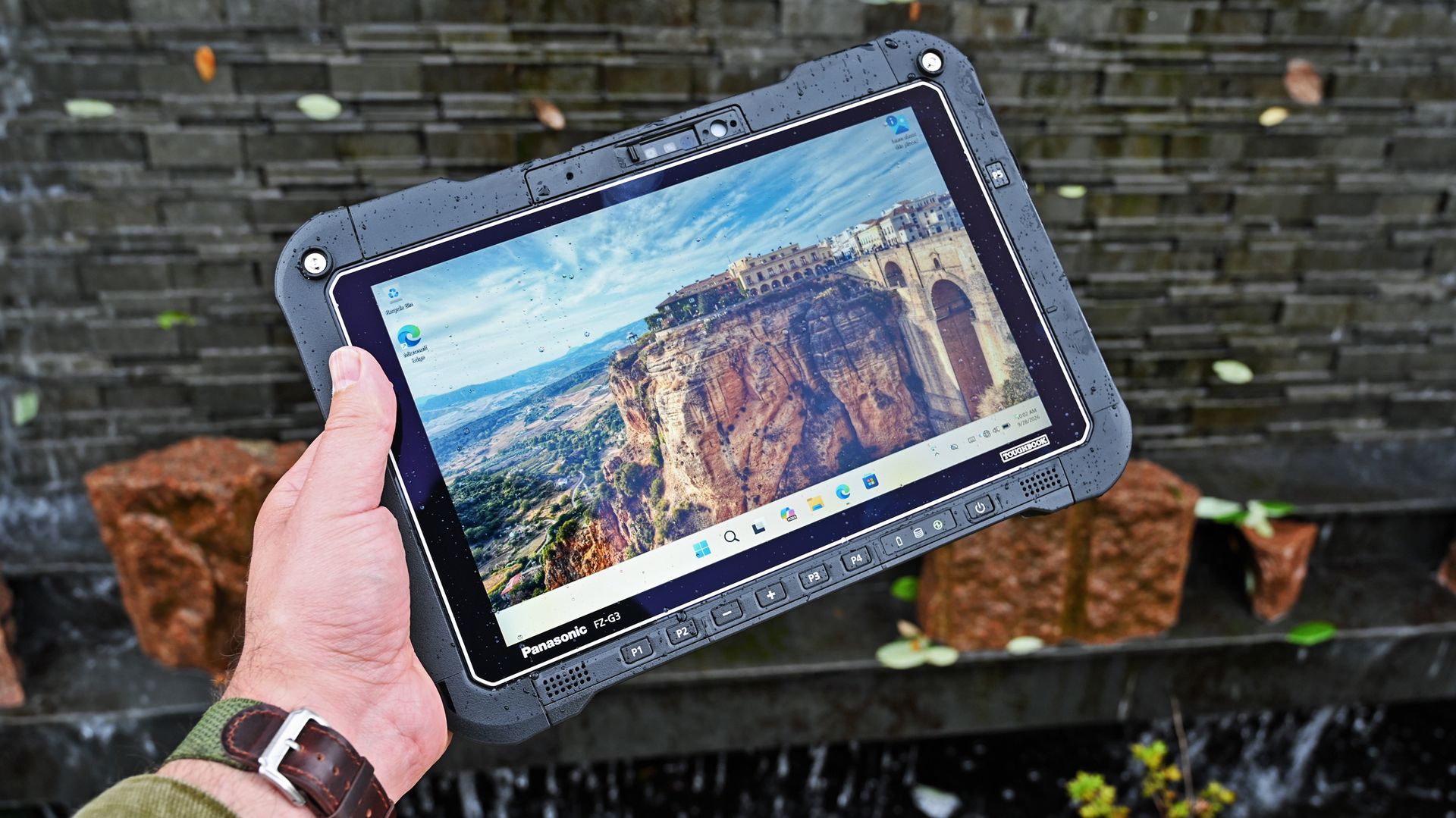
The TOUGHBOOK 34 serves as the successor to the long-running TOUGHBOOK 33 that I've reviewed, while the TOUGHBOOK G3 replaces the TOUGHBOOK G2 that I also previously reviewed and described as one of the most modular and rugged PCs on the market.

According to Mike Smola, Senior Director of Product Management at Panasonic Connect North America:

"No two workers, no two vehicles, and no two workflows are exactly alike. Some jobs call for a larger product with more workspace and more versatility."

That's really the story here.

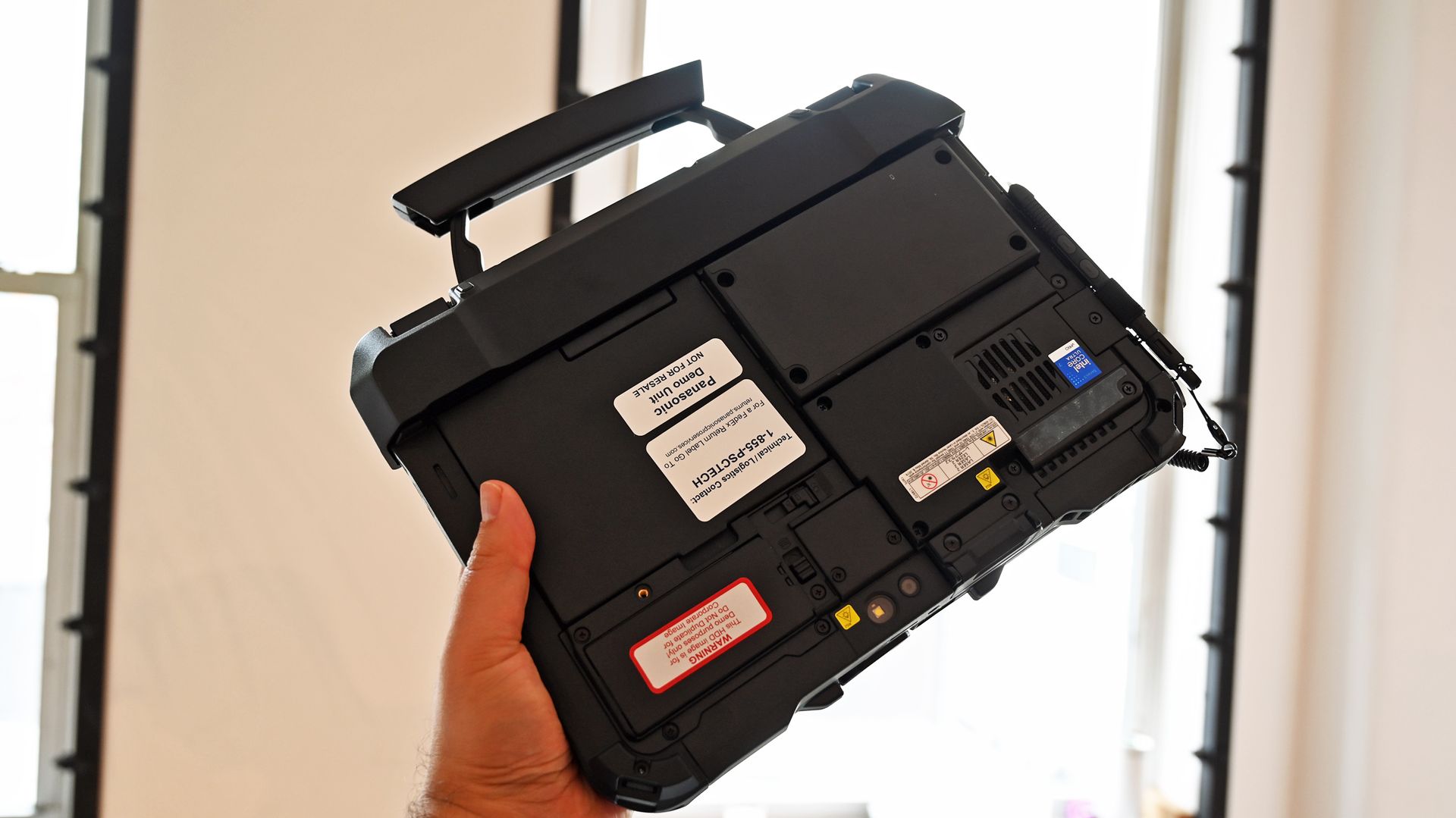
A person holding a rugged Panasonic TOUGHBOOK G3 by its top carrying handle, showing the back chassis and component labels.

The smaller TOUGHBOOK G3 with keyboard attachment has the familar built in handle for easy carrying. (Image credit: Daniel Rubino)

The TOUGHBOOK 34 features a larger 12.4-inch display and is designed for users who spend significant time in vehicles, command centers, or managing information-dense workflows. The G3 uses a more compact 10.1-inch form factor that's easier to carry into the field.

As one Panasonic executive explained during the public safety discussion:

"Fire and EMS leverage both sizes: the larger TOUGHBOOK 34 for in-vehicle CAD and command control, and the compact G3 in the back of ambulances for patient care."

The biggest upgrade is AI

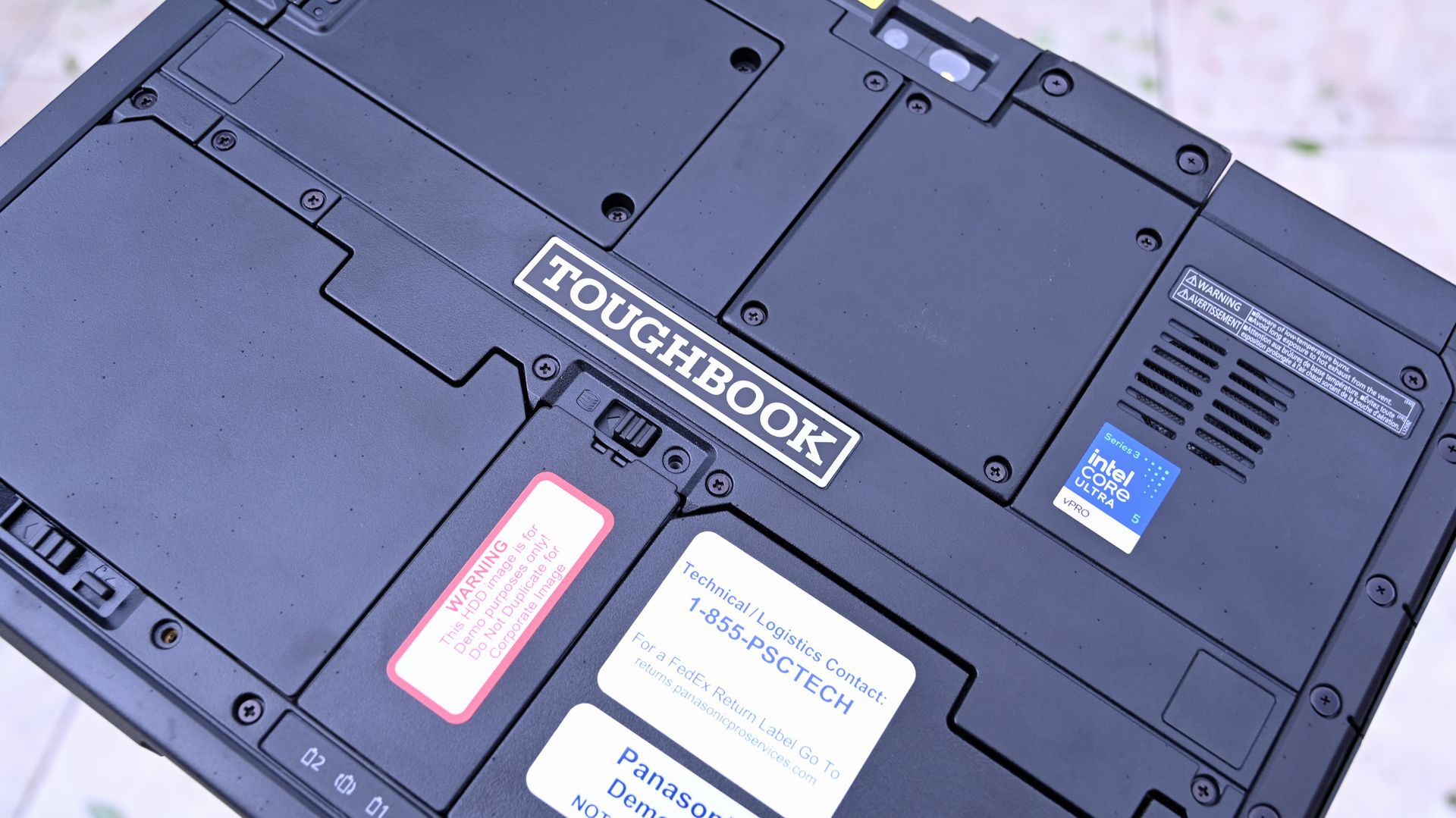
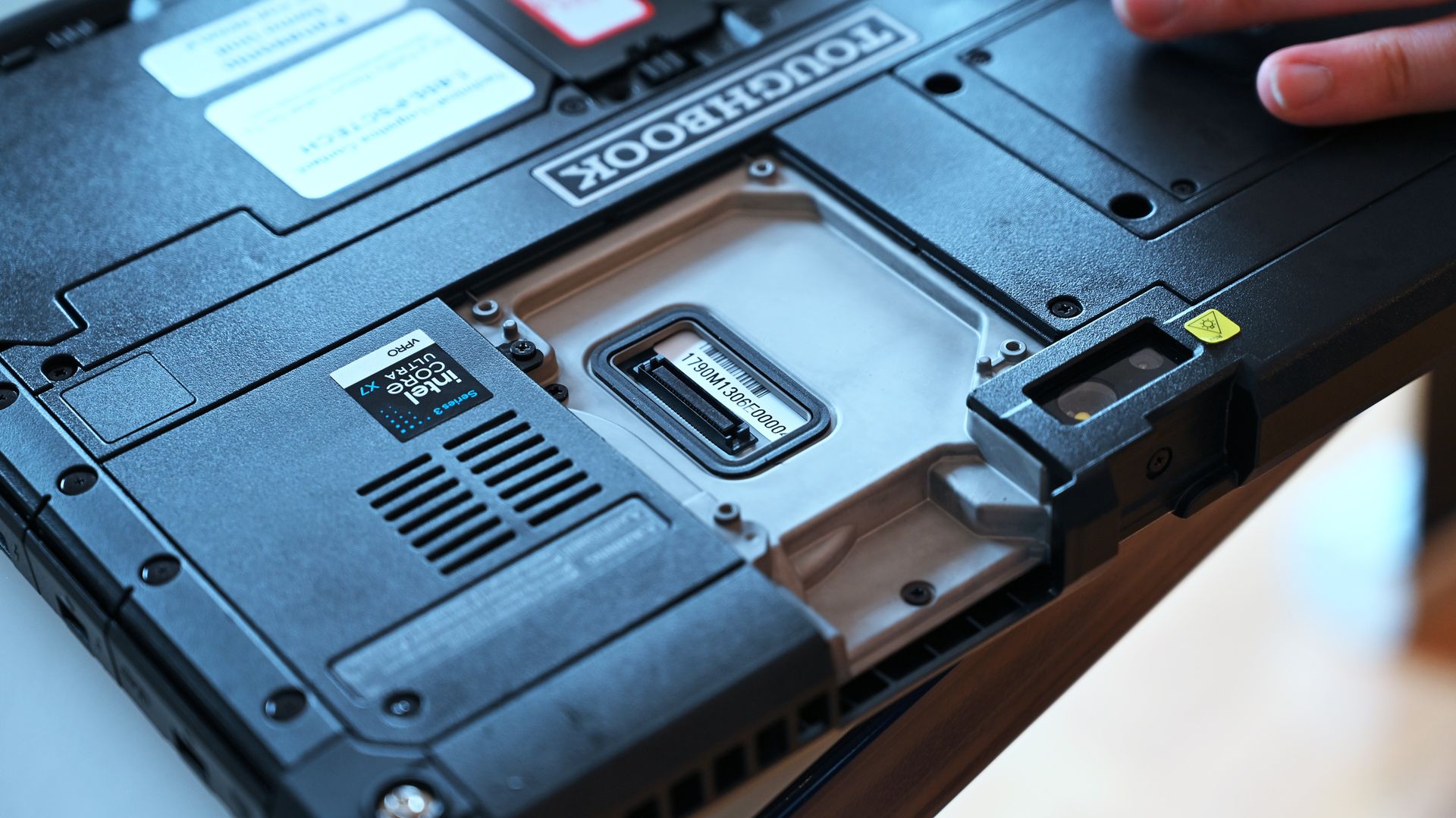
Rear chassis of a Panasonic TOUGHBOOK 34 displaying modular latches, TOUGHBOOK logo, and Intel Core Ultra 5 sticker.

The latest TOUGHBOOKs feature Intel's 3rd-gen Core Ultra series processors with built-in NPUs for local AI processing. (Image credit: Daniel Rubino)

The headline feature across both devices is the move to Intel's latest Core Ultra platform.

Both systems now offer Intel Core Ultra 5 335H and Ultra X7 368H processors complete with onboard NPUs and AI acceleration capabilities. Panasonic is increasingly positioning these devices as AI-ready edge computers capable of processing information locally without relying on cloud connectivity.

A Panasonic TOUGHBOOK G3 tablet secured in a corner-strap harness, showing a punch meter app on the touchscreen.

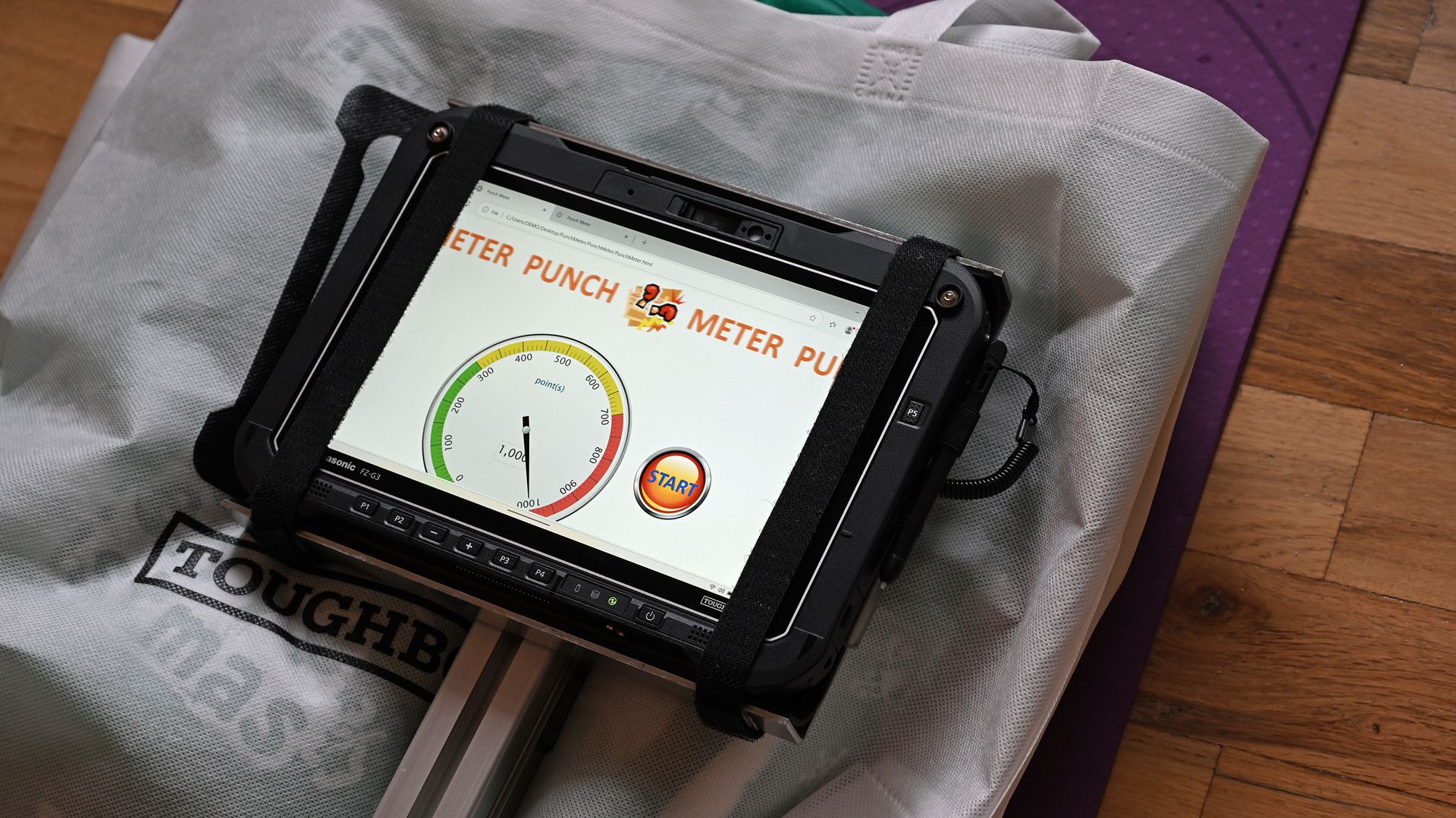
Panasonic had a punch-test demo set up where you could punch a TOUGHBOOK as hard as you could, which was quite entertaining. (Image credit: Daniel Rubino)

That matters more than you might think.

During the federal customer panel, Panasonic highlighted a scenario that's becoming increasingly common in military and government environments.

As Panasonic's federal team explained:

"Deployed military personnel aboard ships or in tactical environments often operate without network connectivity due to operational security." AI-capable processing on TOUGHBOOK devices allows personnel to perform tactical, medical, and technical searches without depending on a remote connection."

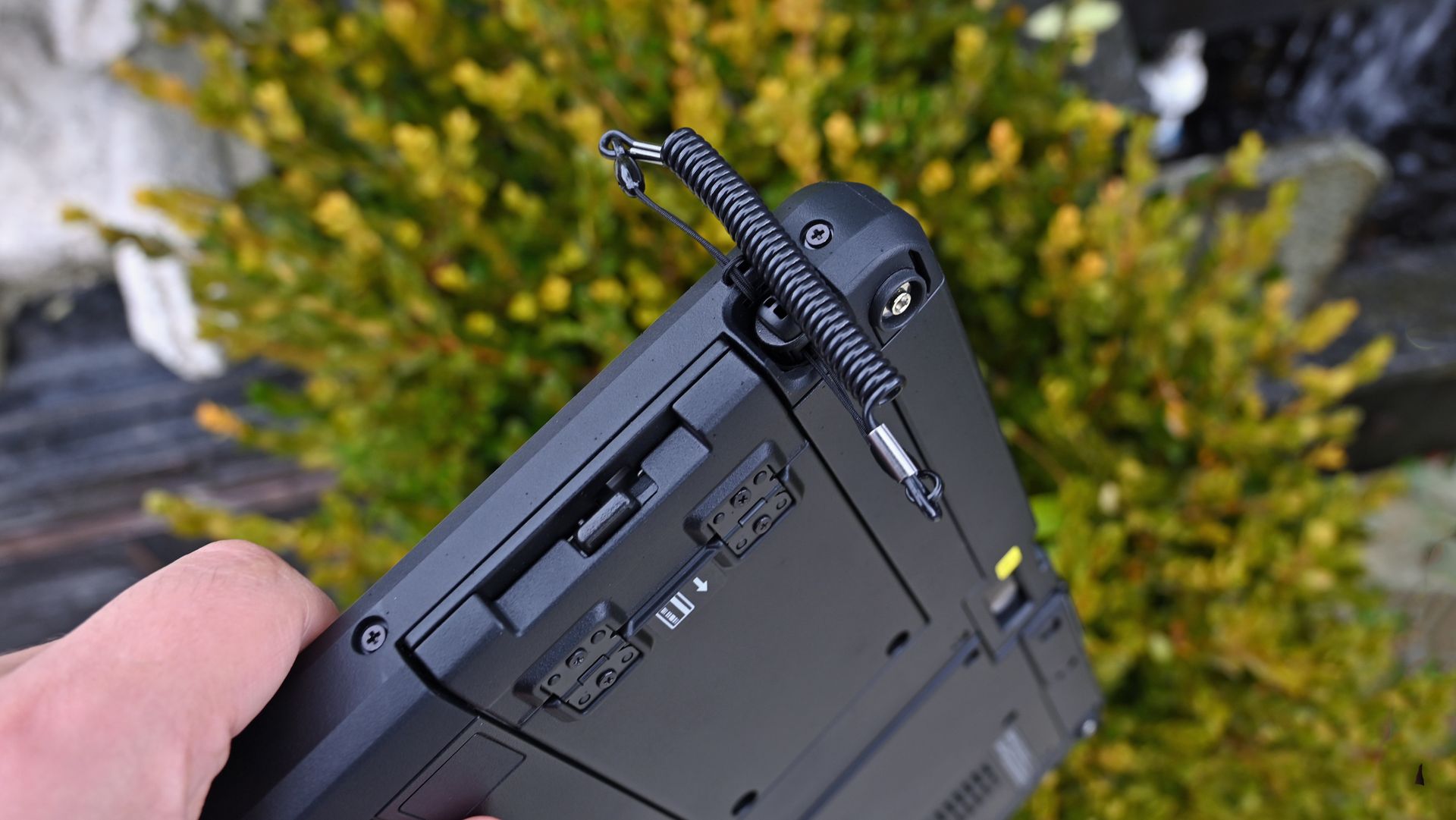
Close-up of the upper rugged chassis of a Panasonic TOUGHBOOK 34 showing an attached coiled stylus tether.

Close-up of the upper rugged chassis of a Panasonic TOUGHBOOK 34 showing an attached coiled stylus tether with a built-in pen. (Image credit: Daniel Rubino)

For most consumers, AI means generating images or summarizing documents. But for military users, it can mean analyzing information locally while disconnected from networks entirely.

That's a very different use case.

From military drones to local AI analysis

A gray quadcopter drone on a desk next to a

The Teledyne FLIR ION-series tactical reconnaissance drones are often used by military with the Panasonic TOUGHBOOK range. (Image credit: Daniel Rubino)

The most interesting demonstration I saw involved a tactical drone setup.

Panasonic demonstrated how rugged computing platforms can work alongside systems such as the Teledyne FLIR ION-series tactical reconnaissance drones that are commonly used by military, government, and emergency-response organizations.

While separate physical controls handle flight operations, the TOUGHBOOK effectively becomes the intelligence terminal. Drone imagery and reconnaissance data can be brought onto the device, recorded, analyzed, and processed locally using onboard computing resources.

I didn't watch the drone take flight during the event, but seeing Panasonic position the TOUGHBOOK as the AI-capable analysis point for tactical aerial systems offered a very real glimpse into how these machines are used beyond traditional laptop duties.

That use case also aligns with Panasonic's announcement that both devices support unmanned systems control and UAV ground-control applications in federal environments

TOUGHBOOKs are becoming smarter police tools, too

An informational display sign reading

(Image credit: Daniel Rubino)

The police vehicle demonstration may have been even more compelling.

Rather than focusing on dispatch software alone, Panasonic showed how TOUGHBOOK systems can act as fleet intelligence platforms.

Through Panasonic's TOUGHCommand ecosystem, agencies can connect vehicle systems and pull operational data directly into the computer. Information such as vehicle identification, odometer readings, fuel levels, speed data, maintenance information, and diagnostic information can all be surfaced through a centralized dashboard.

Close-up of a Panasonic FZ-55 display running fleet intelligence software, showing map tracking data for a Ford F-250.

Close-up of a Panasonic FZ-55 display running fleet intelligence software, showing map tracking data for a Ford F-250. (Image credit: Daniel Rubino)

The really interesting layer sits on top of that data.

Panasonic's new Command Intelligence features allow IT teams and fleet managers to query those systems using AI and natural-language questions rather than digging through massive databases manually.

That turns the TOUGHBOOK into something closer to a command-and-control platform, instead of just a rugged laptop.

For organizations managing hundreds or thousands of vehicles, that could be a substantial value-add beyond the hardware itself.

The modularity advantage nobody else offers

An electric screwdriver tightening a screw into a modular expansion panel on the back of a black Panasonic TOUGHBOOK G3 tablet.

An electric screwdriver tightening a screw into a modular expansion panel on the back of a black Panasonic TOUGHBOOK G3 tablet. (Image credit: Daniel Rubino)

Having reviewed the G2 and covered Panasonic's rugged lineup for years, the thing that continues to impress me isn't the drop testing or waterproofing.

It's the modularity.

The TOUGHBOOK 34 and G3 both feature Panasonic's xPAK ecosystem, allowing users to swap hardware modules as needs change. Options include barcode scanners, additional USB ports, serial ports, smart card readers, fingerprint readers, networking hardware, and more.

Panasonic's goal is simple: one device should adapt to many jobs.

Close-up of the rear panel of a rugged Panasonic TOUGHBOOK G3, displaying expansion ports, cooling vents, an Intel Core Ultra sticker, and serial tag.

Close-up of the rear panel of a rugged Panasonic TOUGHBOOK G3, displaying opened xPAK expansion port, cooling vents, an Intel Core Ultra sticker, and serial tag. (Image credit: Daniel Rubino)

A warehouse worker can add scanning capabilities. A utility technician can prioritize GPS and connectivity. An automotive technician can add legacy ports for vehicle diagnostics.

Instead of replacing the entire computer when requirements evolve, customers can reconfigure it. More importantly, this can be done locally without sending out the TOUGHBOOK back to Panasonic to be reconfigured. Not only is that time-consuming, but if the PC is used by the government and it has sensitive data on the drives, it limits who can even touch that laptop.

That's a surprisingly rare concept in modern computing.

Better displays, stronger connectivity, longer life

Close-up of the lower bezel on a Panasonic TOUGHBOOK FZ-34 tablet, featuring hardware function buttons (P1-P4) and speaker.

Close-up of the lower bezel on a Panasonic TOUGHBOOK FZ-34 tablet, featuring hardware function buttons (P1-P4) and speaker. (Image credit: Daniel Rubino)

The hardware itself receives meaningful updates, too.

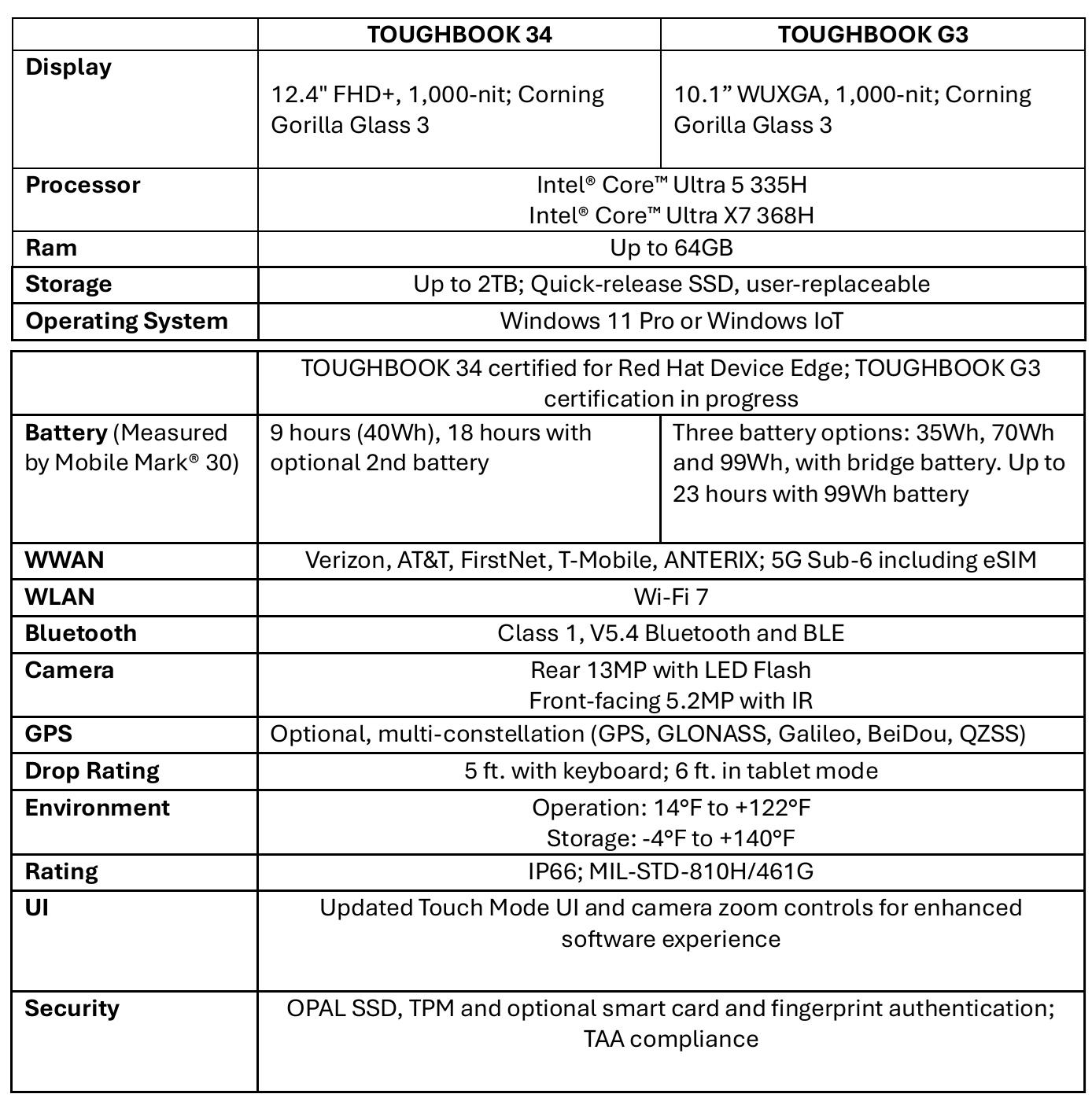
For the TOUGHBOOK 34, Panasonic increased the screen size from 12 inches to 12.4 inches while moving to a 3:2 aspect ratio that's better suited to productivity work. Executives noted that the revised resolution and scaling choices allow users to view more information with less scrolling.

A specification table comparing features of the Panasonic TOUGHBOOK 34 and TOUGHBOOK G3, including display, processor, battery life, ratings, and security.

(Image credit: Panasonic TOUGHBOOK)

The G3 retains its 10.1-inch format but benefits from updated display tuning, 2-to-1000-nit brightness control, and improved readability for outdoor work.

Panasonic also highlighted a new glove and rain touch experience on the TOUGHBOOK 34.

As the company explained:

"You don't want the end user to take off gloves to touch the screen." Users can switch between glove and standard touch modes using programmable controls.

I actually tried this myself, and while it's still a bit clunky to operate a touchscreen with heavy gloves on, it can be done through this technology.

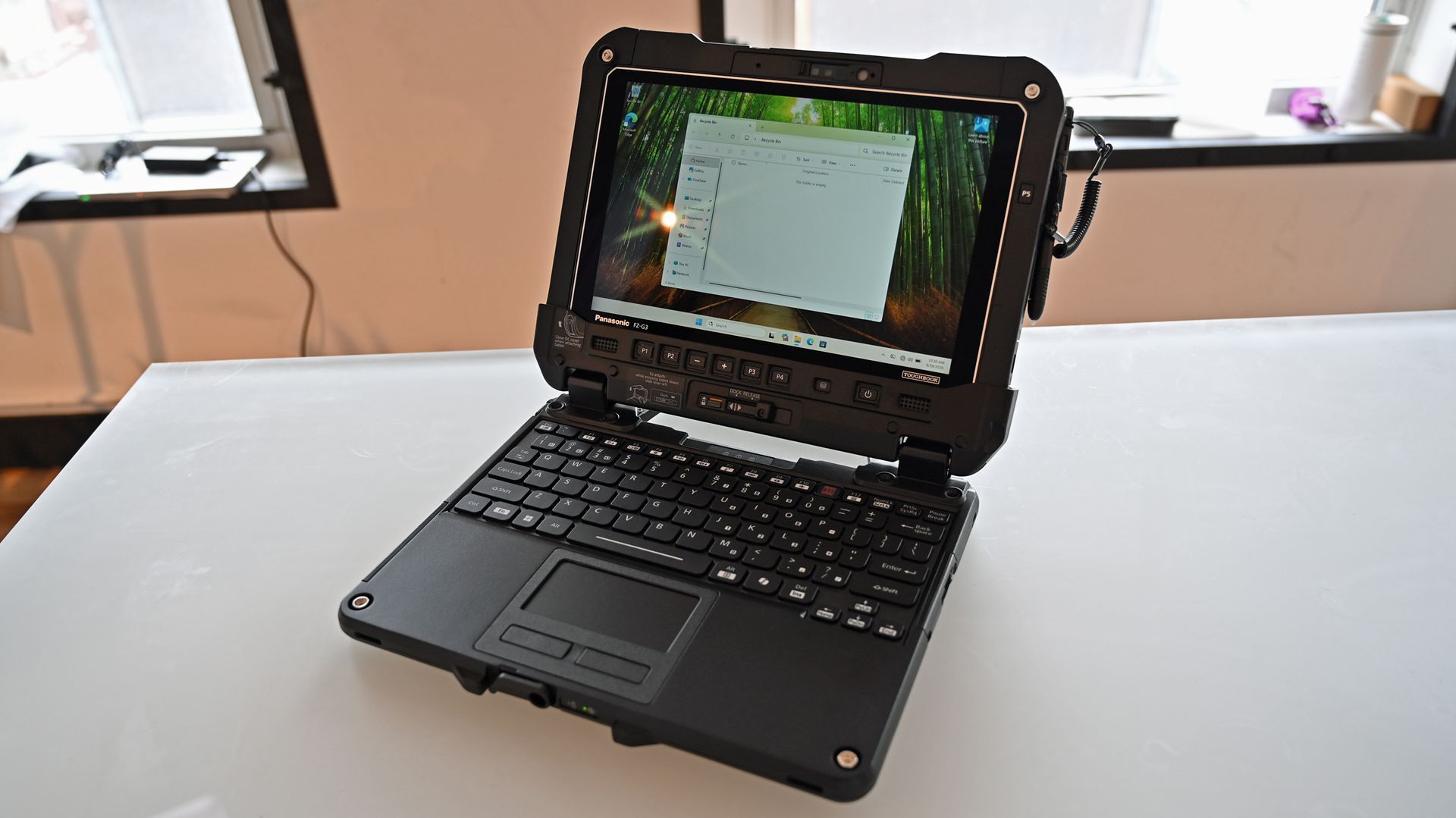
A Panasonic TOUGHBOOK G3 rugged tablet docked to a keyboard base, standing open on a white desk like a laptop.

A Panasonic TOUGHBOOK G3 rugged tablet docked to a keyboard base, standing open on a white desk like a laptop. (Image credit: Daniel Rubino)

Connectivity receives substantial improvements as well.

Compared to the older G2 generation, the G3 moves from 4G LTE options to modern 5G support, upgrades Wi‑Fi 6 to Wi‑Fi 7, and advances Bluetooth 5.1 to Bluetooth 5.4 while adding broader support for private cellular deployments.

For the people actually relying on these systems, those upgrades matter far more than benchmark scores.

A reminder that some PCs have jobs to do

A worker in a high-visibility vest typing on a Panasonic TOUGHBOOK 34 laptop inside a vehicle at a construction site.

Many outdoor professions require the ruggedness that TOUGHBOOK brings to the Windows PC space. (Image credit: Panasonic TOUGHBOOK)

The most fascinating thing about Panasonic's new TOUGHBOOKs isn't that they're rugged. We already knew that, but what's changing is their role.

Thirty years after the first TOUGHBOOK arrived, Panasonic increasingly views these systems as secure, connected, AI-capable edge computers that happen to survive conditions most laptops would never tolerate.

Whether they're helping analyze drone feeds, supporting first responders through FirstNet and private 5G networks, managing vehicle fleets, or keeping utility workers connected during outages, the TOUGHBOOK 34 and G3 demonstrate that laptops can still be specialized tools built for serious missions.

And after an afternoon spent getting hands-on with Panasonic's latest hardware, that may be the most interesting thing about them. Panasonic is building the computers that many of the people protecting, rescuing, and serving the rest of us depend on every day, and I still find that inspiring.

You can find out more about these devices from the Panasonic TOUGHBOOK website.

Click to join us on r/WindowsCentral

Join us on Reddit at r/WindowsCentral to share your insights and discuss our latest news, reviews, and more.
Shure’s latest MV6 Gen 2 microphone blends broadcast‑level sound with gamer‑friendly design

There are plenty of USB microphones aimed at gamers these days, but few come from a company with the audio credentials of Shure. For more than 100 years, Shure has built microphones for musicians, broadcasters, performers, and recording professionals, with products like the SM58 and SM7 becoming industry standards along the way. During a recent briefing with me, Shure described the new MV6 lineup as part of its effort to bring that expertise to creators who want professional-quality audio without the cost and complexity that often comes with traditional XLR gear.

That's what immediately appealed to me about the new MV6 Gen 2 ($169). I've spent the last 15 years using microphones for the Windows Central Podcast, livestreams, media appearances, and interviews. I've used plenty of microphones from Razer, HyperX, Blue, and others, but somehow this was my first extended experience with a Shure. After several weeks of testing, including an appearance on TWiT Episode 1101 where I received compliments on the audio quality afterward, I can see why the company has such a strong reputation among podcasters and broadcasters.

The MV6 Gen 2 may be marketed as a gaming microphone, but after using it, that label feels a little too narrow. This is a microphone for anyone who wants better voice quality without needing an audio interface, mixer, XLR cables, or a degree in audio engineering.

Shure had no input, nor did it see the contents of this review, prior to publication.

What's new with the Shure MV6 USB Gaming Microphone Gen 2?

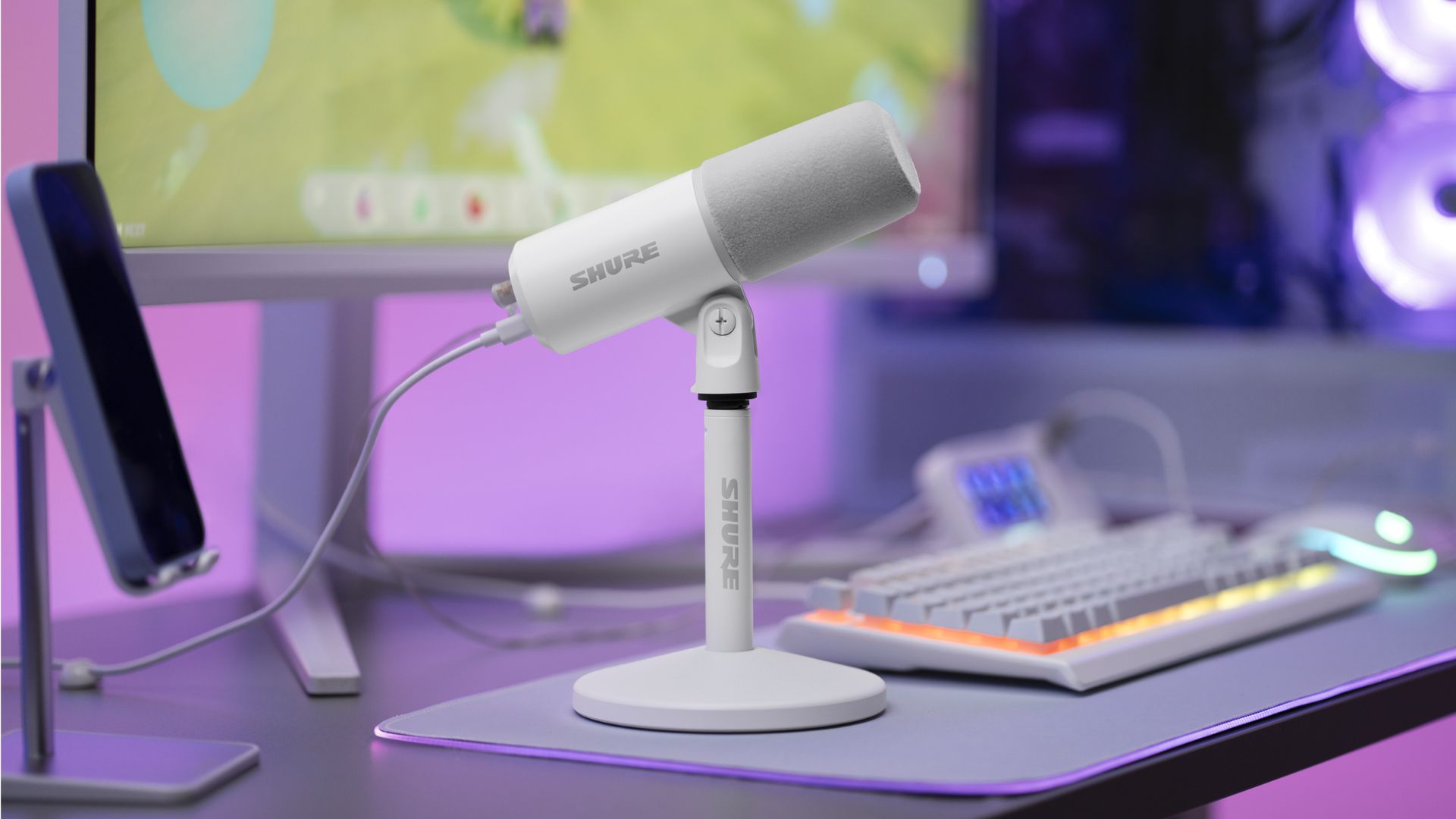
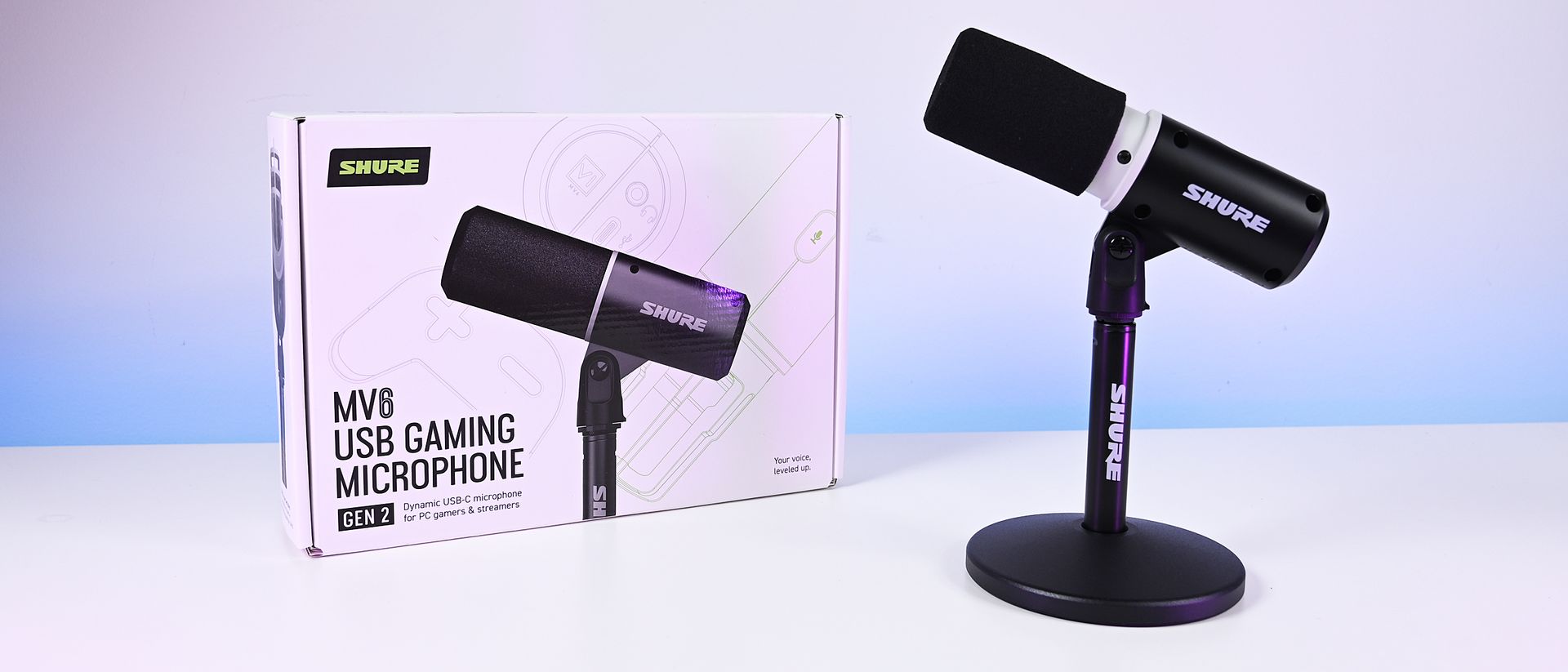
White Shure MV6 USB Gaming Microphone Gen 2 on a desktop stand at a gaming setup with a keyboard, monitor, and purple ambient lighting.

The new Shure MV6 USB Gaming Microphone Gen 2 now comes in a white option, as well. (Image credit: Shure)

I didn't review the original MV6, but most reviews of the first-generation model praised its strong audio quality, easy setup, and excellent value while noting that customization was relatively limited compared to some competitors.

Shure appears to have taken that feedback seriously.

The second-generation MV6 focuses primarily on expanding user control through software and onboard DSP processing rather than reinventing the hardware itself. The microphone still ships with Shure's "sounds great out of the box" philosophy, but users now have significantly more flexibility if they want to fine-tune their audio.

New features include:

  • Adjustable Auto Level controls with configurable target levels
  • New Adaptation Rate settings that determine how quickly gain recovers after volume spikes
  • Adjustable Real-Time Denoiser intensity
  • New Speech, Singing, and Instrument presets
  • A full 5-band EQ for advanced tuning
  • White and black color options
  • A longer included USB-C cable
  • The ability to disable the microphone's touch-sensitive mute button
  • Enhanced DSP processing and customization through the MOTIV Mix software suite

Perhaps most importantly, Shure accomplished this without turning the MV6 into a microphone that demands constant tweaking.

During my briefing, product manager T Banks repeatedly emphasized that users shouldn't need to understand gain staging, EQ curves, or audio engineering to get excellent results. The advanced controls are there if you want them, but the microphone is designed to sound great from the moment it's plugged in.

Shure MV6 USB Gaming Microphone Gen 2: Price and specifications

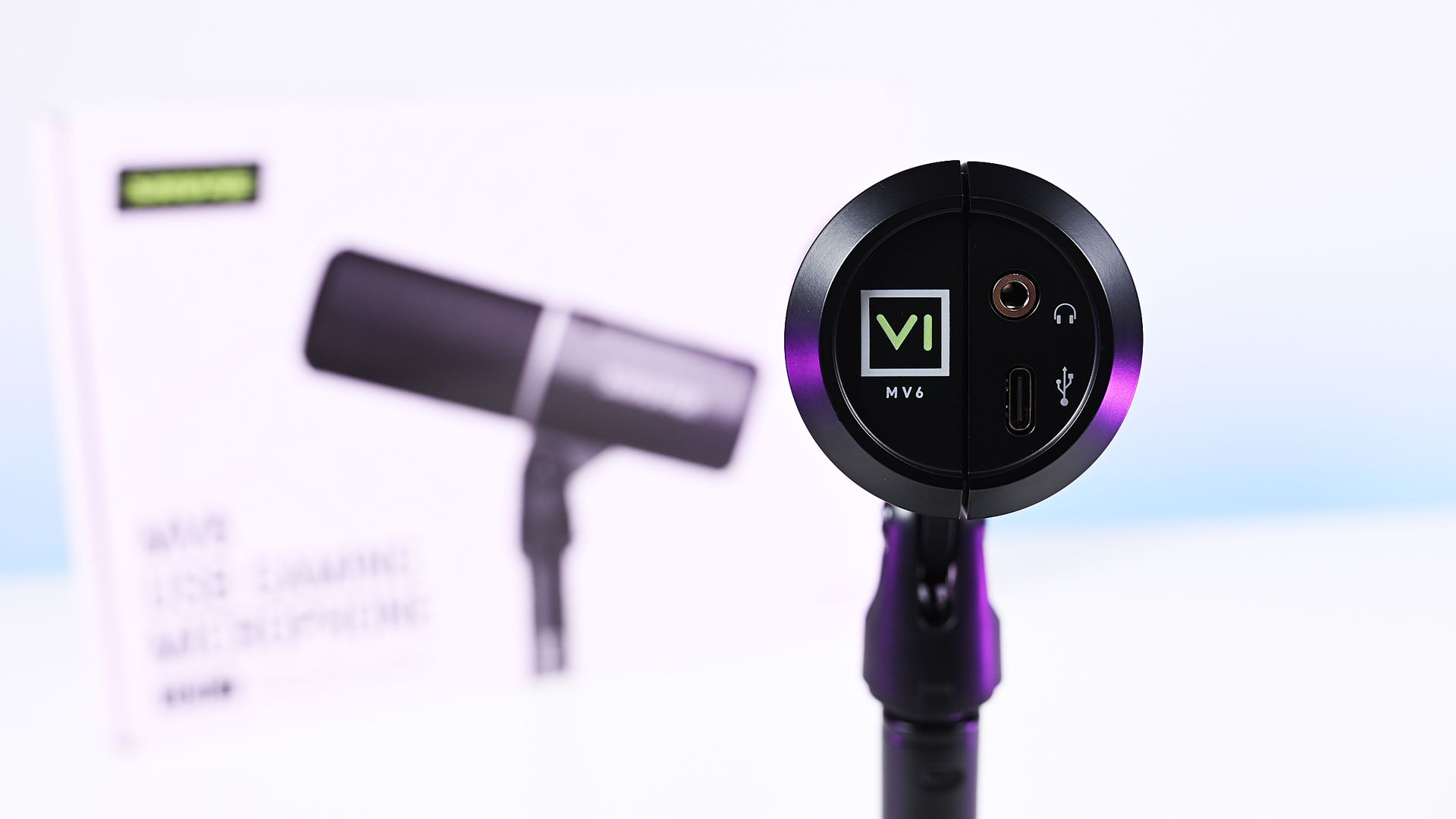
Direct bottom-up view of the Shure MV6 Gen 2 microphone displaying its 3.5mm headphone jack and USB-C port.

Direct bottom-up view of the Shure MV6 Gen 2 microphone displaying its 3.5mm headphone jack and USB-C port. (Image credit: Daniel Rubino)

At $169, the MV6 Gen 2 lands squarely in one of the most competitive segments of the USB microphone market.

That's a price bracket occupied by products like the Razer Seiren V3 Chroma 32-bit and HyperX QuadCast 2 S, both of which offer feature-rich experiences and recognizable gaming branding. The Shure takes a different approach. Instead of trying to out-RGB the competition, it leans heavily on audio quality, DSP processing, and the company's professional heritage.

On paper, the specifications are solid:

  • Dynamic cardioid microphone
  • USB-C connectivity
  • 24-bit / 48 kHz audio
  • Adjustable Auto Level processing
  • Real-Time Denoiser
  • Digital Popper Stopper
  • High-pass filter
  • 5-band EQ
  • 3.5mm monitoring jack
  • Windows, macOS, iOS, and Android support

Basically, these are all the things I want and need in a mic, and none of the extra stuff that I don't.

Shure MV6 USB Gaming Microphone Gen 2: Design and setup

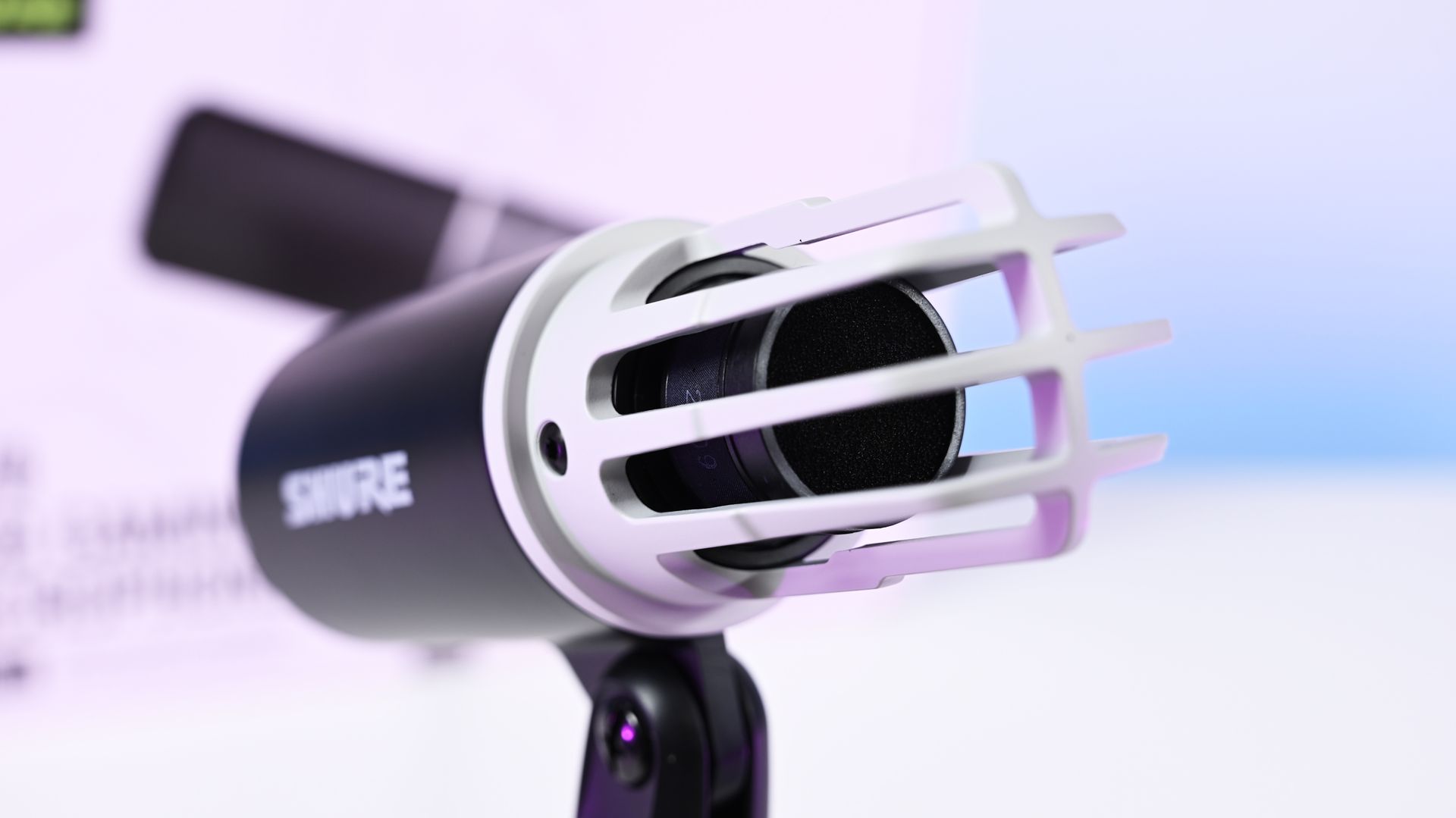
Close-up shot of the Shure MV6 Gen 2 microphone capsule with the foam windscreen off, showing the inner ribbed cage.

Close-up shot of the Shure MV6 Gen 2 microphone capsule with the foam windscreen off, showing the inner ribbed cage. (Image credit: Daniel Rubino)

The MV6 Gen 2 won't be mistaken for a gaming centerpiece.

Compared to the RGB-heavy HyperX QuadCast 2 S or the eye-catching Razer Seiren V3 Chroma, the Shure looks almost understated. The cylindrical design, compact desktop stand, and minimal branding prioritize functionality over personality.

Personally, I like that approach, but I also like glowy things.

The MV6 disappears into the background during video calls and recordings rather than demanding attention. It feels more like a professional tool than a gaming accessory.

Setup is about as painless as USB microphones get. Connect the included USB-C cable, select the device in Windows, and start talking.

One of the more interesting insights from my conversation with Shure involved the company's decision to omit XLR entirely. Shure believes many creators are paying extra for XLR connectivity (like the $249 Razer Seiren V3 Pro) they never actually use. By focusing exclusively on USB and investing heavily in onboard DSP, the company was able to keep costs lower while delivering audio quality that approaches much more complex setups.

Having owned mixers and used XLR microphones myself, I completely understand that reasoning. For most people, this approach makes more sense.

Shure MV6 USB Gaming Microphone Gen 2: MOTIV Mix software

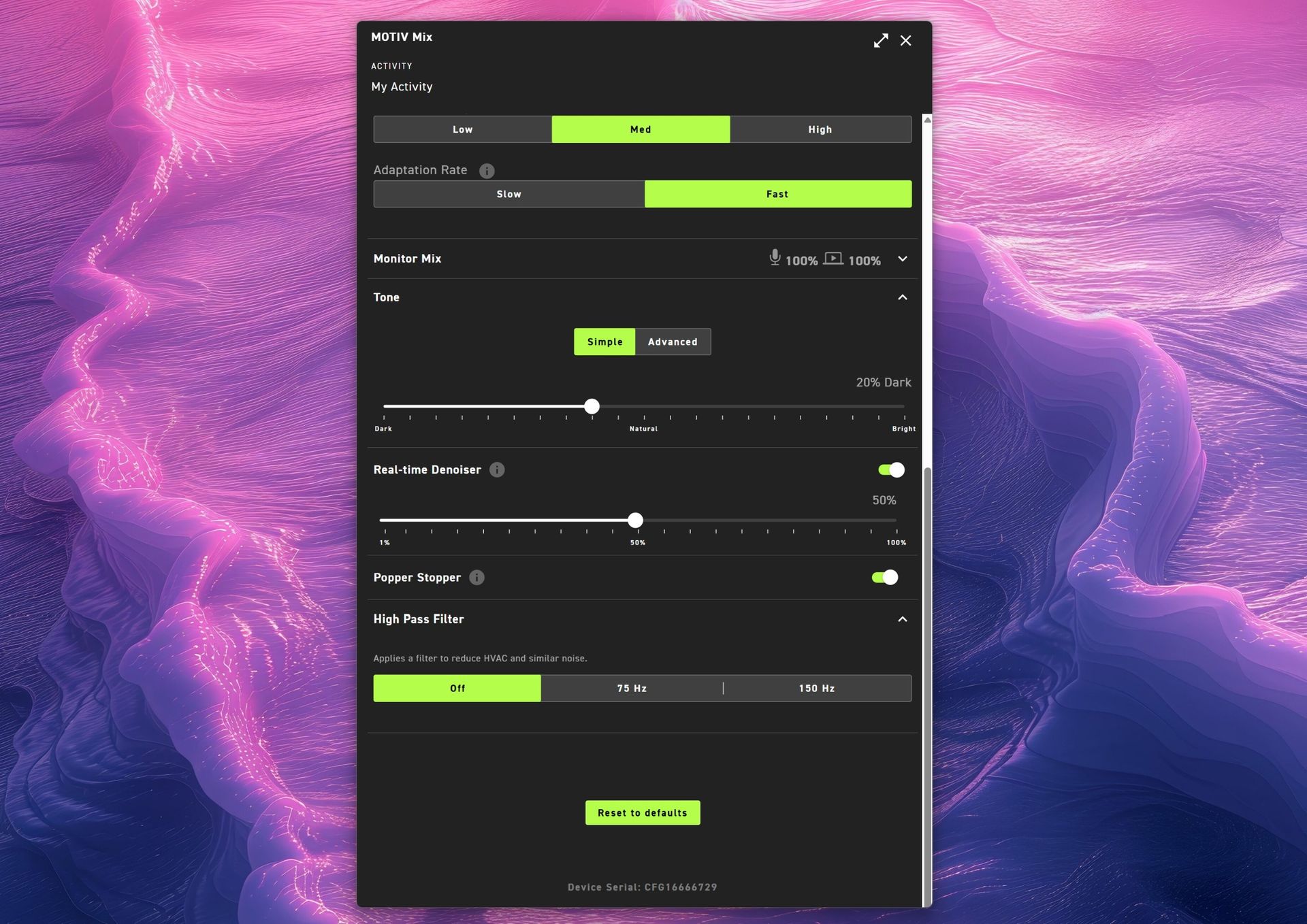
Shure MOTIV Mix app audio settings menu for MV6 G2 showing tone controls, 50% real-time denoiser, Popper Stopper toggle, high pass filter options, and a reset to defaults button.

(Image credit: Daniel Rubino)

The MOTIV Mix software is where many of the Gen 2 improvements come to life.

My first impression was admittedly amusing. The installer feels surprisingly old-school, almost like a utility from an earlier Windows era. Once installed, however, the application is refreshingly straightforward.

That's a good thing.

Companies often fall into the trap of treating audio software like a cockpit. MOTIV Mix feels more like a well-organized control panel.

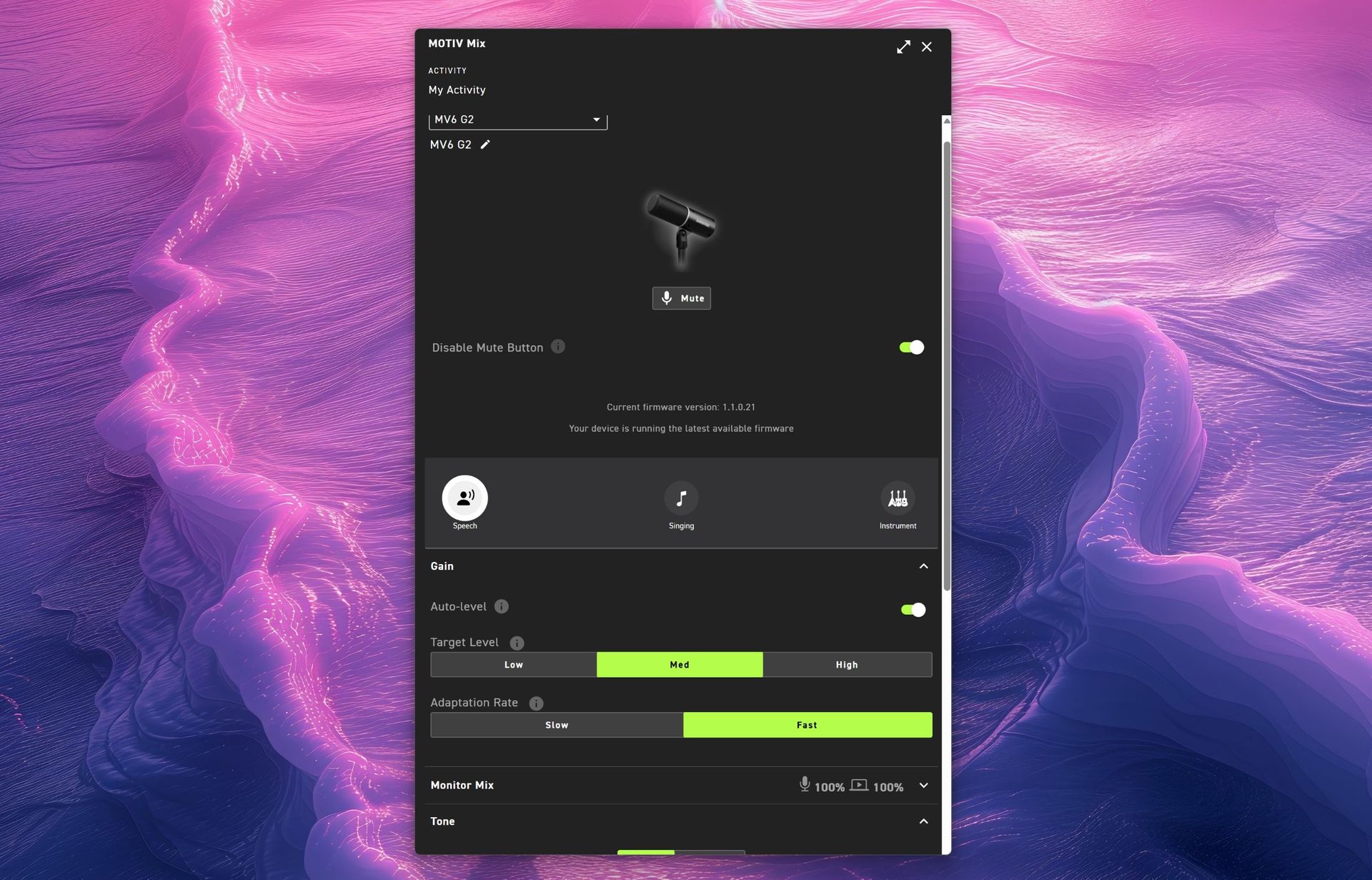
One of my favorite additions is the ability to disable the microphone's touch-sensitive mute button on the side. The mute function works extremely well, maybe a little too well. I accidentally triggered it more than once while adjusting the microphone, so being able to disable it entirely turned out to be an unexpectedly useful feature.

Auto Level and Adaptation Rate

Auto Level is enabled by default and serves as Shure's answer to automatic gain control.

The new system allows users to set different output targets while also adjusting how quickly the microphone responds after loud volume spikes. According to Shure, this feature was added after feedback from gamers who found the first-generation microphone could take too long to recover after sudden loud reactions.

For streamers, podcasters, and excitable gamers, it's a genuinely useful improvement.

Monitor Mix

Monitor Mix lets users balance their own voice against system audio heard through connected headphones.

Anyone who records podcasts, livestreams, or interviews will appreciate having direct control over that monitoring experience without needing external hardware.

Shure MOTIV Mix Windows 11 app main interface for the MV6 G2 microphone showing mute, speech preset, auto-level gain toggles, target level settings, and adaptation rate.

(Image credit: Daniel Rubino)

Tone and Advanced EQ

The Tone section illustrates Shure's overall philosophy particularly well.

Users who don't want to learn EQ can simply slide between Dark, Natural, and Bright tonal profiles. Those who want deeper control can switch to a five-band EQ and manually adjust key frequencies.

It's an elegant balance between simplicity and flexibility.

Real-Time Denoiser

One of the standout Gen 2 upgrades.

The original MV6 offered denoising, but Gen 2 allows users to adjust its intensity. Whether you're recording in a quiet office or trying to overcome computer fans, HVAC systems, or general background noise, the Denoiser provides meaningful control over how aggressively the microphone cleans up your environment.

Popper Stopper and High Pass Filter

The Digital Popper Stopper is designed to reduce plosive sounds caused by hard "P" and "B" consonants. During testing, it worked well enough that I never felt compelled to add an external pop filter.

The High Pass Filter can be set to 75Hz or 150Hz, helping reduce low-frequency rumble from HVAC systems, vibrations, and other environmental noise. Combined with the denoiser, it's surprisingly effective.

Shure MV6 USB Gaming Microphone Gen 2: Audio quality

This is where the MV6 Gen 2 earns its asking price.

Throughout my testing, voices consistently sounded warm, natural, and broadcast-ready with remarkably little effort. The microphone's dynamic capsule does an excellent job focusing on the speaker while minimizing distractions from the surrounding room.

(You can listen to how it sounds above during my 3+ hour guest appearance on This Week in Tech a few weeks ago.)

More importantly, it sounds good before you open the software.

That might sound obvious, but it's becoming surprisingly rare. Many gaming microphones feel like they require software processing to reach their full potential. The MV6 Gen 2 starts from an already excellent baseline and simply gives you tools to refine it further.

That philosophy came up repeatedly during my conversation with Shure. I compared its audio approach to brands like Bose, where tuning and DSP should complement the product rather than compensate for its shortcomings. The expectation is that users plug it in and immediately sound better.

In my experience, that's exactly what happens.

Against the Razer Seiren V3 Chroma 32-bit, I generally preferred Shure's warmer, more natural vocal presentation for podcasting and spoken-word content. The Razer offers more visual flair and creator-focused effects (and the auto-tuning setup in Synapse is great), but the MV6 sounded more like a broadcast microphone.

Compared to the HyperX QuadCast 2 S, the Shure again prioritizes voice quality over spectacle. The HyperX remains one of the best-looking microphones on the market, while the MV6 feels more focused on delivering clean, professional audio.

Neither comparison is a knock against Razer or HyperX. Instead, it highlights how different Shure's priorities are. This feels like an audio company that happens to be making a gaming microphone rather than a gaming company trying to make an audio product.

Shure MV6 USB Gaming Microphone Gen 2: Competition

Razer Seiren V3 Chroma microphone on its stand next to its black product box on a white table.

Razer Seiren V3 Chroma microphone offers similar capabilities to the Shure MV6 Gen 2, but with a lot more typical gaming RGB flair. (Image credit: Daniel Rubino)

The biggest competition comes from the Razer Seiren V3 Chroma 32-bit and HyperX QuadCast 2 S, both of which we've reviewed and given high praise.

If RGB lighting, aesthetics, and streamer-focused visual features are top priorities, either competitor may be the better fit.

If audio quality is the top priority, the MV6 Gen 2 presents an extremely compelling argument.

Shure's competitive advantage isn't lighting, software effects, or gaming branding. It's more than 100 years of microphone experience combined with DSP technology that originated from the company's broader professional audio business.

That heritage is difficult to replicate.

Should you buy it?

✅You should buy this if ...

  • You want excellent audio without needing XLR hardware
  • You podcast, stream, create videos, or appear in meetings regularly
  • You value audio quality more than RGB lighting
  • You want useful DSP features that work automatically

❌You should not buy this if ...

  • RGB lighting and visual customization are important to you
  • You want a microphone with multiple polar patterns
  • You prefer software ecosystems as polished as Synapse or NGENUITY

Final thoughts

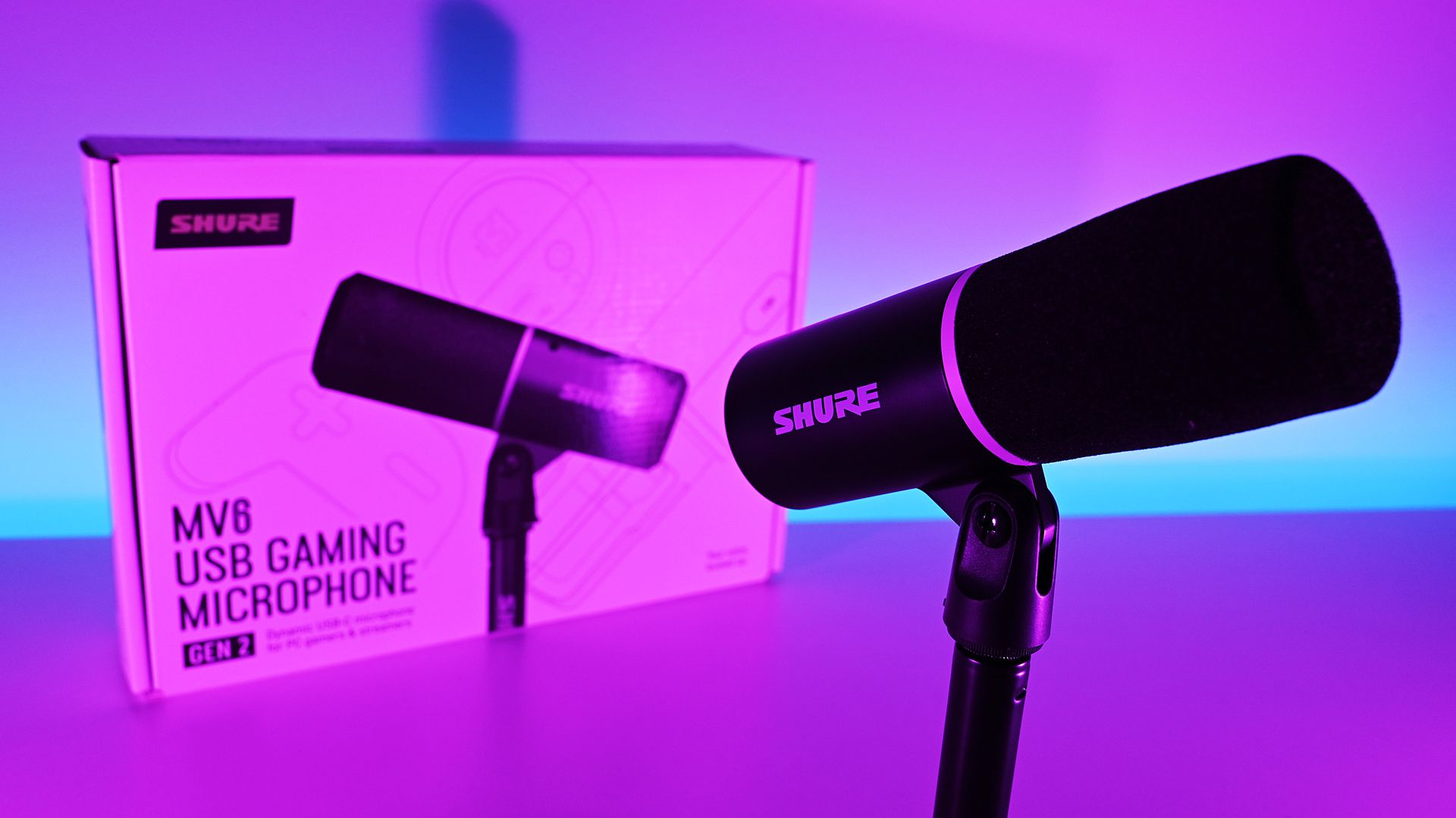
Shure MV6 Gen 2 microphone and retail box illuminated under vibrant pink and purple studio lighting.

(Image credit: Daniel Rubino)

The Shure MV6 USB Gaming Microphone Gen 2 feels less like a gaming microphone and more like a professional USB microphone that happens to be affordable enough for gamers (or anyone who just needs a good mic that's not XLR-level).

For a first-time Shure user, that's probably the biggest compliment I can give it. After years of seeing Shure microphones dominate podcasts and broadcasts, I finally understand why so many creators trust the brand. The sound quality is excellent, the setup is effortless, the DSP features are genuinely useful, and the software gives you just enough control without becoming overwhelming.

My only real criticism is that MOTIV Mix lacks some of the visual polish and ecosystem refinement found in competing software suites. Beyond that, there isn't much to complain about.

At $169, the MV6 Gen 2 delivers exactly what Shure set out to achieve: professional-grade audio that simply works.

The black Shure MV6 USB Gaming Microphone Gen 2 at a 45 degree angle on its included desk stand.

Professional Grade
Shure
MV6 USB Gaming Microphone Gen 2

Engineered specifically for PC gaming, streaming, and content creation, the MV6 Gen 2 brings Shure's professional broadcast technology to more creators, including those purchasing their first dedicated microphone and looking to elevate their sound beyond a headset.

Click to join us on r/WindowsCentral

Join us on Reddit at r/WindowsCentral to share your insights and discuss our latest news, reviews, and more.
Microsoft’s new Copilot signals a shift in their AI strategy for Windows & enterprise. Are we past the gimmick phase?

You can't say Microsoft isn't trying everything when it comes to AI, even rolling back some consumer pushes around its PC strategy.

Today during its Copilot event, Microsoft announced a major update to said Copilot, and after going through the material myself, it’s clear the company is aiming for something bigger than a simple AI upgrade.

In a surprise to no one, Copilot is becoming the center of the Microsoft 365 experience. Instead of living inside individual apps (yes, we're all tired of that), it now acts as a unified workspace that connects your documents, conversations, data, and tasks. This shift shows how Microsoft wants AI to feel natural for everyday users, not just enterprise customers (even though the latter will benefit the most).

Microsoft CEO Satya Nadella set the tone for this direction in his keynote. He thanked the Frontier program participants and connected Copilot’s evolution to Microsoft’s long‑standing mission “to empower every person and every organization on the planet to achieve more.” He described this new era of AI as a continuation of that goal, shaped by two design principles. The first is keeping humans “in the flow of work,” and the second is helping organizations build systems that learn continuously. Nadella said the aim is to design AI so that people stay in control of their tools and use them to expand their own ambition and creativity.

Satya Nadella gestures on stage in front of a white slide reading

Satya Nadella gestures on stage in front of a white slide reading "Empower every person and every organization on the planet to achieve more," facing an audience. (Image credit: Microsoft)

He also talked about how Copilot reflects a deeper shift in how Microsoft thinks about intelligence. “AI has to be shaped in such a way that it’s working for your firm to create and retain more knowledge,” he explained. That idea of compounding human expertise is central to Copilot’s design. It treats intelligence as something that grows through use and collaboration. Nadella’s framing gives the new Copilot a clear purpose. It is meant to amplify human judgment through context, automation, and shared knowledge rather than replace it. Hearing him describe it this way makes the rest of the update feel more intentional and more connected to Microsoft’s long‑term strategy.

This brings us to the actual news with three new Copilot experiences called Home, Code, and Autopilot, each focused on a different part of work. Together they create a more complete picture of what Microsoft thinks productivity should look like in the AI era.

"Home", a place where work actually comes together

Satya Nadella presents on stage in front of a slide titled

Microsoft CEO Satya Nadella thanking the frontier ecosystem and attendees. (Image credit: Microsoft)

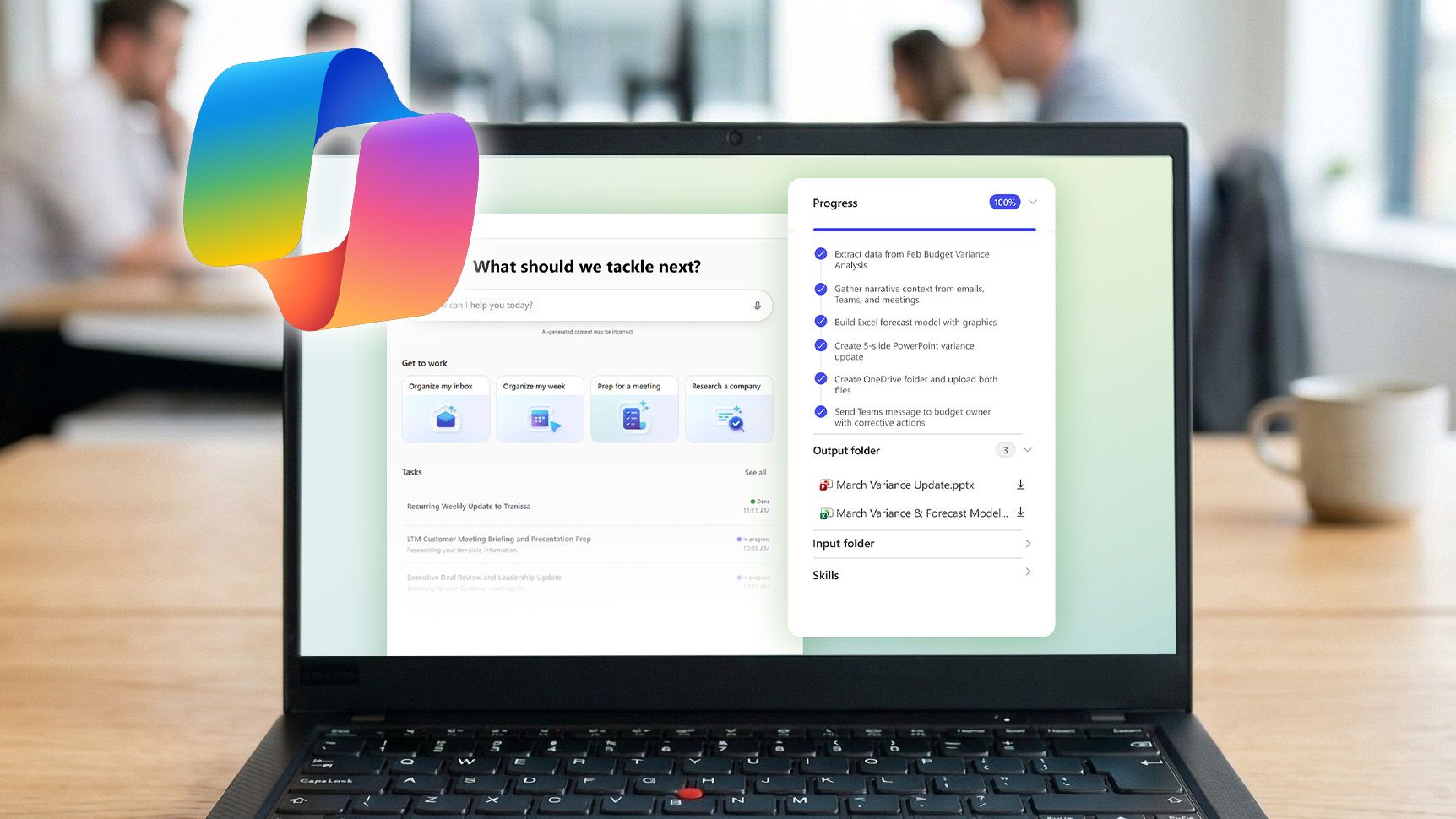
Home should be obvious. It's the new landing spot for Copilot. When you open it, you'll see your recent activity, suggestions for what to tackle next, and a clear view of the tasks Copilot can help with. It seems more like a dashboard than a chat window. You can do the usual AI stuff like asking Copilot to draft a document, summarize a meeting, or help prepare for a presentation, and everything stays connected across Word, Excel, PowerPoint, and Teams.

Microsoft is also improving how Copilot works inside those apps. PowerPoint keeps slides on brand automatically, Excel explains changes in plain language, and Word can refine a document while you collaborate with teammates. It seems to be more cohesive than before, and it makes Copilot feel like part of the workflow instead of a separate tool.

At least that's the goal here.

Home also includes a new feature called Today, which acts like a personal command center. It highlights missed emails, meetings, and tasks, and it helps you catch up quickly.

In typical Microsoft fashion, not everyone gets this on day one. Today enters private preview in October, and Microsoft plans to expand it across Outlook and Teams later this year.

"Code", a way to build without being a developer

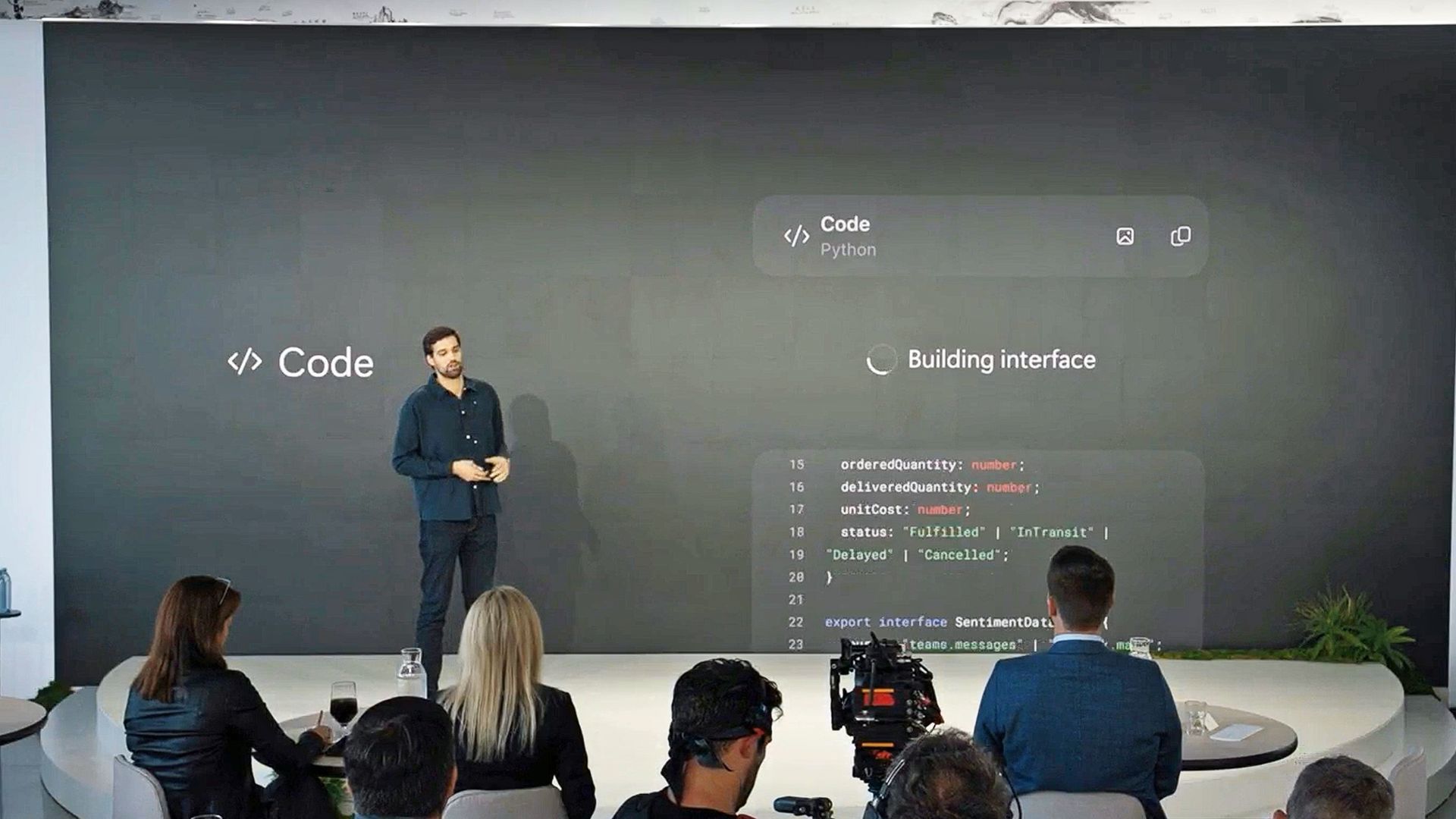
Jacob Andreou stands on stage beside a large screen showing Code" and live interface code snippets, with an audience and camera equipment in the foreground." src="https://cdn.mos.cms.futurecdn.net/Km8kgZdAwWwedYEWprjMA4-1920-80.jpg" mos="" align="right" fullscreen="1" width="2408" height="1355" attribution="" endorsement="" class="pull-rightinline expandable">

Jacob Andreou stands on stage talking about the new Copilot Code feature. (Image credit: Microsoft)

Code is one of the most interesting additions, in my opinion. It uses the same underlying technology as GitHub Copilot, but it’s designed for anyone who wants to automate something or build a simple app without writing code. Basically, I can describe what I want in plain language, and Copilot creates it inside my Microsoft 365 environment.

The result might be a dashboard, a workflow, or a lightweight app that connects to live business data.

I think this is a smart move for Microsoft because it opens up automation to people who have never touched a line of code (including myself). Developers still get deep integration with GitHub Copilot, but everyday users get a way to create tools that fit their needs. Code runs in a secure sandbox, connects to Microsoft IQ for context, and syncs with the rest of the workspace.

Basically, as noted in the event, creating apps via Code feels the same as creating (and sharing) a Word document, which is certainly intriguing.

Code enters the Frontier program later this month, with broader availability "coming soon," likely before year's end.

"Autopilot", a teammate that keeps working

Jacob Andreou is on stage in front of a screen displaying

A visual representation of Autopilot is shown on stage by Microsoft's Jacob Andreou. (Image credit: Microsoft)

Autopilot, previously known as Scout, I believe, is the most ambitious part of the new Copilot. It acts like a digital teammate that manages ongoing work. I can give it a name, a role, and a goal, and it handles tasks like scheduling meetings, managing reviews, and keeping projects moving. It sounds very Meta Muse-ish, but it's better equipped for Microsoft customers, as it works across Teams, Outlook, and other apps, and it keeps going even when you are offline.

Autopilot has its own identity inside a Microsoft 365 tenant, which means it can participate in conversations, track decisions, and follow up on action items. It understands how an organization operates, and it uses that context to make smart choices.

This kind of automation could change how teams handle routine work, freeing people to focus on strategy and creativity instead of logistics.

A smarter foundation for everything

Diving into all the nitty-gritty enterprise jargon (forgive me), we can say that all of this is powered by Microsoft IQ, a unified intelligence layer that connects data, workflows, and context across the Microsoft ecosystem.

Basically, Copilot now understands not just your documents, but your business environment. With Fabric IQ and Work IQ, it can pull insights from Dynamics 365, Power Platform, and other systems, which helps break down silos and reduce the need to switch between apps.

Microsoft is also introducing a plugin registry that lets IT teams and developers extend Copilot with custom or partner-built integrations. It’s similar to an app ecosystem, but built for AI. This gives organizations more control and flexibility, and it helps Copilot adapt to different industries and workflows.

Since AI costs are becoming a real concern, Microsoft is adding FinOps for AI, a framework for managing and optimizing AI spending. Businesses can choose between fixed-cost subscriptions or usage-based billing. Copilot’s Auto mode selects the best option for each task based on accuracy, speed, and cost. It’s a practical way to keep AI powerful and predictable.

Why This Matters

Graphic reading

Microsoft's new (new new) Copilot with slogan. (Image credit: Microsoft)

After reading through everything, it’s clear that Microsoft is treating Copilot as the future of its productivity ecosystem. I think we've always known that was the goal here, but it's taken Microsoft a few iterations and market maturity for AI/LLMs to get to this next level, based on customer feedback.

The company is blending creativity, automation, and collaboration into one experience that feels more personal and more capable than before. For small businesses, this means the same AI that powers enterprise workflows will soon feel approachable and useful in everyday tasks. For Microsoft, it’s a strategic shift that positions Copilot as the centerpiece of its long-term vision, which, let's be honest, is the right move.

What about regular non-business consumers? Well, you'll get access to some or all of this based on your M365 Premium or Pro subscription. Whether you make use of it all depends on your goals.

We’ll see more of this at Microsoft Ignite in November, but even now, the direction is obvious. Copilot is becoming the place where work happens, and Microsoft is building the tools to make that feel natural for everyone.

Click to join us on r/WindowsCentral

Join us on Reddit at r/WindowsCentral to share your insights and discuss our latest news, reviews, and more.
Razer Prio review: The first mobile controller I've actually wanted to carry everywhere

Mobile gaming controllers have come a long way over the last few years, but they all suffer from one common flaw: they're rarely as portable as the phones they're designed to enhance.

That's always seemed ironic to me. Smartphones fit in our pockets, but many mobile controllers require a dedicated carrying case or space in a backpack. At that point, I often find myself wondering why I didn't just bring a handheld gaming PC instead.

That's exactly the problem the new $99 Razer Prio aims to solve.

Rather than chasing the biggest grips or most console-like ergonomics, Razer built something fundamentally different. The Prio folds into a compact package measuring just 107mm by 67mm when closed, making it roughly credit card-sized in length and width, while weighing only 101 grams.

It's the first mobile controller I've used that genuinely disappears into a pocket.

And that's what makes it special.

Razer had no input, nor did it see the contents of this review, prior to publication.

A clever design that solves a real problem

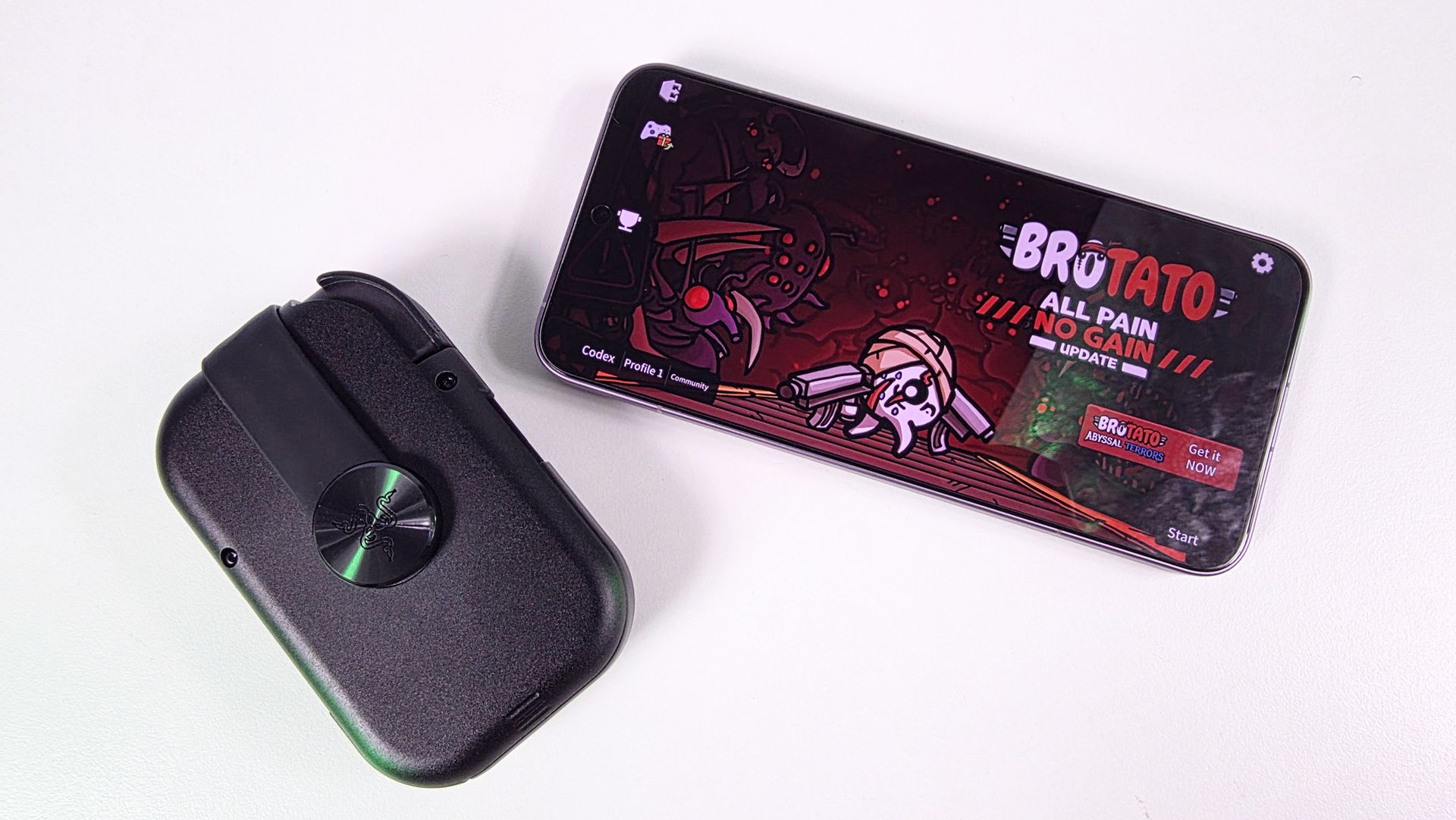
Folded, compact Razer Prio mobile controller resting next to a smartphone displaying the main menu of the game Brotato on a white surface.

The Razer Prio mobile controller (folded) next to the Xiaomi 17T Pro with a rather large 6.83 inches display. (Image credit: Daniel Rubino)

The Prio's standout feature is its unique folding mechanism.

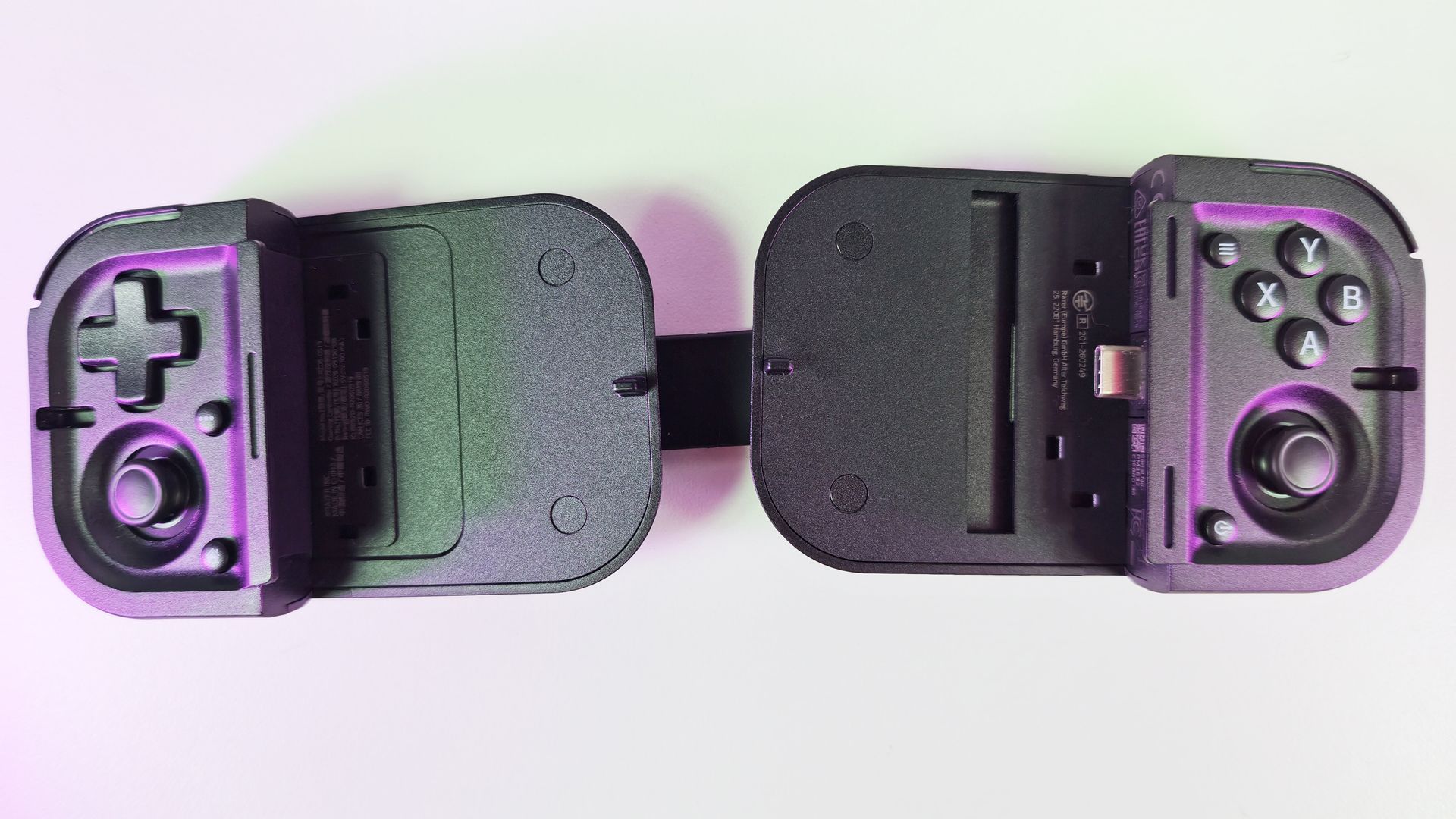
Using an interlocking design, each half rotates and folds inward, transforming from a compact rectangle into a full mobile controller. Razer's engineers deserve credit here because this doesn't feel like a gimmick. It's solving a legitimate problem that nearly every competing product ignores.

The trade-off, however, is that setup isn't immediately intuitive.

The first few times I unfolded the Prio, I found myself fumbling with the locking mechanism and trying to remember exactly which piece rotated where. Razer could absolutely improve the onboarding experience with clearer instructions.

Fortunately, the learning curve doesn't last long. After a handful of uses, unfolding the controller becomes second nature, and you begin to appreciate just how clever the entire design is.

More importantly, because it's so small, I actually carried it around.

That's a bigger compliment than it may sound. Many mobile controllers are technically portable but not especially convenient. The Prio is different because you can toss it in a pocket and completely forget it's there until you need it.

Small controls, surprisingly good results

Top-down view of the unfolded Razer Prio controller without a phone, showing its central bridge, USB-C plug, D-pad, face buttons, and dual analog sticks.

Top-down view of the unfolded Razer Prio controller without a phone, showing its central bridge, USB-C plug, D-pad, face buttons, and dual analog sticks. (Image credit: Daniel Rubino)

Once unfolded, the Prio reveals a complete controller layout that includes dual thumbsticks, a D-pad, bumpers, triggers, face buttons, and dedicated function buttons.

Naturally, any controller this compact requires compromises.

The thumbsticks are noticeably smaller than what you'd find on a traditional controller, and the face buttons reflect the Prio's portable-first design philosophy. If you're expecting Xbox controller levels of comfort, you'll need to temper expectations.

That said, I liked using them more than I expected.

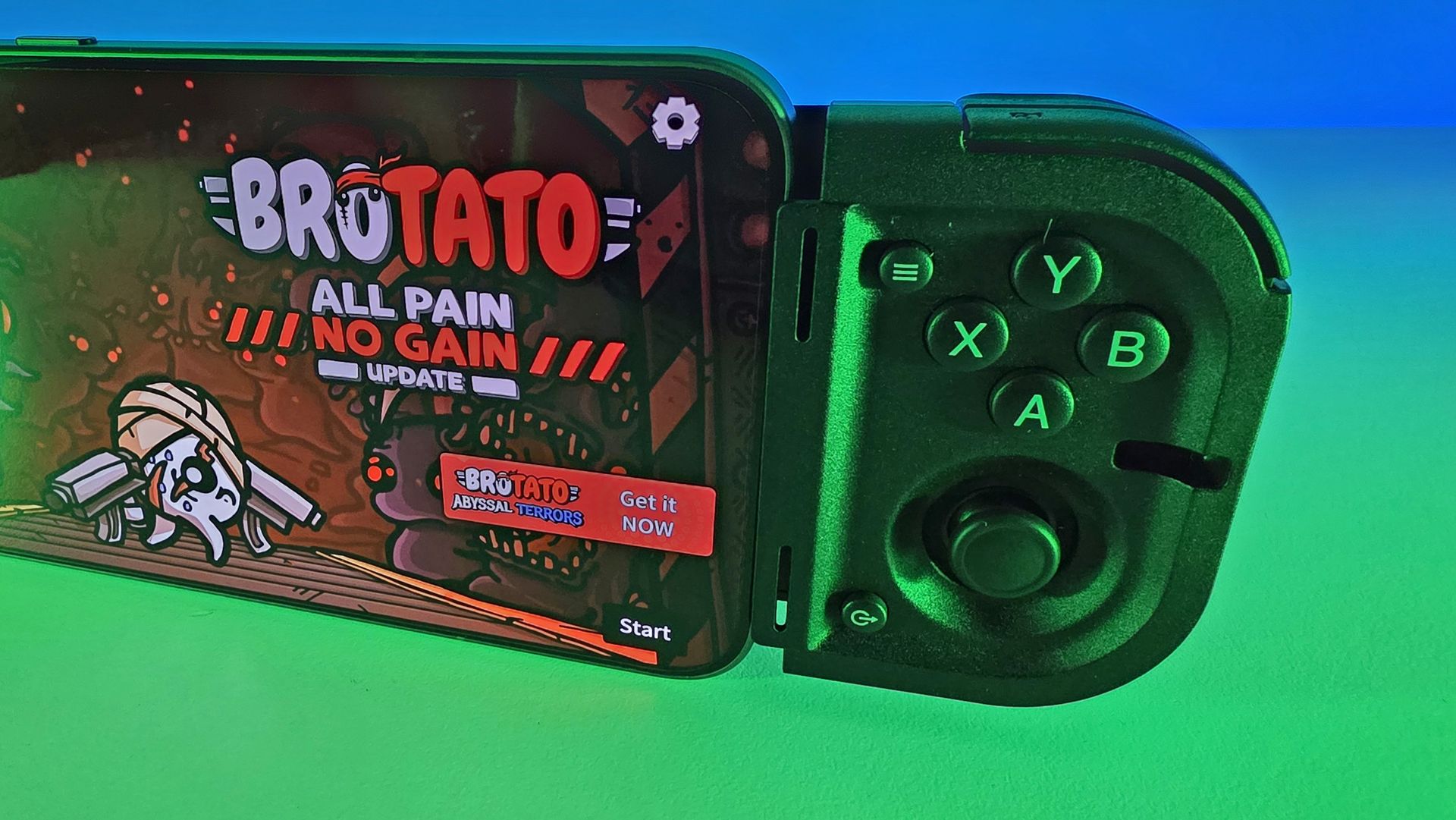
The D-pad feels tactile and responsive, the face buttons provide good feedback, and the thumbsticks are particularly interesting. Razer uses capacitive thumbsticks with contactless sensors that can detect movement without relying on traditional mechanical contacts. In theory, that means improved durability and resistance to stick drift compared with conventional designs.

Close-up of the right side of the Razer Prio controller connected to a smartphone running Brotato, lit by green ambient light.

The thumbsticks are tiny, but it sure beats onscreen controls any day. (Image credit: Daniel Rubino)

During testing with games like Brotato and Xbox Cloud Gaming titles, controls felt accurate and responsive. Because the Prio connects directly through USB-C rather than Bluetooth, I also never noticed any input lag, pairing issues, or connectivity problems.

No Bluetooth and USB-C also means the Prio itself never needs charging, which again adds to the convenience factor, as it's one less thing to think about if you want a quick gaming sesh at the doctor's office.

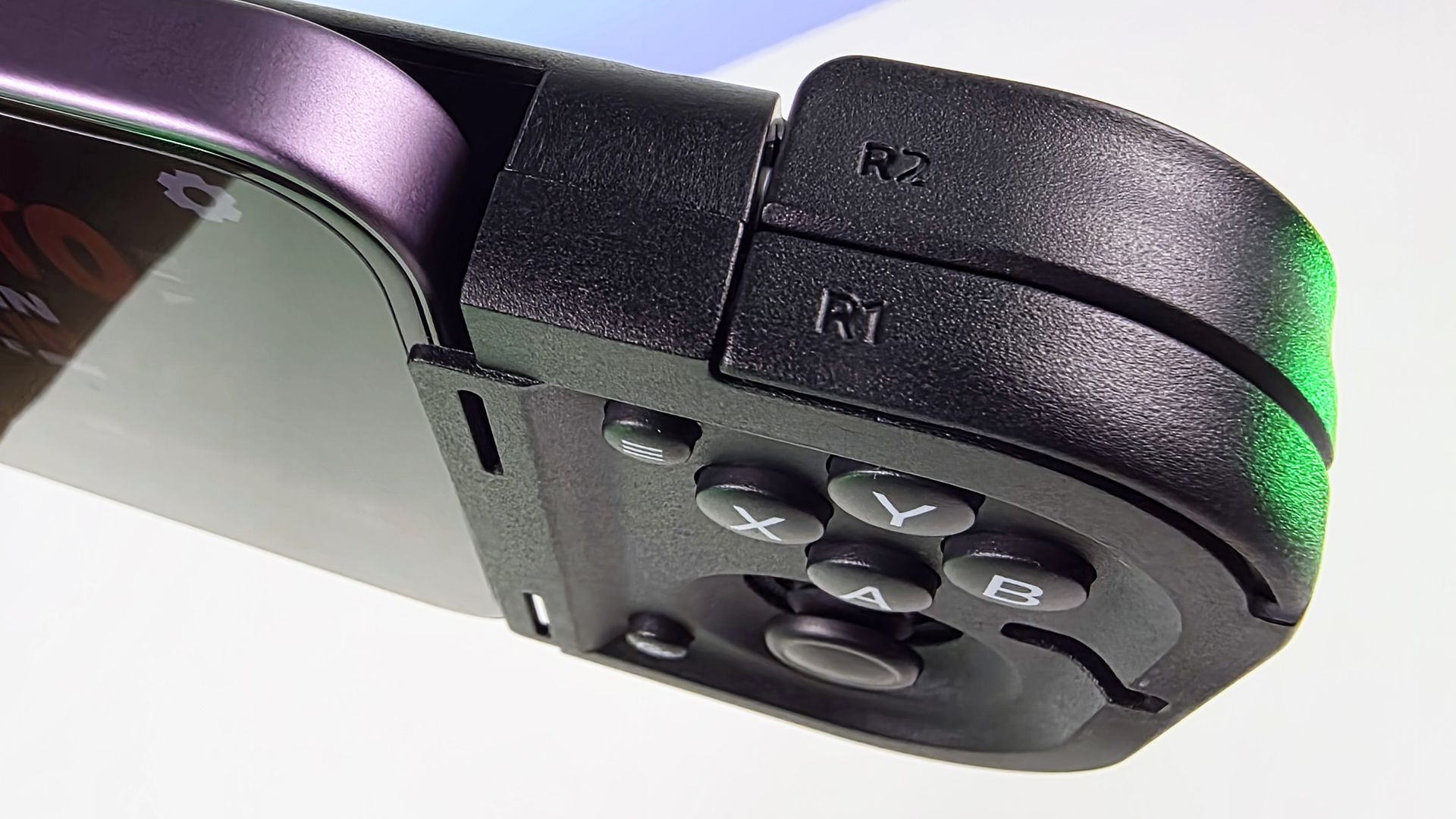
The triggers deserve a special mention. They're perfectly usable, but they're also one of the areas where the compact size makes itself known. The L2 and R2 triggers feel a little unusual compared to traditional controllers and are somewhat clickier than expected. They get the job done, but nobody is going to mistake them for premium full-sized controller triggers.

Better than touch controls, and that's what matters

Direct comparison between Razer Edge at top and a smartphone docked inside the compact Razer Prio controller at bottom.

How the Prio (bottom) compares to the Razer Edge 5G (above). (Image credit: Daniel Rubino)

One mistake readers might make is comparing the Prio directly against controllers like the Razer Kishi V3 Pro, which got high praise from us.

That's not really the point.

The Prio isn't designed to be the most ergonomic controller available. It's designed to be the controller you're willing to carry every day.

During longer gaming sessions of around an hour, the smaller controls do start to make their presence known. My hands were definitely more aware of the compact design than they would be with something like a Kishi V3 Pro.

Close-up of the Razer Prio right controller module attached to a purple phone, showing R1/R2 shoulder triggers, ABXY face buttons, and an analog thumbstick.

The top shoulder buttons are decent on the Razer Prio. (Image credit: Daniel Rubino)

But here's the thing: I'd still choose the Prio over touchscreen controls every single time.

In fact, that's the comparison that matters most.

Playing action games with virtual buttons often causes hand fatigue and cramping much faster than using the Prio. The tactile controls provide actual feedback, keep your thumbs off the display, and make games considerably more comfortable to play.

If you're already gaming primarily with on-screen controls, the Prio feels like a massive quality-of-life upgrade.

Wide compatibility and a surprisingly good software experience

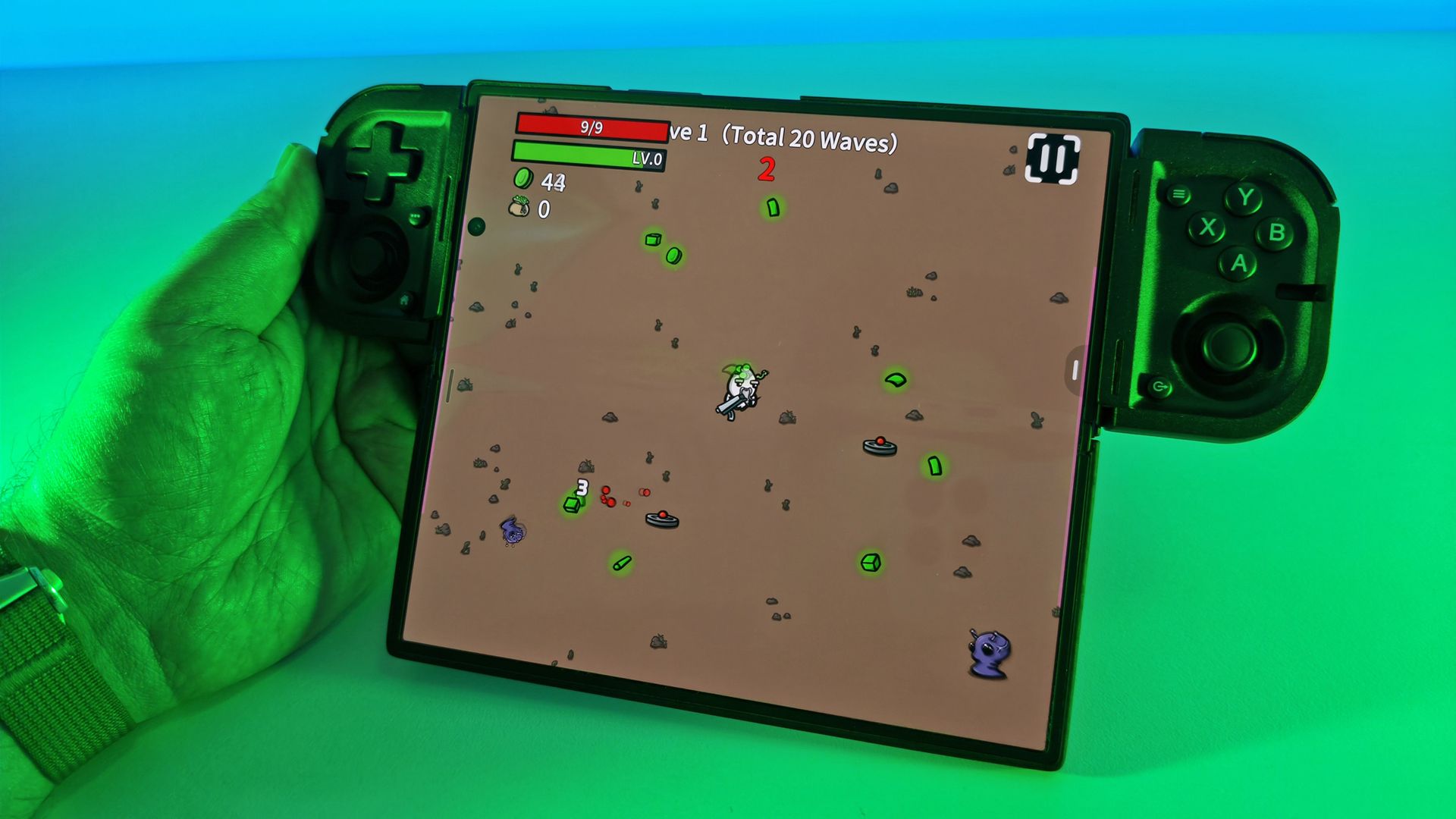
Hand holding a wide foldable smartphone displaying active Brotato gameplay, clamped horizontally inside a black Razer Prio controller under green light.

The Prio technically works with the Samsung Galaxy Z Fold7, but you can only use it unfolded. It's a bit clunky, but super fun to use! (Image credit: Daniel Rubino)

Razer says the Prio supports USB-C smartphones up to 188mm in length and cases up to 15mm thick. It also works with both Android phones and modern USB-C iPhones.

My foldable phones like the Samsung Galaxy Z Fold7 worked too, albeit with a caveat. Ironically, I found the best experience with my Fold devices was actually in their unfolded tablet mode. While that may seem counterintuitive for such a compact controller, gaming on a larger foldable display paired with the Prio was surprisingly enjoyable.

The included spacers and bumpers also make fitting phones straightforward, even when using cases. For instance, I had no issues using the Prio with my Samsung Galaxy S26 Ultra with a Pitaka case (you just have to swap out or remove the internal bumper/pads).

Then there's Razer Cortex.

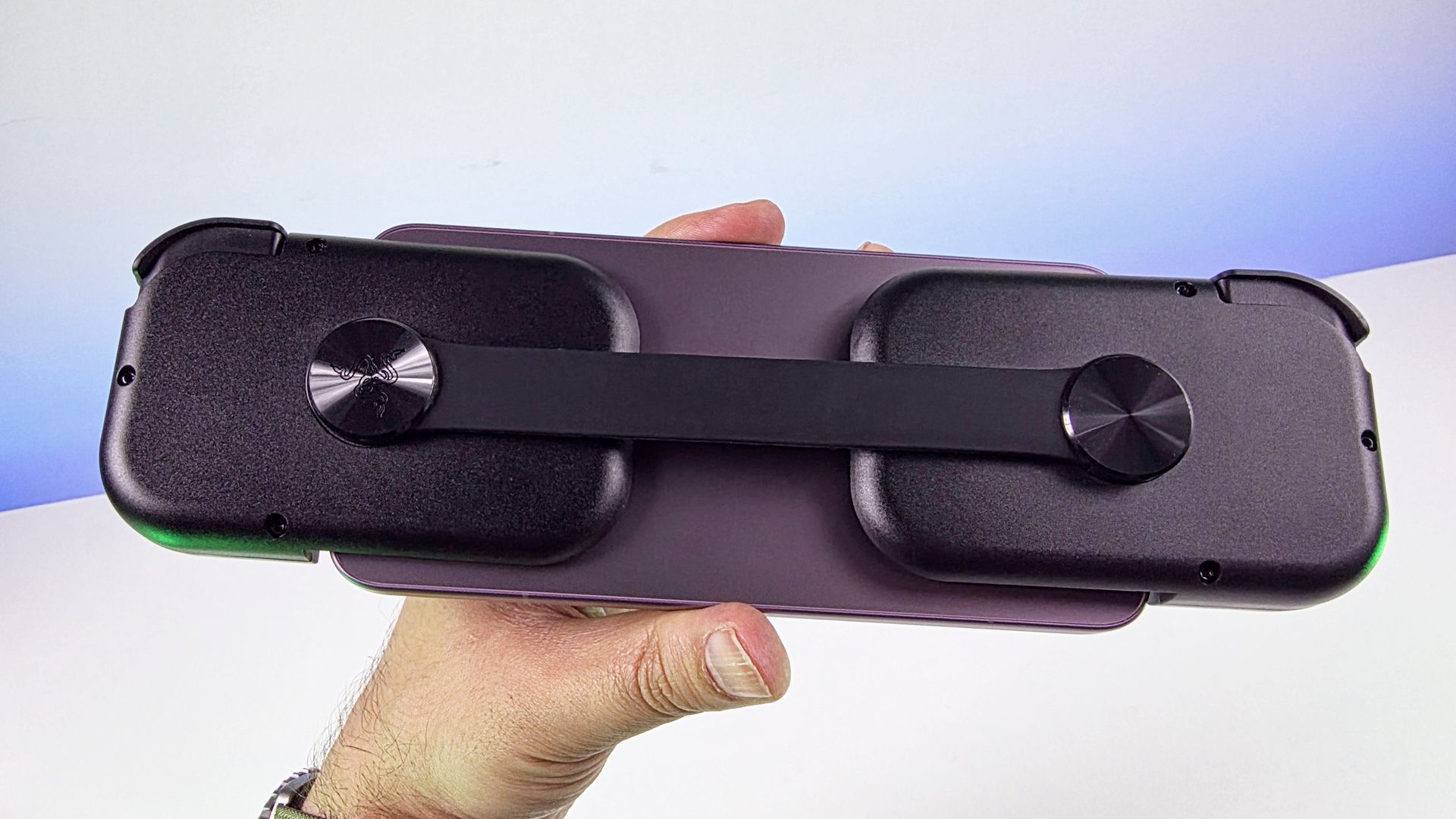
Hand holding the back of a smartphone attached to the Razer Prio controller, highlighting the flexible rear strap connecting the two handgrips.

Rear of the Razer Prio on the Xioami 17T Pro smartphone with a 6.83 inche display. (Image credit: Daniel Rubino)

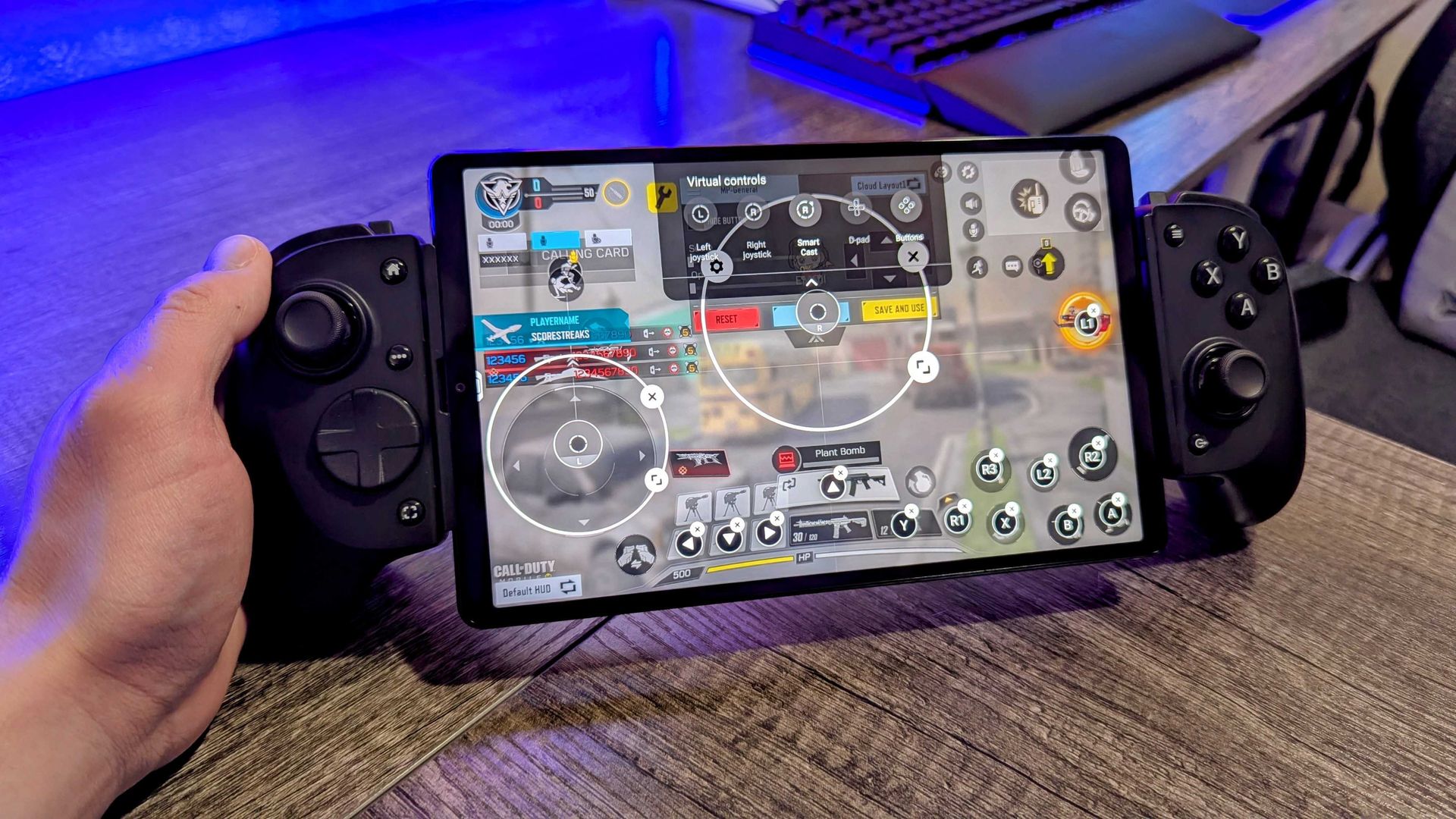
The dedicated Cortex button launches Razer's gaming software, which automatically gathers installed games into a centralized library. The experience feels somewhat similar to using a Steam Deck or handheld gaming PC launcher, making it easier to jump into games without digging through app drawers.

The controller supports not only mobile games but also cloud and remote streaming services, including Xbox Cloud Gaming, Steam Link, PlayStation Remote Play, and Razer PC Remote Play.

One limitation worth mentioning is that not every mobile game benefits from the Prio. Some popular titles remain locked to portrait orientation. Games like 1945 Air Force and Raiden Fighter simply aren't designed around horizontal controller gameplay, so the Prio doesn't add much value there.

For more console-style mobile games, however, it's an excellent fit.

Competition

Image of the Razer Kishi V3 Pro mobile gaming controller.

The $149 Razer Kishi V3 Pro is bigger and more premium, but really not pocketable like the Razer Prio. (Image credit: Windows Central | Zachary Boddy)

The Prio's biggest competition may come from within Razer's own lineup.

The Razer Kishi V3 and Kishi V3 Pro offer larger controls, better ergonomics, and a more traditional controller experience. They're excellent options for couch gaming or tossing in a backpack.

The Prio takes a different approach.

Those controllers are portable. The Prio is pocketable. That distinction ends up making all the difference.

Sure, there are some other great options like the Backbone One Xbox Edition ($109), Abxylute S9 ($99), and even Razer's Razer Kishi Ultra, which all got excellent reviews from us and are great mobile controllers, but none of them are .... well, pocketable.

Should you buy it?

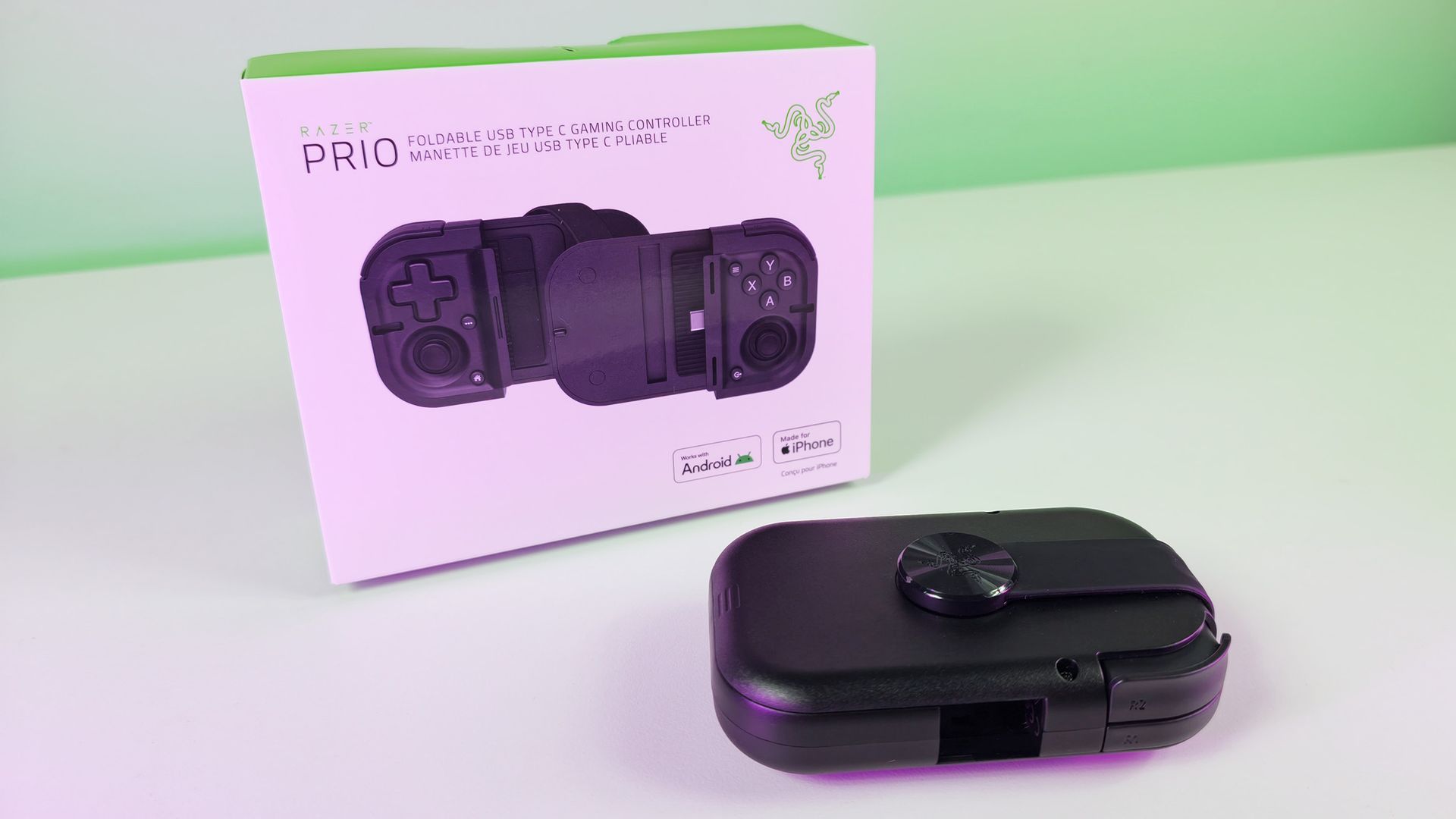
Folded black Razer Prio mobile controller resting in front of its white product box on a white surface with green gradient lighting.

Folded black Razer Prio mobile controller resting in front of its white product box. It's a bit thick (and mostly hollow), but still easily fits into a pocket. (Image credit: Daniel Rubino)

✅You should buy this if...

  • You want a pocketable mobile controller
  • You want a step up from on-screen controls
  • You cloud game or play horizontally-formatted games

❌You shouldn't buy this if...

  • You have a foldable phone (maybe)
  • You prefer more comfort over portability

The Razer Prio succeeds because it understands the assignment.

Rather than trying to become another bulky mobile controller, it prioritizes portability without sacrificing too much functionality. The result is a controller that's more comfortable than touchscreen gaming, more practical than many competitors, and genuinely easy to keep with you every day.

At $99.99, it sits right on the edge of what feels reasonable. Personally, I think $79.99 would be the sweet spot. But Razer also made the smart decision not to push pricing too close to the far more premium Kishi V3 Pro ($149.99), and there are certainly more expensive mobile controllers on the market.

The controls are small. The setup is initially quirky. The all-black design could use a splash of classic Razer green.

None of those complaints change the fundamental reality: the Prio solves a real problem.

And if you've ever left a mobile controller at home because it was simply too big to carry around, the Razer Prio might be exactly what you've been waiting for.

Product shot of the Razer Prio mobile controller

Pocketable
Razer
Prio

The Razer Prio isn’t out to win any “biggest, cushiest controller” awards—it’s gunning for the gold in portability. With a clever foldable design that shrinks down to about the size of a credit card, it’s one of the rare mobile controllers you might actually slip into your pocket instead of leaving it to gather dust at home.

Click to join us on r/WindowsCentral

Join us on Reddit at r/WindowsCentral to share your insights and discuss our latest news, reviews, and more.

Razer Reclusa X Mini 65% review: A surprising $49.99 enthusiast gaming keyboard that nails the basics

Razer is on a tear this year for gaming keyboards ranging from a new Huntsman low-profile to the $499 Huntsman Signature Edition and a few in between like the new-fangled $139 Razer Huntsman V3 HE Magnetic.

But Razer is known for its top-tier and expensive gaming accessories, which makes this new Razer Reclusa X Mini 65% such an intriguing addition, as it's only $49.99.

Even my jaw dropped a bit when I was getting briefed on it, as very few Razer products hit below $50, especially when not on sale.

Of course, the $49.99 question is it any good? To be fair, I'm a bit biased against 65% keyboards (I miss my media keys), but I've spent the last 10 days using it, and let's just say the price wasn't the only surprise.

Let's get into the pros, cons, and who this is for.

Razer had no input, nor did it see the contents of this review, prior to publication.

Razer Reclusa X Mini 65%: Price and specifications

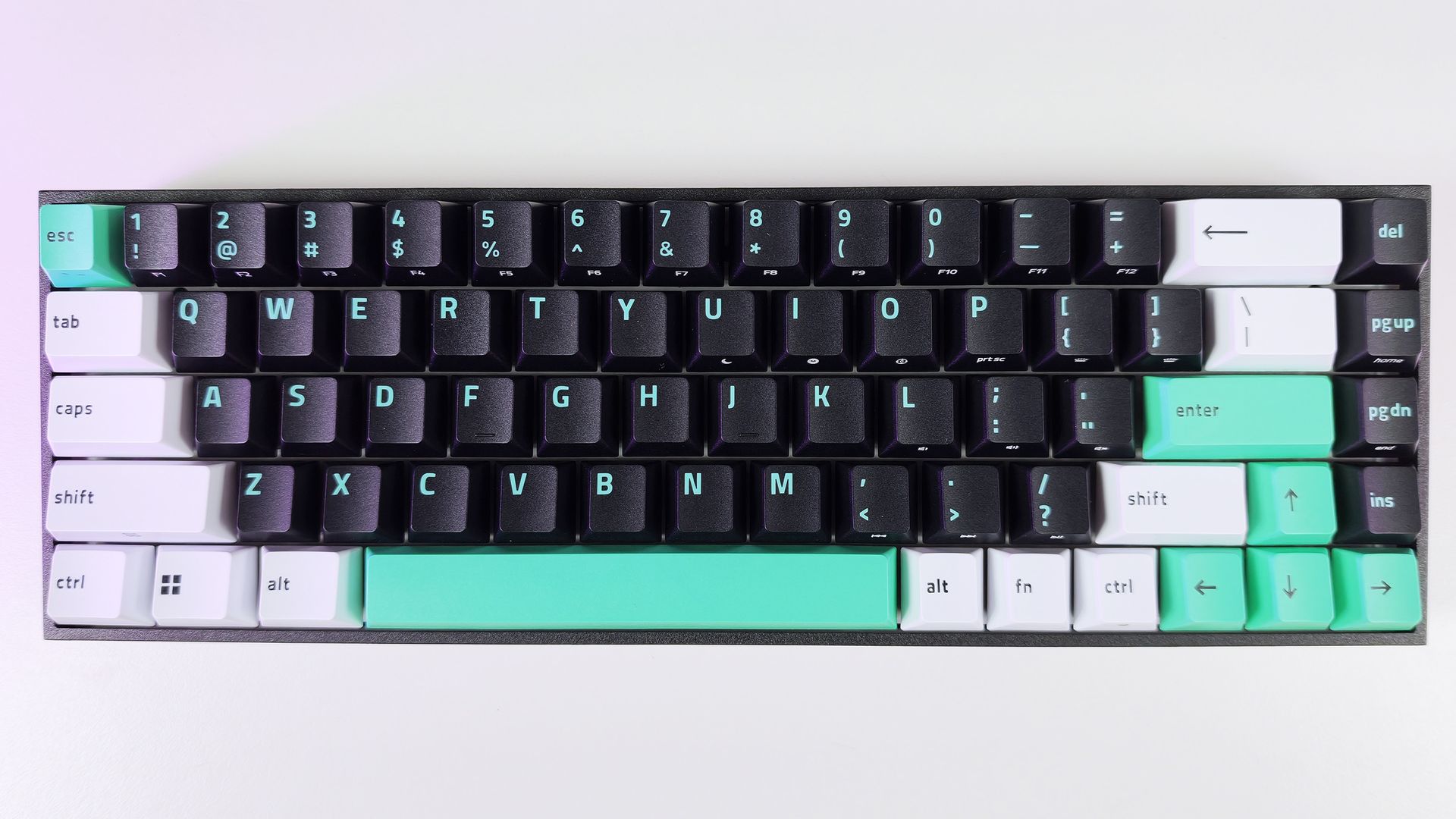
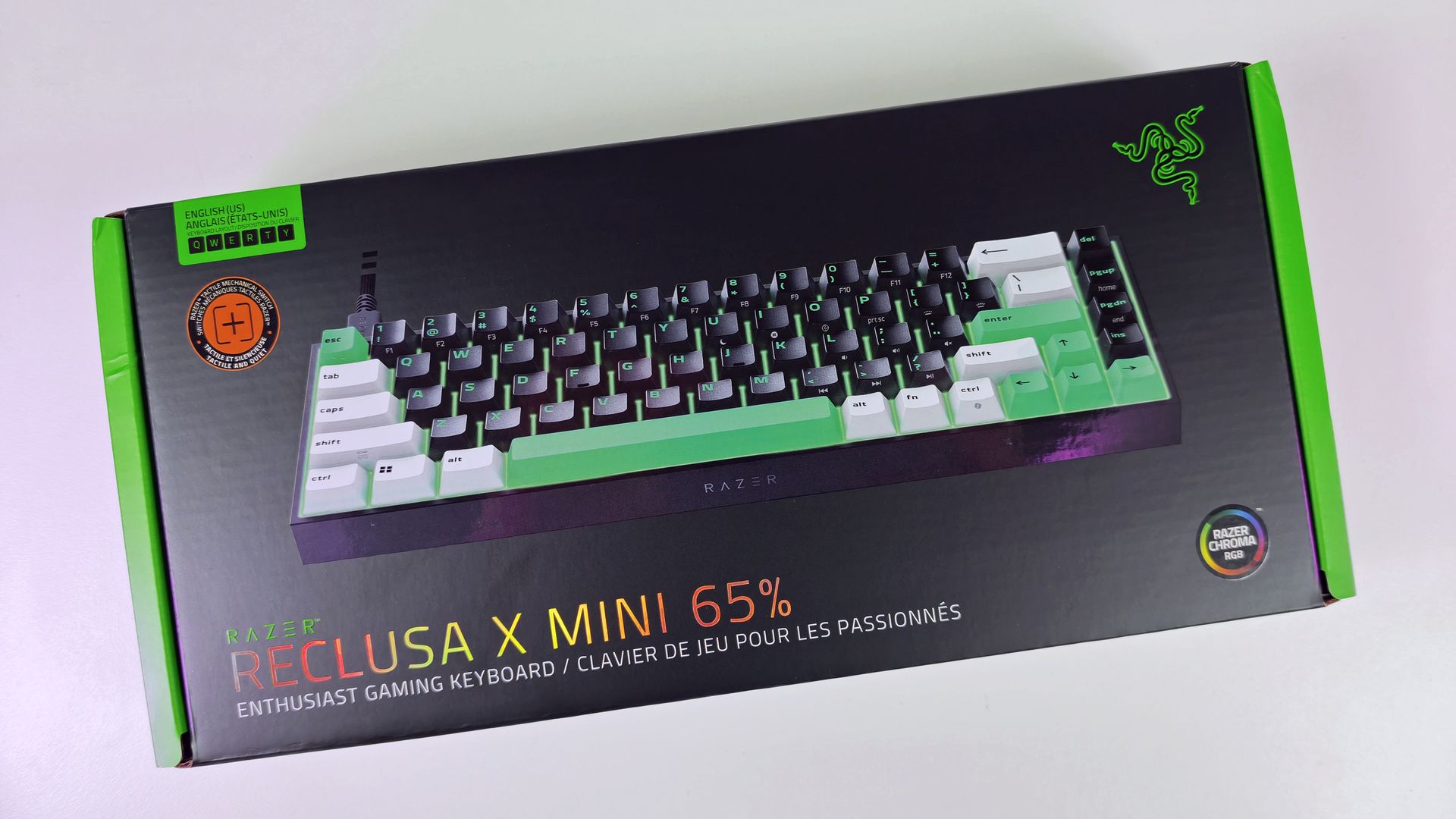
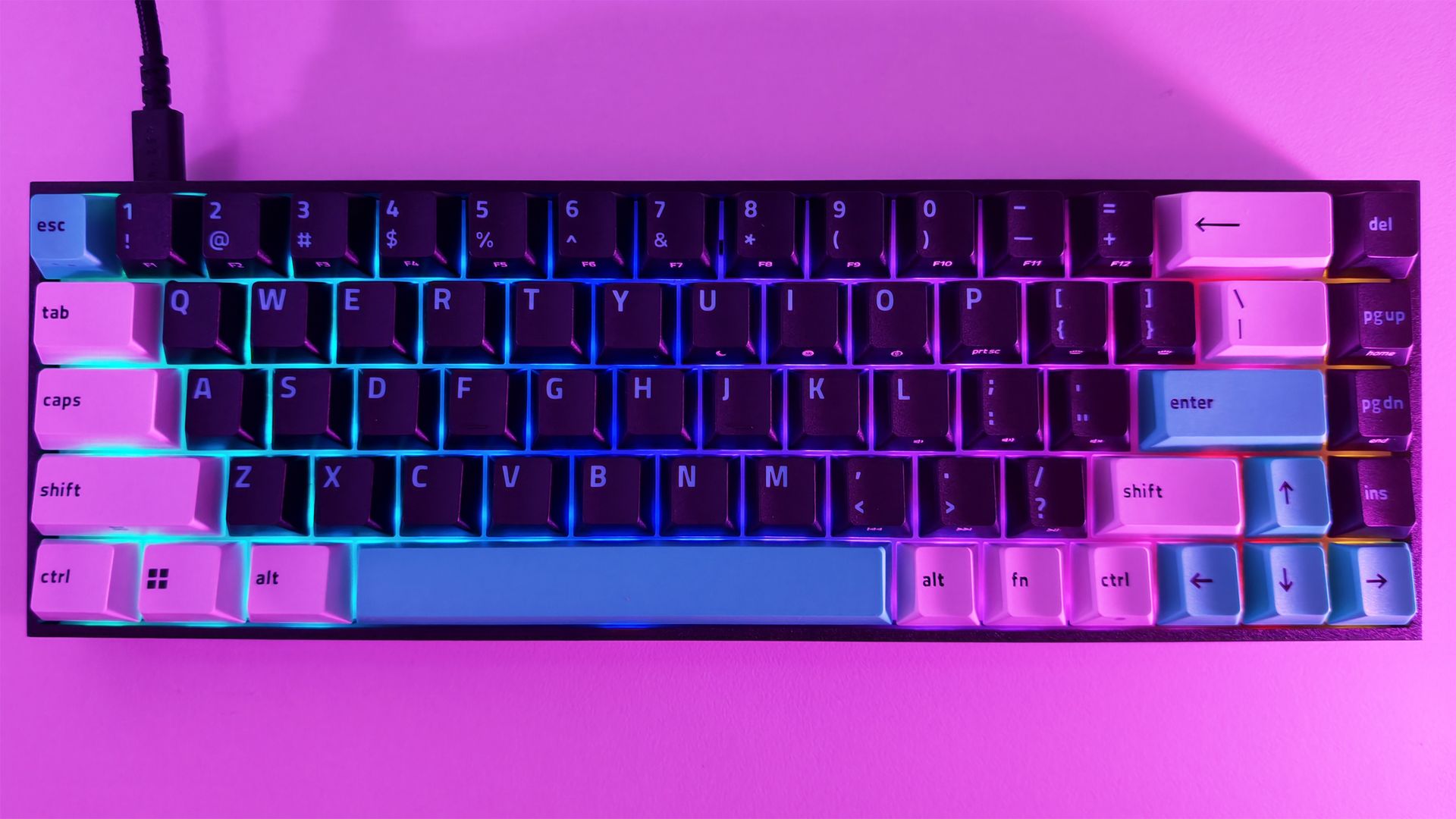
Direct top-down view of the Razer Reclusa X Mini 65% keyboard showing its black, white, and teal keycaps in neutral light.

Direct top-down view of the Razer Reclusa X Mini 65% keyboard showing its black, white, and teal keycaps. (Image credit: Daniel Rubino)

The Reclusa X Mini 65% launches at just $49.99 (Razer.com, Amazon; I expect Best Buy to get it eventually), making it one of the most affordable mechanical keyboards Razer has released in recent memory. That's especially notable when you consider it isn't cutting corners on enthusiast-friendly features such as hot-swappable switches, south-facing LEDs, pre-lubed stabilizers, per-key RGB lighting, and support for Razer's competitive gaming technologies.

Among its highlights are Razer's Gen-3 Orange tactile switches, compatibility with both 3-pin and 5-pin mechanical switches, dual-layer silicone dampening, and a new tri-tone visual design that immediately separates it from the rest of Razer's keyboard portfolio.

Specs

  • Layout: 65%
  • Switches: Razer Gen-3 Orange Tactile
  • Hot Swap: 3-pin and 5-pin compatible
  • RGB: Per-key Razer Chroma RGB
  • Polling Rate: Up to 1,000Hz
  • Sound Dampening: Dual-layer silicone
  • Keycaps: Doubleshot ABS, tri-tone design
  • Features: Snap Tap, Snap Flex, Dual-Keypress Priority
  • Price: $49.99 USD

What I like

Direct top-down view of the Razer Reclusa X Mini 65% keyboard retail box.

(Image credit: Daniel Rubino)

The biggest surprise with the Reclusa X Mini 65% is just how good it feels to type on.

I'm generally not a huge fan of 65% keyboards. I miss dedicated media controls, and shrinking a layout inevitably introduces compromises. Yet after a few days with the Reclusa, I found myself reaching for it more often than expected.

The Gen-3 Orange tactile switches deserve a lot of the credit.

Razer describes them as delivering a tactile bump with quieter operation and improved consistency, while maintaining a 100-million keystroke lifespan. In practice, they're some of my favorite tactile switches Razer has produced, even compared to the more expensive Huntsman line.

The keys feel snappy, springy, and responsive, with excellent travel and a satisfying bottom-out characteristic that's surprisingly difficult to describe. The closest comparison is that each keystroke feels deliberate, controlled, and rewarding.

Every press feels crisp and energetic, with just enough tactility to make long typing sessions genuinely enjoyable.

The keyboard's dual-layer silicone dampening helps elevate the experience further. Razer specifically tuned the board to reduce resonance and hollow acoustics, and it shows.

The overall sound profile sits somewhere between mid-volume and clacky. Meanwhile, the space bar and backspace produce a deeper, more pronounced thock that adds personality without becoming distracting.

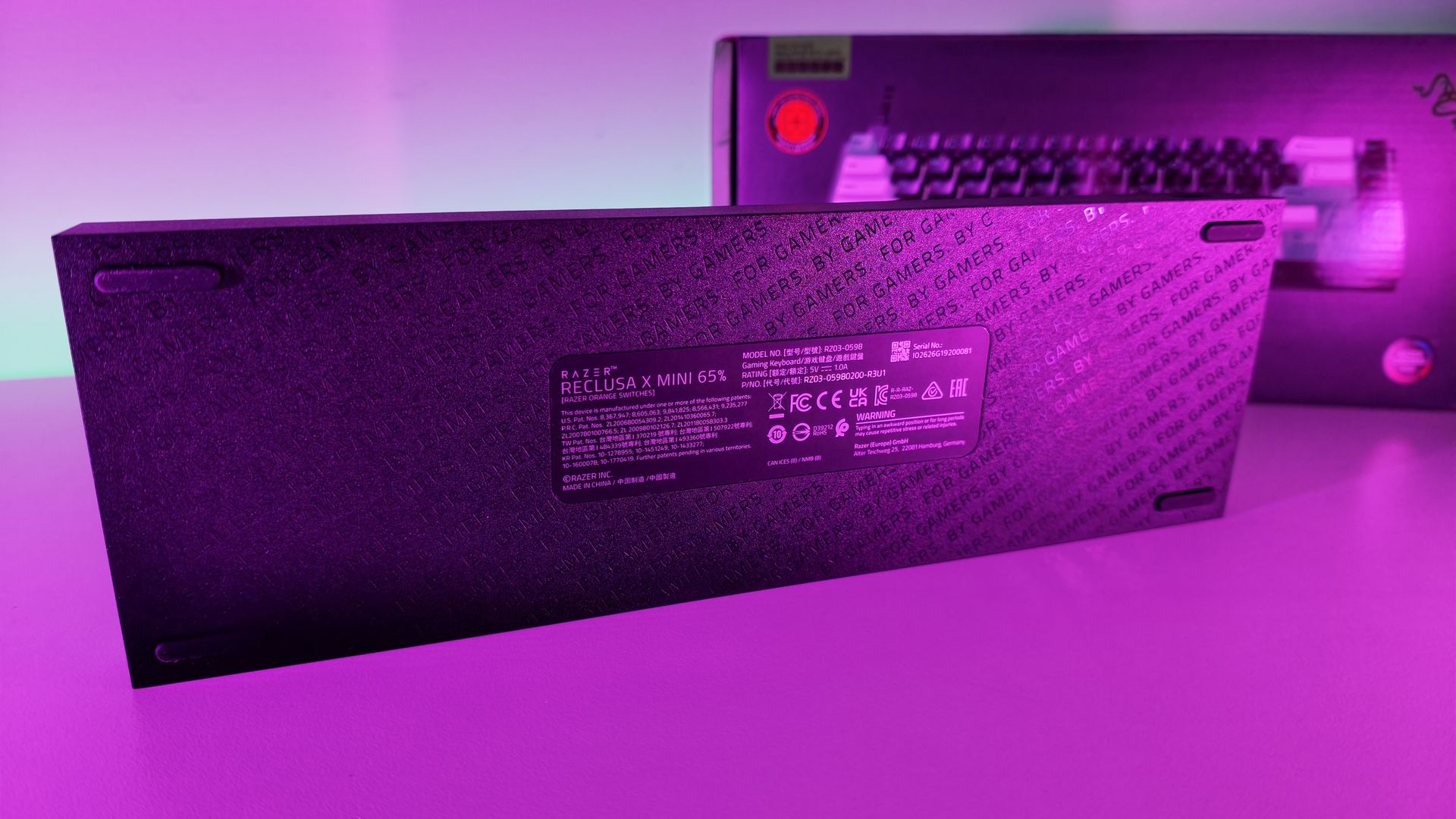
Bottom surface of the Razer Reclusa X Mini 65% keyboard, featuring rubber feet and a center product label with technical details.

Surprisingly, no risers on the bottom of the Reclusa X Mini 65%. (Image credit: Daniel Rubino)

For a $50 keyboard, the construction is also impressive.

My review unit measured roughly 710 grams, giving it enough heft to stay planted on the desk. The chassis doesn't feel flimsy, cheap, or hollow. The matte finish does a great job resisting fingerprints, and the included braided USB-C cable is the same type of quality cable Razer ships with more expensive products.

The hot-swappable design is another major selling point.

Users can install both 3-pin and 5-pin switches without soldering, making the board approachable for newcomers while still appealing to enthusiasts. Razer even notes that the keyboard can be opened through screws in the top plate for additional modifications, although doing so may affect warranty coverage according to the FAQ

Close-up side view of the Razer Reclusa X Mini 65% keyboard showing the recessed USB-C port on its black frame.

The Razer Reclusa X Mini 65% has a very solid body with a single Type-C port on the left-hand side. (Image credit: Daniel Rubino)

I experimented with swapping switches and found the process straightforward. More importantly, I never felt a pressing need to do so. The stock experience is already strong enough that many users will be perfectly happy leaving it untouched.

The new tri-tone keycap design is another win.

Razer says the design is intended to give the keyboard a distinctive visual identity, and it succeeds. Combined with south-facing RGB LEDs, the Reclusa feels like one of Razer's clearest nods yet toward the custom keyboard crowd.

Gaming features that actually matter

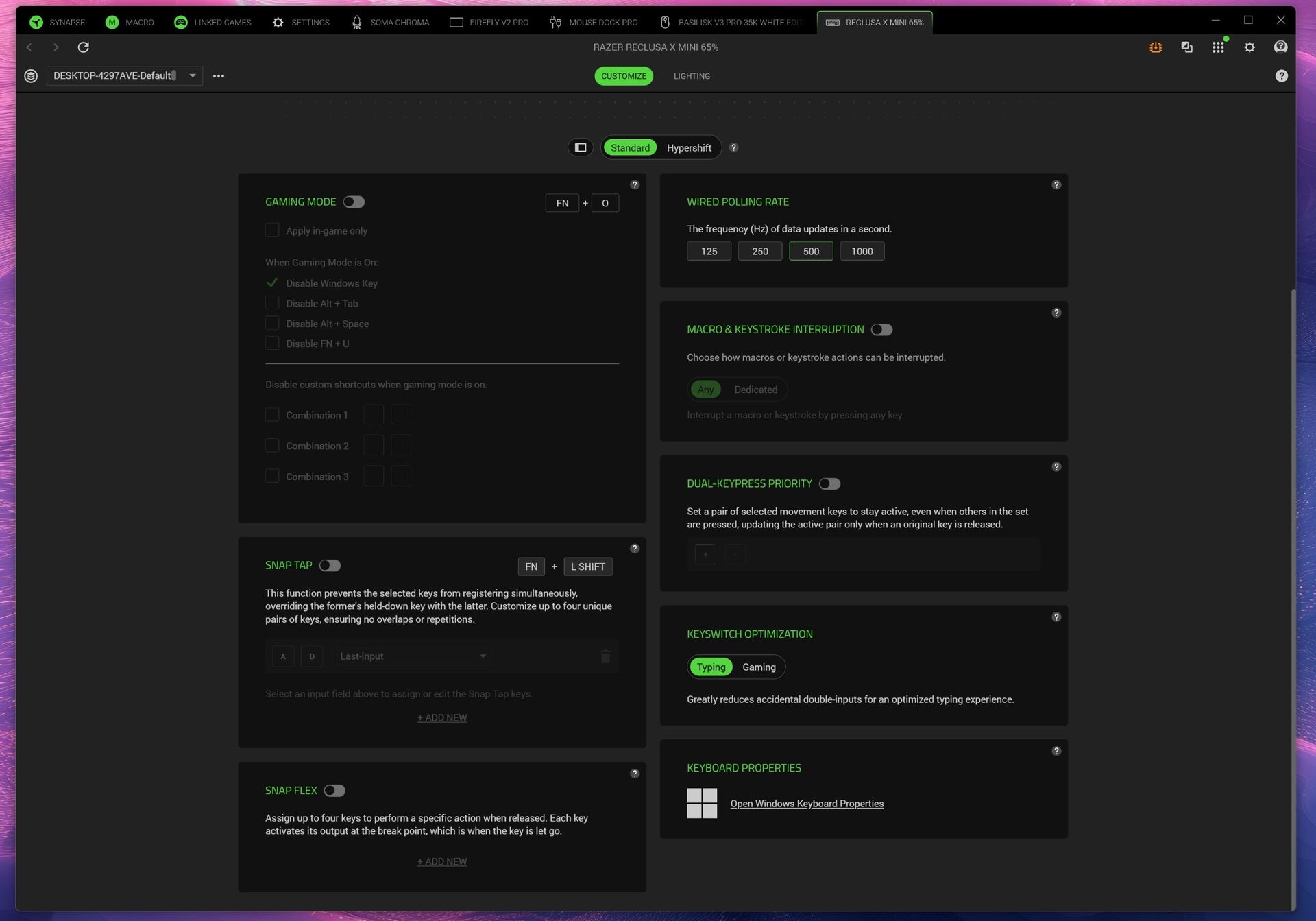
Screenshot of Razer Synapse and the multiple gaming features for the Razer Reclusa X Mini 65% keyboard.

Screenshot of Razer Synapse and the multiple gaming features for the Razer Reclusa X Mini 65% keyboard. (Image credit: Daniel Rubino)

The Reclusa X Mini 65% also includes Snap Tap, Snap Flex, and Dual-Keypress Priority, technologies aimed primarily at competitive players.

Snap Tap helps prioritize directional inputs for cleaner counter-strafing behavior, while Snap Flex can bind two actions to a single keystroke for more consistent multi-input actions. Dual-Keypress Priority is designed to maintain movement consistency when overlapping directional inputs occur.

Extreme close-up of textured black keycaps on the Razer Reclusa X Mini 65% with bright RGB backlighting underneath.

Close-up of the included Doubleshot ABS, tri-tone design keycaps and RGB. (Image credit: Daniel Rubino)

During a few gaming sessions in Call of Duty and DOOM: The Dark Ages, the keyboard behaved exactly as I'd expect from a modern Razer gaming board. The features worked as advertised, though none fundamentally changed my experience during limited testing.

The more important takeaway is that entry-level pricing doesn't mean sacrificing gaming-focused functionality.

What I don't like

Close-up of the retail box highlighting Razer Orange Tactile Mechanical Switches Gen-3 with an exploded layer diagram.

(Image credit: Daniel Rubino)

The 65% form factor itself remains my biggest complaint.

That's more personal preference than a flaw, but users accustomed to dedicated media keys, function rows, or larger layouts may feel constrained. That said, I like typing so much on this; I haven't switched back yet, so that's saying something.

Another drawback is the lack of adjustable feet.

The keyboard sits completely flat, and there are no built-in risers to alter the typing angle. Some users will appreciate the low profile, but I would have liked additional adjustment options.

The Reclusa feels premium where it matters most, but a pair of flip-out feet would have completed the package.

RGB lighting is also merely good rather than exceptional. It gets the job done, but don't expect the depth, diffusion, and visual impact of premium Razer boards like the Huntsman V3 Pro series.

Finally, Synapse remains a potential sticking point. While Razer has been increasingly expanding web-based support options across its ecosystem, some users still prefer products that avoid software requirements entirely.

Should you buy it?

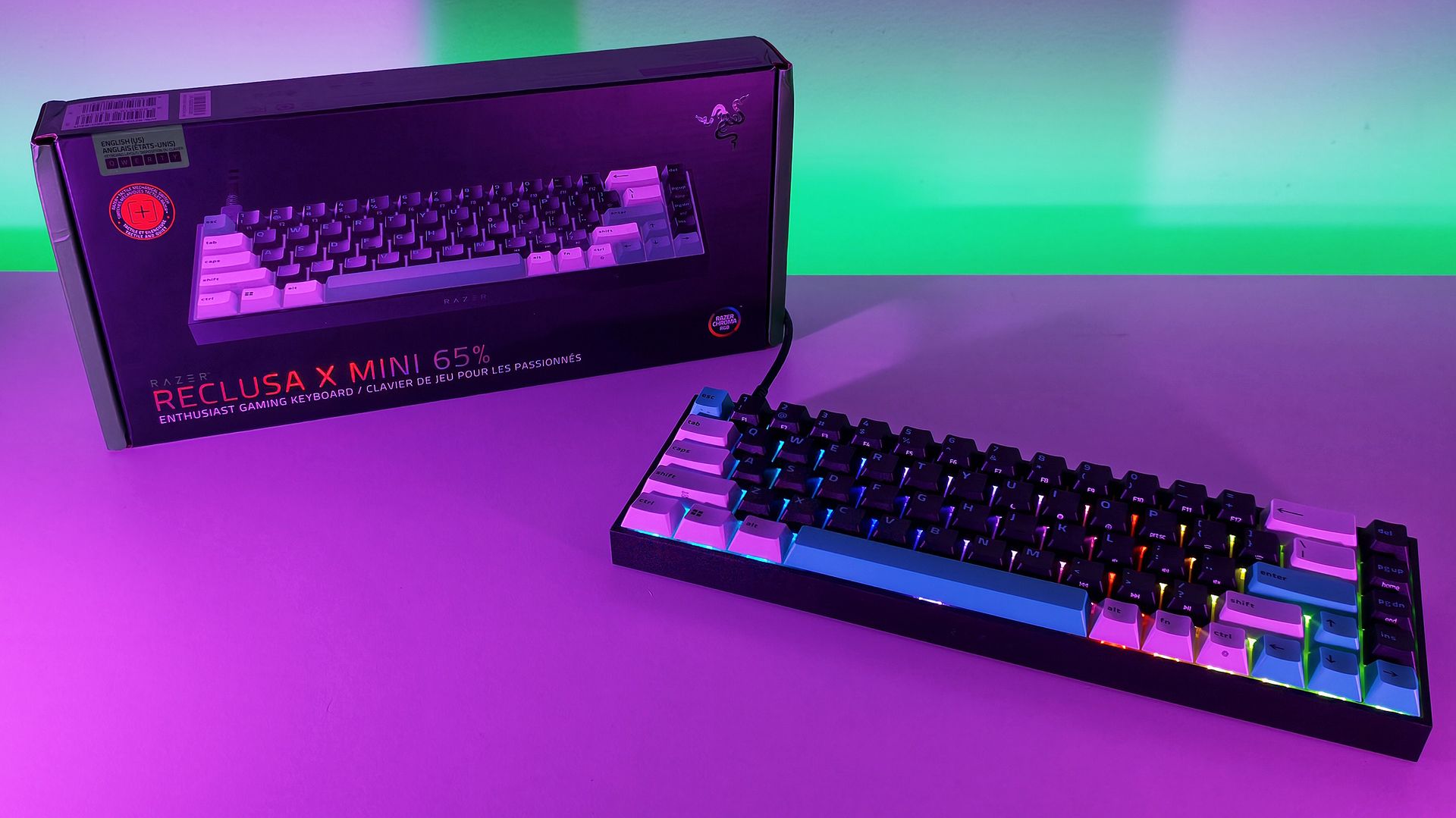
Angled view of the Razer Reclusa X Mini 65% keyboard with active RGB lighting next to its packaging on a purple surface.

(Image credit: Daniel Rubino)

✅You should buy this if...

  • You want a quality mechanical keyboard under $50
  • You want hot-swappable switches without entering the custom keyboard rabbit hole
  • You enjoy tactile switches and satisfying typing acoustics
  • You want enthusiast-friendly features from a major gaming brand

❌You shouldn't buy this if...

  • You need a full-size or TKL layout
  • Dedicated media controls are a must-have
  • Adjustable typing angles are important to you
  • You want flagship-tier RGB lighting

Final thoughts

The Reclusa X Mini 65% feels like the beginning of something larger for Razer.

The company explicitly describes the model as the debut of a new enthusiast-focused Reclusa family and "the first step in the Reclusa journey." While Razer hasn't announced additional models, the messaging strongly suggests the line will expand into other sizes and configurations over time.

If that's the plan, this is an excellent start.

At just $49.99, the Reclusa X Mini 65% delivers a surprisingly refined typing experience, useful gaming features, broad customization potential, and a build quality that belies its budget-friendly price. I still prefer larger layouts, but that's the highest compliment I can give this keyboard: despite my reservations about 65% boards, I genuinely enjoyed using it.

Who should buy it?

The Razer Reclusa X Mini 65% is ideal for gamers and keyboard enthusiasts looking for a genuinely good mechanical keyboard without spending triple digits. If you've been curious about hot-swappable keyboards, custom keycaps, and enthusiast-focused features but don't want to dive headfirst into the custom keyboard rabbit hole, this is one of the easiest and most affordable entry points Razer has offered.

It'll also be a great gift for young aspiring gamers this holiday season.

Razer Reclusa X Mini 65% product image showing the keyboard from a top down perspective.

Razer
Reclusa X Mini 65%

A remarkably affordable enthusiast keyboard that combines hot-swappable switches, excellent tactile feedback, and a premium feel into a package that punches well above its $49.99 asking price.

Click to join us on r/WindowsCentral

Join us on Reddit at r/WindowsCentral to share your insights and discuss our latest news, reviews, and more.
Xbox is quietly turning nostalgia, identity, and cloud gaming into its biggest console advantage

Microsoft dropped a surprisingly substantial batch of Xbox Insider features today, ranging from nostalgia-fueled startup animations to higher-quality Remote Play streaming.

While none of these additions are major enough to warrant their own showcase, they're all pulling Xbox in the same direction: making the platform feel more personal.

This latest update suggests Xbox sees that shift coming and wants to be the platform that adapts to the player rather than asking the player to adapt to it, and I like where that is going.

Looking through the feature list, it becomes clear that Microsoft's biggest focus is reducing friction, not just adding new features for the sake of it.

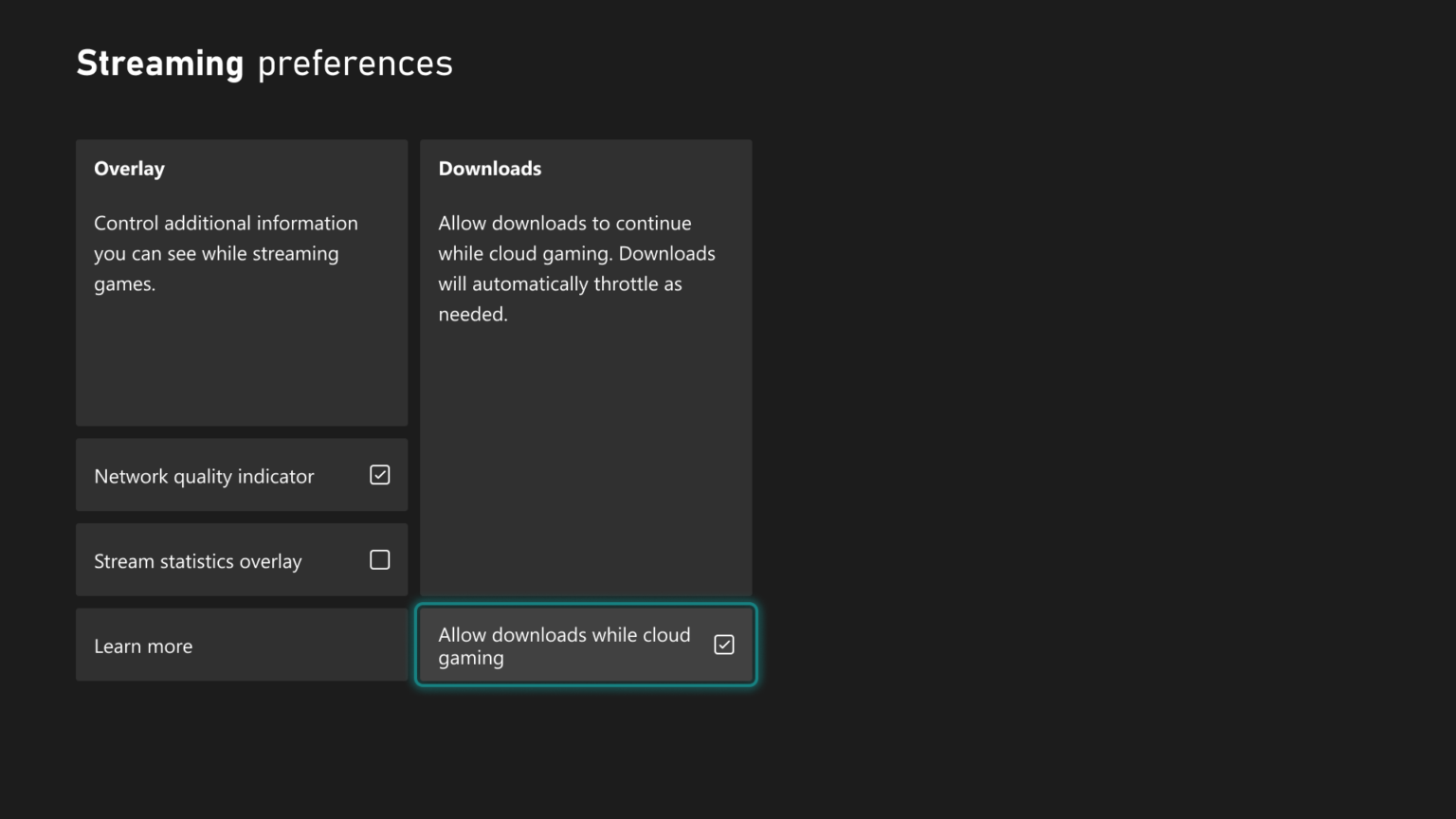
Xbox Streaming preferences menu highlighting the option

Xbox Streaming preferences menu highlighting the option "Allow downloads while cloud gaming" with a checked box. (Image credit: Microsoft | XBOX)

That philosophy appears in the new cloud gaming improvements. Xbox Insiders can now continue downloading games in the background while streaming, reducing one of the small but persistent friction points that come with digital gaming.

These updates may not be groundbreaking, but they represent the kind of quality-of-life improvements that users want, which contribute to making a platform feel more refined and complete.

The new personalization features tell a similar story.

Being able to select startup animations from different eras of Xbox history may sound like a cosmetic addition, but it reflects a growing recognition that players often have a deeper connection to gaming platforms than companies traditionally acknowledge.

Users can now pick from Xbox One, Xbox One X, Xbox Series X|S, or We Are Xbox, which is kinda cool.

Xbox System Startup menu displaying startup animation choices like Xbox One and Series X|S alongside a TV preview screen.

Xbox System Startup menu displaying startup animation choices like Xbox One and Series X|S alongside a TV preview screen. (Image credit: Microsoft | XBOX)

Remote Play is also getting some new improvements.

The company is now testing support for up to 1440p streaming and higher video bitrates through Xbox Remote Play for Xbox Series X|S users in select Insider rings. The technical upgrade matters, but the broader implication matters more.

A few years ago, Remote Play felt like an extra feature. Today, it feels increasingly central to Microsoft's vision (though we're not thrilled with those new Cloud gaming caps).

Microsoft has spent years talking about making Xbox available wherever players want to play. At first, that messaging was often interpreted as a cloud gaming pitch. What we're seeing now is something more nuanced.

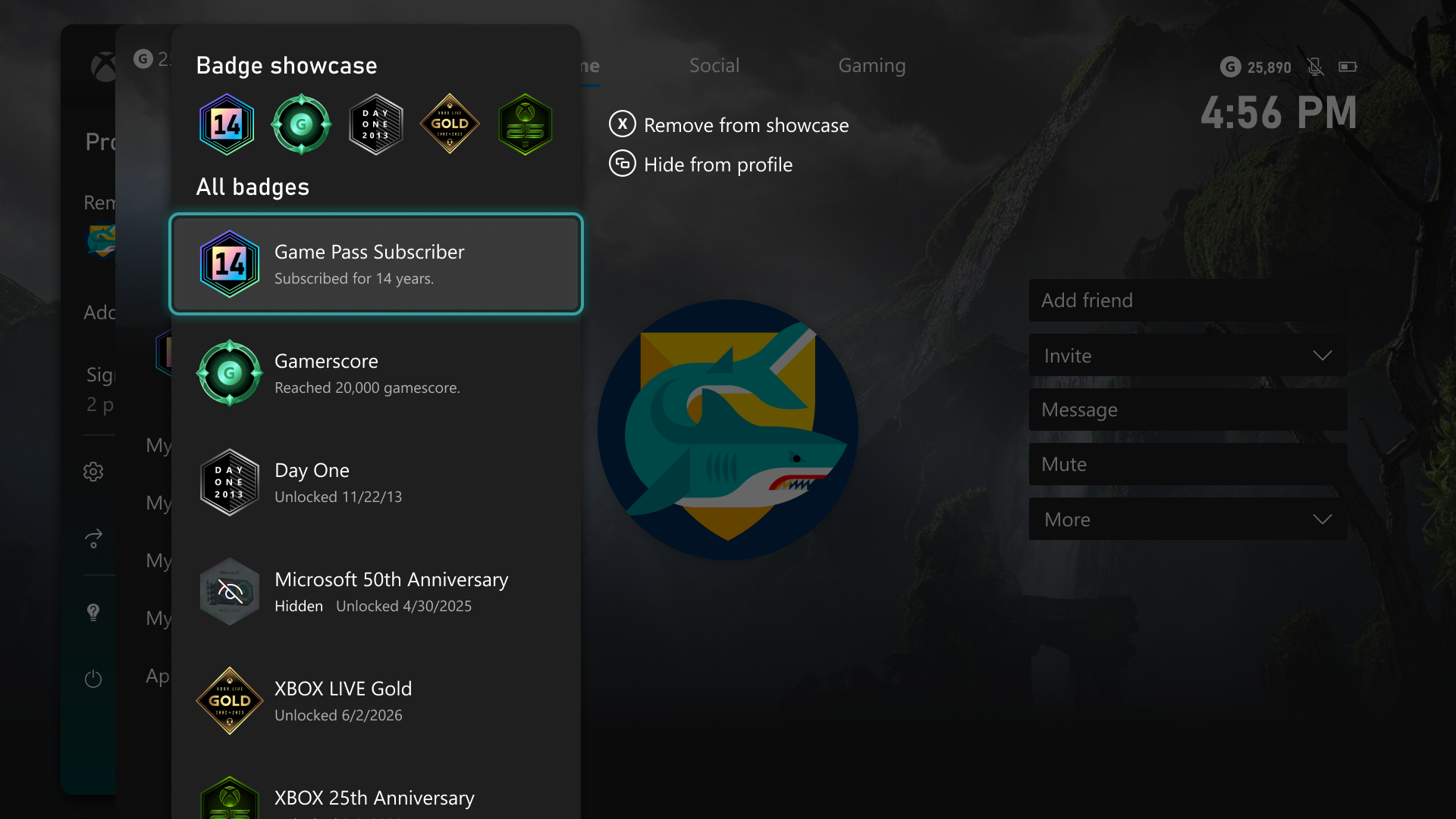
Xbox Badge Showcase menu displaying user profile badges with options to remove or hide them.

Xbox Badge Showcase menu displaying user profile badges with options to remove or hide them. (Image credit: Microsoft | XBOX)

Microsoft now seems more interested in letting players decide which parts of Xbox's history they want to keep with them.

That trend extends to profile customization, where users can choose which achievements and badges are visible and which remain private. If Nintendo's strength is iconic franchises and PlayStation's strength is prestige gaming, Xbox's emerging niche may be flexibility.

Play your games where you want.

Show off your profile how you want.

Start your console how you want.

Access your library how you want.

That seems to be a definable pattern, at least for this update.

Finally, Microsoft is also testing a new Voice Clarity feature for Xbox Series X|S, designed to reduce background noise and improve voice communication in party chat and supported games. Clear communication remains one of the foundations of online gaming, particularly in co-op and competitive titles, so this is a nice nod.

The update also arrives alongside broader backend improvements aimed at making Xbox parties more reliable and secure.

You can get more details from Xbox Wire about today's update.

Windows Central's Take

Again, there's no single standout feature here (although you may disagree), but the bigger picture is that Microsoft is apparently focusing on letting users make Xbox reflect more of their personality and preferences. That's something PC fans are used to, but it's a bit new for console users, where you're more boxed in (pardon the pun).

Maybe this really is all laying the groundwork for the next-gen Xbox (Helix), which is supposed to be more PC-like.

Of course, you could always say this is what Xbox should have been like for years now, but I'm happy to see these changes and like this direction of giving users more choice.

At a time when hardware is becoming unaffordable, the Xbox user experience is becoming the real battleground to keep fans interested, and Microsoft seems to have gotten the message.

Click to join us on r/WindowsCentral

Join us on Reddit at r/WindowsCentral to share your insights and discuss our latest news, reviews, and more.
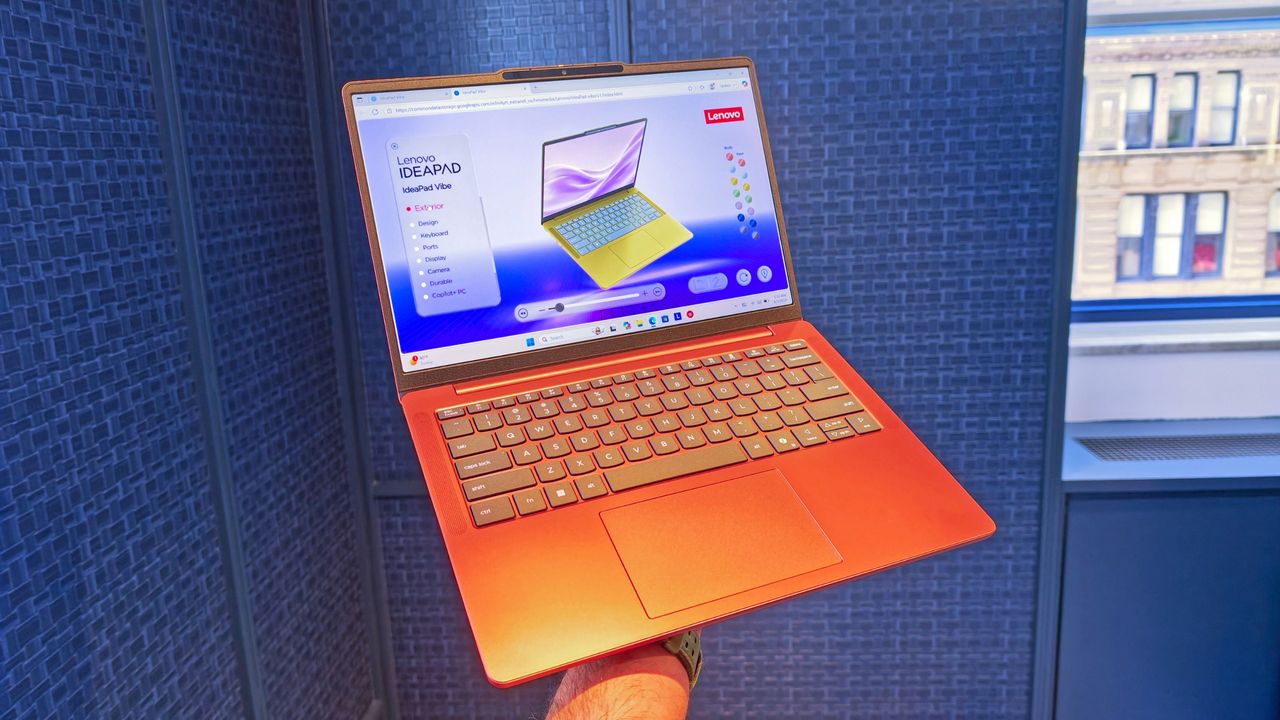
I tried Lenovo's latest rollable laptop concept, and it's the first one that feels like something people might actually buy

Nobody can accuse Lenovo of lacking imagination.

Over the last several years, the company has become the PC industry's unofficial concept lab, routinely showing off hardware that seems pulled from science fiction. We've seen rollable displays that grow taller, gaming laptops that transform into ultrawide displays, foldable PCs, attachable screens, rotating displays, and enough unusual form factors to make even the most adventurous laptop enthusiast pause for a moment.

Some of those ideas have remained concepts. Others have eventually become real products. The ThinkBook Plus Gen 6 Rollable (yes, they actually ship some of these!) is perhaps the best example, evolving from an eye-catching prototype into an actual shipping device. But even as Lenovo's concepts have become increasingly impressive from an engineering perspective, I've often found myself wondering how many of them actually solve a problem that regular laptop buyers have. Making a display expand is certainly cool. Convincing people they need it is the harder challenge.

That's why Project Swan immediately stood out to me.

Lenovo ThinkBook Project Swan laptop on display, showing a vibrant swan with folded wings on a blue, starry lake scene at a tech exhibit.

Lenovo's Project Swan laptop in "normal" mode at 14-inches. (Image credit: Future)

Officially, it's another Lenovo proof-of-concept device, but after spending time with it in person, I came away thinking this may be the company's most practical display concept yet. Not because it's the most ambitious, but because it's arguably the least ambitious.

And that's exactly why it works.

Lenovo finally found a sensible use for a rollable display?

The Lenovo ThinkBook Project Swan begins life as a fairly normal-looking 14-inch laptop.

At 17.9mm thick and weighing 1.6kg (3.5lbs), it isn't trying to break weight records or compete with ultra-premium featherweight notebooks (like Lenovo's new AeroBlade concept). Instead, the focus is on creating a laptop that's comfortable to carry throughout the day while offering something extra when users return to their desk, settle into a hotel room, or need more space for serious work.

That "something extra" is a rollable display that expands horizontally into a 17-inch 16:9 workspace.

Unlike Lenovo's previous rollable designs, which generally expanded vertically, Project Swan widens itself by extending the display out to the sides. It's all done with a touch of a button (see my video below), and it only takes a few seconds.

The result feels much more like using a traditional external monitor than using an experimental form factor. You suddenly have enough room for side-by-side documents, large spreadsheets, dashboards, presentations, browser windows, Teams chats, and everything else that tends to compete for space on a 14-inch screen.

Lenovo Project Swan laptop on display, showing a vibrant swan with outstretched wings on a blue, starry lake scene at a tech exhibit.

Lenovo's Project Swan laptop in extended mode, where the display reaches 17 inches. (Image credit: Future)

The transformation is dramatic enough to get attention, but conservative enough to feel practical. During my hands-on session, that was the first thing that struck me about the device.

Many of Lenovo's earlier concepts felt designed to answer the question, "Can we do this?"

Project Swan feels far more interested in answering the question, "Would people actually want this?"

That's a subtle distinction, but it's an important one.

This feels like the next step in Lenovo's display experiments

Two Lenovo Project Swan concept laptops side-by-side, demonstrating the screen in standard view versus expanded rollable view.

Lenovo Project Swan concept laptops side-by-side, demonstrating the screen in standard view versus expanded rollable view. (Image credit: Lenovo)

Project Swan didn't emerge in a vacuum. In many ways, it feels like the natural evolution of everything Lenovo has been experimenting with over the last few years.

The ThinkBook Plus Gen 6 Rollable demonstrated that expandable OLED displays could successfully transition from concept to commercial product. Lenovo's Legion rollable gaming laptop concept showed how flexible displays could create an ultrawide experience without requiring users to carry an enormous machine. Other projects explored foldable displays, secondary screens, and entirely new ways of interacting with PCs.

As impressive as many of those concepts were, some occasionally felt like technology showcases first and products second.

Project Swan reverses that equation.

Lenovo ThinkBook Plus (Gen 6) laptop sample on display at CES 2025.

Lenovo ThinkBook Plus (Gen 6) laptop and its vertical rollable display at CES 2025. (Image credit: Windows Central | Zachary Boddy)

Rather than dramatically changing how people interact with a laptop, it simply gives them more screen real estate when they need it and gets out of the way when they don't. That's a much easier benefit for consumers to understand and, perhaps more importantly, a much easier benefit to justify paying for.

After all, most people already know the dilemma.

A 14-inch laptop is ideal for travel. A larger display is ideal for work.

Project Swan attempts to deliver both.

The idea makes sense. The challenges are obvious.

Rear angled view of the Lenovo Project Swan concept laptop, showcasing the back housing and mechanism of the horizontally expanding rollable screen.

Read image of the Project Swan laptop cover and its motorized rollable display. (Image credit: Lenovo)

That isn't to say there aren't trade-offs.

The first thing I noticed when using the expanded display was that the system becomes somewhat top-heavy. That's hardly surprising given the additional display hardware housed in the lid, but it was noticeable enough that I'd expect Lenovo's engineers to still be looking at ways to refine the balance.

Pricing is another obvious concern.

Rollable OLED displays aren't cheap (it's $3,499 for the ThinkBook Plus Gen 6 Rollable), and if Project Swan ever becomes a commercial product, it's almost certainly going to carry a premium compared to a traditional clamshell laptop. The value proposition may be easier to understand than some other concept devices, but consumers still need to be convinced that expandable screen space is worth the additional cost.

Then there's the question everyone asks whenever a company unveils a rollable or foldable display.

How durable is it?

Flexible OLED technology has improved dramatically over the last few years, but long-term reliability remains an important consideration. How will the mechanism hold up after years of daily use? What happens after thousands of expansion cycles? Will buyers trust a laptop that contains moving display components?

The technology may be ready, but consumer confidence isn't something that can be engineered overnight.

The bigger question is whether people want these new form factors

That's really the challenge facing every laptop manufacturer right now.

The industry has spent years experimenting with alternatives to the traditional clamshell design. Foldable PCs promised tablet-sized displays that fit inside a laptop footprint. Dual-screen systems like the Lenovo Yoga 9i attempted to replace physical keyboards with additional displays. Rollable devices have explored several different directions entirely.

Some enthusiasts love these ideas, but many consumers remain perfectly happy with the laptops they already own.

That's what makes Project Swan so interesting to me. It isn't asking users to learn a new workflow or completely rethink how they use a PC. Instead, it's enhancing something people already understand: bigger screens are often better, but bigger laptops are harder to carry.

Whether that argument ultimately resonates with buyers remains an open question, but it's certainly the clearest pitch Lenovo has made for a rollable display so far.

Lenovo deserves credit for keeping the experimentation alive

Front view of the open grey Lenovo Project Swan concept laptop with its rollable screen expanded horizontally beyond the keyboard base.

Front view of the open grey Lenovo Project Swan concept laptop with its rollable screen expanded horizontally beyond the keyboard base. (Image credit: Lenovo)

Even if Project Swan never reaches store shelves, I appreciate what Lenovo is doing here.

The PC industry can sometimes become obsessed with processor upgrades, AI features, and specification sheets while overlooking more fundamental questions about how people actually use their devices. Lenovo's concepts consistently ask those questions, even when the answers occasionally seem, well, strange.

What's refreshing about Project Swan is that it feels grounded in reality. The company isn't trying to reinvent personal computing or create an entirely new category. Instead, it's exploring a straightforward idea that almost everyone who has worked on a laptop can relate to.

Sometimes you want a compact machine for travel.

Sometimes you wish that same machine had a much larger screen.

Project Swan is the most convincing attempt I've seen yet to bridge that gap.

I still have concerns about durability, balance, pricing, and whether consumers are truly interested in another alternative laptop design. But after trying it for myself, I'm more optimistic about this concept than many of Lenovo's previous experiments.

Ironically, that's because it feels less ambitious. Rather than trying to change how we work, Project Swan simply gives us a little more room to do it.

And that may be exactly what makes it one of Lenovo's most promising concepts yet.

Let me know in the comments what you think about Project Swan. Should Lenovo continue to push this concept of an expanding display, or focus more on other ideas (and if so, which ones)?

Click to join us on r/WindowsCentral

Join us on Reddit at r/WindowsCentral to share your insights and discuss our latest news, reviews, and more.
I got hands-on with Lenovo's new $699 IdeaPad Vibe, which goes up against the MacBook Neo, and choosing a color may be harder than choosing a CPU

Competition for Apple's MacBook Neo is heating up.

Just days after Dell unveiled a new 14-inch laptop designed to take on Apple's latest mainstream notebook, Lenovo is entering the fight with something considerably more interesting: a laptop that lets you express your personality instead of forcing you to settle for silver, gray, or slightly darker gray.

I recently got to see Lenovo's new IdeaPad Vibe lineup in person in New York City, and while the company talked plenty about AI, processors, and battery life, the thing that immediately stood out to me was how different these laptops look compared to almost everything else on the market.

Most PC makers treat color options as an afterthought. Lenovo is making them the product.

Fan-like arrangement of seven Lenovo IdeaPad Vibe laptop top lids displaying a full spectrum of color options.

(Image credit: Daniel Rubino)

The new IdeaPad Vibe will be available in seven Pantone-developed colors, including Chill Blue, Zen Green, Spicy Gold, Radiant Coral, Dreamy Violet, Lowkey Grey, and Moody Blue. Lenovo says the colors were developed alongside the Pantone Color Institute and are designed to reflect different moods, personalities, and lifestyles.

And that's just the beginning.

As shown in Lenovo's custom configurator (below), users will be able to mix and match chassis colors and keyboard colors to create something uniquely theirs. The company is also offering swappable custom keycaps, adding another layer of personalization that is virtually unheard of in the mainstream laptop space.

The configurator demo I saw almost felt like building a custom character in a video game rather than buying a laptop, and reminded me of the XBOX Design Lab for custom controllers.

Photo of a laptops display showing a customizer for laptop colors when ordering the Lenovo IdeaPad Vibe.

Demo of the web creation tool to let you customize the new IdeaPad Vibe. (Image credit: Daniel Rubino)

In fact, my biggest complaint about the IdeaPad Vibe is that there might be too much choice.

That's obviously a good problem to have, but after looking through the various color combinations, shell finishes, and processor options, I could already imagine spending far too much time trying to decide which configuration to order (I know because I tried).

That's not a sentence I ever expected to write about a Windows laptop.

Straight-on front view of an open sage green Lenovo IdeaPad Vibe laptop displaying a warm metallic liquid wallpaper.

Lenovo IdeaPad Vibe in Zen Green and black keycaps. (Image credit: Lenovo)

Of course, a laptop can't survive on colors alone, and thankfully Lenovo seems to have put together a genuinely compelling package underneath all that personality.

The IdeaPad Vibe comes in both 14-inch and 15-inch sizes and starts at just 1.3kg (2.87 pounds) for the smaller model. OLED display options are available with up to 100% DCI-P3 color coverage, while IPS models can offer refresh rates up to 120Hz.

Lenovo is also packing in practical features including dual SSD slots, Wi-Fi 7, USB-A and USB-C ports, HDMI, a MicroSD card reader, and a 5MP IR webcam with a privacy shutter.

AMD, Qualcomm or Intel (eventually)

Top-down view of an open purple Lenovo IdeaPad Vibe laptop showing its keyboard, touchpad, and golden wallpaper on screen.

Lenovo IdeaPad Vibe in Dreamy Violet. (Image credit: Lenovo)

Then there's the processor selection.

For launch, buyers can choose between AMD Ryzen AI 400 series configurations and Qualcomm Snapdragon X models (we're not clear on exactly which Snapdragon X chip, or even if it's X2), while Intel-based versions will arrive later. AMD models support up to 32GB of upgradeable memory and up to 1TB of SSD storage, while Snapdragon versions offer up to 24GB of memory and the same dual-slot storage flexibility.

Personally, I'd go Qualcomm.

We've reached a point where Snapdragon X PCs consistently deliver excellent everyday performance while also offering some of the best battery life available in the Windows ecosystem. The combination of a lightweight chassis, Copilot+ PC capabilities on supported configurations, and Qualcomm's efficiency makes the Snapdragon version particularly appealing to me.

That isn't to say AMD isn't tempting. AMD's advantage here is flexibility. The Ryzen AI configurations support memory upgrades up to 32GB and offer optional 50Wh or 65Wh battery configurations, making them attractive for enthusiasts who want more control over their hardware.

What impressed me most during my hands-on time wasn't any single specification. It was how cohesive the overall package felt.

The laptops looked premium, felt solid in the hand, and didn't come across as budget systems despite their surprisingly aggressive pricing. That's important because Lenovo isn't positioning the IdeaPad Vibe as a niche fashion accessory. This is meant to be a mainstream Windows laptop that happens to have far more personality than its competitors.

And right now, that may be enough to help it stand out.

Final thoughts

Angled front view of an open dark blue Lenovo IdeaPad Vibe laptop featuring a thin screen bezel and grey abstract wallpaper.

Lenovo IdeaPad Vibe in Chill Blue. (Image credit: Lenovo)

Apple's MacBook Neo has clearly encouraged PC makers to rethink the mainstream laptop category. Dell has already responded with its own fresh take on the formula with its just-announced Dell 14S, and now Lenovo is bringing something completely different to the table: customization.

Instead of asking buyers which shade of gray they prefer, Lenovo is asking what their "vibe" is.

That's a much more interesting question, even if a bit on the nose and a tad cringey.

The Lenovo IdeaPad Vibe with AMD processors launches in October 2026 starting at $699.99, while Qualcomm Snapdragon X models will follow in November 2026 with the same $699.99 starting price. Intel is only listed as coming later.

And after seeing them in person, I think Lenovo may have stumbled onto something other PC makers have forgotten: technology can be personal, but it can also be fun.

Click to join us on r/WindowsCentral

Join us on Reddit at r/WindowsCentral to share your insights and discuss our latest news, reviews, and more.
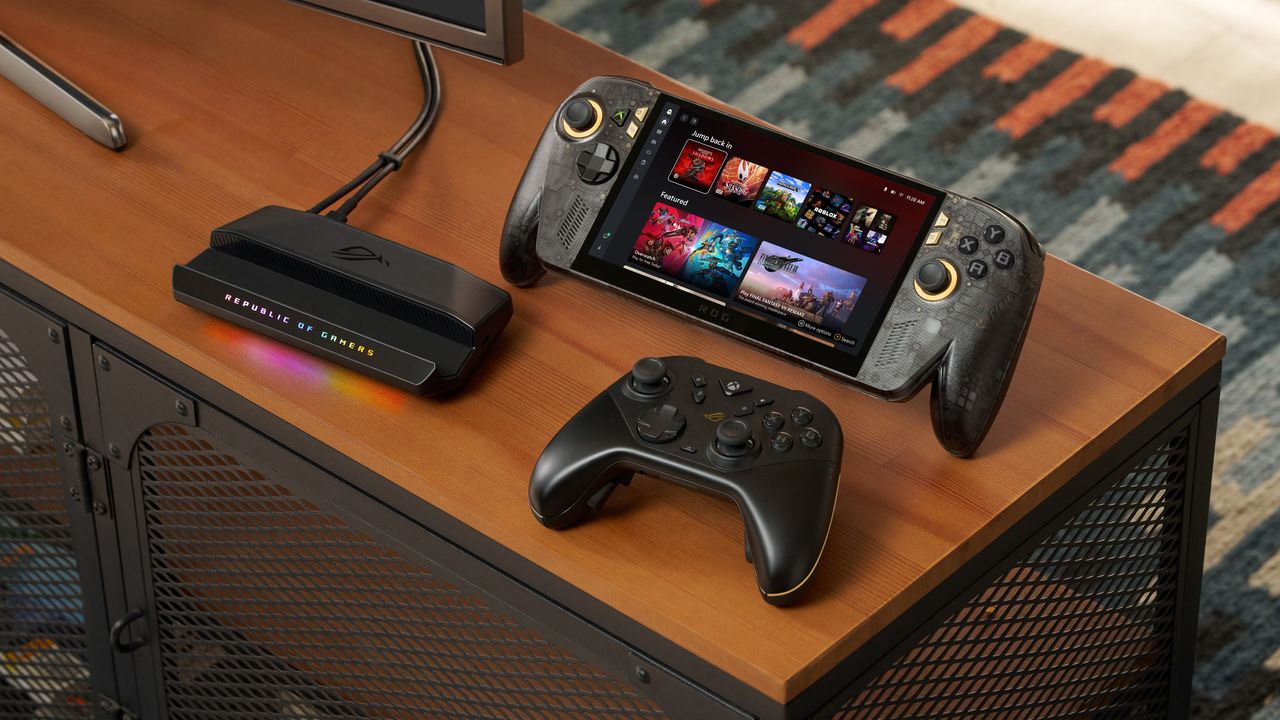
Lenovo's impossibly thin AeroBlade concept could be the future of laptops (and I think it's coming sooner than expected)

I've seen a lot of concept PCs over the years.

Most are fascinating engineering exercises that are never destined for store shelves. They're designed to spark conversation, generate headlines, and give us a glimpse into what might be possible someday. Some do come to market, like rollable display PCs.

Lenovo's new Project AeroBlade concept feels different.

Officially, it's one of the company's latest proof-of-concept devices, unveiled as part of its annual wave of experimental hardware at IFA 2026. Unofficially? I think there's a very good chance we're looking at Lenovo's next big premium laptop platform.

After getting hands-on with AeroBlade, I walked away convinced this isn't some far-future moonshot. If you told me a shipping version appears within the next year, I wouldn't be surprised in the slightest.

Disassembled Project Aeroblade motherboard with attached ribbon cables and side connector modules, displayed on dark fabric in a technical, instructional setting.

Motherboard and AeroJet cooling system. (Image credit: Future)

And it can't happen soon enough.

Project AeroBlade is a 14-inch laptop that measures under 10 mm thin and weighs less than 830 grams (1.8lbs). That's lighter than many tablets with keyboard covers attached, yet Lenovo claims performance remains comparable to today's ThinkPad X1 Carbon class of Intel-powered laptops. According to Lenovo, the system achieves this through a completely reimagined thermal design built around its Active Flow cooling architecture developed alongside Frore Systems.

Hand holding a compact, highly integrated square laptop motherboard branded with the Lenovo logo.

That's the entire motherboad for this laptop👀! (Image credit: Daniel Rubino)

Those numbers don't really hit you until you pick it up.

The first thing that struck me wasn't the thickness. It was the weight. Or rather, the lack of it.

The AeroBlade almost feels unfinished when you lift it because your brain expects more mass. Premium laptops have gotten thinner over the last decade, but reducing weight has become increasingly difficult without introducing compromises. AeroBlade somehow manages to feel substantial and premium while remaining almost shockingly light.

Lenovo says the chassis uses a magnesium-aluminum construction paired with a high screen-to-body OLED display, Thunderbolt 4 connectivity, and Wi-Fi 7. On paper, it sounds like a modern flagship ultrabook. In person, it feels like somebody accidentally removed half the laptop. That's a compliment.

What makes AeroBlade truly interesting, however, isn't how thin it is; it's how Lenovo got there.

The fan is dead. Long live AirJet.

Hand holding a custom Frore AirJet solid-state cooling strip assembly with copper heat sinks and ribbon cables.

Entire Frore AirJet solid-state cooling strip assembly with copper heat sinks and ribbon cables. (Image credit: Daniel Rubino)

For decades, laptop cooling has largely followed the same formula.

A processor generates heat. Heat pipes move that heat toward a heatsink. One or more fans blow air through the system and out of vents.

The design has evolved, but the fundamentals haven't changed much.

Frore Systems wants to change that.

AirJet is a solid-state active cooling solution that replaces traditional laptop fans with tiny cooling chips that use vibrating membranes to generate airflow. Instead of spinning fan blades, AirJet creates high-velocity pulsating air jets that remove heat while operating at extremely low noise levels. Frore describes it as the world's first solid-state active cooling chip.

One AirJet Mini Slim module is only 2.65mm thick, consumes up to 1 watt of power, removes up to 5.25 watts of heat, and generates significantly higher back pressure than traditional fans. The technology was specifically designed for ultra-thin devices where conventional cooling becomes difficult or impossible.

Close-up of two Frore AirJet Mini Slim solid-state cooling chips installed on a copper heat pipe strip above gray laptop keyboard keys.

Close-up of two Frore AirJet Mini Slim solid-state cooling chips installed on a copper heat pipe strip above gray laptop keyboard keys showing how they are placed in the laptop. (Image credit: Daniel Rubino)

The clever part is that these modules don't need the large internal spaces required by traditional fans.

Instead of designing a laptop around cooling hardware, manufacturers can distribute AirJet modules throughout the chassis in different locations.

That flexibility is both the technology's greatest strength and its biggest challenge.

During conversations at the event, it became clear why we've seen AirJet demonstrations for a few years but haven't yet seen a flood of mainstream laptops using it.

Exploded diagram revealing the internal layers, motherboard, and Frore AirJet solid-state cooling modules of a Lenovo AeroBlade concept laptop.

Exploded diagram revealing the internal layers, motherboard, and Frore AirJet solid-state cooling modules of a Lenovo AeroBlade concept laptop. (Image credit: Lenovo)

This isn't a simple parts swap.

OEMs have spent decades designing motherboards, thermal layouts, and internal structures around conventional fans. AirJet requires engineers to rethink much of that architecture. The cooling solution may be smaller, but integrating it properly involves substantial redesign work throughout the entire system.

That's a lot of engineering investment.

But judging by AeroBlade, the payoff might be worth it.

A laptop with almost no compromises

Front view of an open slim grey Lenovo ThinkBook AeroBlade laptop showcasing a colorful ribbon wallpaper on its display.

Rendering of the Lenovo ThinkBook AeroBlade laptop. (Image credit: Lenovo)

The most impressive thing about AeroBlade is that Lenovo doesn't appear to be treating fanless computing as a compromise.

Traditionally, when manufacturers build ultra-thin fanless systems, performance becomes the sacrifice. The device is quiet and portable, but sustained workloads eventually cause thermal throttling.

Lenovo's pitch is essentially the opposite.

Side view of an ultra-thin grey laptop standing open at a 90-degree angle, highlighting its extremely slender display and base.

Side view of an ultra-thin grey laptop standing open at a 90-degree angle, highlighting its extremely slender display and base. (Image credit: Lenovo)

The company believes Active Flow can deliver sustained AI and productivity performance without the compromises typically associated with fanless PCs. The only noise I noticed during my brief hands-on came under heavier workloads, where there was a faint whooshing sound from moving air. It was subtle enough that I had to actively listen for it.

What I didn't notice were intake vents covering the bottom of the chassis. Hooray!

That's because the cooling system works differently than traditional laptop designs. Air management has largely been pushed toward the rear of the system, creating a cleaner and more minimalist design.

Angled close-up of the left side profile of a thin grey laptop, showing two USB-C ports along the slim edge.

Super thin, but still room for some Type-C ports. (Image credit: Daniel Rubino)

The result is a device that feels almost impossibly refined, and that's why I think AeroBlade is a big deal.

Most laptop innovation over the last few years has focused on AI accelerators, NPUs, display tech, and silicon improvements. Those things are important, but they're largely invisible to users (well, maybe not displays, but still).

Cooling isn't.

Cooling defines thickness, weight, acoustics, sustained performance, battery behavior, and overall design flexibility.

In many ways, cooling technology determines what kind of laptop manufacturers can build.

Lenovo could make impossibly thin and light (compared to what we are used to), or use that extra space for a larger battery for absurd laptop longevity. It opens a bunch of engineering doors and options.

The concept that doesn't feel like a concept

Lenovo loves showing proof-of-concept devices, and many never become products.

But the company's track record also shows that some of its most interesting concepts eventually make the jump to production after enough refinement (I'm hoping Lenovo's Legion handheld foldable concept is one of those).

AeroBlade feels like one of those projects. Indeed, this was my first question to Lenovo, as proof-of-concept is often wacky designs, rolling displays, dual displays ... things that look weird but could be useful.

Super thin and light laptop with no vents? Who wouldn't want this? I don't think we really need a focus group to see if it's a good idea!

The hardware already looks polished. The underlying technology exists. The user benefits are immediately obvious. And perhaps most importantly, the industry is constantly searching for ways to make laptops thinner, lighter, quieter, and more efficient.

AirJet checks every one of those boxes.

Will this technology replace fans in gaming laptops with RTX-class graphics anytime soon? Probably not.

But for premium ultraportables, enterprise notebooks, all-in-one desktops, handheld gaming PCs, and productivity-focused systems, I think we're looking at one of the most significant advances in PC design we've seen in years. (We've already openly wondered about Aerojet in a Steam Deck 2).

So, yeah, ironically, the biggest innovation at Lenovo's event wasn't AI.

It was airflow.

Click to join us on r/WindowsCentral

Join us on Reddit at r/WindowsCentral to share your insights and discuss our latest news, reviews, and more.
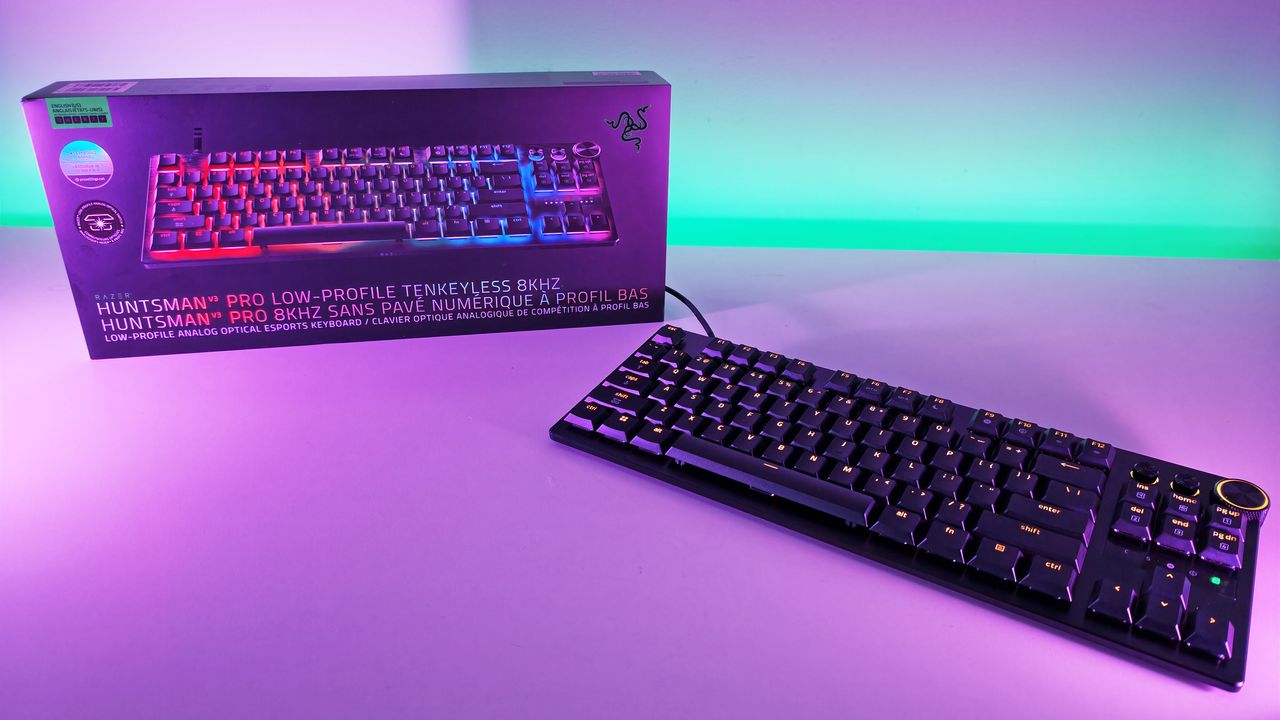
Pre‑orders are live for the new ROG Xbox Ally X20, featuring a larger OLED display, a refreshed design, and clear advantages over the current Ally X

ASUS has officially opened pre-orders for the ROG Xbox Ally X20, confirming that the company's 20th anniversary handheld gaming PC will be available both as a premium standalone device and as part of a bundled package when it launches on October 15.

In the United States, customers can now pre-order the ROG Xbox Ally X20 standalone model for $1,299.99 MSRP, while the fully loaded ROG Xbox Ally X20 Bundle is priced at $2,499.99 MSRP.

Both versions will be available through Best Buy (today) and the ASUS Store (Sept 24th).

While ASUS originally introduced the X20 as a special anniversary edition, the more time we've spent learning about the device, the clearer it becomes that this isn't simply a commemorative refresh. The ROG Xbox Ally X20 is effectively a significant mid-generation upgrade to the existing ROG Xbox Ally X, bringing meaningful hardware, display, thermal, and control improvements that go well beyond a new paint job or limited-edition branding.

Direct front view of the translucent black ROG Xbox Ally X20 handheld gaming device displaying

Pre-order
ASUS
ROG Xbox Ally X20

A refined celebration of ASUS’s gaming legacy, the Ally X20 Anniversary Edition pairs its upgraded Ryzen AI Z2 Extreme chip with a vibrant 7.4‑inch OLED HDR display and a boosted 80 Wh battery. It’s a sleeker, more efficient Windows gaming handheld built to mark the milestone with sharper visuals, quieter thermals, and longer play sessions.

A true upgrade, not just an anniversary model?

At first glance, the X20's translucent-inspired design and special 20th anniversary touches may suggest that this is primarily a collector's edition. Under the chassis, however, ASUS has made extensive engineering changes compared to the existing ROG Xbox Ally X that directly impact the gaming experience.

The most obvious upgrade is the display.

The ROG Xbox Ally X20 moves from the current model's 7-inch screen to a larger 7.4-inch OLED panel, while also delivering substantial improvements in brightness and HDR performance. The display now supports 600 nits SDR brightness, up to 1,400 nits peak HDR brightness, and includes Dolby Vision support alongside ASUS' ROG Nebula HDR technologies.

ROG Xbox Ally X20

Processor

AMD Ryzen AI Z2 Extreme 

Display

7.4" OLED HDR (600 nits, 1400 peak)
16:9 FHD (1080p)
120 Hz  FreeSync

Memory

24 GB 8000 MHz LPDDR5X

Storage

1 TB M.2 2280 SSD (Upgradable)

Connectivity

Wi‑Fi 6E (2×2) + Bluetooth 5.4

I/O

1× USB‑C 4.0 (Thunderbolt 4  compatible
1× USB‑C 3.2 Gen 2
1× microSD Express 
1× 3.5 mm Combo Audio Jack

Battery

80 Wh

Dimensions

11.81" (W) × 4.77" (D) × 2.02" (H) in (300 × 121.1 × 51.3 mm)

Weight

1.66lbs (756 g)

For handheld gaming, display quality is often one of the most noticeable aspects of the user experience, and the move to OLED alone represents one of the largest upgrades ASUS has made to the platform since launch.

Major internal redesign improves cooling and airflow

Direct front view of the translucent black ROG Xbox Ally X20 handheld gaming device displaying

Direct front view of the translucent black ROG Xbox Ally X20 handheld gaming device displaying "20 ROG Anniversary" and "Dare to Innovate" on its screen. (Image credit: ASUS)

The display isn't the only part of the handheld receiving attention.

According to ASUS, the X20 features a completely redesigned PCB, allowing engineers to rethink the internal layout of the system. Surface-mounted USB4 ports enabled the motherboard to be repositioned, creating additional airflow opportunities within the chassis.

ASUS has also upgraded the cooling solution with revised fan and heatsink fin designs, while shifting motherboard placement by several millimeters to further improve thermal efficiency.

That may sound like a small change on paper, but thermals have become one of the defining factors of modern handheld gaming PCs. Better airflow and improved cooling can translate into lower temperatures, quieter operation, and more consistent performance during extended gaming sessions.

A better handheld for competitive gaming

A person reclining on a couch wearing ROG XREAL R1 AR glasses while holding the Ally X20 handheld, viewing a large virtual screen projection of a racing game.

A person reclining on a couch wearing ROG XREAL R1 AR glasses while holding the Ally X20 handheld, viewing a large virtual screen projection of a racing game. (Image credit: ASUS)

ASUS is also targeting enthusiasts who play fighting games, shooters, and other genres where input precision matters.

The ROG Xbox Ally X20 introduces hybrid metal dome switches for a more tactile D-pad feel, along with what ASUS calls a Transforming D-pad. The mechanism allows players to rotate the D-pad configuration to better align diagonals, providing an experience specifically designed with fighting games in mind.

The thumbsticks have also been upgraded to TMR magnetic induction sticks, offering Hall-effect-style benefits while reducing power consumption. ASUS says the sticks deliver roughly a 3% dead zone and improved precision compared with traditional alternatives.

From a visual standpoint, ASUS has doubled the RGB lighting count around the sticks, increasing from two LEDs to four LEDs per joystick.

Taken together, these changes may end up being just as important as the display improvements, especially for players who spend hundreds of hours with a handheld in their hands.

What's unchanged?

Back view of the translucent black ROG Xbox Ally X20 featuring textured hand grips, ventilation grilles, a gold diagonal stripe, and a 20th anniversary badge.

Back view of the translucent black ROG Xbox Ally X20 featuring textured hand grips, ventilation grilles, a gold diagonal stripe, and a 20th anniversary badge. (Image credit: ASUS)

Interestingly, ASUS has resisted changing several of the core specifications that already made the ROG Xbox Ally X one of the strongest Windows gaming handhelds available.

The ROG Xbox Ally X20 retains:

  • AMD Ryzen AI Z2 Extreme processor
  • 24GB LPDDR5X-8000 memory
  • 1TB PCIe Gen4 SSD storage
  • 80Wh battery
  • USB4 connectivity with Thunderbolt compatibility
  • Wi-Fi 6E support

That's probably the right decision. The current Ally X platform already delivers excellent battery life and class-leading handheld performance, so ASUS appears to have focused on enhancing areas that users interact with directly rather than chasing specs for the sake of a marketing bullet point.

And to be fair, there is no newer AMD handheld chip on the market, so there's that!

Goodbye microSD, hello microSD Express

One notable hardware change involves expandable storage.

The traditional microSD slot has been removed and replaced with a microSD Express card reader, supporting dramatically faster storage speeds. ASUS cites support for microSD Express cards capable of approaching 1 GB/s transfer rates, bringing removable storage much closer to SSD-class performance

As game install sizes continue growing, that could become a more meaningful upgrade than many users initially realize.

Two ways to buy

ROG Xbox Ally X20 bundle set showcasing the handheld console, AR glasses, power adapter, interchangeable grips, and a heavy-duty black carrying case.

Everything included in the $2,499 ROG Xbox Ally X20 bundle set. (Image credit: ASUS)

For buyers who only want the handheld itself, the new standalone version offers a straightforward path into the X20 experience.

ROG Xbox Ally X20

Meanwhile, ASUS is also offering a premium bundle aimed at enthusiasts and collectors, because of course.

Perspective view of black ROG XREAL R1 AR glasses featuring dark tinted lenses, custom frames, and gold 20th anniversary branding on the side arm.

The ROG XREAL R1 AR glasses, which are its top-tier offering, is one of the reasons for the big price jump for the anniversay bundle package. (Image credit: ASUS)

ROG Xbox Ally X20 Bundle

And what's in that bundle? I'm glad you asked:

  • ROG Xbox Ally X20 handheld
  • ROG XREAL R1 Edition 20 AR glasses
  • dbrand Killswitch case and custom skin
  • dbrand joystick covers
  • Custom Pelican Protector Case with 20th anniversary badge
  • 68W charger

That's a lot of stuff in that bundle, and it's cool to see dbrand officially teaming up with ASUS here for its famed Killswitch case (see our previous review). As far as that steep price, much of that comes down to the inclusion of the ROG XREAL R1 Edition glasses, which are currently sold separately, while these are, of course, matching in the 20th anniversary gold and black motif.

I've written about the current ROG XREAL R1's before, noting their crazy 240Hz micro‑OLED panels, letting you experience a portable (virtual) 171-inch screen. Along with their included dock, they cost $849.99.

ASUS now has one of the strongest handheld lineups on the market

Angled front view of the translucent black ROG Xbox Ally X20 handheld console with gold joystick rings and screen displaying a 20th anniversary graphic.

Angled front view of the translucent black ROG Xbox Ally X20 handheld console with gold joystick rings and screen displaying a 20th anniversary graphic. (Image credit: ASUS)

What's perhaps most impressive about the X20 launch is what it does to ASUS' overall handheld portfolio.

The company's lineup now spans three clear price tiers (assuming we don't see price increases):

That's a remarkably clean progression that gives buyers meaningful upgrade options at every budget level.

The X20 occupies a premium position without completely abandoning value-conscious enthusiasts. Even at $1,299.99, it remains roughly $500 below the eye-watering prices we've seen attached to some ultra-premium handhelds, including MSI's difficult-to-find Intel-powered Claw 8 EX AI+ configurations.

More importantly, the X20 differentiates itself with tangible quality-of-life improvements rather than simply adding more RAM or storage. The OLED display, revamped controls, enhanced cooling design, microSD Express support, and internal engineering changes all combine to create a device that feels genuinely evolved from the existing Ally X.

For a product marketed as an anniversary edition, that's arguably the biggest surprise of all.

The ROG Xbox Ally X20 may celebrate two decades of Republic of Gamers history, but its real significance is that it represents the most refined version of ASUS' handheld gaming platform yet—and now, for the first time, buyers can purchase it without needing to opt for the collector-focused bundle.

Direct front view of the translucent black ROG Xbox Ally X20 handheld gaming device displaying

Pre-order
ASUS
ROG Xbox Ally X20

A refined celebration of ASUS’s gaming legacy, the Ally X20 Anniversary Edition pairs its upgraded Ryzen AI Z2 Extreme chip with a vibrant 7.4‑inch OLED HDR display and a boosted 80 Wh battery. It’s a sleeker, more efficient Windows gaming handheld built to mark the milestone with sharper visuals, quieter thermals, and longer play sessions.

Stock image of the ASUS ROG Xbox Ally X20 Annivesary edition and kit.

Pre-order
ASUS
ROG Xbox Ally X20 Bundle

Twenty years of ROG innovation, marked by the limited ROG Edition 20 lineup in an exclusive colorway. The ROG XBOX Ally X20 Bundle carries that celebration forward, pairing the handheld with the ROG XREAL R1 Edition 20 Gaming AR glasses to create a complete gaming setup that travels with you.

Click to join us on r/WindowsCentral

Join us on Reddit at r/WindowsCentral to share your insights and discuss our latest news, reviews, and more.
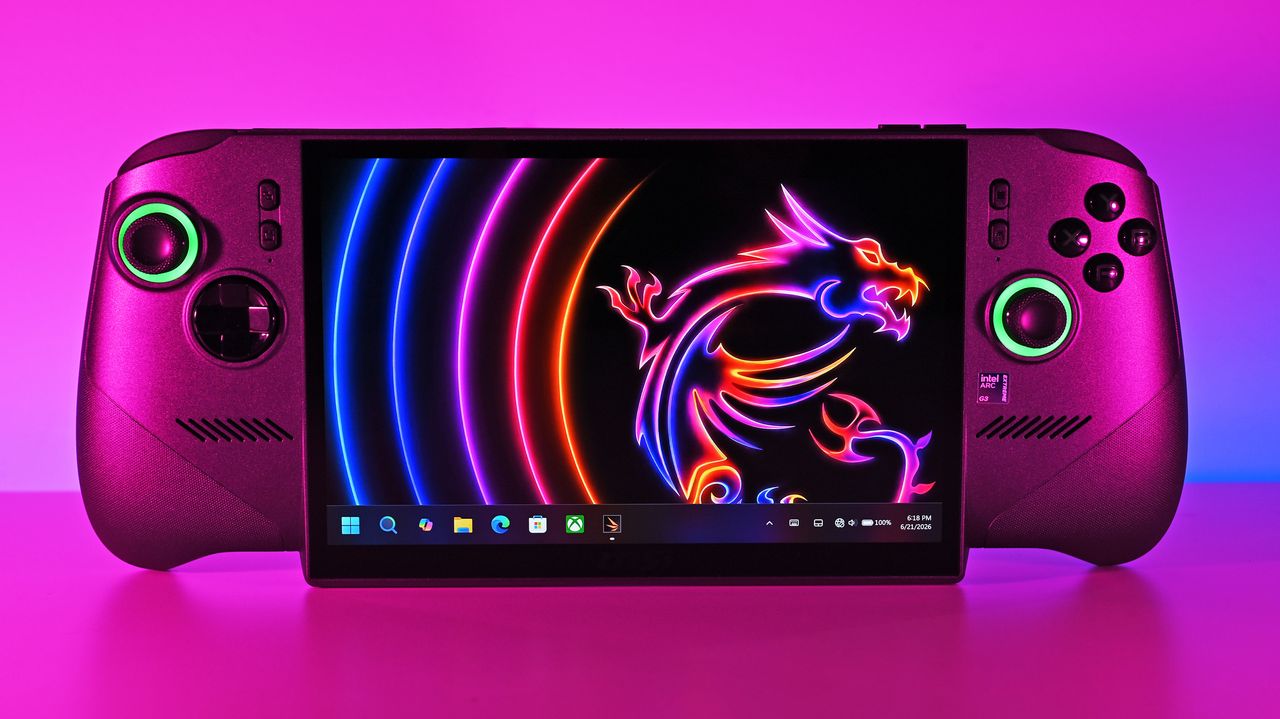
ROG Xbox Ally X20 handheld sitting upright on a desk setup alongside a black wireless controller and an RGB-lit Republic of Gamers dock station.

ROG Xbox Ally X20 handheld sitting upright on a desk setup alongside a black wireless controller and an RGB-lit Republic of Gamers dock station.

Razer Huntsman V3 Pro Low-Profile TKL 8KHz Review: The thin green line of speed tuned for pro‑level play

For the past two weeks, the just-announced Razer Huntsman V3 Pro Low-Profile Tenkeyless 8KHz (winner of the longest keyboard name yet) has been permanently parked on my desk. Between churning out editorial content and squeezing in late-night gaming sessions, I’ve put Razer’s latest optical deck through hundreds of thousands of keystrokes.

Razer hasn't slowed down its rapid pace of hardware innovation, but bringing analog optical switches to an ultra-slim low-profile chassis is easily one of its most intriguing experiments yet.

After fourteen days of continuous hands-on testing, this slender powerhouse has completely reshaped my daily workflow and play routine.

Razer had no input, nor did it see the contents of this review, prior to publication.

Razer Huntsman V3 Pro LP TKL: Price, availability, and specs

Side profile view highlighting the ultra-slim design and low-profile optical switches of the Razer Huntsman V3 Pro TKL keyboard.

Side profile view highlighting the ultra-slim design and low-profile optical switches of the Razer Huntsman V3 Pro TKL keyboard. (Image credit: Daniel Rubino)

The Razer Huntsman V3 Pro Low-Profile Tenkeyless 8KHz retails for $229.99.

Built around Razer’s Low-Profile Analog Optical Switches, it boasts an adjustable actuation range spanning 0.1 mm to 2.8 mm, 8,000Hz HyperPolling, per-key RGB, a 5052 aluminum alloy top plate, doubleshot PBT keycaps, and a multi-function digital dial accompanied by dedicated media buttons.

It connects via a detachable braided USB Type-C cable, included in the box. No wireless (Razer insists that while many ask for wireless, no one trusts it to last long enough, so everyone just leaves it plugged in. I am 100% guilty of this!)

It is now available from Razer.com and associated retailers like Best Buy, Amazon, and more.

Razer Huntsman V3 Pro LP TKL: Design and typing experience

Side-angle view showing the low-profile keycaps, brushed metal plate, and green RGB lighting on the Razer Huntsman V3 Pro TKL keyboard.

Side-angle view showing the low-profile keycaps, brushed metal plate, and green RGB lighting on the Razer Huntsman V3 Pro TKL keyboard. (Image credit: Daniel Rubino)

Razer has officially reached double digits with its flagship Huntsman keyboard lineup, marking this Huntsman V3 Pro Low-Profile TKL as the 10th entry in the family tree, which I find hilarious.

Having tracked the evolution of this sub-brand over the years, watching model number ten land on my desk feels like a milestone. It’ll earn a place on our curated guide for the best gaming keyboards under the low-profile crown.

At a sleek 19.5mm front height, the deck sits lower to the desk than a nickel standing on its edge. I prefer low-profile keyboards for two practical reasons:

  1. Seamless laptop-to-desktop parity: As someone who constantly hops between high-end laptops and a full desktop workstation, low-profile keys eliminate the jarring adjustment curve required when shifting to standard deep-travel mechanical boards.
  2. Speed and reduced fatigue: With shorter overall travel distance (2.8mm total), less physical effort is needed to execute keystrokes. It feels faster and easier to operate, warding off hand fatigue during long writing marathons. Call it lazy hands if you want, but my fingers appreciate the efficiency.

As Editor-in-Chief of Windows Central, my daily workload splits roughly 80% typing for my job and 20% gaming. As a trained touch-typist, I demand a deck that can keep pace with high WPM output without sounding like an industrial typewriter. The sound and feel across all 10 Huntsman iterations remain remarkably consistent, but this low-profile variant introduces a softer actuation due to its reduced key travel.

The acoustics are superb: audible enough to offer satisfying tactile feedback, but quiet enough to keep office mates from plotting your demise.

Razer’s tenth Huntsman brings optical analog power down to desk level—and it sets a new gold standard.

The physical keycaps feature an excellent subtle texture and slight dome profile that guides fingers smoothly across the home row. (If you want a deeper dive into mechanical, optical, and magnetic mechanisms, check out our guide on keyboard switches explained.)

If I could manifest my ultimate keyboard, it would be a Frankenstein fusion of this low-profile Huntsman layout and the 3-pound, forged-metal chassis of the $499 Razer Huntsman Signature Edition. Realistically, we can't have both in a single device. Forced to choose, I’m sticking with the Low-Profile Huntsman over the Signature Edition for daily driving—it is simply a joy to type on.

Close-up of the textured volume knob and media controls on the Razer Huntsman V3 Pro Low-Profile Tenkeyless gaming keyboard.

Close-up of the textured volume knob and media controls on the Razer Huntsman V3 Pro Low-Profile Tenkeyless gaming keyboard. (Image credit: Daniel Rubino)

Because there is no wrist rest included in the box, you might assume ergonomic support is an issue. Thankfully, the low frame sits flat enough that wrist extension isn't an issue. However, I paired it with a cheap $26 foam wrist rest (like this foam wrist rest on Amazon), and the setup felt complete.

Razer Huntsman V3 Pro LP TKL: Gaming performance and movement tech

Razer Synapse actuation tab for Razer Huntsman V3 Pro Low-Profile keyboard with Snap Tap, Rapid Trigger, and actuation point settings.

Razer Synapse actuation tab for Razer Huntsman V3 Pro Low-Profile keyboard with Snap Tap, Rapid Trigger, and actuation point settings. (Image credit: Daniel Rubino)

When it is time to drop the editorial work and game, the Huntsman V3 Pro LP TKL reveals its true colors. Testing this board across high-stakes titles like DOOM: The Dark Ages, Warhammer 40,000: Space Marine 2, and 007 First Light, the sheer responsiveness of the analog optical deck became undeniable.

In the chaotic melee of Space Marine 2 and the fast-paced combat of DOOM: The Dark Ages, Razer's aggressive software suite provides a distinct advantage:

Razer Synapse customizes the menu for the Razer Huntsman V3 Pro Low-Profile keyboard, showing the polling rate and gamepad keybind settings.

Razer Synapse customizes the menu for the Razer Huntsman V3 Pro Low-Profile keyboard, showing the polling rate and gamepad keybind settings. (Image credit: Daniel Rubino)
  • True 8,000Hz HyperPolling: Delivering a 0.39ms latency, inputs register nearly instantaneously—52% faster than key low-profile competitors.
  • Rapid Trigger Mode: Adjust actuation between 0.1 mm and 2.8 mm. Switches reset the moment your finger moves upward, allowing rapid-fire re-keying when strafing or dodging.
  • Razer Snap Tap: Prioritizes your latest directional input without releasing the opposite key. It supports up to four onboard pairs with custom behaviors like Last-Input, Neutral, or Compare Level.
  • Razer Snap Flex: Allows two distinct commands to be bound to a single keypress, making complex multi-key maneuvers execution-perfect.
  • Dynamic Keystroke & Dual-Keypress Priority: Bind up to four actions to a single key based on press depth and release, while Dual-Keypress Priority prevents conflicting movement keys from breaking fluid diagonal movement.
  • Synapse Web: No bloatware installation needed. Razer’s browser-based configurator lets you alter actuation points, key bindings, and Rapid Trigger settings directly on any host PC

Razer Chroma Studio interface in Razer Synapse software displaying custom RGB lighting effects and layout for gaming gear.

Razer Chroma Studio interface in Razer Synapse software displaying custom RGB lighting effects and layout for gaming gear. (Image credit: Daniel Rubino)

Finally, we have Razer Chroma for configuring the lighting setup on your keyboard, and if you're like me, to sync with all your other Razer accessories like the new Razer Seiren V3 Chroma 32-bit DSP microphone, Razer Basilisk V3 Pro 35K, and the baller Razer Soma Chroma gaming chair.

Razer Huntsman V3 Pro LP TKL: Competition

Image of the Logitech G515 RAPID TKL gaming keyboard.

The Logitech G515 Rapid TKL low-profile gaming keyboard we reviewed in 2025. (Image credit: Windows Central | Zachary Boddy)

How does this board stack up against its nearest low-profile rivals?

Against Razer's own BlackWidow V4 Low-Profile HyperSpeed, the differences center on connectivity versus raw speed. The BlackWidow V4 LP offers wireless flexibility (2.4GHz/Bluetooth) with traditional mechanical switches at $199.99, but caps out at a 1,000Hz polling rate without analog support. The Huntsman V3 Pro LP TKL ($229.99) sacrifices wireless freedom for maximum esports performance—delivering 8,000Hz polling, analog precision, and advanced movement software like Snap Flex.

Compared to the Logitech G515 RAPID TKL, which uses magnetic Hall Effect switches, Razer takes the lead in typing acoustics and software versatility. While the G515 RAPID TKL performs well in games, its switches feel mushier for daily typing tasks. The Huntsman V3 Pro LP TKL provides a crisper bottom-out, higher polling rate, and the convenience of driverless configuration via Synapse Web.

Razer Huntsman V3 Pro LP TKL: Should you buy it?

Overhead top-down view of the Razer Huntsman V3 Pro Low-Profile Tenkeyless gaming keyboard layout with backlit RGB keycaps.

Overhead top-down view of the Razer Huntsman V3 Pro Low-Profile Tenkeyless gaming keyboard layout with backlit RGB keycaps. (Image credit: Daniel Rubino)

You should buy it if ...

✅ You want an ultra-fast low-profile keyboard powered by 8,000Hz analog optical technology.

✅ You split time between heavy typing and gaming and demand low finger fatigue.

✅ You want advanced movement software like Rapid Trigger, Snap Tap, and Snap Flex.

You should not buy this if ...

❌ You insist on a wireless setup.

❌ You prefer deep, traditional mechanical key travel.

❌ You are on a strict budget and don't require optical analog features.

Blank Pixel

Ignore

At $229.99, the Razer Huntsman V3 Pro Low-Profile Tenkeyless 8KHz is an investment.

However, if you already like what Razer is doing with its analog optical switches, this low‑profile version feels like the next logical step. It delivers the same competitive edge as the full‑height Huntsman V3 Pro TKL, just in a thinner, faster, more refined chassis that’s easier to live with day-to-day.

The typing feel is crisp, the travel is short, and the 8KHz polling gives you the same responsiveness you expect from Razer’s top‑tier boards. It’s still a premium keyboard aimed at people who care about speed, tuning, and precision, and it absolutely delivers on that promise.

The price is high, but the performance is undeniable. If you want a low‑profile keyboard that doesn’t compromise on competitive features, this is the one that sets the bar. It’s fast, it’s polished, and it’s built for players who want every advantage they can get. In a crowded field of “fast” keyboards, this one actually earns it.

Top down product shot of the Razer Huntsman V3 Pro Low Profile TKL 8KHz gaming keyboard

Razer
Huntsman V3 Pro Low Profile Tenkeyless 8KHz

Dominate your matches with the world’s first low‑profile analog optical gaming keyboard made for pro players. Powered by 8000 Hz HyperPolling, Snap Flex, Snap Tap, Rapid Trigger Mode, and fully adjustable actuation, it delivers top‑tier speed in an ultra‑slim design.

Razer Huntsman V3 Pro Low-Profile Tenkeyless 8KHz gaming keyboard sitting in front of its retail box under purple studio light.

Razera's brand new Huntsman V3 Pro Low-Profile Tenkeyless keyboard brings all its best features, do a slimmer, easier-to-type design.

People are paying $2,599 for MSI’s latest handheld gaming PC because apparently RAM shortages, AI demand, and fiscal self-preservation are all optional now

When I reviewed the MSI Claw 8 EX AI+ a few months back, I noted how it was a generational jump over AMD’s latest Zen 2 chips found in competing handheld gaming PCs, and when combined with Intel XeSS, it really gave gamers the ultimate handheld we’ve been yearning for.

But there were two problems. One was price. Due to RAM and NAND shortages due to demand for AI compute, MSI had to jack the price by at least $500, putting it at an MSRP of $1,799, which is kind of absurd.

The other was, surprisingly, extremely tight supply. Despite being sold at Best Buy, Amazon, Newegg, and B&H, it sold out everywhere within 24 hours (often due to preorders).

Since its release, that resupply still hasn’t happened. All those retailers are still listing it as out of stock as of me writing this today, and this seems to regularly happen with MSI and its Intel-based handhelds (whether it’s MSI's or Intel’s fault, I’m trying to find out).

So, out of curiosity, I checked eBay to see what that scene was like for the MSI Claw 8 EX AI+, and sure enough, some online stores are selling the hard-to-find handheld, but at an even more exorbitant $2,599 – which is an $800 surcharge over retail!

Listings on eBay for auctions of the MSI Claw 8 AI EX+ handheld gaming PC.
ebay | MSI
Listings on eBay for auctions of the MSI Claw 8 AI EX+ handheld gaming PC.
ebay | MSI

You may be thinking, but sure, it’s eBay, and people can list items for any price, but are people buying them? The answer appears to be yes. One retailer, seen in the above screenshot, had seven of them in stock but has already sold six, giving a real FOMO to anyone eyeing that last one.

To be fair, I did find a seller with one in stock for $2,299.99 (after coupon, plus $20 shipping), so you’re “only” paying $500 over MSRP. Another seller had nine available, with one remaining for $2,499.

Listings on eBay for auctions of the MSI Claw 8 AI EX+ handheld gaming PC.

Some of the many hard to find MSI Claw 8 AI EX+ handheld gaming PC auctions on eBay. (Image credit: ebay | MSI)

But you get the point. Not only is the MSI Claw 8 EX AI+ insanely expensive at retail, but its shortage is driving up its price by $500 to $800, with people buying it. It’s why I’ve always noted on our podcast that PC gaming is recession-proof. No matter how bad the economy gets, or how high prices go, there is usually someone willing to pay for it.

Not the first time this has happened

Back in December, I noted a similar trend for Lenovo’s excellent Legion Go 2 with its giant 8.8” VRR OLED display and removable controllers. It’s a killer combo of a device, even if it’s better suited for your couch than travel.

For whatever reason, Lenovo can’t keep it in stock, so much so that it eventually removed it from its own website despite excellent reviews and, yes, demand for it, as people were paying $650 over retail just to have one.

Interestingly, ASUS has been the king of “you want it, just buy it,” as the original ROG Ally and the newer ROG Xbox Ally and Ally X are still widely available online and at your local Best Buy. Moreover, ASUS hasn’t even raised the price, keeping them at $599 and $999, respectively.

The ROG Xbox Ally features a 7-inch 1080p, 120Hz touchscreen and includes an AMD Ryzen Z2 A processor, 16GB LPDDR5 RAM, 512GB PCIe 4.0 SSD, and a 60Wh battery. It's designed for PC gaming across various services.

👉 Order at: Antonline | Best BuyView Deal

The premium Xbox Ally X has a more powerful AMD Ryzen AI Z2 Extreme processor, 24GB RAM, 1TB SSD. It's a better choice for people who want to play more graphically demanding PC games.

👉 Order at: Best BuyView Deal

I hope ASUS can maintain those stock and price levels, as both devices are really solid choices for those looking into handheld gaming. Sure, the Ally X pales in performance to the new MSI Claw 8 EX AI+, but it’s still a really good experience with an outstanding design (a design that will improve with the forthcoming Xbox Ally X20 anniversary edition that features a larger OLED display and many smaller fixes; I expect to be reviewing that when it releases, so stay tuned).

So where does that leave you in this silicon soap opera? Has the RAM/NAND crunch shoved your handheld plans into “maybe in 2028” territory, or are you already rationalizing a purchase with phrases like “long-term investment” and “I deserve this”?

Let me know in the comments what your breaking point is for handheld pricing — and whether $2,599 is where you draw the line, or merely where your wallet starts quietly begging for mercy.

Click to join us on r/WindowsCentral

Join us on Reddit at r/WindowsCentral to share your insights and discuss our latest news, reviews, and more.
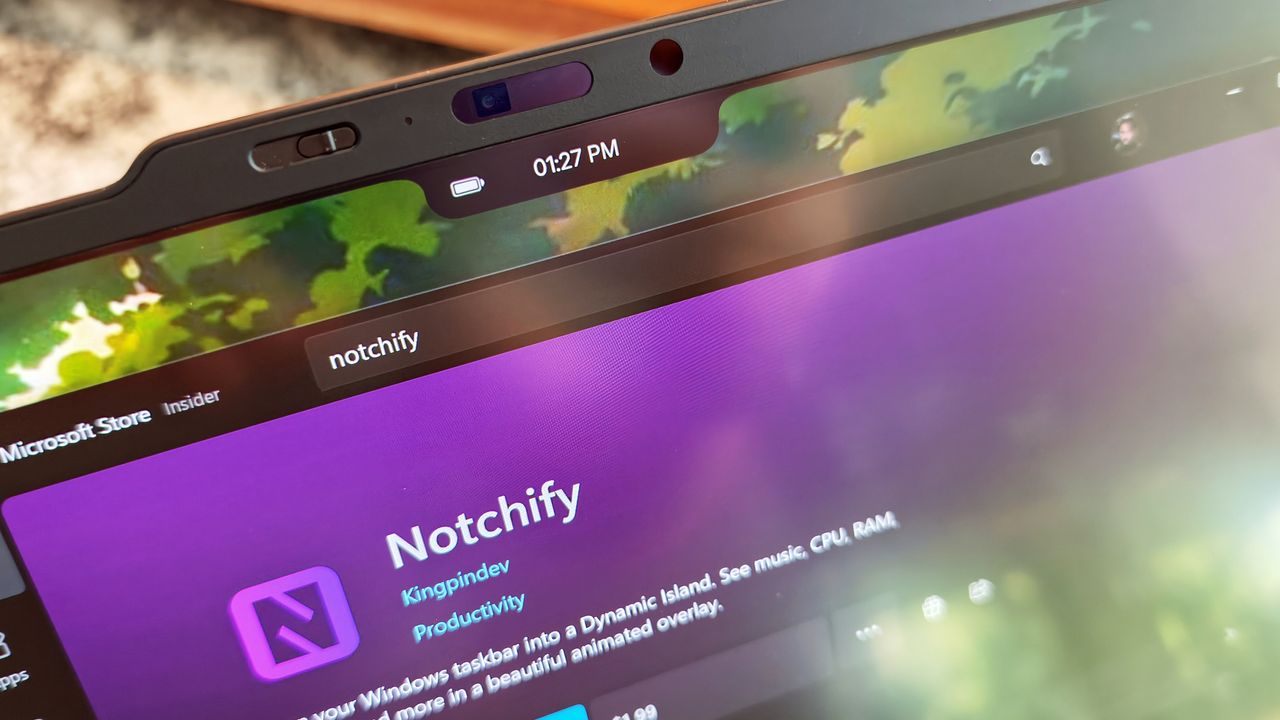
Front shot of the MSI Claw 8 EX AI+ under vibrant pink lighting, displaying the Windows 11 taskbar and a neon dragon wallpaper on its large screen.

Front shot of the MSI Claw 8 EX AI+ under vibrant pink lighting, displaying the Windows 11 taskbar and a neon dragon wallpaper on its large screen.

Notchify brings macOS-style “Dynamic Island” flair to Windows 11 — and it’s surprisingly useful if you can get by the ick factor

I’ll be honest: I’ve never liked Apple’s notch design. I find it intrusive, and the whole “Dynamic Island” thing always felt like a marketing trick to justify a hardware compromise.

So when I saw Notchify pop up on Reddit, my first thought was, why would anyone want that on Windows?

But curiosity won. I downloaded it from the Microsoft Store, tried the free trial, and within minutes I realized something—this indie app actually makes the concept work in a way that feels right on a PC.

That said, if you're a bit horrified at the idea, I mean, I totally get it. But hear me out.

What Notchify does

At its core, Notchify is pretty simple. The app creates a “fake” notch or “island” at the top of your screen. And yes, its functionality is what actually saves it. You can use it to display notifications, media playback controls, weather, battery, timers, microphone indicators, and more.

There's even a built-in clipboard for copied content and quick access.

You can see some of it in action in the above embedded video.

The settings are straightforward. You can toggle between Island (disconnected) and Notch (connected) modes, pick which monitor it appears on, and decide if it should launch at startup.

The Appearance tab lets you adjust the theme, blur, and popup behavior for volume or brightness changes. The Widgets section is where the fun begins, as you can mix and match small widgets like battery display, time, and microphone indicators, or go big with calendar, weather, and media playback.

The notch lives on your PC as "always on top," and when you mouse over it, it expands with whatever info you chose it to display. The animations are a bit janky, but it works.

It’s clean, modern, and surprisingly polished for an indie project. The dark theme looks great.

Why I ended up liking it (mostly)

The Notchify settings menu showing the Widgets page with options to customize small and big widgets like battery, microphone indicator, and media controls.

Some of the settings and options for Notchify. (Image credit: Daniel Rubino)

I use a massive 52-inch Dell Ultrasharp monitor, and one of the downsides of that much screen real estate is that my eyes are constantly darting around for notifications, time, or playback controls.

Notchify fixes that by putting everything in one place.

I still don’t love the idea of a notch (it’s not my aesthetic), but I can’t deny how practical it is. Having a small, centralized hub for quick info saves me from scanning the corners of my display. It’s one of those things that quietly improves workflow without demanding attention.

And if you've listened to me on our podcast, you know my big beef with Windows 11 is how I can't adjust where notifications appear from, which seems dumb in 2026.

For anyone switching from macOS to Windows 11, Notchify might even make the transition easier. It brings a familiar visual cue while adding more flexibility than Apple’s version ever offered, and that's kinda cool.

Probably the most obvious issue is that Windows 11 doesn't "wrap" around the app, so when running apps full screen (like your web browser), you may end up blocking access to some features. And no, you can't move it around, which was a bit surprising.

The best part of this story isn’t just the app; it’s the community that helped shape it. On Reddit, user GuppyFarmer posted a detailed breakdown of Notchify’s CPU usage, pointing out that it was higher than expected. Instead of brushing it off, the developer responded, thanked them, and used the data to fix the issue.

That kind of interaction is what makes indie development fun. Constructive feedback, not just complaints, helps these projects grow. GuppyFarmer’s analysis gave the dev exactly what they needed to optimize performance, and the result is a smoother, more efficient app for everyone.

Too often, feedback online turns into negativity. Here, it turned into progress.

My takeaway

The Notchify settings window open to the Appearance tab, featuring dark theme selection, an island size slider, and notification pop-up toggles.

More options for theme and design in Notchify. (Image credit: Daniel Rubino)

The app costs $1.99 after the free trial, which feels completely fair for what it offers. It’s not bloated, it’s not subscription-based, and it’s updated based on real user input. That’s the kind of indie pricing model I’ll always support.

I still don’t want a notch on my laptop or desktop, but Notchify convinced me that the idea can be useful when done right. It’s a small, clever utility that adds genuine functionality to Windows, and maybe it'll inspire some other creations to solve some problems.

And hey, it proves what many of us already know: good ideas don’t have to come from big companies. Sometimes, a single developer with a Reddit post can create something that feels fresh and helpful.

If you’re curious, give the free trial a spin. You might find yourself liking it more than you expect.

Click to join us on r/WindowsCentral

Join us on Reddit at r/WindowsCentral to share your insights and discuss our latest news, reviews, and more.
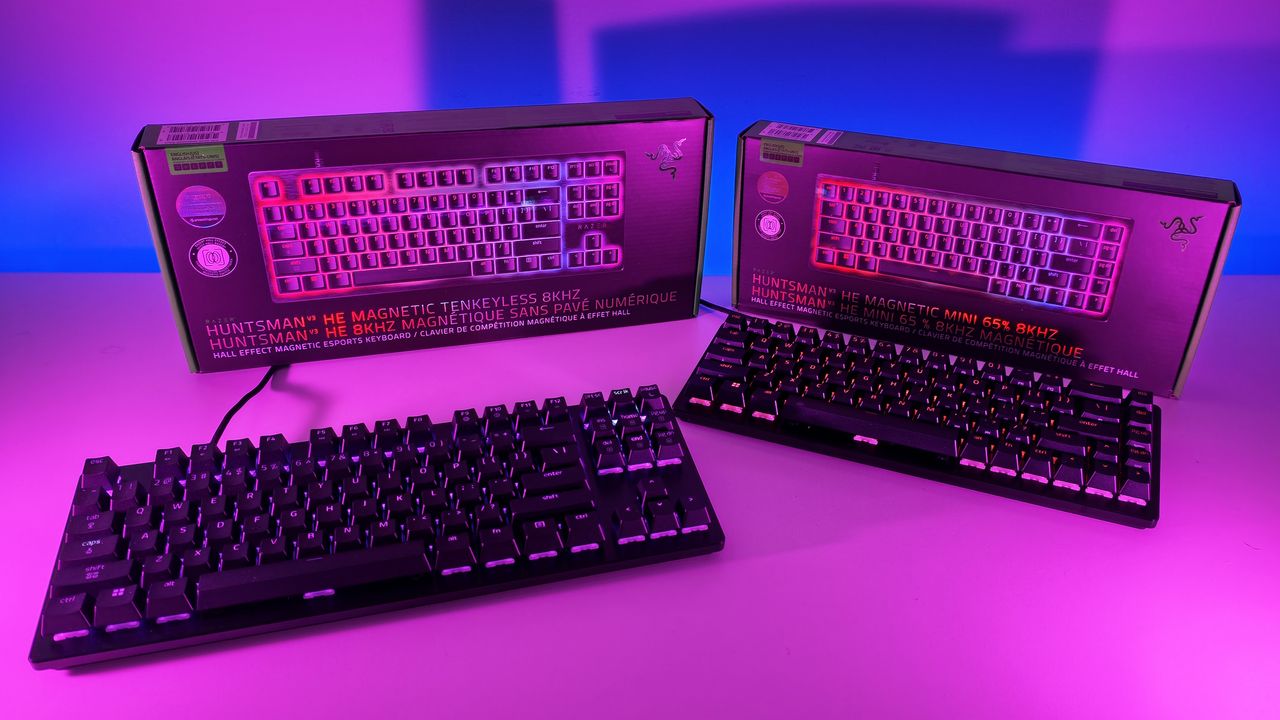
Close-up of a laptop screen showing a black notch overlay with a battery icon and time display above the Microsoft Store page for the Notchify app.

My reverse notch on the Lenovo X1 Carbon, counter-matched by Notchify, is truly diabolic.

Huntsman V3 HE Magnetic: Razer’s magnetic answer to precision — fast, configurable, and dangerously clever (and surprisingly not super expensive)

Magnetic keyboards used to feel like a side quest in the keyboard world. You either bought one from a tiny boutique brand and hoped the firmware wasn’t held together with duct tape, or you ignored the whole category because it felt too experimental.

Now Razer has stepped in with its first Hall Effect Magnetic Huntsman keyboards, and that changes everything. When a company with global retail presence decides magnetic switches matter, it suddenly becomes a lot easier for regular players to try the tech without worrying about sketchy support or limited availability.

After spending time with both the Razer Huntsman V3 HE Magnetic Tenkeyless ($139) and the smaller Huntsman V3 HE Magnetic Mini 65% ($119), I came away impressed. These keyboards feel like Razer embracing magnetic switches in a serious way while keeping the familiar Huntsman feel I already know well.

Razer had no input, nor did it see the contents of this review, prior to publication.

Design and build

Top-down comparison of the Razer Huntsman V3 HE Mini 65% keyboard (top, cyan RGB) and TKL keyboard (bottom, green RGB) on a pink surface.

Top-down comparison of the Razer Huntsman V3 HE Mini 65% keyboard (top, cyan RGB) and TKL keyboard (bottom, green RGB) on a pink surface. (Image credit: Daniel Rubino)

Both keyboards share the same DNA: aluminum top plate, doubleshot PBT keycaps, and dense internal foam that gives each keystroke a quieter, more muted sound. Razer told me they added extra lubrication and a “very dense layer of foam to absorb high‑pitch pinging noises,” and I can hear the difference. These boards sound cleaner than the Huntsman AK and even the V3 Pro.

The TKL gives you the arrow keys and navigation cluster, which I prefer for writing and general use. The Mini 65% keeps the arrows but trims the rest, which frees up desk space and feels great for shooters.

Razer confirmed both models have full feature parity, so you’re choosing layout, not capability.

Magnetic switches explained

Low-angle close-up of a black Razer gaming keyboard with vibrant cyan RGB backlighting glowing under the keycaps.

Low-angle close-up of a black Razer gaming keyboard with vibrant cyan RGB backlighting glowing under the keycaps. (Image credit: Daniel Rubino)

Hall Effect switches use magnets and sensors to track key travel. There’s no physical contact point, which means the keyboard can detect exactly how far a key has moved. That unlocks features that optical or mechanical switches can’t do as well.

Razer calibrates every switch at the factory. They told me:

"Hall Effect boards are prone to interference from environmental factors… metal desks, magnets, metal objects."

Instead of pretending this isn’t an issue, Razer built a calibration tool directly into Synapse. If your desk or environment causes drift, you can reset the keyboard back to factory accuracy in three guided steps. I didn’t run into interference myself, but I like knowing the fix is built in.

Actuation is fully adjustable from 0.1 mm to 4.0 mm, and you can tune each key individually. I set WASD to 1.2 mm for shooters and left the rest at 2.0 mm for typing. The onboard adjustment tools make this easy.

Razer also claimed:

“We are the most accurate Hall Effect board available to players.”

They admitted true 0.1 mm accuracy is impossible because “pushing two magnets together is damn near impossible,” but their margin of error is small enough that I never noticed inconsistency.

Latency and performance

Screenshot of Razer Synapse software displaying customizable options for polling rate, gamepad settings, and macros on the Huntsman V3 HE.

Screenshot of Razer Synapse software displaying customizable options for polling rate, gamepad settings, and macros on the Huntsman V3 HE. (Image credit: Daniel Rubino)

Razer pairs the switches with true 8000 Hz HyperPolling. They measured the HE Magnetic at 0.6 ms latency, which is only 0.12 ms behind their analog optical switches. That’s impressive for a first‑generation magnetic design and still faster than other Hall Effect keyboards by about eight percent.

I can’t measure latency myself, but the keyboards feel snappy. Movements in Counter‑Strike 2 and Valorant felt crisp, and Rapid Trigger made counter‑strafing easier.

Movement‑focused features

Screenshot of Razer Synapse software displaying Actuation tab settings for the Huntsman V3 HE, including actuation point, Rapid Trigger, and Snap Tap.

Screenshot of Razer Synapse software displaying Actuation tab settings for the Huntsman V3 HE, including actuation point, Rapid Trigger, and Snap Tap. (Image credit: Daniel Rubino)

This is where the HE Magnetic line stands out. Razer didn’t just add magnetic sensing. It built a suite of features that take advantage of it.

Rapid Trigger — Keys reset as soon as they start moving upward. This helps you stop moving faster in shooters, which tightens your hitbox and improves accuracy.

Snap Tap — This prevents two directional keys from actuating at the same time. If you press D while holding A, the keyboard prioritizes the latest input. It makes counter‑strafing more reliable.

Snap Flex — You can bind two actions to a single press. For example, pulling a grenade pin and jumping at the same time. It simplifies multi‑key combos.

Dynamic Keystroke — Up to four actions can be assigned to a single key based on press depth and release. This is powerful and a little scary. I’m curious to see what players come up with.

Dual‑Keypress Priority — This keeps diagonal movement stable. If you’re holding W and A, pressing D won’t override the movement until you release A.

Good Molly, that's a lot of software tech, but while it may not make a difference if you play Brotato (like me; don't judge, it's great), for first-person competitive shooters, it all can absolutely improve your performance and enjoyment of the game. There is a bit of a learning curve here, and all of that is optional to use, but while Razer sometimes catches flak for Synapse, I can't help but feel these are some real value-plays.

Now, some of these are "launch-exclusive" to the HE Magnetic line, for now, but Razer hinted that these features will eventually trickle out to other Huntsman keyboards, likely in the coming months.

TKL vs Mini 65%

Top-down view comparing the compact Razer Huntsman V3 HE Mini 65% keyboard (top) and the larger TKL keyboard (bottom) on a white desk.

Top-down view comparing the compact Razer Huntsman V3 HE Mini 65% keyboard (top) and the larger TKL keyboard (bottom) on a white desk. (Image credit: Daniel Rubino)

I think most people buying keyboards today know Tenkeyless (TKL) versus Mini 65%, but just in case you don't, here's the recap, as I’ve used both layouts for years, and the choice is simple.

Choose the TKL if:

  • You type a lot
  • You want dedicated navigation keys
  • You prefer a familiar layout

Choose the Mini 65% if:

  • You want more mouse space
  • You travel or attend LANs
  • You want a compact gaming setup

Both keyboards have identical features. You’re choosing workflow, not capability.

Personally, I go TKL or even Compact / 96% Full‑Size like the 2026 Razer Huntsman Signature Edition ($499), as I like having media keys and arrow keys but detest numberpads.

Mini-65% is adorable and shockingly portable (great!), but you may end up missing some functions if you use it for more than competitive-ish gaming. No arrow keys is a move; let's just say that.

You can see my recent review of the other Huntsman TKL, aka the Razer Huntsman V3 TKL 8khz ($169), for an optical-switch option.

Either way, it's great that Razer gives you the choice.

Pricing and competition

The Razer Huntsman Signature Edition keyboard displayed with its premium black box, a welcome card signed by Min-Liang Tan, and extra keycaps.

The $499 Razer Hunstman Signature Edition (2026) is a very unique offering. (Image credit: Daniel Rubino)

The new Razer Huntsman V3 HE Magnetic TKL is $139.99, and the Mini is $119.99. That’s cheaper than Razer’s Pro models and competitive with other magnetic keyboards. Some boutique Hall Effect boards cost more and don’t have Razer’s distribution or warranty support. That alone makes these easier to recommend.

Launch date is today, July 30, so they should be available globally and shipping out to third-party sellers, including Amazon (HE Magnetic TKL; HE Magnetic Mini 65%) and Best Buy.

Typing and sound

Side-profile comparison of the Razer Huntsman V3 HE Mini 65% and TKL keyboards, showing their incline and height on kickstands.

Side-profile comparison of the Razer Huntsman V3 HE Mini 65% and TKL keyboards, showing their incline and height on kickstands. (Image credit: Daniel Rubino)

Typing feels smooth and consistent. The foam and lubrication help, and the magnetic sensing gives each key a clean, predictable feel. I prefer deeper actuation for writing, and the keyboards handled that well.

Gaming felt great with shallow actuation and Rapid Trigger.

Should you buy the Huntsman V3 HE Magnetic?

Angled side view of a black Razer gaming keyboard featuring green RGB backlighting glowing beneath floating keycaps.

(Image credit: Daniel Rubino)

You should buy this if ...

✅ You play competitive shooters

✅ You want adjustable actuation

✅ You want movement‑priority features

✅ You like what Razer is cookin'

You should not buy this if ...

❌ You only need a simple keyboard

❌ You don’t care about magnetic sensing

❌ You prefer optical switches

❌You want wireless options

I give the Huntsman V3 HE Magnetic line a 4.5 out of 5. Razer took magnetic switches and made them accessible, polished, and backed by a major brand. The keyboards feel great, the features matter, and the layouts cover both mainstream and compact preferences.

The Huntsman family may be getting crowded, but these new models earn their place, and we'll be updating our best gaming keyboards guide shortly.

And as someone who has gone through something like 5 of these Huntsman variations in the past months, all I can say is I don't think I'll be jumping to anything else anytime soon. Even as someone who does more gaming on their MSI Claw 8 EX AI+ and Xbox Series X, these Huntsman just feel good to use, whether for typing or gaming.

Razer Huntsman V3 He Magnetic 8khz

TKL
Razer
Razer Huntsman V3 He Magnetic TKL 8khz

With adjustable actuation from 0.1–4.0 mm, Rapid Trigger, Snap Tap, Snap Flex and Dynamic Keystroke, Razer’s HE Magnetic TKL give players granular control over inputs and movement — and back it with factory calibration, a 100‑million keystroke rating and on-demand recalibration via Synapse.

Razer Huntsman V3 He Magnetic 8khz

Mini
Razer
Razer Huntsman V3 He Magnetic Mini 65% 8khz

The Huntsman V3 HE Magnetic line pairs Hall Effect magnetic sensing with 8,000 Hz HyperPolling and deep per-key customization to deliver a top-tier competitive keyboard experience. This Mini 65% version pairs down to the most minimal design.

Low-angle shot of Razer Huntsman V3 HE TKL and Mini 65% keyboards with RGB backlighting placed in front of their retail packaging.

Low-angle shot of Razer Huntsman V3 HE TKL and Mini 65% keyboards with RGB backlighting placed in front of their retail packaging.

This ASUS Vivobook 16 OLED deal packs 32GB of RAM, a 3K display, and Intel’s latest AI chip for less than you’d expect

If you’ve been waiting for a laptop deal that actually feels like a steal, this is it. The ASUS Vivobook 16 OLED, now just $1,159 (down from $1,599), is one of those rare machines that delivers more than you expect for the price. It’s a 16‑inch notebook with flagship specs, a stunning display, and Intel’s latest Core Ultra 7 processor built for serious performance.

It’s the kind of deal that makes you double‑check the listing to make sure nothing’s missing. Spoiler: nothing is. You get a full‑power H‑series chip, 32GB of RAM, 1TB of storage, and a 3K OLED display in a chassis that’s only 0.55 inches thick and weighs 3.31 pounds.

The ASUS Vivobook 16 OLED is a rare find at this price. You get a 3K OLED display, 32GB of RAM, a fast Intel Core Ultra 7 processor, and a thin 3.31 lb chassis with long battery life. It is a powerful, modern laptop that stays light, looks premium, and handles heavy workloads without costing a fortune.View Deal

Why this is a good deal

Laptop prices are heading in the wrong direction. Apple just raised MacBook prices again. Microsoft bumped Xbox console prices literally today. Analysts expect PC hardware costs to keep climbing well into 2027 as AI‑centric chips and premium materials become the new standard.

That’s what makes this Vivobook deal stand out. You’re getting a machine that’s already built for the next generation of computing, complete with Intel’s new Core Ultra 7 processor and a dedicated Copilot key (hey, some people think it's a selling point), at a price that feels normal.

The Core Ultra 7 255H is part of Intel’s new H‑series lineup, designed for high‑performance laptops that can handle creative workloads, gaming, and multitasking without breaking a sweat. Paired with Intel Arc graphics, it’s capable of light gaming, video editing, and productivity tasks that would slow down most midrange systems.

Specs that matter

ASUS didn’t cut corners here. The Vivobook 16 OLED features a 2880×1800 Lumina OLED display that delivers deep blacks, vivid color, and true HDR contrast. It’s the kind of panel that makes everything look better, from spreadsheets to streaming.

Under the hood, you get 32GB of LPDDR5X memory and a 1TB PCIe 4.0 SSD, which means instant responsiveness and plenty of space for creative work. The ASUS IceCool Thermal Technology with dual fans and 97 iceblades keeps the system cool even under load, while the 75Wh battery promises up to 16 hours of runtime.

Despite the power, it’s impressively portable. At 0.55 inches thin and 3.31 pounds, it’s lighter than most 16‑inch laptops and built with a reinforced steel frame that feels solid without being bulky.

ASUS also added thoughtful touches: Dolby Atmos audio by Harman Kardon, Wi‑Fi 7 certification, and an RGB ErgoSense keyboard with Windows 11’s new Dynamic Lighting support. It’s a subtle upgrade that makes the laptop feel more premium than its price suggests.

Ready for what’s next

Press images of the ASUS Vivobook S16 laptop for 2026 with Intel Core Ultra processor.

(Image credit: ASUS)

The dedicated Copilot key is a small but telling detail. It’s a sign of where Windows laptops are heading — toward integrated features that help with writing, summarizing, and creative tasks. The Vivobook 16 OLED is ready for that future right out of the box, with Intel’s AI Boost NPU handling on‑device workloads efficiently.

That means faster photo editing, smarter background blur in video calls, and better battery life when using modern Windows features. It’s hardware that will matter as Windows 11 evolves through 2026 and beyond.

The bigger picture

The timing of this deal could not be better. With component costs rising and manufacturers shifting focus to premium laptops, midrange buyers are getting squeezed. The Vivobook 16 OLED breaks that trend by offering flagship performance at a mainstream price.

It’s proof that not every high‑end laptop has to cost two grand. ASUS managed to deliver a machine that feels premium without the markup, and deals like this will only get rarer as the market adjusts to new pricing norms.

Bottom line

If you want a laptop that looks great, runs fast, and feels ready for the next few years, this Vivobook 16 OLED deal is hard to beat. It’s thin, light, powerful, and genuinely premium.

With 32GB of RAM, a 3K OLED display, and Intel’s latest Core Ultra 7 processor, this is the kind of deal that feels like it slipped through the cracks. Grab it before prices catch up.

Click to join us on r/WindowsCentral

Join us on Reddit at r/WindowsCentral to share your insights and discuss our latest news, reviews, and more.
Press images of the ASUS Vivobook S16 laptop for 2026 with Intel Core Ultra processor.

Press images of the ASUS Vivobook S16 laptop for 2026 with Intel Core Ultra processor.

Fulfilling prophecy, Razer finally built a wireless RGB gaming chair, and it's ridiculous in the best possible way

It was inevitable. Razer has successfully attached Chroma RGB to mice, keyboards, streaming keylights, mousepads, microphones, and probably a stray toaster if you leave it in their California design headquarters long enough (see their history of weird and experimental hardware). So, it was only a matter of time before they targeted the ultimate piece of battle station real estate: your backside.

Meet the Razer Soma Chroma, a wireless RGB gaming chair launching worldwide today, June 25, 2026, for $499.99 (€529.99) at Razer.com.

Do you absolutely need a glowing throne that dynamically syncs with your desktop gameplay? No, of course not. Your skill in Valorant isn't going to magically jump three tiers just because your headrest is radiating neon green. But do we desperately want it anyway? Yes, obviously. It’s Razer, and adding immersive RGB to things we didn't know needed it is exactly why we love them.

The Razer Soma Chroma is the wireless RGB gaming chair your setup did not know it needed. It blends reactive lighting with all‑day comfort and cuts cable clutter entirely thanks to an ultra‑low latency HyperSpeed wireless connection powered by a simple USB‑C power bank. The dual‑density cold‑cured foam seat and built‑in ergonomic lumbar arch keep your posture neutral and your backside relaxed through marathon sessions.View Deal

The light show: Completely wireless RGB immersion

Press images of the Razer Chroma gaming chair, in black, with RGB lighting on the headrest

(Image credit: Razer)

The marquee feature here is the fully integrated, reactive RGB lighting embedded seamlessly into the headrest's shoulder wings. Powered by the venerable Razer Chroma RGB engine, it hooks directly into the Chroma SDK to react in real-time to in-game events across more than 300 integrated titles—including heavy hitters like Fortnite, Valorant, and Cyberpunk 2077. If you aren’t actively gaming, you can cycle through 10 dynamic presets and 16.8 million colors via Razer Synapse to perfectly dictate your setup's vibe.

But here is the genuinely clever bit: it's entirely wireless. Nobody wants to roll their chair over a rigid power cord and accidentally yank a $4,000 gaming rig off their desk. Instead, the Soma Chroma transmits data wirelessly via ultra-low latency Razer HyperSpeed 2.4 GHz for your PC, alongside Bluetooth LE for mobile devices.

To juice the actual LEDs, Razer integrated a tidy storage pocket on the back designed to house a standard external power bank (they recommend a hefty 20,000 mAh or larger unit pushing 20W+ and PD 2.0+) via an included 200 mm USB-C cable. If you don't care about a clean, wire-free aesthetic, you can also just run it straight to a wall adapter. There’s even a built-in control panel directly on the edge of the seat base to let you tweak brightness, cycle effects, or switch wireless inputs on the fly without opening an app.

Comfort Check: Saving our posteriors from the Iskur V2

Razer Iskur V2

The Razer Iskur V2 from our recent review. (Image credit: Future)

When Razer dropped the original Iskur, it blew us away with an aggressive, mechanical piston-powered lumbar support system. The premium Iskur V2 doubled down on that adaptive lumbar tech, earning massive praise for back health—but it also brought a punishingly firm seat pan. Meanwhile, the mid-range Iskur V2 X ($299) offered a much softer high-density foam seat but stripped out the adjustable lumbar support completely.

The Soma Chroma chart-corrects here with a brand-new Dual-Density Cold-Cured Foam Seat Cushion. It utilizes two distinct layers working in tandem: a softer upper layer that contours snugly to your body, sitting atop a firmer base layer that maintains its structural integrity over time. The goal is to keep the seat from collapsing or hardening prematurely during marathon sessions while actually offering plush, pressure-relieving comfort.

For back health, Razer ditched the complex, dial-driven mechanical pieces of the Iskur series in favor of a Built-In Ergonomic Lumbar Arch. It's a static, contoured support curve integrated directly into the backrest. While you lose the active left-and-right swiveling of the Iskur V2, you get a reliable curve that won’t shift out of place like a loose lumbar pillow.

Where the features got trimmed

Press images of the Razer Chroma gaming chair, in black, with RGB lighting on the headrest

Where the powerbank gets stowed for a "wireless" RGB experience. (Image credit: Razer)

To hit that $499.99 sweet spot while packing custom diffusers, a wireless control module, and a built-in control panel, Razer did have to make a few expected concessions:

  • 2D Armrests: The Soma Chroma features basic 2D armrests limited strictly to height and swivel adjustments, a noticeable step down from the highly maneuverable 4D armrests on the Iskur V2 that slide and twist every which way.
  • No Built-in Haptics: If you were hoping this would natively integrate the bone-shaking directional haptics of the recently released Razer Freyja gaming cushion, you're out of luck. This is strictly a visual show, though you could easily strap a Freyja onto it if you want the ultimate rumble-and-glow cocktail (and I'll probably do that, since I have one of those).

On the mechanical side, it remains a total tank. You get a reinforced steel frame, a 5-star powder-coated steel wheelbase, a Class 4 gas lift, and premium 6 cm PU caster wheels—the latter being a massive upgrade over the friction-heavy plastic wheels that held back the Iskur V2. It reclines up to 155° with a butterfly tilt mechanism, safely supports up to 150 kg (331 lbs), and comfortably accommodates gamers up to 6'6".

Our review unit just arrived!

Press images of the Razer Chroma gaming chair, in black, with RGB lighting on the headrest

Yes, there are buttons on top of the headrest to control the RGB Chroma. (Image credit: Razer)

The shining throne literally just rolled through our doors. We'll be assembling it, unboxing our beefiest power banks, and seeing if the dual-density foam can truly save our glutes during late-night gaming sessions.

Stay tuned for our full, deep-dive review coming shortly (and you'll be able to see it on future Windows Central Podcasts).

The Razer Soma Chroma is the wireless RGB gaming chair your setup did not know it needed. It blends reactive lighting with all‑day comfort and cuts cable clutter entirely thanks to an ultra‑low latency HyperSpeed wireless connection powered by a simple USB‑C power bank. The dual‑density cold‑cured foam seat and built‑in ergonomic lumbar arch keep your posture neutral and your backside relaxed through marathon sessions.View Deal

Click to join us on r/WindowsCentral

Join us on Reddit at r/WindowsCentral to share your insights and discuss our latest news, reviews, and more.
Press images of the Razer Chroma gaming chair, in black, with RGB lighting on the headrest

Press images of the Razer Chroma gaming chair, in black, with RGB lighting on the headrest

The Seiren V3 Pro proves Razer can build a true studio‑grade mic, and it might be the company’s most mature product yet

The Razer Seiren V3 Pro arrives as a pro‑level streaming microphone that finally feels like the centerpiece of Razer’s recent run of impressive peripherals. It pairs studio‑grade hardware — a large 30 mm dynamic capsule, USB‑C and XLR outputs, and tactile controls — with deep Synapse software and Chroma RGB flair, aiming to satisfy both serious creators and RGB enthusiasts.

This review cuts through the marketing: I’ll show what the mic actually sounds like, how its software and features stack up against rivals, and whether it’s worth swapping in for your current setup.

Razer had no input, nor did it see the contents of this review, prior to publication.

What it is

The Razer Seiren V3 Pro ($249.99 / €289.99) is a hybrid dynamic microphone tailored specifically for streamers, podcasters, and music producers.

At its heart sits a custom 30 mm dynamic capsule purpose-built to capture broadcast-style depth and natural warmth.

Structurally, it features a robust, resonance-resistant zinc unibody frame paired with an integrated, vibration-dampened adjustable arm mount.

To round out its premium aesthetic, it includes a gorgeous Razer Chroma RGB lighting ring that doubles as a real-time status and live mute indicator, which can be enabled by the mic button.

Quick set up

Angled shot of the Razer Seiren V3 Pro microphone on a white desk next to its packaging, highlighting the green side panel of the box.

(Image credit: Daniel Rubino)

Unboxing the Razer Seiren V3 Pro is refreshingly simple. Unlike many high-end microphones that leave you scrambling to buy external accessories, this mic is entirely ready to rock right out of the box.

It features an included desktop stand, a built-in shock absorber, and a removable pop filter. Just plug it in via the included USB Type-C cable, complete a quick configuration, and you are up and running.

If you want to jump into the pro tier immediately, you can just as easily route an XLR cable (not included) straight from the base into an audio interface or mixer.

It’s a frictionless setup that gives you studio-grade enhancements with zero technical expertise required.

How it's different

Bottom view of the Razer Seiren V3 Pro microphone showing the circular base with a headphone jack, XLR port, USB-C cable plug, and gain wheel.

USB, XLR, microphone port, and gain control are on the bottom of the Seiren V3 Pro. (Image credit: Daniel Rubino)

The Seiren V3 Pro separates itself from the pack by flawlessly bridging mainstream USB convenience and professional XLR performance.

Its primary direct competitor in this hybrid category is the HyperX Flipcast, which we've also reviewed. However, the Seiren V3 Pro secures a massive hardware victory right away: it includes a high-quality desktop stand and integrated shock mount in the box, whereas the Flipcast notoriously ships without a stand or boom arm, forcing an immediate extra purchase.

Furthermore, the software support here is on an entirely different level. While HyperX’s NGENUITY app offers rudimentary controls, Razer Synapse unlocks deep, granular audio customization:

  • 32-Bit Float Support: Available via Synapse, this format captures a dramatically wider dynamic range to effectively eliminate digital clipping and distortion.
  • Advanced Audio DSP: Houses an advanced parametric EQ, noise gate, compressor, limiter, and AI noise remover directly powered by an onboard hardware engine.
  • Synapse Advanced Mixing: Allows for multi-channel stream routing right within the application interface.

What it's great at

Close-up of the Razer Seiren V3 Pro microphone housing, showing the glowing green tap-to-mute button icon and a purple LED ring.

A big mute button on the side is enabled/disabled with a light tap, so you don't disturb the mic while on a mount. (Image credit: Daniel Rubino)

The biggest hardware triumph here is the dual-connectivity workflow. Having both USB-C and XLR connections on one microphone offers massive advantages, though it comes with standard hybrid trade-offs:

  • The Pros: It provides immense versatility. Newcomers can start with a simple, plug-and-play desktop configuration and seamlessly transition into an advanced analog signal chain down the road without buying a new microphone. Interestingly, you can keep both the USB and XLR cables plugged in simultaneously and dynamically switch between them on your Windows PC.
  • The Cons: You are paying a premium for dual internal electronics, and advanced Synapse software functions (like 32-bit float, the parametric EQ, and advanced mixing) are strictly limited to the digital USB connection.

During testing, there wasn't a noticeable difference in tonal warmth when swapping between the two connections, but the USB interface emerged as the clear favorite for me purely because it unlocks Synapse's superior sound features and DSP suite.

My experience otherwise with the mic has been great. You can hear it in action in the short review video accompanying this article, as well as on our recent Windows Central Podcast, Episode #396.

For now, I plan to keep using this mic over my HyperX ProCast. While the ProCast is an excellent, gold-sputtered large-diaphragm XLR condenser, it is strictly analog, requires 48V phantom power, and entirely lacks the modern digital conveniences, RGB integration, and software agility that make the Seiren V3 Pro so effortless to use daily.

Plus, while the ProCast had an original MSRP of $199.99 and dropped as low as $99.99 on sale, it now appears to be discontinued and increasingly hard to find, completely out of stock at both Best Buy and HyperX.

Screenshot of the Razer Synapse application showing the custom Parametric Equalizer settings and visual frequency curve for the microphone.
Daniel Rubino
Screenshot of the Razer Synapse software displaying a pop-up window for an automated 10-second Environment Noise Test to isolate ambient sound.
Daniel Rubino
Screenshot of the Razer Synapse software on Windows, showing the Stream Mixer tab configuration for the Seiren V3 Pro microphone.
Daniel Rubino

The Razer Synapse software features offer brilliant audio tuning, particularly the automatic environment noise test and AI noise remover. They do a spectacular job of silencing background hums and room reflections.

The Razer Synapse setup here was awesome: Hit a button and record yourself talking for 10 seconds. Hit another button and say nothing for 10 seconds. Then answer a few questions, e.g., what is your goal here (streamer, podcast, general, etc.) and what do you have fans running, environmental noise, etc. From that data, the system suggests your tuning, which you can then accept, and you're done. You can re-run the process anytime in Synapse should anything change.

The only minor catch is that the aggressive noise cancellation can occasionally cut your voice out a bit during quieter moments. Because of this, some manual tweaking of the noise gate threshold may still be needed to get it dialed in perfectly.

Finally, if you are already invested in Razer’s ecosystem—sporting a Razer keyboard, mouse, or monitor—adding this mic beautifully completes the package. The Chroma RGB ring integrates flawlessly into your existing lighting profiles, satisfying RGB enthusiasts while giving clear visual feedback on your live mute status via the tap-to-mute sensor.

Who's it for

Close-up of the Razer Seiren V3 Pro with its foam pop filter removed, revealing the metal mesh grille, internal dynamic capsule, and red LED ring.

The mic is "naked" without its pop-filter, which slides off. (Image credit: Daniel Rubino)

This microphone is built for the forward-thinking content creator. It is perfect for game streamers, podcasters, and hybrid musicians who want beautiful aesthetic flair and USB simplicity today, but demand the studio-grade security of an XLR output as their production setup grows.

Should you buy the Razer Seiren V3 Pro?

Low-angle shot of the Razer Seiren V3 Pro mic plugged into a USB-C cable next to its box, illuminated by a vivid blue and cyan background.

I ended up liking the Seiren V3 Pro more than I expected, largely due to the software and DSP controls. (Image credit: Daniel Rubino)

You should buy it if ...

✅ You want USB‑C now, XLR later.

✅ You use Razer Synapse/Chroma and want full integration.

✅ You need onboard DSP (32‑bit float, AI noise removal) to cut post‑work.

You should not buy this if ...

❌ You prefer a pure XLR, software‑free workflow.

❌ You’re on a tight budget and don’t need RGB or Synapse.

❌You need full feature parity on macOS without Windows Synapse.

Ignore

Admittedly, my "you should not buy ifs" here are nitpicky. You can just use this as an XLR mic with a software-free workflow if you want and not worry about USB or software. But there are also more affordable XLR-only mics, hence the con.
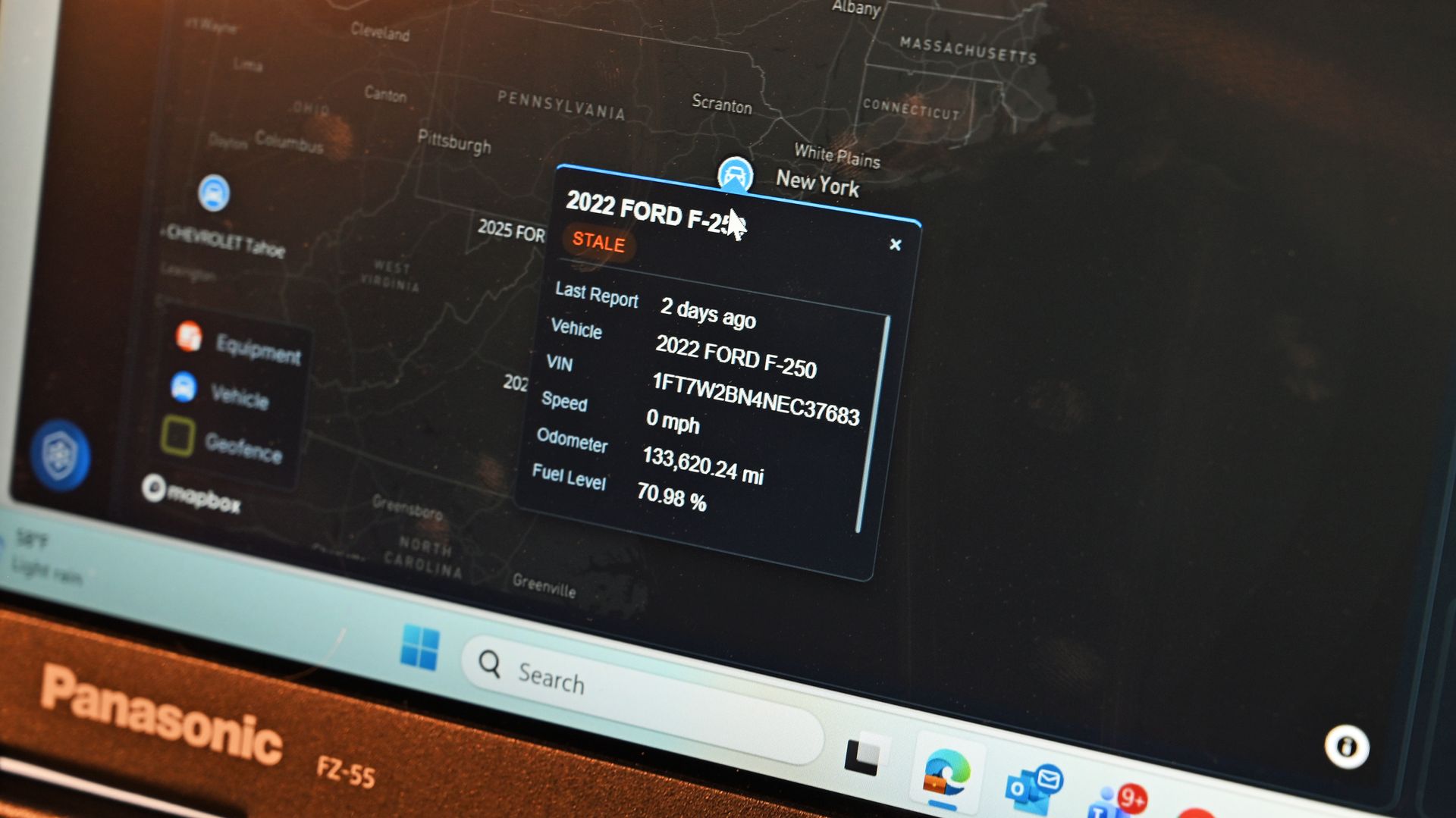
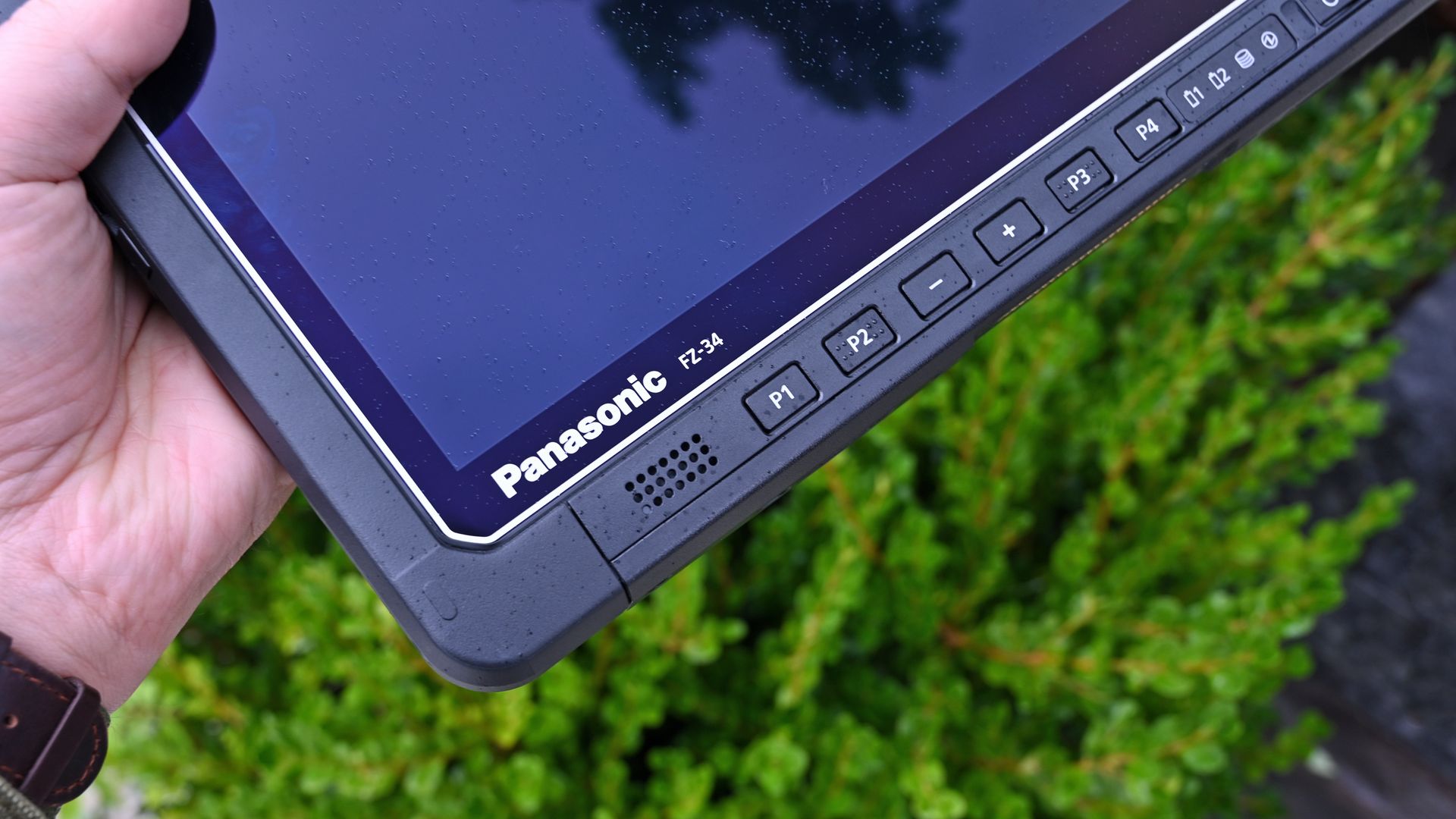
At $249.99, Razer positions the Seiren V3 Pro firmly in the higher-end premium tier compared to the HyperX Flipcast (which currently sits at $179.99 against a $229.99 MSRP) and the now-evaporated ProCast.

However, for me, the incredible Razer Synapse DSP more than makes up for that higher cost. The sheer quality of the out-of-the-box hardware processing saves massive time in post-production. I didn't expect that to be the big selling point, but it's clever software and the kind of "don't think about it" setups I prefer.

While you could look at other heavy hitters at this price point like the Shure MV7+ or SteelSeries Alias Pro, Razer brings an unmatched physical build quality, out-of-the-box completeness, and ecosystem synergy to your desk. It delivers studio sound, simply and effortlessly.

Razer Seiren V3 Pro Microphone — Dynamic Usb Type C & Xlr Streaming Mic, 32-Bit Float Support, Built-In Audio Dsp, Ai Noise Removal, Shock Absorber & Pop Filter, Chroma Rgb Lighting Ring — Black

Razer
Razer Seiren V3 Pro Microphone

Razer's new studio‑grade mic with 32‑bit float clarity, USB/XLR flexibility, built‑in DSP and pop filter, RGB status ring, and durable zinc design for clean, professional sound in streaming or recording setups.

Low-angle shot of the Razer Seiren V3 Pro mic plugged into a USB-C cable next to its box, illuminated by a vivid blue and cyan background.

Low-angle shot of the Razer Seiren V3 Pro mic plugged into a USB-C cable next to its box, illuminated by a vivid blue and cyan background.

Razer Huntsman V3 Pro TKL 8kHz review: the fastest, most precise competitive gaming keyboard ever made?

Razer is doubling down on the "Pro" in its Huntsman lineup. The new V3 Pro TKL 8KHz takes the already excellent V3 platform and injects it with a massive 8,000Hz HyperPolling boost, improved acoustics, and the game-changing Snap Tap technology. Aimed squarely at the esports crowd, this $169.99 deck offers unparalleled customization for actuation and reset points.

A Razer Huntsman V3 Tenkeyless keyboard with RGB lighting in front of its box. A vibrant pink and blue background creates an energetic, high-tech feel.

A Razer Huntsman V3 Tenkeyless keyboard with RGB lighting in front of its box. A vibrant pink and blue background creates an energetic, high-tech feel.

ROG’s new XREAL R1 glasses turn your handheld into a 171-inch gaming theater (and you can pre-order them today at Best Buy)

ROG and XREAL are officially launching the ROG XREAL R1 gaming AR glasses worldwide, bringing the first 240Hz micro‑OLED wearable display to gamers. With a 171-inch virtual screen, 3DoF spatial modes, and tight ROG Ally integration, the R1 aims to redefine portable play. Our full Windows Central review is coming soon.

Image of the ASUS ROG XREAL R1 AR glasses.

Image of the ASUS ROG XREAL R1 AR glasses.

❌