Microsoft's October 2026 Patch Tuesday fixes 1,413 vulnerabilities, including an exploited Windows zero-day and critical Outlook security flaws.
The post Microsoft Patch Tuesday Fixes 1,413 Flaws: Windows Zero-Day Already Under Attack appeared first on TechRepublic.
It's been a busy week in the world of mods and ports. While most gamers, including me, have been focusing on the PS5's jailbreak and the ability to emulate PS5 games on Xbox hardware, there's another project capturing the attention of die-hard Microsoft fans.As reported by Hackaday, a savvy modder has figured out how to get Super Mario 64 running on a Microsoft Zune HD. Yes, the ill-fated music player that once put up a valiant fight against Apple's iPod has been
It's been a busy week in the world of mods and ports. While most gamers, including me, have been focusing on the PS5's jailbreak and the ability to emulate PS5 games on Xbox hardware, there's another project capturing the attention of die-hard Microsoft fans.
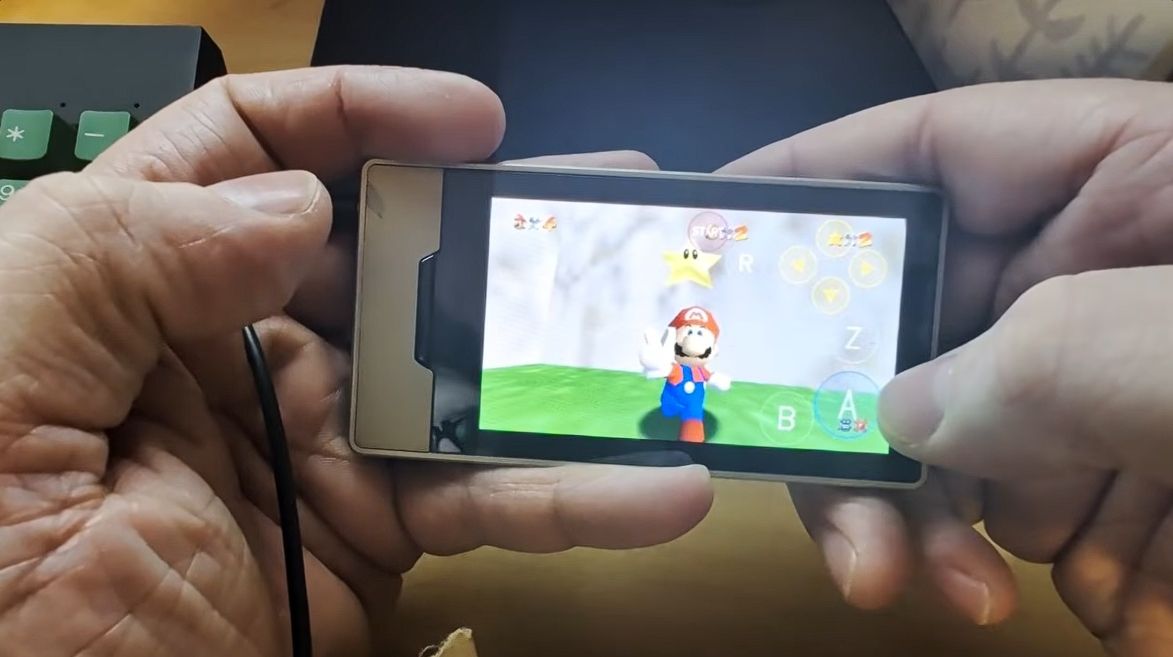
As reported by Hackaday, a savvy modder has figured out how to get Super Mario 64 running on a Microsoft Zune HD. Yes, the ill-fated music player that once put up a valiant fight against Apple's iPod has been repurposed as a micro-portable gaming handheld.
This project comes from GitHub user rsheldiii, who effectively ported the sm64ex version (containing a full decompilation of Super Mario 64 running on Linux and Windows) to the portable media player that launched in 2009.
Creator rsheldiii explains that the mod "plays (mostly) at full speed with sound, touch controls and saves." You're asked to provide the ROM for the game yourself in order to circumvent any legal issues, but otherwise, it appears that all you'll need to test it out yourself is a Zune HD in working order and an x86-64 Linux PC with Docker and Git.
It's explained that the first run of the game takes "five to ten minutes" to complete as it builds a container image and downloads compilers. The game is controlled entirely with touch, and the Nintendo 64's native buttons are clearly displayed on the screen.
The video provided by the creator on the GitHub page (I'm not sure if the YouTube version I used here is hosted by the same person) shows just how easy it is to start playing Super Mario 64 once everything is installed.
Within seconds, the game is launched, and Mario is running towards the castle to choose a mission. Once in a mission, the game appears to run smoothly, with the player not having any evident issues with controls.
I, unfortunately, do not have any spare Zune HDs lying around my office, or I'd be all over this little hack. Is it something you'd consider trying out? Let me know in the comments section below!
A brief history of Microsoft's failed iPod competitor
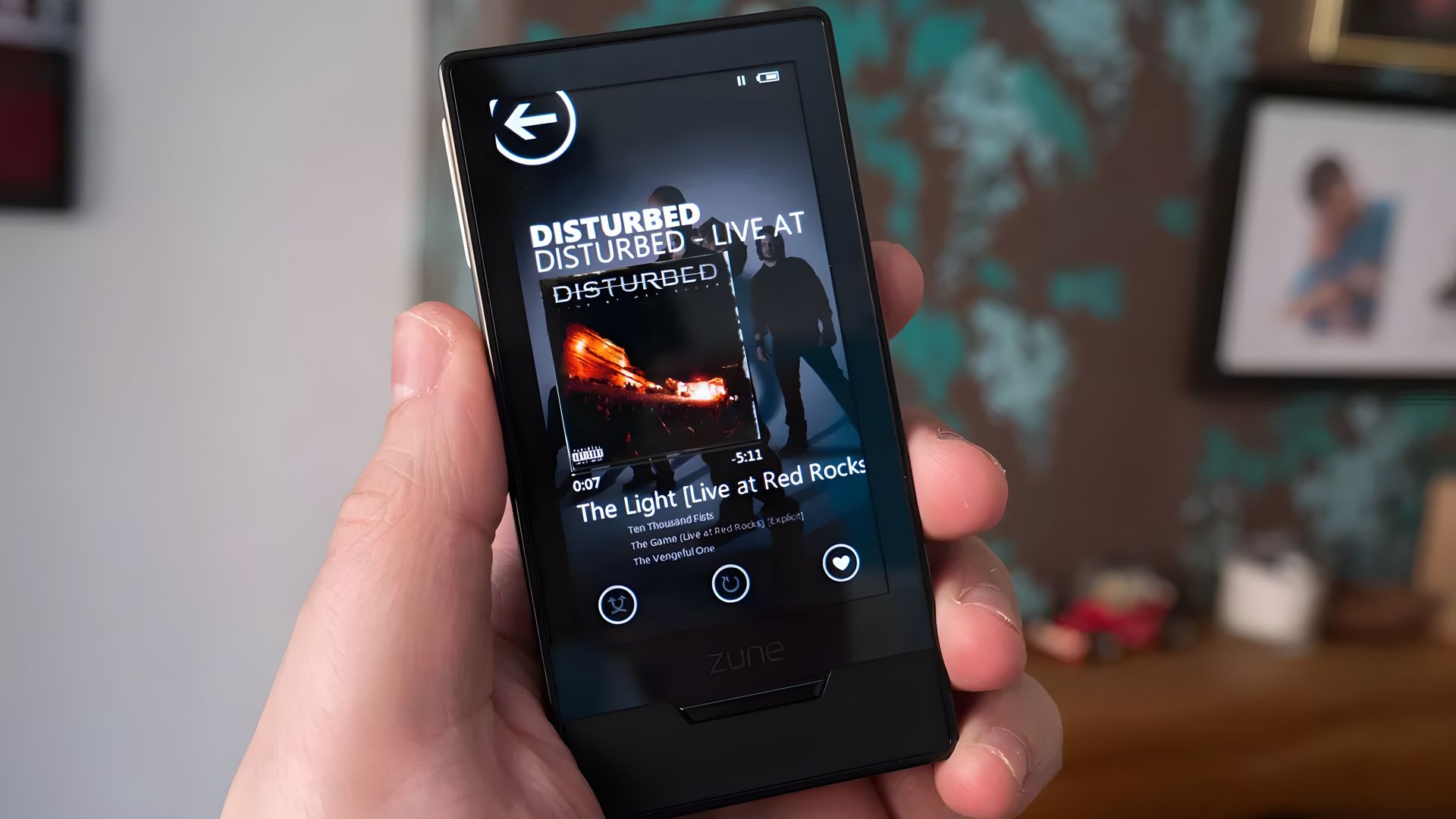
The Zune HD was (is?) an admittedly nice little piece of hardware. (Image credit: Windows Central)
Microsoft launched the original Zune media player on November 4, 2006, roughly five years after Apple's first iPod hit markets. Yes, the Zune was created to compete in the shifting world of MP3 players, eventually arriving at the Zune HD model in 2009.
It was a significant upgrade thanks to a 3.3-inch OLED touch display, an NVIDIA Tegra processor (which undoubtedly helps this little Mario 64 hack get legs), an accelerometer, and up to 64GB of flash storage.
Zune hardware was discontinued in 2011, not because the iPod killed it, but because it failed to kill the iPod. It was ultimately late to the party, kept quiet once it arrived, and slipped out before it all ended. At that same party was the newfound smartphone, and it seemed to be getting most of the attention anyway.
Microsoft Teams will soon have a new feature that will deliver high-quality video to event attendees. An upcoming update to Teams will add the option to share videos directly from OneDrive.At the moment, sharing video during Teams events often requires screen sharing or embedding videos in PowerPoint. The first solution lowers quality and the second requires extra work. Being able to share a video directly from OneDrive will provide a smoother experience while al
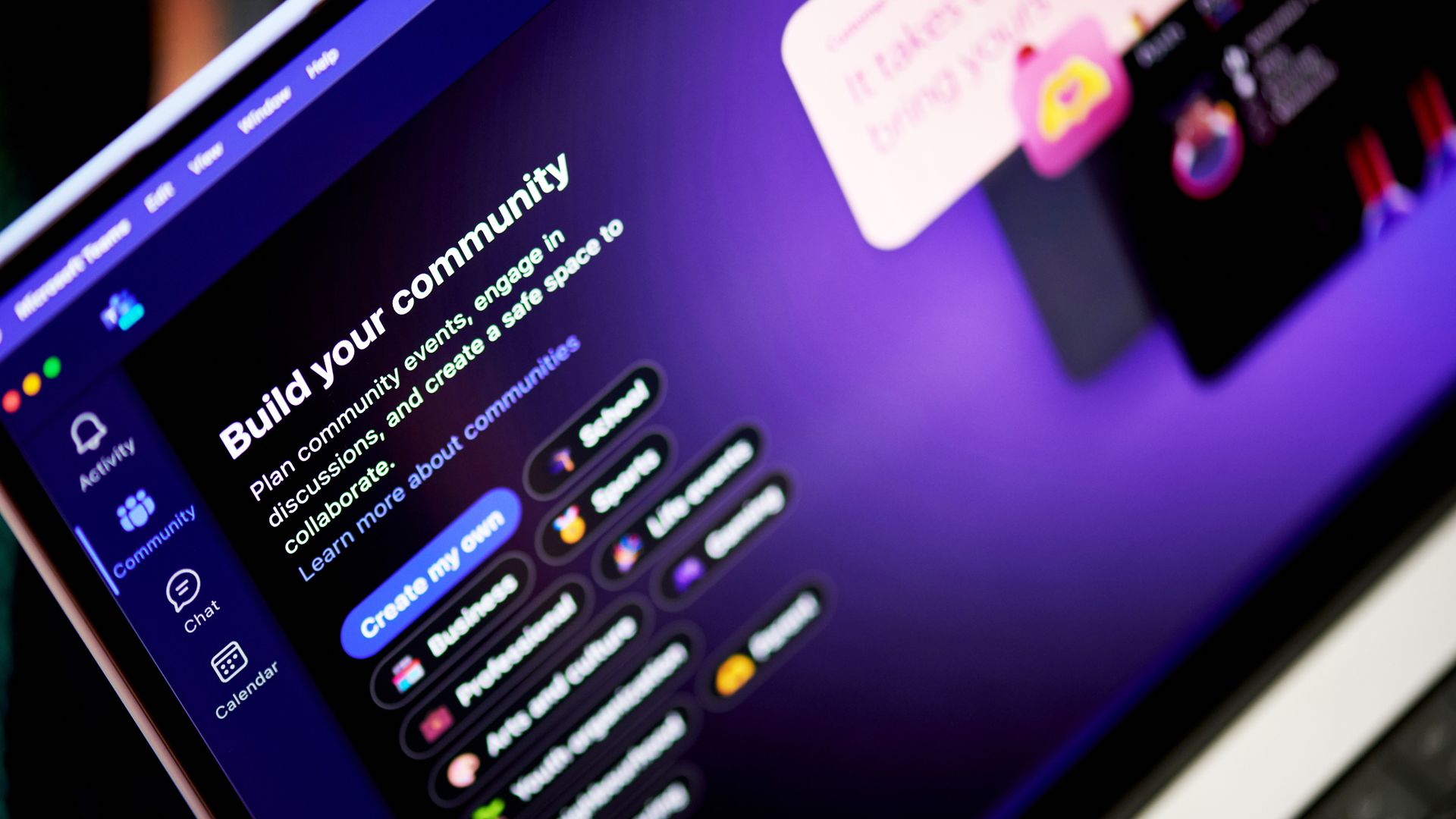
Microsoft Teams will soon have a new feature that will deliver high-quality video to event attendees. An upcoming update to Teams will add the option to share videos directly from OneDrive.
At the moment, sharing video during Teams events often requires screen sharing or embedding videos in PowerPoint. The first solution lowers quality and the second requires extra work. Being able to share a video directly from OneDrive will provide a smoother experience while also improving quality.
Microsoft detailed through the Microsoft 365 Message Center (archived here):
"Microsoft Teams will soon support sharing video directly from OneDrive during Teams events. Organizers and producers using Manage what attendees see can load videos from OneDrive and present them on stage without screen sharing a local media player or embedding videos in PowerPoint. This improvement provides smoother, higher-quality video playback for attendees and simplifies event production through built-in video playback controls."
The feature is expected to start rolling out in early November and should be available to all users by the end of December.
I run an American football team and we study film from games and practices. But because we are not attached to a specific school or building, our players and coaches are spread across the area. That makes film study events easier to schedule, but there are limits to presenting remotely. One of the biggest drawbacks is video quality.
In the past I've had to share my screen and play videos on my desktop, which is both awkward for me and a poor viewing experience for attendees. Videos shared this way can appear laggy and have lower resolution than videos played natively on a device.
I switched away from Microsoft Teams for film study a few years ago due to other changes made to Teams, but support for sharing videos directly from OneDrive will make me try Teams again.
Join us on Reddit at r/WindowsCentral to share your insights and discuss our latest news, reviews, and more.
Microsoft has reminded customers that systems running Windows 11 23H2 Enterprise, Education, and IoT Enterprise editions will stop receiving security updates next month. [...]
Microsoft has reminded customers that systems running Windows 11 23H2 Enterprise, Education, and IoT Enterprise editions will stop receiving security updates next month. [...]
Est-ce que vous vous souvenez de ce petit lien "Learn more" dont je vous avais parlé il y a un mois environ et qui permettait
d'ouvrir un compte local lors de l'installation de Windows 11 Home
sans passer par l'invite de commandes ? Eh bien Bob Pony, l'utilisateur de X qui l'avait repéré, vient de déclarer que ça avait été
"discrètement" patché côté serveur
.
Pour ceux qui l'avait raté, le concept c'était que sur l'écran qui vous réclame un compte Microsoft, le petit lien "Learn more" présent dans le paragraphe sous les "Sign-in options" pouvait nous envoyer direct sur la création d'un compte local. Comme ça pas de base de registre à bidouiller, ni de Wi-Fi à suspendre...
Comme quoi, une simple erreur peut engendrer beaucoup de bonheur !
Alors, c'est finito pour de bon ?
Parce qu'un correctif côté serveur, ça ne s'évite pas, hein surtout que comme le rappelle
Windows Latest
, l'installation repose sur des composants web, ce qui veut dire que même garder une vieille ISO sous le coude ça ne servira à rien.
Maintenant pour continuer à vous créer un compte local, c'est possible avec le célèbre
Rufus
, où il y a juste une case à cocher et comme ça votre clé USB ne réclamera plus aucun compte.
Bref, si vous avez une installation prévue aujourd'hui, tentez quand même le lien pour voir et me dire car pour le moment, seul Bob Pony a confirmé cette régression.
Windows 11 users and Surface enthusiasts had a busy week. Microsoft held an event to showcase the Surface Laptop Ultra, a new Search experience, and a bunch of AI features and integrations across Microsoft services.Like the original Surface Pro, this week’s Windows and Surface event tried to be a 2-in-1. Unfortunately, just like the first-gen Surface Pro, the event failed to thrive in either of its two categories.The first 20 minutes of the event felt like a Buil
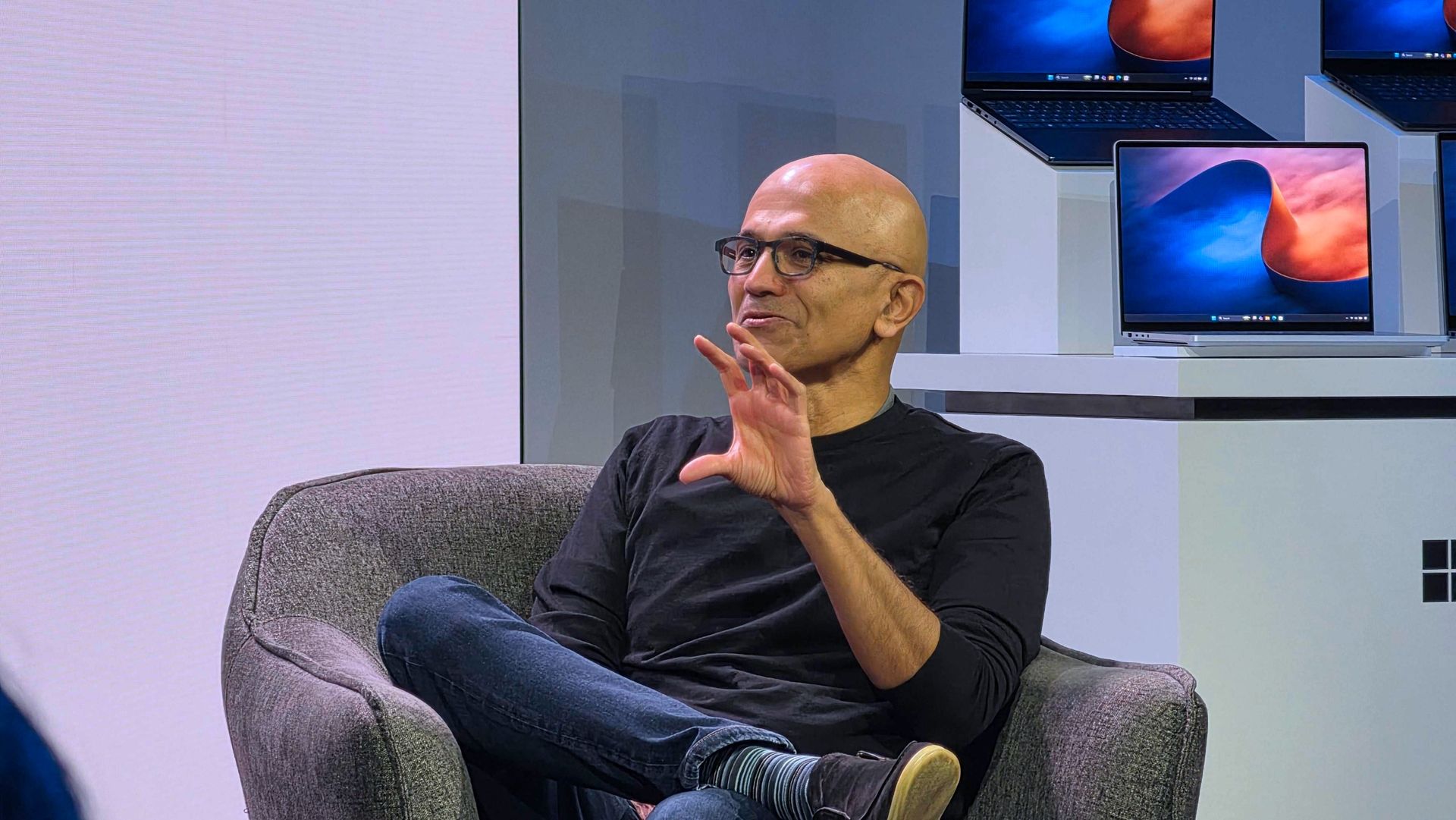
Windows 11 users and Surface enthusiasts had a busy week. Microsoft held an event to showcase the Surface Laptop Ultra, a new Search experience, and a bunch of AI features and integrations across Microsoft services.
Like the original Surface Pro, this week’s Windows and Surface event tried to be a 2-in-1. Unfortunately, just like the first-gen Surface Pro, the event failed to thrive in either of its two categories.
The first 20 minutes of the event felt like a Build session. That’s not a bad thing. Build is an important event for developers. But it’s not aimed at general audiences and is full of technical jargon.
Biggest News of the Week
Anyone who tuned in to the Windows and Surface event hoping for a closer look at the Surface Laptop Ultra would have glazed over at talks of Llama.cpp and Microsoft Execution Containers.
After watching several speakers focus on the technical aspects of AI and development, I assumed the entire event would be like that. Which made the rest of the event confusing.
After filling our eyes and ears with jargon and likely convincing many to stop watching, Microsoft switched gears and showed off a truly useful feature for Windows 11.
The improved Search experience is a consumer-facing feature that is a breath of fresh air to Windows 11. It looks good, is more functional than what it replaces, and according to Microsoft is more efficient while also performing better.
Shortly after unveiling the new Search, Microsoft shared details about the Surface Laptop Ultra. That PC is designed and priced for developers and power users, but it is intriguing to enthusiasts. On top of being the most powerful Surface ever, it has cool features like its magnetic USB-C port.
Microsoft appears confident in the Surface Laptop Ultra. The company’s website now features a banner telling people “break up with your MacBook.”
But the event wasn’t structured in a way that showed the same confidence. The event felt like someone pasted PowerPoint slides from different presentations into a single document.
While I am frustrated, it’s for an entirely different reason than I expected. Microsoft announced interesting things for Windows and Surface. I think the event lived up to its description on YouTube that promised to show "RTX Spark and new experiences designed to unlock more possibilities for developers and builders."
But I don’t think that was shown off in a way that appeals to the masses. The features and devices shown on stage may create buzz, but the event itself did not.
Shopping with Sean
Amazon Prime Big Deal Days came and went, but some of the best tech deals are still live. My top pick is a small discount on the XPS 13 that drops the laptop to $799.99.
"Dell's new XPS 13 is the new best deal in laptops, surpassing the MacBook Neo with a better display, ports, build quality, and performance for the same price." — Zac Bowden, Senior Editor, Windows CentralView Deal
Join us on Reddit at r/WindowsCentral to share your insights and discuss our latest news, reviews, and more.
Microsoft is gradually rolling out the Windows 11 2026 Update (version 26H2) to compatible devices. However, it's an optional install, and if you want to install it early, you'll have to switch manually.Windows 11 version 26H2 is a small update that doesn't require a full reinstall if your device is already running version 25H2 or 24H2. However, if your hardware is still running version 23H2 (or an older version), you'll need to perform an in-place upgrade with a
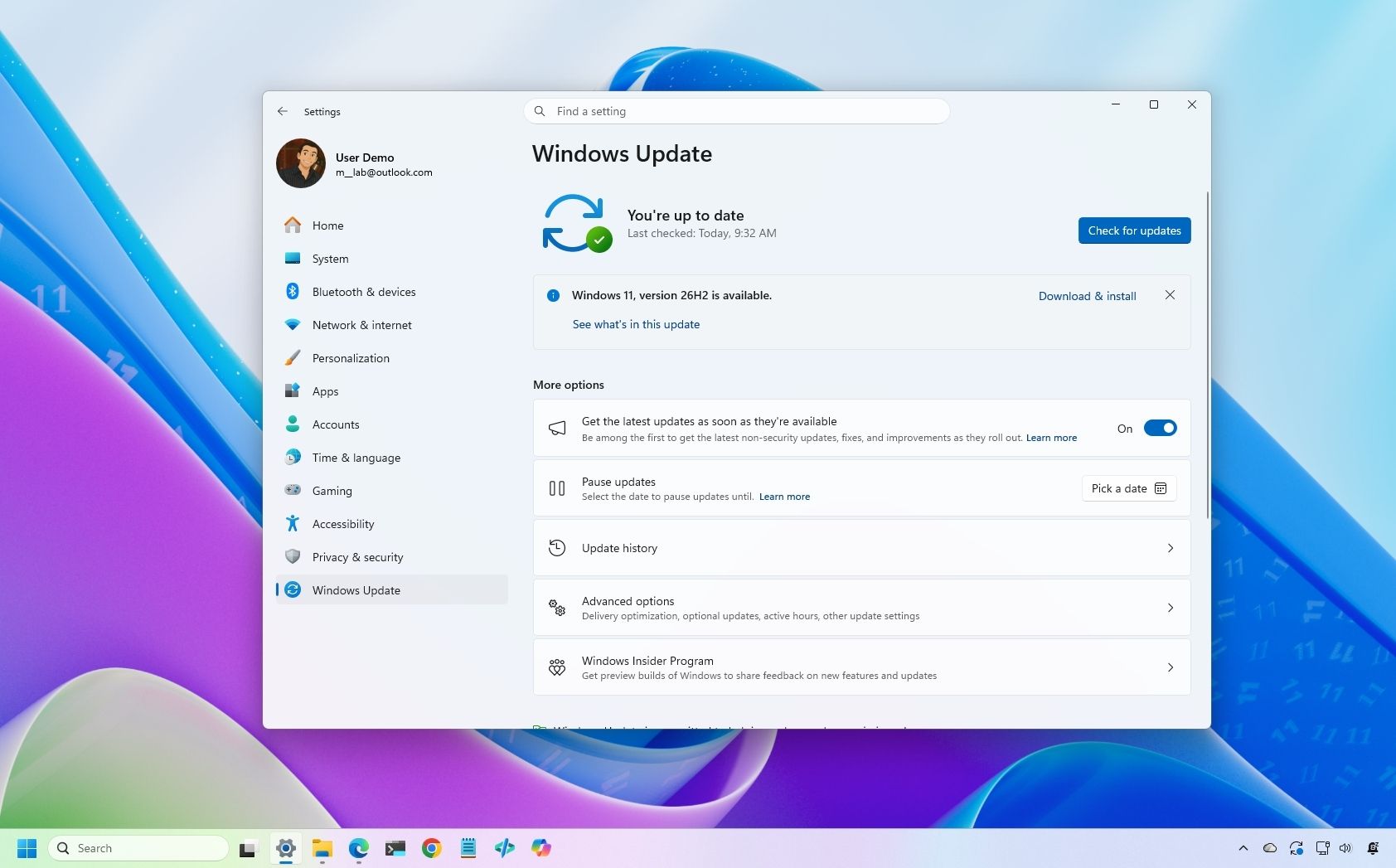
Microsoft is gradually rolling out the Windows 11 2026 Update (version 26H2) to compatible devices. However, it's an optional install, and if you want to install it early, you'll have to switch manually.
Windows 11 version 26H2 is a small update that doesn't require a full reinstall if your device is already running version 25H2 or 24H2. However, if your hardware is still running version 23H2 (or an older version), you'll need to perform an in-place upgrade with a full reinstallation.
Also, if you plan to upgrade from Windows 10, the computer will go through the full upgrade process as well. In addition, this new version will roll out in phases, starting with devices known to have a good upgrade experience, so not every device will receive the update in the early days.
If you don't want to wait, you can manually trigger the upgrade in at least four ways, including Windows Update, the Installation Assistant, the Media Creation Tool, and an ISO file.
In this how-to guide, I'll outline the steps to upgrade from any previous version to the Windows 11 2026 Update.
Important: Although this is a non-destructive process, something can still go wrong during and after the upgrade. Consider creating a temporary backup before proceeding. You've been warned.
How to install Windows 11 2026 Update from Settings
To install the new version of Windows 11 through the Windows Update settings, use these steps:
Open Settings.
Click on Windows Update.
Turn on the "Get the latest updates as soon as they're available" toggle switch.
Click the "Check for updates" button.
Click the "Download and install now" button.
(Image credit: Mauro Huculak)
Click the Restart now button.
After you complete these steps, the installation process will apply the update to the device without requiring a full operating system reinstall.
If the upgrade option isn't available, the update likely isn't ready for your system configuration.
Also, I don't recommend using a different upgrade method, as it may cause issues and require an unnecessary reinstallation.
How to install Windows 11 2026 Update from Installation Assistant
This method should only be used to upgrade a device running version 23H2 or Windows 10. If you use this tool on version 25H2 or 24H2, you'll trigger an unnecessary in-place upgrade.
To upgrade the system to the Windows 11 2026 Update with the Installation Assistant tool, use these steps:
Click the Download Now button under the "Windows 11 Installation Assistant" section.
(Image credit: Mauro Huculak)
Quick tip: If you get a message that the latest version of the operating system is already installed, you likely downloaded an older version of the tool. If so, try downloading the Installation Assistant from this page.
Double-click the Windows11InstallationAssistant.exe file to launch the tool.
Click the "Get PC Health Check app" option to download the tool on the device (if applicable).
Install the Get PC Health app following the easy on-screen directions.
Open the Get PC Health app and click the "Check Now" button.
Click the Refresh button on the Installation Assistant tool.
Click the "Accept and install" button.
(Image credit: Mauro Huculak)
Click the "Proceed with installation" button to begin installation.
Click the Restart button.
Once you complete the steps, the tool will download the necessary files and install the new version of Windows 11, preserving your files, settings, and apps.
How to install Windows 11 2026 Update from Media Creation Tool
You should only use this tool when upgrading from an older version, such as 23H2, or Windows 10.
Although you can no longer use the Media Creation Tool to perform an in-place upgrade, you can use it to create bootable USB media to install the new version of the operating system.
This method will perform a complete reinstallation. If you're upgrading from version 25H2 or 24H2, you don't need this method. Instead, upgrade using Windows Update settings.
To use the Media Creation Tool to create a USB drive to upgrade a device, use these steps:
Click the Download Now button under the "Create Windows 11 installation media" section.
(Image credit: Mauro Huculak)
Double-click the MediaCrationTool.exe file to launch the utility.
Click the Accept button.
Click the Next button.
(Image credit: Mauro Huculak)
Select the USB flash drive option.
(Image credit: Mauro Huculak)
Quick note: You will need a USB flash drive with at least 8GB of storage. This process will erase the drive, so back up any important information first.
Click the Next button.
Select the USB flash drive from the list.
(Image credit: Mauro Huculak)
Click the Next button.
Click the Finish button.
Open File Explorer.
Click on This PC in the left navigation pane.
Open the USB drive with the Windows 11 2026 Update installation files.
Double-click the setup.exe file.
Click the Next button.
Click the Accept button to agree to the terms.
(Image credit: Mauro Huculak)
Click the Install button.
After you complete these steps, Windows Setup will proceed with the in-place upgrade to version 26H2 on your device.
How to install Windows 11 2026 Update from ISO file
Finally, you can also download the Windows 11 version 26H2 ISO file to upgrade your system.
To upgrade to Windows 11 2026 Update using the official ISO file, use these steps:
Select the Windows 11 option under the "Download Windows 11 Disk Image (ISO)" section.
Click the Confirm button.
(Image credit: Mauro Huculak)
Select the installation language.
Click the Confirm button.
Click the "64-bit Download" button to save the ISO file to the computer.
(Image credit: Mauro Huculak)
Right-click the image file and select the Mount option.
Quick tip: If you don't see the option, another tool is likely managing the ".iso" files.
Select the virtual drive from the left navigation pane (if applicable).
Double-click the setup.exe file to manually launch the setup.
Click the Next button.
Click the Accept button to agree to the terms.
Click the Install button.
(Image credit: Mauro Huculak)
Once you complete the steps, the computer will upgrade to the 2026 Update, preserving your files, settings, and apps.
FAQs about installing Windows 11 2026 Update
These are common questions regarding the installation of version 25H2.
Do I need to reinstall Windows 11 to get version 26H2?
If your computer is already running Windows 11 version 25H2 or 24H2, the 26H2 update will install as a cumulative update without requiring reinstallation. If you're on version 23H2 or older, you'll need to upgrade to version 25H2 first, which does require a complete reinstall.
What are the safest ways to install the latest update?
Microsoft recommends waiting for "Windows Update" to offer the upgrade automatically. If you don't want to wait, you can use the Installation Assistant, the Media Creation Tool, or download the official ISO file.
Will the upgrade process delete my files or apps?
No, if you upgrade using Windows Update, Installation Assistant, or the ISO setup, your files, apps, and settings should remain on the computer. However, it’s always recommended to back up your data before starting the upgrade.
If you perform a clean installation, the process will delete everything on your device.
More resources
Explore more in-depth how-to guides, troubleshooting advice, and essential tips to get the most out of Windows 11 and 10. Start browsing here:
Microsoft 365 Family plans now come with 4TB less of OneDrive storage than they did until this week. Microsoft details the change in a support document.That document frames the change as a positive because it means storage is allocated to users who need it automatically, but the public has had a different reaction. I've received several messages from disappointed users, and other outlets are rightly highlighting consumer outrage. Some people I know have already s
Microsoft 365 Family plans now come with 4TB less of OneDrive storage than they did until this week. Microsoft details the change in a support document.
That document frames the change as a positive because it means storage is allocated to users who need it automatically, but the public has had a different reaction. I've received several messages from disappointed users, and other outlets are rightly highlighting consumer outrage. Some people I know have already said they plan to cancel their subscription due to the change.
Regardless of how much storage an individual family actually uses, Microsoft 365 Family now includes substantially less cloud storage than it did before while costing the same amount.
I keep track of the best Microsoft 365 deals and update my piece with discounts regularly. If you know when to hunt, you can get a year of Microsoft 365 Family for $99.99 despite the normal price being $129.99 (the price of Microsoft 365 went up in January 2025). But with the massive 4TB reduction in OneDrive storage, there is no way to retain the value of Microsoft 365 Family. Even if you got it at a discount, you'd be getting less than before.
Considering Microsoft can roll out this change immediately for new and upgraded subscriptions, I understand why some people may hesitate before subscribing to Microsoft 365. Based on the Microsoft support document, Microsoft 365 Family plans will be moved to the shared storage model upon your first renewal on or after May 2, 2027.
Here is the exact phrasing from Microsoft:
"For existing Microsoft 365 Family and Premium subscribers, this change generally takes effect after the first subscription renewal on or after May 2, 2027, unless an eligible plan change occurs earlier."
I interpret that to mean that renewals made before that cutoff should not force you to the shared storage model. If that's accurate, you should be able to stack some time onto your subscription to keep a total of 6TB for a bit longer.
I'd suggest checking with Microsoft before making any purchases. If you receive confirmation from Microsoft that stacking subscriptions delays the change, please let me know. I have also reached out to Microsoft.
This is a great deal if you know your family needs Microsoft 365 for a long time. Right now, you can get 12 months of Microsoft 365 Family for under $100.View Deal
Windows Central take
My entire family uses OneDrive, but this reduction in storage may force us to use a different provider.
I actually understand Microsoft's argument for having shared storage across a family. I use much more cloud storage than my wife, so it would be convenient to have more than 1TB of storage accessible through my account. My daughter, who is a toddler, only "uses" cloud storage through the photos and videos I back up for her.
But sharing a pool of storage does not make up for reducing the total storage across the plan by 4TB. For my use, I'd be okay with sharing 5TB across the entire family. But any forced reduction in storage is difficult to justify.
Now, during a cost of living crisis, many people will have to look at alternatives to OneDrive or pay to have more cloud storage.
Join us on Reddit at r/WindowsCentral to share your insights and discuss our latest news, reviews, and more.
I love a good wallpaper for my PC, and so do many members of the Windows Central community. When our Editor-in-Chief Daniel Rubino shares a review of a laptop, it's normal to see comments asking how to download his wallpaper.Microsoft has a similar enthusiasm for wallpapers. Windows Spotlight provides an ongoing stream of excellent images that rotate regularly. The tech giant also creates or commissions wallpapers to go along with major product announcements. Win
I love a good wallpaper for my PC, and so do many members of the Windows Central community. When our Editor-in-Chief Daniel Rubino shares a review of a laptop, it's normal to see comments asking how to download his wallpaper.
Microsoft has a similar enthusiasm for wallpapers. Windows Spotlight provides an ongoing stream of excellent images that rotate regularly. The tech giant also creates or commissions wallpapers to go along with major product announcements. Windows 10, Windows 11, and Copilot+ PCs all have their own official wallpapers.
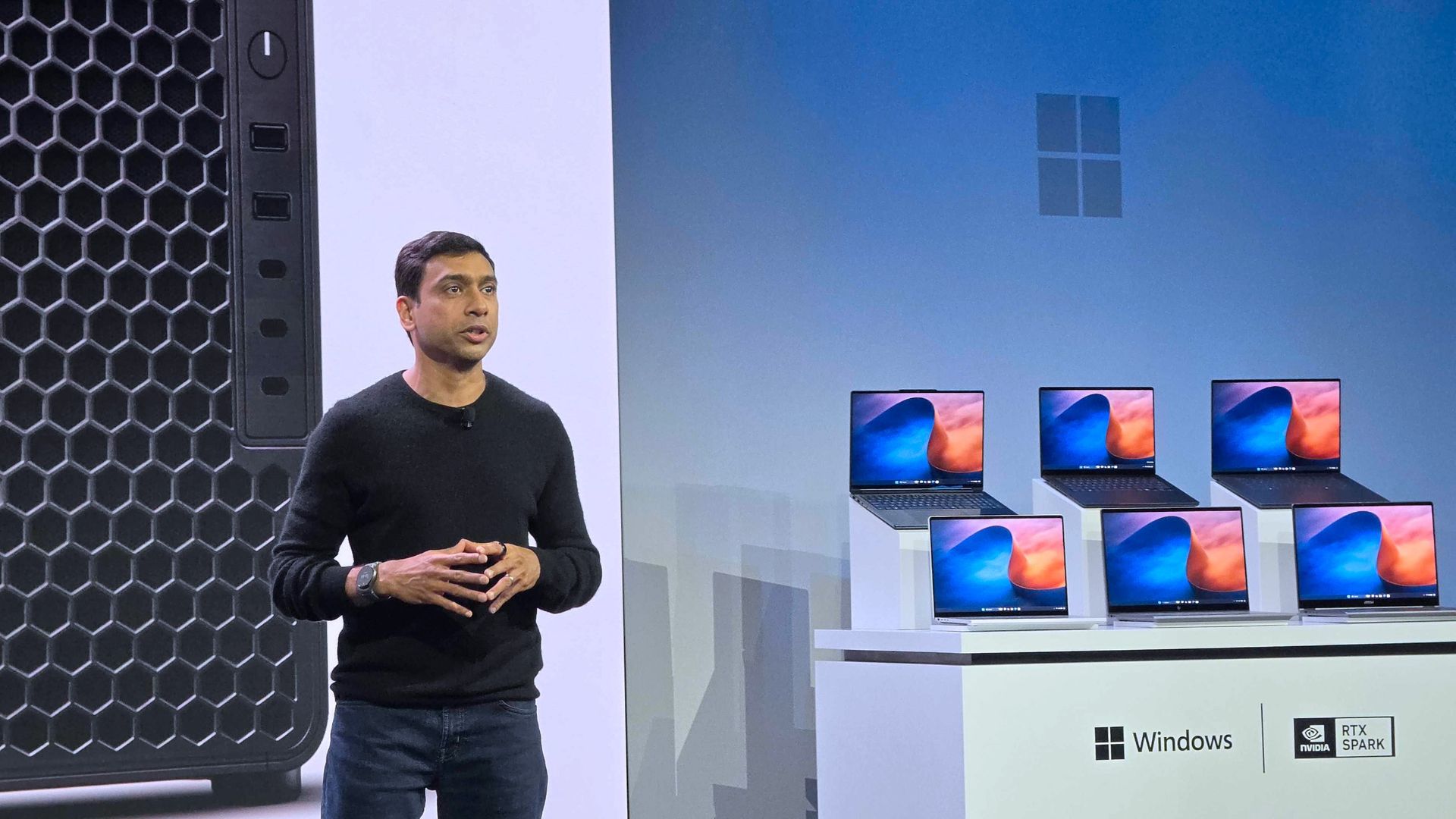
Eagle-eyed viewers of this week's Windows and Surface event spotted what appears to be a new wallpaper from Microsoft. Our Senior Editor was at the event and snapped a shot of the wallpaper displayed across several new RTX Spark laptops.
That recreation seems to do a fair job of replicating Microsoft's image, though I'm sure there are differences that will become clearer once we get hands on the official wallpaper.
We've seen AI used to create or recreate iconic wallpapers before. Our Senior Editor Ben Wilson used Adobe Photoshop's generative AI to expand a collection of Windows wallpapers.
Until Microsoft shares the new wallpaper, we may have to settle for AI recreations. The first wave of RTX Spark laptops are already available for preorder and will start shipping on October 16, 2026, so we may see the files escape into the wild sooner rather than later.
Join us on Reddit at r/WindowsCentral to share your insights and discuss our latest news, reviews, and more.
October 2026 TIOBE Index sees Python rebound, Java narrow the gap with C++, R pass SQL, Rust hold No. 10, and Julia return to the top 20 after three years.
The post TIOBE Index for October 2026: Python Rises as Julia Rejoins the Top 20 appeared first on TechRepublic.
October 2026 TIOBE Index sees Python rebound, Java narrow the gap with C++, R pass SQL, Rust hold No. 10, and Julia return to the top 20 after three years.
Microsoft's redesigned Windows 11 Search lets Insiders adjust settings and organize windows without opening Settings. Here's what works and how to try it.
The post Windows 11 Search Adds 5 Quick Actions Without Opening Settings appeared first on TechRepublic.
Microsoft's redesigned Windows 11 Search lets Insiders adjust settings and organize windows without opening Settings. Here's what works and how to try it.
The best ERP vendors are SAP S/4HANA for large enterprises, Oracle Fusion Cloud ERP for large data volumes, Microsoft Dynamics 365 for Windows users, Epicor Kinetic for SMBs, and Deltek Costpoint for government contractors.
The post Top ERP Software Vendors in 2026 appeared first on TechRepublic.
The best ERP vendors are SAP S/4HANA for large enterprises, Oracle Fusion Cloud ERP for large data volumes, Microsoft Dynamics 365 for Windows users, Epicor Kinetic for SMBs, and Deltek Costpoint for government contractors.
Microsoft is testing a Windows XP-style taskbar feature in Windows 11, along with new Android phone controls. Here's what users need to know.
The post Microsoft Tests Hidden Windows XP Feature in Windows 11: What to Know appeared first on TechRepublic.
Microsoft is ramping up its competitive campaign against Apple’s Mac ecosystem. To encourage creative professionals and developers to switch, the company has launched a aggressive trade-in promotion targeting MacBook Pro owners. Under a limited-time Microsoft Store offer running through November 23, 2026, buyers who trade in a qualifying MacBook Pro toward the newly released Surface […]
Microsoft is ramping up its competitive campaign against Apple’s Mac ecosystem. To encourage creative professionals and developers to switch, the company has launched a aggressive trade-in promotion targeting MacBook Pro owners. Under a limited-time Microsoft Store offer running through November 23, 2026, buyers who trade in a qualifying MacBook Pro toward the newly released Surface […]
Full Release NotesBeta Preview Build 26220.9606Experimental Preview Build 26340.9616Beta (26H1) Preview Build 28020.3172Experimental (26H1) Preview Build 28120.3181Experimental (Future Platforms) Preview Build 29683.1000At its Windows 11 and Surface event, Microsoft showed off its improved Search experience. The new Search is faster, more efficient, and has a streamlined design that should be easier to scan. The streamlined Windows Search is about more than findi
The streamlined Windows Search is about more than finding files or apps, though it can do that. Search can perform tasks, such as switching your PC to dark mode or changing the volume of your computer.
Whether you're more interested in the performance improvements or the new features, there's reason to install the latest builds of Windows 11 that shipped to the Experimental channel and the Experimental channel (26H1). Insiders in those channels can now test the refreshed Search experience with limited support for inline actions.
Microsoft's engineers must have been excited about Windows after its big event, because five Insider builds were released yesterday. Two of them include the refreshed Windows Search. Here's everything that's new across all of the builds.
Windows Search (Experimental, Experimental (26H1))
New Windows Search experience with inline actions: We're beginning to roll out a new Windows Search experience built on WinUI 3 that is faster, more efficient, and features a streamlined design that makes results easier to scan. We're also introducing inline actions, allowing you to quickly complete tasks directly. Turn on dark mode or Bluetooth, adjust your screen brightness, mute your device, or arrange windows from Windows Search.
We're improving how Windows Search understands what you're looking for, including better matching for typos and synonyms. We'll continue fine-tuning these improvements over the coming weeks. For more information detailing the new changes, check out the Windows Insider Blog.
English is the only supported language for this initial release.
After upgrading to this build, restart your device before the New Windows Search Experience feature flag is visible.
Battery status widget (Experimental)
As part of our continued commitment to making Widgets more useful for everyday moments, we're introducing the Battery Status widget for Insiders on newer builds. This widget provides a unified view of battery levels for your PC and peripheral devices, helping you quickly assess power status without hunting through multiple UI locations. Add it by going to Widgets board > Add widgets > Battery Status.
Narrator (Experimental (26H1))
Read and explore math equations with Narrator (see full description in release notes)
Kerberos enhancements (Experimental)
IAKerb is now enabled by default for Windows client. IAKerb is a Kerberos extension that allows Windows authentication to succeed in scenarios where traditional Kerberos can't be used because a direct connection to a domain controller is unavailable. This extension helps reduce reliance on NTLM while improving compatibility for modern authentication scenarios. For additional background, implementation details, and early preview information, see Reducing NTLM Dependency: IAKerb and LocalKDC in Windows Insider Preview.
Task Manager (Experimental)
Task Manager is expanding process grouping to allow apps to combine otherwise separate background processes into a single unified category rather than relying solely on traditional parent-child trees. This makes an app's resource usage easier to understand. Microsoft Defender is the first app to use this capability.
Windows Update (Experimental)
Fixed the issue causing some Insiders with Windows Sandbox enabled to get error 0x80073712 when attempting to install the latest updates.
Security (Experimental)
We've updated the security key PIN entry experience, removing the "other user" icon for a clearer sign-in experience.
Taskbar (Experimental)
Fixed an issue impacting some Insiders recently, which was causing the taskbar app window previews to become slower and noticeably lag over time.
Taskbar (Experimental (26H1))
Improved underlying state persistence of taskbar settings related to multiple monitors across monitor connections and disconnections.
Settings (Experimental)
Removed the backplate from the Settings icon when UAC is invoked from within Settings.
File Explorer (Experimental)
Added support for font preview and installation in the File Explorer and desktop context menus.
Other (Experimental)
Fixed an issue with msmpeg2ac3dec.dll which was leading to some apps and games crashing recently.
General (Experimental (Future Platforms))
Symbols were missing for our previous flight. They should be available for this one.
Widgets (Beta)
As part of our continued commitment to making Windows calmer and higher quality, we’re updating the default lock screen widget experience for Insiders on newer builds. With this change, Weather will be the primary widget shown on the lock screen, reducing recommended widget content and making the experience feel more focused. We're also giving users more control of personalizing the widgets on lock, curating the ones they find most useful for them. Users can access these settings by going to Settings > Personalization > Lock screen.
The new Search experience is the biggest change, but I'm also excited about the Battery Status widget that's now available to more Insiders. Microsoft has largely ignored widgets on Windows 11, so it's nice to see a useful one on its way.
Join us on Reddit at r/WindowsCentral to share your insights and discuss our latest news, reviews, and more.
Microsoft’s Surface Laptop Ultra starts at $2,599 with an Nvidia RTX Spark GPU, up to 128GB of memory, and support for running large AI models locally.
The post Microsoft’s $2,599 Surface Laptop Ultra Puts Nvidia RTX Spark Inside a Windows Laptop appeared first on TechRepublic.
Microsoft’s Surface Laptop Ultra starts at $2,599 with an Nvidia RTX Spark GPU, up to 128GB of memory, and support for running large AI models locally.
Microsoft just unveiled the new Windows Search experience at its Windows and Surface event. The new Search is more than just a search feature; it's a system composer. That means it can be used to control your PC. Microsoft's Windows lead Pavan Davuluri discussed the new Search experience on stage.Starting this fall on Windows 11 PCs, users can take thousands of quick actions directly from Search in the Taskbar. For example, you could enable dark mode or switch yo
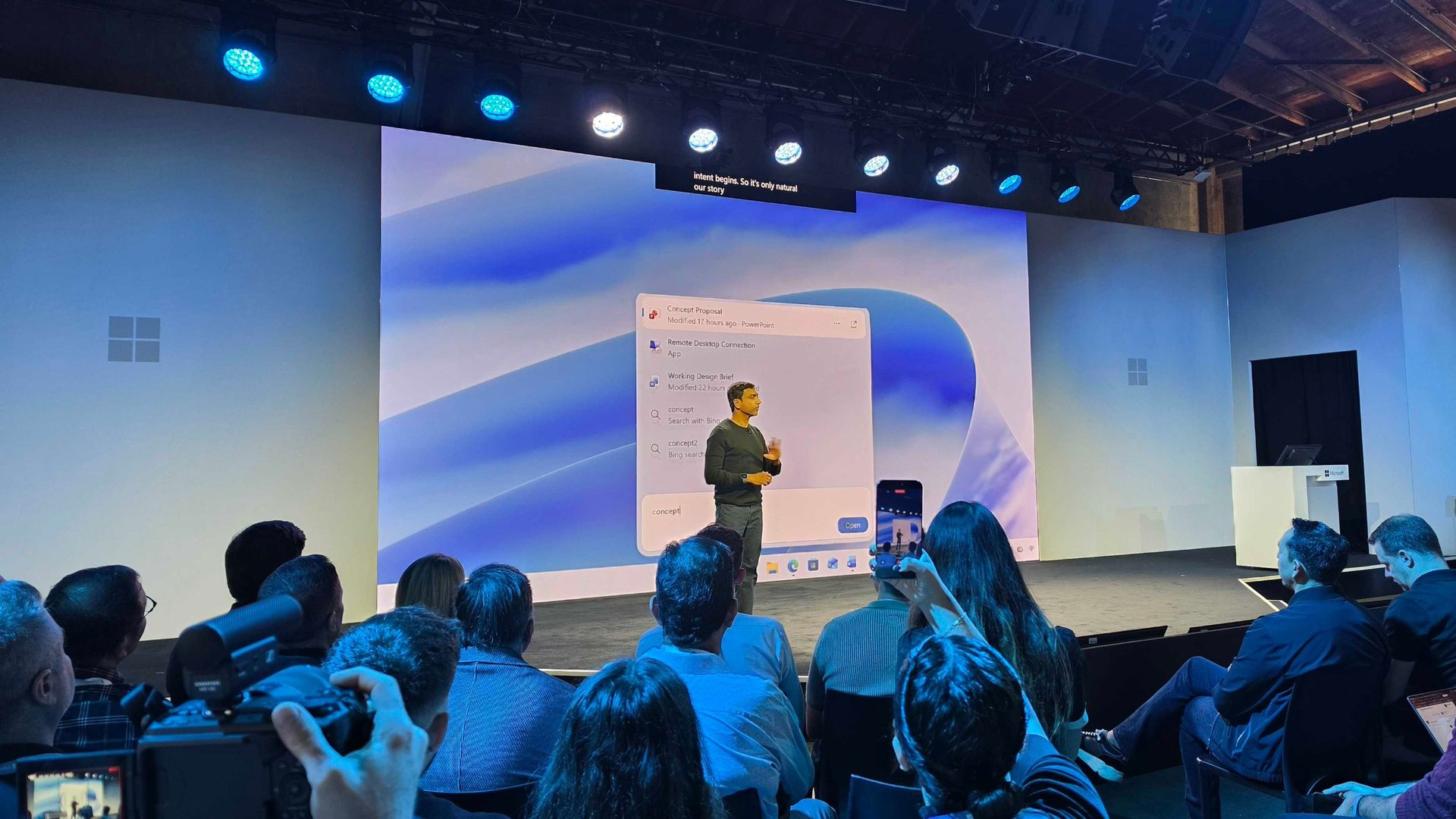
Microsoft just unveiled the new Windows Search experience at its Windows and Surface event. The new Search is more than just a search feature; it's a system composer. That means it can be used to control your PC. Microsoft's Windows lead Pavan Davuluri discussed the new Search experience on stage.
Starting this fall on Windows 11 PCs, users can take thousands of quick actions directly from Search in the Taskbar. For example, you could enable dark mode or switch your PC to Do Not Disturb. You can also adjust your microphone slider through the new Search experience.
You can even use the new Search experience to send a text message through Phone Link.
Microsoft detailed the new Search in a blog post. It also shared some examples of actions you can perform:
Turn something on or off. Try phrases such as “switch to dark mode”, “turn on night light,” or “turn on Bluetooth.”
Make a quick adjustment. Try “dim my screen” or “mute.”
Manage your workspace. Try “minimize all my windows,” or “arrange windows on screen.”
Copilot can be summoned through the new Search as well, showing responses directly within the user interface. You won't have to jump into a separate app to interact with Copilot. If you do want to jump to the full Copilot app, there's a shortcut to do so.
As you'd expect, the new Search experience can also be used to search for things on Windows 11. "At its core, the new Windows search experience is quicker, more efficient, so you can find your files, settings, and apps faster," said Davuluri.
The new Windows Search experience is faster and more efficient with resources because it is built on WinUI 3
(Image credit: Microsoft)
Windows Search will better understand what you're searching for. For example, it will still be able to find items even if your input has a typo.
Microsoft will start testing the new Search experience with Windows Insiders today, October 7, 2026. It will appear first through the Experimental channel.
This piece was written during the live stream of the Windows and Surface event. Microsoft is expected to share more details about the new Search experience and other items discussed at the event. We will update this piece with more information as it becomes available.
Microsoft announced that it will add .msix and .msixbundle attachments to the list of blocked attachments in Outlook Web and the new Outlook Windows client starting next month. [...]
Microsoft announced that it will add .msix and .msixbundle attachments to the list of blocked attachments in Outlook Web and the new Outlook Windows client starting next month. [...]
The October 2026 Security Update for Windows 11 is expected to begin rolling out as an automatic install on October 13, 2026, with a new wave of features, improvements, and fixes. This release is notable because it also rolls out for version 26H2. In addition, this release marks the last quality update for version 24H2, as this version also reaches the end of support.In this quality update, Microsoft introduces a new feature that allows you to decide whether your
The October 2026 Security Update for Windows 11 is expected to begin rolling out as an automatic install on October 13, 2026, with a new wave of features, improvements, and fixes. This release is notable because it also rolls out for version 26H2. In addition, this release marks the last quality update for version 24H2, as this version also reaches the end of support.
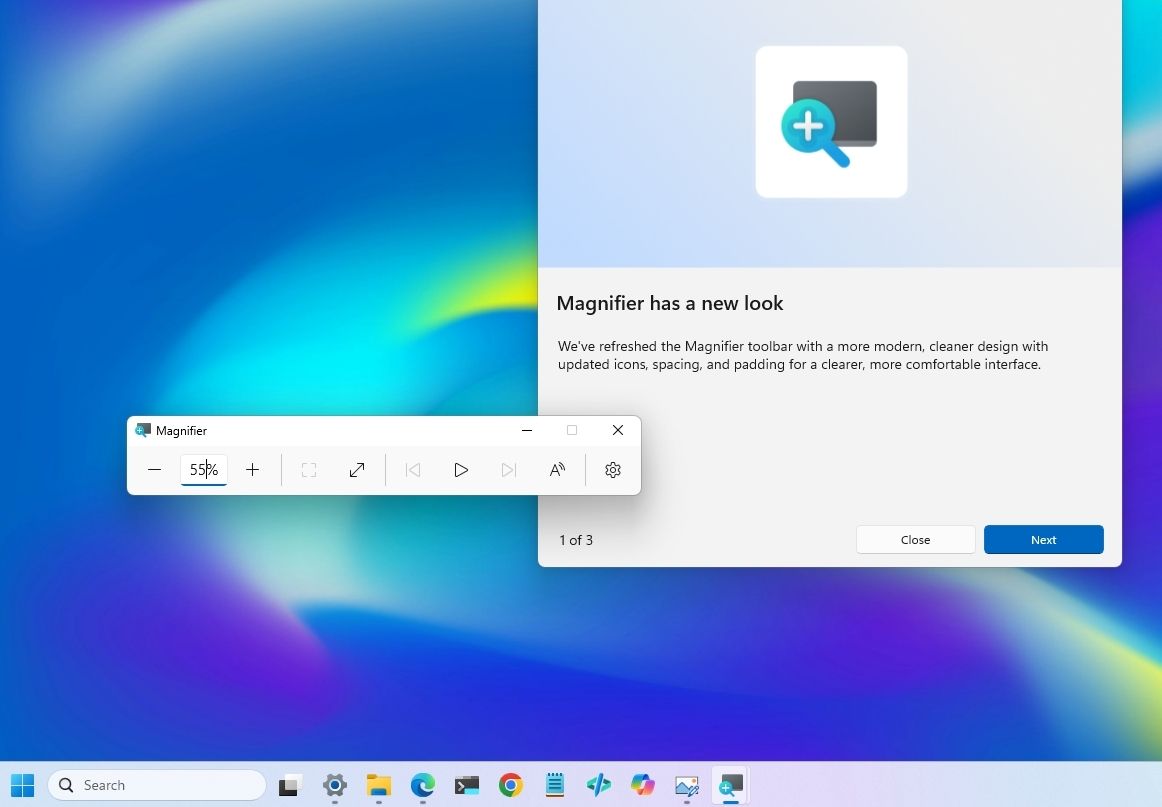
In this quality update, Microsoft introduces a new feature that allows you to decide whether your apps always open maximized. File Explorer receives some useful improvements, and the Magnifier gets a small refresh.
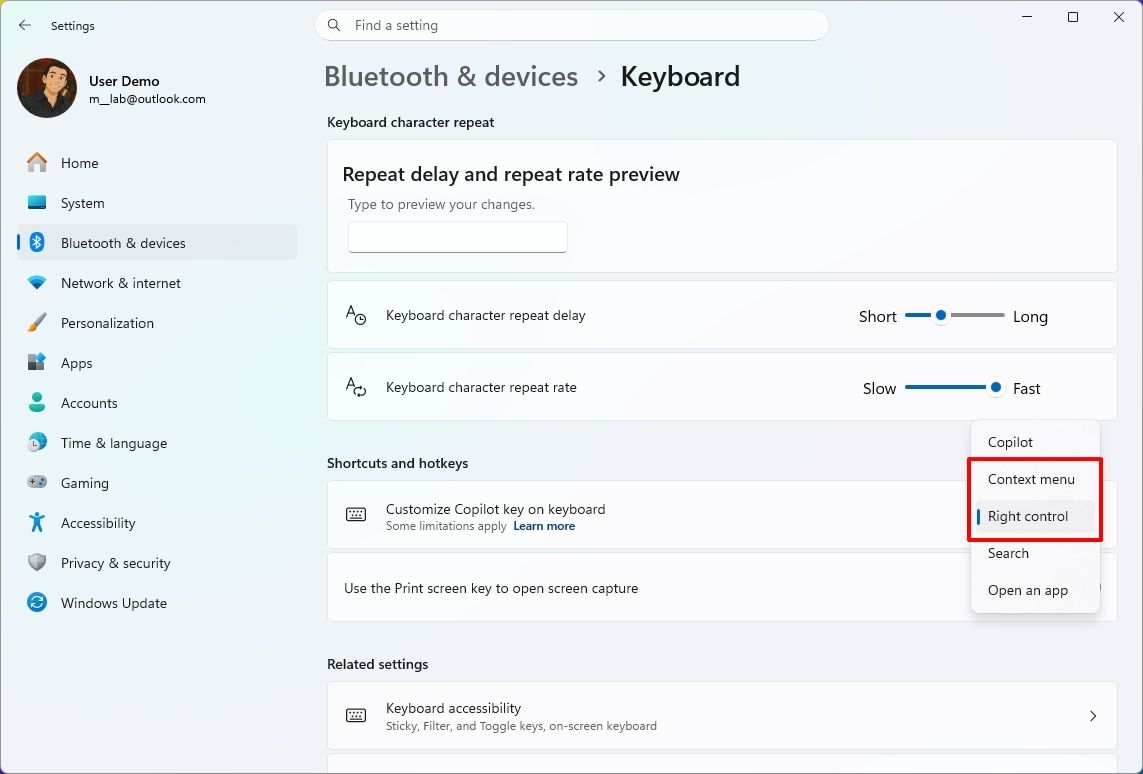
In Settings, you can now adjust touchpad controls and reassign the Copilot key to open Right Ctrl or the Context Menu.
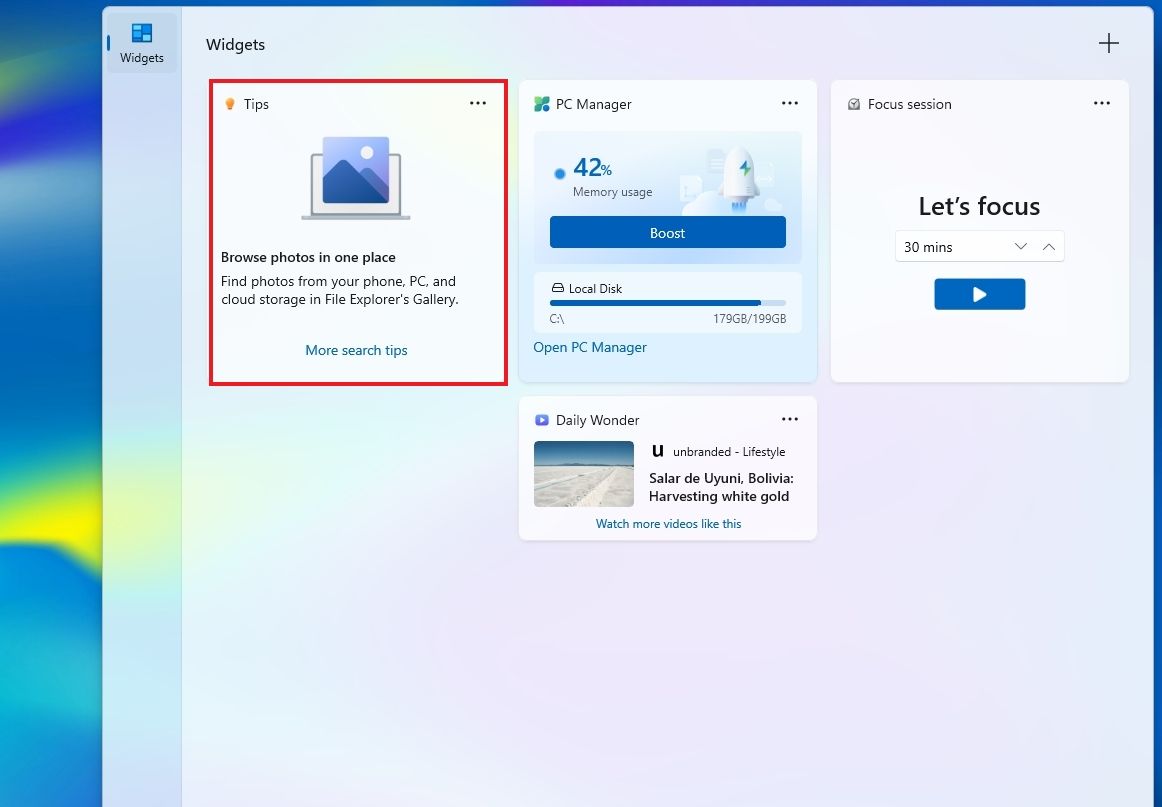
Finally, the software giant is adding a new Tips widget, and the Windows Recovery Environment (WinRE) can now reuse your previously configured Wi-Fi credentials.
In this guide, I'll highlight the most significant changes in the October 2026 Security Update for Windows 11 versions 26H2, 25H2, and 24H2, since they are identical.
Windows 11's new features arriving in October
As usual, the company uses Controlled Feature Rollout (CFR) to roll out new improvements gradually, so it may take some time before you see them.
File Explorer changes
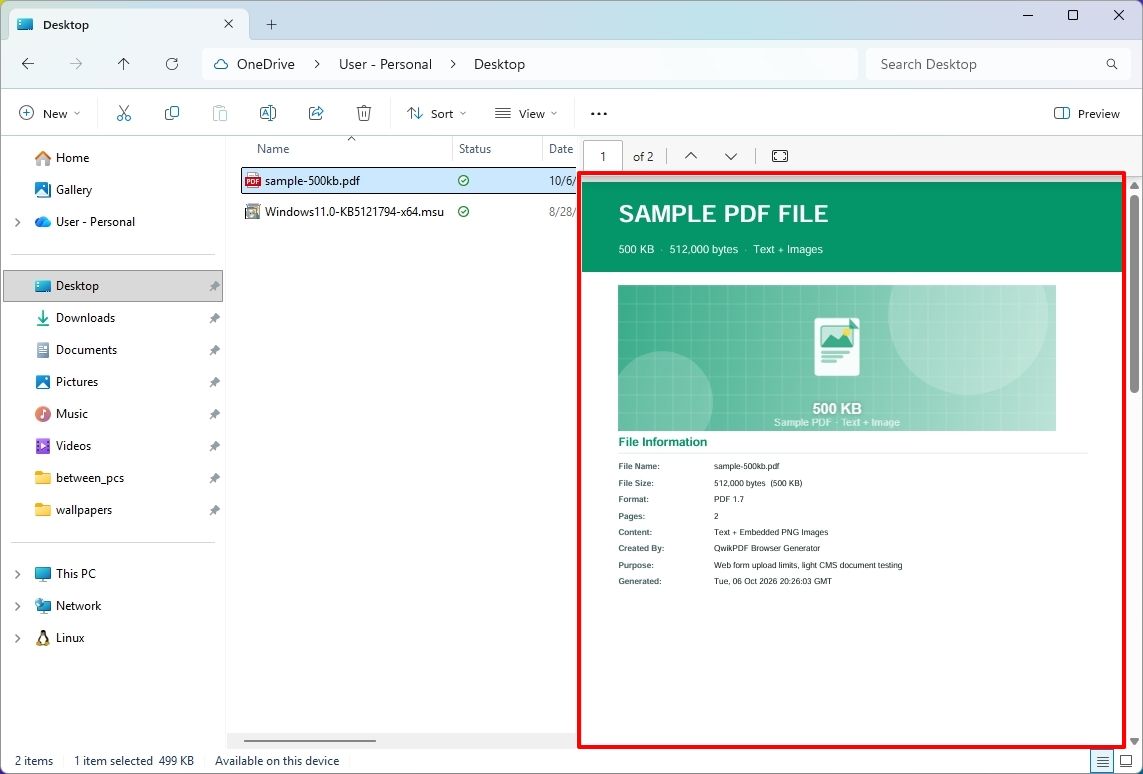
The updated version of File Explorer improves some areas of the experience. For example, the "Preview" pane now lets you preview downloaded HTML files after confirming the internet warning, while PDF files now show a preview automatically.
(Image credit: Mauro Huculak)
The Home page is also getting an update that lets File Explorer remember which sections you expanded or collapsed, so the next time you're on the page, you don't have to reconfigure the layout.
In the "Details" pane, the development team is improving thumbnail reliability for cloud files and reorganizing file properties for easier viewing.
Open apps maximized feature
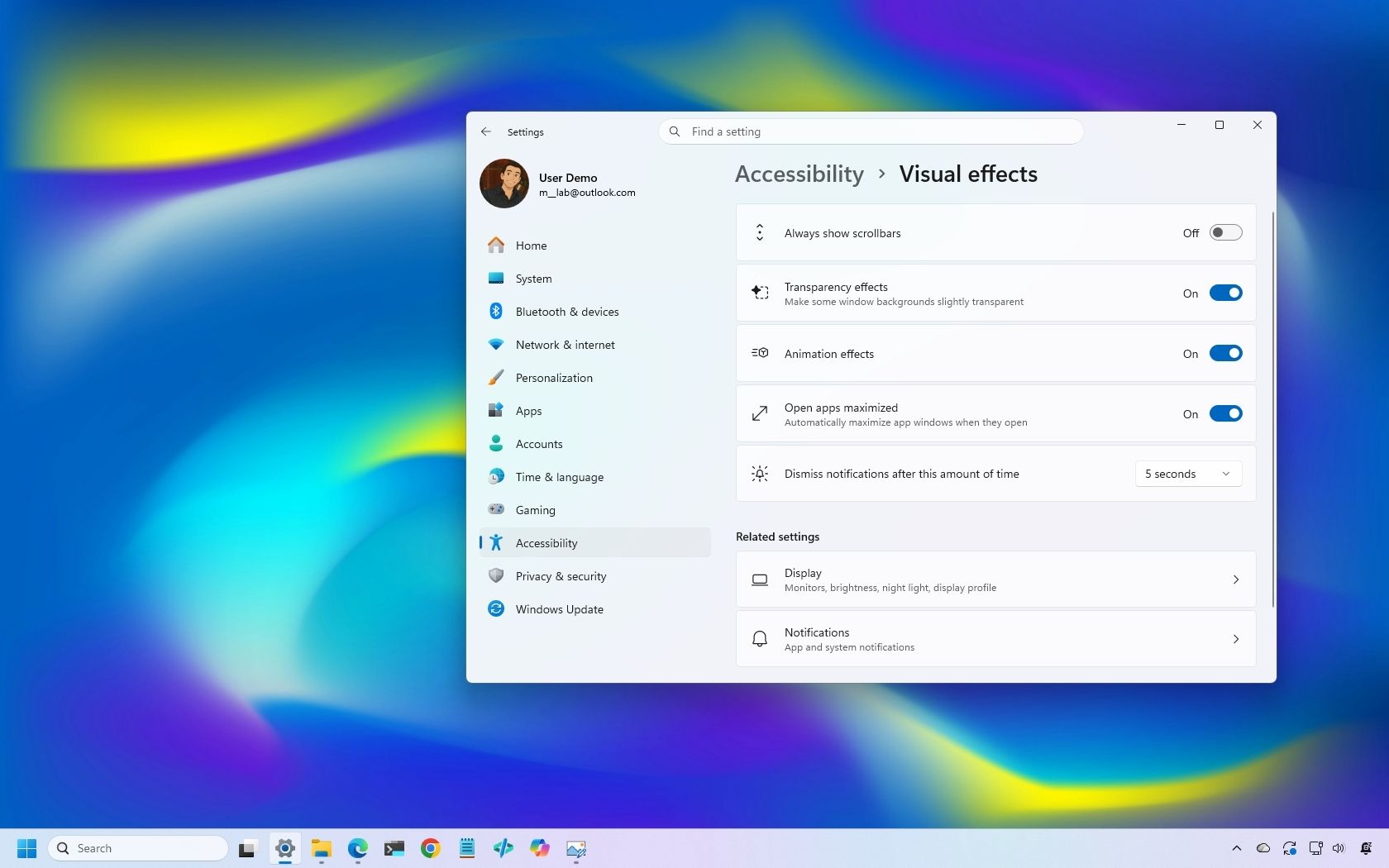
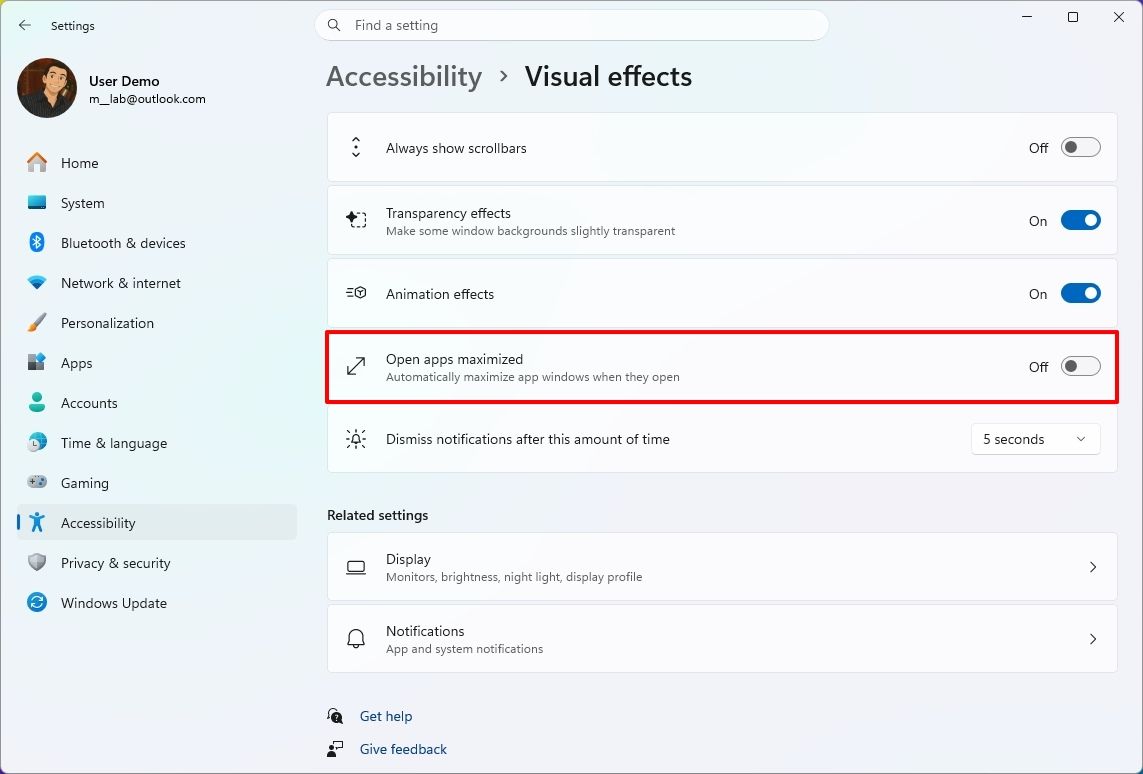
Microsoft is also rolling out a new feature known as "Open apps maximized," an accessibility feature that lets users choose whether apps should always launch maximized.
(Image credit: Mauro Huculak)
The "Open apps maximized" feature is available under Settings > Accessibility > Visual Effects. When you turn it on, the operating system automatically launches apps in maximized mode (not full-screen mode).
Magnifier refresh
The October update also brings a new version of the Magnifier with visual changes. For example, the toolbar icons now align with the Windows 11 design language.
(Image credit: Mauro Huculak)
In addition, the company is redoing the interface padding to give the experience more spacing across the toolbar for a more consistent layout.
Touchpad controls
In this quality update, if you have a precision touchpad, you'll be gaining two new options.
On Settings > Bluetooth & devices > Touchpad, you can configure the experience to scroll vertically with one finger from the left or right side of the touchpad, or keep scrolling by gesturing your finger upwards without lifting.
Copilot key remap new options
Although you can remap the Copilot key to different actions, this release adds the ability to remap it to "Right control" or the "Context menu" key, bringing Copilot devices to a more familiar keyboard experience.
(Image credit: Mauro Huculak)
You'll find the new "Right control" and "Context menu" options in the "Customize Copilot key on keyboard" setting on Settings > Bluetooth & devices > Keyboard.
Widgets with new Tips widget
In the Widgets feature, the company is adding a new "Tips" widget that offers short tips about the operating system.
(Image credit: Mauro Huculak)
In the dashboard, you can add the widget from the "Add widgets" option. You can always place it on the Lock screen using the widget settings in Settings > Personalization > Lock screen.
WinRE with Wi-Fi support
As part of this release, Microsoft is also updating the Windows Recovery Environment (WinRE) to reuse Wi-Fi profiles already saved in the operating system.
Before this change, WinRE supported network connectivity only via an Ethernet connection or separately pre-configured Wi-Fi networks.
The change is now enabled by default, allowing the recovery environment to quickly connect to the internet using profiles already configured in the operating system, making it easier to access features like Quick Machine Recovery.
In addition, the company is adding a remote recovery management plugin to WinRE, extending its management features to MDM providers.
Other changes
Alongside the biggest improvements, the October 2026 Security Update includes other smaller changes that are also welcome additions.
For example, in the Personalization experience, Microsoft is improving the background experience with better transitions for changing wallpapers, and the preview now supports higher resolution.
The slideshow option improves transitions and works across multiple desktops.
As part of the Bluetooth changes, the operating system now improves how the system handles connections, audio, microphones, and settings.
In the Settings app, more specifically on the Home or Accounts page, you'll find a new "Camera Roll Backup" option to protect your photos with OneDrive.
The Ebrima font now supports the Garay and Beria Erfe scripts, and Emoji 17.0 is now available on Windows 11.
In Kiosk mode, the system now blocks additional shortcuts, such as the "Windows key + Tab," "Windows key + A," and "Windows key + C."
Finally, the company is removing the PC-to-PC Migration feature that lets users transfer files and settings directly from an old PC when setting up a new PC.
Windows Central's Take
I see this as a solid update because many changes make the operating system easier to use rather than adding another major feature people have to learn. The ability to open apps maximized and the new options to remap the Copilot key are small additions, but they give users more control over how their devices work.
The ability to reuse Wi-Fi connections with WinRE is probably even more useful when something goes wrong. I rarely think about recovery tools when everything is working, but when I need them, having the system connect to an already saved connection without extra setup can save time and make things easier.
I also appreciate the company continuing to make these smaller usability improvements. After years of system updates, the changes I appreciate most are usually the ones that remove a small annoyance rather than add more complexity.
More resources
Explore more in-depth how-to guides, troubleshooting advice, and essential tips to get the most out of Windows 11 and 10. Start browsing here:
The Windows App on Windows now has a new way to connect to a Windows PC. Remote PC connections are now supported in the app, creating a unified experience for a broad range of connections.The Windows App already supported Windows 365, Azure Virtual Desktop, and Microsoft Dev Box. Now, it also allows you to connect to a PC remotely.The ability to connect to a PC remotely arrives in Windows App following the retirement of the Remote Desktop app. The expanded featur
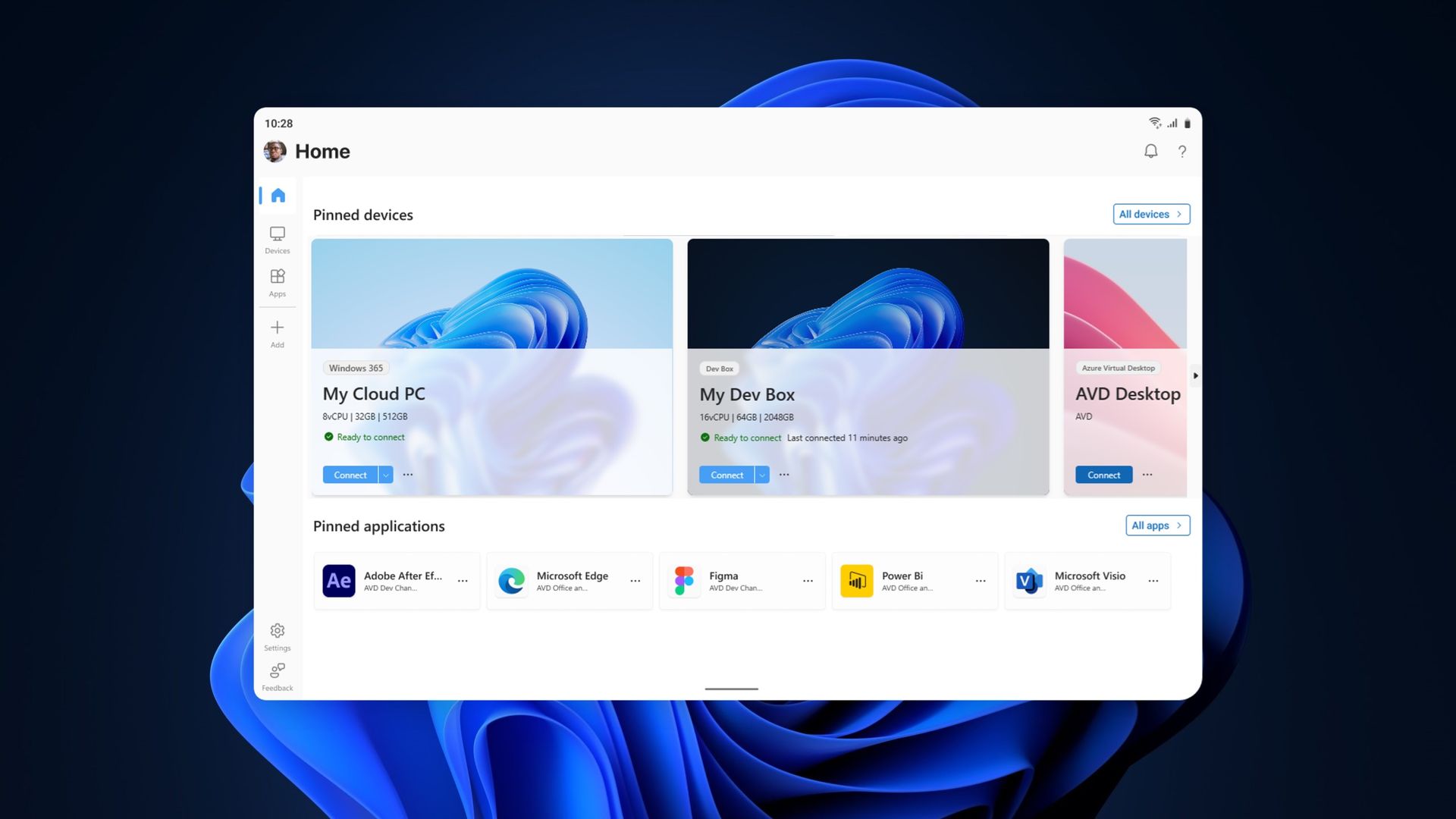
The Windows App on Windows now has a new way to connect to a Windows PC. Remote PC connections are now supported in the app, creating a unified experience for a broad range of connections.
The Windows App already supported Windows 365, Azure Virtual Desktop, and Microsoft Dev Box. Now, it also allows you to connect to a PC remotely.
The ability to connect to a PC remotely arrives in Windows App following the retirement of the Remote Desktop app. The expanded feature set of the Windows App entered testing in March and now remote PC connections are generally available.
This week's news is that remote PC connections are supported in the Windows App on Windows, but it's worth noting that the Windows App is also available on macOS, iPadOS, Android, and web browsers.
Make sure Remote Desktop is enabled on the PC you want to connect to.
Install or update Windows App from the Microsoft Store.
Open Windows App and select Add a Remote PC or select the Add button.
Add your remote PC using its PC name or IP address.
Select Add or Add and Connect.
When I covered the migration to Windows App earlier this year, our readers listed Remote Desktop Connection (the classic mstsc.exe tool) as their preferred way to connect to a PC remotely. That method is still supported, as Microsoft retired the Remote Desktop app from the Microsoft Store rather than the built-in Remote Desktop Connection client. It will be interesting to see whether people transition to the unified Windows App.
If you used another method of connecting to a PC remotely and have switched to the Windows App, please share your experience in the comments.
Join us on Reddit at r/WindowsCentral to share your insights and discuss our latest news, reviews, and more.

 Connexion