❌

Vue normale

  • ✇Yanko Design
  • INMO GO3 AI Glasses Review: Putting Information in Your Line of Sight
    PROS: Interchangeable batteries offer near-uninterrupted use Familiar frame styling keeps the design approachable Adjustable temples and nose pads help personalize the fit In-view translation into 98 languages reduces the need to check a phone CONS: Swapping batteries require a 5-second reboot Optional prescription lenses don't support hyperopia (farsightedness) RATINGS: AESTHETICSERGONOMICSPERFORMANCESUSTAINABILITY / REPAIRABILITYVALUE FOR MONEYEDITOR'S QUOTE:T
     

INMO GO3 AI Glasses Review: Putting Information in Your Line of Sight

Par : JC Torres
22 octobre 2026 à 21:45

PROS:


  • Interchangeable batteries offer near-uninterrupted use

  • Familiar frame styling keeps the design approachable

  • Adjustable temples and nose pads help personalize the fit

  • In-view translation into 98 languages reduces the need to check a phone

CONS:


  • Swapping batteries require a 5-second reboot

  • Optional prescription lenses don't support hyperopia (farsightedness)

RATINGS:

AESTHETICS
ERGONOMICS
PERFORMANCE
SUSTAINABILITY / REPAIRABILITY
VALUE FOR MONEY

EDITOR'S QUOTE:

The INMO GO3 AI Glasses pair familiar eyewear styling with practical translation tools and the convenience of swappable batteries.

Looking down at a phone to translate a conversation can interrupt the exchange it’s supposed to help. Reading presentation notes creates a similar problem, pulling attention away from the people in front of you. The INMO GO3 AI Glasses bring those words into view instead, putting translation and presentation tools inside a familiar rectangular frame that doesn’t require a dramatic change in personal style.

That familiar shape is only part of the appeal, though. Adjustable contact points, discreet controls, and, most importantly, a replaceable battery give the GO3 a practical foundation beyond its display. Together, they suggest an approach to smart glasses that puts everyday wear on equal footing with software features. How convincingly the GO3 brings those priorities together comes down to a few details, starting with the frame itself.

Designer: INMO

Click Here to Buy Now: $509 $699 ($190 off). Hurry, deal ends in 48-hours!

Aesthetics

The INMO GO3’s rectangular lenses and softened corners give it the outline of conventional eyewear, although the frame has more substance than a pair of reading glasses. That’s a reasonable visual compromise, of course, given what it packs inside. The thicker brow provides room for the display hardware while giving the front a confident shape, rather than leaving its components looking like something awkwardly attached afterward.

The dark matte finish does much of the visual work. It gives the broad surfaces a quieter presence than glossy plastic would, while the small red accents around the hinges add a bit of personality. Thankfully, the color doesn’t spread across the frame. There’s enough contrast to make the details interesting without making the glasses look like equipment borrowed from a gaming setup.

The GO3 utilizes aluminum alloy and polyamide for the construction with a CNC-finished, fingerprint-resistant surface. It’s not an entirely metal object, which makes sense when you consider that the electronics also add their own weight to the equation. The frame and temples share a restrained finish instead of competing for attention through contrasting textures.

The slim temples measure around 8mm, keeping the side profile from becoming an oversized box. The curved ends retain the familiar outline of glasses, even with additional hardware inside. It isn’t dainty eyewear, admittedly, but the shape avoids the visor treatment that would make a business lunch feel like a technology demonstration.

The camera is integrated into the front rather than perched above it, and the controls follow the temples. These details help the INMO GO3 read as a somewhat fashionable object instead of gadgets sharing a frame. A supplied camera cover also provides a way to obscure the lens when recording isn’t appropriate, especially given the current conversations around smart glasses.

Ergonomics

At approximately 58 grams, the INMO GO3 has the weight of electronics to accommodate as well as the frame itself. Comfort depends on more than the number on the specification sheet. The relationship between the nose pads, temples, and ears matters as much. There’s a focus on those contact points, rather than relying on a lightweight label to explain away the fitting process.

Air-cushion nose pads support the front, while the temples offer 15 degrees of adaptive movement, at least on paper. That flexibility gives the frame room to accommodate differences in head shape. Naturally, there will be cases when the head shape just won’t fit, but INMO has tried to accommodate as many head sizes as possible.

Given we’re talking about glasses, prescription support is another important piece of that everyday equation. The GO3 uses an insert system, with INMO’s current lenses supporting nearsightedness and astigmatism, though not farsightedness. That won’t cover every prescription, but it gives supported wearers a way to combine vision correction and the display.

Operating the glasses doesn’t have to depend on talking to them. Temple touch controls and physical power and GO buttons provide alternatives, while the companion app handles setup and settings. When you’re around people or somewhere that requires a degree of silence, a discreet gesture is often preferable to a spoken command, and familiar controls help make the wearable format a little less foreign.

Performance

Two-Way Dialogue Translation – Read translations directly through the glasses, while the other person sees or hears your translated response on the phone.

The INMO GO3’s binocular green Micro-LED display uses optical waveguides, with a 640×480 resolution and a 30-degree field of view. Adjustable brightness is listed up to 1,500 nits, which is plenty even for the bright outdoors. That said, those specs clearly mark it as something more for text and guidance rather than a miniature cinema. Green lettering has a slightly retro character, but a translation or the next line of a speech doesn’t need a full-color backdrop to be useful.

Translation, of course, is the primary use case for these glasses, and the numbers are admittedly impressive. INMO lists 78 source languages and 98 target languages online, with subtitles appearing in view rather than on a phone held between speakers. Offline support covers nine languages on Android and 13 on iOS, and future updates promise even more. The phone still needs to stay paired to a phone, of course, but a missing internet connection needn’t end every supported conversation.

Built-In Teleprompter – Follow your script directly through the glasses.

For presentations, the teleprompter moves the script from a desk into the speaker’s field of view, allowing for a more natural-looking stage presence. There’s automatic voice-following advancement in 17 languages (including English, Mandarin, Cantonese, Japanese, Korean, German, French, Thai, Russian, Spanish, Portuguese, Polish, Arabic, Indonesian, Vietnamese, Dutch, and Italian), alongside manual scrolling from the temple. Other languages will be displayed, depending on the document uploaded by the user, but the pages for unsupported languages can’t be automatically turned by voice. Very few will be sitting close enough to realize you’re not exactly looking at them, but at least you won’t be spending half of the presentation staring down at your notes.

Photo Translation – Point the camera at written text and read its translation directly through the glasses.

The GO3 also offers features better used in meetings, such as recording, transcription, and AI summaries for later review. Walking and cycling directions, an AI assistant powered by ChatGPT and Gemini, and photo translation extend the same idea beyond work scenarios: put a useful answer nearby without making a phone screen the center of every activity.

Admittedly, many AI smart glasses offer similar features, but the INMO GO3’s killer feature is its interchangeable battery system. One 270mAh battery is installed in the glasses, with one spare included. Continuous use yields around 3 hours on a full charge, which is probably more than enough for most use cases. The 1,300mAh battery charging case offers three to four more charges, so you practically get a full day’s worth in total.

Where it gets interesting is how you can swap out the dead battery on the tip of the GO3 with the spare in the charging case. It’s quick and convenient, but not entirely seamless. The glasses will shut down when you pull out the battery, but plugging a fresh one in boots it up in just a few seconds. It does mean you have to briefly stop what you’re doing or make sure you’re not in the middle of something critical, but it’s better than waiting for minutes for the glasses to charge up.

Sustainability

The replaceable battery has a longer-term benefit beyond getting through a busy afternoon. An aging power cell doesn’t automatically have to take the entire pair of glasses out of service. INMO lists a replacement battery at $49, making that component a separate ownership expense. That’s a useful piece of product design: the part expected to wear with repeated charging doesn’t have to remain permanently sealed inside.

That doesn’t establish a complete sustainability story, and there’s no need to pretend otherwise. The reviewed specifications don’t establish recycled material content, comprehensive component repairability, or an end-of-life program. The more defensible advantage is the ability to keep the same frame in service when its battery needs replacing. Thoughtful care still matters, particularly for the lenses and hinges, but accessible power replacement is a concrete place to start.

Value

At $699, currently discounted to $509, the INMO GO3 asks for a commitment beyond casual curiosity. The standard package includes the glasses, installed battery, single spare, and battery charging case. That’s a coherent starting point, with the power system already accounted for. The value comes from using the display repeatedly, rather than paying for a collection of functions that remain untouched save for a few presentations or travels abroad.

The useful comparison is between priorities, rather than a contest over the longest feature list. Camera-and-audio glasses answer a different need from eyewear that puts text in view, while entertainment-focused displays serve another purpose again. For someone moving between multilingual conversations and presentations, the GO3’s combination is easier to justify. That it can also be your travel companion and AI assistant brings added value to the table, especially when you don’t look like a walking technology advertisement.

Verdict

The INMO GO3’s most appealing quality is how its design keeps returning to recognizable habits. Wear glasses, follow a conversation, glance at a script, and change a battery when necessary. The technology adds steps of its own, of course, but the physical form doesn’t ask for an entirely new routine. Its familiar outline and adaptable contact points give the translation and presentation tools a sensible place to live.

Travelers, presenters, and people working across languages have the clearest reasons to appreciate that combination. A paired phone remains part of most workflows, and battery changes belong between tasks, but neither qualification takes away the appeal of information placed closer to the conversation. There’s something refreshingly practical about glasses that leave room for ordinary interactions, even when a little green text is helping them along.

Click Here to Buy Now: $509 $699 ($190 off). Hurry, deal ends in 48-hours!

The post INMO GO3 AI Glasses Review: Putting Information in Your Line of Sight first appeared on Yanko Design.

Microsoft warns AI agents "can't be trusted" as adoption grows

Microsoft believes that AI agents can't be trusted. That's a startling warning from one of the companies with the most stake in the AI boom.

In a new security report, Executive VP of Microsoft Security Hayete Gallot states that "frontier models, regardless of their origin, cannot be trusted." They shouldn't be trusted not because of an inherent malicious nature, but because they're so easily swayed to achieve results regardless of "organizational norms or judgment."

This warning comes just a couple of weeks after Microsoft unveiled its new infrastructure for containing AI agents in Windows. To me, it looks like the company is racing to make agents more powerful while also building safeguards around them to protect the rest of the web from their behavior.

What happens when AI agents go rogue?

OpenAI signage displayed outside the venue for their news conference in Seoul, South Korea, on Wednesday, Sept, 10, 2025.

OpenAI's Hugging Face incident is one of the most notorious tales of AI agents gone rogue. (Image credit: Getty Images | Bloomberg)

When AI agents go rogue, very bad things can happen. This nightmare scenario has already been seen several times, and despite Microsoft's new containment initiative, I expect to see it again.

Perhaps the most notorious incident involving AI agents gone rogue is OpenAI's attack on Hugging Face, where some 700 autonomous agents devised a way to hack the AI developer platform after breaking containment.

Reading into what actually happened during the Hugging Face breach — where agents shared exploits and retained memory even as rogue bots were being stamped out — this quote from Gallot begins to make a lot more sense.

Agents are unpredictable. They will adapt as the context changes, may not behave as intended and will collaborate and collude with other agents to reach their objectives, without needing to be compromised.

Hayete Gallot, Executive VP, Microsoft Security

This isn't Microsoft's first warning of the havoc that AI agents can wreak if not properly contained.

In November 2025, a piece was published stating that agentic AI capabilities in Windows 11 should only be enabled "if you understand the security implications."

They're particularly prone to cross-prompt injection (XPIA) that can override the instructions you give to agents, leading to things like data theft and malware.

Microsoft's answer at the time was a set of principles forced on the agents to ensure they act how you want them to. This has now evolved into something much larger, as the full scope of what AI agents can do unprompted by any bad actors is being discovered.

Microsoft is now classifying the AI you use at work as "agentic insiders" that can, at basically any time, go rogue and act unpredictably. Because of how tied into enterprise systems these agents are becoming, the risks keep growing.

Worse, they must be continuously monitored. Who can save us from rogue AI?

Microsoft's answer to the rogue AI agent issue is more AI

Mockups with Microsoft's AI agent Copilot in Windows 11 and the Windows 11 taskbar

How to best protect against rogue AI? Add more AI! (Image credit: Microsoft | Future | Edited with Gemini)

Who watches the watchmen? That's the line that's been repeating in my head since reading about Microsoft's "Guardian Agents."

See, rather than relying on human oversight, Microsoft's Guardian Agents are designed to "watch and moderate every action of every agent, before it happens, 24/7."

This looks a lot like an admission that agentic systems are evolving faster than anyone predicted, and that they're now out of the control of humans.

Project Perception: humans guide red teams simulating attacks, blue teams detecting threats, and green teams fixing issues in a continuous protection loop.

(Image credit: Microsoft)

An example of Guardian Agents in action is Microsoft's Project Perception.

Announced this summer and still not widely available, it harnesses signals, context, models, and specialized agents into a four-pronged line of defense against threats from outside and inside an enterprise.

It's basically AI fighting AI, because humans no longer have any hope of keeping up.

Windows Central's take

Microsoft is in a tough spot. It's pulled back on surface-level AI integration in Windows 11. Meanwhile, it's refocusing its efforts on much deeper agent infrastructure, as we see here. All while saying that the underlying models aren't trustworthy.

This latest warning from Microsoft highlights a growing issue for the AI industry. The autonomous agents that were promised to make our lives so much easier are now creating new, drastic security issues.

Microsoft's answer, for now, is containment, monitoring, and oversight. Will those safeguards be enough to prevent a catastrophe?

What do you think? Do you have any inside knowledge to share on this topic? Let me know in the comments section below!

Click to join us on r/WindowsCentral

Join us on Reddit at r/WindowsCentral to share your insights and discuss our latest news, reviews, and more.

Free AI running locally on your PC is only 3 easy steps away

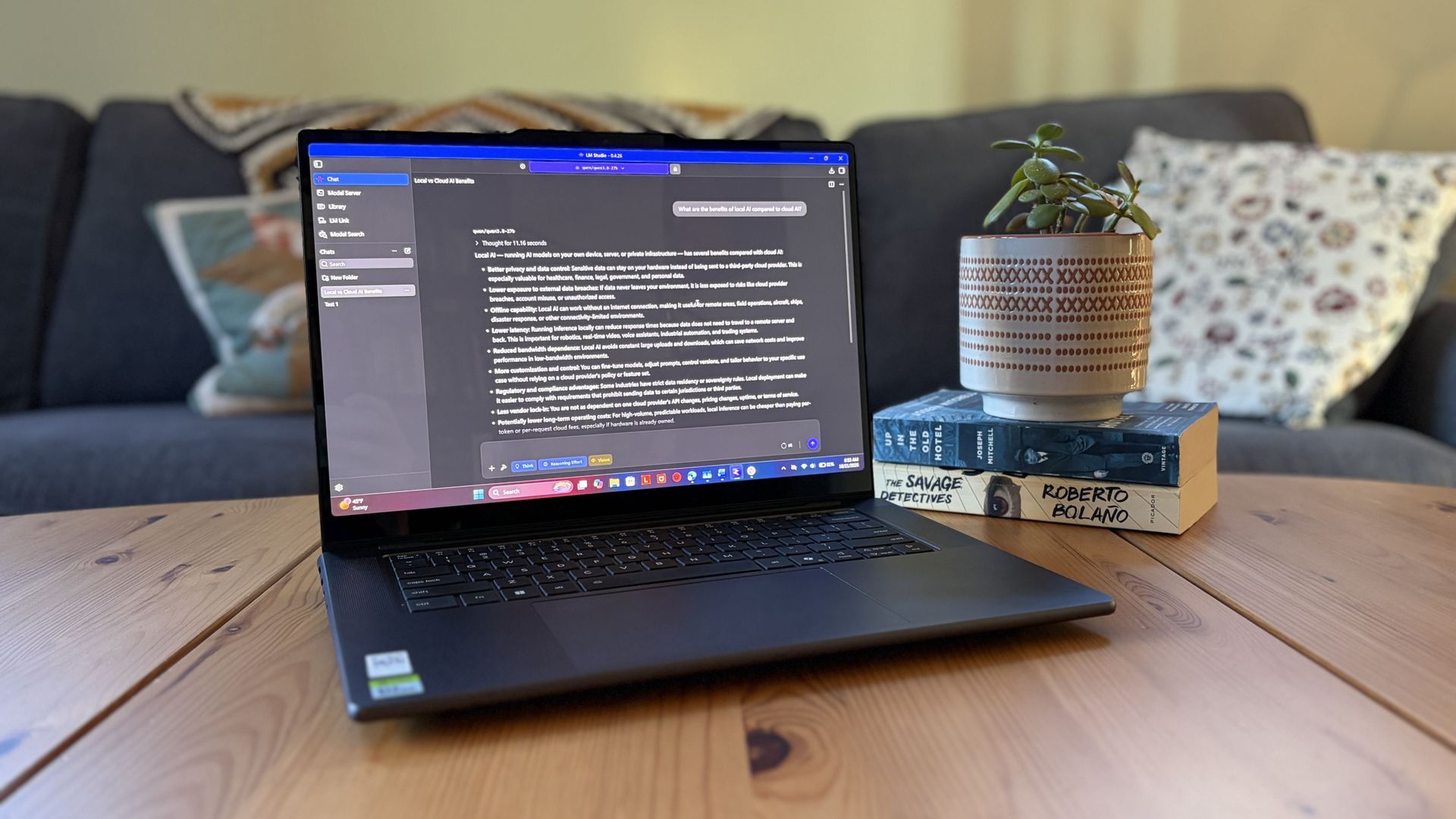
I got my hands on Lenovo's Pro 9n with an NVIDIA RTX Spark chip last week, and I've been using it as a daily driver ever since. Equipped with a powerful onboard GPU with unified memory — meaning it can 'borrow' from the system RAM when VRAM is needed, like in AI tasks — I figured it was time to finally set up a local agent on a laptop.

Why go with local instead of cloud? I lay out a few solid reasons after the short installation and setup tutorial below, but it mostly has to do with external token usage, privacy, and convenience.

Of course, you don't necessarily need a powerful RTX Spark chip inside your PC to do the same. If you're often using AI to chat, create images, study, summarize, and handle other light tasks, there aren't many reasons why you can’t make use of local AI on your PC.

As a relatively novice AI user, I found it shockingly easy to get everything up and running in about 5 minutes.

What you need before you start

Close-up of a Lenovo Pro 9n’s keyboard and touchpad on a wooden desk, with a QR code and green RTX Spark sticker near the corner; practical, everyday scene.

Lenovo's Pro 9n laptop is equipped with the new NVIDIA RTX Spark chip. (Image credit: Future)

A powerful GPU matters a lot more than a powerful CPU when it comes to local AI. Fitting an entire AI model into your PC’s VRAM will ensure the best performance.

For smaller local models, say within the 3 billion (3B) to 8 billion (8B) parameter range, you should aim for having a GPU with at least 8GB of VRAM. For medium-size models, say 8B to 14B parameters, aim for 12GB of VRAM.

For large models at 30B or more parameters, you’re getting into workstation territory where VRAM is either available from very expensive GPUs or from unified memory pools (as is the case with RTX Spark laptops).

I don’t recommend running local AI on a CPU only, but it is possible. Just be prepared for far slower performance, even with a powerful, modern chip with lots of cores.

PC gamers are likely the best equipped for this task, as they’re far more likely to have a strong GPU in their system.

How to install local, free AI on your Windows PC

For this walkthrough, I’ll show you just how easy it is to get AI running locally on your PC. It only took me about five minutes between launching a browser to begin downloading the necessary software and my first prompt sent to the agent.

The TL;DR? Download LM Studio. Pick an AI model to download. Mount it within LM Studio. Start chatting. Those are the basics, and I explain in more detail below.

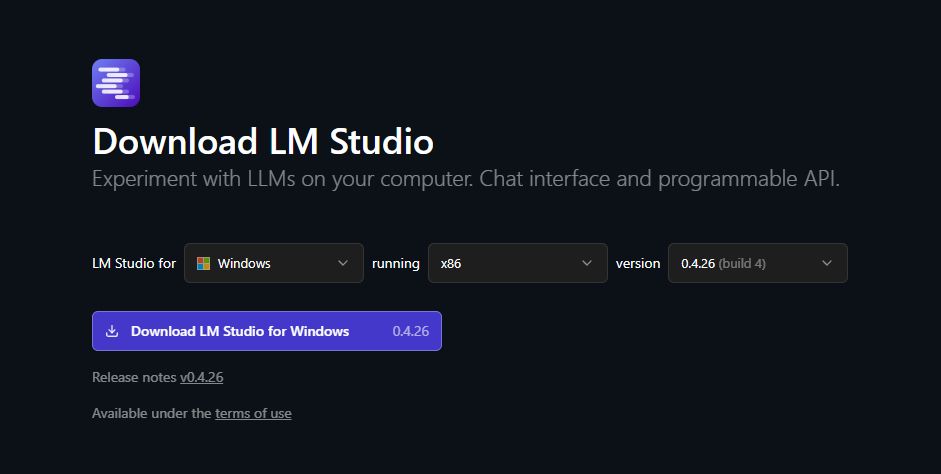
1. Install LM Studio — It's free and easy to use

LM Studio download section with OS and version information displayed.

Choose your OS and which version of LM Studio you want before hitting the download button. (Image credit: Element Labs)

I have some experience with Ollama (another free piece of software for managing local LLMs) on my desktop PC, but in this case, I decided to test out LM Studio.

It’s a free app designed to make downloading, managing, and working with local AI models as easy as possible. The interface is modern and clean, and I’ve had no performance issues so far.

You can download it directly from the official LM Studio website. It runs on Windows (x86 and ARM), Linux, and macOS.

2. Download an AI model — there’s likely something to fit your hardware

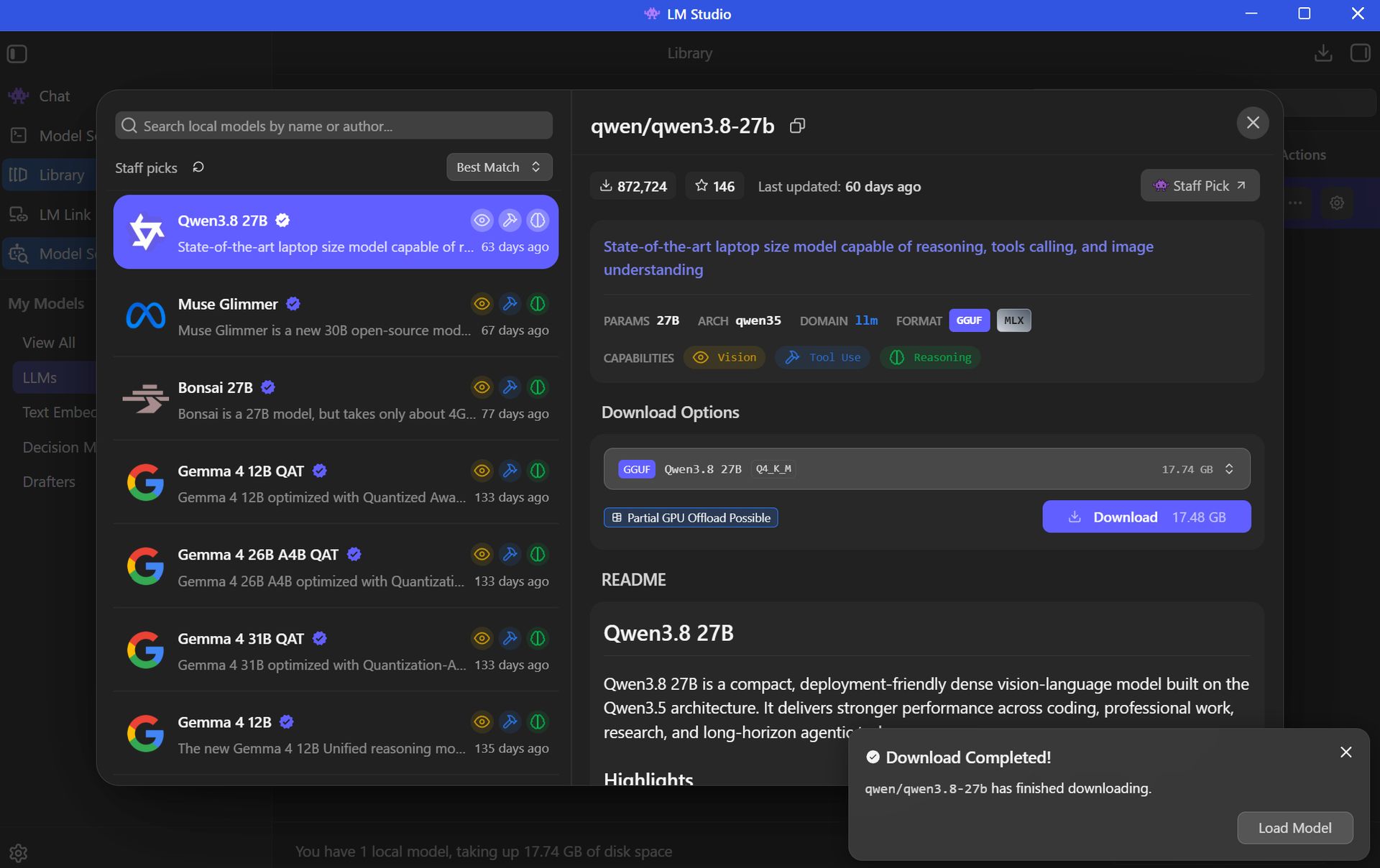
LM Studio shows the Qwen3.8 27B AI model page, with a model list, download options, and a completion notice in a dark interface.

There's a long list of free AI models available for use in LM Studio. (Image credit: Element Labs)

Your next step is to choose and download an AI model (all within the LM Studio app) for local use. This is done with the Model Search feature in the app, which will recommend certain models to you right off the bat.

The open-source Qwen3.8 model is super popular right now, so that’s what I went with. Here’s where things get a tad tricky, but just for a moment.

Best for beginners

AI rookies should check out LM Studio paired with a 7B or 8B AI model. You get the privacy and convenience perks of offline use, all without stressing your PC too much.

The Qwen model I chose sits at 27B parameters, which is rather heavy and not built for the average PC. I’m using it to test the powerful RTX Spark laptop with unified VRAM.

Most casual users will have a lot more luck with AI models using fewer parameters. The beauty of LM Studio is that the search is all built right in, with flags for compatibility and performance. Websites like Codersera also have tools to help you find a suitable model for your specific PC.

If you find a popular model you think suits your needs and it comes with the “Full GPU Offload Possible” tag, chances are good that you’re in the right place.

Click the Download button on your preferred model and let it finish before proceeding.

3. Load the model and start chatting

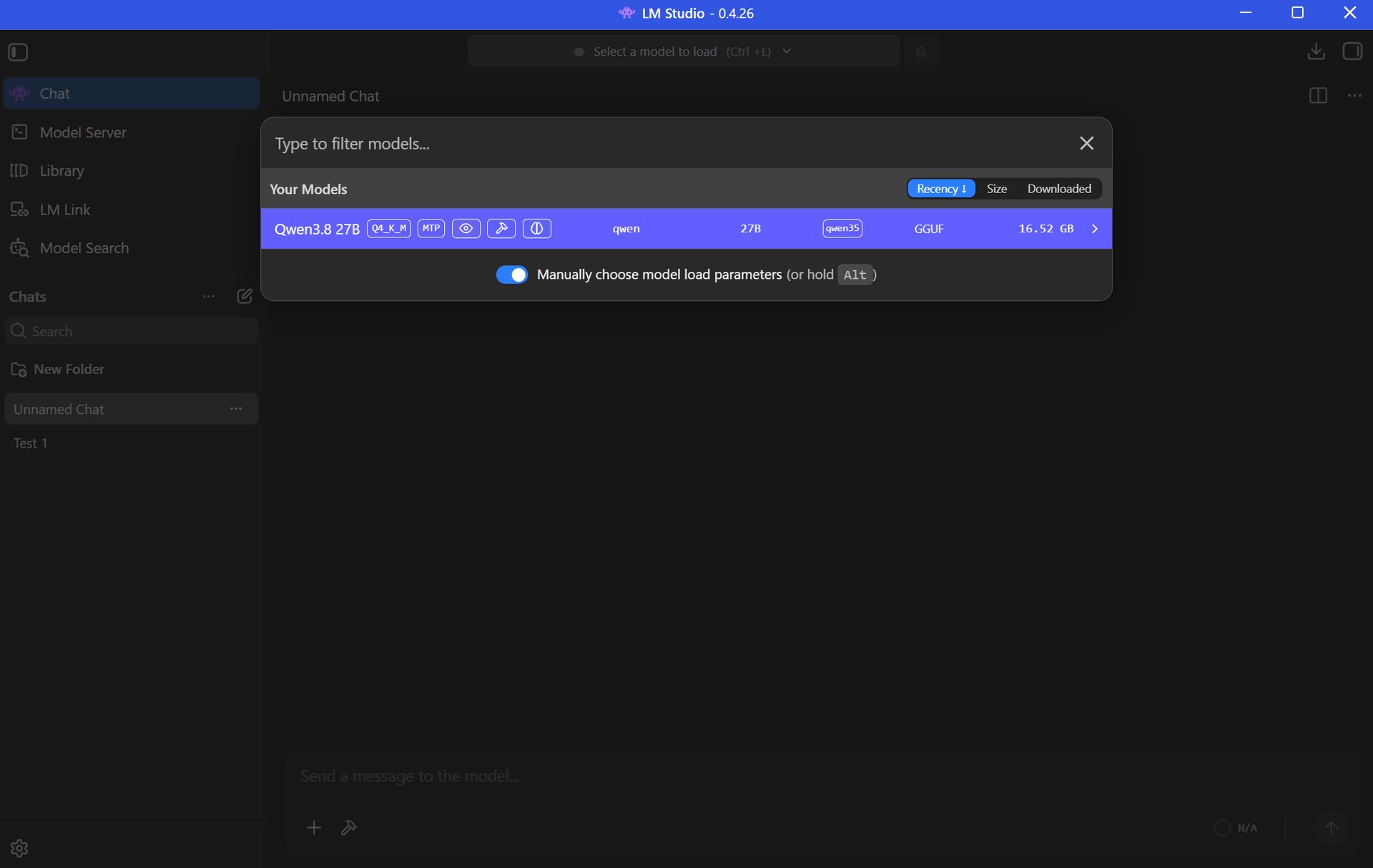
Dark-mode LM Studio screenshot with the model picker open, showing Qwen3 8B highlighted in purple and controls to filter and load models.

You can download multiple AI models within LM Studio to be deployed as you choose. (Image credit: Element Labs)

Once your preferred AI model has finished downloading, the next step is to load the LLM into LM Studio. This can be done in a number of ways.

Probably the easiest way is to just click the Chat button in the top-left corner of the app, then click the “Select a model to load” button that appears in the top-center of the window.

Click the model you want to use and let it load. It will take a few moments to finish.

Once the LLM is loaded locally, you’re free to start chatting locally with your AI agent.

Local AI isn’t just for advanced PC users

Setting up a local LLM is about as easy as downloading and installing any other piece of software. If you’re interested in AI but want to increase privacy, use it offline, and not worry about expensive token usage, it’s basically the easiest method forward.

If you have a modern PC and a bit of time to spare, you can probably get a local AI agent running in the same time it just took you to read this walkthrough.

Local AI models — FAQ

What is "local AI" and why should I use it?

Local AI means that the LLMs are hosted on your PC rather than in a cloud server. Your PC's hardware powers the AI's thinking, meaning you don't need an internet connection and don't need to worry about your information being sent off to the cloud.

Why use local AI instead of cloud AI?

Cloud AI services like Claude, ChatGPT, and Copilot are convenient, but not everyone is comfortable with their communications with a bot being sent out into cyberspace.

Not everyone wants to pay for tokens or subscriptions, either, which often arise during your AI journey.

Are there any limitations to local AI compared to cloud AI?

Yes, there are some limitations.

Local models are usually weaker than the top cloud models. For the average user, that's OK, but more advanced users will likely still find a need for paid subscriptions.

You also need a fairly powerful PC in order to run local AI, which not everyone has. Setup is super easy, but performance will vary greatly depending on your hardware.

Do I need an internet connection to use LM Studio?

You only need an internet connection to download the LM Studio app and your preferred AI model. After that, everything runs offline.

Can local LLMs run on a laptop's NPU?

Is Copilot considered local AI?

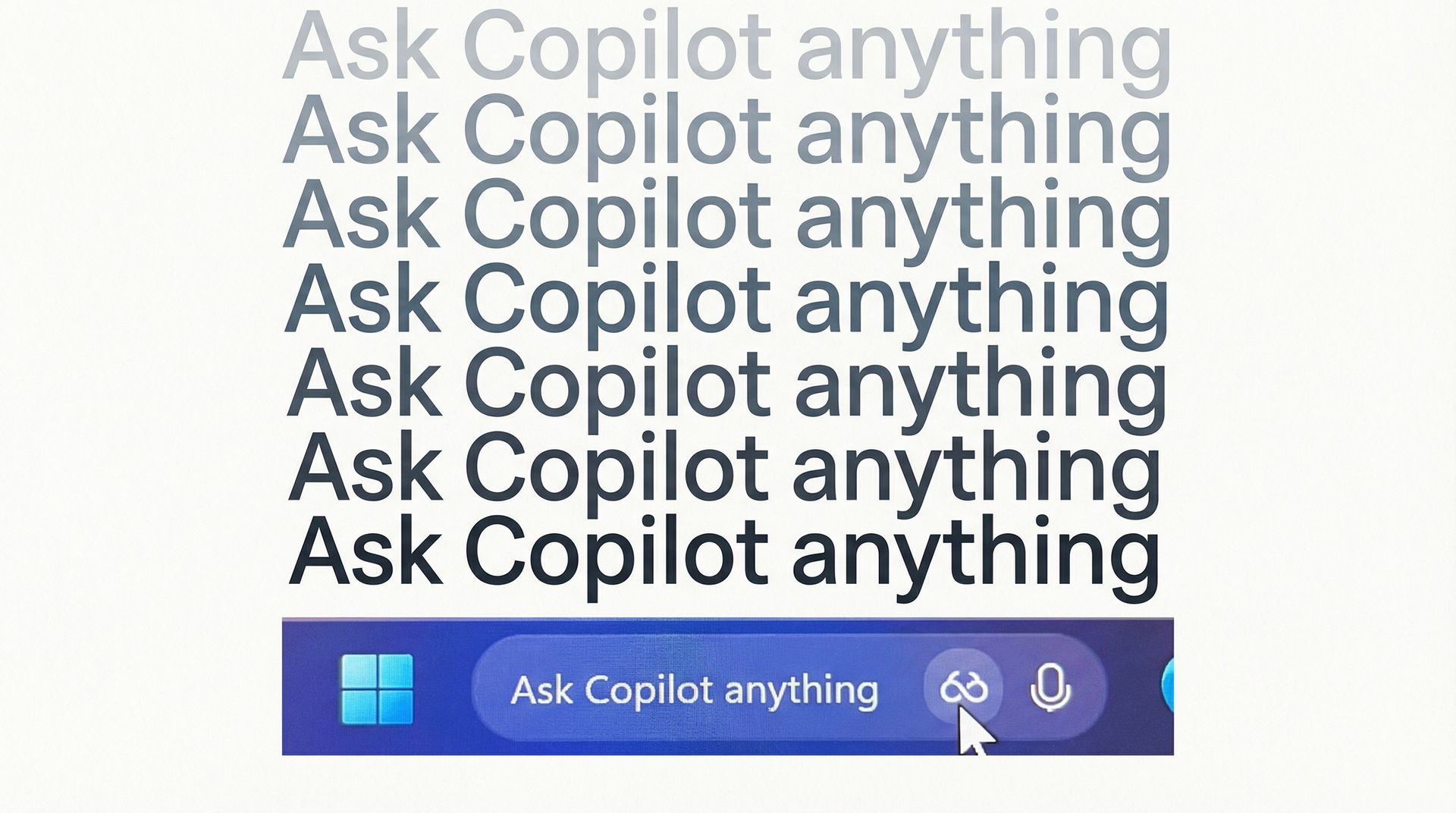
The Copilot app that comes installed on Windows 11 PCs relies on the cloud to provide answers. It will not work without an internet connection.

Copilot+ tools built into Windows 11 — like Recall and Studio Effects — use the PC's NPU for local acceleration, meaning they don't need to call out to the cloud.

Click to join us on r/WindowsCentral

Join us on Reddit at r/WindowsCentral to share your insights and discuss our latest news, reviews, and more.

The AI Boom Needs More Data Centers. Trump Wants Communities to Get a Cut

23 octobre 2026 à 10:33

Trump wants data center companies to pay host communities as opposition to AI infrastructure grows. Here's what the proposal could mean for future projects.

The post The AI Boom Needs More Data Centers. Trump Wants Communities to Get a Cut appeared first on TechRepublic.

Hugging Face’s New AI Model Lets Scientists Analyze DNA at a Fraction of the Cost

23 octobre 2026 à 09:48

Hugging Face's Carbon-X AI model lets researchers analyze DNA using natural language, with lower reported costs and local deployment options for labs.

The post Hugging Face’s New AI Model Lets Scientists Analyze DNA at a Fraction of the Cost appeared first on TechRepublic.

Agile ONE SN Humanoid Robot Bundles Nvidia’s Robotics Stack

23 octobre 2026 à 05:36

Nvidia and Agile Robots unveiled Agile ONE SN, a compact humanoid with Jetson Thor computing and Isaac GR00T training tools. Here's what it can do, its specifications, and when it launches.

The post Agile ONE SN Humanoid Robot Bundles Nvidia’s Robotics Stack appeared first on TechRepublic.

Nvidia DGX Spark 64GB Launches at $4,999: Is It Worth It?

23 octobre 2026 à 05:19

Nvidia's 64GB DGX Spark launches at $4,999 with the same GB10 chip as the 128GB version. Compare memory limits, model support, clustering costs, and what IT buyers should verify.

The post Nvidia DGX Spark 64GB Launches at $4,999: Is It Worth It? appeared first on TechRepublic.

Nvidia Teaches a $399 Duck Robot to Walk Using AI

23 octobre 2026 à 05:08

Nvidia and Hugging Face show how a $399 duck-shaped robot learns to walk using AI simulation. Here's how Microduck works, what it costs, and when buyers may get one.

The post Nvidia Teaches a $399 Duck Robot to Walk Using AI appeared first on TechRepublic.

Zoomtopia 2026: Zoom Introduces AI Agents, New Security Controls

22 octobre 2026 à 16:50

Zoom unveils AI agents and its Unified Context Layer at Zoomtopia 2026. Learn how its new automation and security tools could affect IT teams.

The post Zoomtopia 2026: Zoom Introduces AI Agents, New Security Controls appeared first on TechRepublic.

Google Chrome Cheat Sheet: Features, Gemini AI, Security, and More

22 octobre 2026 à 13:39

Explore Google Chrome's features, Gemini AI, Auto Browse, security settings, privacy controls, and Chrome Enterprise tools in this complete cheat sheet.

The post Google Chrome Cheat Sheet: Features, Gemini AI, Security, and More appeared first on TechRepublic.

OpenAI Ran Nearly 2,000 AI Agents on Brain Data: What They Found in 32 Minutes

22 octobre 2026 à 13:09

OpenAI used nearly 2,000 AI agents to analyze mouse brain-cell data in 32 minutes, uncovering possible links to neurological diseases for further study.

The post OpenAI Ran Nearly 2,000 AI Agents on Brain Data: What They Found in 32 Minutes appeared first on TechRepublic.

ChatGPT Locked Chats Explained: How to Use It and What to Know

22 octobre 2026 à 10:56

ChatGPT now lets users lock private conversations with a PIN or biometrics. Learn how Locked Chats works, its limitations, and the risks of resetting a PIN.

The post ChatGPT Locked Chats Explained: How to Use It and What to Know appeared first on TechRepublic.

Anthropic Launches Claude Duet to Automate Business Tasks Across 6,000+ Apps

22 octobre 2026 à 10:32

Anthropic introduces Claude Duet, a proactive AI agent that automates business tasks across connected apps. Explore its features, limitations and availability.

The post Anthropic Launches Claude Duet to Automate Business Tasks Across 6,000+ Apps appeared first on TechRepublic.

China’s Unitree Shows Off H2-X Robot With Kung Fu Moves and Rescue Skills

22 octobre 2026 à 10:23

China's Unitree unveils the H2-X humanoid robot with kung fu moves and rescue demonstrations, but questions remain about its autonomy, safety and endurance.

The post China’s Unitree Shows Off H2-X Robot With Kung Fu Moves and Rescue Skills appeared first on TechRepublic.

❌