Vous rentrez de soirée à moitié bourré, vous ouvrez Paramètres, Applications, Applications installées, et vous cherchez OneDrive Photos pour le virer... Mais il n'y est pas ! Rassurez-vous, ce n'est pas à cause des effets de l'alcool car l'application est pourtant bien sur la machine, avec son icône moche dans le menu Démarrer et son interface photo qui s'ouvre très bien quand on clique dessus... ALORS POURQUOI NE PEUT ON PAS VIRER CETTE COCHONNERIE ???
Hé bien Microsoft a reconnu avoir distribu
Vous rentrez de soirée à moitié bourré, vous ouvrez Paramètres, Applications, Applications installées, et vous cherchez OneDrive Photos pour le virer... Mais il n'y est pas ! Rassurez-vous, ce n'est pas à cause des effets de l'alcool car l'application est pourtant bien sur la machine, avec son icône moche dans le menu Démarrer et son interface photo qui s'ouvre très bien quand on clique dessus... ALORS POURQUOI NE PEUT ON PAS VIRER CETTE COCHONNERIE ???
Hé bien Microsoft a reconnu avoir distribué cette nouvelle interface "photo" plus largement que prévu sur Windows 11 sans anticiper que des gens auraient envie de le virer. Le déploiement était involontaire, mais le résultat est quand même arrivé sur votre disque et vu la
réputation de OneDrive côté dark patterns
, l'envie de nettoyer tout de suite se comprend...
Mais rassurez-vous, je vais vous aider !
Étape 1 - Trouver ce qui est réellement installé
OneDrive Photos n'est pas une application séparée, c'est le binaire OneDrive.App.exe livré à l'intérieur du client de synchronisation OneDrive.
Voilà pourquoi Windows ne lui donne aucune entrée de désinstallation.
Son emplacement dépend en réalité du mode d'installation du client. En installation par utilisateur, il atterrit dans votre profil. En installation pour toute la machine, il va dans Program Files. Cette commande ci-dessous teste donc les deux et affiche la version trouvée.
Ce que Windows vous laisse supprimer facilement par contre, ce sont les raccourcis. Ils se posent au niveau de la machine et dans votre profil, donc menu Démarrer et bureau. Par contre, ouvrez PowerShell en administrateur sinon, vous ne pourrez pas les virer.
Le script affiche alors chaque raccourci retiré. Tapez ensuite "OneDrive Photos" dans le menu Démarrer, et vous verrez plus rien ne remonte.
Pourquoi ça ne suffit pas ?
Mais vous l'avez compris, le binaire, lui, n'a pas bougé. Vous avez nettoyé le point d'entrée, mais pas désinstallé l'application. Un double-clic sur OneDrive.App.exe rouvrira l'interface photo comme avant, et une mise à jour du client peut très bien rétablir le raccourci...
Et non, il n'existe aucune clé de registre ni stratégie de groupe pour bloquer proprement cette application, même sur un parc géré. Pas d'interrupteur à débrancher comme avec
RemoveWindowsAI face à Copilot
. Les scripts qui circulent suppriment des .lnk, rien d'autre.
Alors comment on fait ? Hé bien on passe à l'étape 3 !
Étape 3 - Retirer OneDrive en entier
Car la seule suppression réelle aujourd'hui, c'est de désinstaller le client OneDrive en entier, ce qui n'a de sens que si vous ne vous en servez pas. Le dossier d'installation part avec, donc le binaire photo aussi. Avant de lancer quoi que ce soit, si vous utilisez les fichiers à la demande, faites donc un clic droit sur les dossiers qui comptent et cochez "Toujours conserver sur cet appareil".
winget uninstall --id Microsoft.OneDrive
Le même résultat s'obtient depuis Paramètres > Applications installées > Microsoft OneDrive > Désinstaller. La synchronisation locale s'arrête là, mais vos données restent en ligne et rien n'est supprimé côté Microsoft.
Pour vérifier le résultat, relancez alors la commande de l'étape 1. Plus aucun chemin affiché, le binaire a quitté les emplacements contrôlés. Si un chemin encore là, c'est qu'un client OneDrive traîne toujours, souvent dans un autre profil utilisateur.
Ensuite, pour revenir en arrière, il faudra réinstaller OneDrive depuis le site officiel de Microsoft. Mais si la synchro de vos fichiers revient, sachez que l'interface photo aussi. Les deux voyagent ensemble comme des bro incels soudés à la vie à la mort.
Alors que faire ?
Hé bien faudra attendre septembre..
Car oui, youpi, Microsoft annonce pour septembre 2026 un contrôle qui retirera OneDrive Photos seul, sans couper la synchronisation. Donc si vous tenez à OneDrive, attendre quelques semaines vous coûtera moins cher qu'une désinstallation complète.
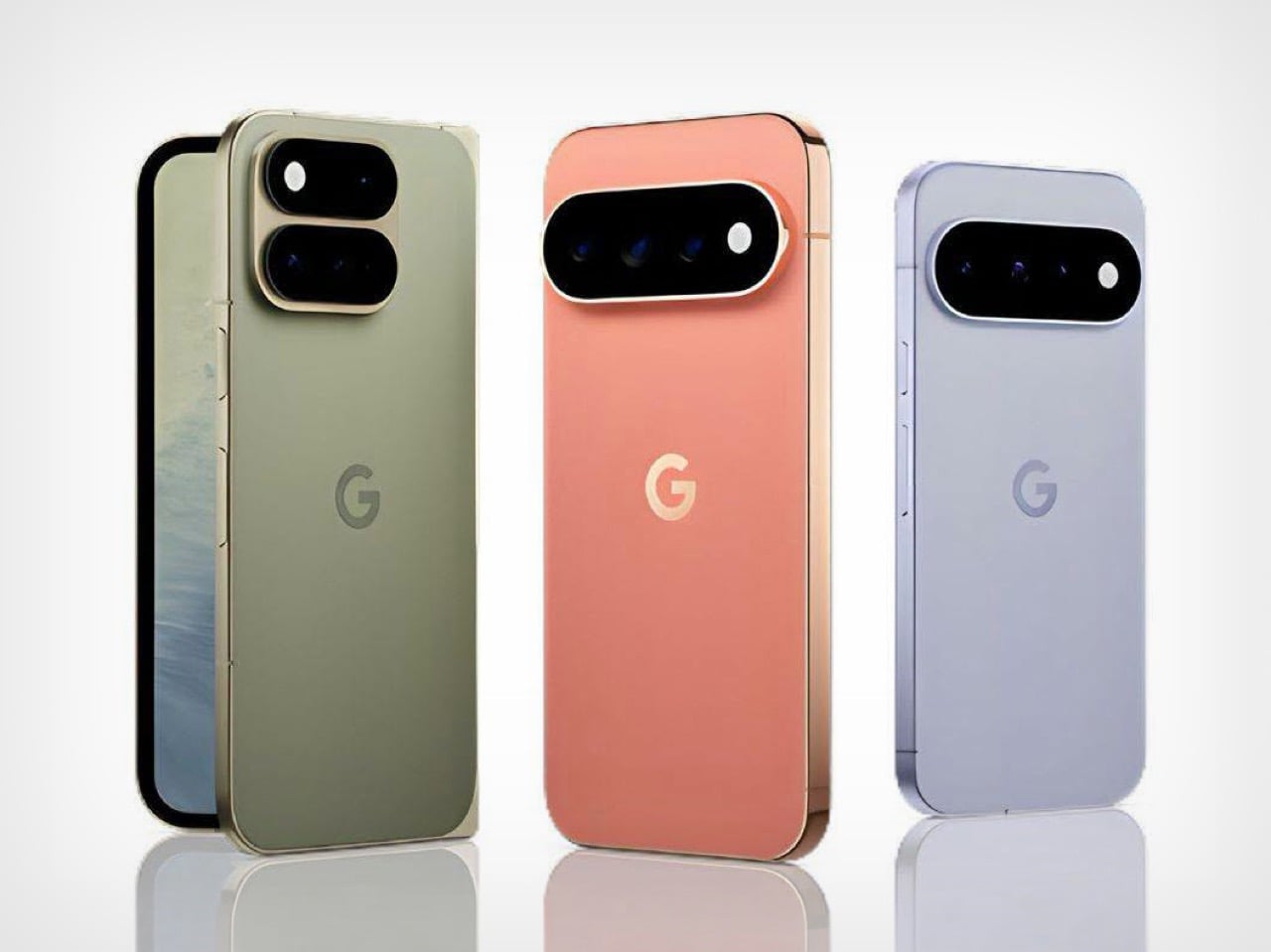
The Pixel 11 lineup arrived this week with a genuinely great redesign. The camera bar is 40 percent thinner, the glass runs edge to edge, and for the first time in a while a Pixel actually looks like it evolved instead of just got a new coat of paint. And then there’s HiLight, the one piece of new hardware Google actually wants you to talk about. A small LED cluster tucked into the corner of that same camera bar, ready to glow when Gemini is thinking or when someone you love is calling.
It is,
The Pixel 11 lineup arrived this week with a genuinely great redesign. The camera bar is 40 percent thinner, the glass runs edge to edge, and for the first time in a while a Pixel actually looks like it evolved instead of just got a new coat of paint. And then there’s HiLight, the one piece of new hardware Google actually wants you to talk about. A small LED cluster tucked into the corner of that same camera bar, ready to glow when Gemini is thinking or when someone you love is calling.
It is, in essence, Google finally admitting it missed the old Nexus notification LED and bringing it back. Five colors, a glow for Gemini, a glow for your favorite caller, and that’s the whole feature list on day one. Nothing to complain about here, except that Nothing exists. The London phone brand has spent years turning its own version of this idea into an actual playground, mini-games, custom widgets, an SDK anyone can build on. Google clearly has the engineering muscle to do something just as ambitious with HiLight down the line. It just chose not to, at least not yet.
Designer: Google
Before we get into that though, credit where it’s due. Hold a Pixel 11 next to a Pixel 10 and the difference is immediate, not the kind that only shows up in marketing photos. The bar sits almost flush now, and Google’s claim that it’s basically bumpless with a case on actually checks out in person. Under that glass, Tensor G6 lands on a 2nm node, Google’s first, promising 25 percent faster browsing, 15 percent quicker app launches, and on-device AI running up to 3.5 times faster while using less power. The Pixel 11 gets a new 48MP main sensor with 56 percent more light sensitivity and a telephoto stretching to 30x Super Zoom. This is a very complete phone before you even get to the Pro models.
The Pro and Pro XL push further with a 50MP main sensor, a redesigned 48MP telephoto, Portrait Mode at 5x, and 120x Pro Zoom, sitting under a 3,600-nit display that Google claims is twice as scratch resistant as last year’s. Titan M3 adds quantum-safe boot security on top. The Pixel 11 Pro Fold deserves its own mention here too. It shed almost 10 percent of its weight and a millimeter of thickness, down to 10.1mm closed, while Google claims triple the durability thanks to a redesigned gearless hinge. The crease is genuinely harder to spot than last year’s, and the whole thing folds flat enough to stop feeling like a novelty. If you told me a year ago Google would have the most convincing foldable in its own lineup, I would not have believed you.
Now, the part everyone will bring up regardless of how the rest of this goes: RAM. The Pro and Pro XL start at 12GB in their base 256GB configs, down from 16GB last year, and Google is blaming this on a supplier RAM shortage hitting the entire industry. Memory manufacturers have been shifting production capacity toward AI server chips, and consumer RAM and NAND prices have spiked hard enough this year that people are half-jokingly calling it RAMageddon. It is a real problem, and Google is far from the only phone maker feeling it. Storage doubling to 256GB as a base softens the blow a little, but a $100 price bump alongside a RAM cut is still a hard sell. Fair enough on the supply chain excuse. Less fair asking Pro buyers to pay more for less unless they climb a storage tier.
Back to HiLight, because it deserves the real estate. That LED cluster sits right where the temperature sensor used to live on older Pixels, which is a strange trade to make for something this limited. Google’s official pitch is that HiLight keeps you informed without the distraction of staring at a screen, which is a very polished way of saying there weren’t enough ideas to fill the space. Glowing when Gemini talks and flashing a color for favorite callers is a fine start, not an entire feature. Compare that to what’s happening across the pond. Nothing’s Glyph Matrix on the Phone (3) packs 489 individually lit LEDs into what functions as a tiny secondary screen, complete with an open SDK that lets anyone build their own widgets and games. People made a working ball maze. A tilt-controlled Magic 8 Ball. A contact dialer you can use without touching the main display. None of it is essential, but all of it is fun, and fun counts for something when you’re asking someone to pay a premium for a light.
Google clearly has the horsepower for something bigger here. Tensor G6 alone proves the company isn’t short on engineering muscle, and the camera bar redesign shows the industrial design team knows exactly what it’s doing right now. HiLight feels like the output of a team that had a great idea, then stopped one meeting short of making it good. I want to see where this goes in a year or two, because the foundation Google just built, the hardware, the placement, even the name, is genuinely solid. It just needs an actual reason to exist beyond telling you Gemini is thinking.
Yesterday, Microsoft rolled out the latest Windows 11 updates for all users across version 24H2, 25H2, and 26H1. For users running version 24H2 and 25H2, this latest patch includes a number of nice to see quality of life improvements in the way of performance and reliability upgrades in a number of key areas.According to the changelog, which includes improvements that began rolling out as part of last month's optional feature update, the KB5101684 update includes
Yesterday, Microsoft rolled out the latest Windows 11 updates for all users across version 24H2, 25H2, and 26H1. For users running version 24H2 and 25H2, this latest patch includes a number of nice to see quality of life improvements in the way of performance and reliability upgrades in a number of key areas.
According to the changelog, which includes improvements that began rolling out as part of last month's optional feature update, the KB5101684 update includes reliability upgrades for explorer.exe, which will make opening things like Jump Lists and recent files faster. Additionally, Microsoft says this update will also make sharing files and switching between desktops with Task View faster too.
The reliability improvements don't end there, either. This update also includes reliability upgrades for the Windows lock screen and sign-in screen, which will be most noticeable on PCs with low amounts of RAM available. There are also startup reliability upgrades for the Start menu and Taskbar, which should make those interfaces appear quicker when powering up.
Furthermore, Microsoft says that this update also makes the post-update process less resource intensive, meaning your PC will feel faster to use immediately after an update is installed. Previously, Windows Updates required a clean-up phase after install which could be quite resource intensive on certain PCs.
The good news is all of these performance and reliability upgrades apply regardless of the amount of RAM your system has. You should notice a more responsive system if you have 8GB or 128GB of RAM.
Here's a rundown of the reliability-focused improvements in the latest update:
This update improves explorer.exe reliability, including when opening Jump Lists and recent files, when sharing files and folders, and when using Task View and multiple desktops.
This update improves the reliability of the Windows sign-in and lock screens, especially when system memory is low. It also improves the reliability of the Start menu and taskbar during startup.
This update improves reliability of loading the system tray area of the taskbar when using the taskbar on touch devices in a tablet posture.
The update improves the reliability of Start menu view preferences, ensuring your selected view is retained.
This update includes changes to update clean-up logic to improve system performance immediately following an update.
This update improves app search to better handle typos and partial app names when finding installed apps.
These reliability and performance upgrades are in addition to the many other quality of life improvements shipping as part of the KB5101684 update, including improvements to File Explorer, Windows Hello, Windows Search, system sounds, and more.
Microsoft recently announced a renewed commitment to making Windows 11 better on PCs with 8GB RAM, and it appears we're already seeing the fruits of that labor. While there's plenty of more optimizations to come, it's good to see Microsoft already moving to address this weak point on Windows.
Microsoft has been delivering genuinely nice improvements to Windows 11 over the last few months, all of which have been addressing issues with the OS around performance and reliability. This latest update continues that crusade, meaning your PC will feel better to use as of the latest updates.
Join us on Reddit at r/WindowsCentral to share your insights and discuss our latest news, reviews, and more.
According to a new report from Taiwanese publication United Daily News (UDC,) Microsoft is raising the cost of Windows license fees for hardware makers by a much higher amount than normal. According to the report, certain OEMs are seeing licensing price hikes of between 7% and 10%.Usually, Microsoft raises Windows license fees for OEMs by a low digit percentage, making this 7% to 10% increase much more significant than normal. "A PC brand executive stated that Mi
According to a new report from Taiwanese publication United Daily News (UDC,) Microsoft is raising the cost of Windows license fees for hardware makers by a much higher amount than normal. According to the report, certain OEMs are seeing licensing price hikes of between 7% and 10%.
Usually, Microsoft raises Windows license fees for OEMs by a low digit percentage, making this 7% to 10% increase much more significant than normal. "A PC brand executive stated that Microsoft increases licensing fees for Windows OEMs (device manufacturers) every year. In the past, licensing fees mostly increased by single digits each year, but starting in July this year, the average increase has reached 7% to 10%, which is a significant increase compared to previous years," UDC says.
Of course, the cost of the Windows license fee is usually (at least partially) passed onto the consumer buying a computer, and UDC claims that their source says laptop pricing is already being impacted by these recent license fee increases. Microsoft charges different OEMs their own fees for Windows, so the exact increase in cost will differ for each hardware maker.
Regardless, with the ongoing memory component shortage, PCs have already seen astronomical price increases over the last year, with experts claiming that we haven't yet seen the worst of it. With Microsoft raising prices higher than usual on Windows licenses, it feels like the Redmond giant is adding extra fuel to the fire.
Windows Central reached out to Microsoft for comment regarding this story, but the company declined to provide one.
To be clear, the Windows license fee price hikes only apply to OEMs building hardware that ships with Windows. The cost of buying a license for Windows 11 as a consumer remains unchanged, being $99 for Windows 11 Home and $199 for Windows 11 Pro.
The ongoing component crisis has made computing unaffordable for many people. PCs that used to target the $600-$800 price bracket now cost close to $1,000. And flagship Windows laptops that used to cost $1,200-1,500 are now closer to $2,000. Even Apple has been hit by the shortage, being forced to raise prices by hundreds of dollars across its Mac lineup. Microsoft's own Surface line was hit especially hard, with the flagship Surface Pro and Surface Laptop being $400-$500 more expensive than the last-gen models.
Last week, users began noticing a new app appearing in their Start menu on Windows 11, titled "OneDrive Photos" which was being forcibly installed by the OS. Naturally, this caused outrage among users who aren't interested in using OneDrive for photo storage, resulting in pushback online.Now, Microsoft's EVP of Apps and Agents, Jeff Teper, has taken to X to explain what happened. He confirms that the OneDrive Photos app is an incubation project, which wasn't supp
Last week, users began noticing a new app appearing in their Start menu on Windows 11, titled "OneDrive Photos" which was being forcibly installed by the OS. Naturally, this caused outrage among users who aren't interested in using OneDrive for photo storage, resulting in pushback online.
Now, Microsoft's EVP of Apps and Agents, Jeff Teper, has taken to X to explain what happened. He confirms that the OneDrive Photos app is an incubation project, which wasn't supposed to rollout as widely as it did. "We are incubating a new photos experience in OneDrive that went more broadly than it should have in Windows. We’re fixing that. Windows Photos will always give you the option of local and cloud photos and the choice to use OneDrive or not."
It's unclear why Microsoft thinks it needs to build a dedicated OneDrive Photos app, especially when Windows comes preinstalled with an already competent photo viewer that does a good job of handling photos stored in OneDrive. The new OneDrive Photos app is a web app, which is heavy on RAM usage and not very responsive.
Although Microsoft has confirmed that the rollout of OneDrive Photos was an error, the company does say that it's still looking forward to delivering this new experience soon. "We're very excited for you to try out OneDrive's photos features on desktop, web, and mobile and hear your feedback."
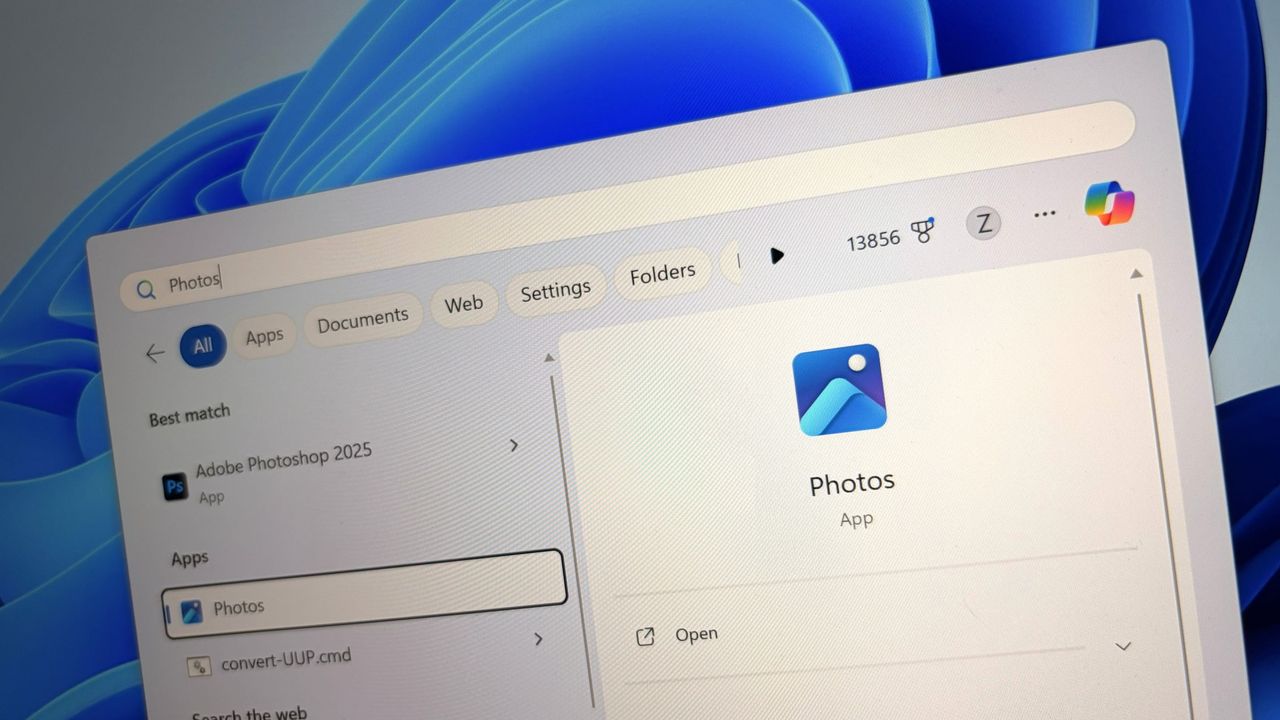
It's unclear if Microsoft intends to re-hide the OneDrive Photos app from appear on PCs where it shouldn't. On my PC, I can still see the new Photos (Preview) appearing in Windows Search, which opens the OneDrive Photos experience. This isn't the first time Microsoft has been caught automatically installing new apps on Windows 11. The OS has frequently been accused of automatically installing apps like Microsoft 365 Copilot, much to the dismay of users who don't want it.
The good news is it appears Microsoft is listening to the feedback, and publicly acknowledging that it made an error with the rollout of the OneDrive Photos app is confirmation that it saw the backlash and understands that a lot of users don't want this new experience. Hopefully that means the company won't forcibly install it next time.
Join us on Reddit at r/WindowsCentral to share your insights and discuss our latest news, reviews, and more.
In a new tweet, Partner Director of Design at Microsoft, March Rogers, has confirmed that there are no plans to introduce a customizable UI transparency slider on Windows 11, after users asked for a feature similar to the Liquid Glass slider that was recently added to the next version of iOS.For a long time, Windows has featured transparency and blur effects. However, Windows has never natively supported adjusting how strong those effects are. Users have the opti
In a new tweet, Partner Director of Design at Microsoft, March Rogers, has confirmed that there are no plans to introduce a customizable UI transparency slider on Windows 11, after users asked for a feature similar to the Liquid Glass slider that was recently added to the next version of iOS.
For a long time, Windows has featured transparency and blur effects. However, Windows has never natively supported adjusting how strong those effects are. Users have the option to turn transparency on and off, but there's no fine-tuning options for those effects to be found in the OS.
Third-party apps such as Windhawk do allow for customizing these effects, but this customization is not natively supported by the OS on its own. As such, it's natural to find that there are users out there who wish they could adjust these settings without being forced to download a third-party app first.
Rogers confirms that there are no plans to introduce a transparency slider on Windows 11 at current. "We think hard about who will benefit from the investment, usability and accessibility considerations. We also look at our community of developers (like the amazing Windhawk project) who may already be providing what users need. We won't be making immediate changes to the transparency options already in Windows, but we love getting your feedback."
It sounds like Microsoft has looked at this option, and has found that it's not a priority at the moment, which is understandable. Windows 11 has much bigger issues that needs fixing right now, and the company is focused entirely on delivering those improvements first.
The beauty of Windows is that it's an open-platform, meaning third-party developers can easily builds tools and apps that modify the Windows experience. Windhawk is a powerful suite of customization enhancements for Windows that lets users customize everything from the Start menu design to blur effects across the OS.
It's very refreshing to see Microsoft be so open about the design process for Windows 11 these days. I'm frequently checking the X accounts of many Microsoft employees these days, as they are always responding to Windows Insiders with explanations about new features and feedback from users.
While a transparency slider isn't on the cards for Windows 11 right now, Microsoft is working on a number of new customization options for the OS. There's a new customizable Start menu coming very soon, along with a redesigned context menu that will also be user customizable.
Windows 11 is finally starting to see the changes Microsoft has promised for months, except the best parts are still limited to Windows Insiders and mockups. I appreciate Microsoft's efforts to revamp Windows 11 — better late than never — but some of these improvements should have shipped years ago.The status of Windows 11 makes me ask why Microsoft didn't aggressively start climbing the metaphorical mountain years ago. Microsoft has revamped settings and UI elem
Windows 11 is finally starting to see the changes Microsoft has promised for months, except the best parts are still limited to Windows Insiders and mockups. I appreciate Microsoft's efforts to revamp Windows 11 — better late than never — but some of these improvements should have shipped years ago.
The status of Windows 11 makes me ask why Microsoft didn't aggressively start climbing the metaphorical mountain years ago. Microsoft has revamped settings and UI elements, but the big changes are part of a new initiative that honestly shouldn't need to exist.
Microsoft is updating several core parts of Windows 11 with WinUI, which improves performance and even helps Windows 11 run on PCs with less RAM. But I can't help but ask how we got here in the first place. How did we end up with a "modern" OS with legacy components and UI elements from different decades?
Biggest News of the Week
I understand that updating legacy components can be tricky. Microsoft's CVP of Design and Research on Windows, Marcus Ash, joined the most recent Windows Central Podcast and discussed the challenges of updating Windows.
Obviously, Ash knows more about Windows than I ever will. I don't question the difficulty of updating an entire OS, especially if you need to re-update components several times.
What I question is why keeping Windows up to date and unified was not a core value from the start? Why did Microsoft reach a point where user feedback became overwhelming and the tech giant finally decided to make bigger changes?
Legacy support is critical for enterprise users, so Microsoft could not just throw out old code or elements to make Windows modern. But having a unified OS could have been a priority from the beginning.
Work like this needed to start decades ago, not in 2026. Some of the groundwork has been laid for these improvements, but some projects are quite new. That's not an acceptable way to make an operating system.
Shopping with Sean
My top recommendation isn't an item on sale. Instead, it's a must-have for Xbox owners that's running out of stock. Several retailers have listed the Seagate Storage Expansion Card for Xbox Series X|S as unavailable. Best Buy ran out of stock while I was writing a piece highlighting the shortage. Below are all the listings I've found that still let you order the speedy storage card.
An excellent deal on the Dell XPS 14 slashes $1,150 off the premium PC. I love the design of the XPS 14 from last year, and the current discount makes the laptop a great choice for back-to-school shopping.
This card allows you to expand the storage of your Xbox Series X or Xbox Series S. Stock is extremely limited.
This premium laptop has a 3.2K OLED touch display, 32GB of RAM, and a gorgeous design that takes advantage of every millimeter available. It's one year old, but it's still an excellent laptop in 2026.
Note that the review of this laptop was from before the Dell 14 Premium was rebranded to the Dell XPS 14.
Every time I install Windows 11, I turn off the same handful of features before I do anything else. They're not necessarily bad features, but I don't need widgets, recommendations, badges, and constant notifications competing for my attention while I'm working.Over the years, I've found that making a few small changes creates a desktop that feels cleaner, quieter, and easier to focus on. I prefer Windows 11 to stay in the background and only get my attention when
Every time I install Windows 11, I turn off the same handful of features before I do anything else. They're not necessarily bad features, but I don't need widgets, recommendations, badges, and constant notifications competing for my attention while I'm working.
Over the years, I've found that making a few small changes creates a desktop that feels cleaner, quieter, and easier to focus on. I prefer Windows 11 to stay in the background and only get my attention when something truly matters. If you feel the same way, you're not alone.
In this how-to guide, I'll show you the Windows 11 features I always disable and explain why I think each change is worth making.
7 features worth turning off for a calmer desktop
None of these features are inherently bad, and I know many people enjoy using them. The problem, at least for me, is that they all compete for the same thing, which is my attention. One widget or notification isn't a big deal. However, once you combine recommendations, badges, alerts, and promotional content across the operating system, Windows 11 starts to feel busier than it needs to be. That's why these are the first settings I change.
1. Widgets in the Lock screen
I like my Lock screen only to let me know it's time to sign in, and nothing more. I don't need sports scores, market updates, or suggested content before I've even reached the desktop. It's one more thing competing for my attention before I start working.
I also switch from Windows Spotlight to a static image because I don't want tips or promotional overlays appearing before I've even signed in.
For these reasons, I always try to disable the desktop widgets and use a static image, and here's how:
Open Settings.
Click on Personalization.
Click the Lock screen page on the right side.
Turn off the Widgets toggle switch.
(Image credit: Mauro Huculak)
Turn off the "Suggest widgets for your lock screen" toggle switch.
Select the Picture (or Slideshow) option in the "Personalize your lock screen" setting.
(Image credit: Mauro Huculak)
Choose the image you want to show on the Lock screen.
Once you complete the steps, the Lock screen becomes a simple place to check the time and sign in instead of another surface competing for your attention.
2. Widgets icon in Taskbar
I don't mind having quick access to Widgets, but I don't need live updates constantly trying to pull my attention away from whatever I'm doing. Removing the Taskbar button keeps the interface quieter while still letting me open Widgets with the keyboard shortcut whenever I actually want it.
If you don't want the unnecessary distraction, you can hide the icon from the Taskbar. Here's how:
Open Settings.
Click on Personalization.
Click the Taskbar page on the right side.
Turn off the Widgets toggle switch under the "Taskbar items" section.
(Image credit: Mauro Huculak)
After you complete the steps, the Taskbar stays free from live updates while still letting you open Widgets anytime with the "Windows key + W" keyboard shortcut if you need it.
3. Do not disturb to stop toast notifications
Another feature I always turn on is "Do Not Disturb" to prevent distractions from toast notifications.
If you want to, you can also turn off notifications altogether, but I do this because I can still access the notifications from Notification Center.
To enable Do Not Disturb on Windows 11, use these steps:
Open Settings.
Click on System.
Click the Notifications page on the right side.
Turn off the "Do Not Disturb" toggle switch.
(Image credit: Mauro Huculak)
(Optional) Turn off the Notifications toggle switch.
Once you complete the steps, Windows 11 stops interrupting your workflow, but your notifications are still waiting in Notification Center whenever you're ready to review them.
If you decide to turn off the notification feature, the system and services won't be able to show or collect notifications.
4. Start menu content recommendations
The Start menu has become much cleaner over the years, but I still don't like seeing recent files, app suggestions, and recommendations every time I open it. I prefer using the space for the apps I've pinned instead of content the system thinks I might want.
I personally like to have the "Pinned" and "All" sections in the Start menu, and I always turn off the "Recommended" section, but these steps aren't obvious to everyone.
To disable the Recommended section, use these steps:
Open Settings.
Click on Personalization.
Click the Start page on the right side.
Turn off the "Show recently added apps" toggle switch.
Turn off the "Show recommended files in Start, recent files in File Explorer, and items in Jump Lists" toggle switch.
Turn off the "Show recommendations for tips, shortcuts, new apps, and more" toggle switch.
(Image credit: Mauro Huculak)
(Optional) Turn off the "Show account-related notifications" toggle switch to prevent alerts from the Account Control menu in the Start menu.
After completing the steps, the Start menu feels cleaner and focuses on the apps you've chosen to pin instead of recent files and recommendations.
5. Search highlights from the web
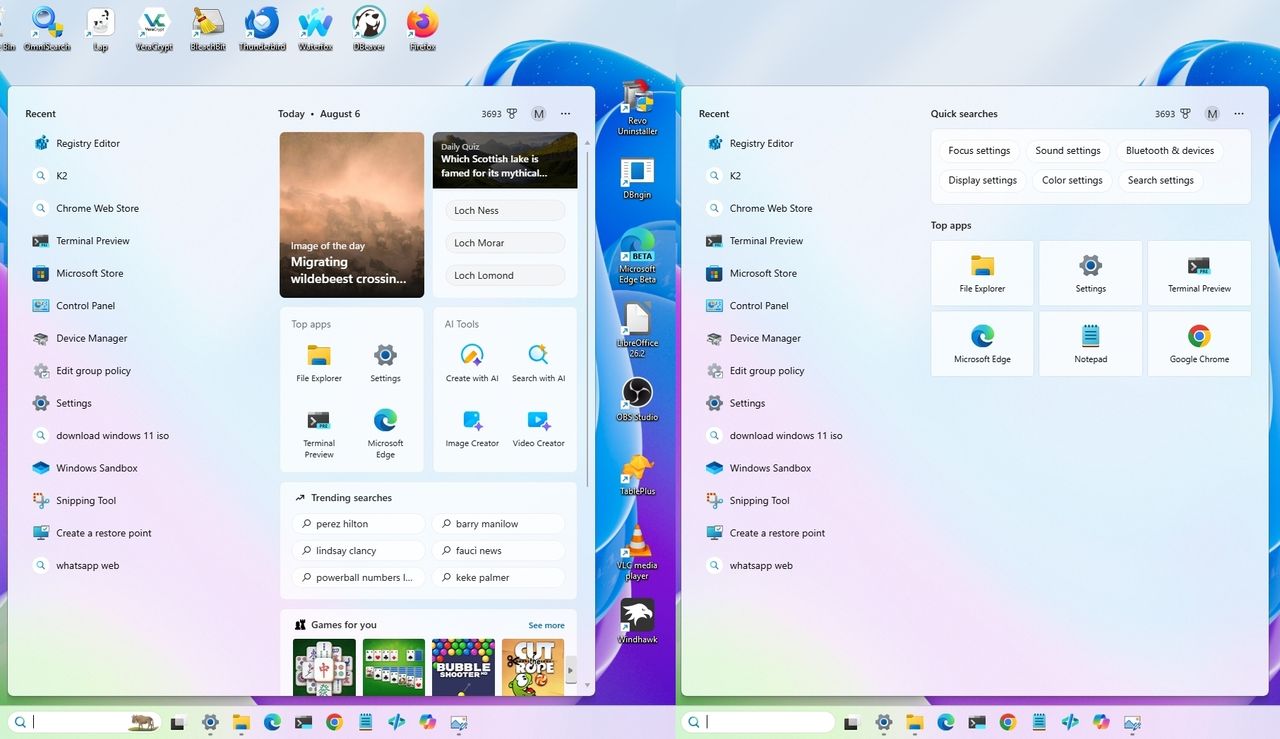
When you open the Windows Search home from the Taskbar, the first thing you'll notice is web highlights with daily quizzes, image of the day, trending searches, games, news, and more, when the search experience should be about finding local and cloud files, settings, and applications installed on your computer.
Search is one of the features I use dozens of times a day, so I want it to open directly into search, not news stories, trending topics, or games. The less visual clutter between me and what I'm looking for, the better. Fortunately, you can turn off the web highlights for a simpler experience using Windows Search, and here's how:
Open Settings.
Click on Privacy & security.
Click the Search page on the right side.
Turn off the "Show search highlights" toggle switch.
(Image credit: Mauro Huculak)
Once you complete the steps, Windows Search opens with fewer distractions, making it easier to get straight to finding your apps, files, and settings.
6. Taskbar app badges for unseen content
Taskbar badges are another feature I disable on every new installation. These are the small counters or dots that appear on app icons to let you know something needs your attention. While they can be useful, I find they encourage me to check apps that aren't important at the moment.
I prefer opening apps when I decide to, not because a badge is telling me to. If I want to check for updates or unread messages, I'll do it on my own schedule.
To turn off Taskbar badges on Windows 11, use these steps:
Open Settings.
Click on Personalization.
Click the Taskbar page on the right side.
Click the Taskbar behaviors section.
Clear the "Show badges on taskbar apps" option.
(Image credit: Mauro Huculak)
After you complete the steps, app icons will no longer display unread message counters, helping keep the Taskbar cleaner and reducing another small source of distraction throughout the day.
7. Desktop icons and files
Like pretty much everyone else, I usually place shortcuts and files on the desktop, but I don't like a crowded desktop either, so one thing I usually do is to hide the desktop icons.
You can easily do this by right-clicking the desktop, selecting "View," and clicking on the "Show desktop icons" option to clear the setting and hide everything on the desktop for a clear view of the background image.
(Image credit: Mauro Huculak)
If I want to access the content of the folder, I usually just open the "Desktop" folder within File Explorer.
I know this one isn't for everyone, but hiding my desktop icons makes the entire workspace feel less cluttered. Everything is still there when I need it, but I don't have to look at it every time I minimize a window.
Windows Central's Take
I've been customizing this operating system for years, and this is still one of the first things I do on a new installation. Windows 11 includes plenty of features that many people enjoy, but I don't need constant reminders, recommendations, or badges pulling my attention away from my work. Spending a few minutes changing these settings makes the desktop feel much calmer without taking away the features I actually use.
Out of everything on this list, Do Not Disturb is the setting I'd tell most people to try first. I don't want notifications interrupting me throughout the day, but I also don't want to miss them completely. It gives me the best of both worlds.
Microsoft has been adding more customization options recently, but I still think the default Windows 11 experience tries a little too hard to keep people engaged. Fortunately, almost everything I mentioned here can be changed in just a few minutes, making the system feel much more personal without removing features you might want later.
Which Windows 11 feature do you turn off first to create a calmer desktop experience? Let me know in the comments below.
More resources
Explore more in-depth how-to guides, troubleshooting advice, and essential tips to get the most out of Windows 11 and 10. Start browsing here:
Leaked Google Pixel 11 marketing materials suggest a new HiLight notification feature, while a five-minute charging claim raises questions ahead of Google's launch.
The post Google Pixel 11 Leak Reveals ‘HiLight’ Notification Feature, Raises Questions About Charging Claim appeared first on TechRepublic.
Leaked Google Pixel 11 marketing materials suggest a new HiLight notification feature, while a five-minute charging claim raises questions ahead of Google's launch.
Apple plans an iOS framework for iPhone-to-Windows clipboard sharing after Microsoft’s EU request, but users face a wait until at least late 2027.
The post Apple Plans iPhone-to-Windows Clipboard Support After Microsoft DMA Request appeared first on TechRepublic.
For the longest time, Windows has suffered from an inconsistent user interface design. It started with Windows 8, but got worse over the lifespan of Windows 10, with various levels of UI design, frameworks, context menus, iconography, and more getting thrown into the mix across the many different versions of Windows 10.In fact, Windows 10's inconsistent UI design became so bad that it began contributing to people's dislike of Windows, citing its perceived lack o
For the longest time, Windows has suffered from an inconsistent user interface design. It started with Windows 8, but got worse over the lifespan of Windows 10, with various levels of UI design, frameworks, context menus, iconography, and more getting thrown into the mix across the many different versions of Windows 10.
In fact, Windows 10's inconsistent UI design became so bad that it began contributing to people's dislike of Windows, citing its perceived lack of polish and craft as a reason to avoid it over competitors like Apple's macOS, a platform that takes pride in how it looks and feels to use.
So with Windows 11, Microsoft began addressing this problem. The debut of Windows 11 in 2021 was a huge step in the right direction, attempting to modernize a number of Windows UI surfaces with a consistent design language using the company's WinUI framework.
Slowly but surely, older and inconsistent UI surfaces were updated with modernized alternatives that match the design of Windows 11. Things like the volume and brightness control, file share dialog, context menus, and more were updated with a more consistent design that look great.
This was introduced in 2022, replacing the Windows 8 one. (Image credit: Microsoft)
More recently, Microsoft has improved dark mode across the Windows 11 interface, making it more consistent in apps like File Explorer where much of it was missing dark mode support and contributed to the "Windows never feels finished" allegations that have haunted the platform for years.
It's been a few months since Microsoft announced its plans to bring WinUI to more areas of the OS, and work has been slowly progressing. The company has already confirmed that it's rewriting the Start menu with WinUI, which should make it faster and more responsive. But there's more interfaces that the company is yet to announce that we know is also in the works.
Modernized File Properties
The modernized File Properties dialog coming soon. (Image credit: Windows Central)
First up, recent Windows 11 preview builds have confirmed that Microsoft is rebuilding the File Properties dialog in File Explorer with WinUI. This is one area of the File Explorer that hasn't been touched in well over a decade, meaning it still doesn't even support dark mode.
This legacy interface is being rewritten with WinUI, and the first sightings of this work were spotted in a recent preview build, albeit only when viewing the properties of a file in the Recycle Bin.
With that said, we know Microsoft is planning to bring this modernized experience to the entire File Properties experience, meaning right-clicking and selecting properties on a file in File Explorer will soon present you with a consistent design that matches the Windows 11 aesthetic.
Modernized Autoplay Menu
Not yet updated, this interface is from Windows 8 (Image credit: Windows Central)
This interface hasn't been touched since Windows 8, and is one of few areas of the OS that still utilize Microsoft's old Metro design language. The menu that appears when you plug in a USB drive or insert a disc is being modernized with WinUI, which will bring a consistent Windows 11 design to the aged interface.
Microsoft has confirmed this work is underway, but is yet to give us a look at the new interface, though we know it will support both light and dark mode unlike the current version. For now, we'll just have to imagine what such a modernized menu might possibly look like. Still, it's good to know the work is happening.
Modernized Print Management
A WinUI powered Print Management app replaces the old MMC-based one. (Image credit: Windows Central)
It's not the sexiest feature in the world, but it looks like Microsoft is building a modern version of the Print Management experience with WinUI, replacing a decades old interface with something that looks like it was designed for Windows 11. And yes, it supports dark mode now.
This is the first MMC-based interface we're seeing get the WinUI treatement, which bodes well for future modernizations of apps like Disk Management, Computer Management, and more. These 90s era interfaces have plagued the Windows experience for years, so it's very reassuring to see Microsoft is finally working on WinUI versions of these apps.
Modernized Run Dialog
The new Run dialog is better in basically every way. (Image credit: Windows Central)
Microsoft has already announced and shipped preview builds with this redesigned interface, but the company is rebuilding the classic Windows Run dialog with WinUI, now with support for both light and dark mode, and features from PowerToys.
The company says the new UI is both better looking, more functional, and faster than the legacy Run box it replaces. With that said, it appears the modern Run interface will be shipping as an option that users will have to manually enable first if they want to see it.
The new Run interface also includes the ability to type ~\ for quick access to your home directory, and it will also show app icons when applicable in your recent search list, which is a nice touch.
Rewritten Start Menu
It may not look different, but the Start menu is being rewritten with WinUI too. (Image credit: Windows Central)
As mentioned up top, Microsoft has already confirmed that it's rebuilding the Start menu with WinUI, but we're yet to hear more about what that's going to entail for the end user.
So far, we know the goal of the WinUI rewrite is to make the Start menu faster and take up less system resources. This should mean (very) slightly less memory usage for the Start menu, as many WinUI interfaces will share a System Compositor, which is how Microsoft intends to make WinUI faster.
It's unclear if Microsoft is planning to redesign the Start menu alongside the WinUI rewrite. Last I checked, this was not in the plan. While there may be some minor UI differences and adjustments between the current Start menu and WinUI Start menu, I understand that the company intends to keep the experiences mostly the same.
This makes sense given Microsoft just launched new customization options for the existing Start menu, which would be odd to change so soon.
Compact Context Menus
While technically not old, context menus are getting an overhaul. (Image credit: Zac Bowden / Windows Central)
While not technically a legacy interface, context menus on Windows 11 are a mess, and Microsoft is working to redesign them so that they are faster, more responsive, and most importantly, more customizable.
Coming this year, Windows 11's context menus will be updated with a new compact design that's smaller and lighter, meaning they won't lag or take as long to open, especially when there's lots of actions and items within the menu.
Microsoft is also planning to let users customize which items appear within the context menu, as well as configure the order in which those items appear. This means users will be able to hide certain actions and apps from the context menu if they don't use them.
With that work ongoing, it's likely that we're going to see even more older and outdated parts of the Windows experience updated with modern WinUI designs. While certain legacy interfaces will likely continue to exist for years to come, it looks like Microsoft is exploring where it can best implement new UIs as fast as possible without breaking compatibility.
Moving more parts of the Windows UI under a consistent UI framework should result in better performance and reduced memory usage, which should make the OS feel faster and less bloated, thanks to that new System Compositor that's in the works that is designed to manage all WinUI interfaces across the Windows Shell.
It's good to see Microsoft once again focused on polish and craft. It helps make Windows feel more unified and cared about, something that has not been so obvious in recent years and in my opinion has eroded confidence in the platform. Hopefully Microsoft will continue to focus on craft for years to come.
Join us on Reddit at r/WindowsCentral to share your insights and discuss our latest news, reviews, and more.
Microsoft has quietly introduced a new OneDrive Photos app into Windows 11, but instead of improving the experience, the move has drawn criticism from IT administrators and enterprise users. The new app focuses on viewing photos stored in personal OneDrive accounts, yet it offers little value in business or managed environments. Many administrators argue that […]
Microsoft has quietly introduced a new OneDrive Photos app into Windows 11, but instead of improving the experience, the move has drawn criticism from IT administrators and enterprise users. The new app focuses on viewing photos stored in personal OneDrive accounts, yet it offers little value in business or managed environments. Many administrators argue that […]
If you’ve ever been frustrated by File Explorer resetting your custom layout or throwing bizarre security warnings when you’re just trying to open a file from a work server, Microsoft is finally rolling out a fix. The latest batch of Windows 11 updates brings a wave of welcome quality-of-life improvements and bug fixes directly to […]
If you’ve ever been frustrated by File Explorer resetting your custom layout or throwing bizarre security warnings when you’re just trying to open a file from a work server, Microsoft is finally rolling out a fix. The latest batch of Windows 11 updates brings a wave of welcome quality-of-life improvements and bug fixes directly to […]
If you follow the behind-the-scenes tweaks in preview builds, there is some interesting movement happening in the experimental testing branch. Under-the-hood traces reveal that Microsoft is getting ready to push a build number bump to 26340.xxxx for the Windows Insider Experimental Channel, as covered in recent Windows 11 news. While the active flight sits at […]
If you follow the behind-the-scenes tweaks in preview builds, there is some interesting movement happening in the experimental testing branch. Under-the-hood traces reveal that Microsoft is getting ready to push a build number bump to 26340.xxxx for the Windows Insider Experimental Channel, as covered in recent Windows 11 news. While the active flight sits at […]
Picking up your phone every time it buzzes is one of the quickest ways to lose your train of thought while working. Microsoft has been slowly fixing that problem through its Phone Link integration, and the latest batch of Windows 11 news brings a welcome quality-of-life upgrade right to your desktop. With the new update […]
Picking up your phone every time it buzzes is one of the quickest ways to lose your train of thought while working. Microsoft has been slowly fixing that problem through its Phone Link integration, and the latest batch of Windows 11 news brings a welcome quality-of-life upgrade right to your desktop. With the new update […]
Earlier this year, Microsoft announced that it was moving to address Windows 11's biggest issues and criticisms from users in an effort to win back trust from customers and reposition Windows once more as a viable alternative to macOS and Linux, something people actually want to use over the competition. It was nice to see Microsoft outline its roadmap and plan for Windows 11, but I wasn't prepared for just how fast the company would start delivering on the promi
Earlier this year, Microsoft announced that it was moving to address Windows 11's biggest issues and criticisms from users in an effort to win back trust from customers and reposition Windows once more as a viable alternative to macOS and Linux, something people actually want to use over the competition.
It was nice to see Microsoft outline its roadmap and plan for Windows 11, but I wasn't prepared for just how fast the company would start delivering on the promises it was making. Since March, Microsoft has previewed and even shipped many improvements to Windows 11 that are the direct result of its Windows K2 initiative, all designed to fix Windows 11.
I've been testing these new Windows 11 builds over the last few months, and there are 5 big changes and improvements that stand out as super exciting. Some of these improvements are already shipping, whereas others are still in preview.
A new and improved Windows Update
Windows Update is now much smarter and doesn't get in the way anymore (Image credit: Zac Bowden / Windows Central)
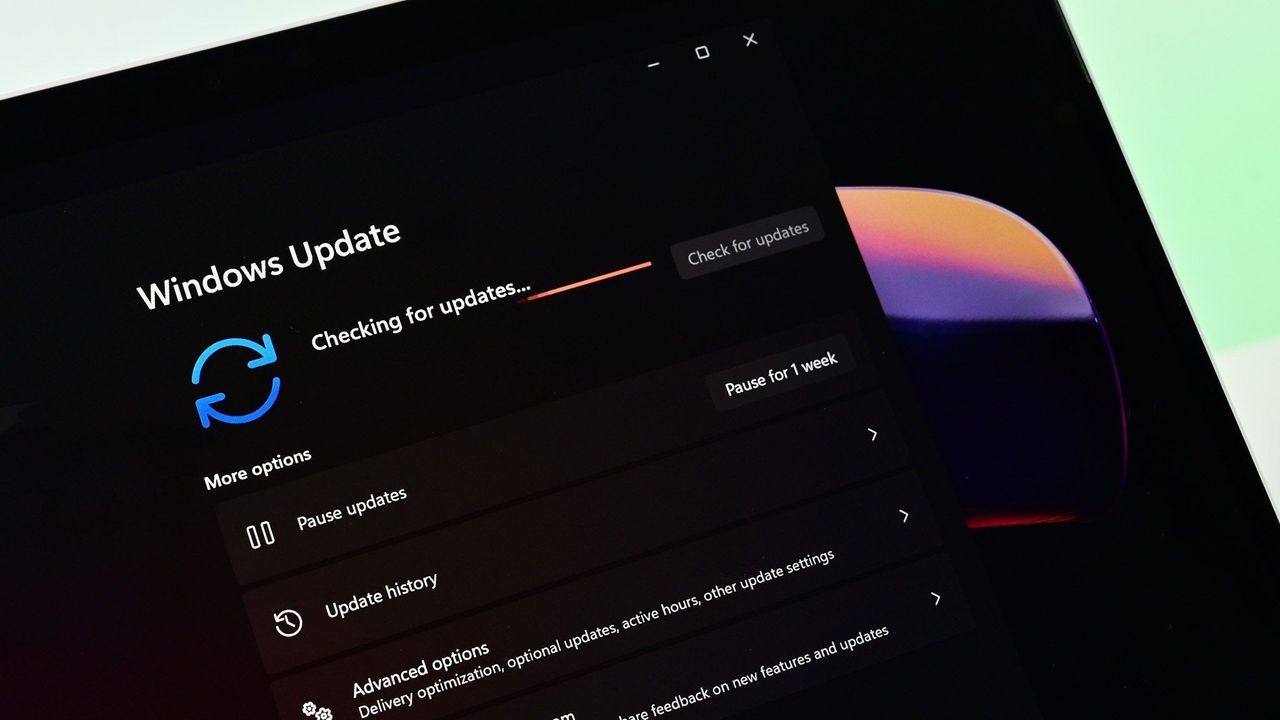
Updates on Windows have always been frustrating, so much so Microsoft made it a point of focus for its Windows K2 effort. In the last few months, Microsoft has shipped multiple changes and improvements to Windows Update which are designed to make it more reliable, and more importantly, less annoying.
The first big change is ensuring driver, framework, and security updates are now all timed to install at the same time. Previously, any update could require the user to restart at any time. Now, Windows Update will only ask you to restart once a month, as the update system now installs those driver and framework updates alongside security patches.
That's in addition to being able to pause updates indefinitely now, so even when the one time a month that Windows asks you to restart finally rolls around, users have the option to say no and postpone the restart for as long as they need. Even when an update is pending restart, the option to shut down or restart without installing said update is now present.
Microsoft has even made it so users can skip installing updates when setting up a PC for the first time, meaning it now takes just a few minutes to get right into using your new PC instead of the 20+ minutes it used to take when installing the latest update was a requirement before reaching the desktop.
All of these Windows Update improvements are already shipping to all Windows 11 users, which is a crazy quick turn around.
Less ads and AI across the OS
Widgets no longer includes MSN ads and sponsored content. (Image credit: Zac Bowden / Windows Central)
Microsoft is also removing Bing and MSN ads from Windows Search, in preview now. The search pane itself is now a long list or recent search queries and items, with nonsense like the Bing wallpaper of the day and other sponsored content no longer appearing at all. Even search results that reach out to the web no longer include sponsored content.
The Start menu now also has more granular controls over the kind of content that appears in there. The "Recommended" feed has been renamed to the "Recents" feed and no longer shows recommended apps and websites that came across as more advertising. Users even have the option to remove the Recents feed entirely now, which is great.
Copilot used to plague every inbox app and UI surface you could think of on Windows 11, but today it only appears in a few very specific areas. It still exists as a standalone app on Windows 11, but the Copilot button no longer exists in apps like Photos and Notepad. Microsoft has even removed the "Ask Copilot" option in File Explorer.
Better performance and reliability
Windows 11 is now faster and more reliable, with a focus on reducing memory usage. (Image credit: Zac Bowden / Windows Central)
One big area of focus for Microsoft is the overall performance and reliability of Windows 11, which many agree has slipped over the last few years. The good news is Microsoft has already delivered several improvements on this front, with more to come in the following weeks.
The first big change is the new "Low Latency Profile" feature that shipped just a few weeks ago. It's an invisible change that makes opening apps, context menus, and flyouts from the Taskbar much more responsive by silently increasing CPU frequency when these common actions take place.
This is something other OS platforms do which allows them to remain feeling snappy, even under heavy load, and now Windows 11 has the same behavior. This has outright fixed the issue users sometimes have where things like the Start menu don't always appear immediately when clicked. That's a thing of the past now.
Microsoft is also improving the performance of WinUI interfaces across the system via a new System Compositor which reduces latency and memory overhead across the OS so that these modern interfaces are consistently responsive. There's even a new Run dialog built with WinUI that is faster than the old Win32 version.
Opening and navigating through file trees in File Explorer is faster too, and searching for files and apps on Windows 11 is now more consistent. Two character search is already shipping, which makes finding content a little bit easier.
Customizable Taskbar and Start menu
There are many new customization options coming to Start (Image credit: Zac Bowden / Windows Central)
One of the biggest issues people have with Windows 11 is how it took away customizable options for areas of the system like the Start menu or Taskbar. Microsoft has heard that feedback, and is already publicly testing a new Taskbar and Start menu that can be user customized.
The Taskbar can now be repositioned just like on Windows 10, allowing the user to move it to the left, right and top of the display if that's where they want it. There's also a new resize option letting users make it smaller like the Windows 10 one could.
The Start menu is also getting more customization options. Users can hide entire segments of Start, such as the Recents feed, Pinned apps, or All Apps area. They can toggle on or off the Phone Link companion, and disable Start entirely if they don't ever use it.
And there's more to come
Context menus are getting a redesign and better customizability. (Image credit: Zac Bowden / Windows Central)
Above are all the new improvements that I've tested and are either shipping or in public testing via the Windows Insider Program. These are the real changes and features that can be tried and tested as we speak, not just empty promises or ideas. It's all available to download and try out right now.
There's still more to come too, stuff that isn't yet in public preview testing. Microsoft has confirmed it's working to move more parts of the OS to WinUI for faster performance, such as the Start menu and areas of File Explorer. There's an effort to reduce the footprint of the OS in the works too, which should make the OS less resource intensive at idle.
For the features that are yet to ship outside of preview, I understand that Microsoft is aiming to get the bulk of these improvements out of the door before the end of 2026, with some expected in 2027.
SI'm so very impressed with how quickly Microsoft has turned Windows 11 around so far. I haven't felt this positive about the features and changes being actively made to Windows in a really long time, to the point where it feels weird to not have anything to really complain about. All of my biggest issues with Windows 11 have either already been addressed, or are in the process of being addressed.
It's a great time to be a Windows user again.
Join us on Reddit at r/WindowsCentral to share your insights and discuss our latest news, reviews, and more.
Windows Insiders need to update their PCs to be on a recent build of Windows within the next week. The latest Windows Insider builds contain a renewed flight certificate, which is important because the current flight certificate is set to expire on August 11, 2026.Flight certificates are used to encourage people to keep devices up to date and on supported versions of Windows. Microsoft ships renewed certificates on a routine basis.Microsoft emphasized the importa
Windows Insiders need to update their PCs to be on a recent build of Windows within the next week. The latest Windows Insider builds contain a renewed flight certificate, which is important because the current flight certificate is set to expire on August 11, 2026.
Flight certificates are used to encourage people to keep devices up to date and on supported versions of Windows. Microsoft ships renewed certificates on a routine basis.
Microsoft emphasized the importance of a renewed flight certificate because in the past renewal mainly affected those in the Canary Channel. Now, those certificates apply across all Insider channels, including Experimental and Beta.
"Today’s Experimental (Future Platforms) build contains a renewed Windows Insider flight certificate. Windows Insider Preview builds use flight certificates that are renewed periodically to help ensure Insider devices remain on supported builds and continue receiving future Insider Preview updates. The current flight certificate expires on August 11, 2026, so please update your device to a build containing the renewed flight certificate before that date."
A separate document dives into more detail, though the main takeaway is that Insiders should simply update their PCs to a recent build. Microsoft shared the chart below to help Insiders stay up to date.
Channel
Core
Minimum Build
Experimental
Future Platforms
29634.1000 (available July 27, 2026)
Experimental
26H2
26300.9032 (available July 31, 2026)
Experimental
26H1
28120.2630 (available July 31, 2026)
Beta
25H2
26220.9022 (available July 31, 2026)
Beta
26H1
28020.2623 (available July 31, 2026)
Once you've performed this one-time larger update, your PC will go back to receiving regular updates.
If you don't update your PC to a build with a fresh flight certificate, you'll start seeing a warning that says, "This build will expire soon" on your desktop. You will also stop receiving automatic background updates once the flight certificate expires.
You should update your PC to a build with a fresh flight certificate, but if you don't, you can fix the issue by going to Settings > Windows Update and letting your PC install the latest build.
Test builds of Windows 11 are designed to expire relatively quickly, so you should update your PC regularly if you're a Windows Insider. Doing so will ensure your system is running a supported version of Windows.
Join us on Reddit at r/WindowsCentral to share your insights and discuss our latest news, reviews, and more.
In this episode of the Windows Central Podcast, Daniel Rubino and Zac Bowden sit down with Marcus Ash, Corporate Vice President of Design and Research for Windows at Microsoft. The discussion centers on the user experience vision for Windows 11, balancing modernization with legacy app compatibility, and optimizing system efficiency across diverse hardware configurations.This episode of the Windows Central Podcast is sponsored by Surfshark VPN. Unlimited devices,
In this episode of the Windows Central Podcast, Daniel Rubino and Zac Bowden sit down with Marcus Ash, Corporate Vice President of Design and Research for Windows at Microsoft. The discussion centers on the user experience vision for Windows 11, balancing modernization with legacy app compatibility, and optimizing system efficiency across diverse hardware configurations.
This episode of the Windows Central Podcast is sponsored by Surfshark VPN. Unlimited devices, access your content from anywhere, and auto-block malware on Windows, Edge, and other platforms from $2.50/mo, with 4 months extra FREE. Sign up today!
Design Philosophy in Windows 11: Marcus Ash discusses how design decisions are shaped by user feedback, telemetry, and modern workflow requirements.
Optimizing Performance for Low-RAM Devices (8GB): A deep dive into full-stack optimizations—ranging from kernel memory scheduling to UI process management—to ensure smooth performance on 8GB RAM hardware.
Modernizing Legacy Tools vs. Backward Compatibility: Discussion on how Microsoft approaches updating older OS utilities (e.g., Control Panel, Registry Editor) while protecting enterprise compatibility and muscle memory.
Web Tech, WebView2, and Modern UI: Exploring the role of web-based interface components in Windows 11, including trade-offs between agility, feature delivery, and resource utilization.
Have a question you want us to answer on the podcast? Send it to us at [email protected]
July has come to an end, and as we start a new month, it's a good time to look at the new features and changes that Microsoft has been working on in the second half of the month for Windows 11.In the last two weeks of July, the company has delivered several new features, but many of those improvements were features that we have already seen in other builds as Microsoft continues to align each channel more closely together.As part of the improvements, we have seen
July has come to an end, and as we start a new month, it's a good time to look at the new features and changes that Microsoft has been working on in the second half of the month for Windows 11.
In the last two weeks of July, the company has delivered several new features, but many of those improvements were features that we have already seen in other builds as Microsoft continues to align each channel more closely together.
As part of the improvements, we have seen new customization options for the Start menu, new gestures for the touchpad, an updated interface for the Account Control menu, and improvements for File Explorer.
In addition, we have seen the company pushing changes to Widgets, Windows Search, and more.
In the Experimental channel, Microsoft released builds 26300.9032, 26300.8935, 28120.2630, and 28120.2546, while the Beta channel introduced builds 26220.9022, 26220.8925, 28020.2623, and 28020.2539 for versions 26H2, 26H1, and 25H2.
In this recap, I'll highlight the latest and most noteworthy changes available through the Windows Insider Program.
Biggest improvements from the Windows Insider Program in July 2026
These are the most significant changes Microsoft has unveiled since my last roundup.
Windows Search automatic locations
Starting with the release of build 26300.9032, the operating system ships with an updated version of Windows Search that can now automatically find and search other folder locations based on your activity.
The new feature uses signals, such as files and frequently accessed locations. According to the company, this helps to make relevant files easy to find without requiring manual indexing.
The feature is known as "Automatically find additional relevant locations," and it's located on Settings > Privacy & security > Search.
(Image credit: Microsoft)
In addition, Microsoft didn't mention this, but I've noticed a new "Search the contents of online files" on the same page, which allows you to decide whether Windows Search can search online content.
Phone Link changes
The Phone Link companion flyout that appears in the Start menu is getting an update on build 26300.9032 that allows you to hover over a recent message or notification in the "Recent" section to preview the content without extra steps.
(Image credit: Microsoft)
This improvement requires the Phone Link app version 1.26021.3.0 or higher.
Adaptive hibernate policy update
In the Experimental channel, build 26300.9032 (version 25H2) also introduces changes for the adaptive hibernate policy to prevent hibernation when the battery is above 80 percent and to hibernate when the battery falls below 10 percent.
Microsoft accomplishes this by increasing instances of instant-on resumes from Modern Standby and increasing battery preservation at the low end of the battery.
This change is also available on builds 28120.2630 and 28020.2623 for version 26H1.
File Explorer performance boost
On build 26300.8935, File Explorer received three specific improvements. First, the company made file deletion faster when deleting large and fragmented files.
This update also makes the Home page faster, and finally, the "Recommended" section on the Home page now supports touch scrolling to make it easier to browse files from the carousel.
In addition, starting with build 26220.8925 for version 25H2, the "Details" view now shows file sizes with appropriate units, such as KB, MB, and GB, instead of only showing KB.
(Image credit: Mauro Huculak)
Furthermore, on the "Home" page, you can now use a middle mouse click to open folder locations in new tabs.
Widgets improvements
The preview build 26300.8935 also updates the animated icons for the Widgets entry point in the Taskbar.
First, the icon now matches the system accent color instead of the red color. Also, the animated icons can now show more dynamic content if notifications are enabled in the Widgets dashboard.
Windows Update changes
On build 28120.2630 (Experimental channel for version 26H1), Microsoft is making system updates less disruptive by reducing the number of restarts users face each month.
This is possible thanks to a new unified update experience that coordinates driver, .NET, and firmware updates with the monthly quality update, consolidating updates into a single monthly reboot instead of multiple interruptions.
The company is also expanding update pause controls, allowing users to extend update pauses as many times as needed.
(Image credit: Mauro Huculak)
These improvements are also available for build 28020.2623 in the Beta channel for version 26H1.
Touchpad gestures
Builds 28120.2630 and 28020.2623 for version 26H1 add new gesture controls for Precision Touchpads through the Settings app.
The new options will work across most apps, although apps built with WinUI 3 will require updated WinAppSDK 1.8 or 2.0 support before they can take full advantage of the changes.
(Image credit: Microsoft)
The new controls include scroll and zoom speed, which lets you adjust the default speed for scrolling and pinch-to-zoom gestures. Also, accelerated scrolling will allow you to increase scrolling speed the longer you continue scrolling, making it easier to move quickly through long documents and webpages.
These improvements are also available for build 26220.8925 in the Beta channel for version 25H2.
Smart card policy
Starting with build 28120.2546, Microsoft is adding support to remove smart card policies in Azure Virtual Desktop (AVD) and Windows 365 sessions that use Microsoft Entra ID authentication.
As a result of this change, administrators can configure remote sessions to automatically disconnect when a redirected smart card is removed, helping improve security and meet compliance requirements.
This improvement is also available for build 29639 in the Experimental channel for version Future Platforms.
Narrator changes
Microsoft is making refreshable Braille displays easier to use with Narrator in build 28120.2546.
Windows 11 now supports HID-compatible Braille displays, allowing users to connect supported devices instantly over USB with no additional setup, or wirelessly through Bluetooth. The feature also works during the initial Out-of-Box Experience (OOBE), enabling you to configure a new computer independently.
These improvements are also available for build 28020.2539 in the Beta channel for version 26H1, for build 26220.8925 for version 25H2, and for build 29634 for version Future Platforms.
Taskbar positioning
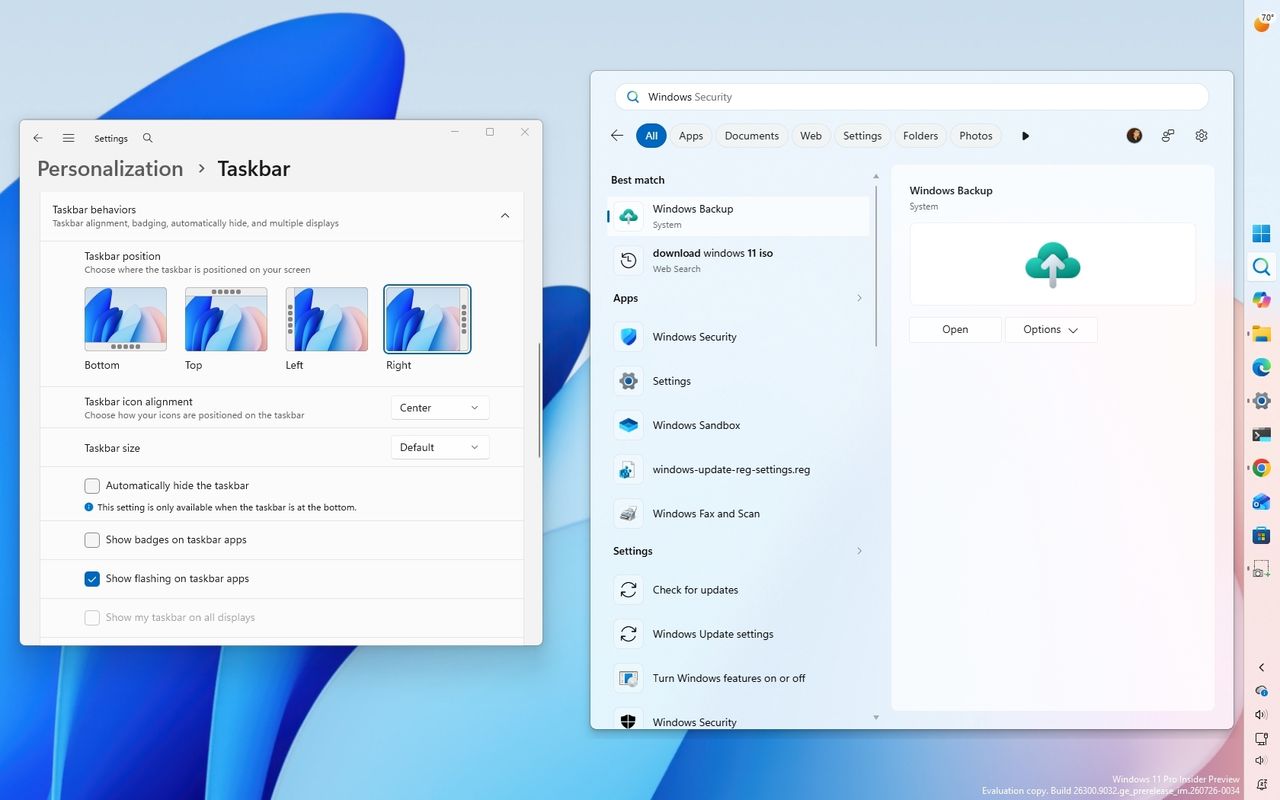
Starting with build 26220.9022 for version 25H2 in the Beta channel, the operating system introduces the ability to change the position of the Taskbar to the top, left, right, and bottom of the screen.
The new setting is known as "Taskbar positions," and it's available from Settings > Personalization > Taskbar > Taskbar behaviors.
(Image credit: Mauro Huculak)
When using this new functionality, Taskbar tooltips, flyouts, and animations continue to work in any of the positions, while most customization options, including never combining Taskbar icons, remain available.
(Image credit: Mauro Huculak)
This flight also introduces the ability to make the Taskbar smaller. The option is available from this page. However, in the Beta channel, the option works when configuring the "Show smaller app icons" option. In future releases, the company will add a dedicated button under the "Taskbar behaviors" setting, as it's currently available in the Experimental channel.
It's worth pointing out that these changes are still under development, and they may not work as intended.
Start menu new customization
On Windows 11 build 26220.8925, Microsoft is rolling out new Start menu customization options, including the ability to choose which sections appear in the menu and adjust its size.
The new customization settings are available on Settings > Personalization > Start. On this page, you can show or hide any of the sections, and you'll also notice that the "Recommended" section has been renamed to "Recent."
(Image credit: Mauro Huculak)
In addition, there's a new option to change the Start menu size, which means you can make the menu larger or smaller, or use the automatic option to let the system choose the size based on the configuration.
(Image credit: Mauro Huculak)
Finally, at the bottom of the page, under the "Other" section, you can enable the "Hide your name and profile picture on Start" setting to improve your privacy when projecting your screen to other people.
Account Control menu redesign
Microsoft is also refreshing the Account Control flyout in the Start menu with a more modern design and clearer Microsoft account information.
(Image credit: Mauro Huculak)
The updated interface adds a subscription badge, making it easier to check your account state, view available benefits, and explore upgrade options.
It also surfaces account benefits and storage details, giving users a centralized place to manage their Microsoft account without opening the Settings app.
This improvement is also available for build 29634 in the Experimental channel for version Future Platforms.
Voice Isolation for Voice Access
On build 29634 in the Experimental channel for version Future Platforms, Windows 11 also introduced Voice Isolation for Voice Access to improve speech recognition in noisy environments and shared spaces.
According to the company, the feature uses on-device processing for filtering background noise and nearby conversations.
In addition, Voice Access now includes three speech recognition models, including "Voice Isolation," "Remove background noise only," and "No filtering."
Windows Central's Take
Looking back at the second half of July, I don't think this was Microsoft's most exciting set of Insider releases. A lot of what landed in the Beta and Experimental channels wasn't entirely new. Instead, it felt like the company was catching those channels up with features that had already appeared in other Insider channels as it continues to align the program.
I don't think that's a bad thing. It suggests Microsoft is getting closer to offering a more consistent experience across the Insider channels while focusing on improvements that people will actually notice.
I'm still waiting to see how quickly these features make it into the stable release. Microsoft has been moving faster recently, but Insider builds are still a preview of what's planned, not a guarantee of what will eventually ship.
What are your thoughts about these latest Windows 11 Insider changes? Let me know in the comments.
More resources
Explore more in-depth how-to guides, troubleshooting advice, and essential tips to get the most out of Windows 11 and 10. Start browsing here:
Your iPhone and your PC are about to get a bit closer. Apple is working on allowing your iPhone's clipboard to connect to your Windows 11 clipboard. The feature was requested by Microsoft and after review, Apple has agreed to move forward with it. MacRumors first spotted the change and 9to5Mac expanded on that coverage.Rather than just a friendly note, Microsoft reached out to Apple in the form of an EU Digital Markets Act (DMA) interoperability request.At the mo
Your iPhone and your PC are about to get a bit closer. Apple is working on allowing your iPhone's clipboard to connect to your Windows 11 clipboard.
The feature was requested by Microsoft and after review, Apple has agreed to move forward with it. MacRumors first spotted the change and 9to5Mac expanded on that coverage.
Rather than just a friendly note, Microsoft reached out to Apple in the form of an EU Digital Markets Act (DMA) interoperability request.
At the moment, apps can only access an iPhone's clipboard if the app is actively running in the foreground. Apple will need to grant access to Microsoft to make clipboard syncing possible.
Apple already has a Universal Clipboard feature that works across iOS and macOS. That feature is one of many benefits of users being in Apple's ecosystem.
Microsoft argued that “cross-device copy and paste is a foundational productivity interaction that users expect to ‘just work’ across their primary devices."
Microsoft also described the use cases for the interoperability:
Copy text or other supported content on their iPhone and paste it directly on their Windows PC, and vice versa.
Perform common productivity workflows without needing to foreground an app or take explicit repeated actions to initiate a transfer.
Experience clipboard synchronization as a lightweight, continuous capability rather than a manual, app-driven operation.
On June 26, Apple confirmed that it will make the feature available:
"We will introduce a new solution that will follow similar patterns to the Accessory Notifications and Accessory Live Activities frameworks that were introduced on iOS26.5. It will enable you to create an extension to share and import pasteboard items with paired accessories. The system will notify your extension when items are copied into the clipboard; then your extension can use the Accessory Transport Extension framework to share the contents with your accessory as necessary using available transports."
If the feature does ship, it will rely on Apple’s AccessorySetupKit, which is an API framework that requires authorization from both the connected Windows PC and iOS device.
Unfortunately, there are several caveats to the interoperability. First, it will likely not be ready until at least late 2027. Apple referred to creating the feature as a "significant engineering effort," and noted development will be complete by fall 2027. After that, the feature will enter beta and eventually ship to the public.
Even when the clipboard connection becomes available, it may be limited to users in the European Union (EU). When forced to create features or expand them across platforms, Apple sometimes only rolls out the changes within the EU. In other instances, Apple has released the improvements to everyone, regardless of location.
Microsoft has taken a similar approach when dealing with the EU. I would argue the best version of Windows 11 is limited to EU users because they have greater control over which apps are installed on their PC.
Join us on Reddit at r/WindowsCentral to share your insights and discuss our latest news, reviews, and more.
iPhone X resting on a Windows PC showing the Microsoft logo
iPhone X resting on a Windows PC showing the Microsoft logo

 Connexion