❌

Vue normale

  • ✇Korben
  • ONLYOFFICE 10 - L'IA partout, mais seulement si vous la voulez
    -- En partenariat avec ONLYOFFICE -- ONLYOFFICE, je vous en ai déjà parlé à plusieurs reprises . Il s'agit de cette suite bureautique open source incroyable du genre Microsoft 365 ou Google Workspace, avec traitement de texte, tableur, présentations et éditeur PDF, à utiliser soit directement dans leur cloud ou à installer sur votre propre serveur !! Et, youpi, sa version 10.0 débarque avec une 50aine de nouveautés et plus de 1 000 bugs corrigés ! Rien que ça
     

ONLYOFFICE 10 - L'IA partout, mais seulement si vous la voulez

12 octobre 2026 à 09:52
-- En partenariat avec ONLYOFFICE --

ONLYOFFICE, je vous en ai déjà parlé à plusieurs reprises . Il s'agit de cette suite bureautique open source incroyable du genre Microsoft 365 ou Google Workspace, avec traitement de texte, tableur, présentations et éditeur PDF, à utiliser soit directement dans leur cloud ou à installer sur votre propre serveur !!

Et, youpi, sa version 10.0 débarque avec une 50aine de nouveautés et plus de 1 000 bugs corrigés ! Rien que ça !

Ce clic autorise une connexion à Google : adresse IP transmise et traceurs possibles. En savoir plus Voir cette vidéo sur YouTube

La grosse nouveauté, vous vous en doutez, c'est bien sûr l'IA, qui arrive dans les 4 outils sous la forme d'un seul onglet dédié avec un chat intégré. Vous pouvez ainsi lui demander au choix de rédiger du texte pour vous, de résumer ce que vous avez la flemme de relire mais également de traduire dans la langue de votre choix, de corriger vos erreurs de grammaire et d'orthographe ou encore de mettre en forme directement votre contenu.

Et comme cette IA tient compte du contexte du document, vous pouvez lui poser des questions par exemple sur un looong PDF, lui faire générer et expliquer une formule un peu compliquée dans le tableur, ou transformer une simple idée en keynote de 2h pour votre prochain TEDx ^^, notes du présentateur comprises.

Dans l'éditeur PDF, le chat IA propose ses requêtes toutes prêtes : résumer, traduire, corriger, créer une table des matières

Cette fonctionnalité IA embarque aussi plusieurs prompts tout faits qui couvrent les demandes les plus courantes. Mais vous pouvez aussi enregistrer les vôtres pour les rejouer d'un clic plus tard, créer des actions rapides pour un besoin ponctuel (du genre changer le ton d'un texte, par exemple) ou vous monter un super assistant qui travaillera en continu pendant que vous chillez à la machine à café et qui réagira à vos modifs pendant que vous écrivez.

Notez que ces deux dernières fonctionnalités ne sont pas encore disponibles pour l'instant, ailleurs que dans le traitement de texte.

La création d'un assistant IA dans le traitement de texte, ici avec un prompt qui extrait décisions et actions d'un compte rendu de réunion

Maintenant, la question que vous vous posez sûrement, c'est où partent vos documents ?

Eh bien ça dépend de la façon dont vous utilisez ONLYOFFICE. Si vous l'utilisez dans le cloud, le service ONLYOFFICE AI repose sur OpenRouter et il faut donc recharger votre wallet pour l'activer (ouaip, c'est payant). Par contre, sur votre serveur à vous, il suffit de brancher le modèle que vous voulez, y compris un modèle qui tourne en local, et dans ce cas, vos documents ne quitteront pas votre infra.

Quoiqu'il en soit, dans les deux cas, c'est vous qui choisissez le modèle par défaut que vous voulez utiliser et bien sûr, attribuer d'autres modèles secondaires à d'autres tâches précises.

Et si l'IA vous donne des boutons, sachez qu'ONLYOFFICE a écouté les retours de ses utilisateurs et l'a totalement retirée des versions open source. Donc si vous êtes en mode open source et que vous voulez de l'IA, faudra l'installer en plus (mais ça reste possible). Desktop Community, la version libre de l'application de bureau, la propose ainsi en module complémentaire facultatif, que vous n'ajoutez que si vous en avez envie.

Cette 10.0 introduit aussi des applications gratuites sous licence AGPL v3, que vous activez selon vos besoins : Des agents IA qui automatisent votre espace de travail avec de la recherche intelligente, une base de connaissances personnalisée avec des serveurs MCP, des formulaires de collecte des données suivi d'une analyse des réponses, un système de fichiers qui centralise le stockage et les droits d'accès, et des espaces de collaboration sécurisés, jusqu'aux salles de données virtuelles pour les documents confidentiels.

Dans le cloud, tout ceci est actif par défaut, et sur un serveur, une seule commande suffit à les installer.

Dans les éditeurs, c'est le PDF qui récupère les nouveautés les plus pratiques puisqu'il sait maintenant effacer les métadonnées et autres informations cachées d'un fichier avant de l'envoyer, mais aussi régler la bordure, le fond et l'opacité de vos annotations, et quand vous modifiez le texte d'un PDF, les tableaux sont reconnus tout seuls, ce qui évite de reconstruire les lignes et les colonnes à la mano.

Les signatures, quant à elles, s'enregistrent une seule fois et peuvent ensuite être réutilisées dans d'autres formulaires. C'est pratique pour signer des papiers vite fait sans avoir à imprimer > signer > numériser. Moi, j'utilise que ça tout le temps.

Avant de partager un PDF, cette fenêtre efface ses métadonnées et ses informations cachées

Dans le traitement de texte, quand c'est en mode collaboratif, vous pouvez ainsi suivre le curseur d'un collègue en temps réel pendant la coédition. L'option "Conserver avec le suivant" évite également qu'un titre se retrouve tout seul en bas de page, séparé de son contenu, et l'écriture de droite à gauche est plus fiable. Le tableur, lui, va plus vite, notamment sur des fonctions comme SUMIF ou COUNTIFS qui ont été optimisées. Il vous indique également où placer chacune des constantes dont vous avez besoin pendant que vous tapez une formule. Et surtout, une jolie petite bordure animée vous montre ce que vous venez de copier.

Bref, c'est super pratique au quotidien !

Pendant la saisie d'une formule, une bulle indique la place de l'année, du mois et du jour dans la fonction DATE

Pour les présentations, il y a de nouveaux modes d'affichage (plan, lecture...), des options d'impression bien plus complètes et surtout l'export de vos diapos en GIF ou en vidéo, ce qui est bien pratique pour les partager sur vos réseaux sociaux.

Et dans toute la suite, vous pouvez aussi ouvrir les fichiers .ofd, enregistrer un tableur au bon vieux format .xls et convertir une image SVG en forme modifiable.

Et c'est sans compter sur la communauté d'ONLYOFFICE qui apporte aussi de nouveaux plugins, comme Antidote pour l'orthographe et la grammaire, Curly ou Salesforce, le tout rangé dans un gestionnaire de plugins refait au propre pour cette nouvelle release.

Les deux fenêtres d'export d'une présentation, en animation GIF ou en vidéo

Côté sécurité, ONLYOFFICE annonce environ 35 vulnérabilités corrigées, et promet un billet détaillé sur le sujet prochainement.

L'application de bureau Desktop Editors gagne une page d'accueil repensée, des sections Modèles et Clouds revues, une intégration avec Odoo et des retouches visuelles sous Linux pour que ce soit un peu plus joli pour les amateurs de libre.

Quant aux applis gratuites pour iOS et Android, elles ont le droit à un assistant IA qui accepte de nouveaux fournisseurs comme Grok et DeepSeek, et également droit au remplissage automatique des formulaires par IA et à la saisie vocale (C'est le genre de fonction dont je peux vraiment plus me passer, moi, la saisie vocale).

Voilà, si vous voulez voir tout ça vous-même, c'est super simple ! Il vous suffit de passer par le cloud d'ONLYOFFICE, d'installer les applications de bureau ou alors si vous êtes un petit peu chaud de déployer la version serveur chez vous pour tout garder au chaud à la maison.

Découvrir ONLYOFFICE 10.0
  • ✇Yanko Design
  • FUSEBOOX’s Hidden Home Office Slides Away After Work
    Putting a laptop away doesn’t solve every problem with working from home. A video call still needs some privacy, and recording a voiceover beside the dishwasher is a negotiation nobody particularly wants. I like furniture that helps a room do more, but a folding desk only addresses half the issue. Sometimes the missing piece is a door. FUSEBOOX, designed by Czech architect Vojtěch Kolínský of Prague studio Indivizual, proposes a home office that slides out when needed and retracts into the surr
     

FUSEBOOX’s Hidden Home Office Slides Away After Work

12 octobre 2026 à 09:20

Putting a laptop away doesn’t solve every problem with working from home. A video call still needs some privacy, and recording a voiceover beside the dishwasher is a negotiation nobody particularly wants. I like furniture that helps a room do more, but a folding desk only addresses half the issue. Sometimes the missing piece is a door.

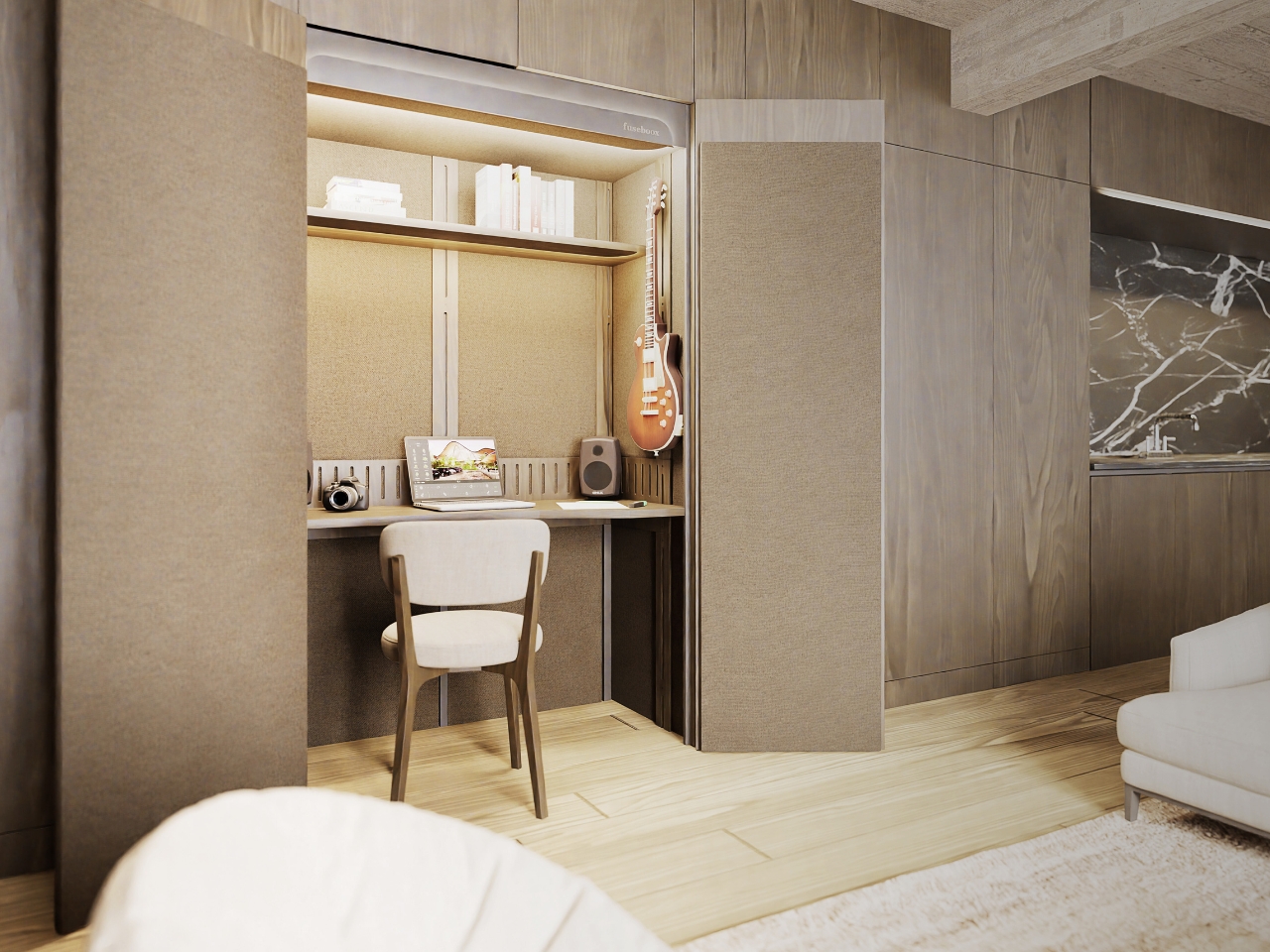
FUSEBOOX, designed by Czech architect Vojtěch Kolínský of Prague studio Indivizual, proposes a home office that slides out when needed and retracts into the surrounding interior afterward. It’s a built-in acoustic workspace, presented at DesignBlok 2026, rather than another freestanding booth asking for permanent floor space. The problem it tackles is straightforward: finding somewhere to concentrate without dedicating an entire room to it.

Designer: Vojtěch Kolínský

The module has three positions. Open, it works as a desk within the larger room, so you can stay connected to whatever’s happening around you. Extended and closed, it becomes a private enclosure intended to reduce noise traveling in and out. Retracted, the workspace disappears behind its exterior panels. A custom-developed mechanism handles extension and retraction automatically, according to the maker. That’s a more useful distinction than simply calling it a disappearing desk.

In the supplied images, the interior looks invitingly domestic. Pale wood-grain surfaces, textured wall panels, a narrow shelf, and warm lighting surround a compact desk. The exhibition setup includes a microphone and a metronome, while another image shows a guitar mounted above the worktop. Those details suggest a space for practicing and making things, not merely surviving the next calendar invitation. I’d rather see that than a miniature corporate meeting room.

The acoustic ambition deserves a closer look. FUSEBOOX describes a multilayer construction with sealed contact edges that limits sound transmission, alongside treatment intended to control reflections and reverberation inside. In practical terms, keeping household noise out and reducing echo around a microphone are separate jobs, and the design aims to address both. The supplied release promises studio-quality sound, but provides no measured isolation figures or independent testing to establish that claim.

Ventilation and adjustable lighting are included, with the website specifying variable brightness and color temperature. These are sensible priorities for a small enclosed workspace. I’d want airflow and lighting considered alongside the moving panels, because a booth that looks good from the couch still has to make sense from the chair. The tall glazed side panels visible in the images also keep the enclosure from looking like an opaque cabinet.

The hidden position is the strongest part of the idea for me. Closing a laptop leaves the desk, cables, and unfinished work in view. Closing up an entire workspace could give the living room a more convincing end to the workday. That isn’t a promise of better productivity or instant relaxation. It’s a physical boundary you can see, which feels more useful than another reminder to log off.

Of course, the module doesn’t manufacture extra square footage. Its built-in portion still occupies space, and the extended enclosure needs clear floor area in front. A coffee table or an awkward circulation path could complicate the arrangement. I see it as borrowing space at different times, rather than making space disappear. That makes the surrounding room layout just as important as the mechanism.

FUSEBOOX is designed and made in the Czech Republic, with configurable layouts, materials, fittings, upholstery, and exterior finishes. The company plans to open preorders in January 2027; prices and detailed dimensions haven’t been published yet. Those omissions matter for anyone picturing it at home. A custom built-in belongs in a renovation conversation, and renters would need to discuss installation with their landlord.

I’m drawn to the restraint of the proposal. The images suggest you could finish the exterior to read as ordinary cabinetry, leaving the more elaborate engineering behind it. A home office doesn’t always need to announce itself from across the room. If the acoustics and installation prove convincing, FUSEBOOX could offer something genuinely useful: a place to work, followed by permission to stop looking at it.

The post FUSEBOOX’s Hidden Home Office Slides Away After Work first appeared on Yanko Design.

Microsoft cuts 4TB from Microsoft 365 Family, sparking backlash and cancelled subscriptions

Microsoft 365 Family plans now come with 4TB less of OneDrive storage than they did until this week. Microsoft details the change in a support document.

That document frames the change as a positive because it means storage is allocated to users who need it automatically, but the public has had a different reaction. I've received several messages from disappointed users, and other outlets are rightly highlighting consumer outrage. Some people I know have already said they plan to cancel their subscription due to the change.

Regardless of how much storage an individual family actually uses, Microsoft 365 Family now includes substantially less cloud storage than it did before while costing the same amount.

I keep track of the best Microsoft 365 deals and update my piece with discounts regularly. If you know when to hunt, you can get a year of Microsoft 365 Family for $99.99 despite the normal price being $129.99 (the price of Microsoft 365 went up in January 2025). But with the massive 4TB reduction in OneDrive storage, there is no way to retain the value of Microsoft 365 Family. Even if you got it at a discount, you'd be getting less than before.

Considering Microsoft can roll out this change immediately for new and upgraded subscriptions, I understand why some people may hesitate before subscribing to Microsoft 365. Based on the Microsoft support document, Microsoft 365 Family plans will be moved to the shared storage model upon your first renewal on or after May 2, 2027.

Here is the exact phrasing from Microsoft:

"For existing Microsoft 365 Family and Premium subscribers, this change generally takes effect after the first subscription renewal on or after May 2, 2027, unless an eligible plan change occurs earlier."

I interpret that to mean that renewals made before that cutoff should not force you to the shared storage model. If that's accurate, you should be able to stack some time onto your subscription to keep a total of 6TB for a bit longer.

I'd suggest checking with Microsoft before making any purchases. If you receive confirmation from Microsoft that stacking subscriptions delays the change, please let me know. I have also reached out to Microsoft.

(12 months): was $129.99 now $99.99

This is a great deal if you know your family needs Microsoft 365 for a long time. Right now, you can get 12 months of Microsoft 365 Family for under $100.View Deal

Windows Central take

OneDrive web albums

My entire family uses OneDrive, but this reduction in storage may force us to use a different provider.

I actually understand Microsoft's argument for having shared storage across a family. I use much more cloud storage than my wife, so it would be convenient to have more than 1TB of storage accessible through my account. My daughter, who is a toddler, only "uses" cloud storage through the photos and videos I back up for her.

But sharing a pool of storage does not make up for reducing the total storage across the plan by 4TB. For my use, I'd be okay with sharing 5TB across the entire family. But any forced reduction in storage is difficult to justify.

Now, during a cost of living crisis, many people will have to look at alternatives to OneDrive or pay to have more cloud storage.

Click to join us on r/WindowsCentral

Join us on Reddit at r/WindowsCentral to share your insights and discuss our latest news, reviews, and more.

Microsoft got hacked, and somehow Clippy ended up in a crypto scheme

Microsoft's official X account was compromised this week in what appears to have been an attempt to promote a cryptocurrency token. The account followed another account and reposted a message asking how many likes would be needed to bring back Clippy.

An emphatic request to bring back Clippy is nothing new on social media, but the post by the since-suspended @clippymsftcto account was not a genuine plea to bring back the iconic assistant.

X post by the Microsoft account sharing a post about bringing back Clippy.

(Image credit: Future (original post by Microsoft))

Normally, a story involving Clippy is lighthearted. Microsoft has playfully referenced the mascot over the years. Sadly, that's not the case here. On top of Microsoft being hacked, which is an issue in itself, the hack was apparently used to promote cryptocurrency.

Microsoft has since deleted its post on the situation, but the company apologized for the post about bringing Clippy back and emphasized that it does not endorse cryptocurrency. The Verge captured a screenshot of the post before it was removed.

An X post by Microsoft discussing a cryptocurrency scam that centered around Clippy.

(Image credit: Microsoft post on X (screenshot via The Verge))

The deleted post concludes with a somewhat ironic piece of advice to "rely only on Microsoft's official channels for information regarding our brands, products, securities, and intellectual properties."

Microsoft has deleted its post about the situation, but the tech giant confirmed that its account had been compromised. "We have confirmed unauthorized access to our account on X including posts that did not come from Microsoft," said a Microsoft spokesperson to The Verge. "The account has been secured and the unauthorized posts have been removed, and we are continuing to investigate the circumstances."

Microsoft should bring back Clippy

Obviously a hack done to promote a cryptocurrency scam is an issue. Microsoft's first priority should be to secure its accounts. Somewhere down the line, the company's leaders should ask if bringing back Clippy is a good idea.

Clippy has an interesting history, but people's views about the assistant have trended positively over the years. The favorable view of Clippy is likely due to a combination of irony and nostalgia, but people often are excited to see official mentions of the paperclip.

Microsoft's public perception has taken a hit, and having a bit of fun with Clippy could lighten the mood. Imagine Microsoft teasing major news about Windows on stage at its event next month and then revealing Clippy Copilot.

Click to join us on r/WindowsCentral

Join us on Reddit at r/WindowsCentral to share your insights and discuss our latest news, reviews, and more.

These Microsoft 365 companion apps are getting retired after just one year

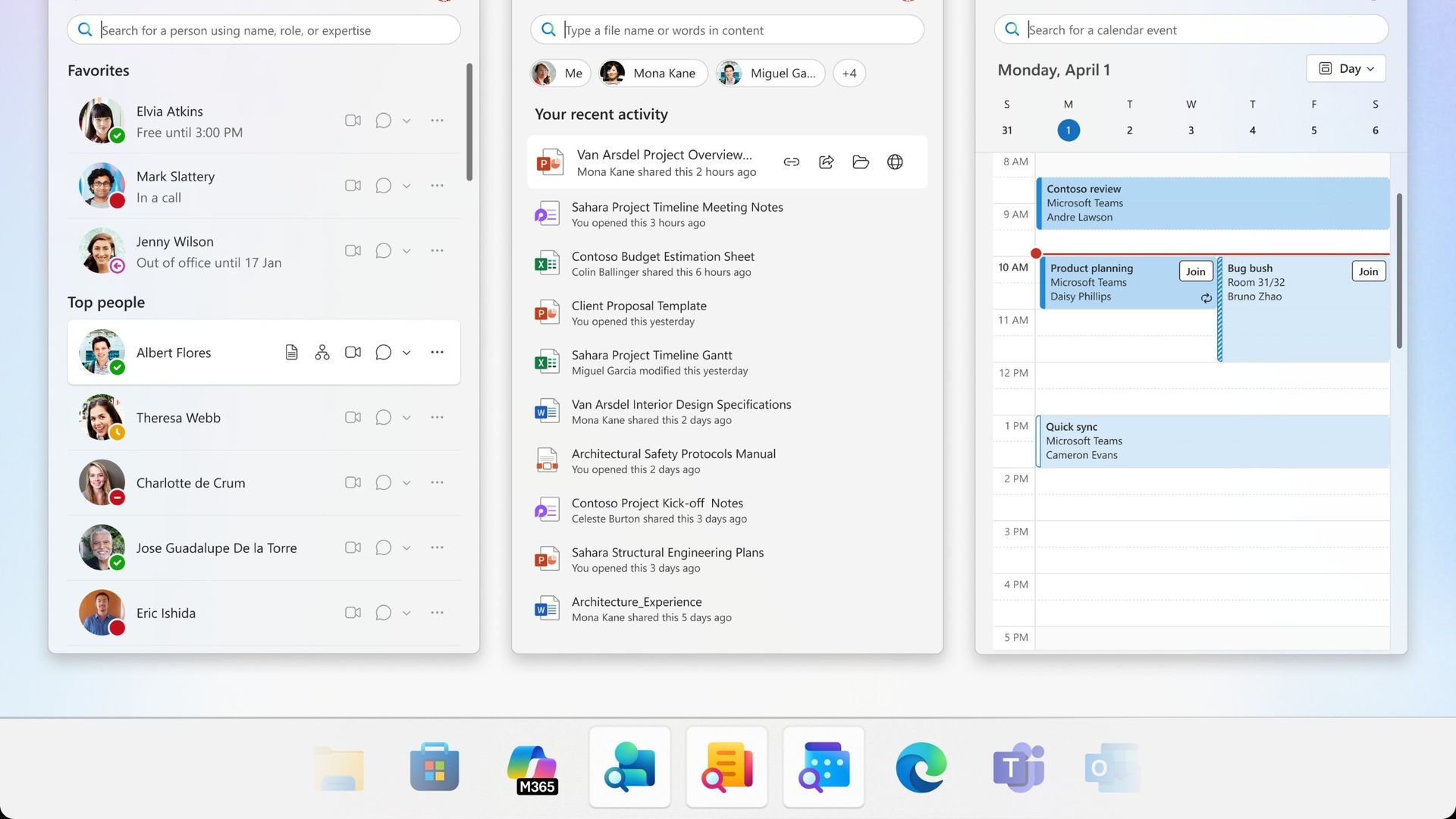
Microsoft plans to get rid of three Microsoft 365 companion apps before the end of the year. Calendar, People, and Files are all on the chopping block and set to be retired on December 16, 2026.

Calendar, People, and Files are apps that integrate with the taskbar on Windows 11 to allow quick access to certain tasks and pieces of information.

I'd forgive you for not knowing about the companion apps since they only shipped last year.

Microsoft outlined the three companion apps at the time and highlighted how the apps "enhance productivity" by providing quick access to information. Now, one year later, that productivity boost is going away.

It's interesting to compare the language Microsoft used to describe the apps when they were new and now as the apps approach retirement.

Microsoft's text from when the apps were new:

"Microsoft 365 companions are a suite of apps designed to enhance productivity by providing quick access to people, files, and calendar- powered by the Microsoft Graph, directly from the Windows 11 taskbar."

Microsoft's new text as the apps approach retirement:

"The companion apps were an additional way to find calendar information, people, and files. Removing them doesn't delete or affect any existing capabilities or Microsoft 365 data. You can continue finding the same information by using existing Microsoft 365 and Windows experiences."

It appears sometime over the last year the apps devolved from being ways to enhance productivity to additional ways to find information you can get elsewhere.

Microsoft recommends a mix of Outlook, Teams, Windows Search, File Explorer, SharePoint, OneDrive, Word, Excel, PowerPoint, and other Microsoft tools to replace the three companion apps.

The three companion apps will stop working on or before December 16, 2026, so even if you have them installed on your PC, they will not work after the cutoff.

Click to join us on r/WindowsCentral

Join us on Reddit at r/WindowsCentral to share your insights and discuss our latest news, reviews, and more.

  • ✇Yanko Design
  • One Architect Quietly Ditched Rent for a 1sqm Treehouse Office
    Munich has some of the steepest commercial rents in Germany, and anyone who has tried to lease even a modest studio space knows the arithmetic rarely works in a small firm’s favor. Brokers, multi-year contracts, square footage priced by the centimeter. When the Munich architecture practice Opposite Office needed a new home base, founder Benedikt Hartl looked at those numbers and decided the smartest move wasn’t a smaller office or a coworking membership. It was no office at all, at least not th
     

One Architect Quietly Ditched Rent for a 1sqm Treehouse Office

10 septembre 2026 à 10:20

Munich has some of the steepest commercial rents in Germany, and anyone who has tried to lease even a modest studio space knows the arithmetic rarely works in a small firm’s favor. Brokers, multi-year contracts, square footage priced by the centimeter. When the Munich architecture practice Opposite Office needed a new home base, founder Benedikt Hartl looked at those numbers and decided the smartest move wasn’t a smaller office or a coworking membership. It was no office at all, at least not the kind anyone pays rent on.

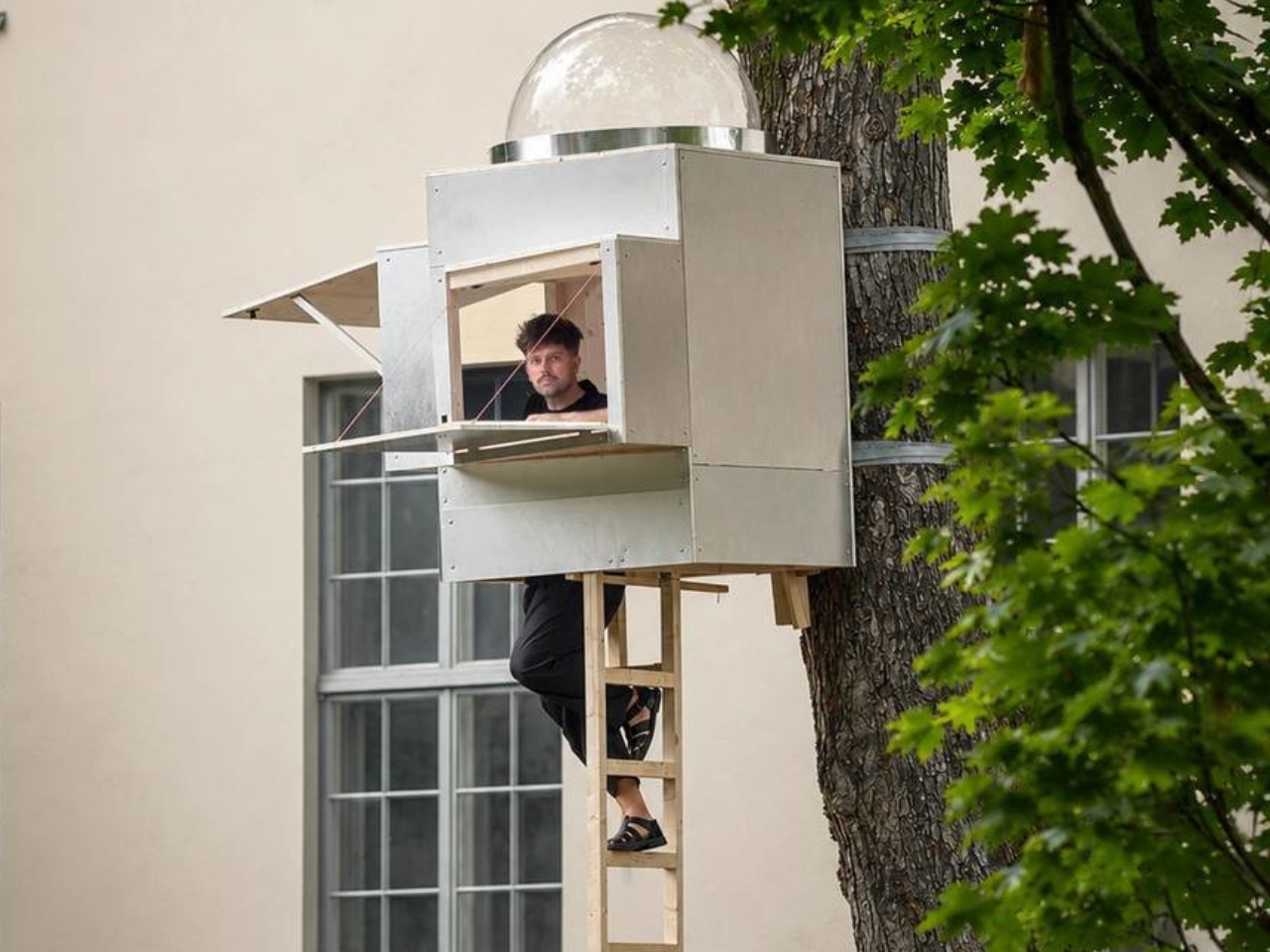
The result is Baumhaus Office, a roughly one-square-meter cube strapped to a tree on the campus of Bauhaus-Universität Weimar, built from spruce timber, plywood, and an aluminum shell that Hartl half-jokingly describes as “UFO-like.” A ladder gets you up to it. Inside, there’s shelving, a small desk, and fold-down panels that expand the workspace just enough to fit two or three people if everyone keeps their elbows in. A domed skylight sits overhead, so instead of staring at a drop ceiling, you get a view of the canopy. Two ratchet straps, cushioned with protective matting so the bark doesn’t suffer, hold the whole thing to the trunk. Hartl secured permission from the university’s president to install it there temporarily, and he’s designed it to come down just as easily and go up somewhere else.

Designer: Benedikt Hartl

His explanation for the whole exercise is refreshingly blunt. Rather than compete with Munich’s rental market, he moved the office out of it entirely and into the trees. He’s also put out an open call, only half-kidding, for anyone with a spare tree and a good view who doesn’t intend to charge him for it.

There’s an obvious punchline in a firm shrinking its footprint to one square meter, but the joke has a point buried in it. Opposite Office already works across borders on projects that rarely require a fixed headquarters, so the studio started asking why it needed a permanent lease at all. That question lands differently depending on where you’re reading this, but it lands. Downtown office towers in plenty of American cities have sat half empty for years now, landlords still pricing space as if 2019 never ended, and companies quietly deciding that a conference room and a Zoom link cover most of what used to require a floor plan. Baumhaus Office takes that same skepticism about commercial real estate and pushes it to its logical, slightly absurd conclusion. If the point of an office is a roof, a desk, and a door you can close, a tree does two of those things for free.

Opposite Office has framed the project as a nod to Cosimo, the boy in Italo Calvino’s “The Baron in the Trees” who abandons ground level entirely and never comes back down. I like that reference more than the usual sustainability talking points that get bolted onto projects like this. It’s not really about wood versus concrete. It’s about changing your vantage point on purpose, even briefly, to see whether the thing you assumed you needed was actually optional the whole time.

I’ll admit the practical side of me has questions. Winter in Thuringia is not gentle, and a plywood cube with a skylight is not insulation in any serious sense. But treating this as a permanent HQ misses the point Hartl is making. It’s a provocation with a ladder, built to prove that an architecture studio’s real asset is the people doing the thinking, not the address on the lease. Whether or not Baumhaus Office survives its first real storm, it’s already done its job: it made a very expensive problem look, for a moment, genuinely small.

The post One Architect Quietly Ditched Rent for a 1sqm Treehouse Office first appeared on Yanko Design.

  • ✇Yanko Design
  • The Laptop Bag That Finally Doubles as Your Desk
    Gone are the days when you have to stay inside a cubicle the entire day just to get your work done. A lot of jobs now give people the freedom to work wherever they want, setting up a mini mobile office at a café, in the park, or in the middle of the airport. The challenge for those lucky enough to have that kind of job is lugging around all their so-called tools of the trade. U Space is one of those things you can use to set up a temporary office wherever you need to work. It’s a Swiss-designed
     

The Laptop Bag That Finally Doubles as Your Desk

9 septembre 2026 à 10:20

Gone are the days when you have to stay inside a cubicle the entire day just to get your work done. A lot of jobs now give people the freedom to work wherever they want, setting up a mini mobile office at a café, in the park, or in the middle of the airport. The challenge for those lucky enough to have that kind of job is lugging around all their so-called tools of the trade.

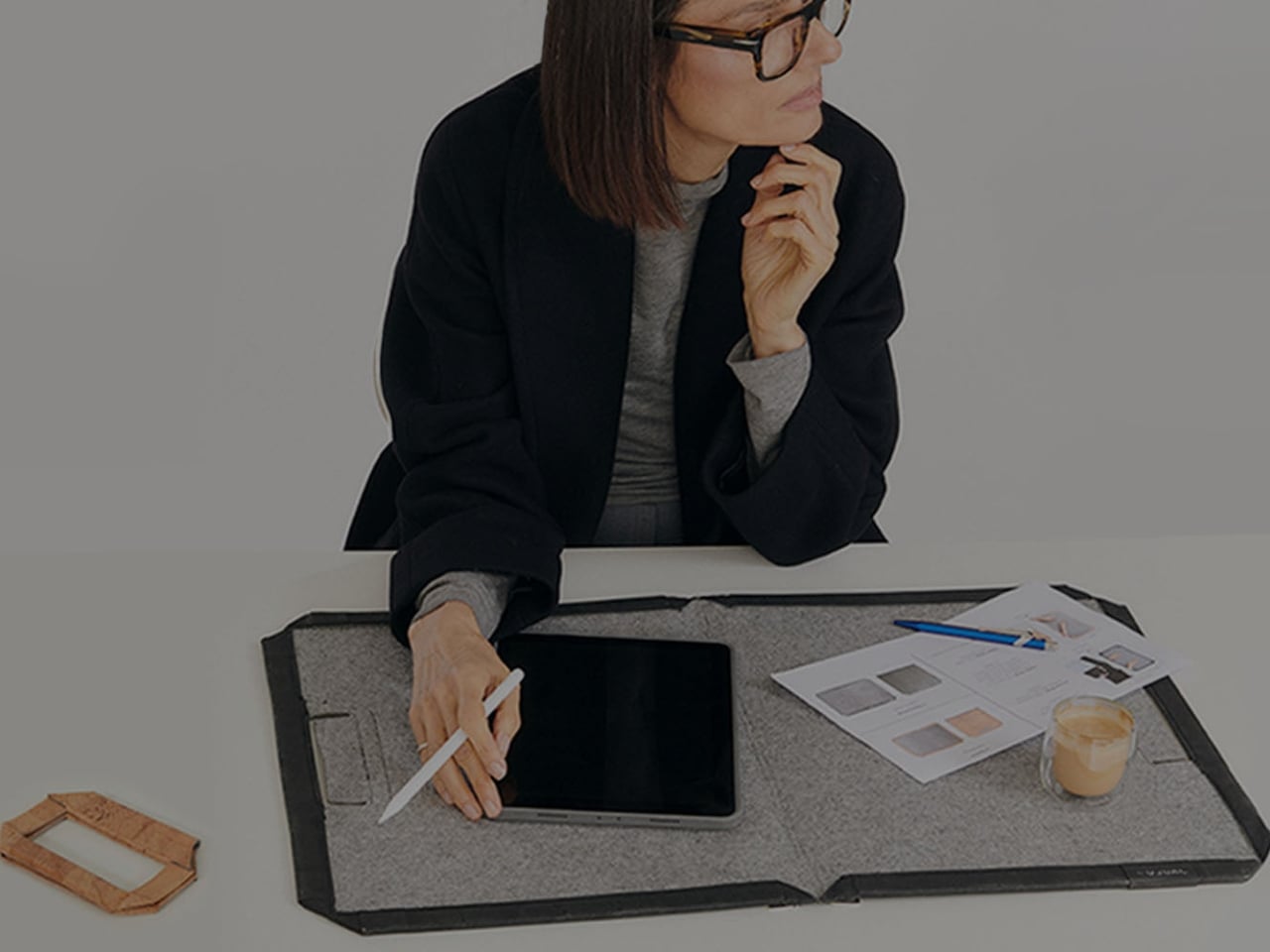
U Space is one of those things you can use to set up a temporary office wherever you need to work. It’s a Swiss-designed laptop bag also inspired by the Japanese art of origami. It doesn’t just serve as storage while you’re walking around; it transforms into a mini workspace the moment you unfold it.

Designer: UJUAL

U Space is a “bag that becomes a desk,” and it lets you work in places where it can otherwise be hard to set up office. Even though it’s inspired by origami, it isn’t nearly as complicated as the Japanese art can be. In just one flip-and-fold motion, it unfolds into a flat working surface, making it far more convenient to work on your laptop or notebook while sitting on a chair, at a café table, on a park bench, or even on your lap if there’s nowhere else to work.

When it’s not doubling as your mobile desk, U Space is a multi-mode bag you can wear as a briefcase, messenger bag, or backpack. It’s versatile enough to carry with you whether you’re commuting, walking, or getting around any other way. It also has a three-layer magnet system, so you can quickly grab items like your phone, cables, or pens without digging through the whole bag or even unzipping it.

The bag can carry around 44 pounds (20 kilograms) of gear securely and is built using sustainable, durable materials. It’s available in finishes like Oak Beige, Ebony Black, Sumac Kaki, and Beech Grey, but it can also be customized with different colors and artwork. U Space also comes in a few different sizes, so there’s a version to fit whatever device you’re carrying, whether that’s a compact tablet or a full-size 16-inch laptop.

How does U Space measure up against the competition? Compared to established names like Peak Design, known for its modular Everyday Backpack lineup and its own magnetic accessory system, U Space is playing in a similar space of minimalist design and thoughtful organization. Peak Design has built a loyal following among photographers and digital nomads for how well-organized its bags are, but at the end of the day, even its most versatile bags are still just really good bags. U Space, on the other hand, pushes the idea further by literally changing what a bag can be. Rather than just holding your gear more efficiently, it unfolds into a physical work surface, something you won’t find in mainstream backpack brands. That single feature is what sets U Space apart in a crowded market of laptop bags competing mostly on pockets, zippers, and padding.

At a time when more people are trading their desks for whatever surface is available, U Space offers a genuinely useful solution instead of just another bag with a fresh coat of paint. It’s the kind of product that quietly earns its price by solving a problem you didn’t realize had such a simple fix: not having anywhere to actually put your laptop down. Whether you’re a freelancer bouncing between coffee shops, a student who needs a stable surface between classes, or a frequent traveler tired of balancing a laptop on your knees at the gate, U Space is built with that lifestyle in mind. It’s proof that good design isn’t always about adding more features; sometimes it’s about rethinking the object itself. For anyone whose “office” changes location every day, U Space might be the one accessory that finally keeps up.

The post The Laptop Bag That Finally Doubles as Your Desk first appeared on Yanko Design.

  • ✇Yanko Design
  • The $100 Keypad That Puts Each AI Coding Tool Behind Its Own Button
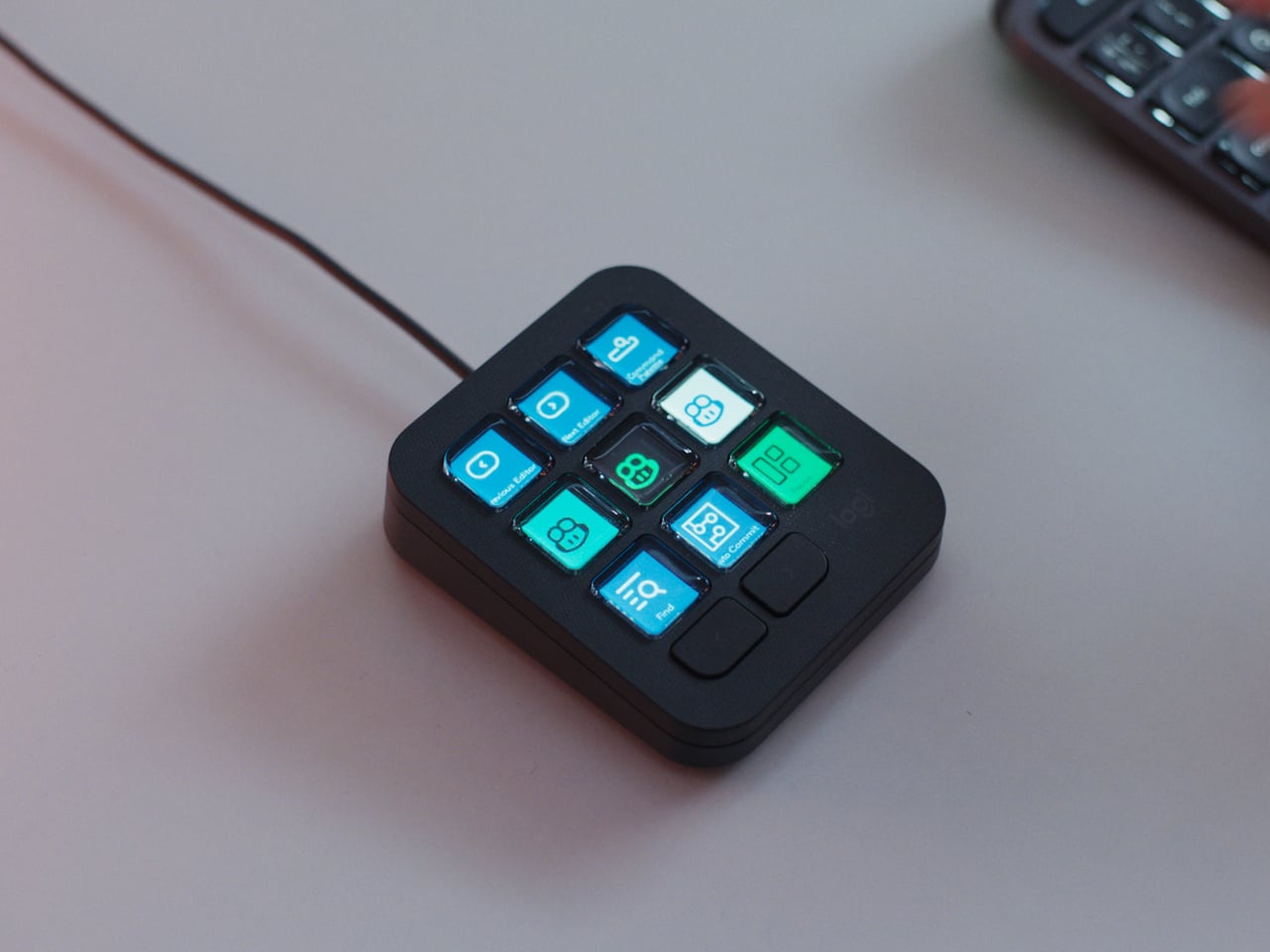
    Every developer juggling AI agents right now knows the feeling of context switching until the whole workflow blurs together. Copilot suggests something in one window, Claude Code runs a task in another, and a dozen prompts live scattered across notes and muscle memory. The Logitech MX Keypad exists to collapse all of that into nine small screens sitting next to the keyboard, each one a physical shortcut into a specific piece of that chaos. Every key on the keypad carries its own full-color LCD
     

The $100 Keypad That Puts Each AI Coding Tool Behind Its Own Button

Par : JC Torres
8 septembre 2026 à 10:20

Every developer juggling AI agents right now knows the feeling of context switching until the whole workflow blurs together. Copilot suggests something in one window, Claude Code runs a task in another, and a dozen prompts live scattered across notes and muscle memory. The Logitech MX Keypad exists to collapse all of that into nine small screens sitting next to the keyboard, each one a physical shortcut into a specific piece of that chaos.

Every key on the keypad carries its own full-color LCD display, so instead of memorizing which function key does what, you glance down and see an icon that actually represents the command underneath it. Press one, and it can refactor a function, trigger a prompt macro, or hand off a task to an AI agent entirely. That small visual feedback loop turns an abstract keyboard shortcut into something closer to a labeled button on a control panel.

Designer: Logitech

What makes the hardware worth paying attention to is where Logitech chose to draw the compatibility line. Instead of building this around one coding environment, the MX Keypad works across GitHub Copilot, Claude Code, VS Code, and IntelliJ IDEA at once. A developer bouncing between an IDE and a terminal-based AI agent doesn’t need separate tools for each, just a different page of keys pulled up on the same nine buttons.

That pattern of paging matters more than it sounds. The keypad can hold multiple profiles, so switching from a Python project running through Copilot to a JavaScript refactor handled by Claude Code becomes a single tap rather than a mental reset. Anyone who has lost a train of thought hunting through browser tabs for the right prompt will recognize the value in never breaking eye contact with the code itself.

Underneath the surface, the MX Keypad ships with prebuilt plugins that Logitech had developers test directly against real coding platforms, rather than shipping generic templates and hoping they fit. An SDK opens the door further, letting teams build their own tools around internal workflows, while a community marketplace means the plugin library keeps growing without waiting on Logitech’s own release schedule.

None of that ambition comes wrapped in bulky, wasteful materials either. The body is made with recycled plastics, keeping the hardware in line with the sustainability commitments Logitech has built into its broader MX ecosystem. It is a small detail, but for a device meant to live permanently on a desk, it matters that the object itself doesn’t feel disposable.

At $99.99, the MX Keypad occupies a strange but clarifying position in a developer’s setup. It doesn’t replace a keyboard, and it doesn’t try to be an AI tool in its own right. Instead, it works like a translator between fast-moving human intent and the growing swarm of coding agents developers now manage daily, one labeled key at a time.

The post The $100 Keypad That Puts Each AI Coding Tool Behind Its Own Button first appeared on Yanko Design.

  • ✇Yanko Design
  • Open-Plan Offices Killed the Private Desk, and This Pod Brings It Back
    Most office furniture solves privacy by sealing someone off completely: four walls and a door that shuts out everyone else, along with any sense of connection to the room. The Seed Pod skips that tradeoff. It wraps a single desk and seat inside a radiating fan of white wooden slats, open enough to see through, dense enough to feel like a room of your own. That slat pattern isn’t just decorative. Vertical wooden ribs curve outward from a tall arched spine at the back, fanning shorter toward the
     

Open-Plan Offices Killed the Private Desk, and This Pod Brings It Back

Par : JC Torres
7 septembre 2026 à 12:20

Most office furniture solves privacy by sealing someone off completely: four walls and a door that shuts out everyone else, along with any sense of connection to the room. The Seed Pod skips that tradeoff. It wraps a single desk and seat inside a radiating fan of white wooden slats, open enough to see through, dense enough to feel like a room of your own.

That slat pattern isn’t just decorative. Vertical wooden ribs curve outward from a tall arched spine at the back, fanning shorter toward the open front, so the whole structure reads like something caught mid-bloom rather than a static box. Gaps between each slat let light and sound pass through freely, creating enclosure without ever fully cutting the occupant off from whatever’s happening around them.

Designer: Michael Jantzen

Step inside and a bright green bench seat waits at the center, paired with built-in storage tucked into the lower walls on either side. Small wedge-shaped shelves hold whatever a workday requires nearby, papers, supplies, a bag, without eating into the already compact footprint. The contrast between crisp white slats outside and that saturated green interior gives the whole thing a distinct, almost botanical identity rather than reading as generic office equipment.

A sliding desktop surface handles the actual work. Sized specifically for a laptop, it can be repositioned to different spots under the main desk, adjusting to whatever posture or task someone needs at that moment rather than locking them into one fixed arrangement. Slide it back, and the same space clears out for someone to step in or out without maneuvering around a stationary tabletop.

Mobility matters just as much as the seating arrangement. The entire structure sits on wheels and plugs into any standard electrical outlet nearby, meaning it can roll into a corner of a shared office floor one week and relocate to a quiet spot at home the next. Nothing about setup requires special wiring or a dedicated room built around it.

Picture an open-plan office where video calls and side conversations blur together constantly, or a home where the only quiet corner left is also the one everyone walks through. Rolling a Seed Pod into either space carves out somewhere to actually concentrate, without requiring a renovation or a door that locks. Multiple units can sit side by side too, each occupant getting their own pocket of focus inside a shared room.

What makes the design work is restraint rather than enclosure. The slats do the job walls usually do, marking a boundary, without asking anyone to give up daylight, airflow, or the sense of still being present in the room they’re sitting in.

The post Open-Plan Offices Killed the Private Desk, and This Pod Brings It Back first appeared on Yanko Design.

I can't believe Microsoft is this desperate to push AI — its latest rebrand reeks of corpo speak

The Microsoft 365 Roadmap is gone. This week, the site was rebranded as the "AI at Work Roadmap." The baffling change raises questions about what's going on at Microsoft and why its leaders think they can label anything as AI.

The roadmap lets you track features and updates to a variety of apps and services from Microsoft. Microsoft justifies the name change by highlighting that the roadmap now includes features from Dynamics 365, Power Platform, and Dataverse as well.

But the AI at Work Roadmap still details plans for thousands of features that have nothing to do with AI.

Neowin's Usama Jawad shared an editorial on Microsoft's latest rebrand already, and I'll echo some of the same thoughts. But some decisions are so astonishingly stupid that they require editorials from multiple outlets.

The name isn't even accurate

Microsoft Teams app seen displayed on a smartphone screen and a Microsoft Teams logo on a laptop in the background.

The "AI at Work Roadmap" lists hundreds of features that have nothing to do with AI. (Image credit: Getty Images | SOPA Images)

Microsoft is so eager to push AI that its decision makers have not even considered if the new name of the Microsoft 365 Roadmap is accurate. Yes, the roadmap includes AI features across the Microsoft 365 suite. It also now outlines changes to Dynamics 365, Power Platform, and Dataverse.

But there are a massive number of features discussed in the roadmap that do not use AI in any way. Let's look at the entries that appear on the "AI at Work Roadmap" when filtered to list anything new or updated within the last week.

  • Microsoft Teams: Coordinated meetings support on Teams Rooms on Android
  • Outlook: Manage multiple inbox rules at once.
  • Microsoft Teams: Hide organizer name in the calendar view on Teams Panels and MTR-A
  • Microsoft Teams: Breakout room support on Teams Rooms on Android
  • Microsoft Teams: Report a message or an external user for security concerns in Gov clouds.

As far as I can tell, none of those are AI features. Perhaps there's some AI-written code in there or AI working in the background, but I doubt anyone would refer to breakout rooms support as an AI feature.

Microsoft, what are we doing here? Have we reached a point of desperation so extreme that the option to hide an organizer name needs to fall under the AI umbrella? I suppose if every single feature to ever ship to Microsoft 365 is considered AI, that metrics measuring AI use will trend upward.

A history of bad branding

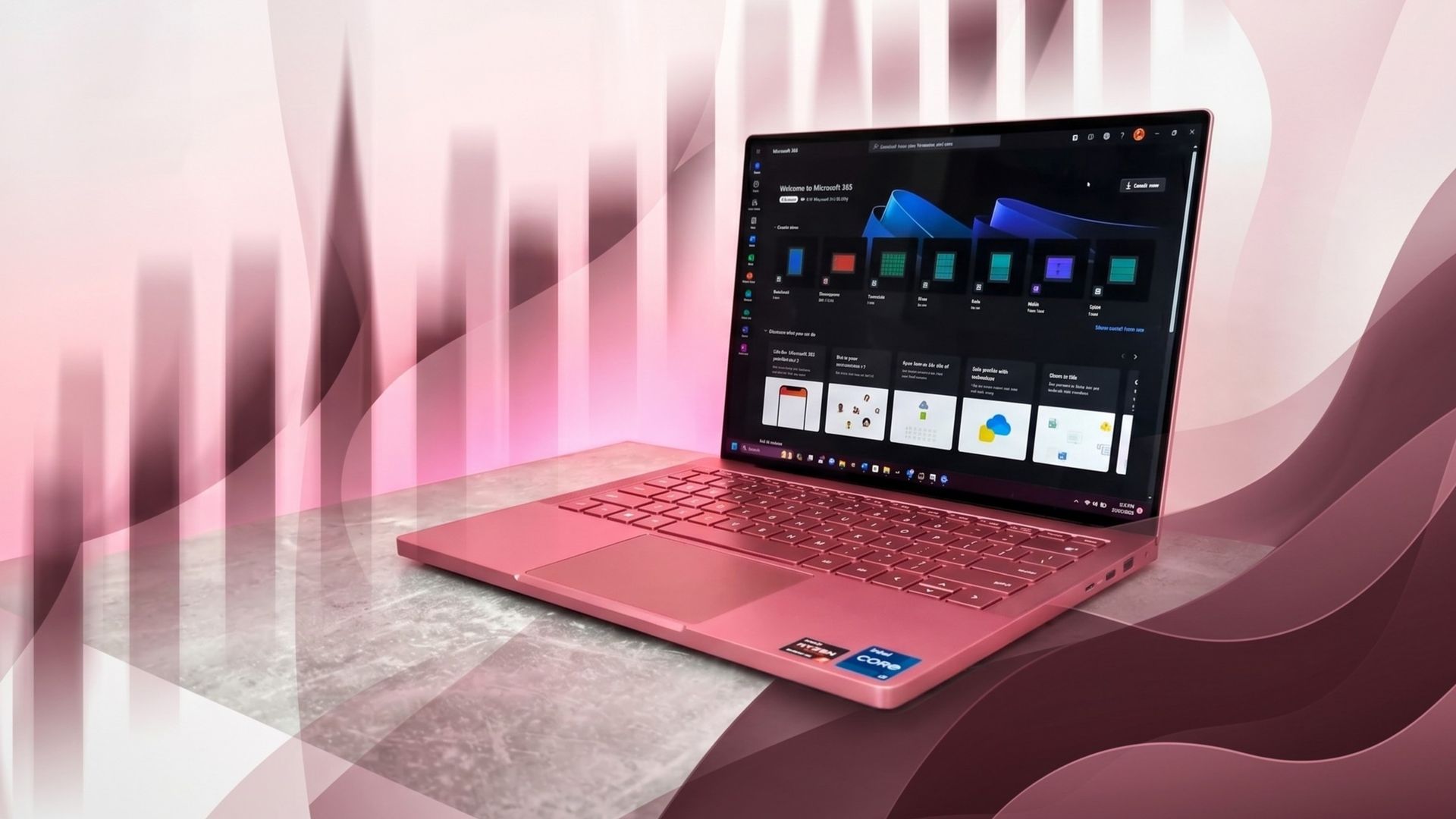
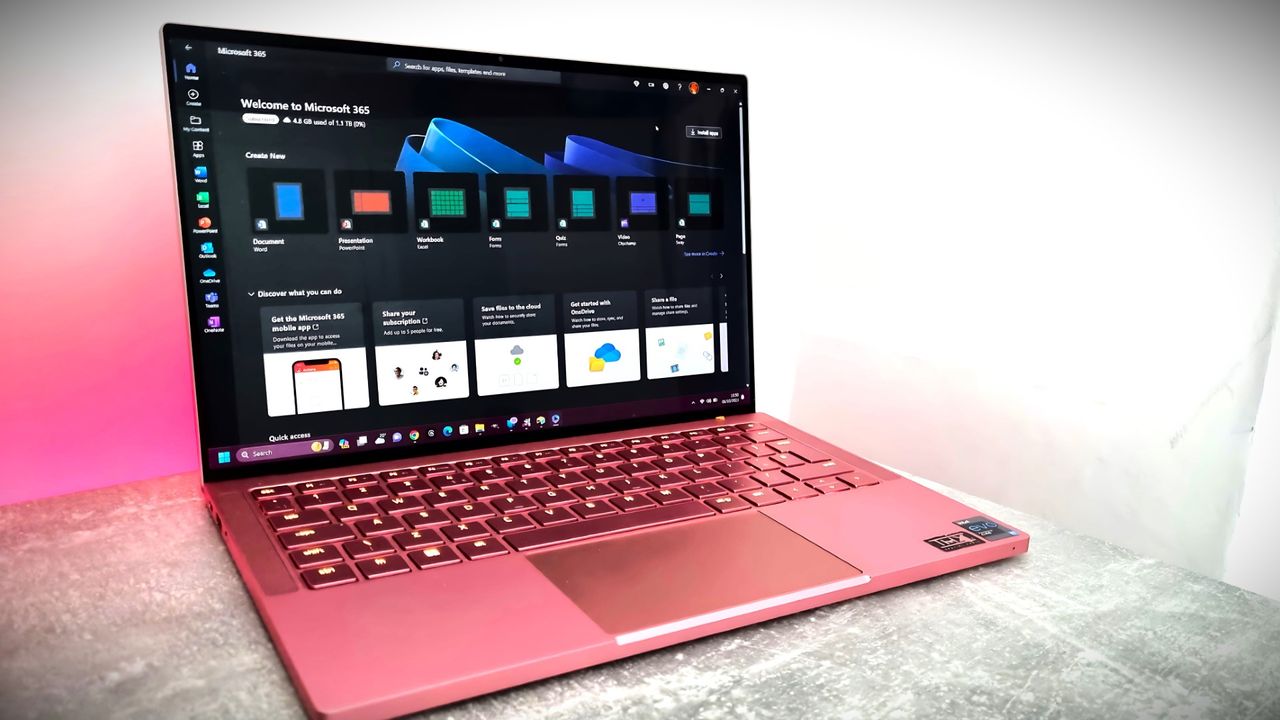
Microsoft 365 home page on a Razer laptop

Microsoft rebranded its Office subscription to "Microsoft 365" several years ago. (Image credit: Jennifer Young - Windows Central)

Microsoft already had an established brand name recognized around the world in "Office." But the tech giant decided to rebrand its productivity suite as Microsoft 365. While that decision drew criticism, it at least made sense because Microsoft 365 includes several pieces of software that are not Office apps.

In 2025, Microsoft announced the baffling decision to rebrand Microsoft 365 as "Microsoft 365 Copilot." Our Executive Editor Jez Corden took Microsoft to task for that, and rightly so:

"The rebrand of Microsoft Office was dumb to start with, trampling on a legacy spanning decades. The second rebrand attaching Copilot is even more dumb, and follows the Copilot+ PC thought process of firmly putting the cart several miles before the horse. Copilot hasn't earned the right to be showcased alongside [technological] cultural milestones like Microsoft Excel or Microsoft Word."

Microsoft went on a spree in which it renamed a bunch of services to include some form of Copilot. The company had so many types of Copilots that it had to merge Copilot and Microsoft 365 Copilot.

Microsoft's dumbest rebrand in history just got EVEN dumber. https://t.co/qtzIvgLyfjJanuary 16, 2025

That obsession with Copilot begs another question: If Microsoft needs to rename the Microsoft 365 Roadmap to mention AI, why not call it the Microsoft 365 Copilot Roadmap? I'd still hate the change but at least it would be somewhat consistent.

The idea of slapping "AI" onto anything is still silly, but at least Microsoft would be reusing a name that appears elsewhere.

Click to join us on r/WindowsCentral

Join us on Reddit at r/WindowsCentral to share your insights and discuss our latest news, reviews, and more.

Windows 11

Windows 11

  • ✇Yanko Design
  • This Foldable A2 Scanner Fits in a Bag and Doubles as a Live Presenter
    Scanners haven’t changed much in how they occupy a workspace. A flatbed sits in the middle and claims that real estate whether it’s in use or not. Overhead models are more flexible, but they still tend to take up a fixed spot in any setup. For anyone working from a compact home office or shared studio, that trade-off rarely gets a proper answer. Joyusing’s ScanMax 320 approaches the problem from a different angle, quite literally. Rather than occupying the center of a workspace, it’s built to s
     

This Foldable A2 Scanner Fits in a Bag and Doubles as a Live Presenter

Par : JC Torres
22 août 2026 à 21:45

Scanners haven’t changed much in how they occupy a workspace. A flatbed sits in the middle and claims that real estate whether it’s in use or not. Overhead models are more flexible, but they still tend to take up a fixed spot in any setup. For anyone working from a compact home office or shared studio, that trade-off rarely gets a proper answer.

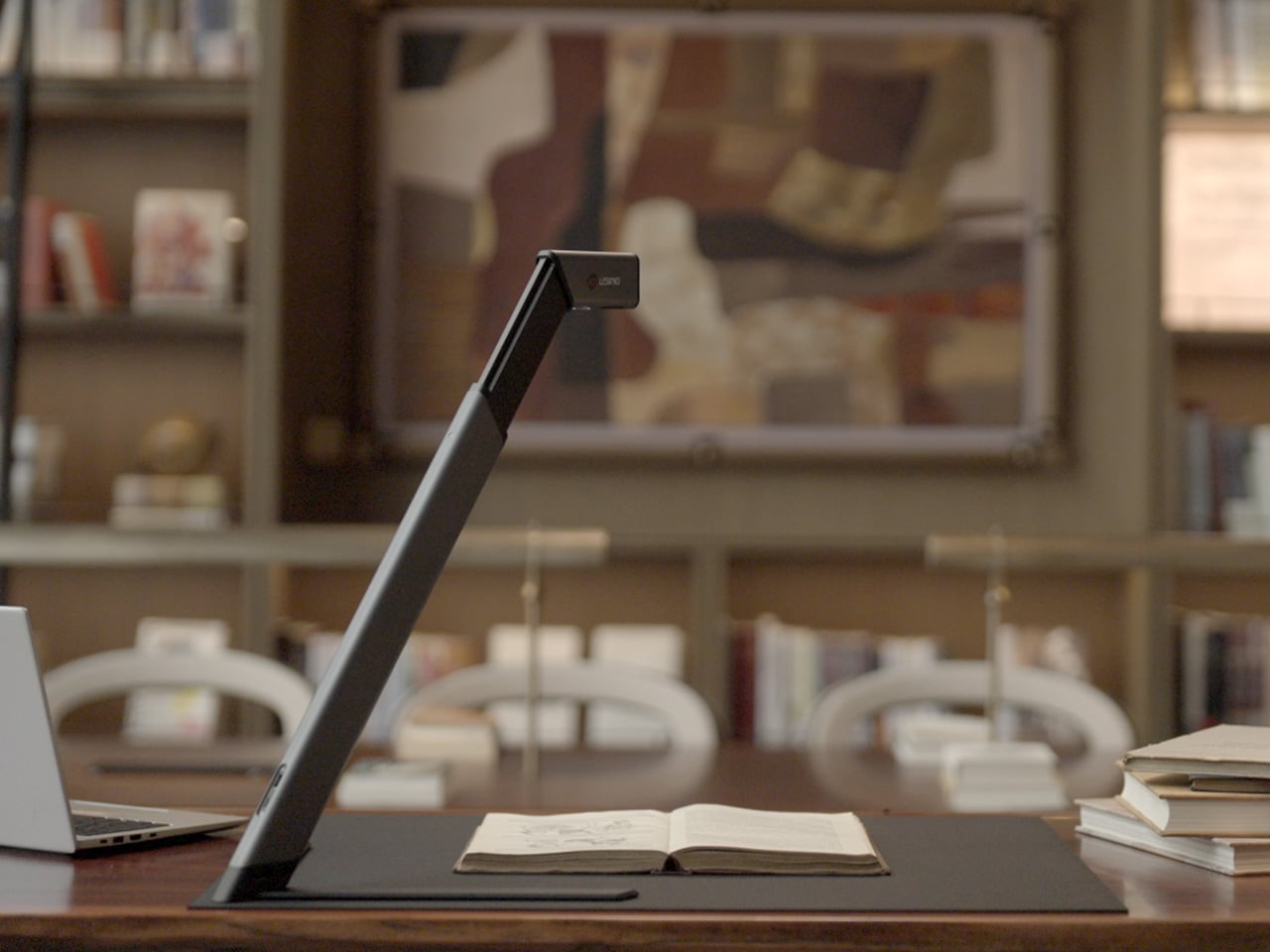
Joyusing’s ScanMax 320 approaches the problem from a different angle, quite literally. Rather than occupying the center of a workspace, it’s built to sit at the edge of a desk, positioned in the corner while its arm reaches overhead. It handles documents, books, artwork, and large-format materials up to A2 size, without taking over the surface it’s meant to serve.

Designer: JOYUSING

Click Here to Buy Now: $379 $649 (42% off). Hurry, only 32/220 left! Raised over $88,000.

Folded down, the ScanMax 320 measures 355mm x 68mm x 51mm, slim enough to slip into the included carrying bag and move between rooms without any effort. It runs entirely on USB-C power, so getting started means plugging in a single cable. There’s no proprietary adapter to hunt down, no driver installation ritual, and nothing complicated to deal with before the first scan. You can directly use the ScanMax 320 as a live presenter camera, and scanning as well as other advanced features simply require the free Joyusing Scanner intelligence software.

The shooting area extends to a full A2, or 594mm x 420mm, with a 32-megapixel sensor capturing at up to 380 DPI. That covers blueprints, double-page book spreads, large technical drawings, and oversized artwork in a single pass. An intelligent auto-switching system detects whether the material is A2 or A3 and adjusts accordingly, so there’s no manual input needed between sessions.

Overhead scanners tend to have a lighting problem, particularly near edges or when capturing materials that aren’t perfectly flat. The ScanMax 320 uses a rectangular illumination system shaped to match the scanning area, distributing light evenly and keeping shadows from washing out fine detail near the sides. Three brightness levels, at 30%, 70%, and 100%, are accessible with a single touch for quick adjustments in different environments.

Book scanning is where overhead devices tend to earn their keep, and also where they tend to frustrate. Pages curve at the spine, fingers get in the way, and binding shadows creep in from the edges. The ScanMax 320’s software handles most of this automatically, applying auto-flattening, finger removal, de-skewing, and shadow removal without manual adjustment. Book mode, paired with the included finger cots, keeps pages steady for continuous capture.

Once everything is captured, the software’s OCR engine converts printed text into editable, searchable files, with support for 180 languages and export options including Word, PDF, and TXT. A page of Japanese text, a technical report, or a multilingual research paper can go from physical to fully searchable in seconds, turning raw captures into documents you can actually search, copy, and share.

What’s less obvious about the ScanMax 320, and arguably more interesting, is that it also functions as a live visual presenter. Point it at a printed page, a hand-drawn sketch, or a physical object, and the feed goes live to whatever screen or projector it’s connected to. For a teacher going through annotated notes or a designer reviewing a layout with a client, that extra mode earns its place quickly.

Software compatibility covers Windows, macOS, and several Linux distributions including CentOS, Ubuntu, and Debian, though macOS users will find some features limited compared to the Windows version. Everything connects over USB-C, keeping the setup free of dongles and extra cables. Built-in annotation tools allow for direct markup of scanned content, which makes it easier to prepare materials before presenting or sharing them.

There’s something refreshingly considered about a scanner built to work with your desk rather than on top of it. The ScanMax 320 doesn’t ask you to clear space or rearrange anything. It folds, parks at the edge, and gets on with the job. Whether you’re archiving a collection, digitizing a sketchbook, or presenting something in a meeting, the fact that it stays in its corner is, in itself, the point.

Click Here to Buy Now: $379 $649 (42% off). Hurry, only 32/220 left! Raised over $88,000.

The post This Foldable A2 Scanner Fits in a Bag and Doubles as a Live Presenter first appeared on Yanko Design.

This Microsoft 365 bundle deal gets you a year of NordVPN for free

Microsoft 365 is a must-have software suite for millions of people. I've had a subscription since the days of SkyDrive and Office 365. I stack up whenever I find a great deal. Whether you're an experienced subscription stacker or paying for your first Microsoft 365 subscription, now is a great time thanks to a pair of deals.

Newegg has discounts on two bundles, one that comes with Microsoft 365 Personal and NordVPN ($61.99) and one that comes with Microsoft 365 Family and NordVPN ($84.99). Both bundles get you 12 months of each included piece of software.

365 Personal (12 months) + NordVPN: was $149.98 now $61.99

This bundle is the most affordable way to get a year of Microsoft 365. As an added bonus, it comes with a year of NordVPN Basic, which is a $49.99 value on its own.View Deal

365 Family (12 months) + NordVPN: was $179.98 now $84.99

Microsoft 365 Family provides access to the software suite for up to six people. Each of those users will have their own copy of apps like Word, PowerPoint, and Excel plus 1TB of OneDrive storage. This bundle also includes a free year of NordVPN Basic.View Deal

Is now a good time to subscribe to Microsoft 365?

Right now is a great time to subscribe to Microsoft 365.

I've kept track of the best Microsoft 365 deals for years. Every once in a while, the most affordable way to get a subscription is to pick up a bundle. Even if you have no intention of ever using NordVPN, the bundled prices for Microsoft 365 and NordVPN are lower than the cost of Microsoft 365 on its own.

I don't mean to discount NordVPN. It's a great service on its own and I have used it regularly for years as well. I just assume people seeing this bundle are more interested in Microsoft 365. If you use both Microsoft 365 and NordVPN, the current bundles are incredible.

FAQ

Can you stack Microsoft 365?

Yes, it is possible to stack Microsoft 365 subscriptions, meaning you can extend your current plan rather than having to wait for your current subscription to expire. Microsoft 365 allows customers to stack up to five years.

Can I use Microsoft 365 on multiple devices?

Yes, Microsoft 365 apps are available across just about every operating system and type of device. You can use those apps on up to five devices at once with your Microsoft 365 subscription.

Does Microsoft 365 come with OneDrive storage?

Yes. Each Microsoft 365 user gets 1TB of OneDrive cloud storage. That means a Microsoft 365 Personal subscription comes with 1TB of storage and a Microsoft 365 Family subscription comes with up to 6TB (1TB per user).

What is NordVPN?

NordVPN is a highly rated VPN that can improve the security of devices by hiding your IP address and rerouting internet traffic. It can also encrypt data and bypass regional locks for streaming content.

Microsoft 365 and NordVPN Cyber Monday deal

Microsoft 365 and NordVPN Cyber Monday deal

  • ✇Yanko Design
  • This Desk Lamp Puts a Spotlight in a Ring Light With One Knob
    Desk lighting has long been a compromise between task and atmosphere. Professional lamps tend to lean one way or the other: too directional and harsh for extended use, or too diffuse to support fine detail work. A lamp that’s good for examining physical samples often isn’t comfortable over long stretches, and one that’s gentle on the eyes doesn’t always deliver when you need a hard, directed beam. The Focus Light is a desktop lamp concept built around a different premise. Rather than committing
     

This Desk Lamp Puts a Spotlight in a Ring Light With One Knob

Par : JC Torres
17 août 2026 à 12:20

Desk lighting has long been a compromise between task and atmosphere. Professional lamps tend to lean one way or the other: too directional and harsh for extended use, or too diffuse to support fine detail work. A lamp that’s good for examining physical samples often isn’t comfortable over long stretches, and one that’s gentle on the eyes doesn’t always deliver when you need a hard, directed beam.

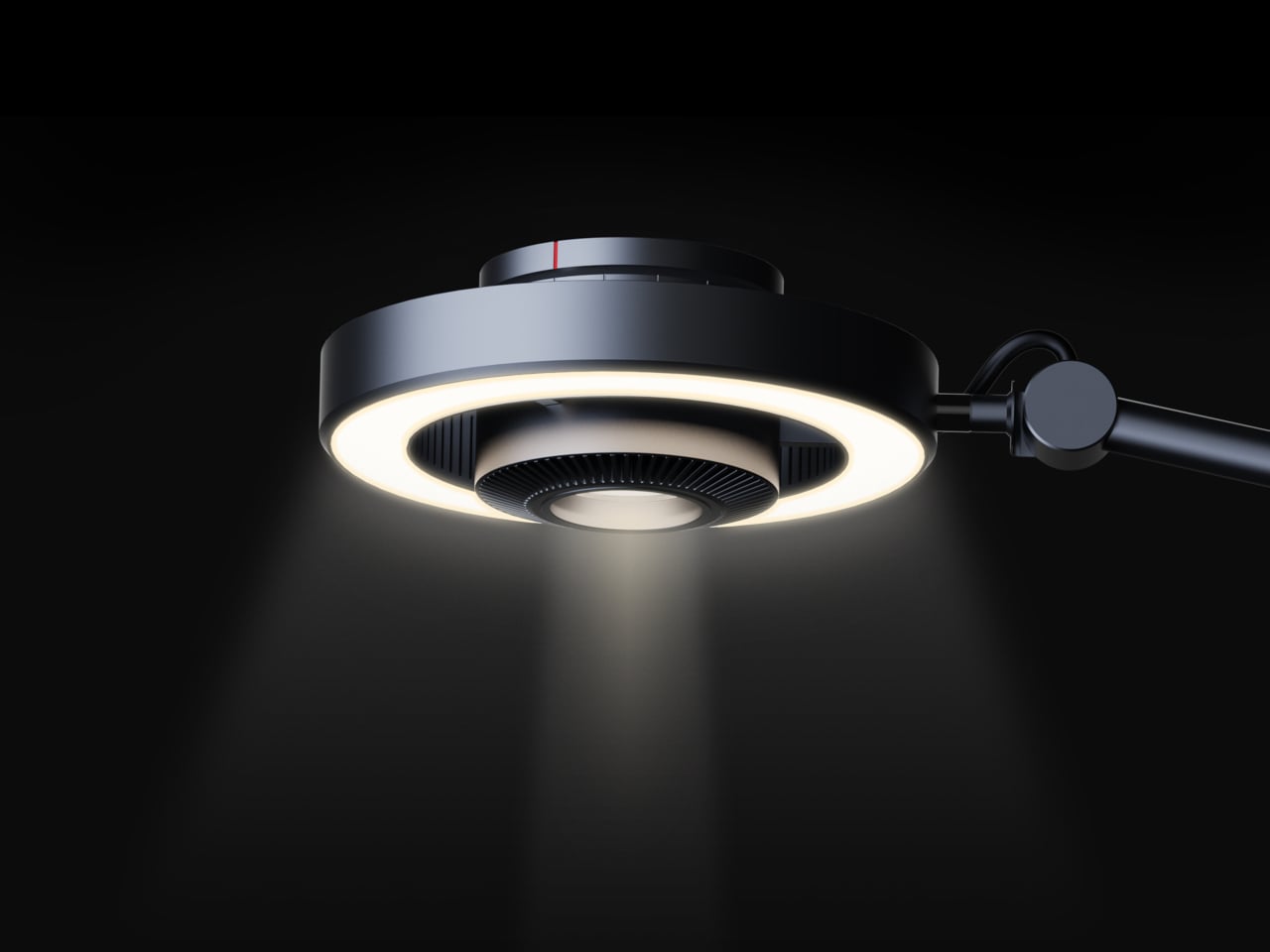
The Focus Light is a desktop lamp concept built around a different premise. Rather than committing to one kind of output, it combines two independent light sources into a single lamp head, giving the user the ability to shift between a precise, concentrated beam and a broad ambient glow, or run both at once. All of it’s controlled by a single rotary knob, and there aren’t any menus, apps, or extra switches involved.

Designers: Zhen Yang, Siting Lin

The lamp head is organized concentrically: an outer ring delivers ambient light while a central optical lens handles the focused beam. That layout has both functional and visual logic to it. Both sources sit in deliberate, concentric relation to each other, and the overall form looks as precise as it performs. The whole thing is finished in space gray metal, which lends it a professional, precision-tool character.

Control comes from a rotary knob on top, marked with a red indicator line. Rotating it 15 degrees activates focusing mode, sending a tight, concentrated beam straight down. At 30 degrees, the lamp shifts into diffusing mode, spreading the output into something closer to fill light. Push it to 60 degrees, and both sources run simultaneously, combining the central spot with the ambient ring for a layered workspace light.

For detailed hands-on tasks, being able to shift between modes without touching an app or dimmer panel makes a real difference. An illustrator tracing fine lines benefits from the precision of the focused beam, but that same beam creates harsh contrast against a dark surrounding surface. Bringing in the ambient ring softens that contrast, and having both running at once makes moving between close-up precision work and wider desk visibility much more seamless.

The same flexibility serves anyone who switches between different types of work at the same desk. Reading calls for something even and non-glare; marking up documents or working with small physical components benefits from a harder, more directed light. The Focus Light doesn’t ask the user to swap lamps or reposition the arm for each shift. The knob handles it, and the change is immediate.

The physical form reflects the precision the lamp is meant to support. The lamp head is a clean disc with radiating heat fins arranged around the inner lens assembly, and the arm connects at a ball joint that allows repositioning without loosening a series of screws. A threaded desk clamp handles the mounting, so it doesn’t demand a grommet hole or take up surface area with a weighted base.

What stands out about the concept isn’t just the dual-source setup, but that a single physical control manages both. There’s no menu to scroll, no app to open. The red indicator on the knob tells you exactly where you are, and the three positions are distinct enough that you’d find your way back to any of them by feel after just a few days.

The post This Desk Lamp Puts a Spotlight in a Ring Light With One Knob first appeared on Yanko Design.

  • ✇Yanko Design
  • 5 Best Back-to-Work EDC Upgrades That Actually Make Carrying Less Feel Like More
    Summer does a reliable job of exposing what is wrong with your carry. Thinner clothes mean shallower pockets, and whatever has been accumulating since January starts demanding justification it cannot provide. The wallet that has been stretching since February, the key ring that jingles through every meeting corridor, the flashlight that has been dead for three weeks – they all resurface together as you pack a bag and head back. The loadout that survived winter is not the one that deserves Septe
     

5 Best Back-to-Work EDC Upgrades That Actually Make Carrying Less Feel Like More

12 août 2026 à 13:20

Summer does a reliable job of exposing what is wrong with your carry. Thinner clothes mean shallower pockets, and whatever has been accumulating since January starts demanding justification it cannot provide. The wallet that has been stretching since February, the key ring that jingles through every meeting corridor, the flashlight that has been dead for three weeks – they all resurface together as you pack a bag and head back. The loadout that survived winter is not the one that deserves September.

The five upgrades here share a single argument: fewer objects doing more work, or one object doing something with enough precision that the supporting cast stops being necessary. None of them ask you to carry more. Each one consolidates something you were already carrying into a form that earns its pocket space so completely you stop thinking about it. That is the standard. That is what back-to-work EDC should actually look like.

1. Olight Baton 4 Premium Edition

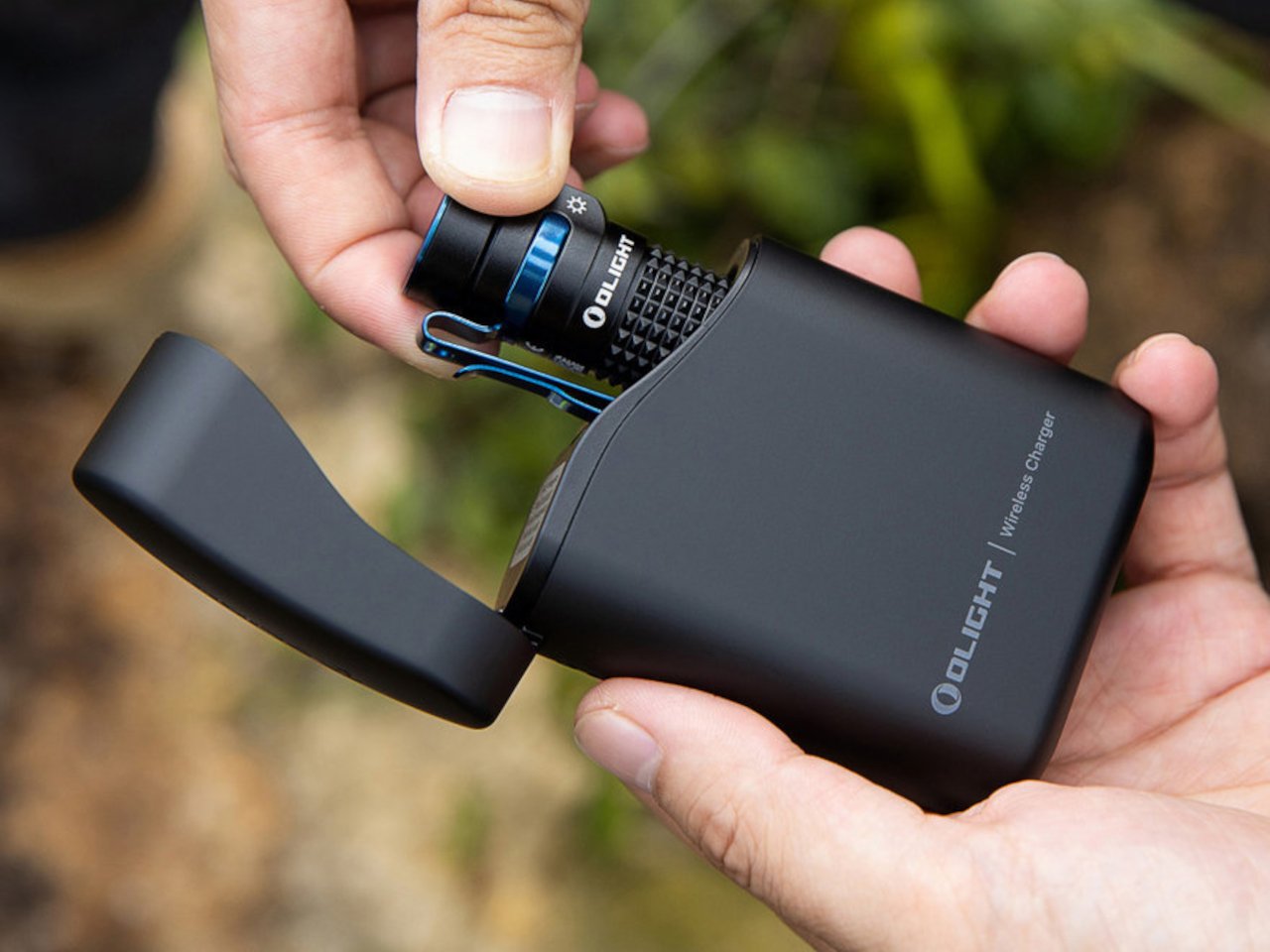
Most people heading back to work carry a flashlight and a power bank as two separate objects, in two separate compartments, with two separate charging cables neither of them can ever locate. The Baton 4 Premium settles that argument by making the charging case the second object, not the flashlight and the power bank as distinct things. The flip-top case carries 5,000mAh, recharges the Baton 4 up to five times, and allows you to activate the light without removing it from the case at all. Open the lid, press the side button, and the light fires. That single interaction collapses the gap between a flashlight that lives in a bag and one that is actually ready when something happens.

The 1,300-lumen output and IP68 waterproof rating handle the practical end of what a flashlight needs to do. The magnetic tail cap converts it into a freestanding lantern by sticking to any steel surface, removing the need for a separate camp light in most outdoor situations and proving genuinely useful in an office during a power outage. For a loadout returning to structure after a summer of loose carry habits, the Baton 4 Premium makes the case that two carry problems can be resolved by a single considered object. That is the only standard that matters right now.

What we like

  • The charging case serves as a functional 5,000mAh power bank and activates the flashlight without removing it – two carry problems resolved by one object instead of two
  • The magnetic tail cap frees both hands during stationary tasks without requiring any additional accessories, stands, or setup

What we dislike

  • Maximum brightness draws battery down faster than lower output modes, which means more frequent recharging on heavy-use days and more reliance on the case as a compensating mechanism
  • The case adds volume to the carry; users wanting the flashlight alone will need to leave the power bank function behind, which partially defeats the premise of carrying less

2. Fantom X Wallet

The wallet category has been failing quietly for decades. Leather stitching stretches, bifolds accumulate receipts nobody asked for, and elastic bands lose tension in months rather than years. The Fantom X approaches the problem as an engineering challenge rather than a craft one, building the chassis from machined aluminum, retaining cards mechanically, and adding a spring-loaded ejection system that fans your cards in sequence at the press of a button. Nothing in its construction is soft, which means nothing in this wallet degrades.

The design logic is borrowed from product categories where material failure is not tolerated. A bead-blasted aluminum body carries the same engineering rationale as the titanium tools that dominate the better end of the EDC market: fewer materials, one mechanism, no organic components that can rot or stretch under daily use. Cards are organized by ejection sequence rather than pocket habit, which introduces a useful kind of intentionality about what actually deserves a slot. Heading back to work with a wallet this considered makes the chaos of a stretched billfold feel like a problem you solved rather than one you are still living with.

What we like

  • Machined aluminum construction eliminates the stretching, cracking, and wear patterns that define the lifespan of leather and fabric wallets across every price bracket
  • The spring-loaded ejection fans cards in sequence, removing the fumbling that every other slim wallet format still requires at the checkout counter

What we dislike

  • The mechanical ejection system has a learning curve for anyone switching from a traditional bifold, and the first week of carry involves genuine reorientation
  • Cash carry is minimal depending on configuration, which limits practicality for anyone who still moves through the day with notes in their pocket

3. Orbitkey Key Organiser

A standard key ring solves the organizational problem with the bluntness of something designed before pockets had size constraints. Keys stack against each other, jingle against everything nearby, and press ridges into the thigh pocket of work trousers for eight hours straight. The Orbitkey stacks two to seven keys flat inside a full-grain leather spine secured with stainless steel hardware, held under tension, producing no movement and no sound when the system is closed. In a pocket, it disappears entirely.

The leather exterior develops its own grain and wear pattern over years of daily use, an explicit design position about longevity that most keychain products never bother taking. The two-screw expansion system accommodates keys confidently up to its rated capacity, and a small ring attachment handles anything that does not stack flat inside the body. Five colorways run from black dress leather to warmer cognac tones, covering the full range of what a work bag demands. Heading to the office with the Orbitkey in your pocket for the first time, the first thing you notice is the absence of sound from your keys. Then you stop noticing it, and that is the point.

What we like

  • The tension stacking system eliminates key jingle, which sounds like a minor quality-of-life gain until you experience the cumulative quiet of a full working day without it
  • Full-grain leather construction ages into character rather than showing damage, signaling a product built to outlast the annual trend cycle by a significant margin

What we dislike

  • Initial key installation involves a screwdriver and careful threading – not difficult, but the setup time is a real first-use commitment that catches some buyers off guard
  • Oversized or irregularly headed keys may not stack cleanly within the system’s geometry, which is worth confirming before purchase rather than after

4. KeyUnity KK08 Titanium Carabiner Knife

The carabiner is one of the most underutilized platforms in everyday carry. Most examples handle clipping and nothing else, occupying keychain real estate without justifying it with more than a single function. The KeyUnity KK08 corrects that by integrating a deployable blade directly into the gate of a TC4 Grade 5 titanium carabiner. One object handles clipping, carrying, and cutting without requiring any tool swap. The blade locking mechanism operates independently from the carabiner gate, keeping both functions discrete and deliberate rather than tangled.

TC4 titanium earns its place here for the same reason it appears throughout the better end of the EDC market. Corrosion-resistant, strong relative to its weight, and completely indifferent to the wear conditions that define outdoor carry. On a carabiner that lives clipped to the outside of a bag or attached to belt hardware, that resistance matters considerably more than it does for something sitting at the bottom of a pocket. The KK08 simplifies the question of what to clip things with by answering a second question at the same time – the most honest argument any carry tool can make.

What we like

  • Two functions in one form factor means the carabiner earns twice the keychain space it would otherwise occupy, which is the cleanest possible argument for carrying it daily
  • TC4 Grade 5 titanium construction handles outdoor exposure and weather without the corrosion concerns that affect steel alternatives over extended carry

What we dislike

  • The integrated blade deployment requires some familiarity with the gate mechanism before it feels genuinely intuitive in the moment you actually need it
  • Carabiner knives occupy a legal gray area in certain jurisdictions, so confirming local blade regulations before daily carry is worth the time it takes

5. Titaner Swing Ratchet System

A standard ratchet needs 15 to 30 degrees of swing arc to advance a single tooth. That is a workable trade-off in open space and a complete failure in the places where screws actually live: behind cables, inside recessed housings, angled into corners that no straight tool can reach. The Titaner Swing Ratchet compresses that arc to 4 degrees, which means it can cycle in gaps where conventional ratchets physically cannot complete a single turn. CNC-engraved directional markers on both sides of the core remove any guesswork from direction selection.

At 29.8 grams, it sits 40 percent lighter than a traditional ratchet while delivering full torque through a modular system that accepts different bit configurations. Back-to-work projects – tightening workstation hardware, adjusting studio furniture, building out a new desk setup – involve screws in confined locations far more often than they involve screws in clear, open space. A ratchet that reaches those positions at under 30 grams earns its pocket space across a full working season rather than waiting in a tool bag for a task large enough to justify the trip back to get it.

What we like

  • A 4-degree swing arc allows operation in spaces so confined that standard ratchets cannot cycle at all, solving the one problem no other tool in this roundup attempts to address
  • At 29.8 grams, it is genuinely light enough for daily carry rather than tool-bag-only use, which changes how often it actually gets reached for

What we dislike

  • The ultra-compact ratchet head can feel less assured under heavy torque loads compared to a full-sized alternative with more leverage to draw from
  • It earns its pocket space most clearly when fastener access is a regular part of your week; for purely occasional use, the weight-to-frequency ratio may not always close the argument

Editor’s Choice: ClearSlide Box Opener

Every back-to-work loadout eventually faces the same moment: a delivery arrives, you reach for a box cutter, realize you also need scissors to deal with the tag inside, and end up setting the box down to find a second tool. The ClearSlide was designed specifically to end that exchange. A smooth sliding thumb mechanism switches between lock, cutter, and scissors in a single hand motion, then cuts with the same thumb – without ever putting the box down. It is a two-tool problem resolved by one object small enough to live on a desk or disappear into a pocket.

The 0.12-inch blade extension is deliberate rather than conservative. It slices through packaging tape cleanly while keeping enough distance from the contents that you are not second-guessing every cut. But the detail that earns it Editor’s Choice is the transparent body. The red slider and internal mechanism are fully visible through the shell as you cycle through positions, each one locking with a crisp click before releasing with a clean spring action. Instead of hiding the engineering, the ClearSlide makes watching it work part of using it – a small thing that changes the object from a utility purchase into something you actually want to keep on your desk. At $30, it is also the most straightforward decision on this entire list.

Click Here to Buy Now: $30.00

What we like

  • The single-hand sliding mechanism switches between box cutter and scissors without setting the package down – the exact problem it promises to solve, solved completely
  • The transparent body exposes every shift of the internal mechanism, turning a functional action into something worth noticing

What we dislike

  • The 0.12-inch blade is optimized for tape and packaging, not heavier cutting tasks that need more blade depth
  • Only a few units currently available, so if the ClearSlide catches your attention, the window to order without waiting is short

The Best Carry Is the One You Stop Thinking About

The best September loadout is not a longer list. It is five objects that between them cover a light, a wallet, keys, a clip, and a ratchet – each doing its job well enough that nothing else feels necessary – plus one desk tool that quietly removes a daily frustration you have been tolerating since the last time boxes started arriving. Nothing is left over. Nothing is missing. The edit is worth making now.

What changes when you get this right is not just the weight, though the weight does drop. What changes is the feeling of moving through the day without friction from the objects that are supposed to be helping you. The Baton 4 charges and illuminates from a single case. The Fantom X does not stretch. The Orbitkey does not jingle. The KK08 clips and cuts. The Titaner reaches where nothing else can. The ClearSlide handles the desk. That is the carry.

The post 5 Best Back-to-Work EDC Upgrades That Actually Make Carrying Less Feel Like More first appeared on Yanko Design.

Cancel Microsoft 365 and Get Microsoft Office for Life for $50

7 septembre 2026 à 09:00

Microsoft 365 costs $99.99/year, but Microsoft Office Pro gives you the same apps for life for only $49.97.

The post Cancel Microsoft 365 and Get Microsoft Office for Life for $50 appeared first on TechRepublic.

Microsoft Forms just gave me another reason to prefer it over Google Forms

Microsoft Forms just got a major upgrade thanks to Copilot. Microsoft 365 Copilot chat now lives within Microsoft Forms, adding a familiar tool to those who use AI in Word, Excel, and PowerPoint.

Copilot in Microsoft Forms can suggest improvements to your polls and forms and present insights from responses.

The Copilot integration is available now to users with Microsoft 365 commercial Copilot licenses.

Microsoft listed all the changes to Forms in a blog post:

  • Smarter suggestions & refinements: Get targeted recommendations to improve your form’s structure, clarity, and effectiveness. Copilot can also apply refinements directly to the form, so you can save time making edits – just describe what you want, and watch Copilot make it happen.
  • Deeper analysis: Copilot can now analyze your results in-depth to provide clear insights and actionable takeaways for you and your team. You can even ask follow-up questions to help parse and summarize your data and unlock your next step.
  • More settings: Review and update form settings with ease, such as applying custom thank-you messages and close dates, so your form is ready to send. You can also adjust question settings in bulk, such as making questions required.
  • Open-ended chat: Copilot chat gives you access to a broad world of capabilities, whether you’re seeking inspiration on survey topics or consulting on how to configure your form – the possibilities are broad with Copilot at your fingertips.
  • Basic branching: Apply basic branching logic directly through the agent. (Note that some complex scenarios are not yet supported, and you should continue to review your branching logic prior to sending your forms.)

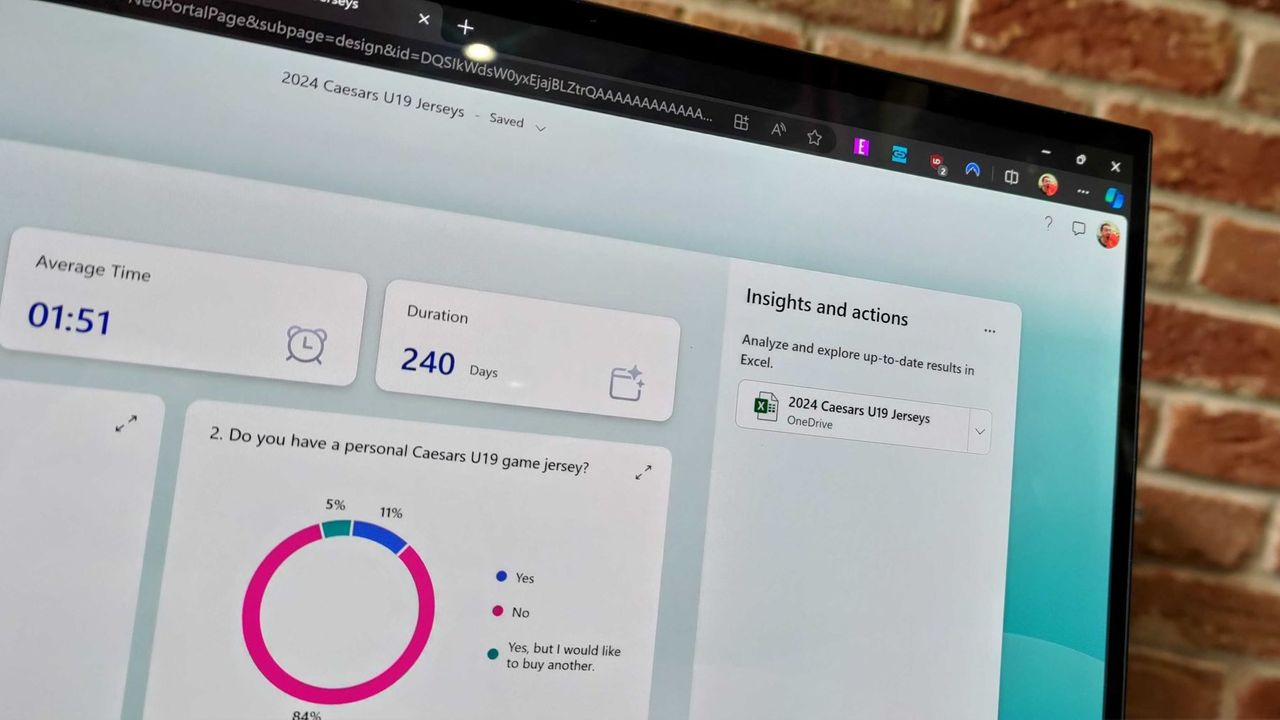
I use Microsoft Forms to gather feedback from my American football team. I admit that I first tried it because my job centers around knowing Microsoft products. But after using Microsoft Forms for a while, I grew to prefer it over Google Forms.

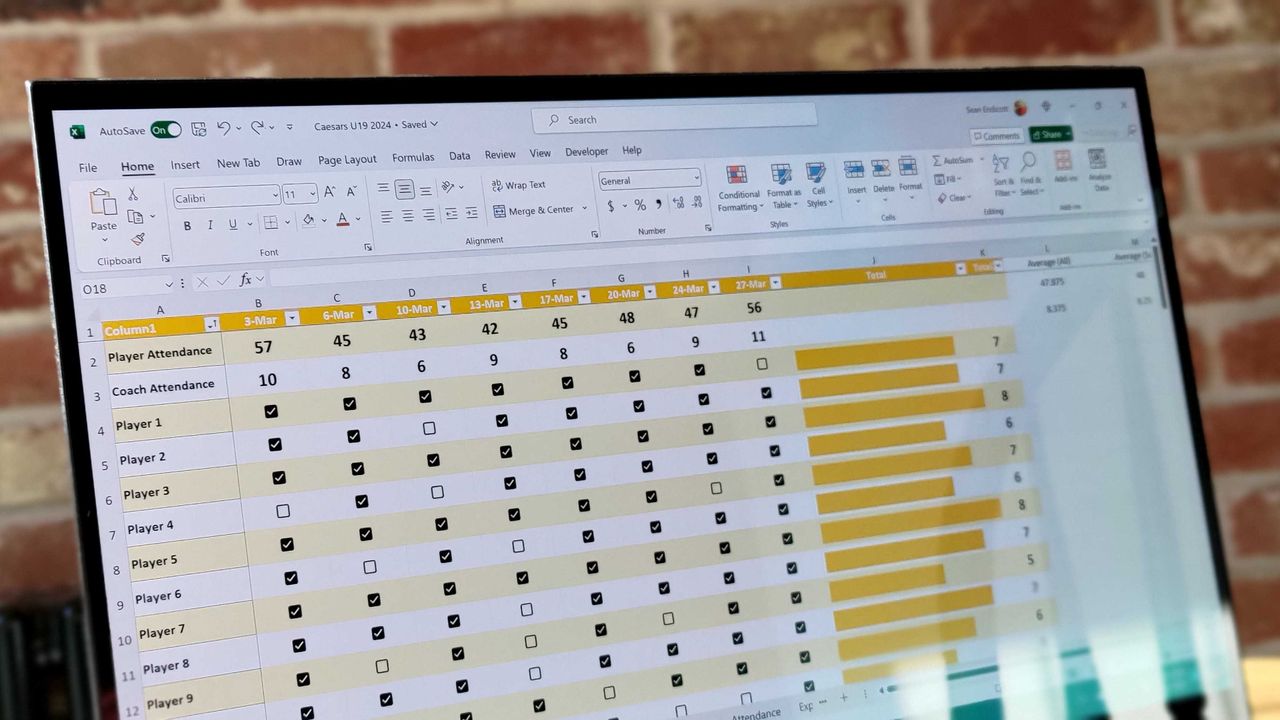
Microsoft Forms can sync with Excel documents, making it much easier to stay on top of responses. I'm deeply entrenched in the Microsoft ecosystem, so anything that works seamlessly with the rest of my workflow gets bonus points in my book.

I also prefer some of the features of Microsoft Forms, such as question-level branching. That feature makes filling out forms feel smoother when a poll includes branching questions because it keeps you on the same page.

The layout of Microsoft Forms also presents results quicker because if you want to look at a chart, you don't need to open a separate spreadsheet.

The new Copilot experience in Forms could also be a boon to the platform, though I'll have to see it in action to judge. In my experience, Copilot as a general tool is good at suggesting improvements, performing bulk edits, and creating summaries, so it should thrive within Microsoft Forms.

Click to join us on r/WindowsCentral

Join us on Reddit at r/WindowsCentral to share your insights and discuss our latest news, reviews, and more.

Microsoft Forms results page

Microsoft Forms results page

"The Lotus guys probably figured it didn't matter to be wrong": Excel thinks 1900 was a leap year because of a small shortcut taken in the '80s — I'll think of this next time I want to cut corners

Microsoft Excel was originally created as competition for Lotus 1-2-3, which has had lasting effects on my favorite spreadsheet software. Here's how a small shortcut taken in the '80s has lasted through until 2026.

Excel spreadsheet with checkboxes

The upcoming checkboxes feature in Microsoft Excel makes it easy to visualize certain data.

Microsoft 365 is paywalling most of Copilot in Office apps — what's changing?

Microsoft is stripping Copilot Chat from Office sidebars for non-licensed users on April 15, 2026, rebranding the included version as "Copilot Chat (Basic)."

The Microsoft 365 Copilot logo appears on a smartphone screen in the Apple app store

Copilot Chat users will need to use the Microsoft 365 Copilot app rather than rely on an integrated version of Copilot in Office.

  • ✇TheWindowsClub News
  • Has Microsoft renamed Office to Microsoft 365 Copilot app?
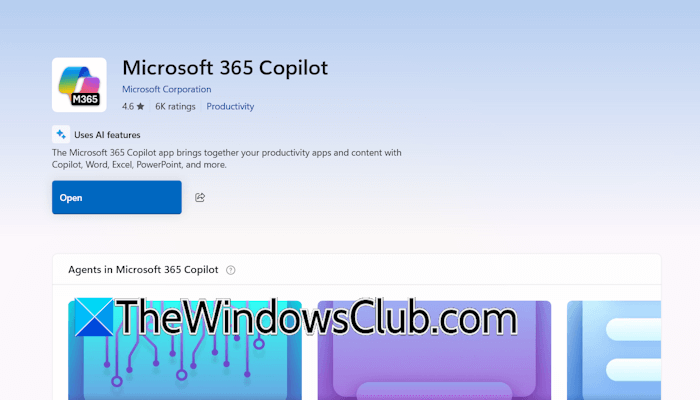
    The entire internet is confused about the rebranding of Microsoft Office. People on some social media websites, including Reddit and X, are posting that Microsoft has renamed Office, even some websites are also claiming the same. But the question is — is it really true? Has Microsoft actually renamed Microsoft Office to the Microsoft Office […] The post Has Microsoft renamed Office to Microsoft 365 Copilot app? appeared first on TheWindowsClub News.
     

Has Microsoft renamed Office to Microsoft 365 Copilot app?

6 janvier 2026 à 11:51

Microsoft 365 Copilot appThe entire internet is confused about the rebranding of Microsoft Office. People on some social media websites, including Reddit and X, are posting that Microsoft has renamed Office, even some websites are also claiming the same. But the question is — is it really true? Has Microsoft actually renamed Microsoft Office to the Microsoft Office […]

The post Has Microsoft renamed Office to Microsoft 365 Copilot app? appeared first on TheWindowsClub News.

Microsoft 365 subscribers in the UK are frustrated as price hike reminders arrive with barely any time to cancel

Microsoft has reminded UK Microsoft 365 users of an upcoming price increase, leaving just enough time to cancel or explore cheaper alternatives.

Microsoft 365 home page on a Razer laptop

❌